

Wondering why your apps won’t update by themselves?
You’re not alone.
iOS and Android often pause auto-updates for simple reasons: network drops, power saver modes, disabled toggles, low storage, or account mix-ups.
This post shows fast fixes that clear most problems in seconds and gives a short checklist for deeper issues if updates still stall.
These steps restore bug fixes and security patches so your apps run correctly, and they usually save more time than digging through settings.
Start with the quick checks first; they fix the majority of cases.
Immediate Fixes for Apps Not Updating Automatically
Most automatic update failures come down to a few quick issues: unstable network, disabled settings, power restrictions, or plain old software hiccups. These fastest solutions clear the majority of auto-update problems in seconds and don’t need any tech expertise. Before you start diagnosing, run through these high-probability fixes to get normal background updates working again.
Both iOS and Android need stable device conditions and enabled update features to download and install app updates automatically. When your device is in Low Power Mode, disconnected from Wi‑Fi, or logged into the wrong account, background processes pause or fail silently. A quick toggle or restart often clears transient errors blocking the automatic update queue.
Reboot device. A full power-off then power-on clears stuck update processes and refreshes network connections.
Confirm Wi‑Fi connection is stable. Check that Settings shows an active network name with a checkmark or full signal strength.
Disable Low Power Mode/Battery Saver. Power-saving modes suspend background downloads. Turn them off in Settings > Battery (iOS) or Settings > Battery (Android).
Re-sign into App Store/Google account. Sign out via App Store > Profile > Sign Out (iOS) or Settings > Accounts > Google > Remove account (Android), then sign back in.
Set date/time to Automatic. Navigate to Settings > General > Date & Time (iOS) or Settings > System > Date & time (Android) and enable Set Automatically to prevent server-check failures.
If these fast steps don’t restore automatic updates, move on to the deeper troubleshooting in later sections. Most devices respond to one of these immediate fixes. Persistent failures indicate network configuration, storage limits, or account-level restrictions that need closer inspection.
Checking Automatic Update Settings on iOS and Android
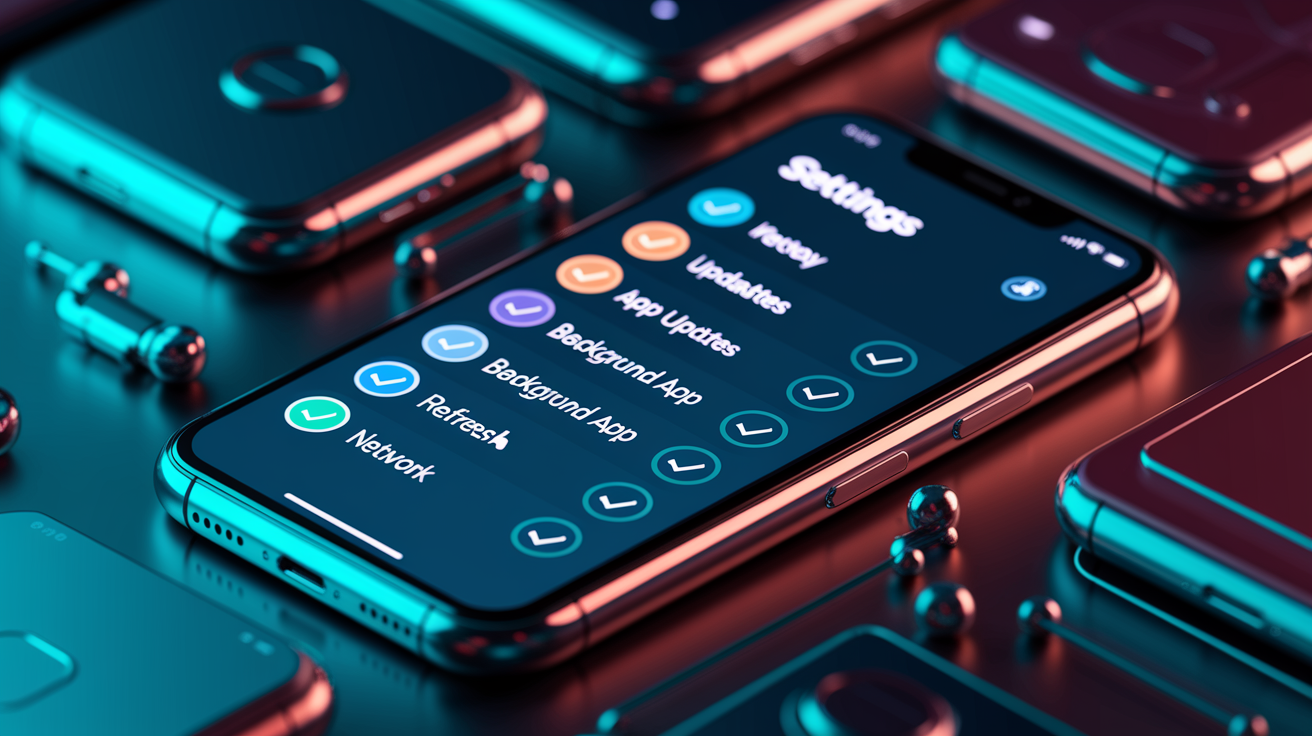
Update toggles are what tell each operating system and app store to check for and install new versions without you lifting a finger. When automatic updates are disabled or configured to Wi‑Fi-only while your device is on cellular, apps stay outdated until you do something manually. Verifying these settings is the first structured diagnostic step after quick fixes.
Device conditions like charging requirements and network preference settings also influence automatic updates. Some manufacturers and operating systems defer updates until the device is charging, idle, and connected to an unmetered network to avoid draining battery or exceeding data caps during large downloads.
iOS toggle path. Open Settings > App Store, then under Automatic Downloads flip the App Updates switch to green (on).
Android toggle path. Open Google Play Store, tap your Profile icon (top-right), then Settings > Network preferences > Auto-update apps and select Over any network or Over Wi‑Fi only.
Note Wi‑Fi-only limitations. If Auto-update apps is set to Over Wi‑Fi only and you’re on mobile data, updates will wait until the next Wi‑Fi connection.
Ensure Background App Refresh is on (iOS). Go to Settings > General > Background App Refresh and confirm the toggle is green. Individual apps can be controlled in the list below.
Allow background data (Android). Navigate to Settings > Apps > Google Play Store > Mobile data & Wi‑Fi and enable Background data and Unrestricted data usage.
Restart store apps after changing settings. Force close the App Store or Play Store (swipe up from the multitasking view or tap Force stop in app settings), then reopen to register the new configuration.
Fixing Network Problems That Stop Automatic App Updates
Network instability disrupts auto-updates because app stores need a persistent connection to download update packages and verify checksums. Weak Wi‑Fi signals, intermittent mobile data, or frequent network switching interrupt downloads mid-stream. Updates get stuck in a pending state or silently fail in the background.
VPN/proxy conflicts, data-saver restrictions, and metered network behavior often block background downloads entirely. Many VPNs or corporate proxies filter or throttle app-store traffic. Operating systems treat metered connections as cellular-like to preserve data allowances. Android and iOS both defer large updates when a connection is marked metered, and some enterprise firewalls block Google Play Services or Apple’s CDN endpoints.
Platform-specific reset paths clear deeper network configuration errors. On iOS, navigate to Settings > General > Transfer or Reset iPhone > Reset > Reset Network Settings (this erases saved Wi‑Fi passwords and VPN profiles). On Android, go to Settings > System > Reset options > Reset Wi‑Fi, mobile & Bluetooth (or Reset network settings), then reconnect to Wi‑Fi and retry updates.
| Issue | Fix |
|---|---|
| Weak or unstable Wi‑Fi signal | Move closer to router; restart router; switch to mobile data temporarily to test |
| VPN or proxy blocking app store | Disable VPN in device settings; disconnect proxy in Wi‑Fi advanced settings; whitelist app store domains |
| Mobile data or metered connection limits | Switch auto-update setting to Over any network (Android); disable Low Data Mode (iOS Settings > Cellular > Cellular Data Options) |
| DNS or CDN resolution failure | Change DNS to 8.8.8.8 / 8.8.4.4 (Google) or 1.1.1.1 (Cloudflare) in Wi‑Fi settings; reset network settings |
Storage and Cache Issues Preventing Automatic Updates
Low storage blocks updates because operating systems reserve space for system operations and refuse to download new packages when free space falls below safety thresholds (typically around 1 GB). When an update file exceeds available storage, the download queue stalls silently or displays a vague error. Automatic updates retry indefinitely without success.
Cache corruption affects downloads by storing incomplete or malformed metadata that confuses the app store’s download manager. Corrupted cache files can cause the store to believe an update has already been installed, skip version checks, or repeatedly fail signature verification during installation.
Freeing space on iOS. Open Settings > General > iPhone Storage, review the list of apps sorted by size, and tap Offload Unused Apps (removes app binaries but keeps data) or tap individual large apps and select Delete App.
Freeing space on Android. Navigate to Settings > Storage, tap Free up space, and select Downloads, Large files, or Unused apps to delete. Or go to Settings > Apps, sort by size, and clear data or uninstall.
Clearing App Store/Play Store cache. iOS: open the App Store, tap any bottom tab icon 10 times rapidly to clear cache. Android: Settings > Apps > Google Play Store > Storage & cache > Clear cache (repeat for Google Play Services).
Checking Download Manager on Android. Go to Settings > Apps > See all apps > Download Manager > Storage & cache > Clear cache and Clear storage to reset the system download queue.
Restarting after clearing cache. Power off the device completely, wait 10 seconds, then power on to flush memory and reinitialize background services with clean cache.
Account, Permissions, and Restrictions Blocking Auto-Updates
Account mismatches and billing issues block updates when an app was originally downloaded using a different Apple ID or Google account than the one currently signed in. App stores refuse to update apps purchased or installed under another account. Expired or declined payment methods prevent the store from validating entitlement, even for free app updates that technically require no payment.
Parental controls, app permissions, and MDM (Mobile Device Management) restrictions can disable automatic updates at the system or policy level. Parental controls may restrict app installations and updates to manual approval. Screen Time settings on iOS can block App Store changes. Enterprise MDM profiles often enforce update schedules or blacklist certain app versions to maintain compliance.
Verify Apple ID/Google account. On iOS, open App Store > tap Profile icon > confirm the displayed email matches the account used to download the app. On Android, tap Play Store > Profile > Settings > scroll to Account and verify the correct Google account is active.
Check payment method validity. iOS: Settings > [Your Name] > Payment & Shipping, then confirm the card is current and not expired. Android: Play Store > Profile > Payments & subscriptions > Payment methods, remove declined cards and add a valid method.
Check parental controls. iOS: Settings > Screen Time > Content & Privacy Restrictions > iTunes & App Store Purchases > Installing Apps (set to Allow). Android: Play Store > Profile > Settings > Family > Parental controls (disable or adjust ratings).
Confirm MDM/work profile settings. If the device is managed by an employer or school, contact IT admin to review update policies. Many MDM platforms queue updates centrally or require admin approval before installation.
Device Power, Battery, and System Conditions Affecting Automatic Updates
Battery Saver blocks background processes to extend runtime. Automatic updates rely on background network activity and CPU cycles that power-saving modes explicitly disable. When Low Power Mode (iOS) or Battery Saver (Android) is active, the operating system suspends non-critical tasks (including app store update checks) until the device is charged or the mode is manually turned off.
Charging-only update conditions are common on managed devices and some manufacturer skins. Enterprise MDM policies and Android OEM settings often require the device to be plugged in and above a minimum battery threshold (for example, 50 percent) before large system or app updates proceed. This prevents unexpected battery drain during work hours or travel.
OS update requirements also affect automatic app updates because some app versions target newer SDKs or APIs unavailable on older operating systems. When an app’s minimum OS version exceeds the device’s current version, the update won’t appear in the automatic queue until the device OS is updated first. Check for pending OS updates by navigating to Settings > General > Software Update (iOS) or Settings > System > System update (Android), and install available updates before retrying app updates.
Advanced Fixes for Persistent Automatic Update Failures
Advanced troubleshooting is necessary when basic network, storage, and account checks fail to restore automatic updates. Persistent failures often indicate deeper software corruption, conflicting system services, or outdated store components that need manual intervention or a system-level reset to clear.
These steps carry higher risk (particularly factory reset) and may result in data loss if backups aren’t current. Always verify that photos, contacts, messages, and app data are backed up to iCloud, Google Drive, or a local computer before proceeding with any reset or reinstall operation.
Clear App Store/Play Store cache. iOS: rapidly tap any App Store bottom tab 10 times. Android: Settings > Apps > Google Play Store > Storage & cache > Clear cache, then repeat for Google Play Services and Download Manager.
Reset network settings. iOS: Settings > General > Transfer or Reset iPhone > Reset > Reset Network Settings. Android: Settings > System > Reset options > Reset Wi‑Fi, mobile & Bluetooth (re-enter Wi‑Fi passwords afterward).
Uninstall and reinstall problematic apps. Long-press the app icon until it wiggles (iOS) or enters edit mode (Android), tap the X or Uninstall, confirm deletion, then reinstall from the App Store or Play Store to pull the latest version.
Remove and re-add account credentials. iOS: Settings > [Your Name] > Sign Out (enter password, choose data to keep), then sign back in. Android: Settings > Accounts > Google > Remove account, restart device, then add the account again.
Uninstall Play Store updates (Android only). Settings > Apps > Google Play Store > three-dot menu > Uninstall updates, then reopen Play Store and allow it to update itself to the latest version.
Use system repair tools (iOS). Connect iPhone to a PC or Mac running a third-party iOS repair tool, select Fix All iOS Stuck or equivalent repair mode, download the latest firmware package, then click Start Repair to apply firmware and resolve system errors.
Perform factory reset after backup. iOS: Settings > General > Transfer or Reset iPhone > Erase All Content and Settings. Android: Settings > System > Reset options > Erase all data (factory reset). Restore data from backup after setup completes.
Back up device data to iCloud (iOS) or Google Drive (Android) before attempting factory reset or firmware repair. Factory reset erases all installed apps, settings, photos, and files. Restoring from backup returns the device to near-previous state but may reintroduce the original software fault if the issue was account or profile-related rather than OS-level corruption.
Final Words
Start with the fast fixes: reboot, confirm Wi‑Fi, turn off low-power modes, re-sign into your store account, and set time to automatic.
If that doesn’t help, verify auto-update toggles, fix VPN or network issues, free up storage or clear the store cache, check account and permission settings, then move on to advanced steps like network resets or reinstalling apps.
If you’re still asking why won’t my apps update automatically, follow these checks in order and you should have updates working again soon.
FAQ
Q: Why are iPhone apps not updating automatically? / Why isn’t my iPhone letting me update my apps?
A: iPhone apps not updating automatically usually happen because of low storage, unstable Wi‑Fi, Low Power Mode, disabled automatic updates, or Apple ID/billing issues—check those, reboot, then retry updates.
Q: How do I force my apps to update?
A: To force your apps to update, open the App Store or Play Store, go to Updates/My apps, pull to refresh, tap Update for each app, or reinstall the app if updates still fail.
Q: Which is the No. 1 app?
A: The top app on the store changes frequently based on downloads or revenue; check the App Store or Google Play top charts to see the current number one.

