
Ever seen “App Update Failed — Insufficient Storage” even when your phone shows plenty of space?
The meter lies: updates often need 1.5–2× temporary room to download and swap files, and cached data can look free but isn’t usable for installs.
That mismatch is why most updates fail.
This post gives quick, practical fixes—clear caches, offload or delete apps, remove big media, empty trash, restart, plus Android- and iPhone-specific steps—so you can update without losing important data.
Quick Fixes to Resolve Storage Issues Blocking App Updates
App updates fail when your device says there’s enough space but can’t actually build the working area the update needs. Updates usually need 1.5x to 2x the app’s final size because your phone downloads the new version, keeps the old one around, then swaps them once everything checks out.
Android phones show confusing storage numbers. Cache looks like free space on the meter, but the system can’t always grab that cache during installs. iPhones do the same thing during over-the-air updates, needing several gigabytes of clean space even for tiny app updates.
The error pops up when the update asks for space the OS can’t promise, even though your storage screen might show hundreds of megabytes sitting there. That gap between what’s reported and what’s actually usable causes most “insufficient storage” failures.
Try these six things right now:
- Check device storage. Open Settings > Storage (Android) or Settings > General > iPhone Storage (iOS) to see real free space and what’s eating it.
- Clear app cache. Android: Settings > Apps > pick the app > Storage > Clear Cache. iOS: offload and reinstall.
- Delete unused apps. Uninstall anything you haven’t touched in over a month.
- Remove large videos and photos. Back up and delete 4K videos and burst photo sequences.
- Empty trash and recycle bins. Check Photos trash (sits there 30 days), Files recycle bin, Downloads folder.
- Restart and retry. A restart dumps system RAM and temp files, sometimes creating just enough room.
Still failing? Move to the platform fixes below.
Storage Fixes for Android Devices
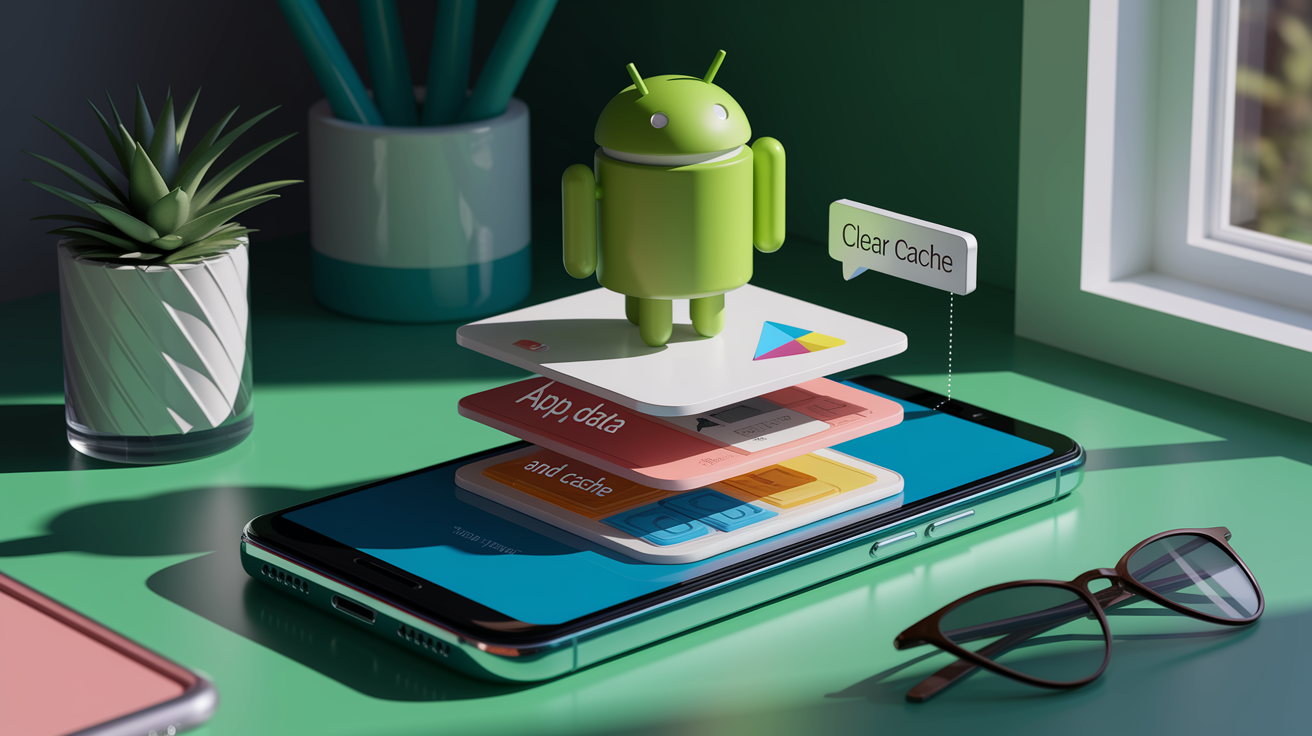
Android splits storage three ways: the app itself, app data (your files and settings), and app cache (temp files the app can rebuild). The system counts cache as free space, but Play Store might not be able to claim that cache during installs. You get “insufficient storage available” even when your screen shows gigabytes free.
Google Play Store cache problems kill updates all the time. The store piles up download fragments, metadata, partial APK files. When Play Store cache hits a few hundred megabytes, updates die even on phones with tons of space. Clearing the store’s own cache and data resets everything and usually fixes stubborn errors immediately.
Follow these steps:
- Clear Google Play Store cache and data. Settings > Apps > Google Play Store > Storage > Clear Cache, then Clear Data. If it still won’t update, tap the three dots and “Uninstall updates” to reset Play Store to factory, then try again.
- Clear cache per app. Settings > Apps > Downloaded > tap the biggest storage hog > Storage > Clear Cache. Hit your social media apps, streaming apps, browsers.
- Move files to SD card. If you’ve got a microSD slot, Settings > Storage > tap a media category > select files > Move to SD Card. For app data, Applications Manager > select app > “Move to SD Card” (only works if the app allows it).
- Use built-in storage cleaner. Samsung: Settings > Battery and device care > Storage > tap categories, or Memory > Clean now. Other brands have similar tools under Storage Manager.
- Uninstall Play Store updates if nothing else works. After clearing cache and data, if the error won’t quit, uninstall Play Store updates (Settings > Apps > Google Play Store > three dots > Uninstall updates). Store resets to original, auto-updates itself, retries your app.
Storage Fixes for iPhone and iPad
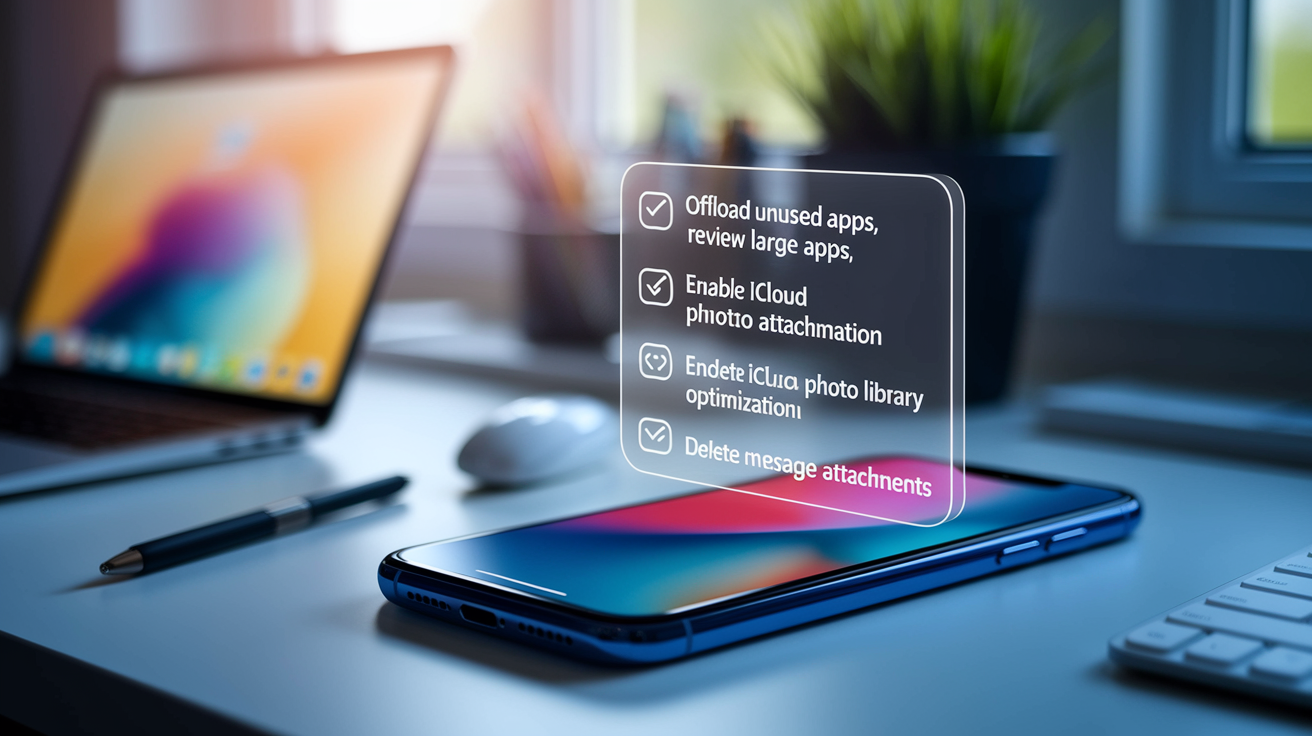
iPhones don’t have expandable storage. iOS sandboxes each app’s cache inside the app’s own space, so it usually knows whether there’s room for an update. But over-the-air OS updates need about 6 GB of contiguous space, and app updates want temporary space equal to 1.5x the installed size. That can blow past available space even when your screen shows several gigabytes.
App offloading pulls out the app binary but keeps all your data and settings intact. Reinstall later and your data comes back. Offloading’s faster and safer than deleting outright, frees the same space. iOS also gives you recommendations for which apps to offload based on usage and space.
Try these:
- Offload unused apps. Settings > General > iPhone Storage > scroll to the app list > tap something you barely use > Offload App. Toggle “Offload Unused Apps” at the top to automate it.
- Review and delete in “Media & Downloads.” Settings > General > iPhone Storage > “Review Large Attachments” or “Review Downloaded Videos.” Delete finished podcasts, Netflix downloads, old iMessage photos.
- Enable iCloud Photo Library optimization. Settings > Photos > “Optimize iPhone Storage.” Keeps full versions in iCloud, stores smaller copies locally. Frees gigabytes without losing access.
- Delete message attachments. Messages > tap a conversation > contact name > Info > scroll down, review photos and videos. Tap and hold > More > select > trash. Repeat for media-heavy conversations.
Strategies for Freeing Large Amounts of Space
Video eats 100 to 300 MB per minute of 4K footage, 30 to 60 MB per minute of 1080p. Fastest way to reclaim gigabytes. Social apps cache stories, reels, feed videos, often piling up several gigabytes of temp data that sticks around long after you scrolled past.
Burst photos save 10 to 20 near-identical images per burst. Live Photos do the same. Cloud services sometimes download full copies for offline access, creating redundant local files even when they’re already in the cloud.
Offline downloads for music, podcasts, streaming video sit there until you manually delete them. Most people forget they downloaded entire seasons or playlists months back. These don’t show up in photo or video folders, so they’re easy to miss.
Try these:
- Delete offline downloads. Check Spotify, Apple Music, Netflix, YouTube, podcast apps. Navigate to Downloads or Offline settings, remove completed stuff.
- Remove duplicate and similar photos. iPhone: Photos > Albums > Recently Deleted. Google Photos: Free Up Space. Or use third-party apps to find burst sequences, screenshots, near-duplicates.
- Clear social media caches. Instagram, TikTok, Facebook, Twitter cache viewed videos and stories. Android: Settings > Apps > [social app] > Storage > Clear Cache. iOS: delete and reinstall (account data syncs from cloud).
- Delete screen recordings and long videos. Sort Photos or Gallery by file size or length, review and delete old screen recordings, 4K clips, lengthy videos you’ve backed up or shared.
- Manage locally stored music. Review offline playlists and albums. Delete entire albums or switch to streaming-only for music you rarely play.
Alternative Methods to Install or Update Apps
When clearing storage doesn’t fix it, you can bypass normal updates. Android users can download APK files from trusted sources and sideload them, but you’ll need to enable “Install from Unknown Sources” and it carries security risks if the APK source isn’t legit.
Desktop sync tools like iTunes (iOS) or Android File Transfer move installation work to your computer’s storage, eliminating the need for temp space on your device. Works especially well for large updates and iOS over-the-air failures.
Try these when standard updates keep failing:
- Android APK sideloading (careful here). Download the latest APK from something reputable like APKMirror, enable Settings > Security > Install from Unknown Sources, open the APK, confirm install. Only do this for apps you trust. Verify the APK signature matches the official developer.
- Update via desktop sync. iOS: connect to a computer running iTunes or Finder (macOS Catalina+), select device, back up if needed, click “Check for Update,” install through desktop. Android: some manufacturers offer desktop sync (Samsung Smart Switch, Huawei HiSuite) that pushes updates from PC.
- Uninstall and reinstall. Delete the app entirely, restart, reinstall from App Store or Play Store. Clears corrupted update files, forces clean installation. You’ll lose local app data unless the app syncs with a cloud account.
- Use web versions when possible. If the app has a progressive web app or full mobile website, bookmark it and use that temporarily while you free more storage.
Long-Term Storage Management Practices

Regular storage reviews stop gradual buildup of cached data, duplicate files, forgotten downloads that eventually kill updates. A monthly five-minute check catches space issues before they get urgent. Deleting 500 MB to 1 GB per month keeps a healthy buffer.
Cloud syncing for photos, videos, documents offloads the biggest storage hogs while keeping access through streaming. Enabling automatic cloud backup for media means new photos and videos upload in the background, can be safely deleted once confirmed in cloud.
Adopt these habits:
- Scheduled storage cleanups. Set a monthly reminder, open Settings > Storage, review the breakdown, delete 500 MB to 1 GB of old downloads, cached data, unused apps.
- Cloud syncing for media. Enable Google Photos, iCloud Photos, or OneDrive automatic upload, then use “Free Up Space” monthly to delete locally stored photos and videos backed up in cloud.
- Delete unused apps monthly. Sort by “Last Used” (iPhone Storage) or review “Unused Apps,” uninstall or offload anything untouched in 30+ days.
- Restrict large automatic downloads. In streaming apps (Netflix, Spotify, YouTube), disable auto-download or limit to Wi-Fi only and set a max storage cap (Spotify download limit, Netflix download quality to Standard instead of High).
Final Words
In the action, we walked through fast troubleshooting: clear cache, delete unused apps, remove large media, empty trash, and restart your device.
We then covered Android and iOS specifics, deeper large-file cleanups, alternative update methods (desktop sync, APK sideloading, reinstall), and long-term habits to prevent repeats.
If you still see app update failed insufficient storage, follow the checklist, try the platform fixes, then use the deeper cleanup or alternate install routes. You’ll likely have the update finished and the device running smoothly again.
FAQ
Q: How do I fix insufficient storage? How to get more storage to update apps?
A: To fix insufficient storage and get more space to update apps, delete unused apps and large videos, clear app caches, empty trash/recycle folders, restart the device, then retry the update.
Q: Why does my iPhone say not enough storage for update but there is?
A: An iPhone may say not enough storage for an update because iOS needs extra temporary space and “Other” system data can be large; offload apps, enable iCloud optimization, delete attachments, then retry.
Q: Why is my phone showing insufficient space but I have space?
A: A phone can show insufficient space despite reported free storage when caches, system files, or pending downloads use temporary space; clear caches, check storage breakdown, remove big files, and reboot.

