

Frustrated because an app keeps saying “Checking for update” and never finishes?
This update loop can trap phones, tablets, and PCs, block apps from opening, and waste minutes or hours while you tap Open and get the old app again.
This post lists seven quick, practical fixes: restart, check your connection, clear the store cache, force-stop installers, reset store settings, free space, and reinstall.
These steps have fixed the loop for most users.
Start with the fast checks at the top.
If they don’t work, we’ll walk you through Android, iOS, Windows, and macOS specifics.
Immediate Steps to Break an App Update Loop Fast

An app update loop is when an installer or launcher endlessly verifies an update, shows “Checking for update” without finishing, displays an “Open” button instead of “Update” and returns to the same prompt, or blocks your desktop from loading until you force-close a background process. Users report the verification repeating up to four times or the App Store sending them back to the same out-of-date app version every time they tap Open.
Restart your device first. It clears active process states that hold an update in limbo. Check internet connectivity by switching between Wi‑Fi and mobile data or testing with a hotspot. A partial download on an unstable connection can loop indefinitely. Pause any in-progress download, wait five seconds, then resume it to nudge the store into refreshing the queue. Sign out of your app store account, wait ten seconds, sign back in, and retry the update. This resets store-side authentication states that can block the download from completing.
On iOS, clear the App Store cache by tapping the same bottom navigation icon (Featured, Categories, or Top Charts) exactly 10 times in a row, then force-close the App Store app and relaunch before tapping Update again. On Windows, if the desktop fails to load, press Ctrl+Shift+Esc to open Task Manager, end the wsappx process, then restart. On macOS, quit any mounted installer image by dragging the volume to Trash and ejecting it before relaunching the app from Applications.
- Restart device
- Check internet connectivity (switch Wi‑Fi/mobile data)
- Pause and resume the update
- Sign out and back into store account
- Clear store cache (iOS: tap same icon 10 times)
- Force-stop stuck installer or background process
Common Causes Behind an App Update Loop

Store-side mismatches are the most frequent trigger. The App Store shows “Open” instead of “Update” because its UI state believes the current version is already installed even when the on-device app is out of date. Every tap on Open launches the old version, which then prompts for the missing update. Closed loop.
Corrupted cache directories cause verification to fail over and over. On macOS, a ~100 MB update patch can fail to verify if leftover .dmg installer files remain in Downloads or Trash. On Windows, the C:\Windows\SoftwareDistribution\Download folder accumulates broken update fragments that make the Microsoft Store retry the same download indefinitely, consuming resources through the wsappx process without ever finishing.
Incorrect system time or partial network interruptions force the installer to re-check update eligibility every time it runs. If your clock is more than a few minutes off or your network drops mid-download, the store aborts and restarts from the top. Running an installer directly from a mounted disk image instead of from an official install directory (Applications or Program Files) can also lock it into a perpetual revalidation cycle.
Fixing App Update Loops on Android Devices
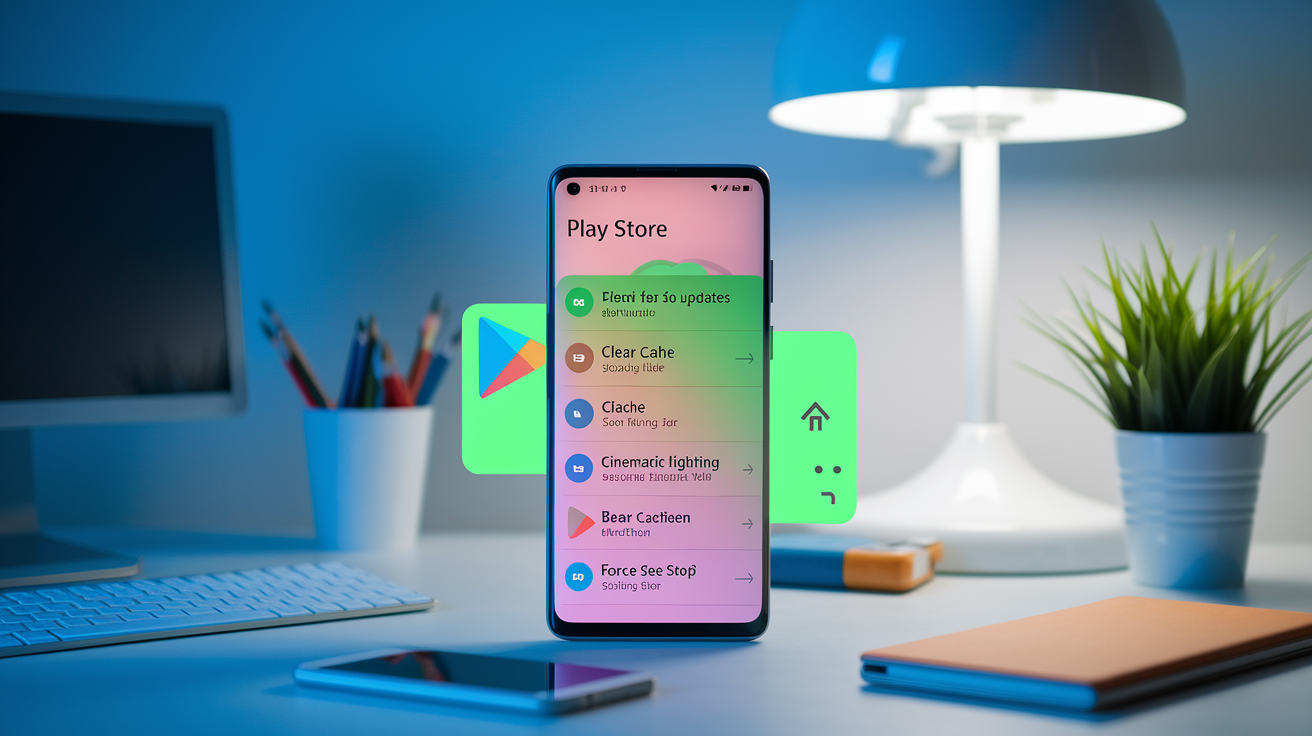
Android update loops usually stem from corrupted Play Store cache, Download Manager corruption, insufficient storage, or VPN interference that blocks Google’s update servers. The Play Store and Download Manager share cache folders. When one becomes corrupt, both can hang downloads, forcing the same update to queue again. Mismatched Google account states (two accounts with different library syncs) or restrictive battery-saver modes that pause background downloads mid-stream can also trap apps in a loop.
Clear the Play Store cache and data first, then clear Download Manager cache. Disable any active VPN or proxy to rule out routing blocks. Switch between Wi‑Fi and mobile data to test network paths. Free at least 2 GB of device storage. Update your OS to the latest patch. Uninstall and reinstall the problem app only if cache clearing fails. Each step removes a layer of cached state or network interference that can hold an update mid-flight.
- Force stop both the app and the Google Play Store from Settings > Apps.
- Open Play Store in Apps, tap Storage, then Clear Cache and Clear Data.
- Open Download Manager (or Downloads app) in Apps, tap Storage, then Clear Cache.
- Disable any active VPN or proxy connection.
- Switch from Wi‑Fi to mobile data (or vice versa) and retry the update.
- Free device storage by removing large videos, photos, or unused apps. Aim for at least 2 GB free.
- Update Android to the latest available OS patch via Settings > System > System Update.
- Uninstall the problem app, restart the device, then reinstall from the Play Store.
Fixing App Update Loops on iPhone and iPad (iOS)
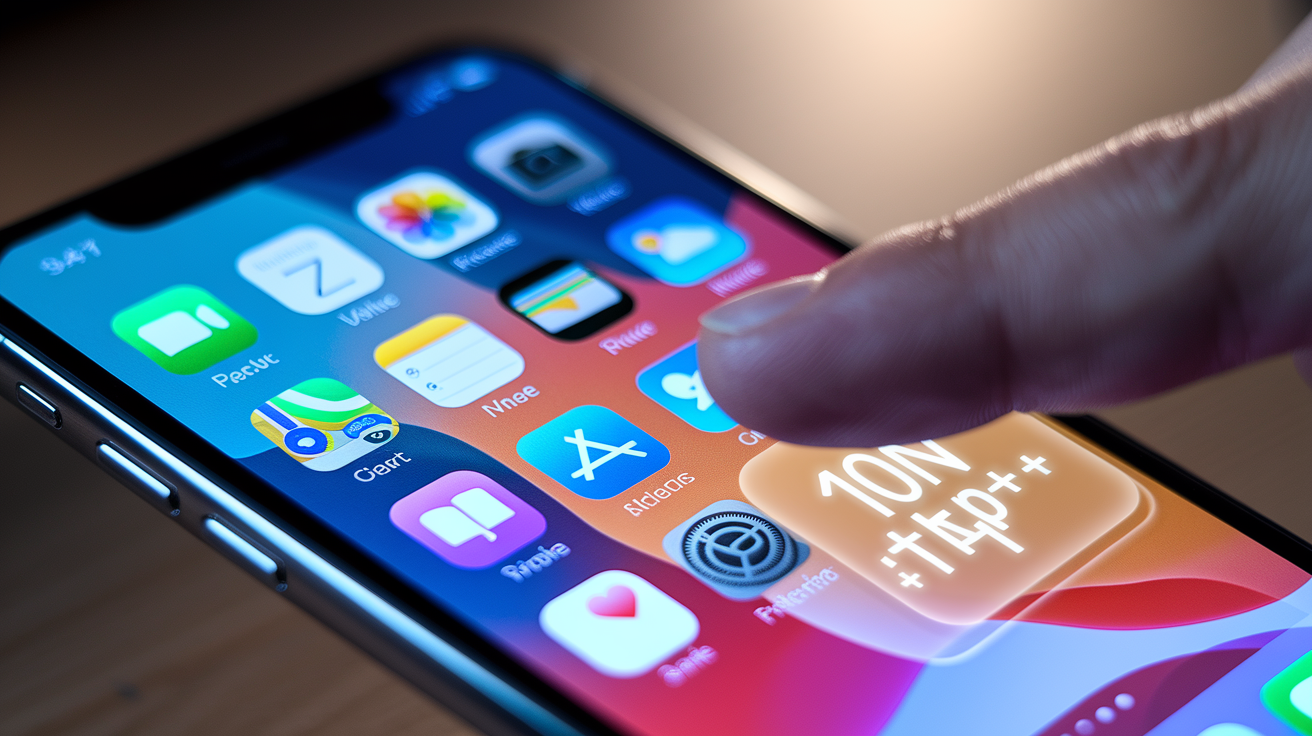
iOS update loops happen when the App Store caches a stale UI state. The store believes version 2.0 is installed because it sees it in the cache, but the device is still running version 1.9. Tapping the app icon launches 1.9, which prompts the user to update. Tapping the update prompt opens the App Store, which shows an “Open” button instead of “Update.” Tapping “Open” launches 1.9 again. Loop locked.
Clearing the App Store cache forces a fresh check against Apple’s servers. Updating directly from the app’s Store page instead of via the notification prompt bypasses cached button states. Enabling automatic updates prevents the mismatch from forming in the first place by downloading new versions in the background as soon as they’re released.
- Tap the same bottom navigation icon in the App Store 10 times in a row. Use Featured, Categories, or Top Charts.
- Force-close the App Store by swiping it away from the app switcher.
- Reopen the App Store, search for the app, and tap Update from the app’s Store page.
- Enable Settings > App Store > App Updates to turn on automatic downloads and stop future out-of-date installs.
Fixing App Update Loops on Windows Store and Desktop Apps
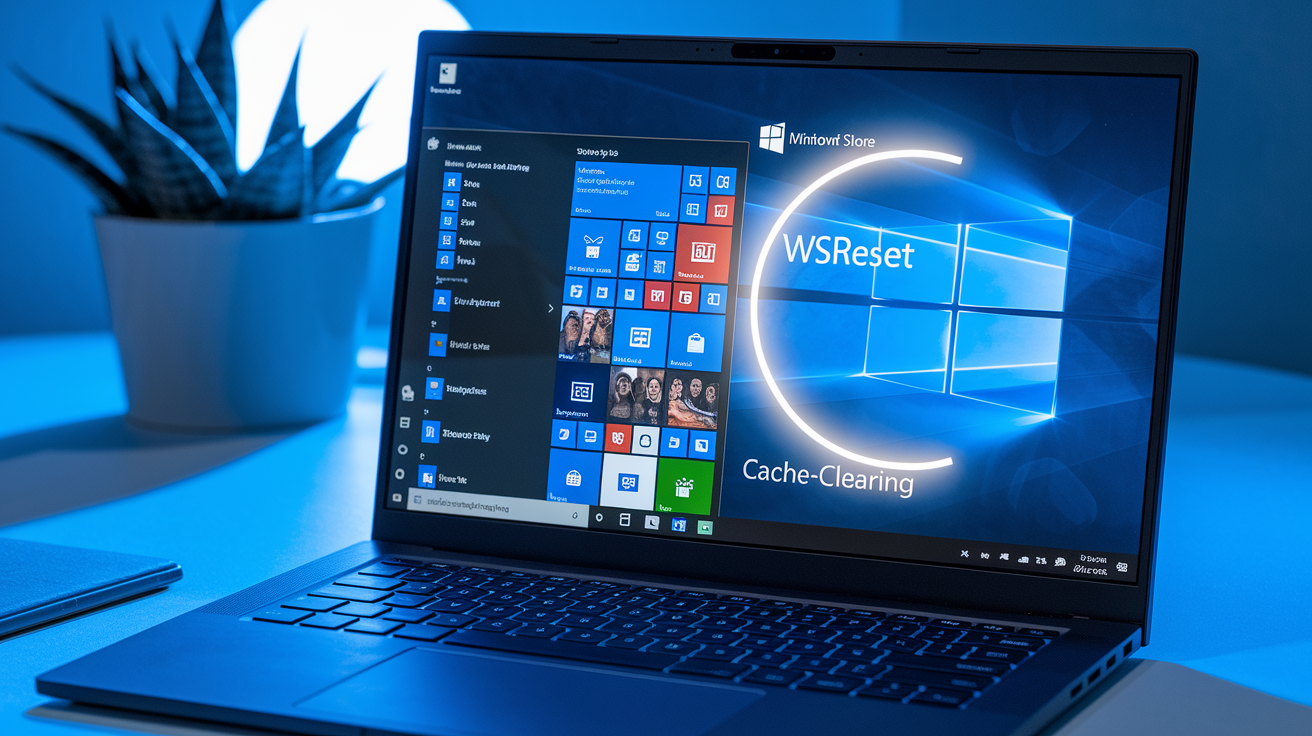
Windows update loops can involve the wsappx process consuming CPU and blocking the desktop from loading, Microsoft Store registration corruption, incorrect system time that invalidates update tokens, or a corrupted C:\Windows\SoftwareDistribution\Download folder that forces the Windows Update service to retry the same broken download file every time. Re-registering the Microsoft Store app clears its internal state database. Clearing the LocalCache folder removes residual download fragments that can confuse the Store installer.
Stop the Windows Update Service and Background Intelligent Transfer Service before clearing the SoftwareDistribution cache. Otherwise active downloads will recreate corrupt files immediately. After clearing cache folders and restarting services, verify that the Microsoft Store Install Service is started and set to Manual so it can launch when the Store needs it. If the loop continues, run WSReset.exe to nuke the Store cache entirely, then reset the Store app via Settings to restore default registration.
| Step | Purpose |
|---|---|
| Run WSReset.exe from Start menu or Run dialog | Clears Microsoft Store cache without changing settings |
| Settings > Apps > Apps & Features > Microsoft Store > Advanced Options > Reset | Resets Store app to factory state and re-registers its packages |
| Stop Windows Update and Background Intelligent Transfer services via services.msc, delete C:\Windows\SoftwareDistribution\Download contents, restart services | Removes broken update fragments that cause perpetual re-downloads |
| Open Run, type %localappdata%, clear the LocalCache folder | Deletes cached installer metadata that can trigger false update prompts |
| Open services.msc, restart Windows Update Service and Background Intelligent Transfer Service | Re-enables update services with clean cache |
| Verify Microsoft Store Install Service is set to Manual and started | Ensures Store can trigger installations on demand |
Set your system time to automatic (Settings > Time & Language > Date & Time > Set time automatically ON) before running these steps. An incorrect clock causes update tokens to expire mid-download. If the loop persists after cache clearing, open Settings > Update & Security > Windows Update > View Update History, uninstall any updates installed since the problem began, and use a Hide Updates utility to block them from reinstalling.
Fixing App Update Loops on macOS (Installers, Launchers, Game Apps)
macOS loops often result from running an installer or launcher directly from a mounted .dmg image instead of from the Applications folder. One user reported a 40 MB launcher that immediately downloaded a 100 MB update, then looped on “Verifying Update” four times before crashing. The installer tried to verify files on the mounted disk image, which is read-only and lacks write permissions for temp files, forcing it to restart the verification endlessly. Leftover installer .dmg files in Downloads or Trash can also interfere, as can incorrect folder names. One game launcher required the exact string “Epic Games Launcher.app” including capitalization and spacing.
The fix is to drag the app from the .dmg window into Applications, eject the .dmg immediately (within half a second of closing the installer window according to one report), empty Trash, then launch the app from Applications. If you installed to an external or secondary drive, reinstall to your main system disk. Delete leftover folders (Unreal, Epic, or app-specific temp directories under your user Library) before reinstalling. Rename the application folder exactly as the developer specifies if a forum post or support doc provides an exact string.
- Delete the installer .dmg from Downloads and empty Trash.
- Reinstall the app to the main system drive (not an external volume).
- Open the .dmg, drag the app into the Applications folder from within the .dmg window, then immediately eject the mounted image.
- Rename the app folder to match the exact required name (case and spacing matter).
- Remove leftover app-specific folders (Unreal, Epic, temp caches) from ~/Library before relaunching.
- Retry the update by launching the app from Applications. Never from the mounted .dmg or a non-system drive.
Deep System Repairs for Persistent Update Loop Problems

System Restore (Windows) reverts the operating system to a snapshot taken before the update loop began. It keeps items installed before the restore point date and only removes programs or updates added after that date. One user reported System Restore resolved a wsappx desktop-loading loop but required reinstalling a few recently added apps. Open Settings > Update & Security > Recovery > Open System Restore, choose a restore point from before the issue started, and follow the wizard.
A repair install (Windows Media Creation Tool > Upgrade Now) reinstalls Windows while preserving most files, apps, and settings. It replaces corrupted system files without wiping user data. On macOS, resetting network settings (deleting Wi‑Fi preferences or resetting NVRAM with Cmd+Option+P+R at startup) can resolve installer download failures tied to cached network routes. Updating firmware or system frameworks (macOS software updates, Windows optional driver updates) fixes compatibility bugs that trigger perpetual re-checks.
- Windows System Restore: Settings > Update & Security > Recovery > Open System Restore, select a point before the loop started.
- Windows Repair Install: download Media Creation Tool, run “Upgrade Now,” choose “Keep personal files and apps.”
- Reset network or app preferences: macOS reset NVRAM; Windows run netsh winsock reset and netsh int ip reset in an elevated Command Prompt.
- Update OS, firmware, or system frameworks to patch installer bugs and restore compatibility.
Preventing Future App Update Loop Issues

Enable automatic updates on iOS (Settings > App Store > App Updates ON) so the App Store downloads new versions in the background before you ever launch an out-of-date app. On Windows, keep your system time set to automatic. Incorrect time invalidates update tokens and forces the store to re-verify every download. On macOS, always install apps by dragging them into Applications from the .dmg window. Never run them from the mounted image itself.
- Maintain correct date and time: enable “Set time automatically” on all platforms.
- Enable automatic app updates (iOS, Android) to prevent version mismatches.
- Avoid running apps from mounted disk images or temporary directories. Install to official folders (Applications, Program Files).
- Clear store and system caches monthly to remove residual download fragments.
- Ensure stable network and at least 2–5 GB free storage before starting large updates.
Final Words
Stop the loop now: restart your device, verify your internet, pause and resume the download, sign out and back into the store, or clear the store cache (iOS: tap the bottom icon 10 times).
Then run platform checks—Android cache and Download Manager, iOS App Store reset, Windows WSReset/SoftwareDistribution clean, or remove leftover .dmg files on macOS. If it persists, try system repair tools or roll back the update.
Follow these steps for how to fix app update loop and you’ll usually be back up and running quickly.
FAQ
Q: How to fix an app stuck updating?
A: An app stuck updating can be fixed by restarting your device, checking network and storage, pausing or force‑stopping the update, signing out and back into the app store, clearing store cache, or reinstalling the app.
Q: How do I update my Loop app?
A: To update your Loop app, open your device’s app store, find Loop, and tap Update; if the update stalls, restart the device, clear the store cache, or uninstall and reinstall the app.
Q: Why isn’t my iPhone letting me update my apps?
A: If your iPhone won’t let you update apps, check storage, network, and Screen Time restrictions; force‑quit the App Store, tap the same bottom tab 10 times to clear its cache, sign out/in, or restart.

