
Seeing “Waiting” under an app and the update never moves?
You’re not alone; both iPhone and Android users hit this when downloads pause, storage falls short, or the App/Play Store stalls.
This guide gives fast, practical steps you can try right now — tap the icon, restart the device, free up space, check your network, and refresh your store account.
Follow these quick fixes in order and most stuck updates finish within minutes.
Immediate Fixes to Stop an App Stuck on “Waiting”
When an app won’t update and says “Waiting,” you’re usually looking at a paused download, a minor device hiccup, or not enough storage. Your phone might’ve automatically paused the update after a brief network drop or because of power-saving behavior. Sometimes tapping the app icon restarts everything immediately.
Low storage is another frequent trigger. Both iOS and Android refuse to download or install updates if free space falls too low. Background apps eating up RAM can also slow or stall downloads, especially on older devices.
A quick device restart clears temporary system states and often resolves the issue in under a minute. These fast checks should be your first stop.
Try these steps in order:
- Tap the waiting app icon on your home screen to manually resume the paused update.
- Restart your device by holding the Power button (or Power + Home on older iPhones, Power + Volume Down on iPhone 7) for about 10 seconds until the screen goes dark, then power it back on.
- Close all background apps using the app switcher (double-press Home or swipe up from the bottom and pause, then swipe up on each preview).
- Check available storage in Settings > General > iPhone Storage (iOS) or Settings > Storage (Android). Delete large files or unused apps if free space is below 1 or 2 GB.
- Force-stop the App Store or Play Store, then reopen it. On Android, go to Settings > Apps > Google Play Store > Force Stop.
- Clear temporary glitches by toggling Airplane Mode on, waiting five seconds, then turning it off.
- Verify the app isn’t queued behind other downloads. On iOS, long-press the app icon and tap Prioritize Download to move it to the front.
These actions resolve most “Waiting” states within minutes. If the update still stalls after a restart and a storage check, the root cause is usually network connectivity or an App Store/Play Store account issue.
Network & Connectivity Fixes for Apps Stuck on Waiting
Unstable or slow Wi-Fi and cellular connections are the most common reason apps say “Waiting” for minutes or hours. Your device may pause the download if signal strength drops below a usable threshold. The App Store and Google Play often need stable, fast data to verify purchases and begin installations.
Network handoff problems also occur when switching between Wi-Fi and cellular mid-download. If your phone roamed between towers or reconnected to a weaker router, the update can freeze in the “Waiting” state until you manually step in.
Check these connectivity fixes:
- Toggle Airplane Mode on and off. Swipe into Control Center (iOS) or Quick Settings (Android), tap the airplane icon to enable, wait five seconds, then disable. This forces a fresh network connection.
- Switch Wi-Fi networks. Disconnect from your current network and join a faster or more stable one (Settings > Wi-Fi). Restart your router if no alternative exists.
- Test mobile data. Turn off Wi-Fi entirely and confirm the update proceeds over LTE or 5G. On iOS, check Settings > App Store > App Downloads to ensure “Ask if Over 200 MB” or “Always Allow” is selected for cellular.
- Restart your router. Unplug it for 30 seconds, reconnect, and wait for full signal before retrying the update.
- Use a mobile hotspot as a workaround. If your primary network keeps failing, tether to a second device with a different carrier or connection type.
If network checks and restarts don’t resolve the issue, consider Reset Network Settings. On iOS, go to Settings > General > Transfer or Reset iPhone > Reset > Reset Network Settings. On Android, navigate to Settings > System > Reset options > Reset Wi-Fi, mobile & Bluetooth. Warning: this deletes all saved Wi-Fi passwords, paired Bluetooth devices, and VPN configurations. Only use it when repeated network failures occur across multiple apps and devices.
Storage & Device Resource Issues Causing App Update Waiting
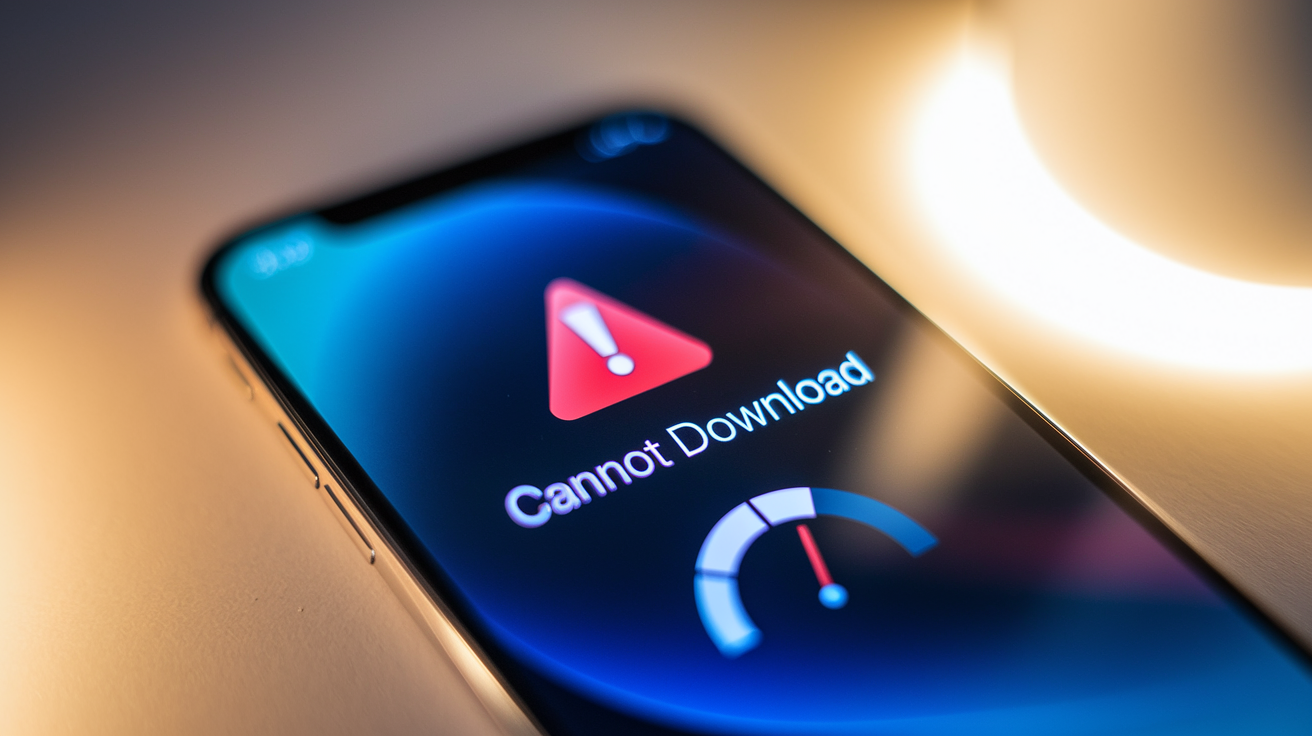
Apps refuse to update when available storage falls below the space needed for the download plus the installation. iOS typically needs at least 500 MB free for small updates and several gigabytes for major app or OS releases. Android shows similar thresholds, with Play Store downloads often pausing when storage dips too low.
Symptoms of insufficient storage include the “Waiting” state, partial downloads that never complete, or error messages stating “Cannot Download App.” Your device may also run slowly, lag when opening apps, or delay background sync tasks.
Free up space quickly by removing:
- Unused apps. On iOS, long-press the app icon and tap Delete App. On Android, go to Settings > Apps, select the app, and tap Uninstall.
- Photos and videos. Move large media to cloud storage (iCloud, Google Photos) or transfer to a computer, then delete originals.
- Messages and attachments. Delete long text threads with photo/video history. On iOS, set Settings > Messages > Keep Messages to 30 Days.
- Cached files. On Android, go to Settings > Storage > Cached data and clear it. iOS handles this automatically but you can reinstall large apps to reset their caches.
- Offline downloads. Remove downloaded music, podcasts, and videos from streaming apps (Spotify, Netflix, Apple Podcasts).
- Books and audiobooks. Delete finished titles from reading apps (Apple Books, Kindle, Audible).
After freeing space, close background apps to release RAM. Open the app switcher and swipe up on every preview. RAM shortages rarely block downloads entirely but can slow processing on devices with 2 to 4 GB of memory. A quick restart after clearing storage ensures the system recognizes the new free space.
Account & App Store / Play Store Fixes for Persistent “Waiting” Updates
Account authentication glitches and corrupted App Store or Play Store caches frequently cause apps to hang in the “Waiting” state. When your Apple ID or Google account session expires or encounters a server sync error, downloads pause until you refresh the login.
Temporary server outages also trigger waiting loops. If Apple or Google infrastructure experiences downtime, your device queues the update but can’t complete the handshake needed to download or verify the app.
iOS App Store Account & Server Checks
On iPhone, sign out and back in to clear stale sessions. Open Settings > [your name] > Media & Purchases > Sign Out. Then open the App Store, tap your account avatar at the top right, and sign in again. This forces a fresh authentication token and often resumes stalled updates immediately.
Check the Apple System Status page for service outages. Look for a green dot next to “App Store” and “Apple ID.” If the indicator is yellow or red, wait until Apple resolves the issue.
Force-close the App Store by opening the app switcher (double-press Home or swipe up and hold) and swiping up on the App Store preview. Reopen it and tap the Updates tab to manually trigger pending downloads.
Android Play Store Cache & Account Fixes
On Android, clearing Google Play Store cache and data resolves most stuck downloads. Go to Settings > Apps > Google Play Store > Storage, then tap Clear Cache. If the issue persists, tap Clear Data (this signs you out and resets the store to factory defaults).
Ensure Download Manager is enabled. Navigate to Settings > Apps > Show system apps (or the three-dot menu > Show system), find Download Manager, and confirm it’s enabled and not disabled. Clear its cache and data if needed.
Remove and re-add your Google account to refresh authentication. Go to Settings > Accounts > Google, tap your account, select Remove account, then tap Add account and sign back in. This forces Play Store to re-sync your app library and download permissions.
If clearing cache and re-adding the account don’t work, check the Google Play System Status or search for “Google Play down” to confirm no widespread outage is blocking downloads. When servers recover, queued updates resume automatically.
iPhone-Specific Fixes for Apps Stuck on “Waiting”
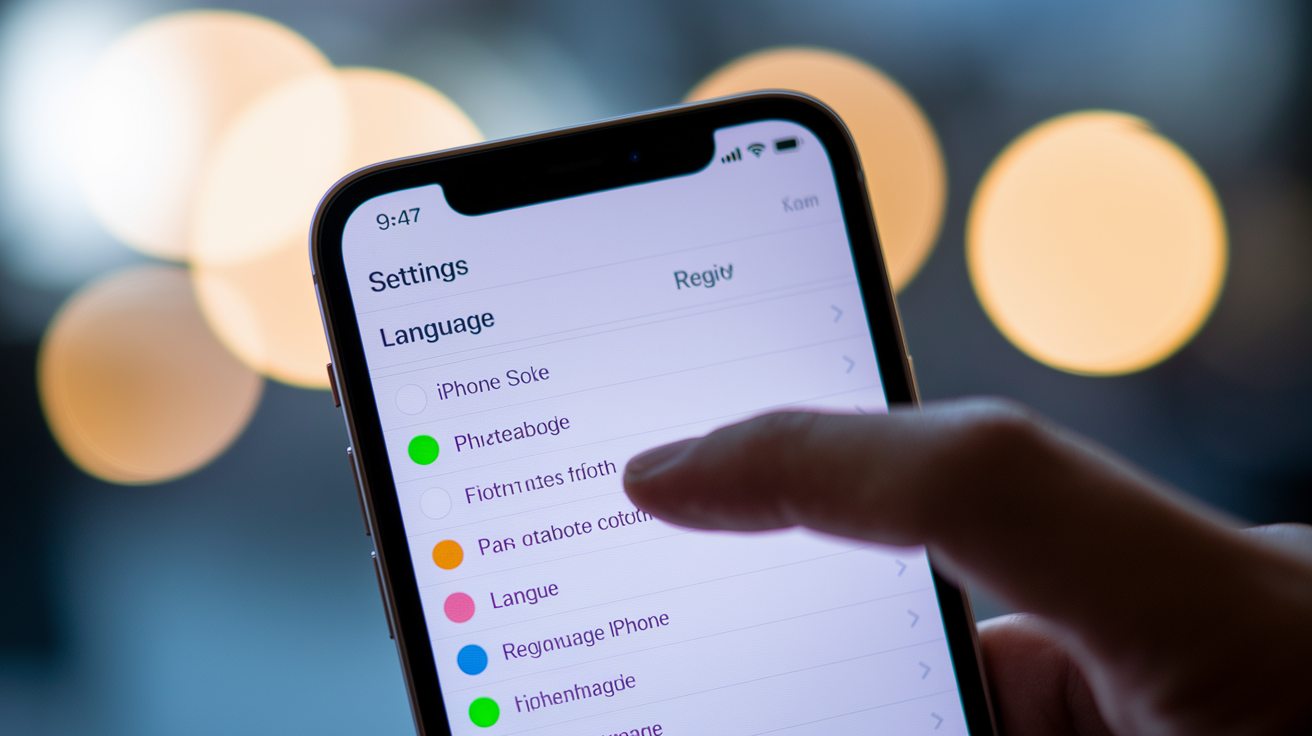
iOS updates occasionally stall due to queue priority issues, App Store purchase verification loops, or language/region settings conflicts. iPhones also pause downloads when background app refresh is disabled or when low-power mode restricts network activity.
Restart & Prioritize
A full device restart clears temporary system caches and resets network stack processes. Hold the Power button and either Home (on older iPhones) or Volume Down (iPhone 7) for about 10 seconds until the screen goes black and the Apple logo appears. Release the buttons and wait for the device to boot.
To move a stuck app to the front of the download queue, long-press its icon on the home screen. When the menu appears, tap Prioritize Download. Prioritize Download lets you move an app ahead of others in the queue, forcing iOS to allocate bandwidth to that download first. This option only appears when multiple apps are waiting or downloading at the same time.
If the app icon shows “Waiting…” with no pause button, tap it once to manually trigger the download. Check the App Store Updates tab to confirm the app isn’t listed as needing manual approval for a purchase or sign-in.
App Store & Language Resets
Sign out of your Apple ID in the App Store and sign back in to refresh your account session. Open the App Store, tap your account avatar in the top-right corner, scroll down, and tap Sign Out. Wait five seconds, then tap the avatar again and sign in with your Apple ID password.
An unusual but effective fix is changing the iPhone language temporarily. Go to Settings > General > Language & Region > iPhone Language. Select a different language (for example, switch from English to Spanish), confirm the change, and wait for the device to reboot. Once it loads, repeat the steps and switch back to your original language. This process forces iOS to rebuild system indexes and often clears stubborn download glitches.
Advanced iOS Fixes
If standard troubleshooting fails, reset all settings without erasing data. Navigate to Settings > General > Transfer or Reset iPhone > Reset > Reset All Settings. This returns system preferences (Wi-Fi passwords, wallpaper, notifications) to defaults but keeps apps, photos, and files intact. Warning: saved Wi-Fi networks and paired Bluetooth devices will be removed.
For persistent issues, a full device restore via iTunes or Finder may be required. Connect your iPhone to a Mac or PC, open Finder (macOS Catalina or later) or iTunes (Windows or older macOS), select your device, and choose Restore iPhone. Back up important data first using “Back Up Now” before initiating the restore. For additional repair options and detailed steps, see iPhone Apps Stuck on Waiting.
DFU (Device Firmware Update) mode is the deepest restore method and should only be used if standard restores fail. DFU bypasses the operating system and reinstalls firmware directly. Instructions vary by model, search “DFU mode [your iPhone model]” for exact button sequences.
Android-Specific Fixes for “Waiting” or “Pending” App Updates
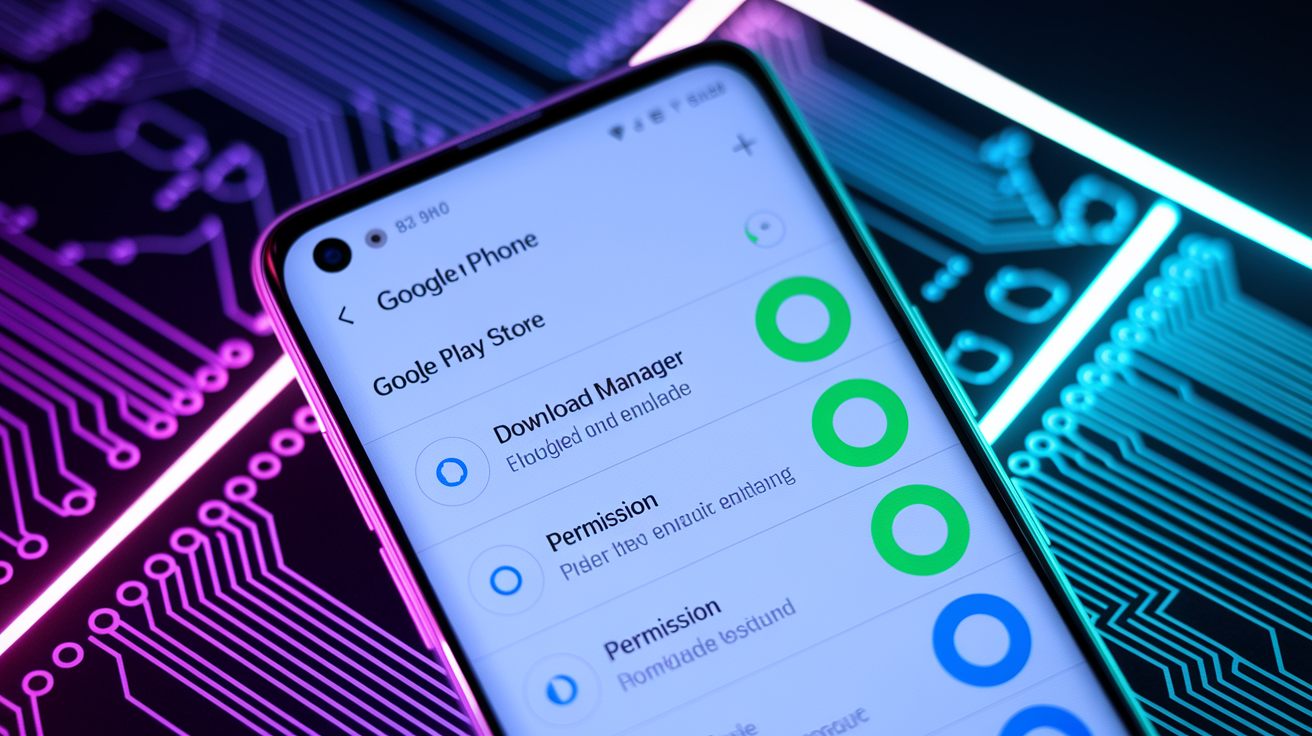
Google Play shows “Pending download” or “Waiting for download” when the Download Manager service is disabled, network permissions are restricted, or the Play Store cache is corrupted. Android also pauses updates when battery saver mode is active or background data is blocked for the Play Store app.
Follow these platform-specific recovery steps in order:
- Clear Play Store cache and data. Open Settings > Apps > Google Play Store > Storage. Tap Clear Cache, wait a few seconds, then tap Clear Data. This signs you out of the Play Store and resets it to factory defaults. Reopen the Play Store and sign in again.
- Ensure Download Manager is enabled. Go to Settings > Apps > Show system apps (or tap the three-dot menu and select Show system). Scroll to Download Manager, tap it, and confirm it’s enabled. If disabled, tap Enable. Clear its cache and data as well.
- Check background data permissions. Navigate to Settings > Apps > Google Play Store > Mobile data & Wi-Fi (or Data usage). Ensure “Background data” and “Unrestricted data usage” are both enabled.
- Uninstall Play Store updates. Go to Settings > Apps > Google Play Store, tap the three-dot menu, and select Uninstall updates. This rolls the app back to the factory version. Restart your device, then open Play Store and let it update itself to the latest version.
- Remove and re-add your Google account. Open Settings > Accounts > Google, tap your account, select Remove account, then restart. Go to Settings > Accounts > Add account > Google and sign in again.
- Free up storage. Check Settings > Storage. If available space is below 1 GB, delete large files, uninstall unused apps, or move photos/videos to cloud storage.
Download Manager Dependencies
Play Store relies on Download Manager to queue and process app installations. If Download Manager is disabled, frozen, or has corrupted data, all downloads pause indefinitely. Some Android skins (Samsung One UI, Xiaomi MIUI) rename or hide this service under “Download” or “Downloads.”
To verify it’s running, open Settings > Apps > Show system, then search for Download Manager or Downloads. Tap it, confirm it’s enabled, and check that no battery optimization is blocking it. If the app shows “Disabled,” tap Enable and restart your device.
If Download Manager continues to fail, clear its cache and data. This forces Android to rebuild the download queue. After clearing, restart the device and retry the app update from Play Store.
Reset network settings if clearing caches and re-adding your account don’t work. Go to Settings > System > Reset options > Reset Wi-Fi, mobile & Bluetooth. Warning: this deletes all saved Wi-Fi networks and Bluetooth pairings. Only use it when repeated “Waiting” errors occur across multiple apps. After the reset, reconnect to Wi-Fi and check Play Store again.
Advanced Solutions When an App Still Shows “Waiting”

When quick fixes and account resets fail, deeper system-level repairs or full reinstalls are required. These methods carry higher risk of data loss or require backups, but they resolve persistent software conflicts and corrupted system files.
Before proceeding, back up important data. On iOS, use Settings > [your name] > iCloud > iCloud Backup > Back Up Now, or connect to a computer and use iTunes/Finder to create a local backup. On Android, go to Settings > Google > Backup and confirm “Back up to Google Drive” is enabled.
| Method | Platform | Risk Level | When to Use |
|---|---|---|---|
| Delete & reinstall app | iOS, Android | Low (app data may be lost) | Single app stuck; others update normally |
| iTunes/Finder restore | iOS | Medium (requires backup) | Multiple apps fail; system glitches persist |
| DFU mode restore | iOS | High (erases all data) | Standard restore fails; firmware corruption suspected |
| Factory reset | Android | High (erases all data) | Play Store fails across all apps; system-wide corruption |
Delete and reinstall the stuck app first. On iOS, long-press the app icon and tap Delete App, then reinstall from the App Store. On Android, go to Settings > Apps, select the app, tap Uninstall, and download it again from Play Store. This clears corrupted app files without affecting other data.
If deleting the app doesn’t help, use iTunes or Finder to restore your iPhone. Connect to a computer, select your device, click Restore iPhone, and follow the prompts. On Android, factory reset through Settings > System > Reset options > Erase all data (factory reset). Warning: both methods erase all content unless you restore from a recent backup afterward.
For Android users comfortable with alternative install methods, sideloading the APK from a trusted source like APKMirror can bypass Play Store issues. Download the APK file, enable Settings > Security > Install unknown apps for your browser, and open the APK to install. Only use this when Play Store keeps failing and you’ve verified the APK source is legitimate.
Escalate to official device support if repeated resets and reinstalls fail. Contact Apple Support or your Android device manufacturer (Samsung, Google, Xiaomi) for hardware diagnostics or warranty service. Persistent “Waiting” errors after full restores may indicate failing storage, corrupted firmware partitions, or account-level restrictions that require carrier or manufacturer intervention.
Final Words
In the action, we ran through fast fixes (tap to resume, restart, free storage), network checks (Airplane Mode, switch Wi‑Fi, router restart), store/account resets, iPhone and Android steps, and advanced options like reinstall or device reset.
Try the quick steps first — they clear most stalled updates.
If your app won’t update says waiting, move to account-store fixes or a reinstall; that usually gets things working again quickly. Stay patient — it’s often fixable.
FAQ
Q: Why does my app update just says waiting and how do I get an app to download when it says “waiting”?
A: The app update showing “Waiting” means the download is paused by a device glitch, queue, storage shortage, or network problem. Tap the icon to resume, restart the device, free storage, or switch Wi‑Fi.
Q: Why is iOS 26 taking forever to download and why isn’t my iPhone letting me update my apps?
A: iOS 26 taking forever or the iPhone refusing updates usually signals slow network, low storage, queued updates, or App Store authentication issues. Try switching networks, prioritizing the app, clearing storage, restarting, or signing out and back in.

