
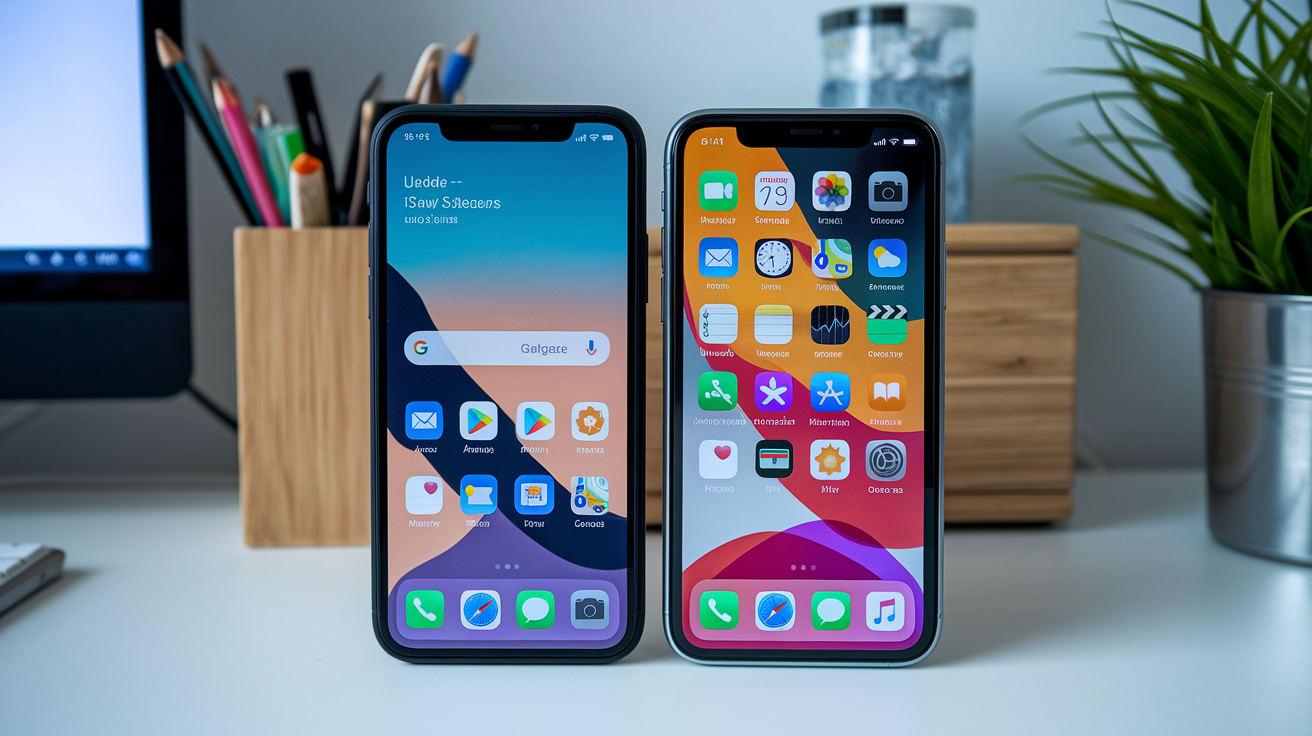
Tired of waiting for an app update that never appears—or seeing the Update button greyed out? This guide shows the fastest ways to force an app to update manually on iPhone and Android, so you can get fixes, new features, or security patches right away. It’s for anyone—casual users, power users, and developers—who run into staged rollouts, store cache problems, or account mismatches. Read on for quick store-side steps, platform-specific fixes like offloading or clearing cache, and advanced options when the usual tricks don’t work.
Fastest Ways to Manually Trigger an App Update on Any Device
When automatic updates stop working or just won’t kick in, you can force an app to update manually in a few taps. Both iPhone and Android let you grab updates straight from their app stores without sitting around waiting for background processes to figure things out.
The fastest route is opening your device’s store app and pulling the update yourself. On iPhone, pending updates live under your profile icon in the top-right corner of the App Store. On Android, Google Play keeps a running list under “Manage apps & device.” These menus refresh every time you open them, so new releases show up right away if your account and network are working.
Before you start, make sure you’ve got at least 100–500 MB of free storage for smaller updates or 500 MB–1 GB for bigger apps and games. Confirm Wi‑Fi is connected or cellular data is turned on for downloads. Battery should be above 10 percent so nothing cuts out halfway through.
Quick update steps by platform:
- Android (Google Play) – Open Google Play Store.
- Android – Tap your profile icon (top-right), then tap “Manage apps & device.”
- Android – Tap “Updates available” to see what’s pending, find the app, tap “Update.”
- Android (alternate) – Search for the app in Play Store, open the app page, tap “Update.”
- iPhone (App Store) – Open App Store.
- iPhone – Tap your profile icon (top-right).
- iPhone – Pull down to refresh the Updates list until the spinner appears.
- iPhone – Find the app and tap “Update,” or tap “Update All” to install everything at once.
If the Update button is missing or greyed out, three things usually explain it. Staged rollouts mean the developer released the update to a small batch of users first, so it might not reach you for 24–72 hours. Account or region mismatch can hide updates if the app was installed under a different Apple ID or Google account. Cache issues in the store app sometimes prevent the latest info from loading. Restarting your phone or force-closing the store and reopening it clears most caching problems in 5–15 minutes.
Android Troubleshooting and Deeper Methods When Manual Update Fails
When the Play Store won’t show an update or gets stuck on “Pending,” the usual suspect is corrupted cache, low storage, or a background network restriction. Forcing the Play Store itself to reset clears the roadblock faster than waiting.
The most reliable fix starts with clearing the Play Store’s temporary files. Navigate to Settings > Apps > Google Play Store > Storage & cache > Clear cache. If the update still doesn’t appear, tap “Clear storage” (also labeled “Clear data” on some devices) to reset the Play Store completely. You’ll need to accept terms again when you reopen it, but your account and installed apps stay put.
Systematic Android troubleshooting steps:
- Free storage – Delete files or uninstall apps you don’t use until you’ve got at least 100–500 MB available (check under Settings > Storage).
- Force stop Play Store – Settings > Apps > Google Play Store > Force stop, then reopen and try again.
- Toggle network – Switch from Wi‑Fi to mobile data or the other way around. Sometimes one connection path is blocked by proxy or firewall rules.
- Remove and re-add your Google account – Settings > Accounts > [your Google account] > Remove account, restart the phone, then add the account back under Settings > Accounts > Add account.
- Check Play Store network preferences – Play Store > profile > Settings > Network preferences > Auto-update apps should be set to “Over any network” or “Over Wi‑Fi only,” not “Don’t auto-update apps.”
- Disable Data Saver and Battery Saver – These restrict background downloads. Turn them off temporarily in Settings > Network & internet > Data Saver and Settings > Battery > Battery Saver.
When clearing cache and storage still leaves the update missing, uninstall and reinstall becomes necessary. This happens when the Play Store metadata for an app gets corrupted or the installed version conflicts with signature checks. Long-press the app icon, tap Uninstall, then open the Play Store and install it fresh. The newest signed version downloads immediately. If the app stores cloud-synced data (games, productivity tools), check that your progress is backed up before uninstalling. Apps that rely only on local databases may lose settings unless you manually export them first.
iPhone Troubleshooting and Alternative Ways to Refresh App Updates
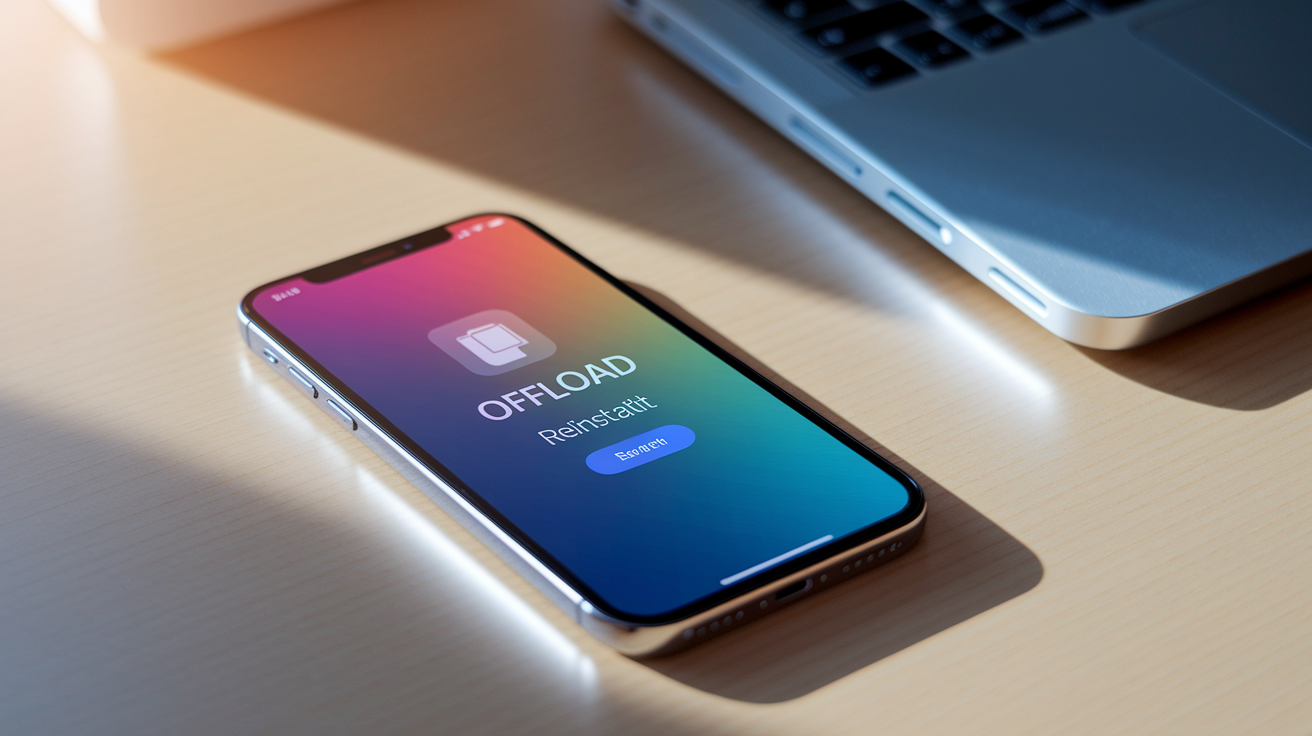
iOS hides most of the App Store’s internal workings, so when an update won’t appear you need indirect methods to force the store to re-check. The most effective tool is offloading, which removes the app binary while keeping all local data and settings intact.
Go to Settings > General > iPhone Storage, scroll to the app, and tap “Offload App.” Wait a few seconds, then tap “Reinstall App.” The App Store downloads the latest available version as if you were installing for the first time, bypassing any cached metadata that was blocking the update indicator. This works even when the App Store profile page shows no Update button.
Quick iOS repair checklist:
- Force-close the App Store – Swipe up from the home indicator (or double-click the home button), swipe the App Store card away, then reopen it.
- Sign out and back in to your Apple ID – Settings > [your name] > Media & Purchases > Sign Out, wait ten seconds, sign back in.
- Reset network settings – Settings > General > Transfer or Reset iPhone > Reset > Reset Network Settings (you’ll need to re-enter Wi‑Fi passwords).
- Delete and reinstall the app – Long-press the app icon > Remove App > Delete App, then reinstall from the App Store (back up app data first if it’s not cloud-synced).
- Check automatic date and time – Settings > General > Date & Time > Set Automatically should be ON. Mismatched time zones can block App Store authentication.
Offloading works because it tells iOS to purge the installed binary and all temporary files while preserving the app’s Documents and Data container. When you reinstall, the App Store treats it as a fresh install and pulls the current version from Apple’s CDN, ignoring any stale download state or partially downloaded update packages. If the update still doesn’t appear after offloading, the developer may have restricted the rollout to specific regions or iOS versions. Check the app’s store listing for the minimum OS requirement and the “What’s New” section’s publish date to confirm the update is live for your account.
Advanced Ways to Force an App Update on Android (APK, ADB, Beta Channels)
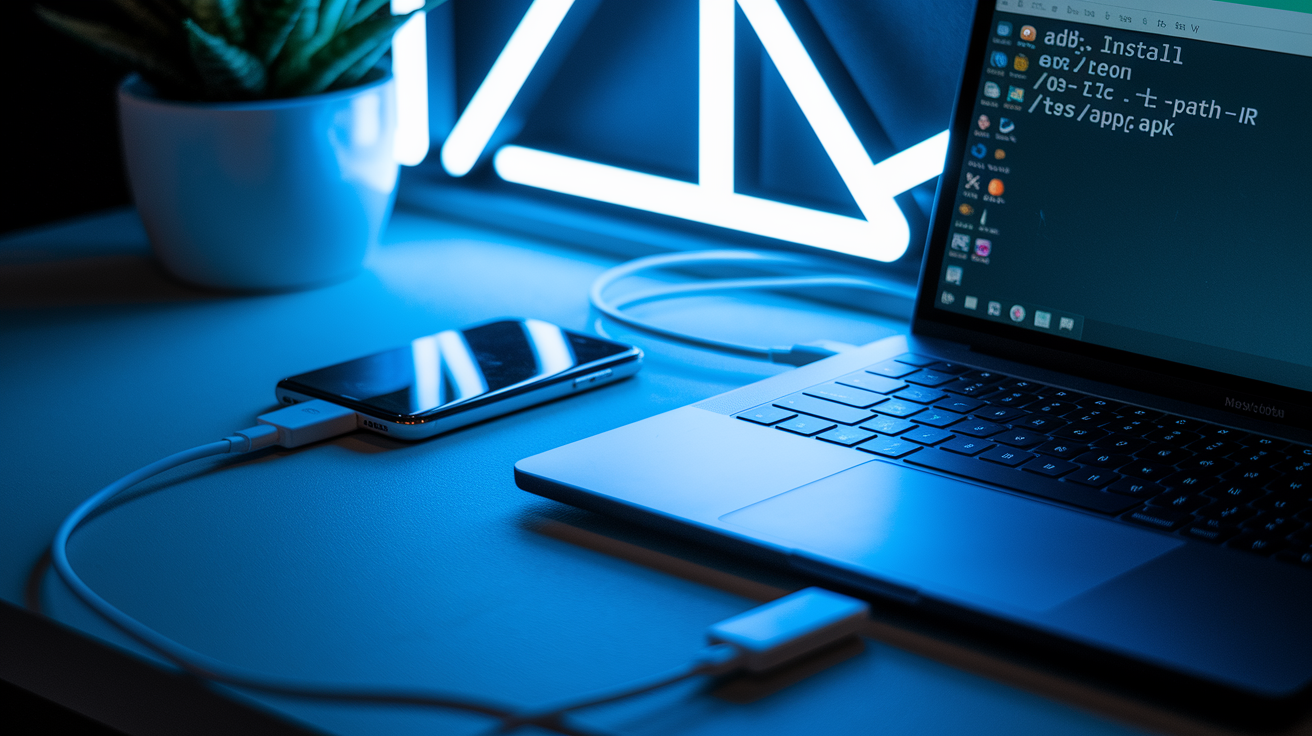
When the Play Store won’t deliver an update at all (due to staged rollouts, account restrictions, or regional delays), three advanced methods let you install the new version directly. These routes bypass the Play Store’s automatic gatekeeping, so you’re responsible for verifying sources and managing compatibility.
Update Using APK Sideloading
Download the APK file from a trusted source (the app’s official website, APKMirror, or a developer-provided link). Before installing, go to Settings > Apps > [your browser or file manager] > Install unknown apps and enable the toggle. Android requires per-app permission to install files outside the Play Store.
Tap the downloaded APK file in your file manager, confirm the installation prompt, and the new version replaces the old one while keeping your data intact. Signature mismatch errors mean the APK was signed with a different certificate than your installed version. You’ll need to uninstall the original app first, which erases local data unless it syncs to the cloud.
Force Update Using ADB
ADB (Android Debug Bridge) lets you install APKs from your computer over USB. First enable Developer Options by going to Settings > About phone > tap “Build number” seven times. Then turn on USB debugging under Settings > System > Developer options.
Install platform-tools on your PC, connect your phone, and run this command in your terminal:
adb install -r /path/to/app.apk
The -r flag replaces the existing app while preserving data when possible. If the installation fails due to version conflicts, uninstall first with adb uninstall com.example.package, then run the install command again.
Get Updates Earlier via Play Store Beta
If the update is stuck in a staged rollout, joining the app’s beta channel often delivers the release immediately. Open the app’s Play Store page, scroll to “Join the beta” (if available), and tap “Join.” Within a few minutes the update appears under “Manage apps & device.”
Beta builds may contain bugs or experimental features. Leaving the beta program can force a downgrade or reinstall. Sideloading and ADB carry security risks if you download APKs from unofficial mirrors. Always verify SHA checksums and only use sources you trust. Signature mismatches during installation mean the APK isn’t authentic or was repackaged, so abort the install and find a verified copy.
Fixing Issues When an App Won’t Update Manually
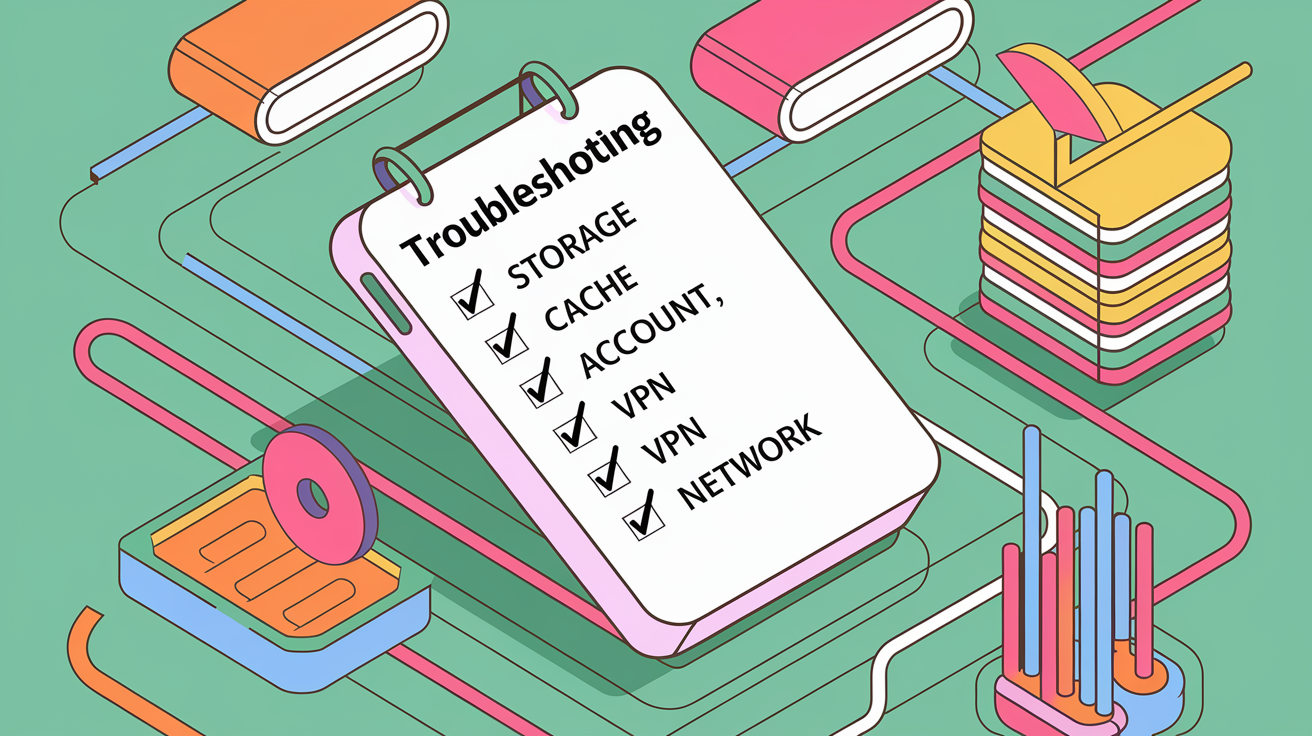
Most manual update failures trace back to a handful of system restrictions or account problems. Fixing them follows a logical sequence: confirm resources (storage, network, battery), clear store caches, check account settings, then look for policy or compatibility blocks.
Common causes and immediate fixes:
- Insufficient storage – Free at least 100–500 MB for typical app updates, up to 1 GB for large games. Check Settings > Storage and delete files or uninstall unused apps.
- Network interruption – Switch from Wi‑Fi to mobile data or vice versa. Toggle Airplane Mode on for five seconds, then off.
- Store cache corruption – Android: Settings > Apps > Google Play Store > Storage > Clear cache and Clear data. iOS: force-close App Store and restart iPhone.
- Data Saver or Battery Saver enabled – These block background downloads. Disable them temporarily in network or battery settings.
- Wrong Google account or Apple ID – The app may have been installed under a different account. Sign out and sign in with the correct credentials.
- VPN or corporate firewall – Some networks block app store servers. Disconnect VPN or switch to cellular data.
- Automatic date and time disabled – Store authentication requires accurate time. Enable Settings > Date & Time > Set Automatically.
- Play Protect or enterprise policies – Check Settings > Security > Google Play Protect or device management settings. Corporate devices may restrict installs.
- App compatibility – The update may require a newer OS version. Check the app’s store page for minimum Android or iOS version and update your system if needed.
- Outdated payment method – If the app is paid or has in-app purchases, verify your payment information is current under store account settings.
Staged rollouts deserve special attention because they look like a broken update but are working as designed. Developers release new versions to 5–10 percent of users first, then gradually expand to 50 percent and finally 100 percent over 24–72 hours. This lets them catch critical bugs before millions of users install a broken build. If you need the update immediately, joining the beta channel (if available) or uninstalling and reinstalling may pull the latest version. But there’s no guaranteed workaround. You may simply need to wait for your account to enter the next rollout wave.
Compare Manual Update Methods Across Android, iOS, Windows, and macOS
Desktop and mobile platforms use different app distribution models, so the steps to force an update vary by ecosystem. Mobile stores push updates automatically by default, while desktop platforms lean toward manual checks or package managers.
Windows and macOS both offer graphical store apps with manual update buttons, but power users often prefer command-line tools for faster, scriptable updates. The table below shows the fastest method for each platform and when you’d use it instead of waiting for automatic background updates.
| Platform | Manual Update Method | When to Use |
|---|---|---|
| Android | Play Store > profile > Manage apps & device > Updates available > Update | Automatic updates disabled, network restrictions, or staged rollout delays |
| iOS | App Store > profile > pull to refresh > Update or Update All | Automatic updates off, low storage paused updates, or immediate security patches needed |
| Windows | Microsoft Store > Library > Get updates; or run wsreset in terminal to clear cache |
Store cache corruption, failed downloads, or apps stuck in pending state |
| macOS | App Store > Updates > Update or Update All; or brew upgrade --cask in terminal for Homebrew apps |
App Store updates stalled, or managing developer tools and CLI apps via Homebrew |
Mobile platforms push updates silently in the background when Wi‑Fi and battery conditions are met. Disabling automatic updates or restricting background data forces you to check manually. Desktop stores require explicit user action by default. Windows and macOS don’t auto-install app updates unless you’ve enabled that preference. Command-line tools like Homebrew on macOS and winget on Windows let developers script bulk updates and skip the GUI, useful for keeping toolchains and utilities current without clicking through store interfaces.
Best Practices for Avoiding Manual Update Problems in the Future
Preventing update failures starts with configuring store settings to match your network habits and checking that background processes have the resources they need. Once automatic updates run smoothly, you’ll rarely need to trigger them manually.
Enable automatic updates and choose the right network preference for your data plan. On Android, open Play Store > profile > Settings > Network preferences > Auto-update apps, then select “Over Wi‑Fi only” if you have limited mobile data or “Over any network” if you want immediate updates regardless of connection type. On iOS, go to Settings > App Store and toggle “App Updates” ON. Enable “Mobile Data” under App Downloads if you’re comfortable using cellular for updates. Setting these correctly means new releases install overnight while your phone charges, avoiding the storage-full or network-offline errors that force manual intervention.
Long-term maintenance tips:
- Keep at least 1 GB free storage – Automatic updates pause when storage drops below safe thresholds. Delete old photos, videos, or unused apps regularly.
- Restart your device weekly – Clears RAM and flushes stuck background tasks that can block store processes.
- Sign in to only one account per store – Multiple Google accounts or Apple IDs create confusion about which account owns each app. Use a single primary account for all app purchases.
- Disable VPNs when updating – Some VPN servers route traffic through regions where apps aren’t licensed, causing update failures or download loops.
- Update your OS when prompted – App updates often require recent OS versions. Keeping Android or iOS current prevents compatibility blocks.
Store and app issues often resolve themselves after 5–15 minutes as backend services retry failed requests or refresh metadata. If an update doesn’t appear immediately, wait ten minutes and pull to refresh again before diving into troubleshooting. Staged rollouts remain the most common reason updates seem missing. Developers intentionally delay full release to catch bugs, and no user-side fix will bypass that schedule unless you join a beta channel.
Final Words
in the action: you got step-by-step update flows for iPhone and Android, targeted troubleshooting, advanced Android methods (APK/ADB/beta), cross-platform comparisons, and tips to avoid repeat problems.
Start with the quick fixes—refresh the store, check free space, clear cache, or reinstall. Reserve ADB or sideloading for when simpler options fail and follow basic safety checks.
If you need it, these instructions show how to force app to update manually and usually get you back on the latest build in minutes. Small checks now save time later.
FAQ
Q: Is there a way to force update an app?
A: There is a way to force an app to update: open the App Store or Google Play, go to your profile, refresh the updates list, then tap Update or Update All; restart, clear cache, or free space if needed.
Q: Can you force an app to update on an iPhone?
A: Yes — you can force an app to update on an iPhone by opening the App Store, tapping your profile, pulling down to refresh, then tapping Update next to the app or Update All.
Q: How do you do a manual update on an app?
A: To manually update an app on Android, open Google Play Store, tap your profile → Manage apps & device → Updates available, then tap Update; if no Update appears, clear Play Store cache, check account, free storage, or reinstall.

