
Ever tried to update an app and it just sits on “pending” forever?
Most Android update failures come down to three usual suspects — spotty network, low storage, or Play Store/Play Services cache problems — and together they explain roughly 80% of cases.
This post shows what causes updates to fail, who it affects, why it matters, and simple steps you can take right now to fix it.
Read on for six quick fixes and how to tell when you need deeper troubleshooting.
Immediate Fixes for Android App Update Failures
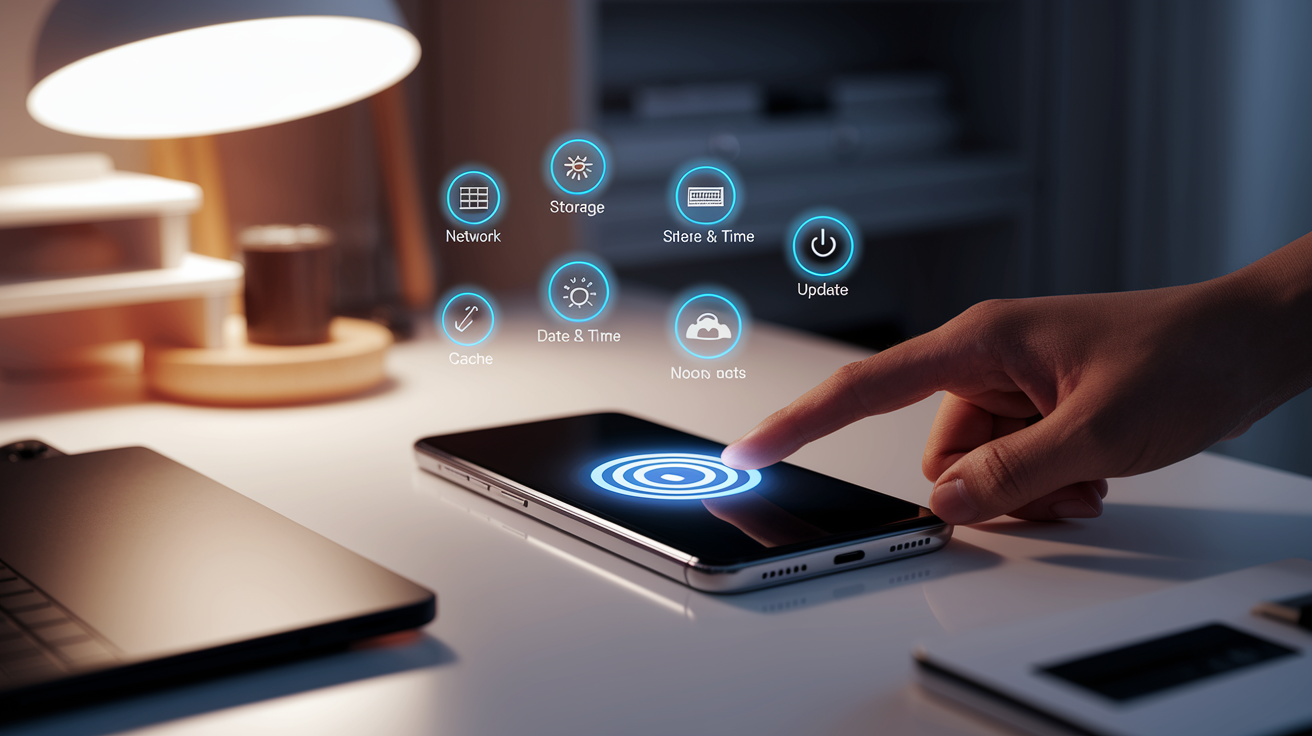
Most app update failures on Android? Three usual suspects: spotty network, storage running dry, or Play Store’s cache gone bad. These three cover about 80% of all update errors. When your Wi‑Fi drops or your cell signal stutters, downloads freeze mid‑stream. The update just sits there, stuck on “pending.” Same thing happens when you’re down to your last few hundred megabytes. Play Store won’t even try to download if you’ve got less than a gig free. And corrupted cache in Play Store, Google Play Services, or Download Manager? That can completely tank the update process, even when everything else looks fine.
These quick fixes work because they wipe temporary junk, clear broken data, and give Play Store a clean slate to try again. Restarting clears RAM and kills background processes that might be hogging files. Flipping Airplane Mode on and off, or swapping between Wi‑Fi and mobile data, gives your connection a fresh handshake. Often that’s enough to dodge whatever router hiccup or carrier glitch was causing trouble. Clearing cache dumps corrupted temp files without touching your account or app data. And checking date and time matters more than you’d think, SSL certificates fail hard if your clock’s off by more than a couple minutes.
Try these six steps before you dig deeper:
- Restart your device — power off for 10 seconds, then back on, or long‑press Power and tap Restart.
- Toggle network — switch from Wi‑Fi to mobile (or the other way around), or turn Airplane Mode on for 10 seconds then off.
- Free at least 1 GB of storage — Settings → Storage, then delete big unused files, photos, or apps.
- Clear Play Store cache — Settings → Apps → Google Play Store → Storage & cache → Clear Cache. Do the same for Google Play Services and Download Manager.
- Check automatic date and time — Settings → System → Date & Time, turn on “Set time automatically” or make sure manual time is accurate within a minute.
- Retry the update — open Play Store, tap your profile icon, tap Manage apps & device → Updates available, hit Update next to the app.
If none of that works, you’re probably looking at system corruption, account authentication issues, or device restrictions that need more involved troubleshooting.
Common Causes Behind Android App Update Failures
App update failures usually boil down to resource limits, software bugs, or config errors. Not enough internal storage is the biggest one, Play Store needs free space not just for the final app size but also for temporary downloads and unpacking. Corrupted cache or data in Play Store, Play Services, or Download Manager can break signature checks or trap downloads in endless loops. Old Android versions might be missing the APIs or security patches newer apps expect, so compatibility checks fail before the download even starts.
Seven main categories:
- Not enough free storage — under 10% free or less than 500 MB to 1 GB available.
- Corrupted app cache or data — Play Store, Play Services, or Download Manager holding busted temp files.
- Network instability — weak Wi‑Fi, lousy cell signal, VPN interference, DNS failing.
- Google account sync errors — timeouts, password changes, or multiple accounts clashing.
- Play Store or Play Services bugs — outdated versions, pending system updates, server‑side hiccups.
- Busted SD card or external storage — apps on slow or corrupted cards can’t write update files.
- Wrong system date and time — certificate validation breaks if the clock’s off, killing secure downloads.
These causes stack. A device low on storage probably has accumulated junk cache too. A weak connection can leave partial downloads that corrupt the cache further. Play Services running an ancient version might fail to authenticate your Google account, which then blocks syncing the app list. Understanding how they interact helps you prioritize, clearing cache and freeing storage at the same time hits both corruption and space issues. Toggling network and checking date/time covers connectivity and certificate problems in one pass.
Network & Connectivity Problems Affecting Android App Updates

Play Store doesn’t just download app files. It’s also verifying signatures, checking license servers, authenticating your Google account in real time. If the connection drops or slows below about 100 KB/s during any of those background checks, the update stalls or errors out. Even strong Wi‑Fi can fail if the router’s DNS cache is stale, upstream bandwidth is maxed, or firewall rules are blocking Google’s CDN.
| Problem | Likely Cause | Recommended Fix |
|---|---|---|
| Wi‑Fi update fails or stalls | Router congestion, DNS timeout, spotty signal | Restart router, move closer to access point, or switch to mobile data temporarily |
| Mobile data update blocked | Play Store set to “Auto-update apps over Wi‑Fi only” | Settings → Google Play Store → Network preferences → disable “Auto-update apps over Wi‑Fi only” |
| Update fails on both networks | VPN or proxy intercepting Play Store traffic, regional block | Disable VPN/proxy, clear Play Store cache, try different network or use Google DNS (8.8.8.8) |
| Downloads start then stop immediately | DNS lookup failure or ISP content filtering | Change DNS to Google or Cloudflare in Wi‑Fi settings, or switch to mobile data |
Suspect network over storage or cache when updates fail across multiple apps at once, especially if the error says “waiting for network” or “no connection.” If clearing cache and freeing storage don’t help but switching from Wi‑Fi to 4G or 5G instantly fixes it, the root cause is almost always router config, ISP throttling, or a VPN tunnel breaking Google’s certificate checks.
Storage, Cache, and App Data Issues That Prevent Android Updates
Google’s internal docs suggest keeping at least 1 GB free to keep Play Store running smooth, though 10% of total storage is safer long term. Updates need temporary space for the new APK, unpacking room for extracted files, and overhead for the package installer to verify signatures and optimize dex code. If free space drops below those thresholds, Play Store either refuses to start the download or quits halfway, leaving a partial file that corrupts the cache.
Corrupted cache happens when downloads get interrupted by network loss, sudden reboots, or forced app closures. Play Store, Google Play Services, and the system Download Manager each have their own cache folders. A corrupted entry in any one of them can make signature verification fail over and over, even after you’ve fixed network and storage. The system sees a mismatch between cached metadata and the actual file on disk, assumes tampering, blocks installation.
Five specific storage and cache problems that stop updates:
- Corrupted Play Store data — broken preference files or download queue metadata hang all updates at “pending.”
- Less than 500 MB free — not enough room for temp files and unpacking.
- Failed temp downloads — partial APK files sitting in cache from previous interrupted attempts.
- Oversized update files — app bundles or split APKs that exceed available contiguous free space.
- SD card write errors — if the app lives on a slow or failing external card, update files can’t write reliably.
To clear storage and cache, go to Settings → Apps → See all apps → Google Play Store → Storage & cache → tap Clear Cache. If that doesn’t work, tap Clear Storage (you’ll get signed out of Play Store temporarily). Do the same for Google Play Services and Download Manager. Then go to Settings → Storage, see which categories (apps, images, videos) eat the most space, delete or move files until you’ve got at least 1 GB free.
Google Play Store, Play Services & Account Issues Blocking Updates
Play Store and Google Play Services team up to authenticate your Google account, pull the list of installed apps, check for updates, and verify app signatures before installation. If Play Services is outdated, crashes, or has corrupted data, updates fail even when network and storage check out. Account problems, password changes, two‑factor auth prompts, syncing conflicts between multiple Google accounts, those can all stop Play Store from fetching update metadata or finishing downloads.
Fix Play Store Corruption
When Play Store itself is buggy or holding bad data, clearing cache and data usually sorts it out. Settings → Apps → Google Play Store → Storage & cache → Clear Cache wipes temp files. If updates still fail, tap Clear Storage to reset the app entirely (you’ll sign in again). For stubborn problems, go to App info → three‑dot menu → Uninstall updates to roll Play Store back to factory version, then open it and let it update itself to the latest release.
Fix Google Account Sync Errors
Authentication errors often show up as “error retrieving information from server” or updates stuck on “pending.” Fix it by removing and re‑adding your Google account: Settings → Accounts → tap your Google account → Remove account → restart the device → Settings → Accounts → Add account → sign in. Forces a fresh authentication handshake and clears stale tokens or sync conflicts.
Fix Play Services Problems
Google Play Services runs in the background, handling account authentication, push notifications, API calls for Play Store. If it’s outdated or corrupted, updates fail silently. Check for updates by opening Play Store, searching “Google Play Services,” tapping Update if available. If there’s no update, go to Settings → Apps → Google Play Services → Storage & cache → Clear Cache. For bad cases, clearing Play Services data (resets some app preferences) or updating your Android OS to get the latest bundled version usually fixes it.
Account errors typically show up as repeated sign‑in prompts, “authentication required” notifications, or updates that start then immediately stop with no clear message. When you see those symptoms after you’ve already cleared cache and confirmed network is stable, the fix is almost always account removal and re‑addition or updating Play Services.
Android Compatibility, System Updates, and Device Restrictions Causing Update Failures
Every Android app declares a minimum API level (Android version) in its manifest. If your device runs an older OS, Play Store blocks the update and might show “your device isn’t compatible with this version” or just hide the update entirely. Developers can also unpublish an app or restrict it to specific countries, device models, or CPU architectures, making updates disappear for users who already had the app installed.
Device admins, Mobile Device Management (MDM) software used by employers or schools, can enforce policies that block app installs or updates. Parental control apps and some OEM system utilities (Samsung Knox, Xiaomi Security) do the same. In those cases you see an error like “installation blocked by administrator” even though network, storage, and cache are all fine.
Six compatibility and restriction scenarios that stop updates:
- OS too old — app needs Android 10 but device runs Android 8, blocking the update from showing.
- Minimum API level mismatch — app targets API 30+ but device is stuck on API 28 with no system update available.
- Developer unpublished the app — app got pulled from Play Store or made private, so no updates go out.
- Device admin policies — MDM profile or enterprise policy explicitly blocks app updates or restricts install sources.
- Parental controls — Google Family Link or third‑party parental apps prevent installing apps above a certain rating or category.
- OEM restrictions — manufacturer firmware blocks sideloaded apps from updating via Play Store, or restricts background updates to save battery.
When an update fails because of OS compatibility, the only solution is updating your Android system (Settings → System → System update → Check for updates) or, if your device doesn’t get OS updates anymore, accepting that newer app versions won’t install. For device admin or parental control blocks, you’ll need to contact your IT admin, adjust Family Link settings, or temporarily disable the controlling app to allow updates.
SD Card, Storage Location & Installation Conflicts on Android
Apps installed on an SD card, or moved there using Android’s adoptable storage, often fail to update because external cards are slower, more prone to corruption, and can get unexpectedly unmounted or ejected. Play Store downloads the update file to internal storage, then tries to write it to the SD card location. If the card has bad sectors, is formatted wrong, or just can’t keep up with write speeds, installation quits with a vague error.
Signature conflicts happen when a user previously sideloaded an APK from a third‑party source, then tries to update the same app via Play Store. Android checks that the signing certificate of the new APK matches the installed version. If it doesn’t, because the sideloaded APK came from an unofficial repack or different developer key, the update gets blocked to prevent malicious code injection.
Four common SD card and signature issues:
- SD card corruption or slow write speed — updates time out or fail partway through installation.
- Adoptable storage bugs — encrypted SD card becomes unreadable after reboot, orphaning app files.
- Signature mismatch — sideloaded APK signed with a different key than the official Play Store version.
- Unknown sources conflict — manually installed APK prevents Play Store from recognizing the app as updateable.
If you suspect an SD card issue, move the app back to internal storage: Settings → Apps → [app name] → Storage → Change → Internal storage. Then retry the update. For signature mismatches, the only fix is uninstalling the existing app entirely (deletes its data) and reinstalling the official version from Play Store.
Advanced Technical Causes: Signature Mismatch, Split APK Issues & Play Store Error Codes
Play Store error codes are numeric IDs that point to specific failure conditions during download, installation, or verification. Most errors fall into a handful of buckets: network/storage (919, 101, 923), account authentication (481), compatibility (505), or download size limits (498). Understanding which code you’re seeing narrows down whether the issue is on Google’s servers, your device config, or a corrupted local file.
Understanding Signature & App Bundle Conflicts
Android uses APK signing to ensure updates come from the legit developer and haven’t been tampered with. Every APK is signed with a private key. The device checks the signature against the public certificate embedded in the already‑installed app. If the keys don’t match, installation is blocked. This happens a lot when users install an app from APKMirror, APKPure, or another third‑party site, then try to update via Play Store. The third‑party source may have resigned the APK with a different key.
Split APKs (part of Android App Bundles) deliver only the code and resources needed for your specific device architecture (arm64‑v8a, armeabi‑v7a) and screen density. If the device reports an incorrect ABI or the Play Store cached metadata is stale, it might try to install a split that doesn’t match your hardware, making installation fail silently or with error 505.
| Error Code | What It Means | Fix |
|---|---|---|
| 919 / 101 / 923 | Network timeout or not enough storage during download | Free at least 1 GB storage, clear Play Store cache, toggle network connection and retry |
| 481 | Google account authentication failure or sync conflict | Remove and re-add your Google account, then restart the device |
| 505 | App not compatible with Android version or device architecture | Update Android OS if available, or find a compatible APK version for your device |
| 498 | Download cache full or update file size exceeds available space | Clear Download Manager and Play Store cache, free storage, and retry update |
Signature and split‑APK problems need deeper intervention. For signature mismatches, you’ve got to uninstall the existing app (backup data if possible via the app’s own export or a third‑party backup tool), then install the official version from Play Store. For split‑APK issues, clearing Play Store data and cache forces a fresh metadata fetch, which usually fixes architecture detection errors. If the problem keeps happening, the app developer may have published a broken bundle config. In that case you’ll need to wait for a server‑side fix or manually sideload a universal APK (includes all architectures) from a trusted source.
Special Scenarios: MDM Policies, Regional Restrictions & System-Level Faults

Enterprise devices running Mobile Device Management (MDM) software operate under policies set by IT admins. Those policies can delay, restrict, or totally block app updates to keep things compliant with corporate security standards. Managed Google Play, the enterprise version of Play Store, checks for updates roughly every 24 hours instead of in real time. So users might see a big lag between when an update is published and when it shows up on their device. The device also has to meet certain conditions: connected to Wi‑Fi, charged enough, idle (screen off), and the target app not running in the foreground.
Regional and carrier restrictions are less common but still mess with updates in some markets. Certain apps are geo‑restricted by the developer or blocked by local regulations, preventing updates from appearing in Play Store even if the app’s already installed. Some mobile carriers pre‑install apps and use system flags to stop users from updating or uninstalling them, keeping the carrier’s version active. Google Play Services outages, though rare, can also temporarily prevent update metadata from syncing, leaving all apps stuck on current versions until the service recovers.
If you’re on a managed device and updates are delayed or blocked, talk to your IT department about reviewing MDM policies, whitelisting specific apps, or adjusting the update schedule. For regional issues, try switching from mobile data to Wi‑Fi (or the other way) in case the carrier is filtering, or connect to a VPN server in a different country to dodge geo‑blocks. Just know that using a VPN can itself cause update failures if Play Store detects proxy traffic. For suspected Play Services outages, check Google’s status dashboard or wait a few hours and retry.
Manual Update Alternatives & Recovery Methods for Android App Update Failures
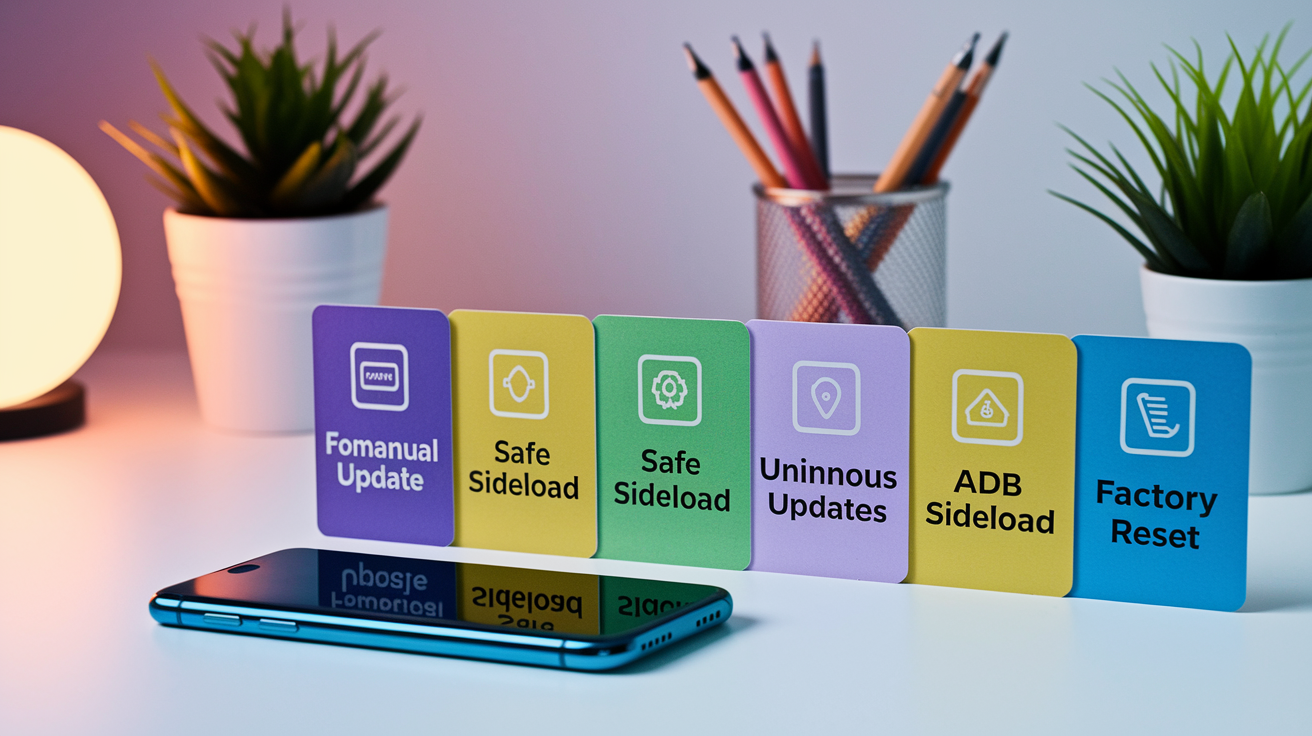
When standard Play Store updates fail over and over after you’ve cleared cache, freed storage, and verified network, manual intervention becomes necessary. These methods bypass the automatic update queue and give you direct control over installation. They take more steps and carry slightly higher risk if you’re not careful.
Five manual recovery approaches, easiest to hardest:
- Force manual update in Play Store — tap profile icon → Manage apps & device → Updates available → tap Update next to each stuck app individually instead of using Update all.
- Safe sideload from a trusted source — download the latest APK from APKMirror or APKPure, verify the SHA256 checksum matches the official release, enable Install unknown apps for your file manager, install the APK, then disable unknown sources.
- Uninstall Play Store updates — Settings → Apps → Google Play Store → three‑dot menu → Uninstall updates → restart device → open Play Store and let it update itself to the latest version.
- ADB sideload — connect device to PC, enable Developer options and USB debugging, use
adb install -r app.apkto force‑install the update while keeping app data. - Factory reset — backup all data to Google account or external storage → Settings → System → Reset options → Erase all data (factory reset) → confirm PIN/password → wait 10–30 minutes for reset and restore.
For safe sideloading, always verify the APK signature and version code before installation. Sites like APKMirror publish SHA256 hashes for each file. Compare the hash of your downloaded APK using a checksum tool or file manager with hash support. Confirm the package name matches the official app (for example, com.whatsapp for WhatsApp) and that the version code is higher than your currently installed version. Install the APK using a file manager, then immediately revoke the “install unknown apps” permission for that file manager to prevent accidental malware installs later.
Factory reset is the last resort because it wipes all local data, installed apps, accounts, and settings. Before you go there, back up photos to Google Photos, export app data where possible (many apps offer cloud backup or export), save important files to Google Drive or a PC, write down your accounts and passwords. After reset, the device reboots to the setup wizard. Sign in with your Google account to restore apps and settings, though app data will only restore if the apps supported Android’s backup API.
Preventive Practices to Avoid Future Android Update Failures
Regular device maintenance stops most update failures before they happen. Keeping at least 10% of total storage free (or a minimum of 1 GB) makes sure Play Store has room for download buffers and temp unpacking. Updating your Android OS as soon as patches drop keeps system libraries and Google Play Services current, cutting compatibility conflicts with newer app versions. Weekly reboots clear memory leaks and background process buildup that can mess with downloads.
Five preventive habits that cut update issues by 80–90%:
- Keep at least 1 GB free storage — check Settings → Storage monthly and delete unused apps, old downloads, cached media.
- Reboot weekly — power off completely for 30 seconds once a week to clear RAM and reset system services.
- Enable Auto-update apps — Play Store → Settings → Network preferences → Auto-update apps → set to “Over any network” or “Over Wi‑Fi only” depending on your data plan.
- Disable battery optimization for Play Store — Settings → Apps → Google Play Store → Battery → Unrestricted to allow background updates without interruption.
- Turn off data saver for Play Store — Settings → Network & internet → Data Saver → Unrestricted data → enable Google Play Store and Google Play Services.
These simple steps tackle the root causes of most update failures before they show up. Automatic updates make sure you’re never running outdated app versions that might have known bugs or security holes. Unrestricted battery and data access lets Play Store download and install updates in the background during idle periods, so you don’t run into stuck queues when you manually check. Combined with periodic cache clearing (every few months or whenever things feel sluggish), this maintenance routine keeps your device healthy and updates flowing smooth long term.
Final Words
Start with quick fixes: restart the phone, toggle Airplane Mode, switch networks, free about 1 GB, clear Play Store/Play Services/Download Manager cache, then retry updates.
If those steps fail, check account sync, move apps off the SD card, verify OS compatibility, or look up Play Store error codes; use manual reinstall or ADB only when necessary.
If you’re still asking why do apps fail to update on android, most cases trace to network, storage, cache, or compatibility — follow these steps and your updates should work again.
FAQ
Q: Why won’t my apps update on Android?
A: Apps won’t update on Android because of weak or blocked network, insufficient storage, corrupted Play Store/Play Services/Download Manager cache, outdated OS, account sync issues, or APK signature conflicts — check network and free space first.
Q: What should I do if an app won’t update?
A: If an app won’t update, restart the device, toggle Airplane Mode or switch networks, free at least 1 GB, clear Play Store/Play Services/Download Manager cache, verify date/time, then retry updates.
Q: How do I force my apps to update? / How do I force an app to update on Android?
A: To force apps to update on Android, open Play Store → Manage apps & device → Updates available, tap Update or Update all; alternatively clear caches, remove/re-add your Google account, or sideload a verified APK as a last resort.

