
Frustrated that an app shows “Pending Update” and never starts?
This usually means the app store couldn’t begin the download because of a queue glitch, network hiccup, or low storage—problems that affect anyone who updates apps, especially on busy phones and shared Wi-Fi.
It matters because stuck updates can block security fixes, waste time, and keep you from using new features.
Here are quick, tested fixes—pause and resume, restart, clear cache, check network and storage—so you can finish the update fast.
Immediate Fixes for an App Stuck on Pending Update

Update queue conflicts and temporary system glitches are why most apps get stuck on “pending update.” Multiple apps fighting for download priority, or a quick network hiccup, can freeze the queue without tossing up an error message. These usually sort themselves out once you reset the update process or clear the queue.
Restarting your device wipes temporary system memory and makes the operating system reload update services. This one move fixes pending updates most of the time because it refreshes network registration, dumps RAM that background processes were hogging, and reconnects you to the app store.
Pausing and resuming the pending update tells the store to re‑authorize the download without kicking you out of the queue. It’s faster than a full restart and works when the update’s just sitting there waiting for permission or network confirmation.
-
Pause and resume the pending update. Open the Play Store or App Store, tap your profile icon, select “Manage apps & device” or “Purchased,” find the pending app, tap it, and hit “Pause” then “Resume.”
-
Restart the device. Press the power button plus volume up (or just power on some devices), select “Restart,” wait 30 seconds, then open the store app and check the update status.
-
Check and reorder the update queue. Go to Play Store, tap your profile icon, then Manage apps & device, then “Updating” or “See details.” Cancel apps ahead in line by tapping the X next to each one, or hit “Cancel all” to clear everything and start over.
Network Issues That Can Prevent an App Update from Starting

Weak, unstable, or restricted internet connections delay the update authorization process. Your app gets stuck on “pending” even when download speed looks fine. Store servers need stable back‑and‑forth communication to verify your account, check app permissions, and confirm you’ve got enough storage before the download starts. Network interruptions during this handshake leave the update hanging until the connection stabilizes and the store can try again.
Store download preferences and network restrictions block updates without telling you. Settings like “Wi‑Fi only downloads,” metered data limits, or throttled connections can stop the store from kicking off large updates. VPNs with ad‑blocking or region restrictions might mess with server communication too, especially if the VPN’s routing traffic through a country where the app version isn’t available.
-
Run a speed test to confirm bandwidth quality. Open a browser and search “speed test,” then run it. If download speed’s below 2 Mbps or latency’s over 200 ms, the connection’s probably too slow to authorize updates.
-
Disable metered or limited data mode. On Android: Settings, Network & internet, Internet, tap your Wi‑Fi name, Advanced, toggle off “Treat as metered network.” On iPhone: Settings, Cellular, toggle off “Low Data Mode.”
-
Review download preferences. Play Store, profile icon, Settings, Network preferences, App download preference. Select “Over any network” to allow mobile data downloads, or keep “Over Wi‑Fi only” and connect to stable Wi‑Fi.
-
Check router or network stability. Restart your router by unplugging it for 60 seconds, then plug it back in. Test the connection by opening a website or streaming a short video to make sure data’s flowing.
Storage Problems That Cause App Updates to Stay Pending
Storage shortages stop update downloads from starting because the store needs to reserve space for the entire update file before it can begin. When available storage drops below the update size, the app sits there pending until you free up space. The store doesn’t always warn you about low storage, so the update just hangs in the queue.
SD card corruption or insufficient cache space can stall updates even when total storage looks fine. Apps installed on external SD cards need write access during updates, and damaged or unmounted cards block everything. Cache partitions that fill up prevent temporary update files from being created, leaving the update stuck on pending while the device reports free space everywhere else.
| Cause | How it affects updates |
|---|---|
| Insufficient internal storage | The store can’t reserve space for the update file, so the download never starts. The app stays pending until you delete files or uninstall other apps. |
| Full cache partition | Temporary update files can’t be written to cache, blocking the download authorization step even when general storage shows free space. |
| Corrupted or unmounted SD card | Apps installed to the SD card can’t update because the system can’t write new data to the card. The update stays pending until you eject, reseat, or replace the card. |
Clearing Cache to Fix an App Stuck on Pending Update

Cache corruption blocks update authorization because the store relies on cached data to verify your account, check app versions, and manage download queues. When cached metadata gets outdated or corrupted, the store can’t complete the authorization handshake with Google or Apple servers. Your update sits there pending. Clearing cache forces the store to rebuild this data.
On Android, clearing the Play Store cache removes temporary files without touching your account or settings. Navigate to Settings, Apps & notifications (or Apps), See all apps, Google Play Store, Storage & cache, Clear cache. Wait a few seconds, then open the Play Store and check if the pending update starts. If clearing cache doesn’t work, tap “Clear storage” to reset the app completely, but you’ll need to sign back into your Google account.
On iOS, the App Store doesn’t let you clear cache. Instead, use “Offload App” to remove the app while keeping its data, then reinstall from the App Store. Go to Settings, General, iPhone Storage, tap the pending app, Offload App, confirm, then tap “Reinstall App” or search for it in the App Store.
- Open Settings and go to Apps (or Apps & notifications).
- Tap “See all apps” and find Google Play Store or the stuck app.
- Tap “Storage & cache” (or Storage), then tap “Clear cache.”
- Go back to the home screen, open the Play Store, and check if the pending update resumes on its own.
Fixing App Pending Updates on Android Devices
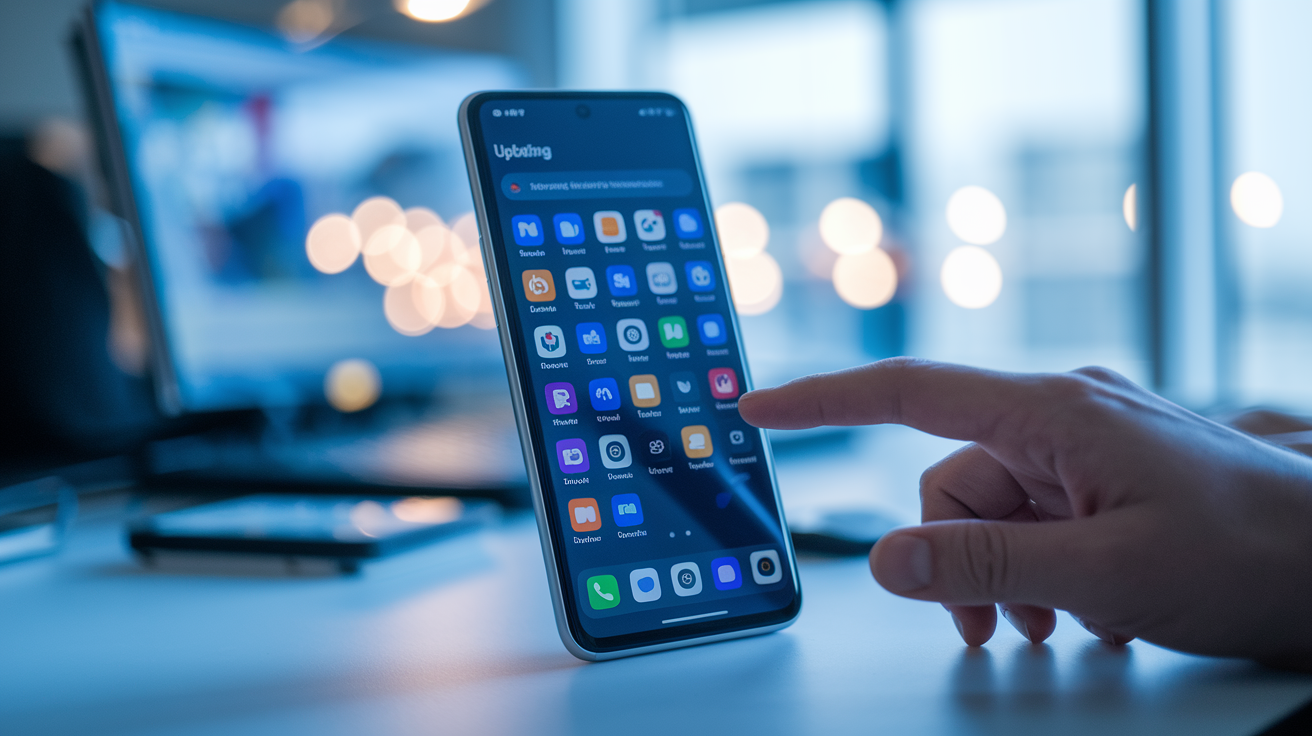
Queue management is the first Android step because multiple apps updating at once can block individual updates from starting. The Play Store processes updates in order, and if an app ahead in the queue hits an error, every app behind it stays pending. Open the Play Store, tap your profile icon in the top right, select “Manage apps & device,” then tap “Updating” or “See details” to view the current queue. Cancel any stuck apps by tapping the X next to each one, or tap “Cancel all” to clear the queue and manually start the app you need.
Removing and re‑adding your Google account refreshes the Play Store’s connection to Google servers and clears account authorization issues. Go to Settings, Accounts (or Passwords, passkeys & accounts), tap your Google account, Remove account, then restart your device. After restarting, go to Settings, Accounts, Add account, Google, sign back in, open the Play Store, and retry the update. This fixes pending updates caused by expired authentication tokens or account sync errors.
SD card issues block updates for apps installed to external storage. If your device uses an SD card, eject it temporarily and retry the update to internal storage. Go to Settings, Storage, tap the SD card name, Eject (or Unmount), then cancel the pending update in the Play Store and reinstall the app to internal storage. If the update works without the SD card, the card’s probably corrupted and should be reformatted or replaced.
VPN and date/time mismatches mess with server communication during update authorization. Disable any active VPN by going to Settings, Network & internet, VPN, toggle off, then retry the update. If the update starts, your VPN was blocking Play Store servers or routing traffic through a restricted region. For date/time issues, go to Settings, Additional settings (or General Management), Date & time, toggle “Set automatically” off and back on to force a time sync with network servers.
- Open Play Store, profile icon, Manage apps & device, tap “Updating” or “See details,” cancel stuck apps in the queue.
- Go to Settings, Accounts, select your Google account, Remove account, restart device, re‑add the account.
- Check SD card: Settings, Storage, Eject SD card, retry update to internal storage.
- Disable VPN: Settings, Network & internet, VPN, toggle off.
- Sync date and time: Settings, Additional settings, Date & time, toggle “Set automatically” off then on.
- Use the Play Store website to push the update: log into play.google.com on a browser, search for the app, select “Install on more devices,” choose your device.
Fixing App Pending Updates on iPhone Devices
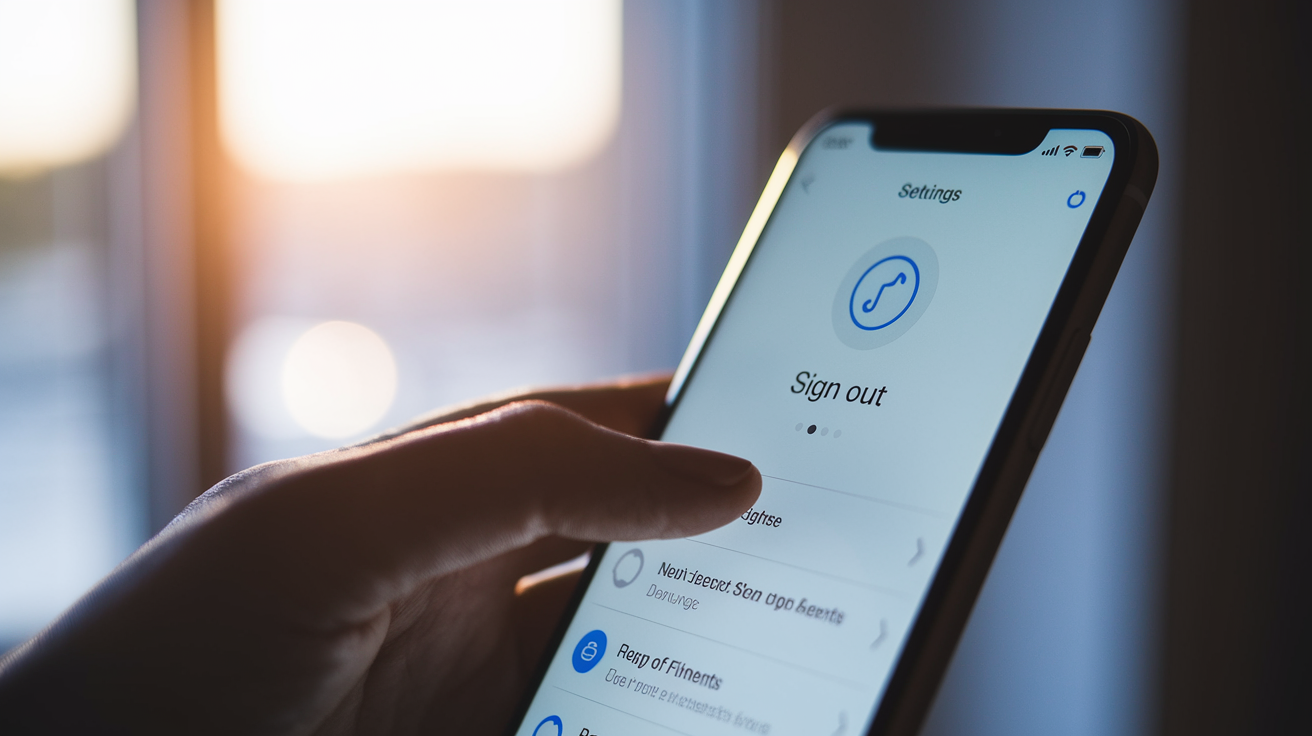
Signing out and back into your Apple ID refreshes the App Store’s authorization and clears account sync issues that block updates. Go to Settings, tap your name at the top, scroll down and tap “Sign Out,” confirm and enter your Apple ID password if prompted, restart your iPhone, go back to Settings, “Sign in to your iPhone,” enter your Apple ID and password. After signing back in, open the App Store and check if the pending update starts on its own.
Offloading the app removes it without deleting its data, which can clear corrupted download files keeping the update pending. Navigate to Settings, General, iPhone Storage, scroll to the pending app, tap “Offload App,” confirm, then wait a few seconds and tap “Reinstall App” (or search for it in the App Store). This forces the App Store to download a fresh copy, bypassing any partial or corrupted update files.
Resetting network settings clears saved Wi‑Fi passwords, VPN configurations, and cellular settings, then rebuilds network connections from scratch. This fixes pending updates caused by network authorization errors or stuck download sessions. Go to Settings, General, Transfer or Reset iPhone, Reset, Reset Network Settings, enter your passcode, confirm. After the reset, reconnect to Wi‑Fi, open the App Store, and retry the update.
-
Offload the app to clear corrupted update files. Settings, General, iPhone Storage, tap the app, Offload App, Reinstall App.
-
Reset network settings to fix authorization errors. Settings, General, Transfer or Reset, Reset, Reset Network Settings, enter passcode, confirm, then reconnect to Wi‑Fi.
-
Sign out and back into your Apple ID. Settings, tap your name, Sign Out, restart iPhone, Settings, Sign in, enter Apple ID credentials.
-
Delete the app entirely and reinstall. Press and hold the app icon on the home screen, Remove App, Delete App, open App Store, search for the app, download again. This clears all local data and forces a fresh install.
Advanced Solutions When an App Remains Stuck on Pending Update
Clearing cache for the individual stuck app removes corrupted temporary files that might interfere with the update process. On Android, go to Settings, Apps, See all apps, select the pending app, Storage & cache, Clear cache, then go back to the Play Store and retry the update. If clearing cache doesn’t work, tap “Clear storage” to reset the app completely, but this will delete saved logins, preferences, and local data.
Uninstalling and reinstalling the app is the most reliable way to fix persistent pending‑update issues caused by corrupted downloads or incomplete installations. On Android, press and hold the app icon, Uninstall (or Settings, Apps, Uninstall), then open the Play Store and reinstall the app. On iPhone, press and hold the app icon, Remove App, Delete App, then search for it in the App Store and download again. This forces the store to download the latest version from scratch, skipping any damaged files.
- Clear the app’s cache. Settings, Apps, select the app, Storage & cache, Clear cache.
- Uninstall and reinstall the app. Press and hold the app icon, Uninstall, open the store, search for the app, Install.
- Contact the app developer. Open the store listing for the app, scroll to “Developer contact” or “Support,” report the persistent update issue.
- Uninstall Play Store updates (Android only). Settings, Apps, Google Play Store, three‑dot menu, Uninstall updates, confirm, then let the store update itself again.
- Factory reset as a last resort. Back up all data first, then Settings, System, Reset options, Erase all data (factory reset), confirm. This wipes the device and reinstalls the operating system, fixing system corruption that blocks updates.
Preventing Future App Updates from Getting Stuck

Keeping your operating system and store apps up to date prevents compatibility issues that cause pending updates. Install system updates as soon as they show up by going to Settings, Software updates (Android) or Settings, General, Software Update (iPhone). Update the Play Store or App Store by opening the store app, tapping your profile icon, and checking for store updates under “About” or “Settings.”
Limiting concurrent downloads reduces queue conflicts and prevents individual apps from staying pending while others update. In the Play Store, go to Manage apps & device and pause all updates except the one you need right now. On iPhone, open the App Store, tap your profile icon, manually update one app at a time instead of tapping “Update All.” Monitor available storage regularly by checking Settings, Storage (Android) or Settings, General, iPhone Storage (iOS), and keep at least 2–3 GB free to allow space for update files and temporary cache. Disable auto‑updates when you’re on limited or slow mobile data by going to Play Store, Settings, Network preferences, App download preference, “Over Wi‑Fi only,” or App Store, Settings, toggle off “App Updates” under Cellular Data.
- Keep OS and store apps updated to the latest stable version.
- Limit concurrent updates to 2 or 3 apps at a time.
- Monitor free storage and keep at least 2 GB available.
- Disable auto‑updates on poor or metered networks.
- Enable background app refresh (iPhone: Settings, General, Background App Refresh).
- Restart your device weekly to clear temporary system memory and refresh network connections.
Final Words
Start with quick fixes: pause and resume the update, restart your device, clear the store cache, and check available storage and the update queue. These are the fastest ways to unblock most pending updates.
If that doesn’t work, review network settings (Wi‑Fi vs metered), try Android or iPhone‑specific steps, or reinstall the app before moving to advanced options.
These steps cover the usual causes of an app stuck on pending update. Work through them in order and you’ll likely have the update finished in minutes.
FAQ
Q: Why is my app update stuck on pending?
A: An app update is stuck on pending because of update‑queue conflicts, weak or restricted internet, low device storage, or corrupted app‑store cache or temporary download data blocking installation.
Q: What to do if an app is stuck updating?
A: If an app is stuck updating, pause/resume the update, restart the device, clear the store cache, free storage, check Wi‑Fi/download preferences or SD card; on iPhone, Offload the app or sign out and back into your Apple ID.

