
App says ‘update available’ but nothing downloads? You’re not alone, and most fixes are quick.
Start with simple checks: network, storage, and the App Store or Play Store cache.
These three fix about 80% of stuck updates.
If those don’t help, this post walks through seven quick fixes: refreshing the store, toggling VPNs, signing out and back in, offloading or reinstalling the app, and Android and iOS steps.
Follow them and you’ll either fix the problem in minutes or know the safe next move.
Immediate Fixes When an App Says Update Available but Won’t Download
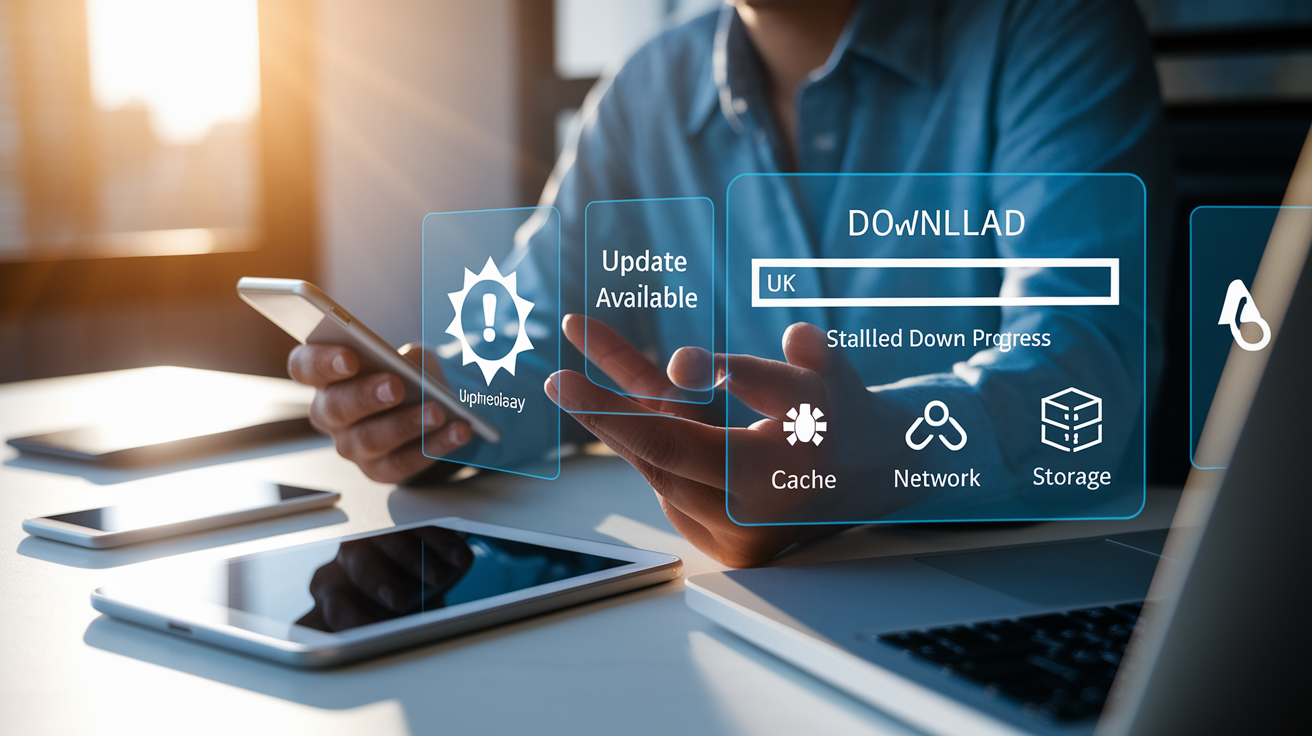
When your device shows “update available” but nothing happens, you’re looking at one of those frustrating store glitches that hits both iOS and Android. Usually something between your phone and the store’s servers is breaking down.
Most of the time it’s corrupted cache sitting in the App Store or Play Store, your network acting up, or just server rollout timing. Updates can take a full day to reach every device worldwide, so what feels like a broken download might just be a waiting game. Technically speaking, the store grabbed the update info but can’t pull the actual file, which leaves you staring at an update badge that does nothing when you tap it.
These six checks fix about 80 percent of stuck updates. Go through them before you dive into platform fixes.
- Check your network connection – open a browser and load a page to confirm you’re actually online.
- Restart the device – clears temporary locks and resets network state.
- Manually refresh the updates list – pull down on the Updates tab to force a new check.
- Verify date and time settings – open Settings and make sure Automatic date and time is on. Server authentication breaks when your clock is wrong.
- Disable any VPN or proxy – these can block store connections, especially if the endpoint is in a different region.
- Confirm available storage – check Settings and make sure you’ve got at least 1 to 2 GB free. Downloads fail silently when storage runs out.
Why App Updates Get Stuck or Won’t Download
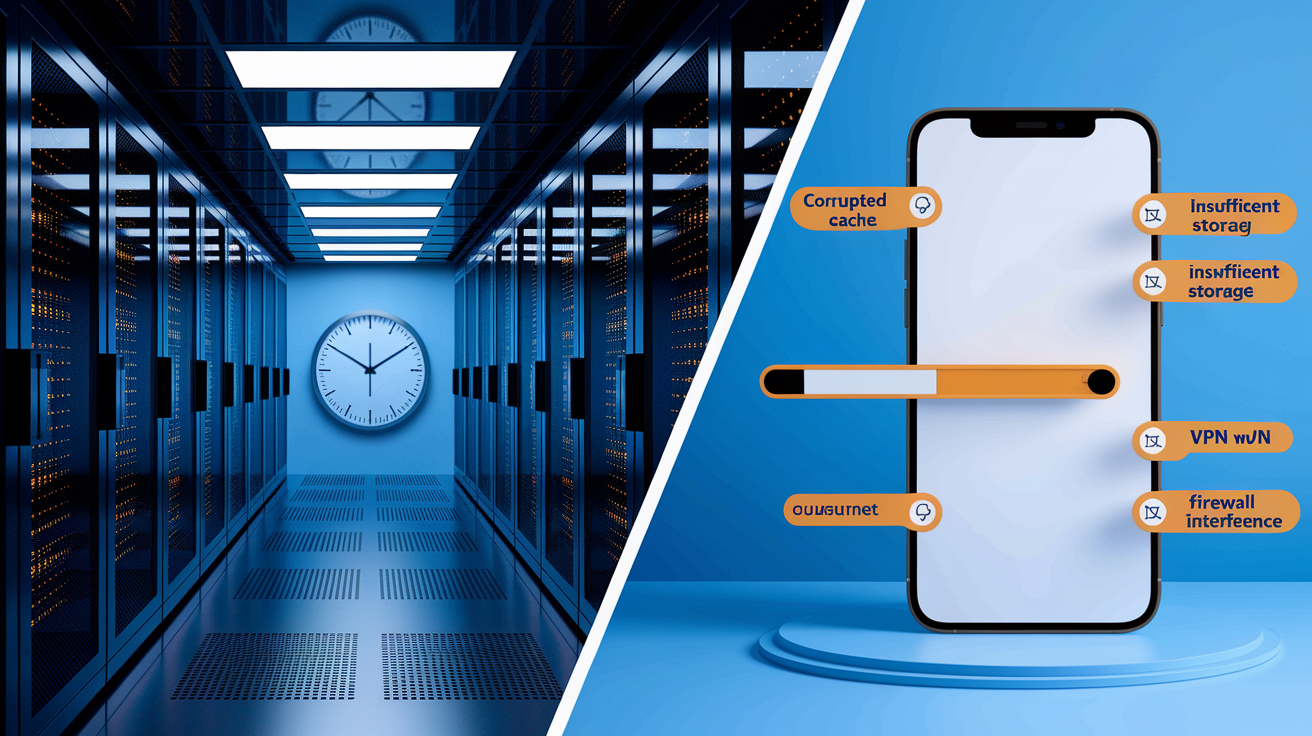
Updates fail for a bunch of server and device reasons. On the server side, publishers roll things out in waves so they can catch bugs before millions of people get hit. That staggered release means your region might not see the update for hours, sometimes a full day after you get the notification. Meanwhile, your device is caching metadata and download pieces. When that cache gets corrupted, the store thinks it’s got the update but can’t actually do anything with it.
Network problems are the top device issue. Shaky Wi‑Fi drops packets mid‑download and triggers a retry loop that never finishes. Low storage stops everything the moment your phone realizes it can’t unpack the file. Wrong date and time settings make your device fail authentication, so the store won’t even start. VPNs and firewalls can throttle traffic to the content network, leaving you stuck on “waiting.” And sometimes account problems—expired login, payment issues, regional blocks—stop updates even when the button looks ready.
| Issue | How It Causes Update Failure |
|---|---|
| Server rollout delays | Update info hits your device before the file is ready in your region, so the download button sits there doing nothing or says “pending.” |
| Corrupted cache | Store app holds broken download pieces or old metadata, blocking new attempts from starting or finishing. |
| Insufficient storage | Device checks space before unpacking. Too low and the download just pauses or cancels with no real error. |
| VPN/firewall interference | Filters or encryption slow down CDN connections, causing timeouts or endless “waiting for download” messages. |
Android Fixes for Update Won’t Download Issues
When an Android update won’t budge, clearing Google Play Store cache and data is your best first move. Then work through network and account checks. The Play Store caches everything—searches, download fragments, metadata—and when those files corrupt, new downloads stop cold.
Clear Play Store Cache & Data
Open Settings, tap Apps, scroll to Google Play Store and tap it. Tap Storage, then Clear cache. This dumps temporary files without touching your account or installed apps. If that doesn’t work, tap Clear data on the same screen. This resets the Play Store completely and logs you out, so you’ll need to sign back in.
After clearing data, open the Play Store and sign in. Go to My apps & games or Manage apps & device, tap Updates, and see if the stuck update now has a working button. Clearing data also fixes those “pending” loops where the store lost track of what it was downloading.
Fix Pending Android Downloads
Downloads go “pending” when the Play Store queues them but can’t start. Open the Play Store, tap your profile icon, then Manage apps & device > Manage tab. Look for anything marked “Pending” or “Download pending.” Tap the app, then Cancel. After that, search for the app again and hit Update to start fresh.
If you’ve got multiple stuck apps, cancel all of them, restart your device, then update one at a time. The Play Store chokes when too many big updates fight for bandwidth. Another thing: automatic updates running in the background while you’re trying to update manually. Turn off auto‑updates temporarily under Settings > Network preferences > Auto‑update apps > Don’t auto‑update apps, finish the stuck ones, then flip it back on.
Network & Storage Checks on Android
Switch from Wi‑Fi to mobile data or the other way around to rule out network issues. Open Settings > Connections > Data usage, toggle Mobile data on. Go back to the Play Store and try again. If mobile data works, your router or ISP might be throttling Google’s servers.
Check storage by opening Settings > Device care or Storage. Less than 500 MB free? Delete apps you don’t use, clear cache for the heavy ones like social media or streaming, or move photos to the cloud. The Play Store needs room to download and unpack before it can install.
Finally, check Date and time. Go to Settings > General management > Date and time and turn on Automatic date and time. Google’s servers reject requests from devices with clocks off by more than a few minutes, which causes silent failures or “waiting” loops.
Reinstall or Reset Components
If cache clearing, network fixes, and storage cleanup all fail, uninstall the app and reinstall from scratch. Long‑press the app icon, drag to Uninstall, then search in the Play Store and tap Install. This skips the update path entirely and gives you a clean install of the latest version. Keep in mind you might lose local data—saved games, offline stuff—unless the app backs up to the cloud, so check first.
For deeper Play Store problems, you can roll back updates. Open Settings > Apps > Google Play Store, tap the three‑dot menu, select Uninstall updates. This takes the Play Store back to factory version. Reopen it and it’ll auto‑update itself, often fixing whatever broke in the process.
Last resort: factory reset. This wipes everything—messages, photos, videos, logins, passwords. Back up anything you care about before you start. Go to Settings > General management > Reset > Factory data reset and follow the steps. Only do this after everything else fails and you’ve confirmed it’s not just a server delay.
iOS Fixes When App Store Updates Won’t Download
iOS update problems usually come back to Apple ID login issues, busted App Store state, or network and storage limits. Because iOS ties the App Store tighter to the system, some fixes need you to sign out of your Apple ID or offload the app to reset its install while keeping your data.
Start by opening the App Store, tapping your profile icon at the top right, then pulling down on Available Updates to force a refresh. Wait a few seconds and check if the stuck update now works. If not, go through these:
-
Restart your device – hold the Side button and either Volume button until the slider shows, drag it. Wait 30 seconds, press Side to turn back on, check the App Store again.
-
Sign out and back in to your Apple ID – open Settings, tap your name, scroll down, tap Sign Out. Sign back in with your Apple ID and password. This refreshes your login tokens and usually clears “waiting” or “unable to download” errors.
-
Offload the app – go to Settings > General > iPhone Storage, tap the app, then Offload App. This removes the app but keeps documents and data. Tap Reinstall App on the same screen to grab a fresh copy with the update.
-
Delete and reinstall the app – if offloading isn’t available or doesn’t help, tap Delete App, confirm, then open the App Store, search for the app, and tap the cloud icon to reinstall. You’ll lose local data unless the app uses iCloud or another backup.
-
Update iOS – open Settings > General > Software Update. If there’s an iOS update, install it. Some app updates need a minimum iOS version, and the App Store won’t download them until your system meets that bar.
Fixing Update Failures Caused by Storage, OS Compatibility, or Account Issues
Even when the store looks fine, deeper blocks can stop updates. Low storage, outdated OS, and account login problems all give you the same thing: an update badge that won’t go away no matter how many times you tap.
When your device runs low on space, the OS reserves what’s left for core stuff and won’t let the store unpack new files. iOS and Android both need temp space roughly twice the size of the update—once to download, again to unpack and install. If you see “Cannot Download” or “Insufficient Storage,” or downloads pause at random percentages, storage is the problem. Some apps also need a minimum OS version. Publishers drop support for older versions as they adopt new frameworks. If your OS is too old, the store shows the update but won’t let you install it, sometimes with an error, sometimes with nothing at all.
-
Free up storage – delete apps you don’t need, clear cache for social and streaming apps (Settings > Apps > [App] > Storage > Clear cache on Android; Settings > General > iPhone Storage > offload or delete on iOS), move photos and videos to cloud or computer. Try to have at least 2 GB free before big updates.
-
Check your OS version and update if needed – on Android, Settings > System > System update; on iOS, Settings > General > Software Update. Install whatever’s available, restart, then try the app update again.
-
Make sure you’ve got enough battery and plug in – lots of devices refuse large updates below 20 to 30 percent or when unplugged. Plug in and retry.
-
Verify your Apple ID or Google account is signed in properly – open Settings, tap your account name, confirm you’re logged in. If you see alerts about payment or verification, fix those first. Expired payment methods can block updates for paid apps even if the update itself is free.
-
Check if billing or permissions block updates – on iOS, Settings > Screen Time > Content & Privacy Restrictions > iTunes & App Store Purchases, confirm “Installing Apps” is set to Allow. On Android, make sure you haven’t disabled installs under Settings > Apps > Special app access > Install unknown apps. Also check whether parental controls or MDM profiles restrict updates.
Advanced Troubleshooting When Updates Still Will Not Download
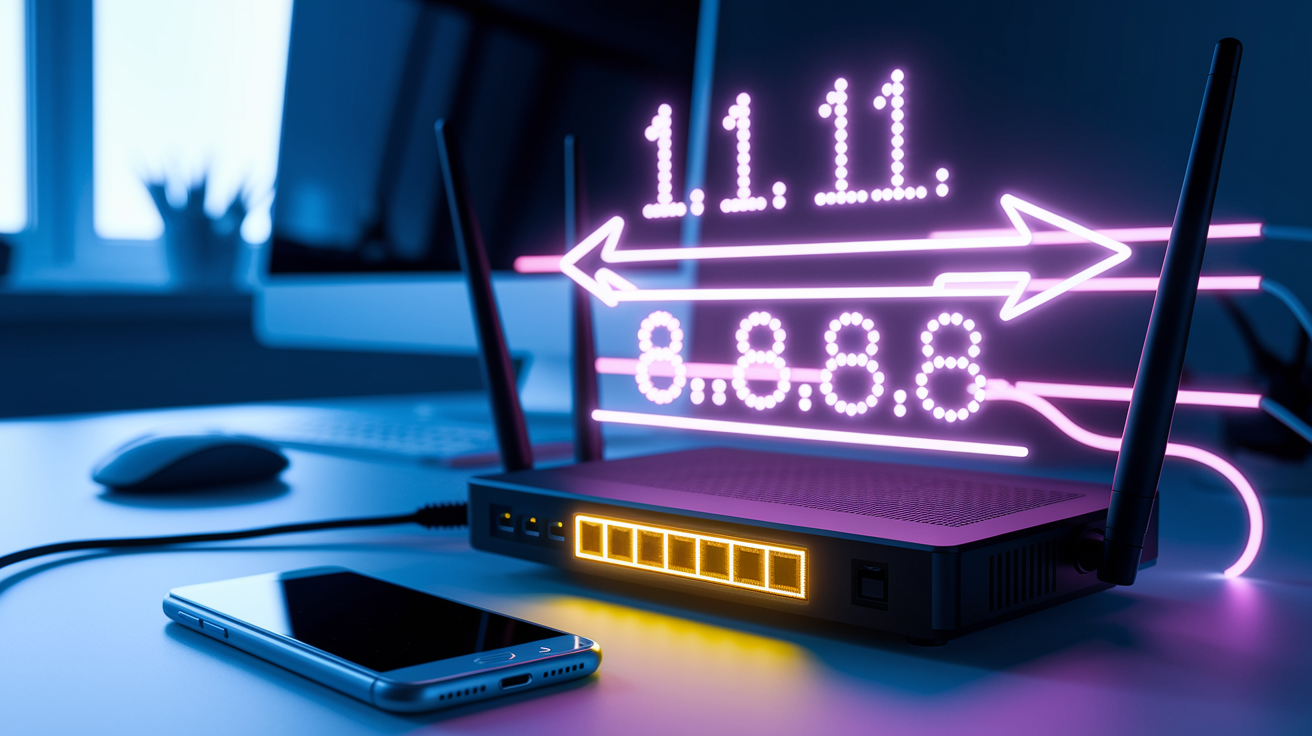
When normal fixes don’t work, the issue’s usually in network config, enterprise restrictions, or conflicts between system parts. These are more technical and riskier, so only try them if you’re comfortable or if support tells you to.
DNS caching or routing can cause problems. Your device asks DNS servers for app store CDN addresses, and stale entries can send requests to the wrong place or time out. Resetting network settings clears all saved Wi‑Fi passwords, VPN setups, cellular settings, and DNS cache, forcing your device to rebuild from scratch. On iOS, Settings > General > Transfer or Reset iPhone > Reset > Reset Network Settings. On Android, Settings > System > Advanced > Reset options > Reset Wi‑Fi, mobile & Bluetooth. After reset, reconnect to Wi‑Fi and try the update. You’ll need to re‑enter every Wi‑Fi password.
Another option is changing DNS servers to public ones like Cloudflare (1.1.1.1) or Google (8.8.8.8). This skips your ISP’s DNS and can fix routing or throttling. On iOS, Settings > Wi‑Fi, tap the (i) next to your network, tap Configure DNS, select Manual, remove existing servers, add 1.1.1.1 and 1.0.0.1. On Android, long‑press your Wi‑Fi network, tap Modify network, expand Advanced options, change IP settings to Static, enter DNS 1: 8.8.8.8 and DNS 2: 8.8.4.4.
| Advanced Fix | When to Use | Risk Level |
|---|---|---|
| Reset network settings | When switching networks or disabling VPNs doesn’t help, or all apps fail to update across multiple tries. | Low (you lose saved Wi‑Fi passwords and VPN configs). |
| Change DNS servers | When downloads time out or pause forever, especially if your ISP or corporate network filters traffic. | Low (easy to reverse; set DNS back to Automatic to undo). |
| Check MDM restrictions | If the device is managed by work or school and updates fail only for certain apps. | None (read‑only check; contact IT if restrictions show up). |
| APK sideloading (Android only) | When Play Store completely refuses to download but the dev provides a direct APK from a trusted source (APKMirror, APKPure). | Medium (skips Play Store security; only download from verified publishers and scan with antivirus). |
Corporate or school devices often have MDM profiles blocking installs or updates. On iOS, check Settings > General > VPN & Device Management for config profiles; on Android, Settings > Security > Device admin apps. If you see an MDM profile, contact IT. You can’t remove it yourself, and trying to bypass it can lock or wipe the device.
For Android users comfortable with risk, sideloading an APK is a last option when the Play Store won’t serve the update. Download the APK for the version you need from APKMirror or APKPure (verify the developer signature matches official), turn on Settings > Apps > Special app access > Install unknown apps > [your browser] > Allow from this source, then open the APK and tap Install. This skips the Play Store entirely but means no automatic updates and you’re trusting the APK source’s security. Only do this if you understand the risks and verified the APK’s real.
When to Wait, When to Reinstall, and When to Contact Support
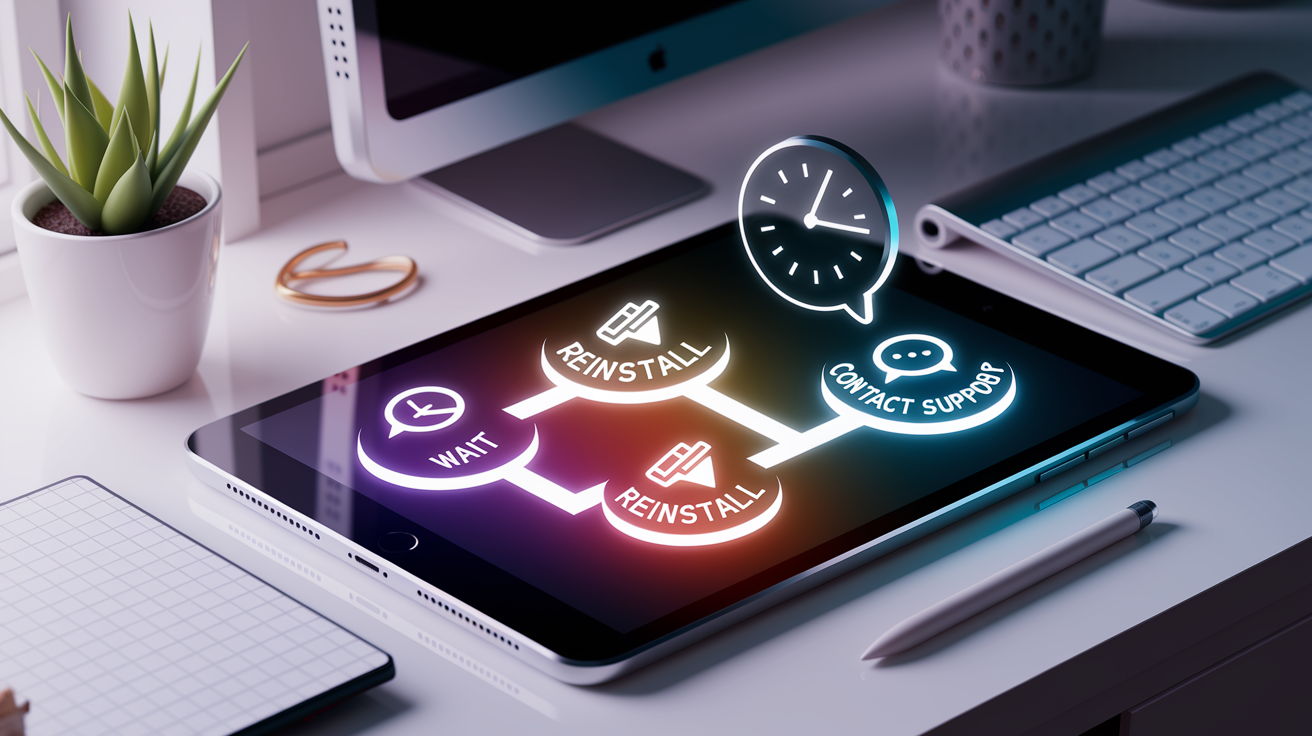
Not every stuck update needs immediate fixing. Publishers roll updates in waves, and the gap between “update available” and “download ready” can hit 24 hours in some regions. If you’ve only been waiting a few hours and none of the quick fixes work, give it till tomorrow before escalating. Check the developer’s Twitter or status page to see if they’ve announced a rollout or server trouble.
If 24 hours pass and it still won’t download, reinstalling is your best bet. Uninstall the app (after confirming your data’s backed up via iCloud, Google Play Games, or the app’s cloud save), then reinstall from the store. Fresh install includes the latest version and skips the broken update system entirely. Works because it replaces every local file and resets install state, clearing corruption or conflicts that blocked the update.
When reinstalling doesn’t fix it, or the same app keeps failing across multiple devices, contact support with logs and details. Go in this order:
-
Wait the full 24 hours and try the update at different times, especially off‑peak when server load is lower.
-
Reinstall the app after backing up data, then check if the reinstall is current. If it is, problem solved. If the store installs an old version and immediately asks for an update that still won’t download, move to step three.
-
Contact Apple Support, Google Play Support, and the app developer. For Apple, reference support article HT202180 (covers update issues and advanced troubleshooting). For Google, reference support article 113412 (Play Store download problems). When you contact the developer, include device model, OS version, app version, exact error message (or “no error, just stuck at waiting”), and note that you already tried reinstalling. If you can, check Settings > (account) > Analytics & Improvements (iOS) or run a bug report (Android: hold power + volume up, or use developer options) and attach the log showing the failed attempt.
Server outages and CDN failures happen sometimes. Check Apple’s System Status page or Google Play via third‑party monitors (Downdetector) to see if there’s a widespread issue. If confirmed, wait for recovery. No device‑side fix will help when the backend’s down.
Final Words
You jump straight into fixes: check your network, restart the device, refresh the store, clear caches, offload or free storage, and toggle VPN or date/time settings.
Keep in mind the update can take up to 24 hours to propagate and corrupted store caches cause many failures — these steps resolve roughly 80% of cases.
If the app says update available but won’t download after that, wait the rollout window, back up and reinstall, or contact support with error details. You’ll likely have it working soon.
FAQ
Q: How to fix apps that are not downloading?
A: To fix apps that are not downloading, check your internet, restart the device, free storage, refresh the App/Play Store, clear cache (Android), sign out/in, disable VPN, or wait up to 24 hours.
Q: Why is my iPhone not letting me download or update apps?
A: Your iPhone may block downloads due to network issues, low storage, Apple ID problems, outdated iOS, VPN/proxy, or date/time mismatches; try restarting, signing out of Apple ID, offloading the app, or waiting 24 hours.
Q: How do I force an app to update?
A: To force an app to update, manually refresh updates in the App/Play Store, pause and resume or tap Update, sign out/in, clear store cache (Android), offload/reinstall the app (iOS), or restart the device.
Q: Why won’t it let me download a certain app?
A: A certain app may not download because of OS incompatibility, regional or developer removal, insufficient storage, account/billing restrictions, or server rollout delays; check requirements, payment, and try reinstalling or waiting 24 hours.

