
Ever updated an app and it suddenly asks for camera, microphone, or location?
That surprise usually comes from three places: the app added a feature that needs access, the operating system changed how permissions must be requested, or the developer must meet new security or policy rules.
Why it matters: unnecessary permissions can risk privacy or battery life; legitimate ones enable new features.
This post shows the common reasons, how to spot red flags, and what to do next: check the changelog and toggle permissions.
Why Apps Request New Permissions After an Update

Apps ask for new permissions after an update for three main reasons: they added features that require access to new hardware or data, the operating system changed how permissions must be requested, or the developer made changes to meet security or compliance requirements. When a messaging app adds video calling, it suddenly needs your camera and microphone. When Android or iOS introduces stricter privacy controls, even a minor app update can force the developer to re-request access they already had.
Some permission changes come from the developer’s roadmap. Others get forced by platform updates. Android 6.0 introduced runtime permissions, meaning apps that previously got storage access at install time now have to ask while you’re using the app. iOS periodically adds new permission categories, like limiting background location or requiring explicit consent for local network access. Developers updating their apps to support these newer OS versions must adopt the new permission flows, even if the app’s functionality hasn’t changed.
Here are the five most common reasons you see new permission requests after an update:
- The app added a feature that needs camera, microphone, location, contacts, storage, or another sensor.
- The app now targets a higher Android API level or newer iOS version, which enforces stricter permission rules.
- The operating system introduced a new permission category or split an existing permission into finer options (for example, “approximate location” versus “precise location”).
- The developer integrated a new third-party library or service that requires additional access (analytics, ads, crash reporting, payment SDKs).
- Security or privacy regulations changed, and the app must re-request consent to stay compliant with platform policies or app store requirements.
Most of these changes are normal and expected. A navigation app moving to real-time traffic updates will ask for background location. A photo editor adding cloud backup will request storage access. The pattern becomes concerning when the new permission has no clear link to any feature described in the update notes. Or when a simple utility app suddenly requests things like SMS, call logs, or accessibility services.
Legitimate Reasons Apps Add Permissions

New features drive most legitimate permission additions. When a social app introduces voice messages, it needs microphone access. When a fitness tracker adds route mapping, it needs location. When a productivity app enables file attachments, it needs storage. Each new capability maps directly to a system permission, and the OS will prompt you the first time the app tries to use that feature.
Developer compliance with changing platform policies also triggers permission requests. Apple and Google regularly tighten rules around background access, nearby device scanning, and notification delivery. An app that silently accessed Bluetooth device names in the past may now need explicit permission under newer iOS or Android versions. Developers who update their target SDK to stay eligible for the app store must adopt these new flows, even when the app’s user-facing behavior stays the same.
The four most common legitimate reasons for new permissions after an update are:
- Feature additions that require access to sensors, files, or communications (adding a QR scanner requires camera, adding location-based recommendations requires GPS).
- Operating system policy changes that split permissions into finer categories or require runtime prompts where install-time grants were previously sufficient.
- Updated SDK or API requirements that mandate explicit permission requests to use system services like notifications, Bluetooth, or background refresh.
- Security tightening by the platform or app store, such as requiring separate consent for always-on location, overlay windows, or accessibility services.
Suspicious or Concerning Permission Requests
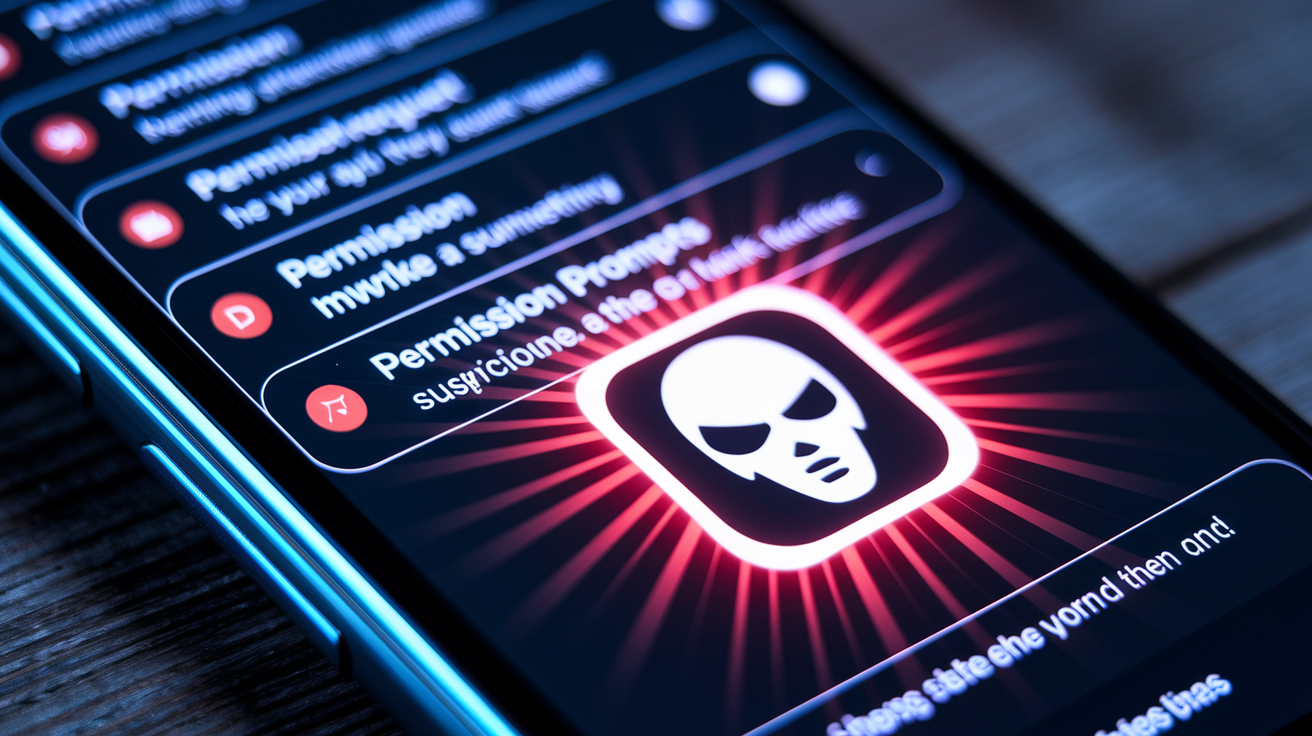
Some permission requests have no clear connection to the app’s stated purpose. A calculator app requesting microphone or location access is a red flag. A simple wallpaper app asking for contacts, call logs, or SMS access suggests data mining rather than functionality. When the update notes describe bug fixes and UI polish but the app suddenly requests storage, camera, and background location, treat it with suspicion.
High-risk permissions deserve extra scrutiny. Accessibility services grant nearly unlimited capabilities, allowing an app to read everything on screen, intercept typed passwords, and silently approve other permissions. Background location enables continuous tracking with real physical safety implications. SMS and call log access can intercept one-time passcodes and enable account takeover. Overlay permissions (appear on top) allow clickjacking attacks. None of these should appear without a strong, obvious justification tied directly to a feature you can see and use.
Exploitative behavior often hides behind vague language. An app that says it needs location “to improve your experience” or microphone access “for better performance” without naming a specific feature is likely harvesting data for advertising, profiling, or resale to data brokers. Legitimate developers explain exactly what the permission enables: “We need your location to show nearby restaurants” or “We need your microphone for voice search.” If the explanation is missing or generic, deny the request and check user reviews for similar complaints.
Examples of Common Permission Changes and What They Mean
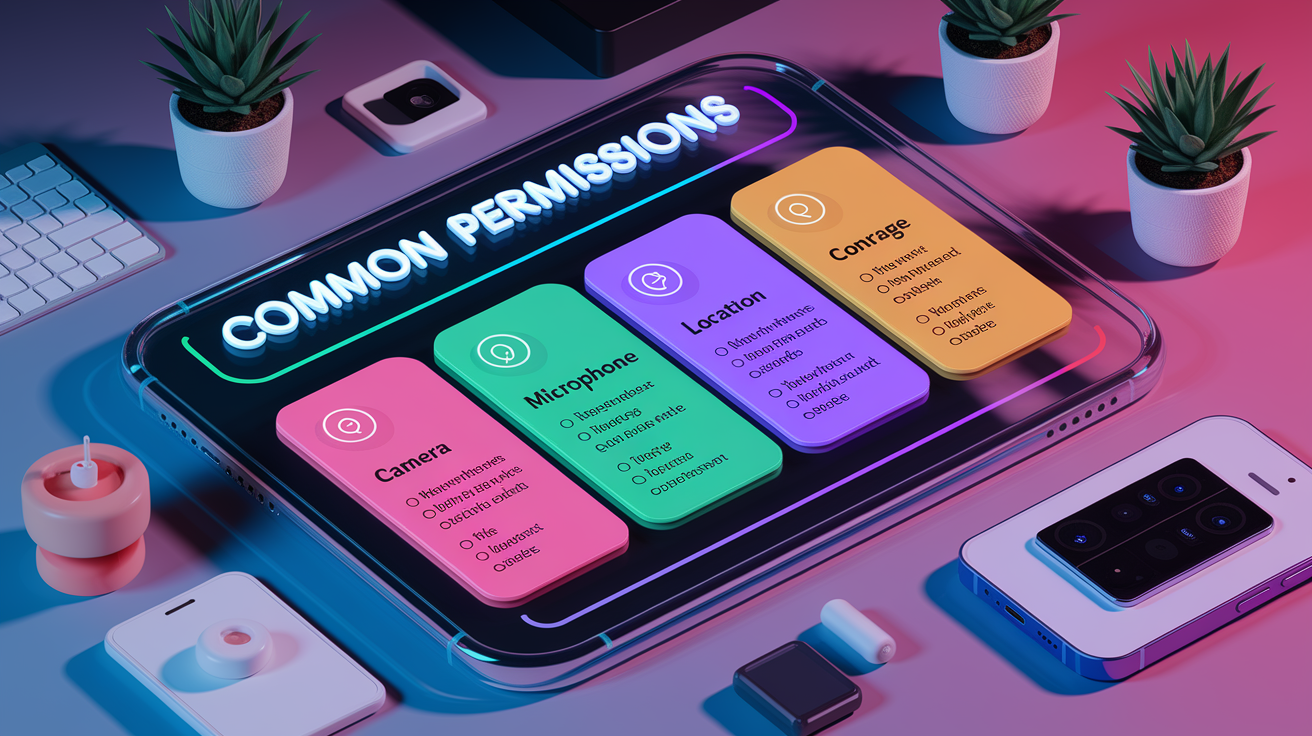
| Permission | Typical Reason | Risk Level |
|---|---|---|
| Camera | QR code scanning, video calls, photo uploads, augmented reality features | Medium – can record video/photos if misused; legitimate for media and communication apps |
| Microphone | Voice calls, voice commands, audio messages, speech-to-text | High – enables eavesdropping; only grant to apps with clear audio features |
| Location (background) | Real-time tracking for delivery, navigation, fitness routes, location-based reminders | High – allows 24/7 tracking; reserve for essential services like Find My or navigation |
| Contacts | Contact sync, social graph features, inviting friends, caller ID | Medium – exposes names and phone numbers; deny unless app’s core function requires it |
| Storage / Files | Save downloads, attach files, edit photos, cache offline content | Medium – can read/modify/delete files; necessary for editors, browsers, and cloud apps |
Camera access is common in social, communication, and productivity apps. Legitimate uses include taking profile pictures, scanning documents, or joining video meetings. If a flashlight app or calculator requests camera access, that’s a warning sign.
Microphone permissions appear when apps add voice input, audio recording, or calling features. Messaging apps need it for calls and voice notes. Navigation apps use it for voice commands. A weather app or simple game requesting microphone access without an obvious audio feature should raise questions.
Location permissions split into “while using” and “always allow.” The first works for maps, ride sharing, and local search. The second should be reserved for apps that genuinely need continuous tracking, like fitness trackers recording a run or family locator services. Many apps request “always” when “while using” would work fine, because background location data is valuable for advertising and analytics.
Contacts and call logs grant access to names, numbers, and communication history. Messaging apps use contacts to help you find friends. Caller ID apps use call logs to identify unknown numbers. A photo editor or news app requesting either permission has no clear justification.
Storage and file access lets apps read, write, and delete files. Browsers need it to save downloads. Photo editors need it to save your work. Cloud storage apps need it to sync files. Apps that request broad file access without a file management or editing feature may be scanning your device for personal data, documents, or photos to upload without your knowledge.
How to Check Whether a Permission Change Is Safe

Start by reading the update notes in the app store before installing. Developers are required to list changes in each version. If the notes mention “Added video calling” and the app requests camera and microphone, that’s consistent. If the notes say “Bug fixes and performance improvements” but the app requests location, contacts, and SMS access, that mismatch is a red flag.
Check the app’s overall permission list in your device settings. Both Android and iOS let you see every permission an app has requested and toggle them individually. Compare the app’s permissions to similar apps. If three competing navigation apps request only location and one requests location, microphone, contacts, and storage, the outlier is suspicious. Read recent user reviews for complaints about excessive permissions, unexpected behavior, or privacy concerns. A sudden spike in one-star reviews mentioning “too many permissions” or “app now requests microphone for no reason” suggests others have noticed the same issue.
Five steps to verify whether a new permission request is legitimate:
- Open the app store listing and read the update changelog for features that match the requested permission.
- Compare the app’s total permission footprint to competitors and check whether the new request is standard for that app category.
- Search the app name plus “privacy” or “permissions” to find news coverage or security analyses if the app is well known.
- Review the developer’s other apps and reputation. Established developers with a track record are safer than unknown publishers with one or two apps.
- Check your device’s permission history or privacy dashboard (iOS Privacy Report, Android Permission Manager) to see when and how often the app accessed the permission after you granted it.
Best Practices for Managing App Permissions

Audit your installed apps every few months. Open your device settings, navigate to the app list, and review what each app can access. Revoke permissions that no longer make sense or that you don’t remember granting. Android and iOS both offer summaries showing which apps accessed camera, microphone, or location recently. If you see unexpected entries (a calculator accessing your microphone at 3:00 AM), revoke access immediately and consider uninstalling.
Use temporary and limited permission modes whenever possible. Both platforms offer “Allow once” or “Only this time” for location, camera, and microphone. Choose “Allow while using the app” instead of “Allow all the time” unless the app genuinely needs background access. A mapping app providing turn-by-turn directions works fine with “while using,” but a lost device tracker needs “always allow” to function when the screen is off.
Read update prompts carefully before tapping “Update All.” When you see a permission dialog after an update, don’t reflexively tap “Allow.” Pause and ask whether the request makes sense. Check the update notes. If you’re unsure, deny the permission and see whether the app still works. Many apps function perfectly well with reduced permissions, disabling only optional features you may not need. Keeping your operating system and apps up to date ensures you benefit from the latest permission controls, security patches, and privacy features. But updates are safer when you review them individually rather than auto-updating everything.
When You Should Remove or Uninstall an App

Uninstall an app if it requests high-risk permissions with no clear functional justification. A simple utility requesting accessibility services, background location, or SMS access is almost certainly overreaching. Apps that repeatedly prompt for the same permission after you deny it, especially when no new feature explains the need, are prioritizing data collection over user choice.
Trust your instinct when something feels wrong. If an app worked fine for months and suddenly requests microphone, camera, and contacts after a minor update with vague release notes, the developer may have changed their data collection practices or integrated a new ad network or analytics SDK. Choosing to remove the app and find an alternative is often safer and simpler than trying to manage aggressive permission requests.
Three clear signals that it’s time to uninstall:
- The app requests permissions unrelated to its core function (a flashlight app asking for contacts, or a calculator requesting location and microphone).
- The app asks for multiple high-risk or special access permissions (accessibility, install unknown apps, appear on top, read SMS) without features that obviously require them.
- User reviews, security researchers, or news reports flag the app for excessive data collection, malware, or privacy violations.
Final Words
You saw why apps request new permissions after updates: added features, platform or API changes, and security tweaks. We explained legitimate reasons, red flags, common examples, and how to verify permission changes.
If an update asks for access that doesn’t match the app’s functions, pause, read the update notes, and check reviews or the developer’s info. Revoke or uninstall if the risk seems real.
If you’re still wondering why do apps need permission after update, treat each prompt as a quick decision — most are harmless, and a quick check keeps you safe.
FAQ
Q: Why are all my apps asking for permission?
A: All your apps are asking for permission because updates or OS changes can add features or require new APIs, which force apps to request explicit consent; check update notes and permission lists first.
Q: How can I turn off asking permission for apps? / How do I fix asking for permission for an app?
A: To stop permission prompts, open Settings → Apps → [App] → Permissions and deny or choose “Only while using”; disable auto-updates, clear app data, or uninstall suspicious apps.
Q: Should app permissions be on or off?
A: App permissions should be on only when needed: grant minimal access, prefer “while using” or temporary grants, deny unrelated requests, and review permissions regularly.

