
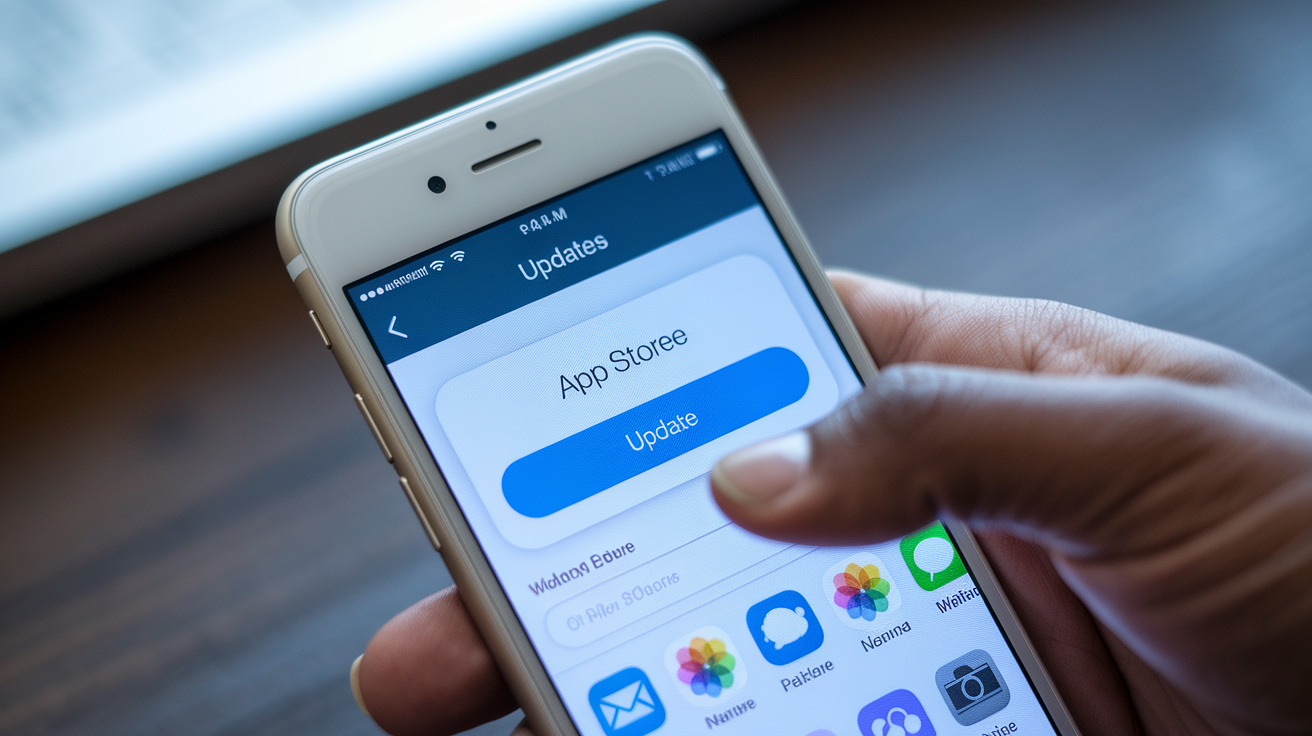
Your iPhone just downloaded an update that broke your most-used app, and now you’re scrambling to fix it. Or maybe an app won’t update at all, leaving you stuck with an old version that’s missing features or security patches. Either way, you need to force an update right now. The good news: it takes about 30 seconds using the App Store’s built-in tools. This guide walks through the exact steps to manually update any app, plus fixes for when updates get stuck, won’t download, or disappear entirely from your update list.
Manual Steps to Force an iPhone App Update
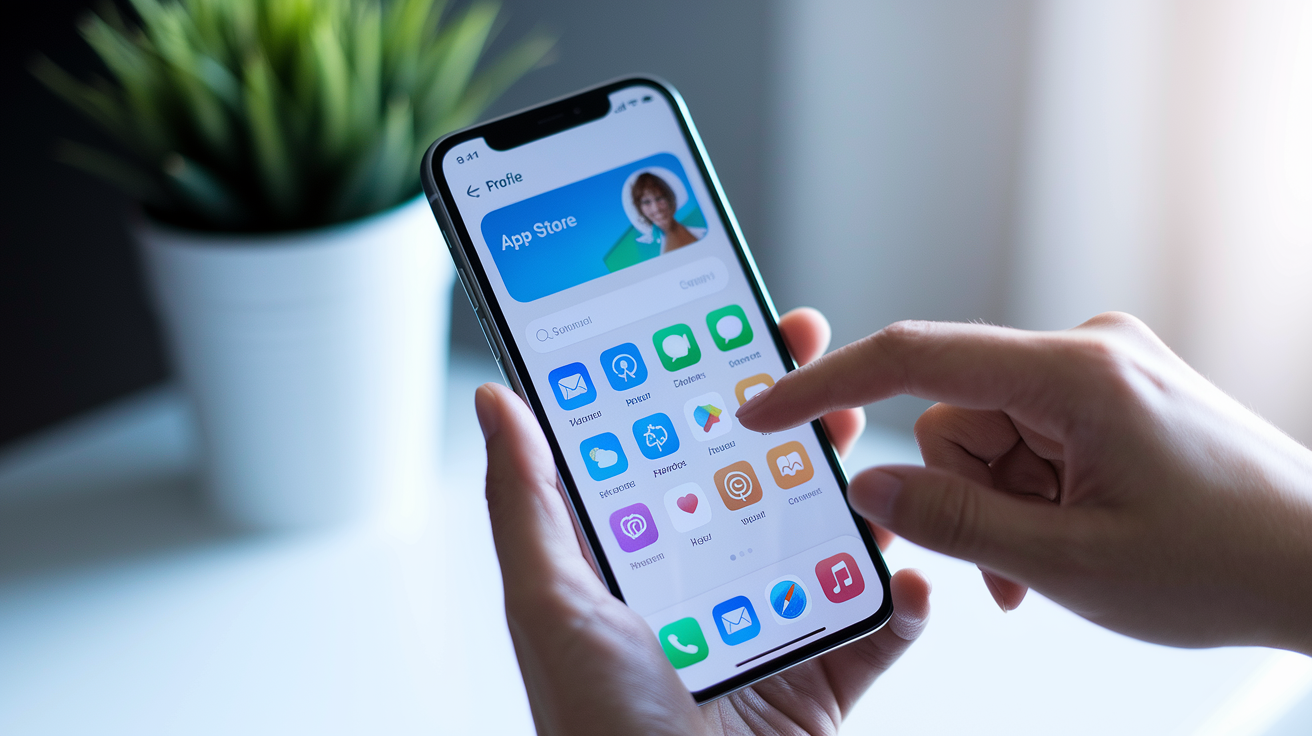
- Open the App Store app on your iPhone home screen or app library
- Tap your profile picture icon in the top right corner of the screen
- Pull down on the Account screen to refresh and check for new updates
- Scroll down to find the “Available Updates” or “Upcoming Automatic Updates” section
- Tap “Update” next to any individual app you want to update immediately
- Tap “Update All” at the top of the section to update every app at once
- Quick access alternative: touch and hold the App Store icon on your home screen, then select “Updates” from the pop up menu
The pull down refresh gesture forces the App Store to immediately check Apple’s servers for new app versions. Without this step, you might see outdated information from the last time the App Store loaded.
Apps won’t update automatically when you’ve disabled automatic update settings, when network connections fail, or when downloads get stuck mid process. The “Available Updates” section shows apps ready to download right now. “Upcoming Automatic Updates” lists apps scheduled to update in the background once you connect to WiFi and charging. During the update process, you’ll see a circular progress indicator next to each app showing download percentage. The circle fills clockwise as files download, then the app installs automatically. Once complete, the “Update” button disappears and the app moves to your “Updated Recently” list. Large apps may take several minutes depending on your connection speed and the size of the update files.
Configuring Automatic App Update Settings on iPhone

Enabling automatic updates means you’ll get security patches, bug fixes, and new features without lifting a finger. Your iPhone handles everything in the background while you sleep or during periods when the device sits idle. You’ll always run the latest versions without checking manually or remembering which apps need attention.
- Open the Settings app on your iPhone
- Scroll down and tap “App Store”
- Find the “Automatic Downloads” section
- Toggle the “App Updates” switch on (green) or off (gray) depending on your preference
Your iPhone only updates apps automatically when specific conditions align. The device must connect to WiFi, not cellular data by default. Battery level needs to reach at least 50 percent, or the iPhone must be plugged into power. Sufficient storage space must be available for downloading and installing updates. Background App Refresh must be enabled in Settings > General > Background App Refresh. If any condition fails, automatic updates pause until the requirements are met again.
The “App Updates” toggle specifically controls whether apps update themselves in the background. This differs from the “App Downloads” toggle that controls whether new app purchases on other devices download automatically to this iPhone. Both settings live in the same Automatic Downloads section but serve different purposes.
Checking Network Connection and WiFi for iPhone App Updates

App updates require a stable internet connection to download files from Apple’s servers. By default, iOS only allows updates larger than 200MB over WiFi to protect you from unexpected cellular data charges. If you’re trying to update apps using cellular data and nothing downloads, you’ve likely hit this limit. Smaller updates under 200MB will download over cellular if you’ve enabled that setting, but anything larger waits for WiFi automatically.
To allow cellular data for App Store downloads, open Settings, tap “App Store,” then find the “Cellular Data” section. Tap “App Downloads” and select “Always Allow” instead of “Ask If Over 200 MB” or “Always Ask.” Keep in mind this can consume significant data if you update multiple large apps, potentially exceeding your monthly plan limits. A single game update can easily reach 1GB or more. That adds up quickly across several apps.
When updates won’t download despite having internet access, your connection may have dropped or the network might be unstable. Toggle Airplane Mode on, wait five seconds, then toggle it off to reset all wireless connections at once. This forces your iPhone to reconnect to WiFi and re-establish cellular data. If that doesn’t work, go to Settings > WiFi, tap the information icon next to your connected network, select “Forget This Network,” then rejoin by entering your password. Check whether other devices in your home can access the internet to rule out router problems. Position yourself closer to the WiFi router since weak signals cause failed downloads that appear stuck indefinitely.
Managing Storage Space and Reinstalling Apps for Updates
Apps need extra space during updates because iOS downloads the new version before removing the old one. This temporary duplication prevents a broken app if something goes wrong mid update. Updates also unpack compressed files and create backup data during installation, requiring 2 to 3 times the app’s displayed size in available storage.
| App Type | Typical Update Size | Recommended Free Space |
|---|---|---|
| Small utility apps | 10-50 MB | 150-200 MB |
| Social media apps | 100-300 MB | 500 MB-1 GB |
| Games | 500 MB-2 GB | 2-6 GB |
| Productivity apps | 50-200 MB | 300-600 MB |
| Video streaming apps | 100-400 MB | 500 MB-1.2 GB |
Check your available storage by opening Settings, tapping “General,” then selecting “iPhone Storage.” The colored bar at the top shows how your storage breaks down by category: apps (blue), photos (yellow), media (red), and other data. Below the bar, iOS displays your total used space and available space. If available space shows less than 5 GB, you’ll likely encounter update failures for medium to large apps. The storage screen also lists every app by size, with the largest at the top, helping you identify what’s consuming the most space.
Free up space quickly by deleting apps you rarely use, clearing Safari’s cache and history (Settings > Safari > Clear History and Website Data), removing downloaded videos from streaming apps, and deleting large message attachments (Settings > General > iPhone Storage > Messages > Review Large Attachments). Photos and videos typically consume the most storage, so consider backing them up to iCloud Photos or a computer, then deleting local copies. The storage recommendations section suggests specific items to remove based on your usage patterns, like old conversations or unused apps.
When standard updates repeatedly fail or apps crash after installing an update, reinstalling forces a clean version download. For complete reinstallation, find the app on your home screen, touch and hold the icon until the menu appears, select “Remove App,” then choose “Delete App.” This removes all app data, so back up important information first using the app’s built in export or backup features. Return to the App Store, search for the app, and tap the download icon to install the latest version fresh.
Alternatively, use the Offload App feature which removes the app but preserves documents and data. Go to Settings > General > iPhone Storage, select the problematic app, then tap “Offload App.” When you tap “Reinstall App” on the same screen, iOS downloads the newest version while keeping your saved data intact. This method works well for apps where you want to preserve login information, settings, or created content but suspect the installation files became corrupted.
Fixing Apple ID and Sign In Issues Blocking iPhone Updates
The App Store requires active Apple ID authentication to verify you own the apps and have permission to download updates. Apple’s servers check your account status, purchase history, and payment information before allowing any downloads. When authentication fails, expires, or encounters errors, the App Store blocks all updates regardless of whether the apps are free or paid. Common issues include expired passwords requiring reconfirmation, outdated payment information, account security flags, or region mismatches between your Apple ID and the App Store storefront.
Signing out of your Apple ID and signing back in refreshes the authentication token and often resolves mysterious update blocks. Open Settings, tap your name at the top of the screen to access Apple ID settings, scroll to the bottom, and tap “Sign Out.” iOS warns you about iCloud data, offering to keep copies of Safari data, contacts, calendars, and reminders on the iPhone. Make your selections, enter your Apple ID password to confirm, then tap “Sign Out” again in the top right corner. Wait 10 seconds, then tap “Sign in to your iPhone” at the top of Settings, enter your Apple ID and password, and complete two factor authentication if prompted. Once signed back in, open the App Store and attempt updates again.
“Verification Required” errors appear when Apple needs you to confirm payment information, even for free app updates. This happens after changing countries, adding a new device, or when payment methods expire. Tap “Settings,” select your name, choose “Payment & Shipping,” then verify or update your payment method. If you see “None” as a payment option but can’t select it, you likely have an unpaid balance or pending subscription. Clear any outstanding charges first.
For purchased apps not appearing in your update list, open the App Store, tap your profile picture, then tap “Purchased” to view all apps tied to your Apple ID. If apps are missing, tap “Restore Purchases” at the account screen (though this mainly affects purchases, not updates). Sign in issues also occur when Family Sharing settings change or when someone removes your access to shared purchased apps.
Troubleshooting Stuck or Failed App Updates on iPhone

Starting with the simplest solutions saves time because many update problems stem from temporary glitches rather than serious system issues. Some failures result from Apple’s server side problems during high traffic periods, which resolve themselves once server load decreases. Work through fixes in order rather than jumping to complex solutions that might not address the actual problem.
- Pause the stuck download by tapping the app icon, then tap again to resume downloading
- Cancel the update completely by tapping the app icon on your home screen until the progress circle disappears, then restart the update from the App Store
- Force quit the App Store app by swiping up from the bottom of the screen and holding (Face ID iPhones) or double clicking the home button (Touch ID iPhones), then swiping the App Store preview up and off the screen
- Reopen the App Store and attempt the update again after force quitting
- Restart your iPhone if updates remain stuck after force quitting (Face ID models: press and release volume up, press and release volume down, then press and hold the side button until the Apple logo appears. Touch ID models with side button: hold side button and volume down button together until the Apple logo appears. Touch ID models with home button: hold side button and home button together until the Apple logo appears)
- Check Apple’s System Status page at apple.com/support/systemstatus to verify App Store services are operational (green indicators mean normal operation, other colors indicate problems)
- Sign out of your Apple ID in Settings > [Your Name] > Sign Out, wait 10 seconds, then sign back in to clear App Store cache and authentication tokens
- Verify the app supports your current iOS version by checking the app’s App Store listing under “Information” section and comparing the required iOS version to your installed version (Settings > General > About > iOS Version)
- Disable VPN if you’re using one, as VPN connections can interfere with App Store server communication and cause download failures
- Check date and time settings are set to automatic (Settings > General > Date & Time > Set Automatically should be enabled) since incorrect date and time causes authentication failures
- Reset network settings if nothing else works by going to Settings > General > Transfer or Reset iPhone > Reset > Reset Network Settings (this erases all saved WiFi passwords, cellular settings, and VPN configurations, so have WiFi passwords ready before proceeding)
- Disable Screen Time content restrictions temporarily (Settings > Screen Time > Content & Privacy Restrictions > iTunes & App Store Purchases > Installing Apps should be set to “Allow”)
- Check for pending iOS system updates (Settings > General > Software Update) since outdated iOS versions sometimes conflict with newer app update mechanisms
Understanding iOS Version Compatibility for App Updates

Developers build apps using specific iOS features and programming interfaces (APIs) that only exist in certain iOS versions. When Apple releases new iOS versions with security improvements, performance enhancements, or new capabilities, developers eventually stop supporting older iOS versions to take advantage of these improvements. An app requiring iOS 15 can’t run on iOS 14 because it uses features that simply don’t exist in the older system. Apps gradually increase their minimum iOS requirements with each major update, meaning your iPhone model and its maximum supported iOS version determine which app updates you can install.
Check your current iOS version by opening Settings, tapping “General,” selecting “About,” then looking at the “iOS Version” line near the top. To check for iOS updates, return to General in Settings and tap “Software Update.” Your iPhone checks Apple’s servers and displays available updates if any exist. If the screen shows “iOS is up to date,” you’re running the latest version your iPhone model supports. Download and install available iOS updates before attempting app updates, since running the newest iOS version your device supports gives you access to the most app updates.
Older iPhone models eventually reach their maximum iOS version and can’t update further due to hardware limitations. The iPhone 6s, for instance, can’t update beyond iOS 15, while the iPhone 7 stops at iOS 15, and the iPhone 8 reaches iOS 16. When your device reaches its iOS limit and apps require newer versions, those apps disappear from your update list.
The App Store sometimes automatically offers the last compatible version of an app for older iOS versions, but not all developers maintain these older versions. You’ll see a message like “This app requires iOS 16 or later” when checking incompatible apps. At this point, your options include continuing to use the current app version without updates (which eventually causes security and compatibility problems), finding alternative apps with lower iOS requirements, or upgrading to a newer iPhone model that supports recent iOS versions. Security updates stop flowing to older iOS versions, making continued use increasingly risky over time.
Additional Factors Affecting iPhone App Update Performance
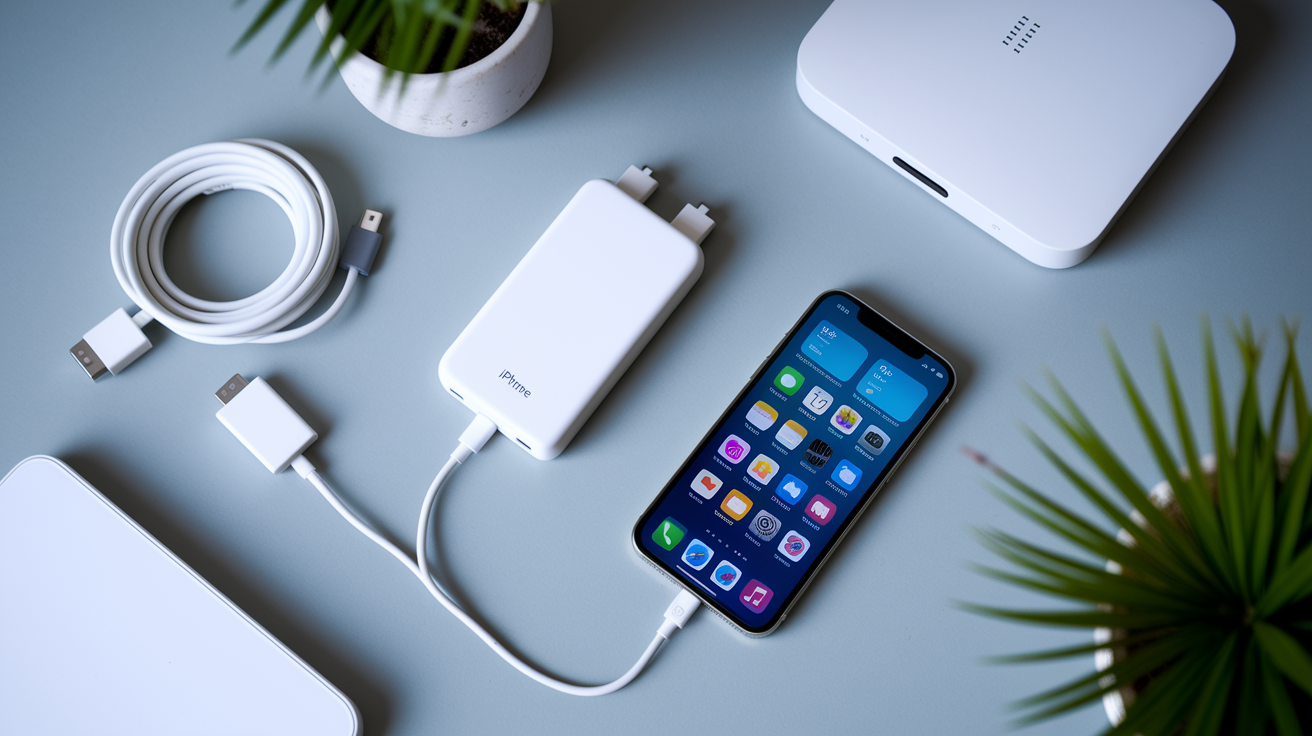
Low Power Mode restricts background activity to extend battery life, which includes pausing automatic app updates entirely. When enabled, the yellow battery icon appears in the status bar, and apps won’t update until you disable Low Power Mode or plug into power. Disable it by opening Settings, tapping “Battery,” and toggling “Low Power Mode” off. You can also access this setting quickly from Control Center by tapping the battery icon. Low Power Mode automatically disables once your battery charges above 80 percent, allowing updates to resume if other conditions are met.
Screen Time and Content & Privacy Restrictions can completely prevent app installations and updates, even when you’re trying to update manually. These restrictions might be enabled if you set up parental controls, received a managed device from work or school, or accidentally enabled restrictions in the past. Open Settings, tap “Screen Time,” select “Content & Privacy Restrictions,” then tap “iTunes & App Store Purchases.” Make sure “Installing Apps” and “Deleting Apps” both show “Allow.” If you see “Don’t Allow,” tap each setting and change it to “Allow.” You’ll need to enter your Screen Time passcode if one is set. These restrictions often cause confusing situations where the App Store works normally but update buttons do nothing when tapped.
Your iPhone needs sufficient battery for large app updates, typically at least 20 percent remaining or a connection to power. iOS prevents large downloads when battery percentage drops too low to avoid depleting power mid installation and potentially corrupting the app. Plug your iPhone into power before updating multiple apps or apps larger than 500MB. The device bypasses the battery restriction when connected to a power source, allowing updates at any battery percentage.
Apple’s servers occasionally experience maintenance downtime or high traffic that slows or prevents updates temporarily. Regional rollouts mean some app updates reach users in certain countries before others, causing delays of hours or even days. Check sites like Downdetector or Apple’s System Status page if updates fail across all apps, suggesting a server problem rather than a device issue. Developer side issues also affect updates when developers pause rollouts after discovering bugs in new versions, pull updates temporarily to fix problems, or release updates in waves to monitor for issues before wider distribution. If a specific app won’t update but others work fine, the problem likely sits with that app’s developer rather than your device or Apple’s infrastructure.
Final Words
When you need to force app update on iphone, the process usually starts in the App Store profile section with a quick pull-to-refresh.
Most update problems trace back to WiFi connection issues, low storage space, or Apple ID authentication glitches.
Work through the troubleshooting steps from simplest to most involved. Restart your device before diving into network resets or reinstalls.
Check your iOS version if an app update won’t appear. Your device might not support the latest version anymore.
With automatic updates enabled and enough storage maintained, most apps stay current without manual intervention.
FAQ
Is there a way to force update an app on iPhone?
Yes, there is a way to force update an app on iPhone by opening the App Store, tapping your profile picture, pulling down to refresh, and tapping Update next to the app or Update All for multiple apps.
How do I force my apps to update?
You can force your apps to update by opening the App Store, tapping the profile icon in the top-right corner, pulling down on the Account screen to refresh the update list, then selecting Update or Update All.
What to do if I can’t update an app on my iPhone?
If you can’t update an app on your iPhone, check your WiFi or cellular connection, verify you have sufficient storage space, sign out and back into your Apple ID, restart your device, or try uninstalling and reinstalling the app.
How do I manually force an iPhone update?
You manually force an iPhone update by navigating to Settings, selecting General, tapping Software Update, and following prompts to download and install available iOS updates if your device supports the latest version.
Why won’t my apps update even after tapping Update All?
Apps won’t update after tapping Update All if you have insufficient storage space, poor network connection, Apple ID authentication issues, disabled automatic downloads, or iOS compatibility problems blocking the installation.
Can I update apps using cellular data instead of WiFi?
You can update apps using cellular data by enabling App Downloads in Settings under App Store, but updates larger than 200 MB typically require WiFi unless you specifically allow cellular downloads with potential data usage.
What does it mean when an app shows “Verification Required” during update?
When an app shows “Verification Required” during update, it means your Apple ID needs payment method verification or account information completion before the App Store allows downloads, requiring you to update payment details in Settings.
Will Low Power Mode prevent my iPhone apps from updating?
Low Power Mode will prevent iPhone apps from updating automatically in the background, but you can still manually update apps through the App Store or temporarily disable Low Power Mode in Settings under Battery.

