
Could your password be sitting in a hacker’s shopping cart right now?
Breach collections now hold over 33 billion leaked passwords, and bots try stolen credentials across sites within hours.
If your password appears in a leak, attackers can use it for credential stuffing, account takeover, and identity theft.
This quick guide shows fast, privacy-safe checks you can run immediately, explains what a positive or clean result means, and tells you the exact steps to take next.
Immediate Ways to Check for a Leaked Password Safely

A password leak means your login got exposed in a data breach and dumped into a public or criminal database. This happens when attackers crack a company’s servers, when someone accidentally publishes credentials, or when hackers bundle stolen data from dozens of sources. Once it’s out there, your password becomes fuel for credential stuffing, account takeover, and identity theft.
You need to check right now because automated bots crawl these databases and try leaked passwords across thousands of sites within hours of a breach. Modern breach collections hold over 33 billion leaked passwords pulled from incidents like the 1.4 billion BreachCompilation accounts, 3.2 billion Comb accounts, plus hundreds of millions of records from LinkedIn, Facebook, and other platforms. The faster you verify and act, the smaller the window attackers have to abuse your credentials.
Most password checkers use SHA‑1 hashing and a privacy method called k‑Anonymity. Instead of sending your full password, the tool hashes it on your device, sends only the first 5 characters of that hash to the service, gets back a list of matching hash suffixes with occurrence counts, and compares the full hash locally. Your actual password never leaves your computer and the service can’t reconstruct it from the partial hash.
Here’s how to use Have I Been Pwned’s password check safely:
- Visit the Pwned Passwords page and type your password into the checker
- Your browser generates a SHA‑1 hash and sends only the first 5 hex characters to the API
- The service returns all hash suffixes that match those 5 characters, along with how many times each appears in breach databases
- Your browser compares the full hash on your device and shows the occurrence count if there’s a match
A positive result confirms your password appears in known breaches and shows how many times attackers have seen it. A negative result is encouraging but doesn’t guarantee safety. Private leaks, undisclosed breaches, and credential sales on closed forums won’t appear in public databases. For more confirmation, you can cross-reference using the step-by-step guidance at How to Check for Password Leaks.
Understanding How Password Leak Checkers Work Behind the Scenes
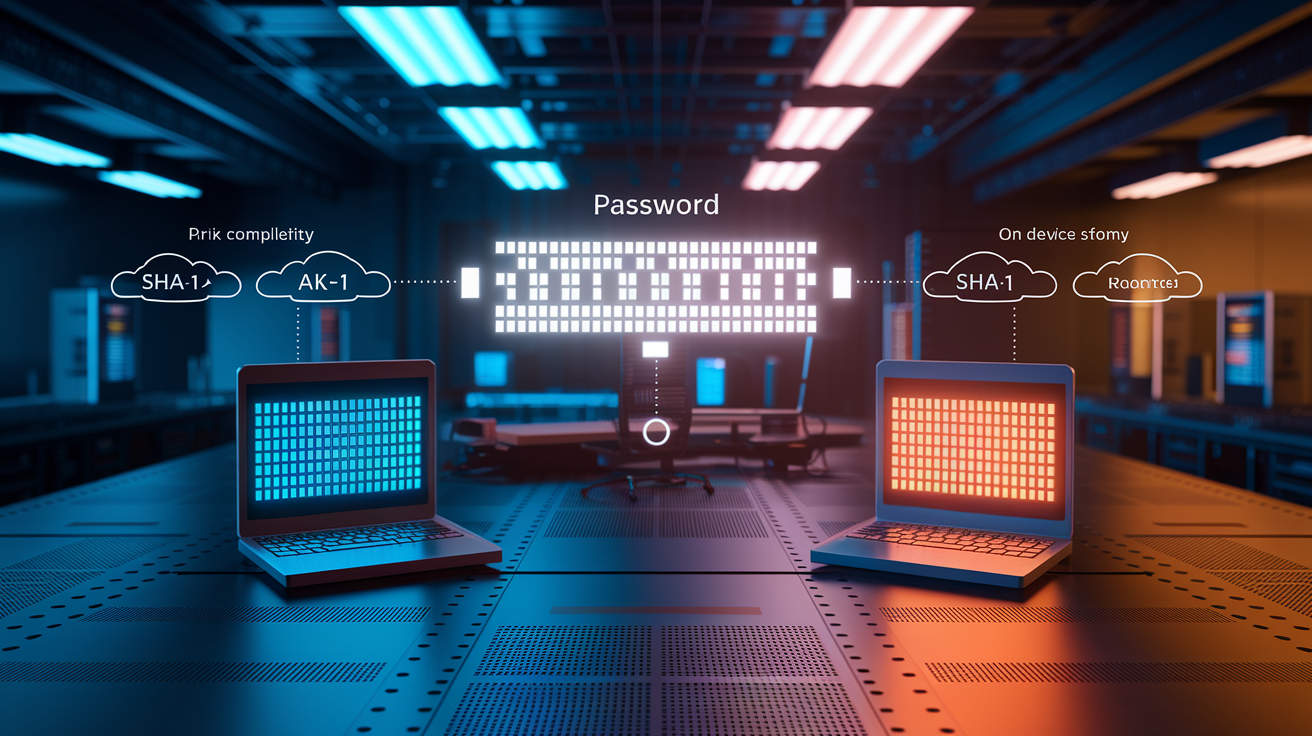
Password checkers rely on SHA‑1, a one-way cryptographic function that turns your password into a 40-character hexadecimal string. When you enter a password, your browser instantly hashes it without sending the plain text anywhere. The checker then transmits only the first 5 characters of that hash to the breach database API.
The API responds with every hash suffix in its collection that starts with those 5 characters, along with a count of how many times each full hash has been seen. Your device compares the complete 40-character hash against the returned list. If there’s a match, the tool reports the occurrence count. If not, you see a clean result. This method (k‑Anonymity) ensures the service never gets enough information to reconstruct your password.
Breach databases store credentials in different forms depending on how the original site was compromised. Some leaks expose passwords in plain text, which is the worst case. Others include hashed passwords. These are one-way transformations that can’t be reversed directly but can be cracked with brute force or dictionary attacks if the hash is weak. The strongest protections use salted hashes. Each password is combined with a unique random value before hashing, making precomputed rainbow-table attacks ineffective. When a leak contains only salted hashes, attackers must crack each password individually. It’s far more time consuming and often impractical at scale.
Why k‑Anonymity Prevents Password Exposure
k‑Anonymity works because sending only 5 hex characters (about 1 million possible combinations out of trillions) groups your password with thousands of others that share the same prefix. The breach service sees that prefix but has no way to know which of the thousands of matching suffixes corresponds to your actual password. Your browser performs the final comparison entirely on your device, so even if an attacker intercepts the API response, they gain no actionable intelligence about your specific credential. This design lets you verify exposure without trusting the service with your password in any form.
Step-by-Step Methods to Verify Email, Username, or Password Exposure
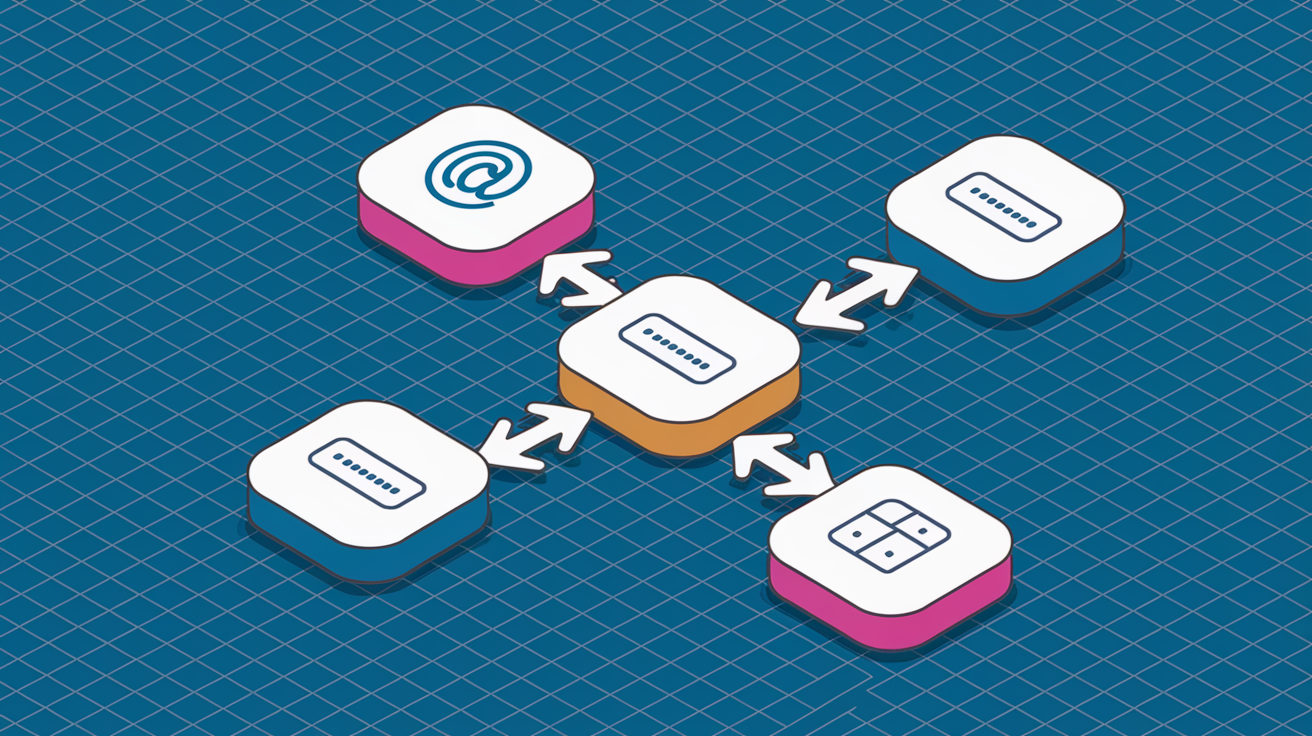
You can check different types of credentials using different tools, each built for a specific lookup. Email checks reveal which services were breached and when. Password checks tell you if a specific secret appears in aggregated leak databases. Username and phone-number lookups are less common but supported by some breach notification services.
Check Email Addresses for Breach History
Enter your email address into a breach lookup tool like Have I Been Pwned. The service searches its index of known data breaches and returns a list of incidents where that address appeared, along with the breach date and the types of data exposed (passwords, phone numbers, physical addresses, payment details). A green result means your email hasn’t been found in indexed breaches. A red result lists every breach by name, date, and data classes. Review each entry carefully. Older breaches may have been resolved, but recent exposures require immediate password changes on the affected service and any account that shares the same password.
Run Password Checks Using Privacy-Safe Methods
For password verification, use a hash-prefix checker. Type your password into the tool’s input field. The tool hashes it with SHA‑1, extracts the first 5 characters, and sends that prefix to the API. The API returns all hash suffixes that match, each tagged with an occurrence count. Your browser compares your full hash against the list. If it finds a match, the tool displays how many times that password has been seen in breach datasets. Anything above zero confirms exposure. High counts (thousands or millions) indicate the password is common or has been leaked in multiple incidents, making it especially risky for credential stuffing attacks.
Use Browser and Password Manager Built-In Audits
Google Chrome and Firefox include password security checks in their settings. In Chrome, open Settings → Autofill → Passwords → Check passwords. The browser scans your saved logins against known breach databases and flags any that are compromised, reused across sites, or weak. Firefox Monitor works similarly and can also notify you of new breaches affecting saved accounts. Password managers like Bitwarden, 1Password, and Dashlane offer “security dashboards” or “watchtower” features that continuously monitor for compromised credentials, alert you to reused passwords, and rank accounts by risk. Run these audits monthly and after any major breach announcement. For a broader approach to breach detection, you can also explore Protect Yourself Online methods.
Additional checks to consider:
- Subscribe to breach alert services that email you when your address appears in new leaks
- Monitor paste sites like Pastebin for accidental credential dumps (use automated scanners, not manual searches)
- Check dark web monitoring reports from identity protection services (avoid attempting direct access to illicit marketplaces)
- Set up Have I Been Pwned’s domain search if you manage email for a small organization
- Use phone-number lookups on supported platforms to verify exposure of SMS based recovery options
What It Means When Your Password Appears in a Leak (and What It Doesn’t)
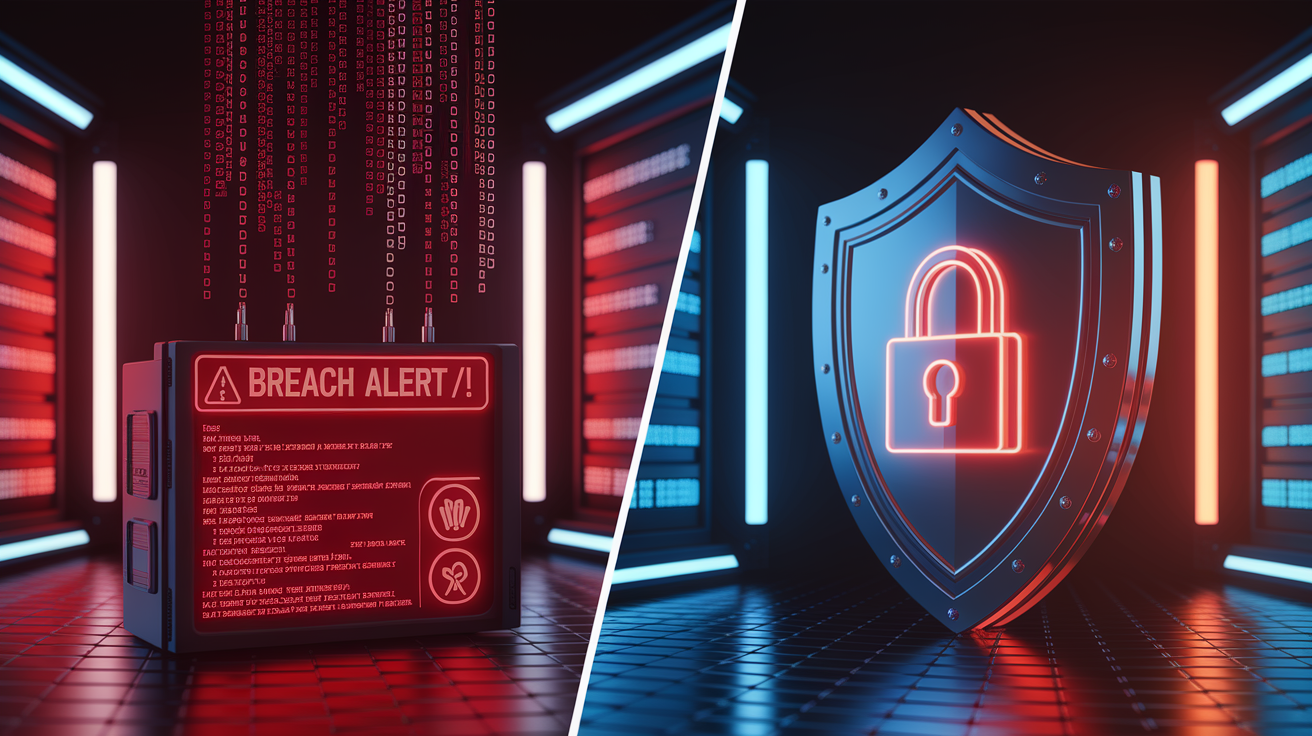
A positive match confirms your password exists in at least one public breach database and shows the occurrence count. How many times it’s been recorded across all indexed leaks. A count of 1 means it appeared once, likely in a single breach. Counts in the thousands or millions indicate widespread exposure, either because the password is common (like “password123”) or because it was leaked in multiple large scale incidents. High counts signal that automated credential stuffing tools almost certainly have your password in their dictionaries and will try it against your accounts.
A clean result means the exact password you entered doesn’t appear in the databases checked by that tool. This is good news, but it’s not proof of safety. Private breaches that were never disclosed publicly, credential sales in closed criminal markets, and leaks that haven’t yet been indexed won’t show up. It’s also possible the password was exposed in a salted hash format that hasn’t been cracked, so the plaintext isn’t in the database yet. Treat a negative result as “not currently detected” rather than “definitely safe.”
Leaked passwords fuel several common attack patterns:
- Credential stuffing: automated bots try your leaked password against thousands of sites, hoping you reused it
- Targeted account takeover: attackers use your email and password to access high value accounts like banking, email, or cloud storage
- Impersonation and social engineering: access to your email lets attackers reset passwords on other services, impersonate you in messages, or harvest personal data for phishing
- Unauthorized purchases and financial fraud: compromised payment accounts can lead to fraudulent transactions, drained balances, or identity theft for credit applications
Immediate Actions to Take If Your Password Was Leaked
Change the compromised password within 24 hours. Delaying gives attackers more time to exploit your credential, especially if it’s reused across multiple accounts. Prioritize your primary email account first. Email access lets attackers reset passwords on nearly every other service you use. Next, update passwords on financial accounts, your password manager (if applicable), cloud storage, and primary social media profiles.
Follow this sequence to lock down your accounts:
- Change the password immediately: generate a new, unique password for the affected account (16+ characters, high entropy)
- Enable multi-factor authentication (MFA): activate two factor authentication on every account that supports it, preferably using an authenticator app or hardware security key
- Revoke active sessions: log out of all devices and sessions from the account’s security settings to terminate any unauthorized access
- Update recovery email and phone number: verify that recovery contacts are current and under your control, and remove any outdated or suspicious entries
- Check recent account activity: review login history, sent messages, payment transactions, and settings changes for signs of unauthorized use
- Revoke OAuth tokens and app-specific passwords: remove third party app permissions and regenerate API tokens or app passwords that may have been exposed alongside your main credential
- Consider credit monitoring and fraud alerts: if financial data or identity information was exposed in the breach, place a fraud alert on your credit reports and monitor bank statements closely for 90 days
For a detailed remediation workflow, refer to How to Check for Password Leaks. After 90 days of heightened monitoring, continue periodic checks but reduce the frequency unless new breach alerts appear. Run anti-malware scans on devices you used to access the compromised account, and review browser extensions or mobile apps for suspicious permissions.
Creating Strong, Unique Passwords to Avoid Future Leaks

Strong passwords resist both brute force attacks and dictionary based cracking. Use at least 12 characters for general accounts and 16 or more for high value accounts like email, banking, and password managers. Longer passwords exponentially increase the number of combinations an attacker must try, making offline cracking impractical even if a hashed version leaks.
Passphrases offer a good balance of security and memorability. Combine 3 to 5 random, unrelated words with capital letters, numbers, and special characters. For example, “Trumpet7!Ocean$Lantern@Window”. This structure produces high entropy while remaining easier to type than purely random strings. Avoid common phrases, song lyrics, or patterns (like “correct horse battery staple,” which is now well known). For maximum security, use a cryptographic password generator to produce completely random strings and store them in a password manager.
Recommended password targets and generator settings:
- Minimum 12 characters for standard accounts
- 16+ characters for email, banking, password manager, and cloud storage
- Include uppercase, lowercase, digits, and special characters
- Generate unique passwords for every account. Never reuse credentials across sites
- Use a password generator set to maximum entropy (random, non-dictionary words)
Reusing passwords is the highest risk behavior. When one service is breached, credential stuffing bots immediately test that email-password pair on hundreds of other platforms. Even if only one account uses a reused password, a single leak can cascade into multiple compromises within hours.
Using Password Managers and Generator Tools Safely
Password managers store hundreds of unique logins in an encrypted vault, protected by a single master password. You only need to remember one strong credential. The manager generates, saves, and autofills complex passwords for every other account. This eliminates the temptation to reuse passwords and ensures every login is unique and high entropy.
Modern password managers include security dashboards that continuously audit your vault. They flag compromised passwords by cross-referencing stored credentials against breach databases, highlight reused passwords across multiple sites, and identify weak or outdated credentials that should be rotated. Some managers integrate with breach alert services to notify you immediately when a saved account appears in a new leak.
Auditing Saved Logins Through Password Manager Dashboards
Most managers offer a “watchtower,” “security checkup,” or “vault health” feature. Open this dashboard to see a prioritized list of risks: compromised passwords that match known breaches, reused credentials that create cascade exposure, and weak passwords that fall below recommended complexity thresholds. The dashboard typically assigns a security score and ranks accounts by urgency. Work through the list from highest to lowest risk, generating new passwords and enabling MFA as you go. Schedule monthly reviews to catch newly flagged credentials and maintain a clean vault.
Password manager vaults are encrypted locally before syncing to the cloud, so even the service provider can’t read your passwords. The master password is the single point of failure. If it’s weak or reused, an attacker who compromises it gains access to your entire vault. Choose a master password that’s at least 16 characters long, completely unique (never used anywhere else), and constructed as a high entropy passphrase or random string. Enable MFA on your password manager account to add a second layer of defense. Some managers support hardware security keys for master password unlocking, offering the strongest protection available.
Strengthening Account Security With MFA and Passwordless Options
Multi-factor authentication requires a second form of verification beyond your password, blocking attackers even if your credential leaks. Accounts protected by MFA are 99.9% less likely to be compromised than those relying on passwords alone. The second factor can be something you have (a hardware key, a phone with an authenticator app) or something you are (biometric data), making unauthorized access far more difficult.
Not all MFA methods are equally secure. Hardware security keys (FIDO2/WebAuthn devices like YubiKey) offer the strongest protection because they’re phishing resistant and require physical possession. Time based one-time password (TOTP) authenticator apps (such as Microsoft Authenticator, Google Authenticator, or Authy) generate temporary codes that refresh every 30 seconds and are much harder to intercept than SMS. SMS based codes are better than no MFA but remain vulnerable to SIM swap attacks and interception. Backup codes should be generated during MFA setup, printed or saved securely, and used only if you lose access to your primary second factor.
Ranked MFA methods by security strength:
- Hardware security keys: physical devices using FIDO2/WebAuthn; highest security, phishing resistant
- Authenticator apps (TOTP): app generated codes refreshed every 30 seconds; strong and widely supported
- Push notifications: app based approval prompts; convenient but susceptible to notification fatigue and accidental approval
- Backup codes: single use recovery codes; essential as a fallback but should be stored securely offline
- SMS codes: text message delivery; convenient but vulnerable to SIM swaps and interception
Passwordless authentication methods like passkeys, biometric logins, and one-time email links are gaining adoption. Passkeys use public key cryptography tied to your device, eliminating passwords entirely and making phishing nearly impossible. Where supported, enable passkeys on high value accounts and pair them with a hardware key or biometric unlock for maximum security.
Creating a Personal Password Security Maintenance Schedule

Password security isn’t a one time task. Breaches happen continuously, and reused or weak passwords degrade your posture over time. Adopt a regular maintenance schedule to catch new exposures, rotate compromised credentials, and tighten security on high value accounts. Monthly checks take 10 to 15 minutes and dramatically reduce your risk of account takeover.
Monthly Security Checklist
Run these steps at the start of each month or immediately after news of a major breach affecting a service you use:
- Run breach scans: check your primary email addresses and frequently used passwords against updated breach databases
- Audit reused passwords: use your password manager’s dashboard to identify and replace any credentials shared across multiple accounts
- Rotate weak passwords: generate new 16+ character passwords for any account flagged as weak or outdated
- Confirm MFA is active: verify that two factor authentication is enabled on email, banking, password manager, cloud storage, and primary social accounts
- Review recovery data: check that recovery email addresses and phone numbers are current, secure, and under your control
- Check device health: scan for malware, review installed browser extensions and mobile apps, and remove anything unnecessary or suspicious
Set calendar reminders or use your password manager’s alert features to automate the schedule. Some managers send monthly reports summarizing vault health, new breaches affecting your accounts, and recommended actions. Subscribe to breach notification services that email you when your address appears in newly indexed leaks, and respond to alerts within 24 hours. Over time, this routine becomes second nature and keeps your credentials ahead of attackers, even as new breaches and attack methods emerge.
Final Words
If you suspect a password has been exposed, run an email lookup, use a hash-prefix password check like Have I Been Pwned, and scan saved logins in your browser or password manager. Change the password for critical accounts within 24 hours and enable MFA.
This article covered quick checks, how k-anonymity protects you, steps to verify email and password exposure, and recovery plus long-term hardening routines and password manager use.
Follow these steps for how to check if my password was leaked and to secure accounts. You’ll reduce risk and get back in control.
FAQ
Q: Where to check leaked passwords on iPhone?
A: You can check leaked passwords on iPhone by using Settings > Passwords’ Security Recommendations, inspecting Safari/iCloud Keychain, running your password manager’s audit, or trying privacy-safe online checkers like Have I Been Pwned.
Q: Which passwords have been leaked?
A: Leaked passwords are credentials exposed in breaches; breach lookup tools show matched accounts, breach names, and occurrence counts, though private or unindexed leaks might not appear in those results.
Q: How do I check if my SSN has been leaked?
A: You check if your SSN has been leaked by using credit-report checks, identity‑theft or dark‑web monitoring services, reviewing credit reports, placing fraud alerts, and watching bank and credit-card activity for unfamiliar items.
Q: How does Apple know my password was leaked?
A: Apple knows a password was leaked by comparing hashed versions of saved credentials against breach data with privacy-preserving checks, so plain passwords aren’t sent and matches are flagged locally or via iCloud Keychain.

