
Think your phone has enough space for an update?
That “insufficient storage available” error can still stop updates even when your device reports free gigabytes.
If you’re trying to update apps, this blocks security patches, new features, and can leave apps unusable.
The good news: most fixes take minutes, clear caches, remove unused apps, move photos to the cloud, or empty Downloads.
This post gives fast, step-by-step fixes you can do now so updates finish without drama.
Immediate Fixes to Resolve Insufficient Storage for App Update
The “insufficient storage available” error pops up even when your phone says you’ve got space left. That’s because your OS sets aside extra room for updates to unpack and install without breaking anything. You don’t need to understand why. You just need to clear it.
Quick fixes: delete temp files, dump apps you never open, move photos off your phone. Takes a few minutes. Each one targets different junk, so do them all.
Here’s what to do:
- Clear app caches in your storage settings
- Uninstall apps you haven’t touched in weeks
- Delete big files like downloaded videos, old PDFs, installers
- Move photos and videos to the cloud or your computer
- Restart your device
- Empty your Downloads folder (it’s full of APKs and random attachments)
After that, try the update again. Usually works.
Checking Storage Levels When Facing App Update Problems

You need to see exactly what’s eating your space. On Android, go to Settings > Storage. Samsung users, try Settings > Battery and device care > Storage. You’ll see what’s using internal storage versus your SD card, plus categories like Apps, Images, Videos, Audio, Documents, Other. Some Android builds let you tap “Cached Data” to nuke all app caches at once.
On iOS, it’s Settings > General > iPhone Storage. You get a sorted list of apps with their sizes, plus Apple’s suggestions for offloading unused stuff or reviewing huge attachments.
Both show you the space hogs, but iOS actually tells you what to do about it. Android’s screens can be misleading because the system reserves space that looks free but isn’t available for installs. Look for anything eating multiple gigabytes and tap it for details.
| Platform | Path to Storage Screen |
|---|---|
| Android | Settings > Storage (or Settings > Battery and device care > Storage on Samsung) |
| iOS | Settings > General > iPhone Storage |
Use these breakdowns to spot which apps or file types are filling your device. Sort apps by size. Anything over 1 GB? Clear its data, offload it, or delete it.
Clearing Cache and Temporary Files to Fix App Update Storage Issues

Cache is temporary stuff apps save to load faster. Over time it piles up across dozens of apps and can eat several gigabytes without doing anything useful. Clearing cache frees space instantly and doesn’t touch your logins, saved games, or message history. That stuff lives in app data, not cache.
Android cache clearing:
- Open Settings > Apps
- Tap Downloaded or All Apps
- Pick an app, tap Storage, then Clear Cache
- Do this for heavy apps like browsers, social media, streaming services, games
- On Android Marshmallow and newer, go back to Settings > Storage, tap Cached Data, confirm Delete to wipe everything at once
Clearing Play Store Cache for Update Failures
Google Play Store throws fake “insufficient storage” errors when its own cache gets corrupted. Go to Settings > Apps > All Apps, scroll to Google Play Store, tap Storage, then Clear Cache and Clear Data. If it still fails, hit the three-dot menu and Uninstall Updates to roll the Play Store back to factory. This removes update bloat and fixes most download failures.
Cache clearing won’t help if you’re under 500 MB free or the system’s reserving too much space. Then you need to actually remove apps or move big files.
Removing and Offloading Apps to Create Space Required for Updates

Uninstalling unused apps frees the app itself, its data, and its cache. On Android, long-press the app icon, drag to Uninstall, confirm. Or go to Settings > Apps > All Apps, select it, tap Uninstall. You can’t uninstall system apps like carrier bloat or manufacturer utilities, but you can disable them. That stops them from running and hides them without fully removing them.
iOS has offloading, which deletes the app but keeps your documents and settings. Reinstalling later brings everything back. Go to Settings > General > iPhone Storage, tap the app, select Offload App. This recovers most of the space while saving your data. Tapping Delete App instead wipes everything and frees a bit more.
What to uninstall or offload:
- Apps you haven’t opened in 30 days
- Games over 2 GB (uninstall and reinstall later to clear bloat)
- Social media and streaming apps (they accumulate cache fast; reinstalling resets them)
- System apps you never use (disable them)
Offload if you’ll use it again soon and want to keep settings. Fully uninstall if you rarely need it or the game saves to the cloud. Reinstalling from scratch also clears temp data that cache clearing misses.
Freeing Space by Managing Photos, Videos, Downloads, and Large Media
Photos and videos eat more space per file than anything else. 4K video uses up to 400 MB per minute. High-res photos average 3 to 5 MB each. If you shoot daily, you’ll fill dozens of gigabytes in weeks. Both Android and iOS have cloud tools to back up media automatically, then delete local copies while keeping files accessible online.
Google Photos (works on both) offers free backup with compressed quality or paid original-quality storage. After enabling backup, open the app, tap your profile, select Free Up Space, confirm deletion. iCloud Photo Library (iOS) automatically keeps smaller versions on your device and stores full-res originals in the cloud. Turn it on in Settings > Photos > iCloud Photos, then toggle Optimize iPhone Storage.
Media cleanup steps:
- Transfer photos and videos to a computer via USB, then delete local copies
- Clear Downloads in Files (iOS) or My Files (Android). Delete APKs, PDFs, installers, archived files
- Delete offline content like downloaded Netflix episodes, Spotify playlists, podcasts you’ve heard
- Check hidden camera folders (Screenshots, Screen Recordings, WhatsApp/Media, Instagram/Cache)
- Empty Recently Deleted or Trash in Photos. Deleted items sit there for 30 days
- Disable the 30-day recycle delay on Android if your device has one. Some Samsung and Pixel models hold deleted files until you manually empty the bin
- Upload documents and big files to Google Drive, Dropbox, or OneDrive, then delete local copies
| Item Type | Typical Space Freed (GB range) | Removal Method |
|---|---|---|
| Photos and videos | 5–20 GB | Cloud backup + delete local copies, or transfer to computer |
| Downloads folder | 0.5–3 GB | Manual deletion via file manager |
| Offline media (streaming apps) | 2–10 GB | Delete downloaded episodes, playlists, maps in app settings |
Media cleanup frees the most space in one shot and keeps the error away for months. Regularly offload photos and videos so your device stays ready for big app updates and OS upgrades without constant manual cleanup.
Using SD Cards and External Storage to Avoid Insufficient Storage for App Updates
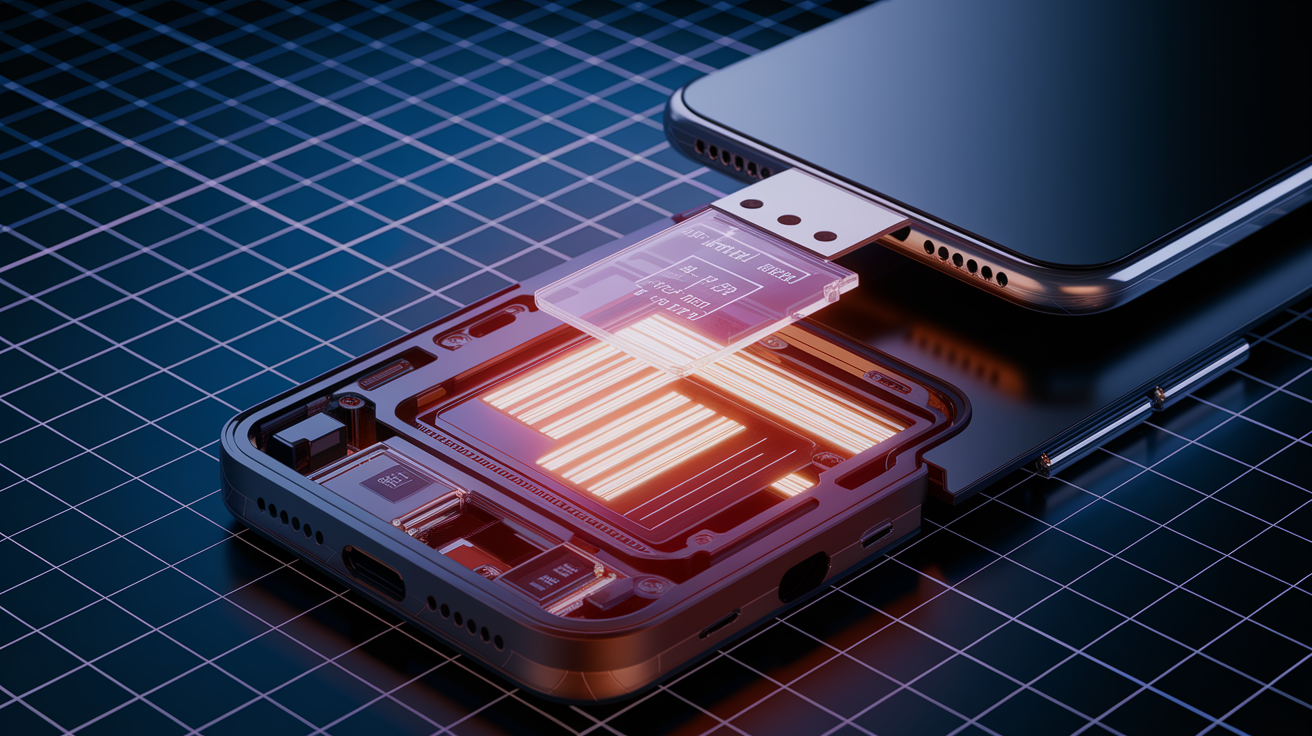
SD cards expand storage for media, but most Android devices restrict which apps can move to external storage. Apps that support it show a “Move to SD Card” button in Settings > Apps > select app > Storage. System apps, many games, and apps needing frequent background access stay on internal storage no matter how big your SD card is. Even with an SD card installed, app updates often fail if internal storage drops below the minimum working space.
Adoptable storage (Android Marshmallow and up) lets you format an SD card as internal storage, merging it with your built-in memory. This increases total space for apps and data, but it encrypts the card and permanently ties it to your device. Remove the card and apps stored on it become inaccessible. Check if your device supports it by inserting an SD card, opening Settings > Storage, tapping the card name, and looking for “Format as Internal.”
Steps to Move Supported Apps to SD Card
- Open Settings > Apps
- Tap the app, select Storage
- If it supports SD, tap Change and select SD Card
- Confirm and wait. The app keeps working during the move
USB On-The-Go (OTG) adapters let you plug USB flash drives or external hard drives directly into Android devices with OTG support. Copy big files like 4K videos, game installers, or archived photos to the external drive, then delete them from internal storage. You need a file manager app to browse and transfer files, and the drive has to stay connected while you access it.
Advanced Fixes for Persistent Insufficient Storage Update Errors
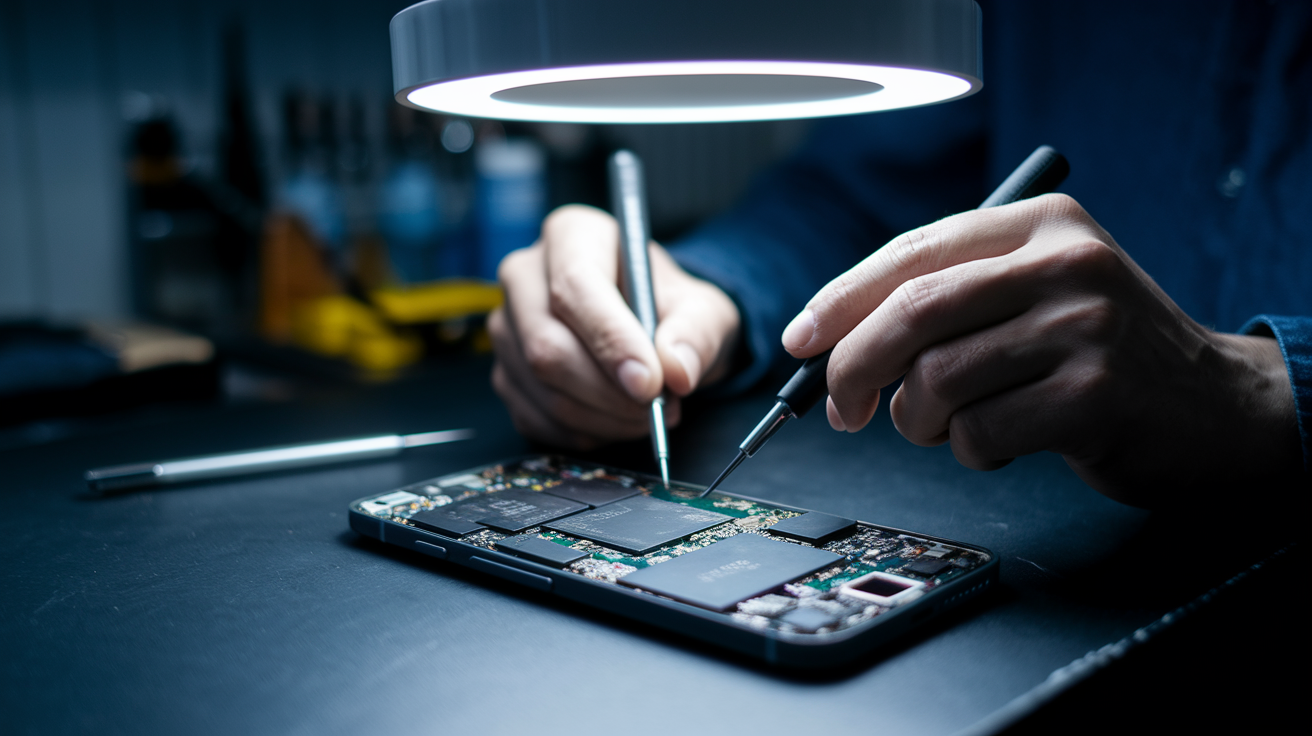
When cleanup doesn’t fix it, the problem’s usually corrupted system cache, Play Store data, or OS bugs that misreport available space. These need system-level fixes beyond deleting files and clearing app caches. You’re addressing glitches in the update mechanism itself.
iOS users can bypass device storage limits by updating through a computer. Connect your iPhone to a Mac or PC running iTunes (or Finder on macOS Catalina and later), select your device, click Back Up Now, then Check for Update and install using the computer’s storage for temp working space. This skips the 6 GB free-space requirement for over-the-air updates and often works when on-device updates fail.
Advanced solutions when standard cleanup doesn’t work:
- Clear Google Play Store data and uninstall updates. Go to Settings > Apps > Google Play Store, tap Storage, select Clear Data, then tap the three-dot menu and choose Uninstall Updates to reset the store
- Clear the system cache partition on Android by powering off, then holding Volume Up + Power (or your device’s key combo) to enter recovery mode, select Wipe Cache Partition, reboot
- Use a storage analyzer app like DiskUsage (Android) or iMazing (iOS on computer) to find hidden folders eating space that standard screens don’t show
- Restart in Safe Mode (Android: hold Power, long-press Power Off, tap OK to reboot into Safe Mode) to see if a third-party app is blocking updates or misreporting storage
- Factory reset as a last resort, but back up everything first. This wipes corrupted system files and fixes storage reporting
Always back up photos, contacts, app data, and important files before system-level changes like cache partition wipes or factory resets. Cloud backups (Google Drive, iCloud) and computer backups (iTunes, Android File Transfer) let you restore your data if you need to wipe the device.
Final Words
You hit the insufficient storage for app update error — this guide showed the fastest, no-nonsense ways to clear space and bypass it.
We covered immediate quick actions (clear cache, delete large files, uninstall or offload apps), how to check storage on Android and iOS, media management, SD/external options, and advanced escalation if needed.
Start with the rapid steps, recheck your available space, then retry the update. If problems persist, move to advanced fixes or back up and reset. You should be able to resolve insufficient storage for app update and finish the install.
FAQ
Q: How do I fix insufficient storage?
A: The fix for insufficient storage is to clear app caches, uninstall unused apps, delete large files, move photos/videos to cloud or SD, restart the device, then retry the update.
Q: Why is my phone showing insufficient space but I have space?
A: The phone shows insufficient space even though you have space because updates need extra temporary working space, the OS reserves storage, or the App Store/Play Store cache misreports free space. Free several GB, clear caches, restart, or update via computer.

