

Think a full reset is your only option?
It’s not.
Most stuck app updates are just paused downloads caused by flaky Wi‑Fi or low storage.
This post gives fast, practical steps to get updates moving again on iPhone, Android, Windows, and Mac.
You’ll learn the immediate fixes—pause and resume, restart, clear store cache, free up space, and check service status—plus the platform tricks when the simple steps don’t work.
Follow them in order and you’ll usually see an update resume within minutes.
Immediate Steps to Resume a Stuck App Update on Any Device

A stuck app update usually shows up three ways: a progress circle spinning forever, a “Loading/Waiting” label that won’t budge, or an “Installing” screen that just freezes. They all mean the same thing. The download or installation hit a wall.
The two biggest causes? Weak connectivity and not enough storage. When your Wi‑Fi drops for even a few seconds, the store queue can pause and refuse to restart on its own. Storage problems trigger the same behavior. Most platforms need roughly double the update file size in free space to extract and install. So a 3 GB iOS update might need 6 GB free.
Pausing and resuming often clears stuck queue entries. It forces the store to retry the download from the last checkpoint. Restarting your device flushes temporary memory and reloads the store app, which helps when cache corruption or interrupted connections are freezing things.
- Pause and resume the update directly from the app icon or store library. Tap or click the stuck item, pause it, wait a few seconds, then resume.
- Switch to a stable Wi‑Fi network. Move closer to the router or disconnect from congested public networks.
- Restart the device to force the store to reload. This clears memory locks and abandoned queue entries.
- Free at least twice the update size in storage. For mobile OS updates, this can mean 1–6 GB files requiring 2–12 GB free. Delete photos, offload apps, or move files to cloud storage.
- Stop other queued downloads. Cancel or pause anything else downloading in the store or browser.
- Make sure battery level is above 50% on mobile devices. iOS and many Android builds refuse to download major updates below this threshold.
- Verify store service status. Check Apple System Status, Google Play status, or Microsoft service health dashboards. Green indicators mean the service is running normally.
If these steps don’t immediately resume the update, the next section breaks down platform fixes starting with iOS.
Platform‑Specific Fixes to Resume a Stuck App Update on iPhone and iPad
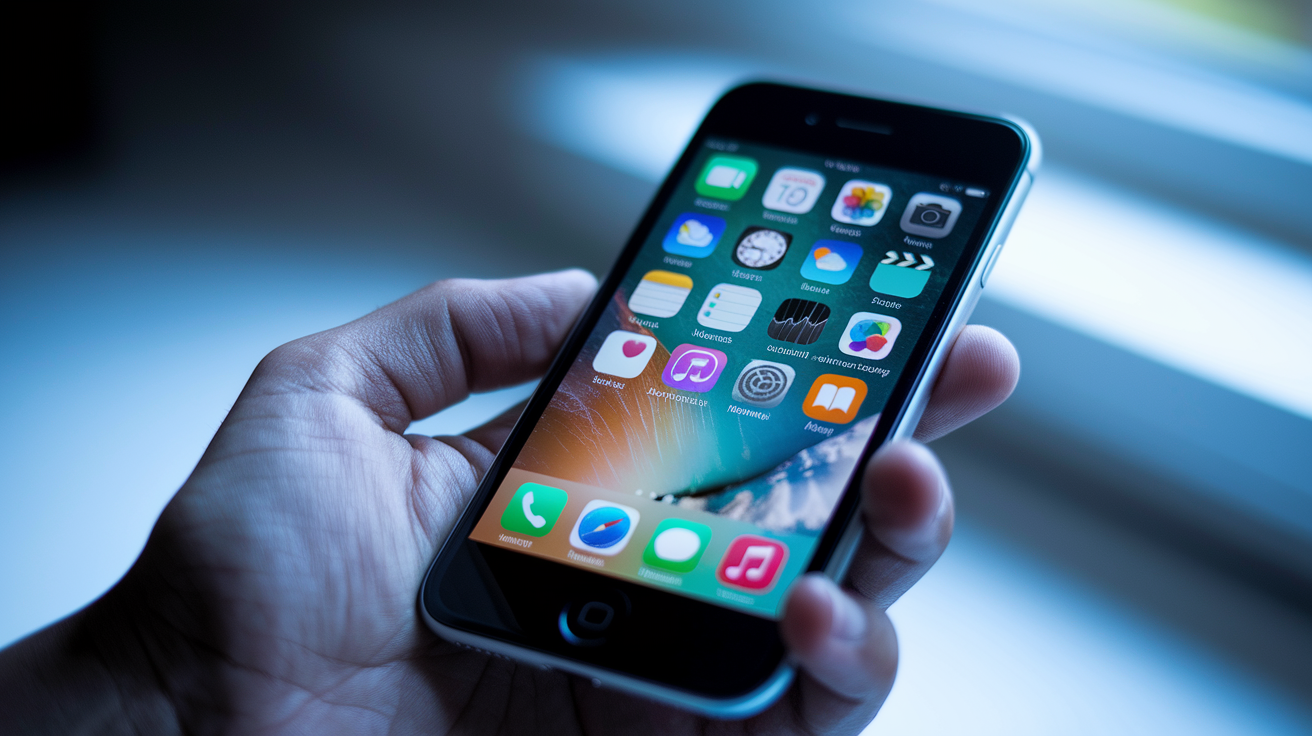
iOS update freezes fall into three states: greyed icons with an incomplete progress circle, “Loading/Waiting,” or “Installing.” Each can be triggered by poor connectivity, server outages, low battery, insufficient storage, or iOS Content & Privacy Restrictions that block installations.
Most iOS fixes follow the same pattern. Remove blockers (network, power, storage, permissions), then retry the download using built‑in resume tools or manual restart paths.
Restarting and Resuming the Update
Open the App Store and go to the Updates tab. Locate the stuck app, then tap its Update button to stop the download. Tap Update again to restart from the beginning. If the app icon on the home screen shows a greyed‑out progress circle, tap the icon once to pause, wait a moment, then tap again to resume.
When an update refuses to restart, force a full reboot. Press and hold the Home and Power buttons simultaneously (on older iPhones) or press Volume Up, Volume Down, then hold Side button (on iPhone 8 and later) until the Apple logo appears. Once the device restarts, return to App Store → Updates and attempt the download again.
Fixing Network, Restrictions, and Storage Issues
Toggle Airplane Mode on for five seconds, then off again to reset all wireless connections. If the problem persists, reset network settings by navigating to Settings → General → Transfer or Reset iPhone → Reset → Reset Network Settings. This clears saved Wi‑Fi passwords and cellular settings, so write down important passwords first.
Check Content & Privacy Restrictions by opening Settings → Screen Time → Content and Privacy Restrictions. If the toggle is on, either turn it off or tap iTunes & App Store Purchases and confirm that Installing Apps is set to Allow. iOS blocks updates when restrictions are active.
To remove an incomplete download, go to Settings → General → iPhone Storage, scroll to find Software Update (or the stuck app), tap it, then tap Delete Update. Return to Settings → General → Software Update to retry the download. iOS updates usually require 1–6 GB of free space. The device needs roughly twice the file size available to unpack and install.
Advanced iOS Methods
Sign out of your Apple ID by opening Settings, tapping your name at the top, scrolling down, and selecting Sign Out. Wait ten seconds, then sign back in with your Apple ID and password. This refreshes your App Store session and can clear stuck queue entries.
If your iPhone or iPad has enough computer storage, connect it to a Mac via USB, open Finder, select the device in the sidebar, click General, then click Check for Update. On Windows, open iTunes, select the device icon, and follow the same steps. The computer downloads the update file and transfers it directly, bypassing many device‑side network and storage limits.
DFU restore is the last resort and erases all data, apps, and settings. Before starting, back up your device to iCloud or a computer. The exact DFU button sequence varies by model. Search “DFU mode [your iPhone model]” for current instructions, then restore via Finder or iTunes. Only use this when every other method has failed.
| Issue | iOS Fix |
|---|---|
| Greyed progress circle or “Waiting” | Tap icon to pause/resume, or restart update from App Store → Updates |
| Low battery blocking download | Plug in and charge to at least 50%, then retry |
| Insufficient storage warning | Delete media or offload apps in Settings → General → iPhone Storage; need 2× update size free |
| Content restrictions enabled | Settings → Screen Time → Content and Privacy Restrictions → toggle off or allow app installs |
| Stuck after network drop | Toggle Airplane Mode or reset network settings; verify Apple System Status is green |
Android Solutions to Get a Stuck App Update to Resume

Android update freezes usually stem from Play Store cache corruption, Download Manager errors, queued downloads blocking each other, weak Wi‑Fi, or insufficient storage. Google Play handles all app updates through two system services: Play Store and Download Manager. Clearing their temporary data often fixes stuck queues.
Queue backlog is common when multiple apps wait to update at once. Each item holds a slot in the download pipeline. If one stalls, the rest can freeze behind it. Clearing the queue and restarting the update from scratch forces Play Store to rebuild the download list in the correct order.
VPN or proxy settings sometimes interfere with Play Store connections, especially when the VPN restricts background data or routes traffic through slow servers. Disabling the VPN temporarily and retrying the update over a direct Wi‑Fi connection isolates whether the tunnel is blocking progress.
Clear Play Store cache/data. Open Settings → Apps → See all apps → Google Play Store → Storage & cache → Clear cache, then Clear storage. Reopen Play Store and sign back in if prompted.
Clear Download Manager cache/data. In the same Apps menu, find Download Manager (or com.android.providers.downloads), tap Storage & cache, and clear both. This removes stuck download entries.
Force stop Play Store. Settings → Apps → Google Play Store → Force stop. Wait ten seconds, reopen the app, and check if the update resumes automatically.
Disable VPN or proxy. Turn off any active VPN or proxy in Settings → Network & internet → VPN, then retry the update over your normal Wi‑Fi or mobile data.
Allow background data and disable Data Saver. Go to Settings → Network & internet → Data Saver and toggle it off. Also check Settings → Apps → Google Play Store → Mobile data & Wi‑Fi → Background data and make sure it’s enabled.
Remove and re‑add Google account sync. Settings → Accounts → [your Google account] → Remove account, restart the device, then add the account again in Settings → Accounts → Add account. This refreshes authentication and can clear server‑side queue errors.
After clearing cache and restarting the store, open Play Store → My apps & games (or Library), find the stuck app, tap it, and press Update. If the download still won’t move, check available storage in Settings → Storage. Android typically needs at least 1.5× the app size free to complete installation.
Windows and Mac Methods to Resume Stuck App Updates

Windows Store downloads can freeze due to corrupted cache, metered connection policies, or background service conflicts. The WSReset command clears the Microsoft Store cache without deleting installed apps or saved logins. Open the Start menu, type “wsreset,” and press Enter. A blank Command Prompt window will appear for a few seconds, then the Store will reopen automatically with a clean cache.
Metered connections on Windows prevent large downloads by default. If your Wi‑Fi is set as metered, updates will pause until you manually allow them. On macOS, App Store issues usually come from account session errors, incomplete download files sitting in temporary folders, or restrictive network settings blocking Apple’s CDN servers.
- Use WSReset (Windows). Type “wsreset” in the Start menu search box and press Enter. Wait for the Store to reopen, then retry the update.
- Disable metered connection (Windows). Go to Settings → Network & Internet → Wi‑Fi → [your network] → turn off “Set as metered connection.”
- Pause/resume from App Store on macOS. Open the App Store, click your account icon in the bottom left, find the update in the list, click the pause icon next to it, wait a moment, then click the download icon to resume.
- Sign out/in of Apple ID on macOS. Open App Store → Store (menu bar) → Sign Out. Wait ten seconds, then sign back in with your Apple ID and password.
- Remove temporary update files and retry. On macOS, open Finder → Go (menu bar) → Go to Folder, type
~/Library/Caches/com.apple.appstore/, and delete the contents. Restart the Mac and retry the update in the App Store.
If a Windows update still won’t move after WSReset and disabling metered connection, open Settings → Apps → Apps & features, find the stuck app, select it, and click Advanced options → Reset or Repair (if available). On macOS, check System Settings → Network and temporarily disable any third‑party firewall or VPN to rule out connection filtering.
Advanced Troubleshooting When App Updates Still Won’t Resume

When standard fixes fail, the issue usually sits deeper. Corrupted app files, persistent cache locks, restrictive device settings, or storage that reports free space incorrectly. Uninstalling and reinstalling the app is the cleanest way to remove broken update files and start fresh from the official store version.
Battery saver modes and power management settings can throttle background processes, including app store downloads. On Android, check Settings → Battery → Battery Saver and turn it off temporarily. On iOS, go to Settings → Battery → Low Power Mode and disable it. Windows users should open Settings → System → Power & battery and switch to “Best performance” while the update runs.
Cancel and reinstall the app. Delete the app completely, restart the device, then download the latest version from the official store. This bypasses any corrupted partial downloads.
Check app permissions blocking the update. Some apps require storage, network, or installation permissions. On Android, go to Settings → Apps → [app name] → Permissions and verify all requested permissions are granted.
Verify app update integrity. If the store offers a “Verify” or “Repair” option (common in Steam, Epic, and some enterprise app managers), run it to check for missing or damaged files.
Reinstall the app from the official store. Always download from the primary store (App Store, Google Play, Microsoft Store) rather than third‑party mirrors, which may serve outdated or modified versions that won’t update correctly.
Update stuck due to insufficient storage. Even when the device reports free space, file system overhead or reserved partitions can block installs. Try freeing an extra 2–3 GB beyond the stated requirement.
Disable battery saver to resume the update. Background downloads often pause when battery optimization is active. Turn off all power‑saving modes and plug in the device.
Boot into Safe Mode (Android) or Safe Boot (Mac). Safe Mode disables third‑party apps and services that might interfere. On Android, press and hold the power button, then long‑press “Power off” until “Reboot to safe mode” appears. On Mac, restart and hold Shift until the login screen appears. Retry the update, then restart normally.
If none of these steps work, the problem may be server‑side or app‑specific. Check the app developer’s support page or social media for known update issues. For store‑wide problems, visit Apple System Status, Google Play Console status, or Microsoft Service Health. When a green indicator confirms the service is running but your update still won’t move, contact the store’s support team with details: device model, OS version, app name, error messages, and steps already tried.
Final Words
In the action, this guide lays out fast, device‑agnostic fixes (pause/resume, switch Wi‑Fi, restart, free storage) plus platform steps for iOS, Android, Windows, and Mac.
It shows how to spot stalled states—waiting, installing, verifying—why weak networks or low storage cause freezes, and why pausing or rebooting often fixes things.
If those steps don’t work, try the advanced list (clear caches, reinstall, DFU/Safe Mode) and contact support as a last resort. Use this checklist to learn how to resume stuck app update — you’ll be back up and running soon.
FAQ
Q: What to do if an app is stuck updating?
A: If an app is stuck updating, pause and resume it from the icon or store library, switch to stable Wi‑Fi, restart the device, free at least twice the update size, stop queued downloads, and check store status.
Q: What do I do if my iOS update is stuck?
A: If your iOS update is stuck, pause or resume in the App Store, reboot the device, toggle Airplane Mode or reset network settings, delete the incomplete update in Settings > General > iPhone Storage, or update via Finder.
Q: How to update apps with iOS 26?
A: To update apps with iOS 26, open the App Store, tap your profile, choose Update All or tap individual Update buttons; ensure stable Wi‑Fi, enough free storage, battery above 50%, or use Finder if needed.

