

Ever been stuck staring at “Waiting for Wi‑Fi” while an app update refuses to start?
Most phones block large downloads on cellular by default, and Apple, Google, plus some carriers set caps or rules that keep updates paused.
That matters if you need a security patch, a bug fix, or can’t get to Wi‑Fi while traveling.
This post shows quick checks and the exact iPhone and Android settings to allow updates over cellular.
It also covers safe workarounds, dual‑SIM quirks, and when to watch your data so you don’t get billed.
Immediate Fixes When Apps Refuse to Update Without Wi‑Fi
Your phone defaults to Wi‑Fi for updates because app stores assume metered connections shouldn’t download large files. Carriers charge for data and users complain about surprise bills. Both Apple and Google set cellular download limits by default, and these restrictions often ignore your actual needs or data plan.
Many devices queue updates in a “waiting for Wi‑Fi” state, where the app never checks if you’ve already changed the settings.
Overriding these limits is simple once you know the exact settings paths. On Android, open Google Play, tap your profile picture in the upper right, go to Settings, then Network preferences, change App download preference to “Over any network” and tap Done. On iPhone, go to Settings, tap App Store, tap App Downloads, and choose “Always Allow” to bypass the 200 MB cap Apple added in iOS 13.
If you have a dual SIM Android device, check Settings, Apps, Manage apps, Downloads, Restrict data usage, and verify both SIM data services are allowed. Users report that disabling restriction on just one SIM still blocks updates over the second.
If updates sit in a queue, open Google Play, tap My apps & games or Updates, and tap the small cross icon to cancel each queued download. After cancelling, each app shows an Update button that now allows cellular updates.
Before you change any settings, complete these five checks:
- Confirm cellular data is ON and you have 3 to 4 signal bars. Weak signal can trigger fallback to Wi‑Fi rules.
- Ensure you have the app size plus 200 to 500 MB free storage for temporary files during install.
- Disable Data Saver, low data mode, or battery optimization temporarily to remove background data blocks.
- Restart your phone to clear any cached network policies forcing Wi‑Fi.
- Check your carrier plan for data caps before downloading. A 1 GB app update consumes 1,024 MB of your monthly allowance.
Fixing Cellular Download Restrictions on iPhone App Updates

iOS enforces file size rules through App Downloads in the App Store settings and treats cellular as a metered connection by default. Before iOS 13 (released September 19, 2019), the download limit was 150 MB over cellular. iOS 13 changed it to 200 MB and gave you three options: “Always Allow,” “Ask If Over 200 MB,” and “Always Ask.”
Apps larger than that threshold refuse to start unless you connect to Wi‑Fi or override the setting.
Separately, iOS also checks whether the App Store itself is allowed to use cellular at all. If that toggle is off, no updates will start regardless of the download size preference.
To bypass these limits, go to Settings, scroll to App Store, tap App Downloads, and select “Always Allow.” Then return to Settings, tap Cellular, scroll down to the list of apps using cellular data, and ensure the toggle next to App Store is green.
If Low Data Mode is on (Settings, Cellular, Cellular Data Options, Low Data Mode), turn it off. Low Data Mode pauses automatic downloads and background tasks.
Finally, check Settings, General, Background App Refresh, confirm it’s set to Wi‑Fi & Cellular or Cellular, and make sure App Store is enabled in the per app list below. iOS system updates and large OS downloads often still require Wi‑Fi and a power connection regardless of these settings.
Four quick iOS checks to complete now:
- App Downloads set to Always Allow (Settings, App Store).
- App Store cellular toggle ON (Settings, Cellular).
- Low Data Mode OFF (Settings, Cellular, Cellular Data Options).
- Background App Refresh allowed for App Store (Settings, General, Background App Refresh).
Android: Correcting Play Store Settings Blocking Cellular App Updates
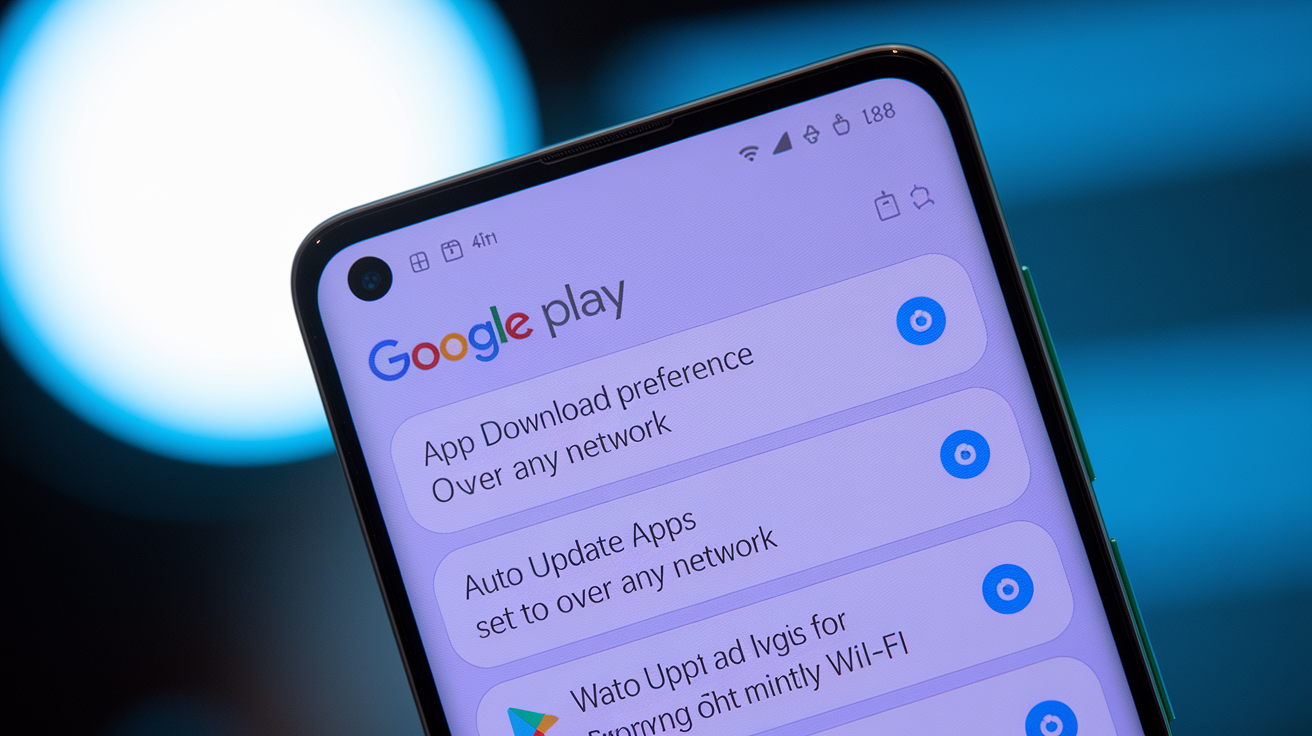
Android uses multiple layers of control to prevent unexpected cellular data use. The Play Store has its own network preference, the OS can block background data per app, and Data Saver applies a system wide restriction.
By default, Google Play sets App download preference to “Over Wi‑Fi only” and Auto update apps to “Over Wi‑Fi only,” which forces every update into a queue that waits for Wi‑Fi. Even if you change those settings, a per app restriction or Data Saver flag can override your choice and keep updates paused.
Start by opening Google Play, tapping your profile picture in the upper right corner, selecting Settings, then Network preferences. Change App download preference to “Over any network” and tap Done. If you want automatic updates over cellular, also change Auto update apps to “Over any network.” Otherwise, Play will still queue updates until you manually start each one.
Next, cancel any queued downloads to clear the Wi‑Fi only flag. Go to My apps & games (or Updates in newer Play Store versions), find apps showing “Waiting for Wi‑Fi,” and tap the small cross or cancel icon next to each one. After cancelling, the Update button appears and allows cellular downloads immediately.
On dual SIM devices, navigate to Settings, Apps, Manage apps, Downloads, Restrict data usage, and confirm both SIM data services are enabled. Users report that leaving one SIM restricted blocks all cellular updates even when the other SIM is active.
Clearing stored data for Google Play Store and Google Play Services resets corrupted preferences that silently enforce Wi‑Fi only behavior. Go to Settings, Apps, find Google Play Store, tap Storage, and tap Clear data. Repeat for Google Play Services. This erases saved settings (you’ll need to sign in again), but it removes any hidden flags that survived a settings change.
If Data Saver is on, give Play Store unrestricted data access by going to Settings, Apps, Google Play Store, Mobile data & Wi‑Fi, then enable both Allow background data and Unrestricted data usage.
| Setting | What It Fixes | Path |
|---|---|---|
| App download preference | Removes Play Store Wi‑Fi only rule for all downloads | Google Play > Profile > Settings > Network preferences > App download preference > Over any network |
| Data Saver override for Play | Allows background data even when Data Saver is globally on | Settings > Apps > Google Play Store > Mobile data & Wi‑Fi > Unrestricted data usage |
| Downloads app SIM restriction | Enables app installs over both SIMs on dual SIM devices | Settings > Apps > Manage apps > Downloads > Restrict data usage > enable both SIM data services |
OS, Carrier, and Device Policies That Force Wi‑Fi Only Updates

Some device manufacturers and carriers add extra rules that override your store settings entirely. Samsung’s Smart Network Switch automatically falls back to mobile data when Wi‑Fi is slow, but paradoxically it can also force certain downloads to wait for a stable Wi‑Fi connection before starting. This happens when the OS detects a large file and decides the switch would consume too much data.
Apple’s Wi‑Fi Assist switches to cellular when Wi‑Fi is weak, but iOS still enforces the 200 MB App Downloads cap and won’t use cellular for App Store downloads over that size unless you’ve chosen “Always Allow.”
Many Android system updates and iOS updates require Wi‑Fi by design because carriers and OEMs mandate it for OTA packages larger than 100 to 500 MB.
Carriers also impose their own restrictions. Some block or heavily throttle large downloads over cellular, especially during network congestion or when you’re roaming. Tethering and mobile hotspot traffic may be metered separately. Some plans allow 10 GB of smartphone data but only 5 GB of hotspot data, and carriers can detect when a download comes from a tethered device versus the phone itself.
Roaming policies often disable automatic updates completely to prevent bill shock, and you may need to manually allow cellular data while roaming in your device settings before any update will start. If your carrier throttles after you hit a data cap, download speeds drop so low that the store times out and switches back to waiting for Wi‑Fi.
Workarounds When Apps Still Won’t Update Without Wi‑Fi

If standard settings fail, a mobile hotspot trick often works because the target device treats the hotspot as Wi‑Fi instead of cellular. Turn on Personal Hotspot or Mobile Hotspot on a second phone, connect your main device to that hotspot, and start the update. The app store reads the connection as Wi‑Fi and ignores the cellular only restriction.
Note that your carrier may count hotspot data differently or block tethering entirely, so check your plan limits before transferring gigabytes this way.
Uninstalling the app and reinstalling from scratch sometimes bypasses the update mechanism’s Wi‑Fi requirement because the store treats a fresh install differently than an incremental update. This works best for apps that sync data to the cloud. Games and apps that store progress locally will lose that data unless you back up first.
On Android, advanced users can sideload an APK or App Bundle directly from the app developer’s official site, which skips Google Play rules entirely, but this carries security risk because unsigned or modified APKs can contain malware. Only use APKs signed by the actual developer and verify the package signature before installing.
Five alternative approaches to try now:
- Create a mobile hotspot from another phone and connect your device to it. Stores read hotspot connections as Wi‑Fi.
- Delete the app completely and reinstall it as a fresh download instead of an update (risk: lose local app data).
- On Android, enable Install unknown apps for your browser or file manager, download the official APK from the developer, and sideload it (risk: security if source is unofficial).
- Free up storage by deleting old files or apps. Ensure you have the update size plus 200 to 500 MB extra space.
- Clear cache and data for the app store (Play Store or App Store), restart your device, and retry the download immediately.
Full Diagnostic Checklist for “Requires Wi‑Fi” App Update Errors

Work through these seven steps in order to isolate the exact cause of the Wi‑Fi requirement:
- Toggle airplane mode ON, wait 10 seconds, toggle it OFF. This resets active network policies and clears stale connection flags that force Wi‑Fi.
- Restart your phone completely. A cold boot clears cached store rules and background data restrictions that survive a settings change.
- Clear app store cache and data: on Android, go to Settings, Apps, Google Play Store, Storage, tap Clear cache then Clear data. On iPhone, force quit the App Store by swiping up in the app switcher, then reopen it.
- Reset network settings (on iPhone: Settings, General, Transfer or Reset iPhone, Reset, Reset Network Settings; on Android: Settings, System, Reset options, Reset Wi‑Fi, mobile & Bluetooth). This erases saved Wi‑Fi networks and cellular APNs, so you’ll need to reconnect and re enter passwords.
- Verify date and time are set to automatic (Settings, General, Date & Time on iPhone; Settings, System, Date & time on Android). Incorrect time disrupts SSL certificate validation and the store refuses downloads.
- Test connection stability by streaming a video or loading a large webpage over cellular. If the connection drops or is very slow, the store will fall back to waiting for Wi‑Fi.
- Reattempt the download immediately after completing steps 1 through 6 without waiting. Network policies can re apply after a few minutes of inactivity.
If updates still fail after completing all seven steps, contact your carrier to confirm there are no account level restrictions on large downloads or app store traffic, and check the device manufacturer’s support site for known issues with your specific model and OS version.
Final Words
In the action, we ran through quick fixes to force app downloads over mobile data, the iOS and Android settings that block large files, carrier and OS behaviors that prefer Wi‑Fi, practical workarounds like hotspots or reinstalling, and a full diagnostic checklist.
Start with the Play Store/App Store download preferences, confirm cellular and storage, and try the hotspot or cache clears.
If your app won’t update unless connected to wifi, follow the checklist step by step; most issues clear in minutes, and you’ll be back to updates soon.
FAQ
Q: How to allow apps to update without Wi-Fi?
A: Allowing apps to update without Wi‑Fi requires changing the app store setting to allow downloads over cellular, enabling mobile data, turning off Data Saver/Low Data Mode, freeing ~200–500 MB, and restarting the device.
Q: How to change app update settings from Wi-Fi to mobile data?
A: Changing app update settings from Wi‑Fi to mobile data means opening your store app’s settings (Play Store: Profile > Settings > Network preferences; iOS: Settings > App Store > App Downloads) and selecting downloads over any network or Always Allow.
Q: Why can’t I update my iPhone without Wi-Fi? / Why isn’t my iPhone letting me update my apps?
A: Not being able to update an iPhone without Wi‑Fi is usually caused by Apple’s 200 MB cap, App Store cellular downloads off, Low Data Mode, low storage, or carrier restrictions; check Settings > App Store and Cellular.

