
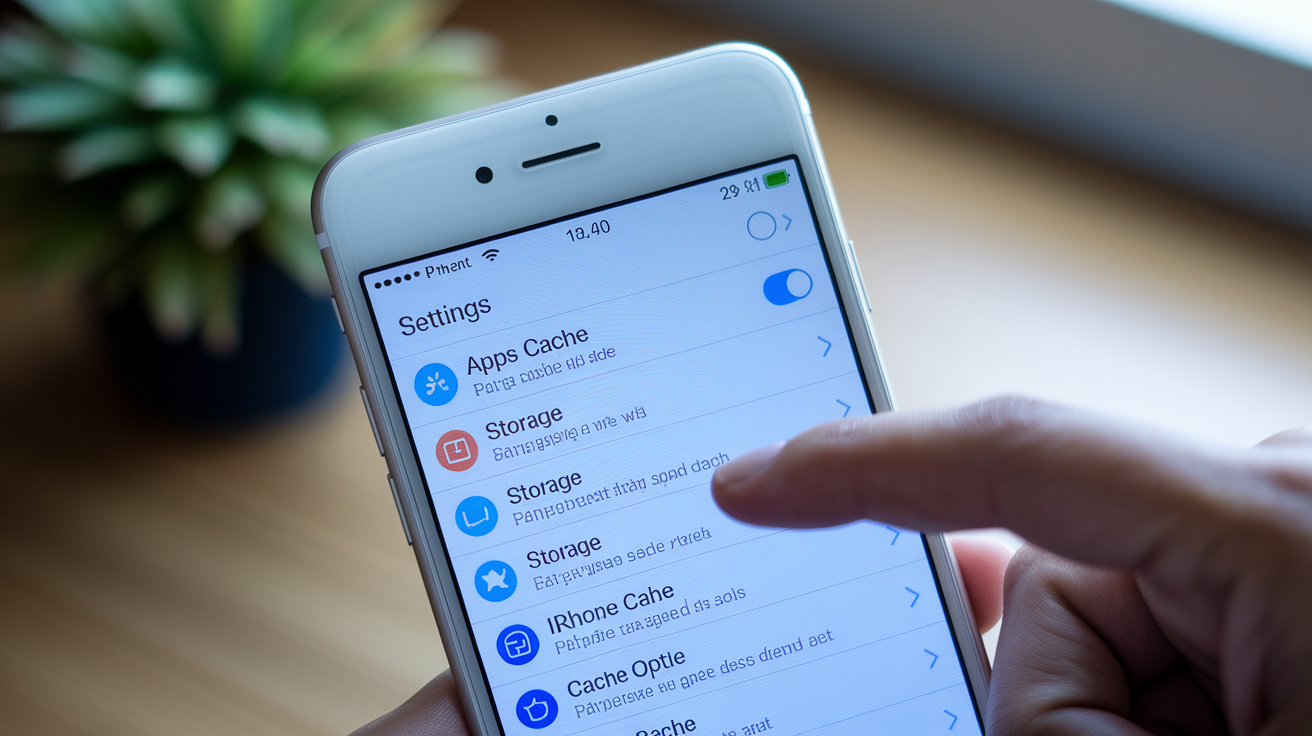
Ever tapped “Update All” and watched absolutely nothing happen? App stores cache tons of temporary data to speed up browsing, but corrupted cache files can completely block updates from downloading or installing. When your device thinks it already has the latest version data but the information is outdated or broken, new updates just sit there stuck. Clearing your app store cache forces a fresh connection to the servers and removes corrupted download queues. It takes about two minutes and fixes most stuck update problems without losing your apps, data, or account settings.
Clearing App Store Cache on Android Devices

Android gives you direct access to cache management right through your settings menu. You don’t need jailbreaking or weird workarounds like iOS users do. It’s pretty straightforward.
Here’s how to clear Google Play Store cache on Android:
1) Open the Settings app from your app drawer or notification shade
2) Go to Apps, Applications, or Application Manager (the name changes depending on whether you’ve got a Samsung, Google Pixel, OnePlus, or something else)
3) Find Google Play Store in your list of apps and tap it
4) Tap Storage or Storage & cache
5) Tap the Clear Cache button
6) You can also tap Clear Data if you want a deeper reset, but heads up, this might make you sign in again
7) Restart your device to wrap things up
There’s an important difference between Clear Cache and Clear Data. Clear Cache just removes temporary stuff like downloaded images, app listings, and search results. Your Google account stays signed in and your settings don’t change. Clear Data does a complete factory reset of the Play Store, which means you’ll need to log back into your Google account. Most update problems get fixed with Clear Cache alone.
After you clear the cache, open the Google Play Store and check your pending updates. Go to Manage apps & device and tap Update all to make sure those stuck downloads actually work now.
Clearing App Store Cache on iPhone and iPad

iOS uses a locked down file system that won’t let you access app cache folders directly. Apple restricts system file deletion to protect stability and security, so iPhone and iPad users can’t just navigate to cache directories the way Android or Mac users can.
The main way to clear App Store cache on iOS is force quitting the app:
1) Get to the app switcher by swiping up from the bottom and pausing (on Face ID devices), or double clicking the Home button (on Touch ID devices)
2) Find the App Store card in your recently used apps
3) Swipe up on the App Store card to force quit it
4) Wait about 5 to 10 seconds
5) Reopen the App Store from your home screen so it pulls fresh data from Apple’s servers
Force quitting clears the App Store’s RAM cache and makes the app reconnect to Apple’s servers with fresh authentication tokens. This removes temporarily stored data that might have corrupted download queues or outdated version info. That old iOS trick where you tap the bottom App Store tabs ten times really fast? Doesn’t work anymore in current versions.
Alternative Method: Sign Out and Back Into Apple ID
When force quitting doesn’t fix your update issues, signing out of your Apple ID clears deeper account related cache:
1) Open Settings and tap your Apple ID name at the top
2) Scroll to the bottom and tap Sign Out
3) Wait about 30 seconds after signing out
4) Sign back in with your Apple ID email and password
This refreshes your account’s update permissions, download authorization tokens, and purchase history cache. It works particularly well when updates fail with authentication errors or when the App Store shows wrong account information.
Clearing App Store Cache on Mac Computers

Mac computers store App Store cache in two separate system locations. Both need clearing for complete cache removal. The first location sits in a temporary directory that changes with each login session. The second lives in your user Library folder.
Use the Terminal method to access the first cache location:
1) Open the Terminal app from Applications > Utilities or search for it with Spotlight
2) Type or paste this command exactly: open $TMPDIR../C/com.apple.appstore/ and press Return
3) A Finder window opens automatically showing the App Store’s temporary cache folder
4) Select everything by pressing Command+A
5) Move it all to Trash with Command+Delete
6) Keep that Finder window open
The second cache location needs manual navigation through the Library folder. Here’s how to access and clear it:
1) In Finder, click the Go menu at the top and select Go to Folder
2) Type this path exactly: ~/Library/Caches/com.apple.appstore/ and click Go
3) Find the fsCachedData folder (it might be inside another folder called CommerceRequestCache depending on your macOS version)
4) Delete the folder contents by selecting all files and moving them to Trash
5) Empty the Trash by right clicking the Trash icon in your Dock and selecting Empty Trash, then restart your Mac
You have to clear both locations because macOS splits App Store cache between session specific temporary files and persistent user cache files. The temporary directory holds active download metadata and current session data. The Library cache stores longer term stuff like app screenshots, descriptions, and search indexes. Clearing only one location leaves corrupted data that can keep causing update failures.
Clearing Microsoft Store Cache on Windows
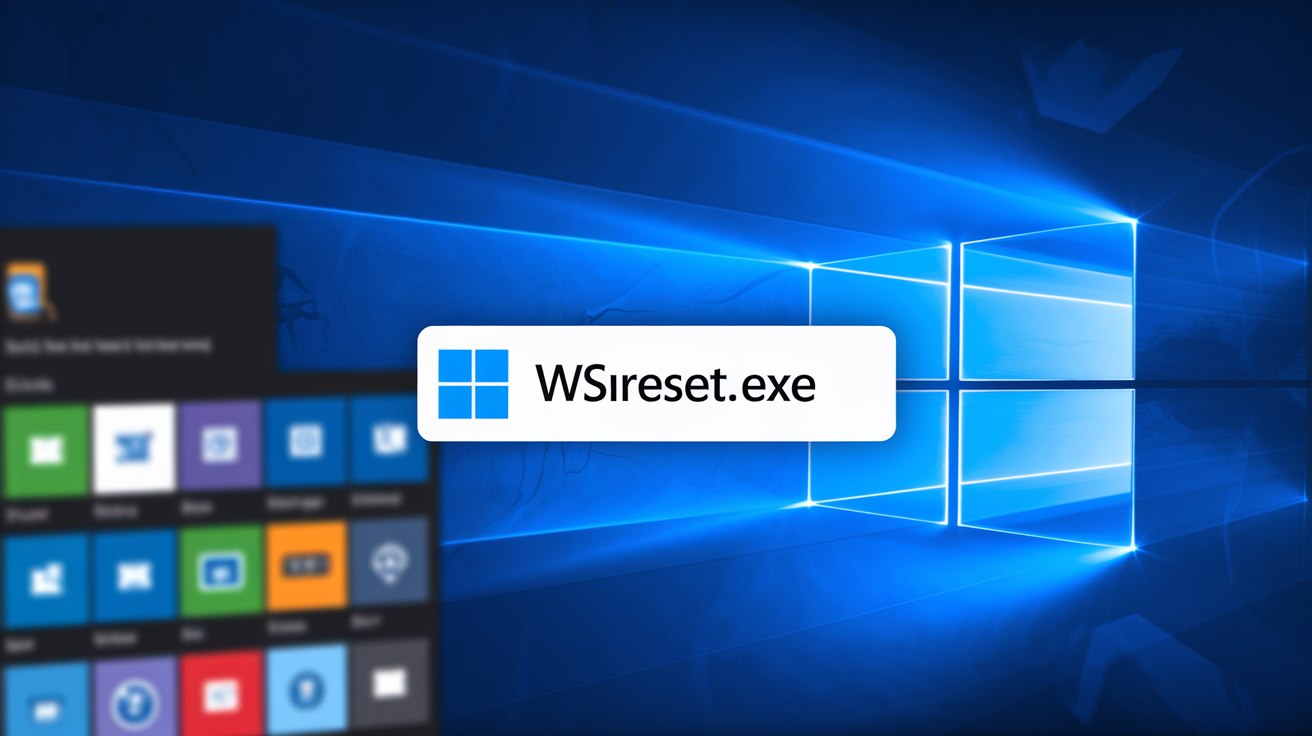
Windows includes a built in utility called WSReset that specifically targets Microsoft Store cache without messing with other system files or settings. This command line tool runs automatically and completes the cache clearing process in seconds.
Here’s how to run WSReset:
1) Press the Windows key + R at the same time to open the Run dialog box
2) Type wsreset.exe in the text field and press Enter
3) A blank Command Prompt window appears and runs for 10 to 15 seconds (don’t close this window yourself)
4) The Microsoft Store automatically opens when the cache clearing finishes
5) Go to Library > Get updates and check if your pending app updates download successfully now
WSReset removes temporary Microsoft Store files including corrupted download queues, cached product pages, and outdated app metadata. It doesn’t delete your installed applications or Microsoft account credentials. The blank Command Prompt window means the tool is working, even though there’s no progress indicator.
There’s an alternative method through Windows Settings for situations that need a deeper reset. Go to Settings > Apps > Apps & features, find Microsoft Store in the list, click Advanced options, then scroll down and click the Reset button. This does a more thorough reset that returns the Microsoft Store to its initial installation state and might make you sign back into your Microsoft account afterward.
What Happens When You Clear App Store Cache
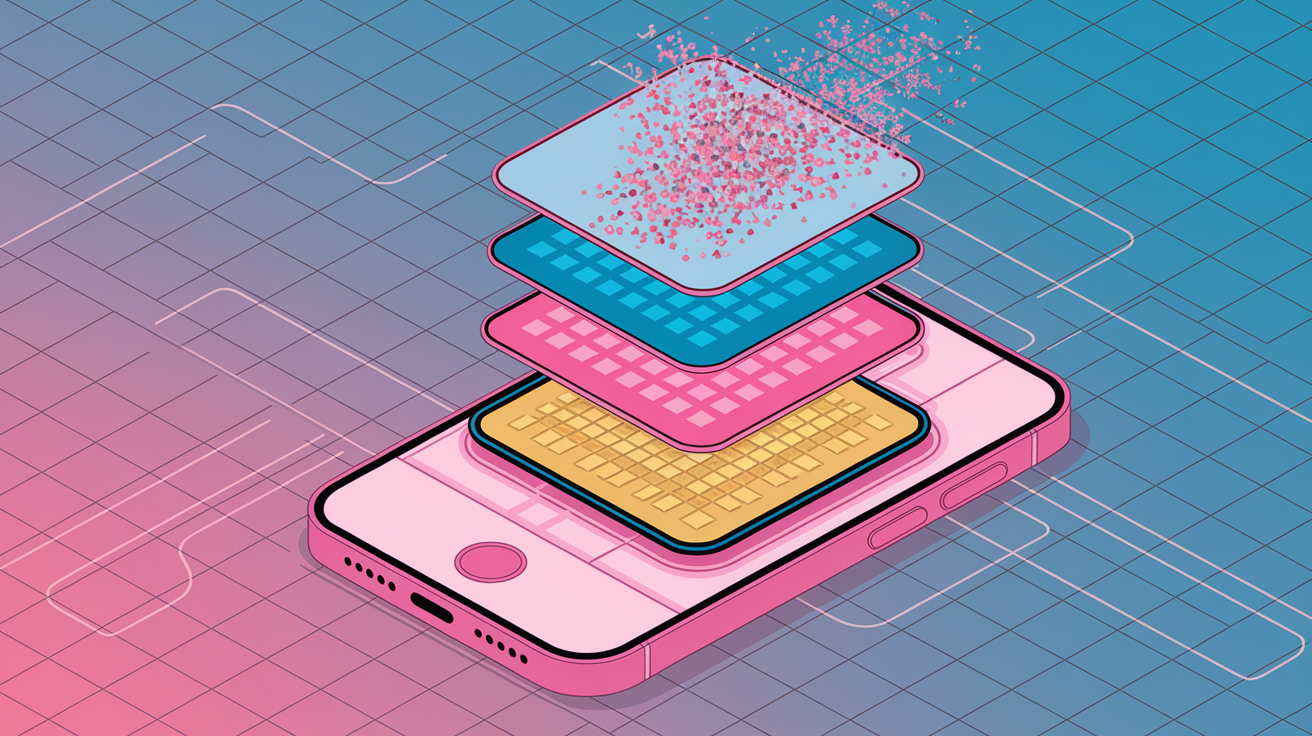
Cache files are temporary data that app stores save locally to speed up browsing and reduce repeated downloads from servers. This includes product images, app screenshots, search results, featured app listings, and download metadata that tracks update progress.
Clearing app store cache removes only these temporary files. Your important data stays completely untouched. Here’s what remains safe:
- Installed applications and games
- App data and settings within your applications
- Purchase history and past downloads
- Saved payment methods and billing information
- Account credentials and sign in status
- Bookmarks or favorited apps
The benefits of clearing cache include freeing storage space (usually between 50 MB and 500 MB depending on how much you use it), removing corrupted download queues that prevent updates from starting, forcing the app store to fetch fresh product information and version data directly from servers, and fixing version mismatch errors where your device thinks an outdated app version is current.
The first time you open the app store after clearing cache might feel slightly slower than usual. The app needs to rebuild its cache by downloading fresh product images, featured app listings, and category information from the server. This brief slowdown happens once, then normal loading speeds come back.
Additional Troubleshooting When Cache Clearing Doesn’t Fix Updates

Cache clearing fixes most app store update problems. But network issues, storage limitations, or system configuration problems can also prevent updates from installing correctly. These need different solutions.
Try these alternative fixes when cache clearing alone doesn’t work:
1) Restart your device completely. A full reboot clears RAM, closes background processes that might interfere with downloads, and refreshes network connections. Hold the power button until restart options appear, then select Restart or Power Off and turn back on.
2) Check your internet connection. Switch between WiFi and mobile data to test if network restrictions are blocking downloads. Run a speed test to verify you have enough bandwidth (at least 5 Mbps for most updates).
3) Verify sufficient storage space. App updates typically need 1.5 to 2 times the final app size as temporary space during installation. Check available storage and delete unnecessary files if you have less than 2 GB free.
4) Update your operating system. Outdated iOS, Android, macOS, or Windows versions sometimes block newer app updates due to compatibility requirements. Check for system updates in Settings and install any available versions.
5) Sign out and back into your account. This refreshes authentication tokens that may have expired or become corrupted. On iOS, go to Settings > Apple ID > Sign Out. On Android, access Settings > Accounts > Google. On Windows, open Microsoft Store > Profile > Sign out.
6) Check date and time settings. Incorrect system time causes SSL certificate verification failures that prevent secure connections to app store servers. Enable automatic date and time in your device settings.
For storage checking, iOS users can go to Settings > General > iPhone Storage to view a breakdown of space usage. Android users should open Settings > Storage to see available space. Mac users can click the Apple menu > About This Mac > Storage. Windows users can access Settings > System > Storage for a detailed storage report.
If all troubleshooting methods fail and updates still won’t install, contact official platform support through Apple Support, Google Play Help, or Microsoft Support. Persistent update failures might indicate account specific issues, regional restrictions, or hardware problems that need professional assistance.
Preventing Future App Store Update Problems
Regular device maintenance prevents cache buildup and storage issues before they cause update failures. A few proactive habits keep your app store running smoothly and cut down troubleshooting time.
Try these preventive practices:
- Enable automatic updates in app store settings to install updates during idle periods without manual intervention
- Keep at least 15 to 20% free storage space at all times to provide room for update downloads and temporary installation files
- Restart your device weekly to clear temporary system files and refresh background processes
- Periodically review installed apps and delete ones you no longer use, especially those eating up excessive storage
- Keep your operating system current with the latest version to ensure compatibility with new app updates
- Use stable WiFi connections for large app updates rather than mobile data to avoid interrupted downloads
- Clear app store cache monthly as preventive maintenance, even when updates work correctly
Automatic update settings vary by platform. iOS users can enable auto updates by opening Settings > App Store and toggling on App Updates. Android users should open the Google Play Store app, tap the profile icon, select Settings > Network preferences > Auto update apps, then choose Over any network or Over Wi Fi only. Mac users can check System Settings > App Store and enable automatic updates. Windows users should open Microsoft Store > Settings and toggle on App updates.
These maintenance habits reduce the likelihood of corrupted downloads, prevent storage related installation failures, and improve overall device performance. Regular cache clearing as a scheduled task, rather than waiting for problems to show up, keeps temporary file buildup from reaching problematic levels.
Final Words
Cache clearing works for most update stalls, but problems sometimes run deeper.
Start with the standard cache wipe for your platform. If updates still fail, work through the additional fixes one at a time: restart, check your connection, verify storage, update the OS, sign out and back in.
Monthly maintenance helps prevent future headaches. Clear App Store cache regularly, keep 15-20% storage free, and enable automatic updates when you’re on stable WiFi.
Most update issues resolve quickly once you clear app store cache to fix updates and eliminate stale temporary files. If you’ve tried everything and nothing sticks, reach out to official support with details on what you’ve already tested.
FAQ
How to clear Apple App Store cache?
To clear Apple App Store cache on iPhone or iPad, open the app switcher by swiping up from the bottom and pausing on Face ID devices or double-clicking the Home button on Touch ID devices, locate the App Store preview card, then swipe up to force-quit the app and wait 5-10 seconds before reopening it.
What happens when you clear the app cache on an iPhone?
When you clear the app cache on an iPhone, the device removes temporary files like images, product listings, and download metadata while preserving all installed apps, app data and settings, purchase history, payment methods, and account credentials.
How to clear updates in App Store?
To clear updates in the App Store, force-quit the App Store app through the app switcher, wait several seconds, then reopen it to trigger a fresh data fetch from the server and reset any stuck or pending update queues.
What will happen if I clear the cache of all apps?
If you clear the cache of all apps, you free up storage space (typically 50-500 MB per app), remove corrupted download queues, force apps to fetch fresh server data, and resolve version mismatch errors without deleting any installed apps or personal data.

