
Want to try app features before everyone else—or risk a buggy build that breaks your data?
This quick guide shows exactly how to join beta app updates on Android via Google Play and on iOS with TestFlight.
You’ll get step-by-step enrollment instructions, the device and account requirements, and a few safety checks like backing up your data.
It also covers typical wait times, tester limits, and how to leave a beta if it isn’t for you.
Follow these steps and you’ll test new features with less hassle and less risk.
Step-by-Step Ways to Join a Beta App Update on iOS and Android
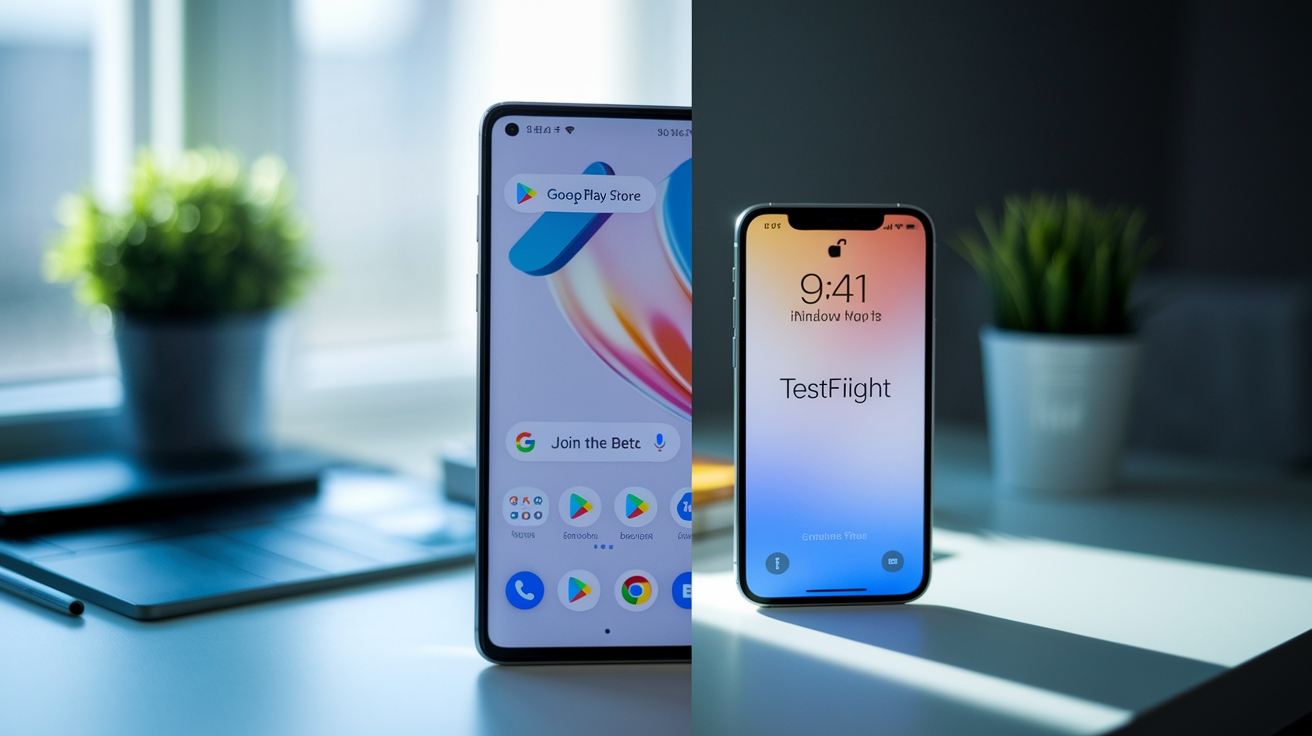
You can join beta programs straight from the Google Play Store on Android, or through Apple’s TestFlight app on iOS. Both let you sign up without an invite if the developer’s running an open program. Closed tests need an invite link. Once you’re in, you’ll get early updates before everyone else, which means new features to try and bugs to help squash.
Getting in is pretty simple. You need a compatible device, a Google or Apple account tied to your app store, and enough storage for the beta build. On Google Play, look for “Join the beta” below “What’s new” and the rating section, tucked under “App support.” On iOS, install TestFlight first, then tap the invite link the developer sends out or posts publicly. Google Play enrollment can take anywhere from a few minutes to a full day. TestFlight is usually instant once you accept. Google Play offers three testing tracks (internal, closed, open), and TestFlight caps external testing at 10,000 people per app.
TestFlight builds expire 90 days after upload, so you might see a prompt to update or reinstall when your build’s out of date. Google Play beta updates show up in your normal update queue once you’re enrolled, but you may need to wait a bit and manually refresh the Play Store listing. If nothing shows up right away, back out and reopen the app’s page.
How to Join a Beta App Update on Android (Google Play) and iOS (TestFlight):
- Android Open Google Play Store, search for the app, tap its name to view the full listing.
- Android Scroll past “What’s new” to the “Join the beta” box under “App support.”
- Android Tap the green “Join” button, then tap “Join” again when the confirmation pops up.
- Android Wait a few minutes for enrollment to kick in, then back out of the app’s page and reopen it.
- Android Tap “Update” at the top to install the beta build (or “Install” if you don’t have the app yet).
- iOS Install TestFlight from the App Store if it’s not already on your device.
- iOS Open the beta invite link (email, web, wherever the developer shared it) on your iOS device. This launches TestFlight.
- iOS Tap “Accept” or “Start Testing” in TestFlight, then tap “Install” to grab the beta build.
Beta App Update Joining Methods on Google Play Store

The “Join the beta” section lives under “What’s new” and “Rate this app” on any Play Store page that offers beta access. Tap the green “Join” button, confirm in the popup, and enrollment starts. Most of the time it takes a few minutes, though Google says it can stretch to 24 hours. After you’re in, an “Update” button appears at the top of the app’s page. If it doesn’t show right away, close Play Store, reopen, and go back to the app’s listing.
Not every app runs a beta, and some developers cap enrollment to closed or internal tracks. Google Play supports three testing tracks: internal (usually around 100 testers, mostly dev teams), closed (invite only, managed through email or Google Groups), and open (unlimited, anyone can join). Open testing is the most common public option. If you don’t see “Join the beta,” either the app doesn’t support it or enrollment’s closed.
Google Play Beta Joining Steps
- Launch Google Play Store on your Android device.
- Search for the app and tap its name to open the full listing.
- Scroll beneath “What’s new” and “Rate this app” until you spot the “Join the beta” box under “App support.”
- Tap the green “Join” link.
- Tap “Join” again in the confirmation popup.
- Wait a few minutes, back out, reopen the app’s Play Store page. Tap “Update” at the top to install the beta.
| Track Type | Tester Limit | How You Join |
|---|---|---|
| Internal Testing | ~100 testers | Developer adds your Google account email to the internal tester list. You get a Play Store link to join. |
| Closed Testing | Developer-set limit or email list | Developer sends an invite link or adds your email to a Google Group. Open the link and tap “Join.” |
| Open Testing | Unlimited | Anyone can see “Join the beta” on the app’s Play Store page and tap “Join” without an invite. |
TestFlight-Based Beta App Update Joining Options for iOS
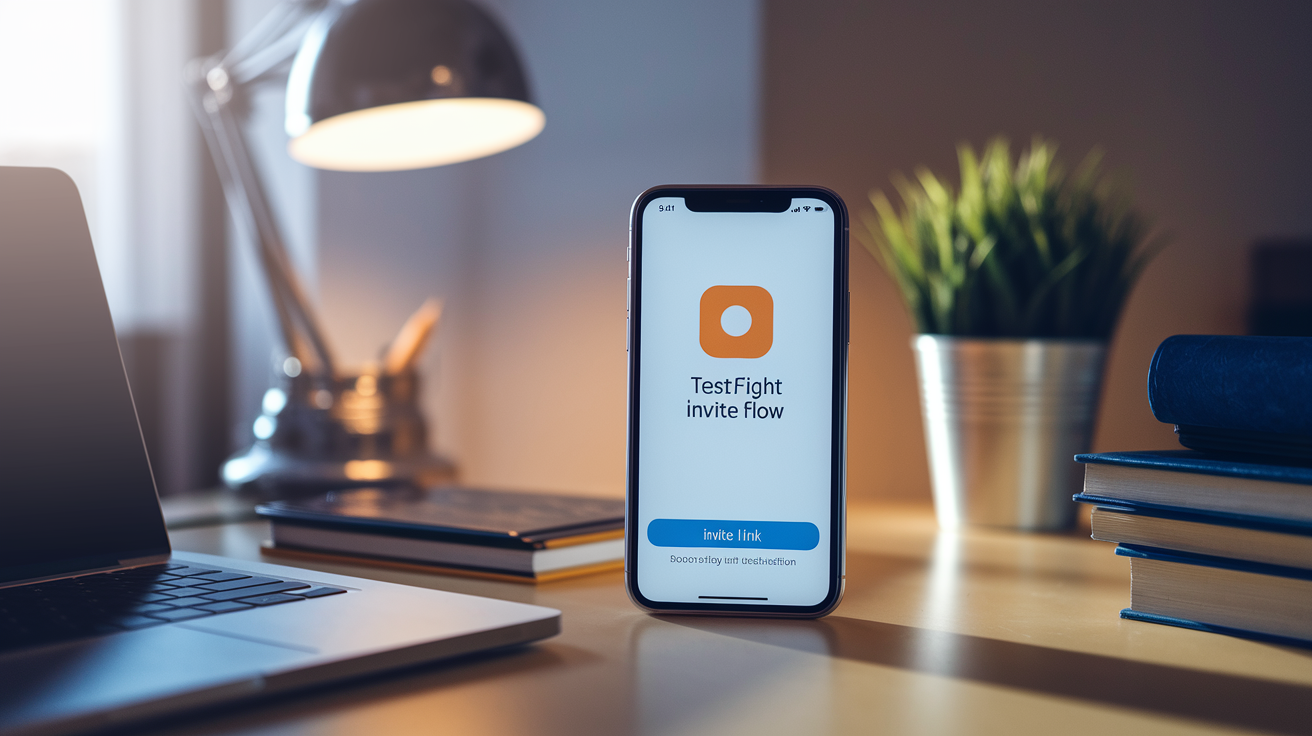
iOS beta programs run entirely through TestFlight, which you need to install from the App Store before testing anything. TestFlight supports internal testers (usually Apple Developer account members, often capped around 100) and external testers (up to 10,000 per app, accessed via public or private invite links). Most public betas use external testing, so you don’t need any special relationship with the developer. Just open the invite link.
You need to use the same Apple ID to open the invite and sign in to TestFlight. If you open the invite in Safari or email on your iPhone or iPad, tapping “View in TestFlight” launches the app automatically. Inside, you’ll see the app’s icon, current beta version, and release notes. TestFlight builds expire 90 days after upload, so you might see “Update Available” or “Beta Expired” if the developer hasn’t pushed a fresh build recently. You can leave and rejoin whenever, as long as the developer’s external testing slot is open and the invite link still works.
Detailed TestFlight Join Steps:
- Open the App Store on your iOS device, search for “TestFlight,” tap “Get” to install.
- Find the beta invite link (email, website, forum) and tap it on your iOS device.
- The link opens TestFlight automatically. Tap “Accept” or “Start Testing” to enroll.
- Tap “Install” to download the beta. The app icon gets an orange dot to show it’s a TestFlight version.
- Open TestFlight anytime to view release notes, check for new builds, send feedback directly to the developer.
Common TestFlight Enrollment Issues
Invite links expire if the developer sets a deadline or hits the 10,000 tester cap. If you tap an invite and see “Unable to Accept Invite” or “This beta is full,” the developer needs to remove inactive testers or expand capacity. You can reach out to ask for a spot if enrollment’s closed.
Builds expire after 90 days from upload. If you open TestFlight and see “This beta has expired,” the developer must upload a new build. You can’t install or update an expired build, even if you were enrolled before. Check TestFlight periodically for new builds, or wait for an email notification if the developer turned those on.
Beta App Update Requirements Before Joining

You need a compatible device running a recent OS version. Most beta apps specify minimum requirements (iOS 15, Android 10, whatever), and some need specific hardware like a camera, GPS, or NFC. Check the beta page or developer notes before signing up. Your device needs enough free storage to download and install the beta, which can be bigger than the stable release because of debug symbols and extra logging.
Your Google or Apple account must match the account used for the invite, if there is one. For Google Play open betas, any Google account works. For TestFlight, you must open the invite link while signed in to the Apple ID you want to use. If you’ve got multiple accounts (work and personal), confirm you’re using the right one before tapping “Join” or “Accept.”
Back up your data before joining any beta. Beta apps crash, corrupt files, act weird. Especially early builds. Use your device’s built-in backup tool (Google Drive backup on Android, iCloud on iOS) or a third-party service to save photos, contacts, messages, app data. If you rely on the app for work or sensitive tasks (banking, health tracking, messaging), test the beta on a secondary device or wait for a release candidate closer to stable launch.
How to Update a Beta App After Joining
Google Play beta updates show up in your “Updates” tab alongside other app updates once enrollment’s confirmed. Open Play Store, tap your profile icon in the top right, tap “Manage apps & device,” look for the app under “Updates available.” You can also open the app’s Play Store page directly and tap “Update” at the top if a new beta build’s ready. Updates can drop daily or weekly, depending on the developer’s pace.
TestFlight shows new builds and release notes inside the TestFlight app. Open TestFlight, tap the beta app, you’ll see a list of available builds with version numbers, upload dates, “What to Test” notes from the developer. Tap “Update” or “Install” next to the latest build to download it. TestFlight notifies you when a new build’s available if you enable notifications in iOS Settings under TestFlight.
Checking and managing beta updates:
Manual check on Android: Open Play Store, search for the app, look for an “Update” button at the top of the page.
Manual check on iOS: Open TestFlight, tap the app, refresh by pulling down to see if a newer build’s available.
Auto-update on Android: Go to the app’s Play Store page, tap the three-dot menu, toggle “Enable auto-update” to install beta builds automatically.
Auto-update on iOS: TestFlight betas don’t auto-update by default. You must manually tap “Update” in TestFlight for each new build.
How to Leave or Opt Out of a Beta App Update
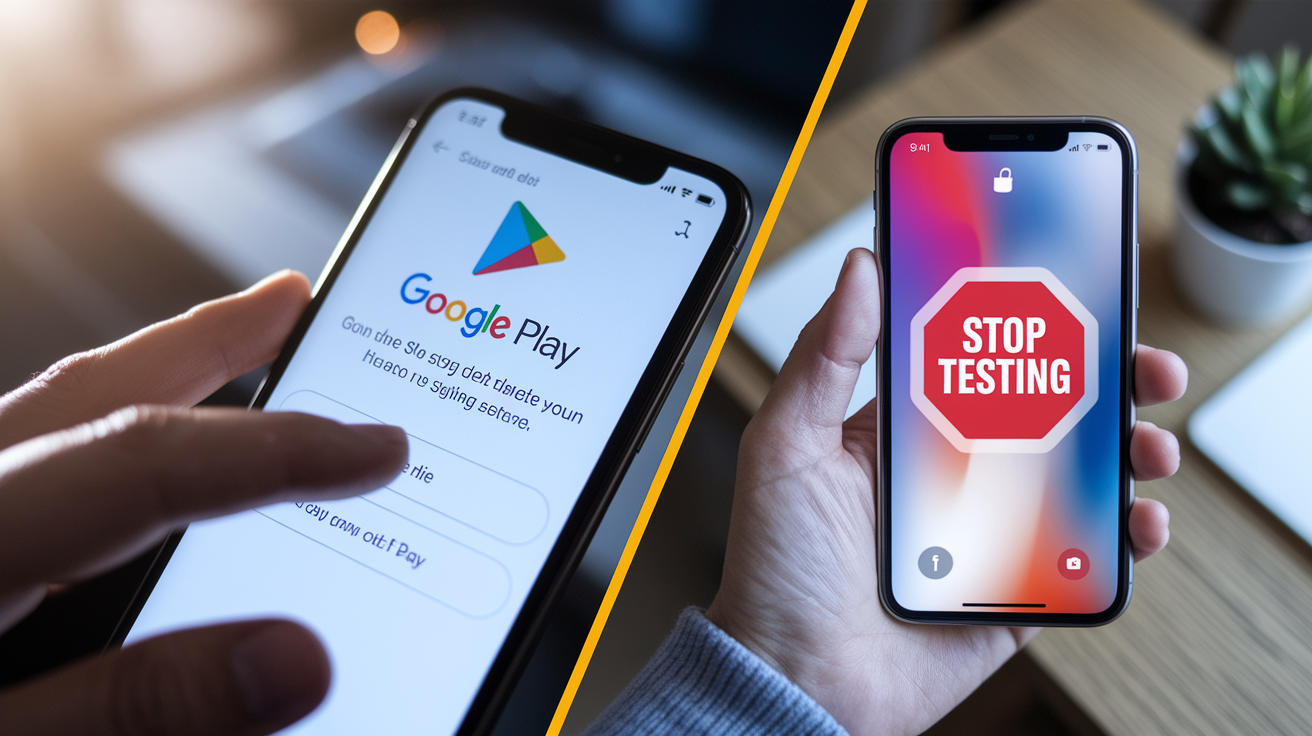
Leaving a Google Play beta uses the same “Join the beta” section where you enrolled. Open Play Store, go to the app’s page, scroll down to the beta box, tap “Leave.” A confirmation dialog pops up. Tap “Leave” again to confirm. Removal can take a few minutes to propagate. After you leave, Play Store may prompt you to uninstall the beta and reinstall the stable version, or it may offer an “Update” to downgrade to the public release if available.
TestFlight makes leaving simple. Open TestFlight, tap the beta app you want to stop testing, tap “Stop Testing” at the bottom of the screen. Confirm, then delete the beta app from your home screen. To revert to the stable release, open the App Store, search for the app, install the public version. TestFlight and App Store versions can coexist briefly, but iOS will prompt you to remove the beta once you install the stable build.
Exact steps to leave a beta program:
- Android Open Google Play Store, go to the app’s listing page.
- Android Scroll to the beta section, tap “Leave.”
- Android Confirm by tapping “Leave” again, wait for the process to complete, install the stable version if prompted.
- iOS Open TestFlight, tap the beta app you want to exit.
- iOS Tap “Stop Testing” at the bottom of the screen, confirm.
- iOS Delete the beta app from your home screen, then open the App Store and install the stable release.
Troubleshooting Beta App Update Enrollment Issues
Missing beta section in Google Play usually means the app doesn’t support betas, enrollment’s closed, or your region’s restricted. Try another app (Google Maps, Google Messages, Files by Google all offer open betas) to confirm the process works on your device. If the beta section appears for other apps but not the one you want, the developer may have paused enrollment or limited testing to specific countries.
Invite links for TestFlight can expire after a set time or when the 10,000 tester cap is reached. If you tap an invite and see “Unable to Accept Invite” or “This beta is full,” contact the developer to request a fresh invite or wait for a slot to open. TestFlight builds expire 90 days after upload. If you see “This beta has expired,” the developer must release a new build before you can continue testing.
Common troubleshooting actions:
- Clear Play Store cache: Open Android Settings, Apps, Google Play Store, Storage, Clear cache. Restart Play Store and check the app’s page again.
- Verify account match: Confirm you’re signed in with the same Google or Apple ID used for the invite or enrollment.
- Wait 24 hours: Google Play enrollment can take up to a day to propagate. TestFlight’s usually instant, but server delays happen.
- Confirm build availability: Open TestFlight and check if the build shows an expiration date or “Beta Expired” message.
- Reinstall the app: Uninstall the beta, reboot your device, rejoin the beta, install again.
- Check region restrictions: Some betas are limited to specific countries. If you’re traveling or using a VPN, your location might block access.
- Update Google Play Services: On Android, open Settings, Apps, Google Play Services, tap the three-dot menu, Uninstall updates, then open Play Store to reinstall the latest version.
- Reboot your device: Restart your phone to clear temporary files and refresh app store connections.
When Beta Enrollment is Temporarily Closed
Developers pause enrollment when tester slots are full, when they’re prepping a stable release, or during internal testing phases. Google Play closed and internal betas have fixed capacity, and TestFlight external testing caps at 10,000. If you see “Beta is currently full” or no “Join” button, check the developer’s website or social media for updates on when enrollment reopens. Some developers run waitlists via email or community forums. Others just reopen enrollment when they remove inactive testers or expand capacity.
Beta App Update Risks, Limits, and What to Expect

Beta builds are less stable than public releases. Period. Crashes, UI glitches, data corruption, battery drain, incomplete features are common, especially in early alpha or first-beta builds. Developers release betas specifically to surface these issues before stable launch, so expect rough edges. If an app’s critical for work or daily use (banking, messaging, navigation), test the beta on a secondary device or stick with the stable release.
Beta apps often use semantic versioning with build numbers appended (v1.2.3-beta, build 456). TestFlight displays the build number and upload date. Google Play shows version strings in the “About this app” section. Release candidates (RC) come after multiple beta iterations and represent near-final builds awaiting last-minute fixes. Betas typically update more frequently than stable releases (daily to weekly), while RCs may only update once or twice before final release.
Telemetry, crash logs, usage analytics get collected more aggressively in beta builds. TestFlight automatically bundles diagnostics (crash reports, device logs, energy usage) with user consent when you first accept a beta invite. Google Play betas often include in-app feedback prompts or automatic crash reporting. Review the developer’s privacy statement before joining if you’re concerned about data collection. You can disable some telemetry in device settings (Android: Google, Usage & diagnostics; iOS: Settings, Privacy & Security, Analytics & Improvements), but doing so might limit your ability to report useful bugs.
What to expect in a beta:
Frequent updates (daily to weekly, sometimes multiple times per day during active development).
New features that may not work correctly or may be removed before stable release.
Requests for feedback via in-app prompts, TestFlight surveys, or email from the developer.
Possible data loss or app state resets between builds.
Higher battery and data usage because of debug logging and crash reporting.
How to Report Bugs and Send Developer Feedback in Beta Versions
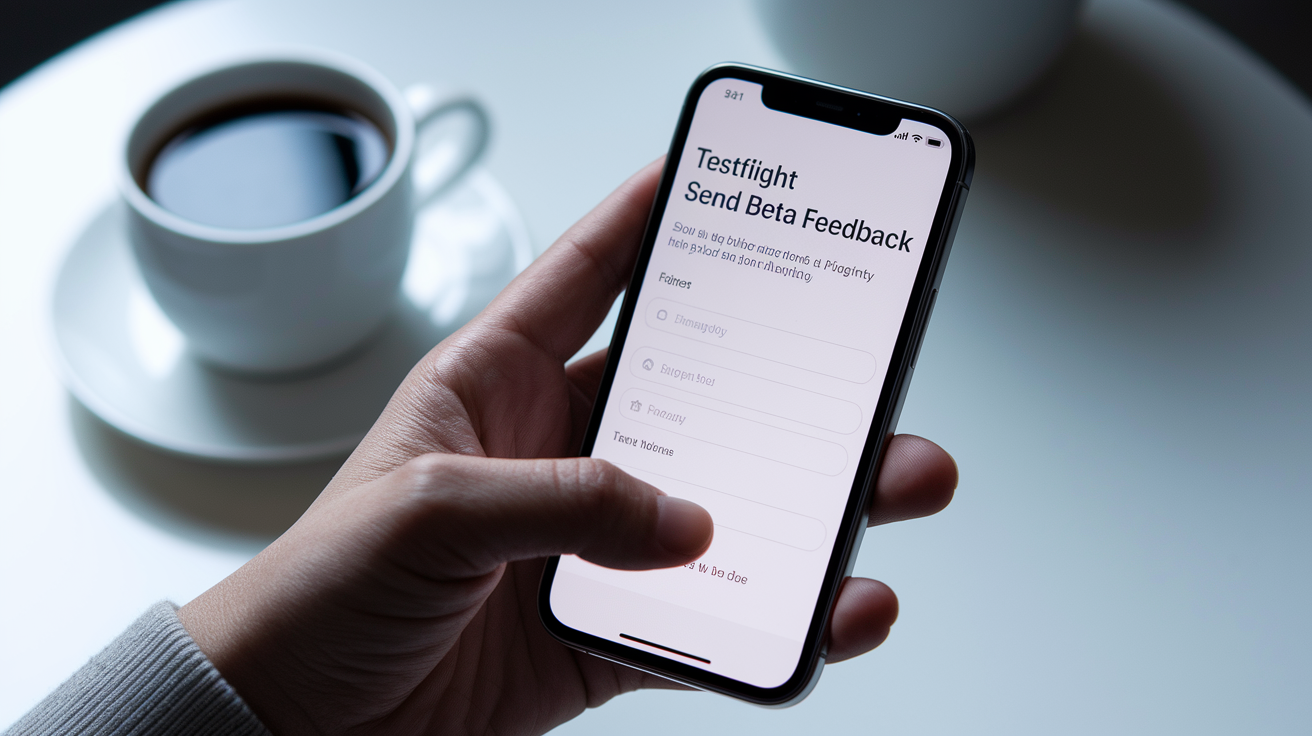
TestFlight includes a built-in feedback tool accessible from the app’s TestFlight page. Tap “Send Beta Feedback,” describe the issue, attach screenshots or screen recordings. TestFlight automatically includes your device model, iOS version, app version, diagnostic logs with each submission. For crash reports, you don’t need to do anything. TestFlight sends them automatically if you enabled crash data sharing during enrollment.
Google Play betas typically direct feedback through in-app forms, email addresses listed in the “App support” section of the Play Store page, or public issue trackers (GitHub, Jira). Some developers enable Play Store reviews for beta builds, while others disable reviews to avoid mixing beta feedback with stable-release ratings. Check the beta announcement or app’s Play Store description for the preferred feedback method.
What to include in a bug report:
Device model “Pixel 7 Pro” or “iPhone 14.”
Operating system version “Android 14” or “iOS 17.2.”
App version and build number Find this in the app’s About screen, Play Store listing, or TestFlight app page (v1.2.3, build 456).
Steps to reproduce Exact actions you took before the bug occurred. “1. Tap Settings. 2. Toggle Dark Mode. 3. App crashes.”
Expected behavior What should have happened. “App should switch to dark mode without crashing.”
Actual behavior What actually happened. “App closed immediately and returned to home screen.”
Screenshots or logs Attach images showing error messages, UI glitches, incorrect text. Include crash logs if you know how to capture them.
Differences Between Beta Channels and Stable Releases
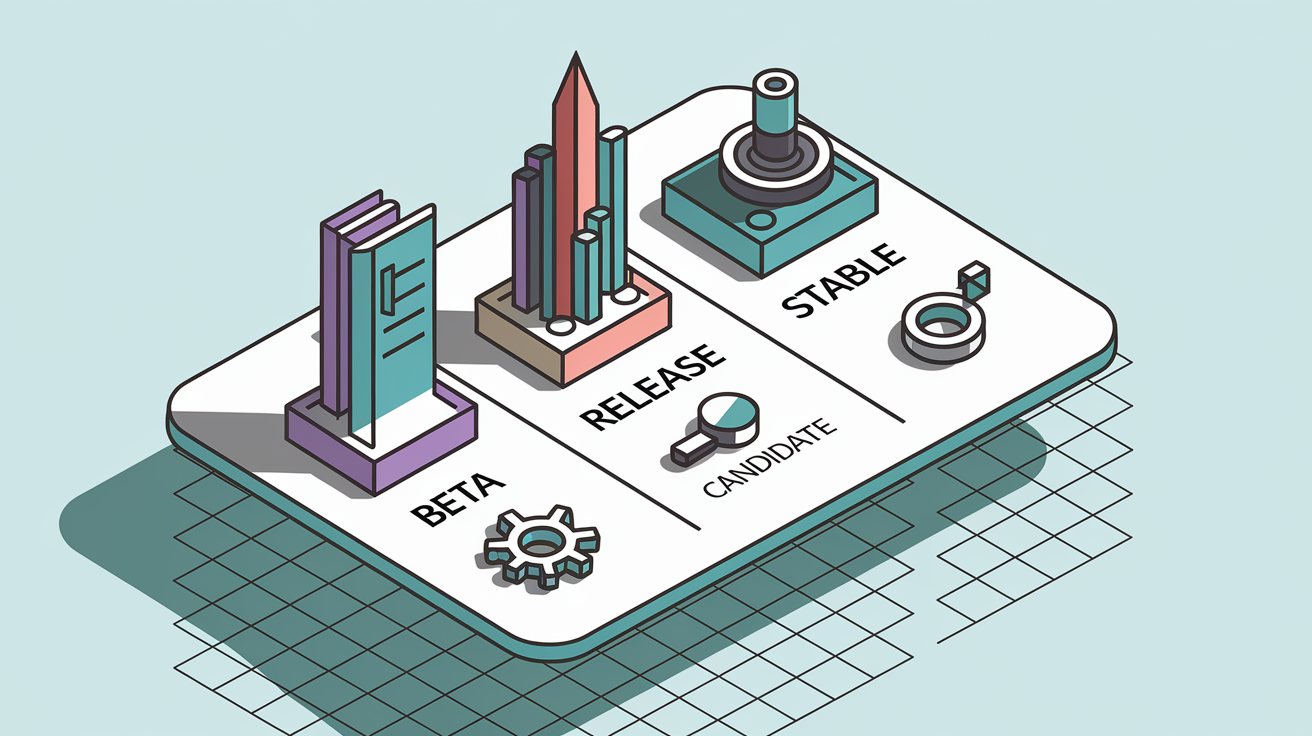
Beta channels deliver early access to new features, UI changes, performance improvements before they reach the general public. Stable releases are polished, well-tested, intended for everyday use by all users. Developers use betas to gather feedback, catch bugs, validate features with real users in real environments. Stable releases only ship after multiple beta iterations and a release candidate phase.
Test builds use version numbers that reflect their stage: alpha (very early, often internal), beta (public or semi-public testing), release candidate (final testing before stable), and stable (public release). Build numbers increment with every upload, even if the version string stays the same. v1.2.3-beta might have builds 450, 451, 452 as the developer fixes bugs and adds features. Once the beta period ends, the developer publishes v1.2.3 stable with a final build number (build 500).
| Channel | Stability | Update Frequency | Purpose |
|---|---|---|---|
| Beta | Moderate to low (bugs expected) | Daily to weekly | Test new features, find bugs, gather feedback before stable release |
| Release Candidate (RC) | High (near-stable, final polish) | Once or twice before stable | Final validation; only critical fixes applied |
| Stable | High (thoroughly tested) | Weekly to monthly | General public use; all features working as intended |
Final Words
In this guide we walked through joining beta app updates on Android (Google Play) and iOS (TestFlight), covering eligibility, where to find the join UI, expected wait times, and how to update or opt out. We also covered build expiry, common enrollment problems, and how to report bugs so developers can fix issues faster.
Follow the 8-step walkthrough, verify device and account requirements, and back up your data before joining. Use the beta app update how to join steps above as your checklist — and enjoy testing new features with confidence.
FAQ
Q: How do I join a beta app or beta program on iOS and Android?
A: To join a beta app or beta program on iOS and Android, install TestFlight and accept the developer’s invite for iOS, or tap “Join the beta” on Google Play under What’s New, confirm, then update.
Q: How do I get access to beta updates?
A: To get access to beta updates, stay enrolled in the beta, enable auto-updates or manually check TestFlight or Google Play, and allow a few minutes to 24 hours for the update to appear.

