
Think app updates always improve things? Not always — sometimes they break core features at the worst time.
If an update just disabled search, payments, or notifications, you need fast, practical steps to restore service.
This affects users, support teams, and developers who must triage without guessing.
In the next few minutes you’ll learn how to confirm the problem, run quick checks that catch false alarms, try deeper fixes before rolling back, and file a bug report that actually gets fixed.
These are quick fixes that work.
Immediate Fixes for App Update Causing Feature Issues
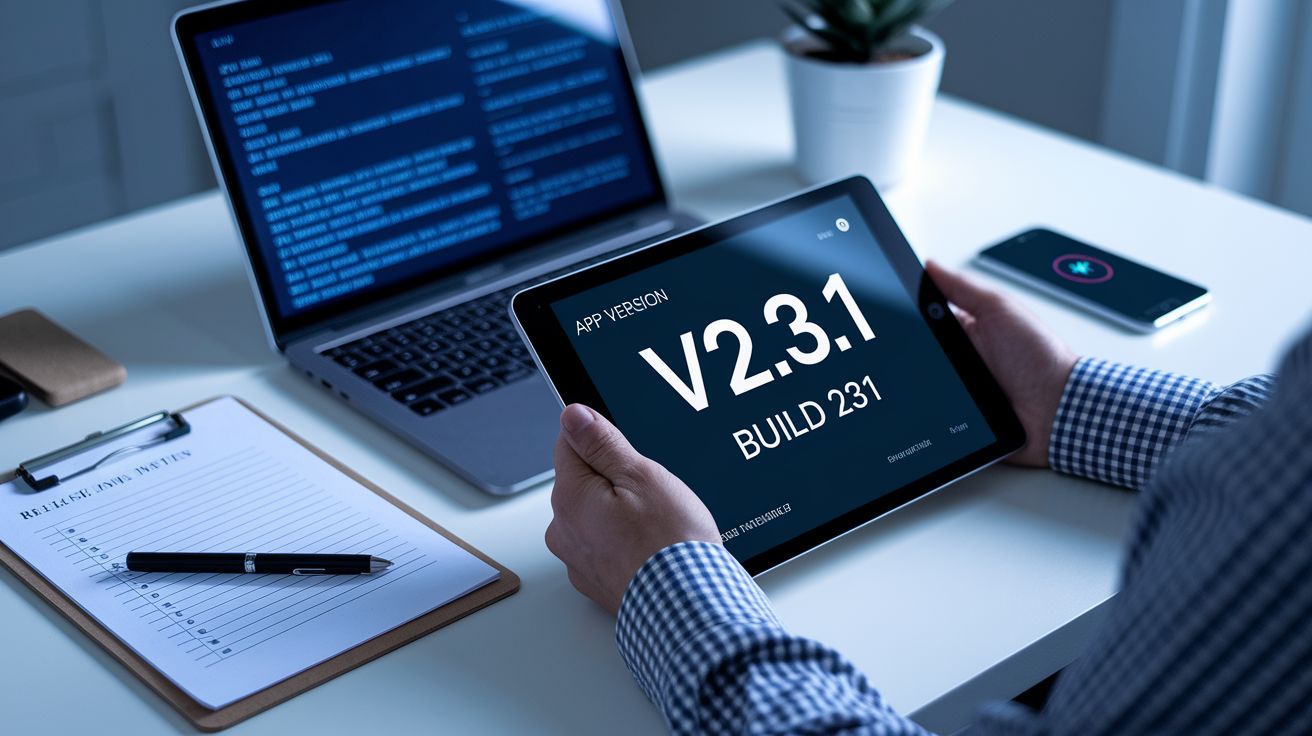
When a feature breaks right after an update, your first job is simple: confirm the issue and decide whether to act now or wait. Start by checking the app version and build in Settings. For example, say you see v2.3.1, build 231 and it matches the update that went live this morning. Try to reproduce the problem at least twice. Then glance at the app status page or the release notes. Those three checks usually take under five minutes and they rule out device quirks.
Quick checks that catch most false alarms:
- Force quit the app and restart your device. Usually 30 to 60 seconds fixes freezes and transient crashes.
- Check the exact build number in Settings → Apps so you know what’s actually running.
- Verify your OS version, like Android 13 or iOS 16.4. Sometimes a pending OS update is the real blocker.
- Reproduce the issue twice with the same steps to avoid blaming a network blip.
If the bug stays after those steps, you’re probably looking at a real regression from the update. Good news: many breakages follow predictable patterns, and there are deeper fixes you can try before rolling back or waiting for a patch.
Common Patterns in Breaking Features After an App Update
Updates break things for a handful of repeatable reasons. Android platform changes often trigger compatibility failures, especially for older apps using deprecated tech. A bunch of legacy games vanished from the Play Store when support was dropped. Major OEM releases can introduce UI and widget issues that surface across threads and months.
Permission resets are common too. Big system updates sometimes revert app permissions to defaults. That logs people out, stops background tasks, and silences notifications. Visual regressions show up when apps haven’t been updated for modern displays, curved panels, or foldables. Buttons move, text overlaps, touch targets vanish.
Battery drain needs a careful eye. Android’s battery optimizer relearns usage over 48 to 72 hours, so expect some temporary drain. But if high drain continues past two weeks, treat it as a bug. In one case, Pixel users blamed the OS, but an Instagram update was actually the culprit. Third party app updates can create confusing simultaneous failures.
Deeper User Fixes for App Features That Broke After an Update
If restart and cache clears don’t help, try mid-depth fixes that reset app state or swap out broken system components. They take a little longer and carry small risks, but they fix many stubborn regressions.
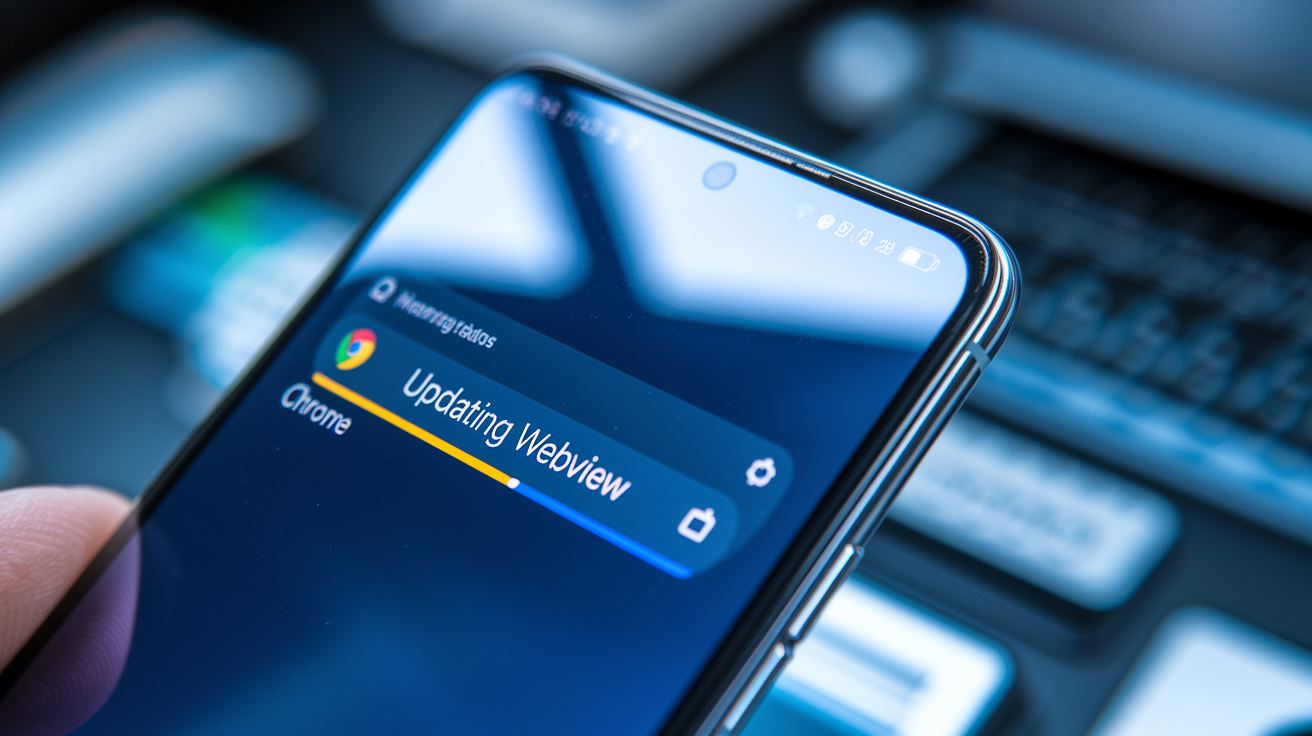
A recent crash wave was fixed by updating Android System WebView and Google Chrome. Open the Play Store, go to My apps and games, and install both updates. If updates aren’t available yet, disabling WebView temporarily stopped crashes for many users. Paths vary by device.
Try these in order:
- Clear the app cache in Settings → Storage. That removes temporary files without logging you out. If that fails, clear app data as a last resort. That will log you out and reset preferences.
- Reinstall the app from the official store. Uninstall, restart the device, then install fresh. Ten minutes well spent.
- Uninstall recent component updates for shared libraries. On Pixel: Settings → Apps → See all apps → pick the component like WebView → tap the triple dot menu and choose Uninstall updates. Manufacturer menus can differ.
- Force a cache refresh for web apps. Press Ctrl Shift R on Windows or Cmd Shift R on Mac to bypass cached assets.
- Test on another device or OS version for a quick narrow. If it works elsewhere, the issue is device or build specific.
These steps usually take five to thirty minutes. If nothing helps, plan for a rollback or wait for an official fix.
Rollback Options When an Update Causes Feature Breakage
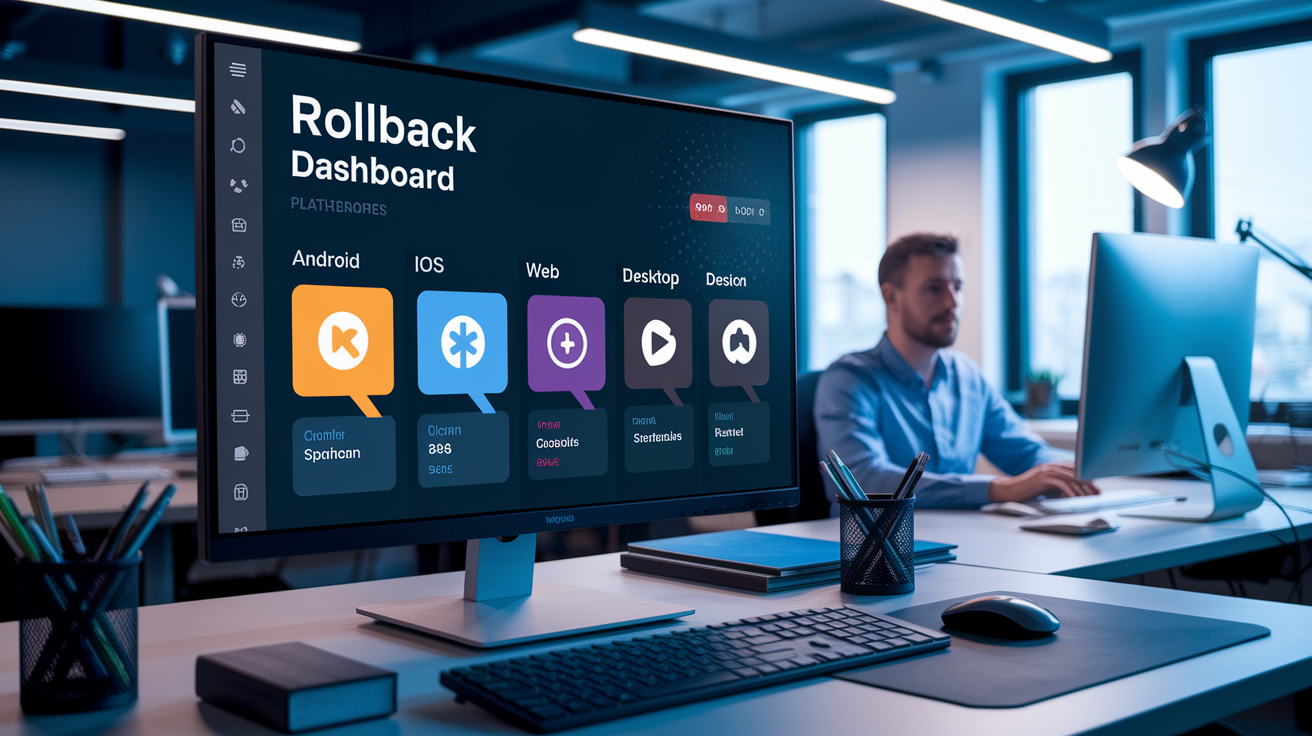
Downgrading often restores functionality fastest, but options differ by platform. Android gives you the most flexibility. iOS and web have stricter constraints.
Android: if you have a signed APK for the previous version you can downgrade with adb install -r -d path/to/app.apk. The -d flag allows downgrades and -r reinstalls without wiping data. Developers can also stop a release or push a previous version to small percentages via the Play Console staged rollout. Installing unsigned APKs requires enabling Unknown Sources and carries security risk. Always verify APK signatures.
iOS: the App Store won’t let you downgrade. Your choices are restoring from a recent backup via Finder or iTunes, which can take thirty minutes to two hours, or installing an older build through TestFlight if the developer provided one.
Desktop and web apps often let you revert releases or purge CDN caches to restore previous behaviour. Developers should keep signed archives of past releases for fast rollbacks.
| Platform | Rollback Method | Time Required |
|---|---|---|
| Android | ADB sideload or Play Console staged rollout | 10 to 30 minutes |
| iOS | Restore from backup or TestFlight previous build | 30 minutes to 2 hours |
| Web | Revert release or purge CDN cache | 5 to 20 minutes |
| Desktop | Reinstall older installer if available | 10 to 30 minutes |
How to File a Useful Bug Report When Features Break After an Update

A clear bug report speeds up fixes. Developers need concrete, reproducible data, not vague frustration.
Always include these fields: app name and exact version like MyApp v2.3.1, build 231. OS and version, for example Android 13 or iOS 16.4. Device model such as Pixel 6 or iPhone 13 Pro. Exact timestamp of the update in ISO 8601 if you can. Numbered reproduction steps with frequency, a one line expected result and one line actual result, and attachments: screenshots, video, crash logs, or stack traces. Mention network state and account ID if relevant after you sanitize personal data. Add recent changes like other app updates or permission changes.
A tight one line summary helps triage: “[MyApp] v2.3.1 (build 231) on Android 13 (Pixel 6)—Checkout button crashes app. Repro: open cart then tap checkout. Crash on 1 out of 1 attempts. Crash log attached. Issue started 2026-03-28T14:05:00Z.”
Temporary Workarounds for Features Broken by Updates
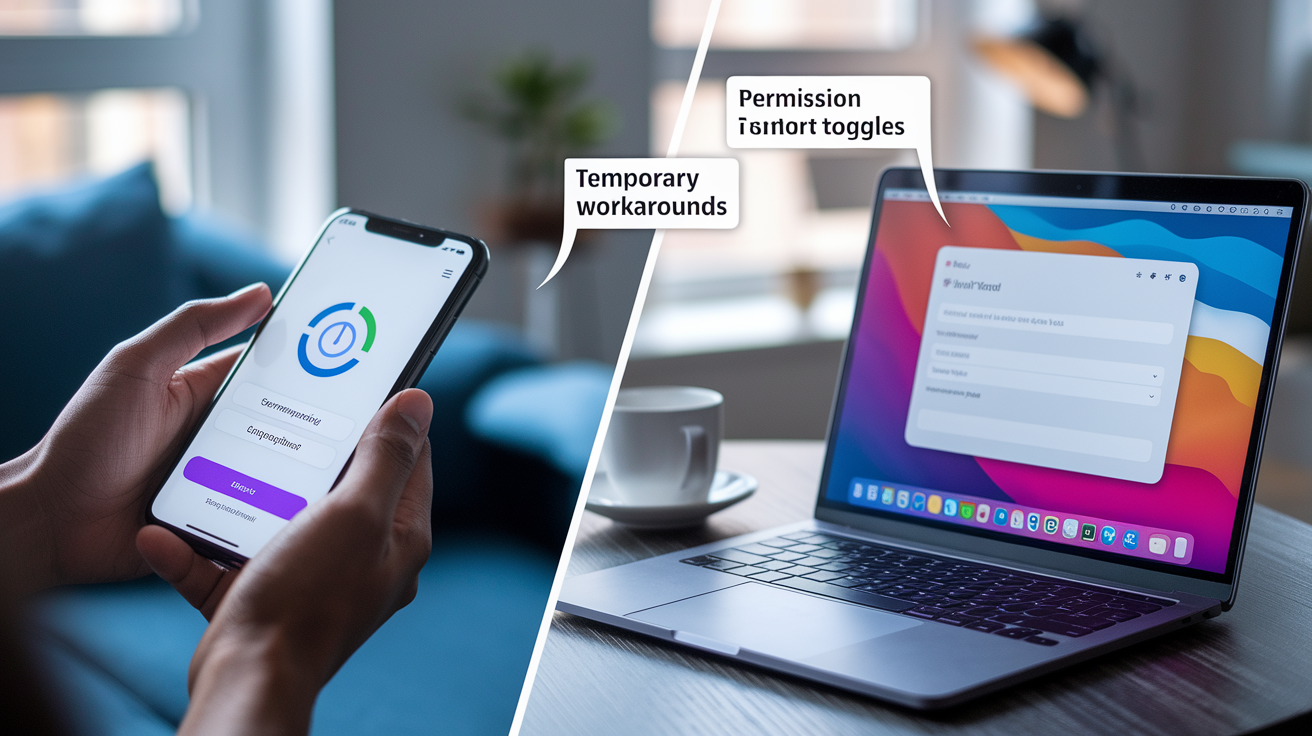
While you wait for a patch, try alternative access paths and permission toggles. Many apps have web front ends that work independently from the native app. Use the browser to finish urgent tasks. If you have an older device on a previous OS, use it until the update is fixed.
Toggling permissions can help. If the app crashes when accessing camera or microphone, disable that permission temporarily in Settings → Apps → Permissions. Some features might degrade, but core workflows may keep working. Creating a new test account can show whether the problem is tied to your user data.
Disabling a problematic system component is a last resort. During the WebView crash wave, users who disabled WebView were able to keep using affected apps. That workaround isn’t always safe, but it’s useful for short term access when an update hasn’t shipped.
Why Updates Break App Features: A Technical Overview

Regressions appear when new code conflicts with existing behavior, dependencies, or stored user data. API version bumps can deprecate methods without warning. Libraries with breaking changes can silently ruin functionality. Data migrations sometimes change storage formats and leave existing users with unreadable files or lost preferences.
Hardware adaptation matters too. Foldables, curved screens, notches, and camera cutouts create layout edge cases that apps can miss. Text and buttons may shift off screen or touch targets can stop working.
Common root causes:
- API version bumps that deprecate methods
- Outdated dependencies or libraries introducing breaking changes
- Incompatible data migrations that corrupt local storage
- Hardware specific bugs from untested screen shapes or sensors
Third party library regressions are tricky because they’re invisible until production. Pin dependency versions and test widely.
Developer Release Safety Nets to Prevent Feature Breakage

Staged rollouts and feature flags are your best bets to avoid large scale failures. Start small with a canary release to 1 to 5 percent of users, monitor crash and error metrics, then expand slowly. Stop the rollout if metrics cross safety thresholds.
Define automated rollback triggers before every release. Roll back if crash rates jump more than 50 percent above baseline in an hour, or if critical flows fail above 1 to 3 percent. Feature flags let you turn off risky features from the server in under ten minutes without deploying new code. Use a kill switch for anything touching payments, auth, or persistent data.
Keep public APIs and shared components backward compatible. Document breaking changes and give consumers at least one release cycle to adapt. Use blue green or dark launch patterns so you can test in production without impacting users until you’re confident.
Testing Practices to Avoid App Update Breaking Features

Good testing catches regressions before users do. Run contract tests for APIs to ensure consumers still get expected responses. Automate UI tests for the five most critical flows like login, core feature usage, payments, sync, and logout. Test schema migrations by running old and new app versions against the same data.
Build a device and OS compatibility matrix covering at least three OS versions and five to ten representative devices, including budget phones, foldables, and tablets. Block merges in CI if any test in the matrix fails. After each deploy, run automated smoke tests that check all critical flows.
Key test types:
- Contract tests for APIs
- UI automation covering critical flows
- Backward compatible data migration tests
- Device fragmentation coverage across multiple OS versions and devices
- Post deploy smoke tests
Simulate real world conditions: slow networks, low memory, background state, and permission revocations. Many regressions only show up when an app is interrupted mid flow.
Monitoring and Alerting to Detect Update Related Breakage Fast

Real time monitoring is your early warning system. Use Crashlytics, Sentry, or New Relic to track crash and error rates by cohort like app version, region, OS, and device model. Segmenting this way lets you isolate whether a bug affects only Android 13 users or a specific device family.
Set alerts that notify your on call team and, when feasible, trigger automated rollbacks. Alert on crash rates above 2 to 5 percent or surges of 50 percent within an hour. Watch key user journeys and alert if failure rates climb above 1 to 3 percent. Track error budget burn so you don’t spend your reliability allowance before the next planned release.
| Metric | Threshold |
|---|---|
| Crash rate | Greater than 2 to 5 percent or plus 50 percent vs baseline in 1 hour |
| Critical flow failure rate | Greater than 1 to 3 percent |
| Error budget burn rate | Exceeds planned monthly allowance |
Dashboards should show version adoption curves next to crash and error trends. If a spike aligns with a new version rollout, you have minutes to act. Tie feature flags to telemetry so problematic paths can turn off automatically when thresholds hit.
Post Incident Actions After an Update Breaks App Features
After you contain the immediate problem, do structured follow up to stop repeats. Assign owners and follow a timeline. In the first 0 to 15 minutes, the on call person confirms reproduction, collects logs, and scopes affected versions and devices. From 15 to 60 minutes, contain the blast radius by disabling feature flags, halting rollouts, or preparing a rollback. Update stakeholders and the status page.
Mitigation lives in the 1 to 4 hour window. Ship a hotfix or roll back, test in staging, then push to production. Monitor closely for the next 4 to 24 hours. Prepare clear user communication and release notes explaining what broke, what you fixed, and steps users should take like updating, clearing cache, or reinstalling.
Schedule a postmortem within 24 to 72 hours while details are fresh. Run a blameless root cause analysis. Document what failed, why monitoring missed it, and which process gaps let the regression ship. Create concrete action items like new tests, alerts, or rollout changes. Assign owners and due dates, then track completion in your sprint planning.
Final Words
In the action, we ran through ultra-fast fixes you can try in under five minutes, common patterns that cause regressions, deeper user repairs, and safe rollback options.
You also saw how to file a clear bug report, use temporary workarounds, and set up developer safety nets like staged rollouts and monitoring to catch issues early.
If you hit app update breaking features, try the quick checks first, then move to rollbacks or detailed fixes. With those steps and solid observability, you’ll restore functionality quickly.
FAQ
Q: What app is used most in the world?
A: The app used most in the world is WhatsApp, a global messaging service with roughly two billion monthly users, especially popular outside the U.S.; Facebook and YouTube remain top contenders for engagement.
Q: Why is my phone worse after an update?
A: Your phone is worse after an update because new OS or app code can introduce compatibility bugs, reset permissions, reindex files, or run extra background work that causes slowdowns, crashes, or higher battery drain.
Q: How to degrade an app update?
A: To degrade an app update, revert to an older version: on Android uninstall updates or sideload a prior APK (adb or APK file), and on iOS restore from a device backup or install a previous TestFlight build if available.
Q: Do iOS updates break apps?
A: iOS updates can break apps when system APIs, permission rules, or WebKit behavior change, causing crashes, UI issues, or feature loss; developers typically push fixes—check for app updates and developer advisories.

