
You’d think updating an app would be simple. Download, install, done. But when error code 110 or 0x80070002 flashes on your screen, that update stops cold and your app stays broken or outdated. These codes aren’t random. They point to specific problems like corrupted files, storage issues, or network failures. The good news is most app update errors have quick fixes you can handle yourself in under five minutes, no tech support needed.
Common App Update Error Codes: Quick Reference and Immediate Solutions
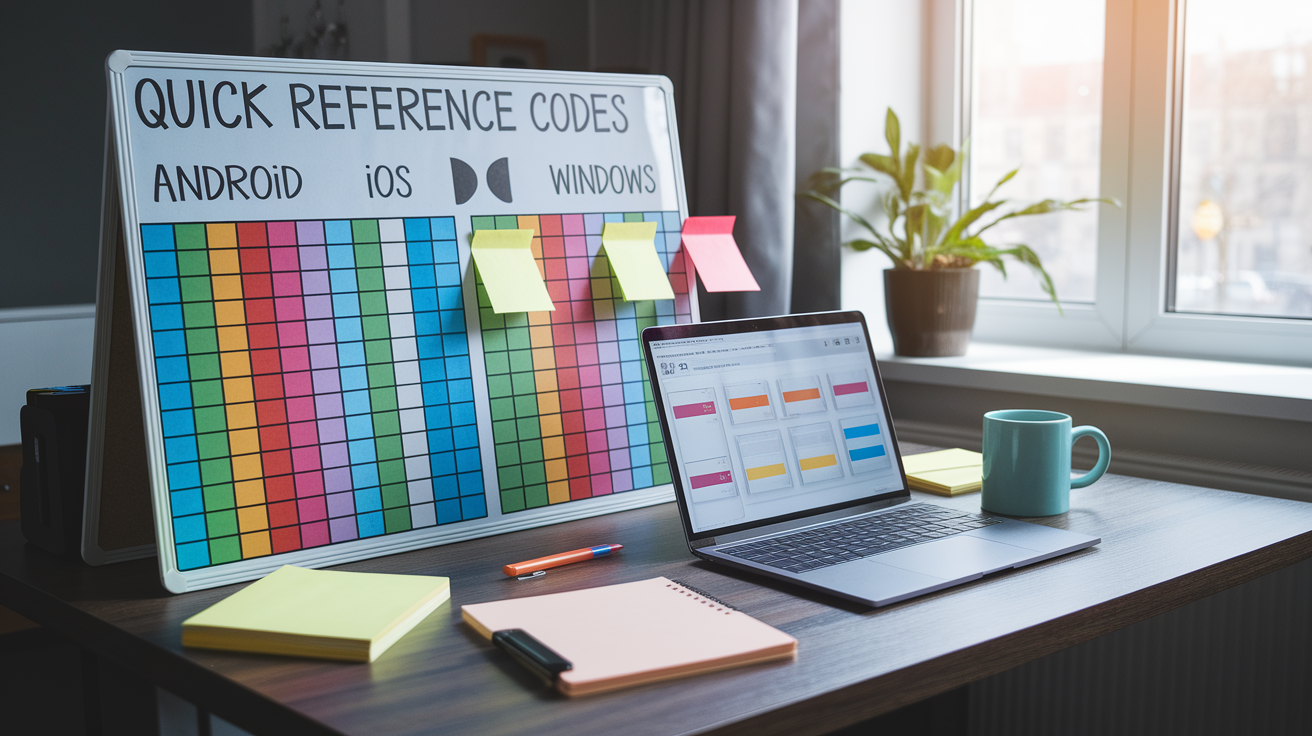
| Error Code | Platform | What It Means | Quick Fix |
|---|---|---|---|
| -26 | Android (MIUI) | System incompatibility, package manager blocking installation | Install older MIUI version or disable automatic updates |
| 110 | Android (Google Play) | Unknown application install error during update | Clear Google Play Store cache and data, restart device |
| 402 | Samsung Galaxy | Software update installation failure, triggers reboot | Use Verizon Updater from phone’s flash drive on PC |
| 0x80070002 | Windows | Missing update files or network interruption | Run Windows Update Troubleshooter, check network connection |
| 0x8007000E | Windows | Insufficient storage or memory for update | Free up disk space, minimum 20GB for major updates |
| 0x80240034 | Windows | Network timeout, update server unavailable | Verify internet connection, disable VPN temporarily |
| Network Error | iOS | Connection lost during download or verification | Switch to WiFi, verify network stability, restart router |
| Storage Full | iOS | Not enough space to unpack and install update | Free 2GB for apps, 5-7GB for system updates via offloading |
Where you’ll find these codes depends on what you’re using. Android users can check notifications after failed updates or dig into the Google Play Store (tap your profile, then Manage apps & device, and look at pending updates). iOS shows them in Settings under General and Software Update, or in the App Store’s account updates section. Windows just throws them at you directly in the Update dialog or when Microsoft Store updates fail.
These codes exist because “update failed” tells you nothing useful. When you see something like error code 110 or 0x80070002, you’re actually getting a diagnostic identifier that points to the exact failure. Could be network problems, not enough storage, permission conflicts, corrupted files. The specificity matters because it turns troubleshooting from guesswork into something methodical. Screenshot the code or write it down completely. Letters, numbers, hyphens, all of it. Similar codes can mean totally different things.
The table gives you first attempt solutions that work for most common situations without needing technical expertise. Error codes look different across platforms, but they often point to similar underlying problems. A storage error on iOS is essentially the same issue as Windows error 0x8007000E, just dressed up differently. If the quick fix doesn’t work after two tries, you’ll want to move to the platform specific sections below.
Android App Update Error Codes and Complete Troubleshooting
Android throws numeric codes at you, often negative numbers, when installations and updates fail. You’ll see these in Google Play Store notifications, the app management screen, or sometimes buried in system logs if you’ve got developer options turned on. The specific code helps you figure out if this is the app’s problem, your device setup, network connectivity, or Android’s package management doing something weird.
Error Code -26: System Incompatibility and Custom ROM Issues
Error code -26 translates to INSTALLFAILEDSYSTEM_INCOMPATIBLE. It shows up constantly on Xiaomi devices running MIUI custom ROM. MIUI’s package manager gets confused and flags perfectly compatible apps as incompatible. This isn’t Google Play acting up, it’s how MIUI’s modified Android evaluates apps during installation.
You can work around it temporarily by manually installing the APK. Download it from somewhere trustworthy like APKMirror, enable installation from unknown sources in security settings, install manually. This bypasses Google Play’s update system for now, but the error comes right back when Google Play tries an automatic update next time. You’re just kicking the can down the road.
For something more permanent on Xiaomi devices, you’d install an older MIUI version that doesn’t trip this flag, or disable automatic MIUI updates entirely. Some people report success rolling back to MIUI versions before 4.4.18, though it varies by device model. Disabling automatic updates means you’re manually checking for stable releases and reading what other users report before updating.
Custom ROMs beyond MIUI can trigger error -26 when their package manager doesn’t perfectly match stock Android behavior. If you installed custom recovery like TWRP or modified system files, those changes sometimes stick around even after flashing back to stock with tools like ODIN. Complete restoration means flashing stock firmware and also cleaning up modified databases and custom recovery partitions.
Error Code 110: Google Play Store Installation and Authentication Failures
Error code 110 shows up as an “unknown application install error” when apps update through Google Play Store. Unlike storage or network errors where the cause is obvious, code 110 usually means authentication problems or conflicts in Google Play’s internal data. The error suggests Google Play can download the update but fails during installation verification.
Clear Google Play Store cache first. Settings, Apps, Google Play Store, Storage, Clear Cache. This removes temporary files that might have corrupted authentication tokens without deleting your account stuff. If that doesn’t work, clear data next, which logs you out and resets Play Store completely. You’ll sign back into your Google account afterward.
Check that your device’s date and time are set to automatic. Google Play verifies digital certificates during installation, and if your clock is wrong, certificate validation fails. Even a few minutes off can mess with security certificates.
Remove and re-add your Google account to refresh authentication tokens. Go to Settings, Accounts, Google, select your account, tap the three dot menu, choose Remove account. Restart your device, then add the account back through the same settings menu. This forces Google Play to establish fresh credentials with Google’s servers.
For thorough Android troubleshooting:
-
Check network connection by opening a browser and loading several different websites to verify you’ve got consistent connectivity, not just an initial connection.
-
Verify you’ve got minimum 2GB free space, because updates need room to download the file plus additional space to unpack it during installation (basically double the app size).
-
Clear Google Play Store cache and data through Settings and Apps, starting with cache alone and escalating to data if the first attempt fails.
-
Check app installation permissions in Settings under Security and Install unknown apps to make sure Google Play Store has permission to install apps.
-
Restart device to clear temporary memory problems, cached authentication states, and background processes that might conflict with installations.
-
Remove SD card before updating if your device has external storage, because SD cards can create permission conflicts when Android tries to write installation files.
-
Verify date and time settings are set to automatic network provided time, preventing certificate validation failures during secure connections.
-
Disable VPN or proxy temporarily if you use one, because these can mess with Google Play’s server communication and download verification.
-
Clear corrupted download files by going to File Manager, Android folder, data, com.android.vending, files and deleting any partial downloads.
-
Uninstall and reinstall the problematic app as last resort, accepting that you’ll lose local data not backed up to the cloud.
Clearing cache removes temporary files like images, thumbnails, session data without affecting how the app works or your login status. Clearing data resets the entire app to factory defaults, removing login credentials, preferences, locally stored content. Use cache clearing first for most problems, and only clear data when cache clearing fails or when you need to completely reset authentication states.
Storage requirements go beyond just the download size shown in Play Store. Android needs space to download the APK file, additional space to unpack and verify contents, and temporary space for installation before deleting the old version. A 100MB app update might temporarily need 250MB during installation.
Network interruptions create corrupted partial downloads that Android can’t complete or verify. If your WiFi signal drops for even a few seconds during a large update, the incomplete file sits in the download cache and blocks the update from completing. Android doesn’t always automatically retry from where it failed, instead it keeps trying to verify a corrupted file.
SD cards cause permission conflicts during installation when Android can’t figure out whether to write files to internal storage or the SD card. Some apps split data between both storage locations, and write permission failures to either location prevent the entire installation from completing. Temporarily removing the SD card forces Android to use internal storage exclusively.
iOS App Update Error Codes and Complete Resolution Steps
iOS displays error codes in Settings under General and Software Update after system update failures, and in the App Store when individual app updates fail. Unlike Android’s numeric codes, iOS often shows descriptive messages alongside error numbers, like “Unable to Install Update” with a specific error. These appear in alert dialogs that make you acknowledge the error before dismissing.
The most common iOS error scenarios combine multiple potential causes. Network interruptions create incomplete downloads when WiFi signals drop or cellular data cuts out mid transfer, leaving corrupted partial files that iOS can’t complete or verify. Not enough storage prevents unpacking even when the download completes successfully. You’ll want minimum 2GB for app updates and 5 to 7GB for iOS system updates because installation needs room to unpack files while keeping the old version intact. Apple server timeouts happen when Apple’s content delivery network experiences high traffic or temporary outages, causing the update verification stage to fail. Date and time setting problems affect certificate validation because iOS verifies digital signatures against current time, and incorrect clocks make valid certificates appear expired. Apple ID authentication failures prevent the App Store from verifying your purchase and update rights, blocking downloads even for free apps.
For sequential troubleshooting:
• Verify network connection by loading multiple websites in Safari and checking if pages load consistently without interruptions or slowdowns
• Switch to WiFi if you’re on cellular data because iOS restricts large downloads over cellular and WiFi generally provides more stable connections for sustained transfers
• Check available storage in Settings, General, iPhone Storage and offload unused apps if free space falls below 5GB for system updates or 2GB for app updates
• Restart device to clear temporary authentication tokens, free RAM used by background processes, reset network stack components
• Sign out and back into Apple ID by going to Settings, your name, Media & Purchases, Sign Out, then signing back in to refresh authentication credentials
• Verify date and time is set to automatic in Settings, General, Date & Time because manual time settings often drift and cause certificate validation failures
• Check Apple System Status page at apple.com/support/systemstatus for server side issues affecting App Store or Software Update services shown as yellow or red indicators
• Reset network settings via Settings, General, Transfer or Reset iPhone, Reset, Reset Network Settings if connection problems persist despite WiFi signal appearing strong
• Update via iTunes on Windows or Finder on Mac as alternative method that downloads update files to computer first, bypassing device side storage limitations temporarily
iOS storage calculation includes system files, cached data, and the mysterious “Other” category that holds temporary files, system logs, Siri voices. The “Other” category can grow to several gigabytes over time, and iOS doesn’t give you direct deletion options. Offloading apps removes the app itself while keeping documents and data, freeing more space than just deleting cached files.
Incorrect date and time causes certificate validation failures because digital certificates include validity date ranges. When your device clock shows a date outside the certificate’s valid range, iOS treats the certificate as expired or not yet valid, blocking the connection to Apple’s servers. Even a few hours of clock drift can trigger this security check.
The Apple System Status page shows real time operational status for all Apple services. Yellow indicators mean performance issues affecting some users, red means service outages affecting everyone. Server issues look like widespread reports of the same error code across different devices and locations, while device specific issues affect only your device regardless of server status.
The iTunes or Finder update method bypasses device storage limitations by downloading update files to your computer’s hard drive, which typically has way more free space than your iPhone. Your device still needs some free space for installation, but the large download file doesn’t eat up iPhone storage. This method helps when storage constraints prevent even downloading the update file.
When to seek Apple Support: persistent hardware related issues indicated by error codes referencing hardware diagnostics, repeated failures across multiple iOS versions suggesting logic board problems, iCloud synchronization problems that prevent app updates from completing, or devices that enter recovery mode loops after failed updates. Hardware issues need professional diagnostics beyond software troubleshooting, and Apple Support can run remote diagnostic tests or schedule Genius Bar appointments for in person evaluation. iCloud sync issues sometimes stem from server side account problems that only Apple’s backend teams can resolve.
Windows App and System Update Error Codes with Complete Fixes
Windows displays numeric error codes in hexadecimal format, starting with 0x, during Windows Update failures for system patches and Microsoft Store app updates. Windows Update errors appear in Settings, Update & Security, Windows Update, View update history, showing which specific updates failed. Microsoft Store app errors pop up as dialog boxes when clicking “Get updates” in the Store’s Library section.
Common Windows Update Error Codes and Their Root Causes
Error code 0x80070002 indicates missing files or network interruption during the download process. Windows Update downloads files to a temporary staging area before installation, and if any required file is missing or corrupted, the entire update fails. Network interruptions mid download leave incomplete file fragments that Windows can’t use, but the update system doesn’t always automatically clear these broken files and retry from scratch. Firewall rules or antivirus software sometimes quarantine legitimate update files, triggering this error even though the download completed.
Error code 0x8007000E signals not enough storage or memory for the update process. Major Windows updates like feature updates require at minimum 20GB of free disk space, far more than the update download size, because Windows needs room to download files, unpack them, create backup copies of replaced system files, and maintain the old Windows installation in Windows.old folder for recovery purposes. Low RAM situations also trigger this error when Windows can’t allocate enough memory for the update installer process.
Error code 0x80240034 means network timeout or update server unavailable, occurring when Windows Update servers don’t respond within the expected timeframe. High server load during major update releases causes timeout errors as millions of devices attempt simultaneous downloads. VPN connections sometimes route update traffic through slow or restricted pathways that exceed timeout thresholds. Proxy configurations in corporate networks can block or delay connections to Microsoft’s update servers, causing Windows to abandon the update attempt.
For clearing Windows Update cache using PowerShell, open PowerShell as Administrator and run these commands in sequence:
Stop-Service wuauserv
Remove-Item C:\Windows\SoftwareDistribution -Recurse -Force
Start-Service wuauserv
The first command stops the Windows Update service so files aren’t locked during deletion. The second command removes the entire SoftwareDistribution folder containing corrupted cache files and incomplete downloads. The third command restarts the service, which automatically recreates a clean SoftwareDistribution folder.
For resetting Microsoft Store, open Command Prompt or PowerShell and run:
WSReset.exe
This clears Microsoft Store cache without affecting installed apps or login credentials. A blank Command Prompt window appears for several seconds, then Microsoft Store opens automatically with a fresh cache.
For comprehensive Windows troubleshooting:
-
Verify administrator rights by right clicking the update or app and selecting “Run as administrator” if standard account permissions are blocking system level changes.
-
Check disk space with minimum 20GB free for major Windows updates or 5GB for smaller cumulative updates and app updates, viewable in Settings, System, Storage.
-
Run Windows Update Troubleshooter from Settings, Update & Security, Troubleshoot, Additional troubleshooters, Windows Update, which automatically detects and repairs common configuration problems.
-
Disable VPN or proxy temporarily in Settings, Network & Internet, VPN or Proxy to ensure direct connection to Microsoft’s update servers without routing delays.
-
Check firewall and antivirus settings to verify Windows Update and Microsoft Store are allowed through with both incoming and outgoing connections permitted.
-
Verify network connection stability by running continuous ping tests to 8.8.8.8 or microsoft.com in Command Prompt and watching for packet loss or high latency spikes.
-
Scan system files with SFC /scannow command in Administrator Command Prompt to detect and repair corrupted Windows system files that prevent proper update installation.
-
Run DISM repair commands (DISM /Online /Cleanup-Image /RestoreHealth) to fix Windows image corruption that SFC alone can’t resolve.
-
Clear Windows Update cache using PowerShell commands listed above to remove corrupted download fragments and reset update components to clean state.
-
Reset Windows Update components by stopping services, renaming SoftwareDistribution and Catroot2 folders, then restarting services to force complete component recreation.
-
Restart Windows Update services manually via Services app if automatic service starts fail, checking that Windows Update, Background Intelligent Transfer Service, and Cryptographic Services are all running.
-
Perform system restore if issue started after recent changes, rolling back system files and registry settings to a point before the problem appeared without affecting personal files.
Access Windows Update log files for detailed diagnostics using the Get-WindowsUpdateLog PowerShell command run as Administrator. This converts Windows Update’s internal ETL trace logs into a readable WindowsUpdate.log file on your desktop. The log shows exact timestamps of update attempts, which components failed, specific file paths that couldn’t be accessed, and network connection status during downloads. Search the log file for “error” or “failed” to quickly locate relevant diagnostic information.
Advanced Troubleshooting Commands and Diagnostic Tools

Advanced troubleshooting becomes necessary when standard methods fail after two complete attempts, when you encounter the same error repeatedly despite following platform specific guides, when boot problems prevent accessing normal settings menus, or when you need detailed technical information before contacting manufacturer support. These command line tools and diagnostic methods provide system level access beyond what graphical interfaces allow.
Android ADB Commands for Update Troubleshooting
Enable USB debugging in Developer Options, connect your device to a computer, and run these ADB commands from a command prompt:
adb logcat
This displays real time system logs showing exactly what happens during app installation attempts. Look for lines containing the package name of the app you’re updating and error messages like “INSTALL_FAILED” with specific reasons. The output scrolls continuously, so pipe it to a text file (adb logcat > log.txt) for easier searching.
adb install -r [package.apk]
Force reinstall an app by replacing [package.apk] with the actual APK file path. The -r flag keeps existing app data while reinstalling the app package, useful when the Play Store update mechanism fails but manual installation works. Expected output shows “Success” or specific error messages like “INSTALLFAILEDINSUFFICIENT_STORAGE” that pinpoint the exact failure reason.
adb shell pm clear com.android.vending
This clears Google Play Store data at the system level, more thorough than clearing through Settings interface. The Play Store resets completely, removing all cached authentication tokens and download fragments. Expected output simply shows “Success” and you’ll need to open Play Store and sign in again.
Windows PowerShell and Command Prompt Solutions
Open PowerShell or Command Prompt as Administrator and run:
Get-WindowsUpdateLog
This generates a readable update log file on your desktop from Windows Update’s internal trace logs. The process takes 30 to 60 seconds as it converts binary ETL files into text format. The resulting WindowsUpdate.log contains timestamps, component names, error codes, and file paths showing exactly where the update process failed.
DISM /Online /Cleanup-Image /RestoreHealth
This repairs the Windows system image by downloading replacement files from Windows Update servers. The scan process takes 10 to 30 minutes depending on drive speed and extent of corruption. Progress percentage displays during the scan, and the command reports whether corruption was found and successfully repaired. Run this before SFC /scannow because DISM fixes the source files that SFC uses for repairs.
SFC /scannow
System File Checker scans all protected Windows system files and replaces corrupted versions with correct copies from the system image. The scan takes 15 to 45 minutes and shows progress as percentage complete. The final report states whether corrupted files were found and if repairs succeeded. If SFC reports it found corruption but couldn’t fix it, run DISM first, then run SFC again.
iOS Diagnostic Log Access via Mac
Connect your iOS device to a Mac using a USB cable, open the Console app (found in Applications and Utilities), and select your device name in the left sidebar. Console displays real time log messages from your iPhone or iPad, including detailed error information during app updates or system updates. Filter logs by typing “installd” or “appstored” in the search box to see installation and App Store specific messages.
Start a system update or app update while watching Console logs to capture the exact error messages and timestamps when failures occur. These logs show certificate validation errors, network connection failures, storage allocation problems, and authentication issues with specific error domains and codes. Copy relevant log sections when contacting Apple Support for faster diagnosis.
Scenarios requiring advanced troubleshooting beyond basic methods include boot loops after failed updates where the device continuously restarts without reaching the home screen, repeated identical errors after completing all standard troubleshooting steps with no variation in symptoms, suspected system file corruption indicated by multiple apps failing to update or devices showing instability, and need for detailed error analysis before contacting support to provide technical staff with specific diagnostic information rather than generic descriptions.
Back up all accessible data before executing system level commands like DISM, SFC, ADB reinstalls, or network resets. These commands modify system files, reset configurations, or clear data partitions, and while they’re designed to preserve user data, hardware failures or interrupted processes can cause data loss. System level modifications also carry small risks of making problems worse if interrupted mid process, so ensure stable power and complete each command fully before proceeding to the next.
When to Seek Professional Help and Official Support Resources

Warning signs that indicate you need professional help include boot loops after failed updates where devices restart continuously without reaching usable states, bricked devices that won’t power on or remain stuck at manufacturer logos, persistent identical errors after completing all troubleshooting steps across multiple days with no variation in symptoms or behavior, hardware related failures indicated by error codes referencing memory, storage controller, or display diagnostics, and devices under warranty experiencing repeated failures of the same update across multiple attempts.
Official support resources and how to access them:
• Manufacturer support websites with live chat and phone numbers (Samsung.com/support, Apple.com/support, Microsoft.com/support) offering real time assistance from trained technicians who can run remote diagnostics
• Apple Support app or Genius Bar appointments scheduled through Apple.com or the Apple Store app for in person hardware diagnostics and same day repairs at Apple Store locations
• Google Play Help Center for Android at support.google.com/googleplay providing troubleshooting articles, community forums, and contact forms for escalated issues beyond self service solutions
• Microsoft Answer Desk accessed through Settings, Update & Security, Get Help in Windows 10 or 11, offering chat support with screen sharing capabilities for guided troubleshooting
• Authorized service centers for in person diagnostics found through manufacturer websites by entering your zip code, providing professional hardware testing and certified repairs using genuine parts
• Warranty claim processes for defective devices initiated through manufacturer websites or retail purchase locations, covering hardware failures and sometimes persistent software issues under limited warranty terms
Preparing for support contact saves time and improves first contact resolution rates. Document specific error codes with screenshots showing the full error message, code number, and what action triggered the error. List all troubleshooting steps already attempted with dates and outcomes, so support doesn’t waste time repeating steps you’ve already tried. Back up accessible data before sending devices for service because repairs often involve factory resets or storage replacement. Gather device information including exact model number found in Settings, current OS version, purchase date, and warranty status checked on manufacturer websites using serial numbers.
Warranty coverage typically applies to hardware failures like defective storage, faulty logic boards, or manufacturing defects in components. Software issues fall under warranty when they stem from hardware problems or when factory installed software causes persistent update failures. Self inflicted software problems from jailbreaking, rooting, or installing unofficial modifications usually void warranty coverage. Support teams typically request error codes, OS version, when the problem started, and whether the device suffered physical damage or unauthorized modifications.
Remote assistance tools used by official support include TeamViewer or similar screen sharing software for Windows troubleshooting, where technicians view your screen and guide you through advanced fixes. Manufacturer proprietary tools like Samsung Smart Switch or Apple Configurator allow technicians to run deep diagnostics and perform firmware reinstalls remotely. These tools require you to download and install the remote access software, then provide a session code to the support representative.
Mail in repairs involve shipping devices to centralized repair facilities, typically taking 5 to 10 business days from shipment to return. In person service center visits at authorized repair shops or manufacturer stores like Apple Store Genius Bar provide same day diagnostics and often same day repairs for common issues like battery replacement or screen repairs. In person service allows you to back up data before handing over the device and verify repairs before leaving, while mail in service requires shipping devices without guaranteed timelines.
Community forums like XDA Developers for Android, Reddit platform specific communities (r/AndroidQuestions, r/iOSBeta, r/Windows10), and manufacturer forums (Samsung Community, Apple Support Communities, Microsoft Answers) serve as supplementary resources for device specific solutions. These forums contain user reported solutions for rare device and software combinations not covered in official documentation. Exercise caution with unofficial modifications that void warranties, such as custom ROMs, kernel modifications, or registry tweaks suggested by users without technical verification.
Final Words
App update failed error code messages point to specific problems with clear solutions.
Most update errors trace back to storage space, network interruptions, corrupted cache files, or permission conflicts.
The quick fixes and platform-specific troubleshooting steps here resolve the majority of update failures without needing technical expertise.
When standard methods don’t work, advanced diagnostic tools and official support channels provide the next level of help.
Keep error codes documented, try solutions in order, and back up data before system-level repairs. Most update problems fix faster than expected once you know where to look.
FAQ
Why does it keep saying update failed?
Update failures typically occur due to insufficient storage space, unstable network connections, corrupted temporary files, or server-side issues preventing complete downloads. Check your available storage first, then verify your internet connection is stable, and try clearing your app store cache to resolve most common update failures.
How do I force an app to update?
To force an app update, first close the app completely, then open your device’s app store (Google Play Store, App Store, or Microsoft Store), navigate to the app’s page, and tap or click the Update button. If the update button is missing, try signing out of your app store account and signing back in to refresh the update list.
What is error code 0x87d13b9d?
Error code 0x87d13b9d appears on Windows devices when the Microsoft Store encounters installation failures, typically caused by corrupted cache files, network interruptions during download, or permission conflicts. Run the WSReset.exe command from the Start menu to clear the Microsoft Store cache and reset the app completely.
How to fix iPhone can’t update apps?
iPhone app update failures typically resolve by checking available storage space, switching to a stable WiFi connection, signing out and back into your Apple ID, or restarting your device. If these steps fail, verify your date and time settings are set to automatic, as incorrect settings prevent certificate validation during updates.
What does clearing cache versus clearing data mean?
Clearing cache removes temporary files like images and browsing data without affecting your app settings or login information, while clearing data resets the app to its default state and removes all personalized settings, accounts, and stored information. Clear cache first for most troubleshooting situations, and only clear data when cache clearing fails to resolve the issue.
How much storage space do I need for updates?
App updates require approximately double the app’s size in available storage because the system needs space for both the download file and unpacking the installation files. For iOS system updates, maintain at least 5-7GB of free storage, while major Windows updates require a minimum of 20GB free disk space.
Where do I find error codes on my device?
Android displays error codes in notification messages or on the Google Play Store app page when updates fail. iOS shows error codes in Settings > General > Software Update after update failures. Windows presents error codes directly in Windows Update dialogs or Microsoft Store error messages.
Can VPNs cause update failures?
VPNs and proxy configurations can block update connections by routing traffic through servers that update services don’t recognize as legitimate sources. Temporarily disable VPN or proxy settings during updates to establish direct connections with app store and update servers, then re-enable them after successful installation.
When should I use iTunes or Finder to update iOS?
Use iTunes or Finder to update iOS when your device shows insufficient storage errors, when downloads repeatedly fail over WiFi, or when the device won’t complete installation after multiple attempts. Computer-based updates temporarily bypass device storage limitations and provide more stable download connections through wired connections.
What does INSTALLFAILEDSYSTEM_INCOMPATIBLE mean?
INSTALLFAILEDSYSTEM_INCOMPATIBLE (error code -26) appears on Android devices, particularly those running MIUI ROMs on Xiaomi devices, when the package manager incorrectly flags compatible apps as incompatible with your system. Temporary workarounds include manual APK installation, though this fails during automatic Google Play updates and may require MIUI version rollback.
Should I remove my SD card before updating Android apps?
Removing SD cards before updating Android apps can improve installation success rates because SD cards sometimes create permission conflicts during the installation process. If you experience repeated installation failures on Android devices with SD cards, temporarily remove the card, complete the update using internal storage, then reinsert the card.
How do I know if the problem is with my device or the server?
Check the service provider’s system status page (Apple System Status, Google Play Status Dashboard, Windows Update Service Status) to verify if server-side issues are affecting updates. If the status page shows service disruptions or outages in your region, wait for the provider to resolve the issue before attempting further troubleshooting steps.
What are ADB commands and when should I use them?
ADB (Android Debug Bridge) commands are advanced command-line tools for Android troubleshooting that provide system-level access to your device when connected to a computer. Use ADB commands only after standard troubleshooting fails, for issues like boot loops, repeated identical errors, or when you need detailed diagnostic logs for support teams.
Can antivirus software block legitimate updates?
Antivirus and firewall software can block legitimate update processes by flagging update executables as suspicious or by preventing necessary network connections to update servers. Temporarily disable antivirus protection during updates, then re-enable it immediately after successful installation to maintain security while allowing updates to complete.
When should I contact official support instead of troubleshooting myself?
Contact official support when you experience boot loops after failed updates, bricked devices that won’t start, persistent identical errors after completing all standard troubleshooting steps, hardware-related failures indicated by error codes, or devices under warranty experiencing repeated failures. Document your specific error codes and attempted fixes before contacting support.

