
You’ve been waiting ten minutes for an app update to finish, and it’s still stuck at zero percent. App updates fail on Android more often than they should, usually because of storage space running out mid-download, unstable connections dropping partway through, or corrupted cache data confusing the Play Store about what’s already installed. The good news? Most update problems take less than five minutes to fix once you know which step actually matches your specific error. This guide walks through working solutions in order of speed, starting with the fastest fixes that solve 80 to 90% of update failures.
Essential Troubleshooting Steps for Android App Update Failures
Here’s your diagnostic checklist for when an app won’t update on Android:
- Check your internet connection. Open a browser or another app to confirm you’ve got stable Wi-Fi or mobile data.
- Verify sufficient storage space. Navigate to Settings > Storage and make sure you have at least 500MB free.
- Restart your device. Hold the power button, tap Restart, and wait for a complete reboot.
- Clear Play Store cache. Go to Settings > Apps > Google Play Store > Storage > Clear Cache.
- Disable battery saver and data saver modes. These features block background downloads and updates.
- Check Wi-Fi versus mobile data settings. Some updates only work over Wi-Fi by default.
- Verify Google account sign-in. Open Play Store and confirm you’re signed into the correct account.
- Check for system updates. Navigate to Settings > System > System update to install pending Android OS updates.
Android apps fail to update for three main reasons: network connectivity problems that interrupt downloads, insufficient storage space that prevents installation, and corrupted cache data that confuses the Play Store about what’s already downloaded.
These eight steps resolve roughly 80 to 90% of update problems within five minutes. If your apps still won’t update after running through this checklist, you’re dealing with something more complex like authentication errors, system bugs, or compatibility problems. The sections that follow walk through those scenarios with specific solutions for each type of failure.
Detailed Steps for Clearing Play Store Cache and Data
- Open Settings on your Android device.
- Tap Apps. It might be labeled “Applications” or “App Management” depending on your device.
- Scroll down and select Google Play Store.
- Tap Storage or Storage & cache.
- Tap Clear Cache first and wait for confirmation.
- If problems persist, tap Clear Data. Some devices call this “Clear Storage.”
Clearing data signs you out of the Play Store and resets all your preferences, including download settings and notification preferences. You’ll need to sign back in with your Google account after clearing data. The Play Store will return to its default configuration as if freshly installed.
You should also clear Google Play Services cache using this same method: Settings > Apps > Google Play Services > Storage > Clear Cache. Google Play Services handles background authentication and download management, so corrupted cache here causes update failures even when the Play Store itself works fine.
Freeing Storage Space for Android App Updates

App updates typically need 1.5 to 3 times their listed size during installation. A 50MB update might require 100 to 150MB of free space for temporary files during the download and installation process. Check your current storage by opening Settings > Storage and looking at the available space indicator.
Quick methods to free storage space:
- Delete unused apps. Long press any app icon and select Uninstall for apps you haven’t opened in months.
- Clear app caches. Go to Settings > Storage > Cached data > Clear cached data to remove temporary files from all apps.
- Remove downloads. Open your Files app and delete old PDFs, APKs, and documents from the Downloads folder.
- Delete photos and videos. Back up media to Google Photos or another cloud service, then delete local copies.
- Clear WhatsApp and messaging media. These apps store every received image and video by default.
- Remove offline maps and music. Downloaded content from Maps, Spotify, and YouTube Music takes significant space.
- Empty trash folders. Check Photos, Files, and Gallery apps for trash folders that still hold deleted items.
| Action | Space Typically Saved | Difficulty |
|---|---|---|
| Clear all app caches | 200 to 800MB | Easy |
| Delete unused apps (5 to 10 apps) | 500MB to 2GB | Easy |
| Remove photos/videos | 1 to 5GB | Medium |
| Clear WhatsApp media | 1 to 3GB | Easy |
| Delete offline maps/music | 500MB to 4GB | Easy |
Storage management apps like Files by Google can automatically identify large files, duplicate photos, and unused apps. Use these tools carefully and review what they suggest deleting before confirming. Never delete anything from folders labeled “System,” “Android,” or with names you don’t recognize. Removing system files can make your device unstable or prevent it from booting properly.
Network and Connection Issues Preventing App Updates
The Play Store requires a stable internet connection throughout the entire download and installation process. Brief connection drops during a 200MB app update can cause the download to fail and restart from the beginning.
Network troubleshooting steps in order of effectiveness:
- Test your connection speed. Open a browser and load multiple websites, or run a speed test to confirm your connection handles downloads.
- Switch between Wi-Fi and mobile data. Disable Wi-Fi to force mobile data, or vice versa, to identify which connection type works.
- Disable VPN temporarily. VPNs sometimes block Play Store connections or route traffic through overloaded servers.
- Toggle airplane mode. Turn airplane mode on for 30 seconds, then turn it off to reset all wireless connections.
- Reset network settings. Go to Settings > System > Reset options > Reset Wi-Fi, mobile & Bluetooth. This erases saved Wi-Fi passwords.
The Play Store includes network preferences that control when apps update. Open Play Store, tap your profile image in the top right, select Settings, then Network Preferences, and tap Auto-update apps. You’ll see two options: “Over any network” allows updates using Wi-Fi or mobile data, while “Over Wi-Fi only” blocks updates when you’re on cellular to save data. To enable auto updates for Android apps through Google Play Store by tapping profile image > Settings > Network Preferences > Auto-update apps, then choose your preferred network option.
When to use different automatic update preferences:
- Over Wi-Fi only. Best for limited data plans or when you want manual control over which updates use cellular data.
- Over any network. Convenient for unlimited data plans and ensures apps stay current even when away from Wi-Fi.
- Don’t auto-update apps. Useful for managing storage space carefully or avoiding unexpected app changes, but requires manual updates.
- Consider battery impact. Auto updates can drain battery when downloading large updates over mobile data with weak signal.
VPN interference, firewall settings, and data saver mode commonly block Play Store updates. Corporate or school networks sometimes restrict Play Store access entirely. Data saver mode specifically prevents background downloads, so disable it through Settings > Network & internet > Data Saver when you need to update apps. Some mobile carriers also throttle or block large downloads over mobile data, which explains why an update works immediately after switching to Wi-Fi.
Updating Google Play Store and Play Services
An outdated Play Store app creates compatibility issues with newer apps and security patches. Play Services handles authentication, download management, and communication between Google services, so version mismatches between Play Store, Play Services, and your Android version prevent updates from completing.
How to Update Google Play Store
- Open the Google Play Store app.
- Tap your profile icon in the top right corner.
- Select Settings from the menu.
- Tap About near the bottom of the settings page.
- The Play Store checks for updates automatically and displays “Update Play Store” if a new version is available.
The Play Store updates itself automatically in the background when connected to Wi-Fi. Manually checking for updates forces an immediate check rather than waiting for the automatic schedule.
How to Update Google Play Services
- Open Settings on your device.
- Tap Apps or Application Manager.
- Scroll down and select Google Play Services.
- Tap App details or the information icon.
- If an update is available, you’ll see an Update button.
Google Play Services updates automatically through the Play Store and never appears in the Pending downloads screen. Manual updates are rarely needed because Google pushes Play Services updates as soon as they’re available for your device. Play Services updates happen in the background without notification.
Version compatibility between Play Store, Play Services, and your Android version matters for update functionality. Older Android versions, especially Android 7 or earlier, eventually stop receiving Play Services updates, which blocks newer app versions from installing even if the apps technically support your Android version.
Manual App Update Methods in Google Play Store
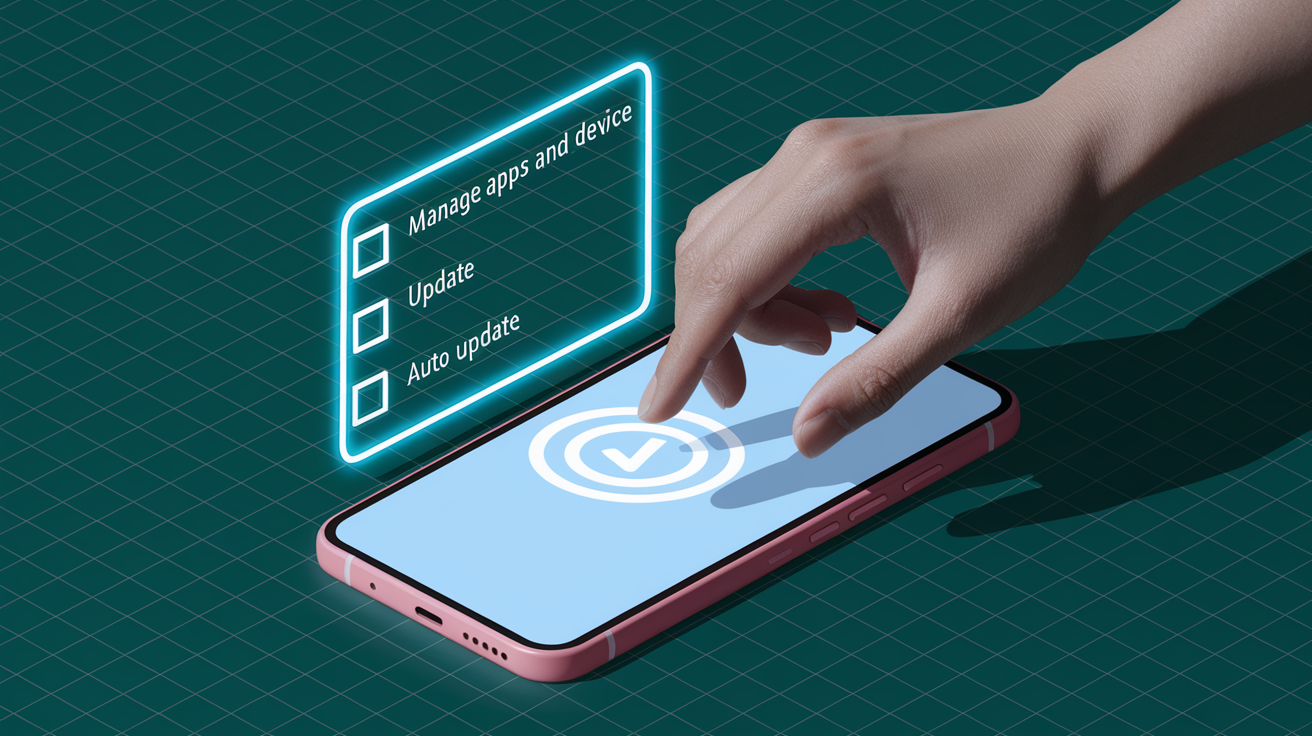
Manual update control helps when you want to read update notes before installing changes, avoid unexpected interface redesigns, or prevent updates that introduce bugs reported by other users.
To manually update apps, open Play Store, tap profile icon (top right), select Manage apps & device, then Manage, and tap apps labeled “Update available”. Follow these exact steps:
- Open the Google Play Store app.
- Tap your profile icon in the top right corner.
- Select Manage apps & device.
- Tap Manage to see all installed apps.
- Apps with pending updates show “Update available.” Tap Update next to individual apps, or tap Update all at the top.
You can set individual apps to auto-update while keeping others on manual control. Open the Play Store, search for the specific app, open its Details page, tap the three dot menu icon (More), and enable “Enable auto update” to allow that one app to update automatically. This is useful for security apps and banking apps where you want the latest patches immediately, while keeping other apps on manual control to review changes first.
System App Update Issues on Android and Pixel Devices
Google Play Store stopped displaying available updates for system apps in the Pending downloads list when automatic updates are disabled. This started in February 2024 and continues as of January 2026. You receive Play Store notifications saying updates are available, but when you open the Pending downloads screen, those system apps don’t appear in the list.
System apps affected by this issue:
- Pixel Camera (latest version 10.2.095.854411128.10 as of January 20, 2026)
- YouTube
- Google Partner Setup
- Settings Services
- Google Wi-Fi Provisioner
- Android System Intelligence
- Data Restore Tool
- Google Clock version 8.5
- VPN by Google
- Pixel Weather
- YouTube Music
The workaround requires manually visiting individual app listings:
- Open the Google Play Store.
- Use the search bar to find the specific system app by name.
- Tap to open the app’s page.
- If an update is available, you’ll see an Update button. Tap it to install.
The alternative fix on Pixel devices: Navigate to Settings > Google > Privacy & security > System services. This page lists Android System Intelligence, Google Partner Setup, and Settings Services with direct update buttons when new versions are available.
This behavior mirrors how Google Play Services has always worked. It updates automatically through the Play Store but never appears in Pending downloads. Google may be expanding this treatment to other system apps, though it creates problems for users who disabled auto updates. Those users never receive the latest versions of affected system apps unless they manually check each app individually.
Fixing Download Pending and Stuck Update Errors
Downloads get stuck in “pending” status because of queue conflicts (too many simultaneous downloads), permission changes the app needs but can’t request while queued, or corrupted cache data that makes the Play Store think a download already started when it didn’t.
Prioritized steps to resolve stuck downloads:
- Cancel all pending downloads. Open Play Store > profile icon > Manage apps & device > Manage > select all pending updates > X icon to cancel.
- Force stop Play Store. Settings > Apps > Google Play Store > Force Stop > confirm.
- Clear Play Store cache. Settings > Apps > Google Play Store > Storage > Clear Cache.
- Remove and re-add Google account. Settings > Accounts > Google > Remove account > Add account back.
- Check app permissions. Settings > Apps > find the stuck app > Permissions > verify all necessary permissions are granted.
- Disable SD card temporarily. Settings > Storage > SD card > three dot menu > Unmount. Only if apps install to SD card.
- Uninstall recent Play Store updates. Settings > Apps > Google Play Store > three dot menu > Uninstall updates.
- Restart device. Hold power button > Restart > wait for complete reboot.
Apps require new permissions when updated if the developer added features that access your camera, location, contacts, or other protected data. When an app sits in “pending” status indefinitely, the Play Store might be waiting for you to grant a permission that it can’t request until the app fully installs. This creates a catch 22 that clearing the download queue resolves.
The download manager service runs in the background and tracks all Play Store downloads. Force stopping the Play Store also stops the download manager, which clears the internal queue and lets updates restart fresh. After force stopping, wait 30 seconds before reopening the Play Store to give Android time to fully clear background processes.
Google Account and Authentication Problems Blocking Updates
Google account authentication issues prevent updates when the Play Store can’t verify you own the apps or have permission to download them. Token expiration, sync errors, and password changes on other devices create authentication failures that block all downloads.
Removing and re-adding your Google account:
- Back up important data. Confirm contacts, calendar, and photos sync to your Google account before proceeding.
- Navigate to Settings > Accounts.
- Select Google.
- Tap Remove account. Usually at the bottom or in a three dot menu.
- Confirm removal and wait for the account to be removed.
- Tap Add account from the Accounts screen.
- Select Google and sign in with your credentials.
- Verify that sync is enabled for all necessary data types.
Removing your Google account doesn’t delete app data for most apps, but some apps store data locally and tie it to your account authentication. Games that use Google Play Games for save data, apps with built-in account systems like banking apps, and apps with cloud sync like note-taking apps preserve their data. Apps without any account system might lose data when you remove and re-add your Google account.
Symptoms indicating account authentication issues:
- “Authentication is required. You need to sign into your Google Account.” Appears repeatedly even after signing in.
- “Error retrieving information from server [RH-01]” or similar server error codes.
- Apps won’t download but the Play Store opens and browses normally.
- Automatic sync keeps failing in Settings > Accounts > Google.
- “We could not verify that this purchase was made by you” when trying to update paid apps.
Multiple Google accounts on one device sometimes conflict when the Play Store tries to authenticate against the wrong account. If you have multiple Google accounts added, open Play Store, tap your profile icon, and tap the account email to switch between accounts. Make sure you’re signed into the account that originally downloaded the apps you’re trying to update.
Uninstalling and Reinstalling Apps to Force Updates
Uninstalling and reinstalling becomes necessary when an app’s installation is corrupted beyond what clearing cache can fix, when update files downloaded partially and can’t resume, or when you see persistent “app not installed” errors during updates.
Complete uninstall and reinstall process:
- Back up app data if possible. Open the app’s settings and look for backup or export options before uninstalling.
- Uninstall the app. Long press the app icon > App info > Uninstall, or Settings > Apps > select app > Uninstall.
- Clear residual data. Some apps leave data behind. Check Settings > Storage > Other apps to verify.
- Restart your device. Hold power button > Restart to clear memory and temporary files.
- Reinstall from Play Store. Open Play Store, search for the app, tap Install.
- Restore backed up data. Open the newly installed app and import any backed up data.
- Verify the latest version installed. Check Play Store > app page to confirm version number matches the latest release.
Apps with Google Play Games integration (mostly games), apps with account based sync (Google Drive, Evernote, banking apps), and apps with cloud backup (WhatsApp, Telegram) preserve your data through reinstallation. Apps that store data only on your device lose everything when uninstalled unless you manually back up first. Check if the app has an export or backup feature in its settings before uninstalling.
Uninstalling Play Store updates specifically reverts the app to the factory version that came with your device. This helps when a recent Play Store update introduced bugs. To uninstall Play Store updates: Settings > Apps > Google Play Store > three dot menu > Uninstall updates. After uninstalling, the Play Store will automatically update itself to the latest version again within a few hours, but this process can clear out corrupted files from a failed update.
Updating Apps Not Available on Google Play Store
Apps from sources outside the Play Store (sideloaded apps) include those downloaded directly from developer websites, third party app stores like Amazon Appstore or APKMirror, or apps shared directly via APK files. These apps don’t receive automatic updates through the Play Store.
How to update apps via APK files:
- Download the latest APK from a trusted source like the official developer website or a verified repository.
- Navigate to Settings > Apps.
- Tap the three dot menu, usually top right.
- Select Special access.
- Tap Install unknown apps.
- Choose your browser or file manager from the list.
- Enable Allow from this source.
- Locate the downloaded APK file using your file manager.
- Tap the APK file to start installation.
- Grant any required permissions during installation.
- Verify installation by opening the app and checking Settings > Apps to confirm the new version number.
- Disable unknown sources by returning to Settings > Apps > Special access > Install unknown apps and turning off the permission for your browser/file manager.
Verify APK sources before installing to avoid malware. Check that the APK comes from the official developer, compare file sizes and version numbers with official announcements, and enable Play Protect scanning. It works even for sideloaded apps. Play Protect scans for harmful apps and should remain enabled for security even when you install apps from outside the Play Store.
Trusted APK sources for updates:
- APKMirror. Verifies uploads and checks signatures against official releases.
- Official developer websites. Companies like Epic Games and Fortnite distribute APKs directly.
- F-Droid. Open source app repository with verifiable builds.
- Amazon Appstore. For Amazon apps and games not available on Play Store.
Manufacturer app stores handle updates through their own systems. Galaxy Store on Samsung devices, Huawei AppGallery on Huawei devices, and similar manufacturer stores have built-in update mechanisms that work like the Play Store. Check those stores for pending updates if you installed apps from them instead of from Google Play.
Android Version and App Compatibility Issues
Apps require minimum Android versions because they depend on features, security patches, and APIs (application programming interfaces, the code libraries apps use to interact with Android) that don’t exist in older OS versions. Developers eventually drop support for older Android versions when the user base becomes too small to justify maintaining compatibility.
Check and update your Android OS version:
- Open Settings on your device.
- Scroll to System. May be labeled “About phone” or “Software update” on some devices.
- Tap System update or Software update.
- Tap Check for updates.
- If an update is available, tap Download and install and follow the on-screen instructions.
| Android Version | Release Year | Update Support Status |
|---|---|---|
| Android 7 (Nougat) | 2016 | No longer receives updates from Google; many apps dropping support |
| Android 8 to 9 (Oreo/Pie) | 2017 to 2018 | Limited support; security updates ended, app support declining |
| Android 10 | 2019 | Basic support only; most apps still compatible |
| Android 11 | 2020 | Full support; manufacturer updates vary by device |
| Android 12 to 13 | 2021 to 2022 | Full support with regular security patches |
| Android 14+ | 2023+ | Current versions with full support and latest features |
When your device can’t update the OS any further because the manufacturer stopped supporting it, you have limited options. A factory reset sometimes makes the device run better with its current OS version by clearing accumulated software problems. Custom ROMs like LineageOS can extend the life of older devices by installing newer Android versions, but this requires technical knowledge and voids warranties. The most straightforward solution is upgrading to a newer device if you need apps that require recent Android versions.
Check an app’s minimum Android requirement in the Play Store by scrolling down to the “About this app” section and looking for “Requires Android” in the Additional information area. If your device runs Android 8 and the app requires Android 9 or higher, no troubleshooting will make that update install. Look for alternative apps with similar features that support older Android versions, or check if the developer offers an older version of the app that works on your OS.
Advanced Troubleshooting: Safe Mode, Factory Reset, and ADB Methods
These methods are last resort solutions for update failures that persist after trying standard troubleshooting. They require technical knowledge, time, and complete data backups because some steps erase your device or system settings.
Using Safe Mode to Diagnose Third Party App Conflicts
- Press and hold the power button until the power menu appears.
- Touch and hold the “Power off” option on screen, not the power button.
- When prompted to reboot to safe mode, tap OK.
- Your device restarts with “Safe mode” displayed in the bottom corner.
- Try updating apps through the Play Store while in safe mode.
- Exit safe mode by restarting your device normally.
- If updates worked in safe mode, uninstall recently added apps one by one to identify which one causes conflicts.
Clearing System Cache Partition via Recovery Mode
- Power off your device completely.
- Press and hold Volume Down + Power button together. Button combination varies by manufacturer. Samsung uses Volume Up + Power, Google Pixels use Volume Down + Power.
- When the boot menu appears, use volume buttons to navigate to “Recovery mode”.
- Press Power button to select.
- In recovery mode, navigate to “Wipe cache partition” using volume buttons.
- Press Power button to select and confirm.
- Wait for the process to complete, then select “Reboot system now”.
Using ADB Commands for Manual Updates
- Enable Developer options by going to Settings > About phone and tapping Build number 7 times.
- Enable USB debugging in Settings > System > Developer options.
- Download and install ADB tools on your computer from the Android developer website.
- Connect your device to computer via USB cable.
- Open a command prompt or terminal and type adb devices to verify connection.
- Run adb shell pm clear com.android.vending to clear Play Store data remotely.
- For advanced users, use adb install -r app-name.apk to sideload updates directly.
Factory reset becomes necessary when none of these methods work and your device has persistent system issues affecting all apps. Before factory reset, back up everything: photos to Google Photos, contacts sync to Google account, app data through each app’s backup feature, and files copied to a computer or cloud storage. Factory reset through Settings > System > Reset options > Erase all data (factory reset) completely wipes your device and reinstalls a clean Android version. This erases all apps, settings, accounts, and data, returning the device to out of box condition. Contact your device manufacturer’s support line before attempting factory reset to verify they don’t have device specific solutions that avoid data loss.
Final Words
Most apps that won’t update on Android respond to basic fixes like clearing Play Store cache, checking your connection, or freeing up storage space.
The troubleshooting steps in this guide resolve the majority of update failures without requiring technical expertise or data loss.
If you’re still seeing errors after trying these methods, the problem might be device-specific or related to a known Play Store bug affecting system apps.
In those cases, safe mode testing or contacting your device manufacturer can help identify the root cause and get your apps updating normally again.
FAQ
How do I fix apps that won’t update on Android?
To fix apps not updating on Android, start by checking your internet connection stability, then verify you have sufficient storage space available. If apps still won’t update, restart your device, clear the Google Play Store cache and data, and disable battery or data saver modes that may be blocking updates.
How do I force an app to update manually?
To force an app to update manually, open the Google Play Store, tap your profile icon in the top right, select “Manage apps & device”, then tap “See details” under Updates available. You can either tap “Update all” for everything at once or select individual apps and tap their Update buttons.
Why is my app stuck on updating?
An app gets stuck on updating typically because of queue conflicts in the Play Store, insufficient storage space, corrupted cache files, or permission requirements that haven’t been granted. Apps may also require new permissions when updated, which can pause the installation process until you approve them.
How do I restart an app on Android?
To restart an app on Android, go to Settings, tap Apps, select the app you want to restart, then tap “Force stop”. After force stopping the app, simply open it again from your home screen or app drawer to restart it with a fresh session.
Why are system apps not showing in my pending downloads list?
System apps may not appear in the Play Store’s pending downloads list due to a known issue affecting Pixel and other Android devices since February 2024. To update system apps like Pixel Camera or Settings Services, manually search for each app in the Play Store and tap Update, or enable automatic updates in Play Store network preferences.
What network settings prevent automatic app updates?
Network settings that prevent automatic app updates include having “Auto-update apps” set to “Over Wi-Fi only” while using mobile data, enabled Data saver mode, active VPN connections that interfere with Play Store access, or metered connection settings that restrict background downloads to conserve cellular data.
How much storage space do app updates need?
App updates typically need 1.5 to 2 times the app’s final size to download and install properly. To check your current storage, go to Settings and tap Storage. Most updates require at least 500MB of free space, though larger apps like games may need several gigabytes for major updates.
Can I update Google Play Store itself?
To update Google Play Store itself, open the Play Store app, tap your profile picture, go to Settings, then About, and tap “Update Play Store” if an update is available. The Play Store typically updates automatically, but manually checking ensures you’re running the latest version for better compatibility.
How do I fix authentication errors blocking updates?
To fix authentication errors blocking updates, remove and re-add your Google account by going to Settings, tapping Accounts, selecting Google, tapping Remove account, then adding it back. Make sure to back up important data before removing your account, as this signs you out of all Google services temporarily.
When should I uninstall and reinstall an app?
You should uninstall and reinstall an app when updates consistently fail, the app is corrupted and won’t open, or you see persistent installation errors after trying other troubleshooting steps. Back up app data first if the app doesn’t use cloud sync, as reinstalling typically erases local data.
How do I update apps not from Google Play Store?
To update apps not from Google Play Store, download the latest APK file from a trusted source, then enable “Install unknown apps” permission for your browser or file manager in Settings under Apps, Special access. Locate the downloaded APK file and tap it to install the update over your existing version.
Will updating Android OS fix app update problems?
Updating Android OS can fix app update problems by resolving compatibility issues, updating system components like Play Services, and fixing bugs that interfere with the Play Store. Go to Settings, tap System, then System update to check for available Android updates on your device.
What is safe mode and when should I use it?
Safe mode runs Android with only pre-installed apps active, disabling all third-party apps temporarily. Use safe mode to diagnose whether a third-party app is causing update failures by booting into it (usually by long-pressing the power button), attempting updates, then identifying and uninstalling the conflicting app.

