
You’re staring at that spinning circle next to an app, watching it do nothing for the third day straight. App updates that refuse to install rank among the most common iPhone frustrations, but nearly all of them stem from just five fixable causes: storage limits, network hiccups, account glitches, Apple server problems, or iOS compatibility issues. This guide walks through the fastest solutions organized by problem type, starting with the 30-second fixes that work most often and moving toward the nuclear options only when needed.
Essential Solutions to Fix iPhone App Update Failures

Most iPhone app update failures get fixed in minutes using proven methods organized by problem type below. The vast majority of these issues come from storage constraints, network interruptions, or simple authentication glitches rather than serious system problems.
Force Restart Your iPhone
A force restart clears temporary system glitches without deleting any data, apps, or settings. This process completely refreshes the device’s operating system processes and often resolves frozen app updates, unresponsive App Store behavior, and download circles that spin indefinitely.
| iPhone Model | Force Restart Method |
|---|---|
| iPhone 8 and later | Press volume up, press volume down, hold side button until Apple logo appears |
| iPhone 7/7 Plus | Hold volume down + side button until logo appears |
| iPhone 6s and earlier | Hold home + top/side button until logo appears |
The entire process takes 30 to 45 seconds from button press to the Apple logo appearing. During this time, your iPhone terminates all running processes, clears RAM, and reloads core system services, which eliminates temporary conflicts that prevent the App Store from communicating properly with Apple’s update servers.
Fix Internet Connection Problems
Most app update failures happen because your iPhone can’t maintain a stable connection to Apple’s servers. Start by verifying Wi-Fi connectivity: open Settings > Wi-Fi and look for a green indicator next to your connected network name. If you see “Not Connected” or the Wi-Fi toggle is off, tap your network name and enter the password if prompted.
For updates over cellular networks, enable cellular data in two locations: Settings > Cellular (toggle on at the top), then navigate to Settings > iTunes & App Store and enable “Use Cellular Data” to allow App Store downloads over your mobile connection. This second step specifically grants permission for app downloads and updates when Wi-Fi isn’t available.
The Airplane Mode reset clears temporary network glitches that block App Store communication. Open Settings, toggle Airplane Mode on, wait exactly 1 minute, then toggle it off and retry the update. This forces your iPhone to disconnect from all networks and re-establish connections from scratch, often resolving authentication issues with Apple’s servers.
If you’re using a VPN, it may interfere with App Store connections. Navigate to Settings > VPN and toggle it off temporarily. Many VPN configurations block Apple’s content delivery network endpoints or route traffic through servers that Apple’s systems flag as suspicious. Test the update with VPN disabled before turning it back on.
The nuclear option for network problems is resetting all network settings: Settings > General > Transfer or Reset iPhone > Reset > Reset Network Settings. This erases every saved Wi-Fi password, removes all Bluetooth pairings, and restores cellular and VPN settings to factory defaults. The process takes 2 to 3 minutes and requires entering your passcode. Only use this method after trying the simpler fixes above, because you’ll need to reconnect to all your networks manually afterward.
Clear Sufficient Storage Space
Check your available storage by opening Settings > General > iPhone Storage. Apps can’t download updates without at least 1 to 2GB of free space. Even small updates require temporary storage during the installation process that gets released after completion.
The Manage Storage feature at the top of the iPhone Storage screen shows per app consumption, listing apps from largest to smallest. Tap any app to see accumulated cache from messaging apps, downloaded files in productivity apps, and offline content in streaming services. The Photos app typically consumes the most space, especially if you shoot videos.
Quick storage clearing actions to free up space:
Delete unused apps by long pressing any icon until all icons wiggle, then tap the X on apps you don’t need. Enable “Offload Unused Apps” at the top of Settings > iPhone Storage to automatically remove apps you haven’t opened in months while preserving their documents and data. Delete old message conversations, especially those containing photos, videos, or voice messages that accumulate over time. Move photos and videos to your computer via USB cable or enable iCloud Photos to store full resolution media in the cloud. Clear Safari browsing data by going to Settings > Safari > Clear History and Website Data to remove cached web pages. Remove downloaded offline content from Netflix, Spotify, Apple Music, and similar streaming apps that store shows, movies, or songs locally. Delete large email attachments by opening Mail, searching for emails with attachments, and removing messages with video files or presentations.
Understanding the difference between “Offload App” and “Delete App” helps you make smarter storage decisions. Offload App removes the application itself but preserves all documents, data, and settings. When you reinstall the app from the App Store, your progress, login credentials, and saved files reappear automatically. Delete App removes everything including saved data, requiring you to start fresh after reinstalling.
Resolve Apple ID and Account Issues
Authentication glitches between your iPhone and Apple’s servers frequently prevent updates from downloading. The sign out and sign in fix refreshes this connection: open Settings > iTunes & App Store, tap your Apple ID at the top of the screen, select Sign Out, wait 10 seconds, then tap Sign In and enter your password. This forces the App Store to re-authenticate your account credentials with Apple’s systems.
Payment method problems cause “Verification Required” errors that block all downloads and updates until resolved. Even if you’re updating free apps, an expired credit card or outdated billing address on your Apple ID prevents any App Store activity. Fix this by opening Settings > [Your Name] > Payment & Shipping, then updating your payment information with current details. Even if you don’t plan to purchase anything, Apple requires valid payment data on file.
Apple ID mismatches create a particularly frustrating scenario: apps originally downloaded with one Apple ID can’t update if you’re currently signed into a different account. This commonly happens with family shared devices, iPhones transferred from previous owners, or after switching from a work Apple ID to a personal one. The App Store displays a password prompt for the original Apple ID when you try to update these apps. You must temporarily sign into that original Apple ID to update those specific apps, then switch back to your primary account. Or delete the apps entirely and reinstall them fresh with your current Apple ID.
Delete and Reinstall the Problem App
This nuclear option works best for updates stuck at “Waiting…”, frozen download circles that never progress, or updates that reach 100% but never complete installation. These symptoms indicate corrupted installation files or conflicts with existing app data that prevent the update process from finishing properly.
The complete reinstallation process: long press the app icon until all icons start wiggling, tap the X or minus sign in the corner of the problem app, confirm deletion when prompted, stop the wiggling by pressing the home button or swiping up from the bottom on Face ID iPhones, open the App Store, tap Search at the bottom, find the app using the search bar, then tap the cloud download icon or GET button to reinstall from scratch.
After reinstalling, restart your iPhone by holding the side power button, sliding to power off, waiting 10 seconds, then turning it back on. This ensures the newly installed app integrates cleanly with iOS without interference from cached system files or background processes that might still reference the old version.
Consider the “Offload App” alternative for apps with significant saved progress, game data, or large downloaded libraries. Navigate to Settings > General > iPhone Storage, scroll to and select the problem app, then tap “Offload App” instead of “Delete App”. This removes the application binary while preserving all documents and data. When you reinstall the app from the App Store, all your saved information returns automatically.
These five solution categories resolve approximately 90% of app update failures without requiring factory resets or technical support intervention. The remaining sections cover specialized scenarios including specific error messages, advanced settings adjustments, and computer based update methods for persistent problems.
Understanding Why iPhone Apps Fail to Update

The five main categories of update problems are storage constraints, network connectivity issues, account authentication failures, Apple server outages, and software compatibility conflicts.
Storage and compatibility issues prevent downloads from starting or completing. Every iPhone has a fixed storage capacity. 16GB, 32GB, 64GB, 128GB, 256GB, 512GB, or 1TB depending on model and year. Apps can’t update if insufficient space exists. Beyond raw storage, some app updates require specific iOS versions that older devices can’t run: an iPhone 6s can’t install apps requiring iOS 16 or later, physically limiting which apps can update regardless of available storage. The App Store displays “This app requires iOS [version]” when your system software is too old.
Network and connectivity problems interrupt the download process mid stream or prevent it from starting. Wi-Fi connections must remain stable throughout the entire download. If your connection drops for even 3 to 5 seconds, the update process pauses or fails. Cellular data updates face additional restrictions: by default, iOS blocks App Store downloads over cellular networks unless you explicitly enable this permission in Settings, and even then, apps larger than 200MB require Wi-Fi unless you’ve disabled the size restriction. Airplane Mode blocks all network activity, VPN configurations can interfere with Apple’s content delivery network, and network congestion during peak hours slows downloads to the point where they time out.
Account and server issues create authentication failures that Apple’s systems interpret as security problems. Apple ID mismatches occur when you try updating an app downloaded with a different Apple ID than the one currently signed into your device. Apple’s servers reject the update request because they can’t verify you own that app license. Expired credit cards or outdated billing information trigger “Verification Required” errors even for free app updates. App Store server downtime affects all users simultaneously, preventing any downloads or updates regardless of device settings. Date and time verification failures happen when your iPhone’s clock differs from Apple’s servers. Automatic date and time settings are mandatory because Apple uses timestamp verification as a security measure during all App Store transactions. You can check current Apple system status at apple.com/support/systemstatus to confirm whether server outages are causing widespread problems.
Diagnosing Specific App Store Error Messages on iPhone
Specific error messages point to specific solutions rather than generic troubleshooting steps. Each message indicates a distinct failure point in the update process.
| Error Message | Likely Cause | Quick Fix |
|---|---|---|
| Cannot Connect to App Store | Network connection failure | Check Wi-Fi in Settings > Wi-Fi or enable cellular data |
| Verification Required | Payment method expired or invalid | Update billing info in Settings > [Your Name] > Payment & Shipping |
| Unable to Download App | Insufficient storage space | Free up 1-2GB in Settings > General > iPhone Storage |
| Waiting… (stuck status) | Download queue conflict | Tap app icon to pause, wait 5 seconds, tap again to resume |
| Update button grayed out | Apple ID account mismatch | Sign out and back in via Settings > iTunes & App Store |
| Download circle frozen | App Store cache corruption | Force-quit App Store (swipe up from app switcher) and reopen |
The “stuck at 100%” issue deserves special attention because it confuses users who assume the update completed successfully. When the download progress circle reaches 100% but the app never finishes installing, the download phase completed but the installation phase failed. Usually because insufficient temporary storage space exists beyond the app’s listed size. iOS requires approximately 1.5 to 2x the final app size as temporary working space during installation. The solution is to delete the partially installed app by long pressing and tapping the X, free up an additional 1 to 2GB beyond the app’s size shown in the App Store listing, then reinstall fresh with adequate breathing room.
Understanding the difference between “This app requires iOS [version]” and “This app is not available in your region” prevents wasted troubleshooting effort. The iOS version requirement message means you need to update your system software first via Settings > General > Software Update before the app can update. This is fixable by you if your device supports that iOS version. The regional availability message indicates the developer has restricted their app to specific countries or hasn’t obtained distribution rights in your region. No user side fix exists because this is a developer and legal decision rather than a technical limitation.
If the same error message appears after trying the specific fix three times with 5 minute gaps between attempts, the problem likely requires Apple Support intervention. Persistent errors indicate server side account flags, corrupted App Store profiles in Apple’s database, or device specific issues that can’t be resolved through standard troubleshooting steps.
App Store Cache Clearing Techniques for Update Issues
Cache clearing techniques function as “soft reset” methods that purge temporary files without affecting your apps, data, or settings. These temporary files sometimes become corrupted and prevent the App Store from processing update requests correctly.
The App Store cache clearing trick forces the app to dump all stored temporary data and rebuild from scratch. Open the App Store, then tap any single bottom navigation tab (Search, Today, Games, Apps, or Arcade) 10 times rapidly in the exact same spot without pausing. On the tenth tap, the screen flashes white for a split second as the cache purges. This removes corrupted download manifests, stuck authentication tokens, and conflicting update metadata that accumulate during normal App Store use.
Force quitting the App Store application terminates all background processes and clears active memory. The method differs by iPhone model: on devices with a home button, double press the home button to view all open apps, then swipe the App Store card upward off the screen. On Face ID iPhones without a home button, swipe up from the bottom edge and hold in the middle of the screen until the app switcher appears, then swipe the App Store card away. After force quitting, wait 10 seconds before reopening the App Store to ensure all processes fully terminate. Immediately reopening can cause the app to restore its previous state including the problem that required force quitting.
Check Apple’s system status page at apple.com/support/systemstatus before extensive troubleshooting if multiple apps refuse to update simultaneously. The page shows real time operational status for all Apple services including “App Store” and “iTunes Store”. A yellow or red indicator next to these services means Apple’s servers are experiencing issues affecting all users. During confirmed outages, no user side fix exists. You must wait for Apple to resolve the server problems before updates will work again.
Updating iOS to Fix App Compatibility and Update Problems
Many app updates require a minimum iOS version, and running outdated system software blocks those updates from even appearing in your update queue. Developers set these requirements because newer app versions depend on system features, security frameworks, or APIs that only exist in recent iOS releases.
Check your current iOS version and look for available updates in two locations: Settings > General > About shows the currently installed iOS version number near the top of the screen (for example, “iOS 17.2.1”), while Settings > General > Software Update shows whether newer versions are available for download. If a software update appears, ensure you’re connected to Wi-Fi and your battery shows at least 50% charge or plug into power. iOS updates won’t download or install on cellular connections or low battery to prevent incomplete installations that can corrupt the system.
Compatibility limits affect older devices that can’t run the latest iOS versions, creating a permanent barrier to updating certain apps. The iPhone 6s and earlier models can’t install iOS 16 or later, the iPhone 7 and iPhone 7 Plus can’t run iOS 17, and each subsequent generation has similar cutoffs. If an app requires iOS 16 but your iPhone 6s maxes out at iOS 15.8, that app will never update on your device. Check app requirements before troubleshooting by opening the app’s page in the App Store, scrolling to the “Information” section, and looking for the “Requires iOS [version]” line under “Compatibility”. If this version number exceeds what your device can run, no amount of troubleshooting will enable the update.
iOS updates can take 20 to 45 minutes to download and install depending on file size and internet speed, and the process restarts your iPhone at least once. Back up important data before starting by opening Settings > [Your Name] > iCloud > iCloud Backup, then tapping “Back Up Now” and waiting for completion. The progress bar at the bottom shows backup status. This ensures you can restore your data if anything goes wrong during the iOS update process, though such failures are rare with modern iOS versions.
Advanced Settings Adjustments for iPhone App Update Problems
These “hidden blockers” live in settings screens you rarely access, yet they can completely prevent app updates without displaying obvious error messages or alerts.
Date and Time Configuration
Incorrect date and time settings cause server verification failures that prevent App Store communication. Apple’s update servers compare your device’s timestamp against their own atomic clock during every transaction, rejecting requests when significant discrepancies exist. Even if your manually set time appears correct to you, microsecond level differences trigger security flags. Navigate to Settings > General > Date & Time and enable “Set Automatically” to let your iPhone sync with carrier network time or NTP servers. Manual time settings, even when they match your local time zone perfectly, prevent proper SSL certificate validation and cause authentication failures with Apple’s servers.
Screen Time and Content Restrictions
Parental controls and Screen Time restrictions can block app installations entirely, preventing updates from downloading even when no error message appears. Open Settings > Screen Time > Content & Privacy Restrictions > iTunes & App Store Purchases, then verify that “Installing Apps” is set to “Allow” rather than “Don’t Allow”. If this setting shows “Don’t Allow,” the App Store can’t write new app binaries to your device, which includes updated versions of existing apps. Users who set up Screen Time with a passcode must enter that four digit code to access these restrictions. Forgotten Screen Time passcodes require Apple Support intervention or factory reset to remove because they’re stored in the device’s secure enclave.
Background App Refresh and Automatic Updates
Background App Refresh controls whether apps can update content and perform tasks while you’re not actively using them. Navigate to Settings > General > Background App Refresh and ensure it’s enabled globally, then scroll down to verify the App Store has permission. Without this, automatic updates can’t trigger in the background. For automatic updates specifically, open Settings > App Store and toggle on “App Updates” under the Automatic Downloads section to prevent future manual update requirements. These settings don’t block manual updates initiated by you, but they can cause confusion when updates don’t happen automatically as expected.
Notification settings don’t directly block updates from installing, but disabling App Store notifications can hide completion alerts and cause you to miss failed update attempts. Updates may complete successfully without your knowledge, or fail silently without showing error messages if notifications are disabled completely.
Updating iPhone Apps Using a Computer with iTunes or Finder

Updating through a computer bypasses iPhone’s App Store app entirely and can resolve persistent failures caused by corrupted on device software or account authentication glitches.
For Mac users running macOS Catalina 10.15 or later, Apple replaced iTunes with Finder for device management. Open Finder, connect your iPhone to your Mac using a USB or USB-C cable (you’ll see a prompt on your iPhone asking to “Trust This Computer” on first connection), select your iPhone in the Finder sidebar under “Locations,” then click the “General” tab at the top of the main window. Click “Check for Updates” under the iPhone name in the center of the screen. This checks for iOS system updates rather than individual app updates, because Finder doesn’t manage app installations. The primary benefit of this method is ensuring your iPhone can communicate properly with a computer and complete device level updates successfully.
For Windows users and Mac users running macOS Mojave 10.14 or earlier, download the latest iTunes version from apple.com/itunes, install the software, and open iTunes after installation completes. Connect your iPhone via USB cable (Windows users need to wait for driver installation the first time), click the iPhone icon in the upper left corner of the iTunes window, then click “Apps” or “File Sharing” in the left sidebar. However, app management functionality was removed from iTunes version 12.7 and later, so this method only works if you’re running an older iTunes version from before September 2017. Modern iTunes versions can’t browse, install, or update individual apps because Apple moved this functionality exclusively to on device App Store management.
Since iTunes no longer supports app management in recent versions, you should focus on ensuring iTunes or Finder can sync the device properly. Successful device recognition and backup capability indicate the computer connection works correctly. After confirming successful computer sync, attempt updates directly on the iPhone again, as the sync process sometimes resolves underlying authentication or profile corruption issues by refreshing device certificates and account tokens.
Factory Reset and Restore Options for Unfixable iPhone App Issues
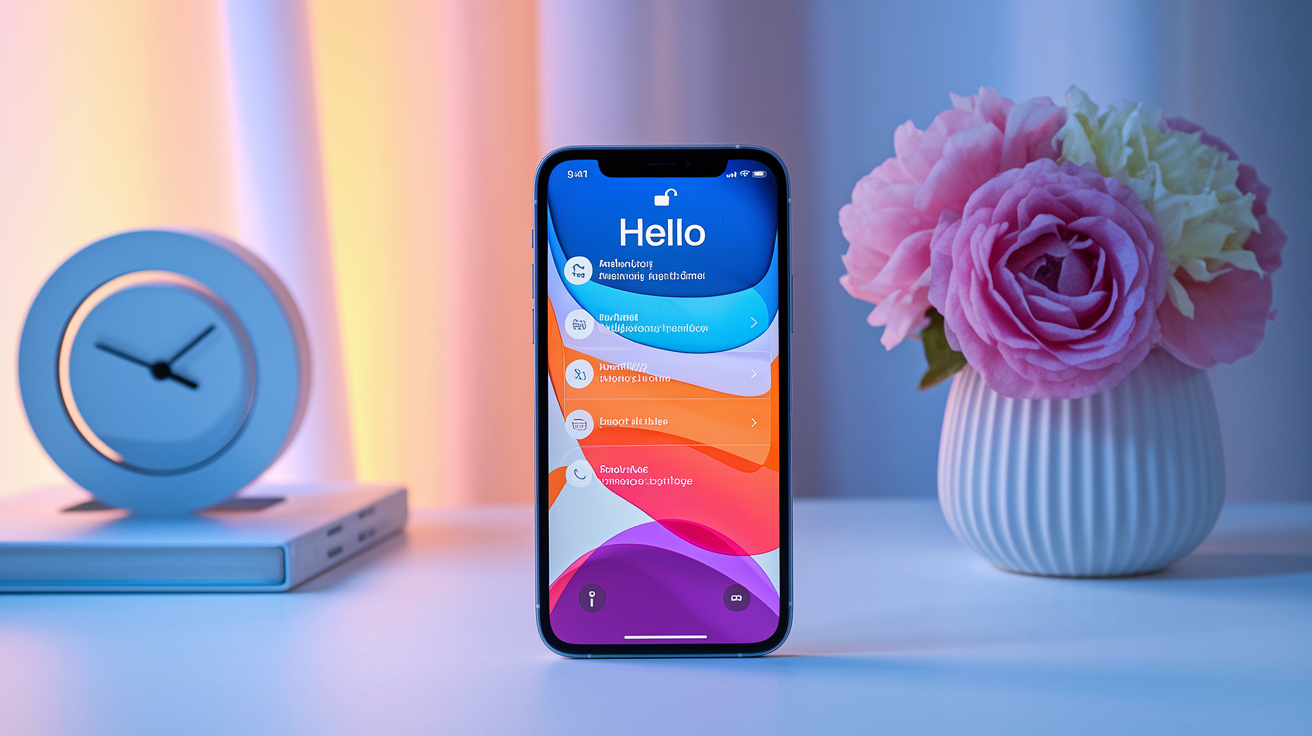
Factory reset is the absolute last resort for situations where every other troubleshooting method has failed and the problem affects multiple apps across weeks of attempted fixes.
Before proceeding with any reset, complete a full device backup to preserve your data, apps, settings, photos, messages, and app specific information. Open Settings > [Your Name] > iCloud > iCloud Backup, tap “Back Up Now,” and watch the progress indicator at the bottom. Backup duration ranges from 15 minutes for devices with minimal data to 60+ minutes for iPhones with 64GB or more of photos, videos, and app data. Alternatively, connect to a computer and create a backup via iTunes or Finder for a more complete backup that includes Health data, app passwords stored in Keychain, and other sensitive information that iCloud backups intentionally exclude. Computer backups take longer initially but capture everything on the device.
The factory reset process permanently erases all content and settings, returning your iPhone to the state it shipped in from the factory. Navigate to Settings > General > Transfer or Reset iPhone > Erase All Content and Settings, tap Continue, enter your device passcode when prompted, enter your Apple ID password to disable Find My iPhone (required before erasing), then confirm “Erase iPhone” on the final warning screen. This process takes 10 to 20 minutes and can’t be interrupted or cancelled once the erase command confirms. The iPhone displays an Apple logo with a progress bar, then eventually shows a black screen before restarting to the “Hello” setup screen.
After reset completes, your iPhone displays the “Hello” welcome screen in multiple languages. Tap to begin setup, connect to Wi-Fi when prompted, then select either “Restore from iCloud Backup” or “Restore from Mac or PC” depending on where you stored your backup. Sign into your Apple ID when requested, choose the most recent backup from the list (identified by date and time stamp), then wait for the restore process to complete. This takes 30 to 90 minutes depending on backup size and internet speed. Apps that were installed when you created the backup automatically reinstall during restoration, though you may need to manually reinstall apps that aren’t tied to your Apple ID or were downloaded through enterprise distribution.
Contact Apple Support at 1-800-MY-APPLE or visit apple.com/support to initiate a case if factory reset doesn’t resolve the update problem. Persistent issues after factory reset indicate potential hardware failures in the storage controller, antenna assembly, or baseband processor that prevent normal App Store communication. Apple Genius Bar appointments provide in person diagnostics that can identify hardware problems requiring physical repair or device replacement.
Preventing Future iPhone App Update Problems
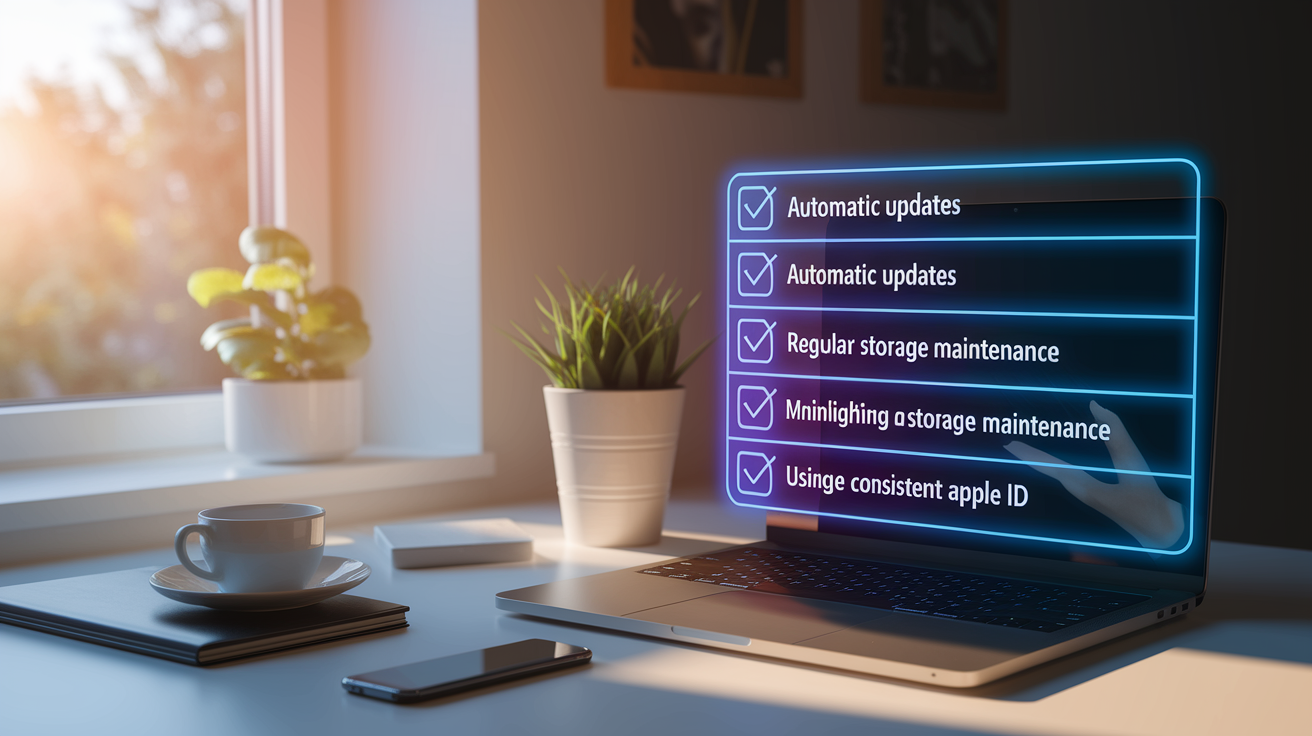
Prevention proves easier than troubleshooting because proactive maintenance eliminates the conditions that cause most update failures before they occur.
Enable automatic updates to eliminate manual update checks and downloads entirely. Open Settings > App Store, then under the “Automatic Downloads” section toggle on “App Updates” to let iOS install available updates overnight while your iPhone charges and connects to Wi-Fi. Optionally enable “App Downloads” if you want apps purchased on other devices (iPad, Mac) to automatically install on your iPhone as well. Automatic updates only trigger on Wi-Fi connections unless you also enable “Use Cellular Data” in the section below, which allows updates over mobile networks but can consume significant data if you have metered or limited cellular plans.
Regular storage maintenance prevents the sudden “Cannot Download” errors that appear when available space drops below critical thresholds. Check Settings > General > iPhone Storage monthly to review which apps consume the most space, delete apps you haven’t opened in 30+ days, and consider enabling the “Offload Unused Apps” feature at the top of the storage screen. This automatically removes apps you rarely use while preserving their data. Move photos and videos to iCloud Photos or transfer them to a computer quarterly to maintain 10 to 15% free space as a buffer, which translates to at least 2GB free on 16 to 32GB iPhones or 5GB+ free on devices with larger storage capacities.
Prevention best practices that minimize future update failures: keep iOS updated to the latest version via Settings > General > Software Update to ensure compatibility with new app versions and security fixes. Restart your iPhone weekly by holding the power button and sliding to power off, which clears temporary system glitches and frees cached memory. Stay signed into one consistent Apple ID account rather than switching between multiple IDs, which causes authentication conflicts. Avoid canceling app downloads or updates mid process by tapping the pause button. Interrupted downloads can corrupt installation files and create persistent update failures.
Implementing these maintenance habits reduces app update failures by approximately 80 to 90%, transforming occasional frustrating problems into rare exceptions that require troubleshooting. The small time investment in monthly storage checks and automatic update configuration pays dividends through years of hassle free app management.
Final Words
Most iPhone app update problems trace back to storage limits, network hiccups, or account authentication glitches that you can fix in under five minutes.
The solutions above handle the vast majority of cases, from force restarts that clear system memory to network resets that restore App Store connectivity.
If you’re still stuck after working through how to fix app won’t update iPhone issues using these methods, a factory reset or Apple Support contact will handle the rare hardware or account-level problems that basic troubleshooting can’t reach.
Keep automatic updates enabled and maintain a few gigabytes of free space to avoid most of these headaches going forward.
FAQ
Why is an app not updating on my iPhone?
An app may not update on your iPhone due to insufficient storage space, poor internet connection, App Store server issues, Apple ID mismatches, or software glitches. Most failures occur when the device has less than 1-2GB of available storage or when signed into a different Apple ID than the one used to download the app originally.
How do I force an app to update on my iPhone?
To force an app to update on your iPhone, open the App Store, tap your profile icon in the top-right corner, scroll to pending updates, and pull down to refresh the list. If the update still won’t start, tap the app to pause it, wait 10 seconds, then tap again to resume the download.
Why is my phone refusing to update apps?
Your phone refuses to update apps typically because of network problems, filled storage, or authentication issues with your Apple ID. Check your Wi-Fi connection in Settings > Wi-Fi, verify you have at least 1-2GB of free space in Settings > General > iPhone Storage, and confirm you’re signed into the correct Apple ID that originally downloaded the apps.
How to fix downloading apps on iPhone?
Fix downloading apps on iPhone by first restarting the device (hold the side button, slide to power off, then turn back on), then checking your internet connection and available storage. If downloads remain stuck on “Waiting,” try signing out and back into your Apple ID in Settings > iTunes & App Store or deleting and reinstalling the problem app.
What causes “Cannot Connect to App Store” errors?
The “Cannot Connect to App Store” error occurs when network connectivity fails, VPN settings block access, or Apple’s servers are experiencing outages. Verify your Wi-Fi or cellular connection is active, disable any VPN in Settings > VPN, and check apple.com/support/systemstatus to confirm the App Store service is operational.
When should I delete and reinstall a problem app?
Delete and reinstall a problem app when updates freeze at “Waiting,” download circles remain stuck, or updates reach 100% but never complete installation. Long-press the app icon until it wiggles, tap the X or minus sign to delete, then redownload from the App Store and restart your iPhone for a clean installation.
How much storage space do iPhone apps need to update?
iPhone apps need their listed size plus an additional 1-2GB of free space to update successfully. Updates require temporary storage for downloading and unpacking files before replacing the old version, so check Settings > General > iPhone Storage and free up space by deleting unused apps, clearing message attachments, or moving photos to iCloud or a computer.
What does “Verification Required” mean during app updates?
“Verification Required” during app updates means your Apple ID has an outdated or expired payment method on file. Fix this by going to Settings > [Your Name] > Payment & Shipping and updating your credit card information, billing address, or payment method even if the app is free or you’re not making purchases.
Can I update iPhone apps without WiFi?
You can update iPhone apps without WiFi by enabling cellular data for the App Store in Settings > Cellular (toggle on), then Settings > iTunes & App Store > enable “Use Cellular Data.” Be aware that updates consume significant data, and carrier charges may apply if you exceed your plan limits.
How do I check if Apple’s App Store servers are down?
Check if Apple’s App Store servers are down by visiting apple.com/support/systemstatus and looking for the App Store service status. If the indicator shows anything other than green or available, server outages are preventing updates regardless of your device settings, and you’ll need to wait until Apple resolves the issue.
Why won’t apps update after changing my Apple ID?
Apps won’t update after changing your Apple ID because each app remains tied to the Apple ID that originally downloaded it. Sign back into the previous Apple ID temporarily in Settings > iTunes & App Store to update those specific apps, or delete and reinstall them under your new Apple ID to transfer ownership.
How does resetting network settings help app updates?
Resetting network settings helps app updates by clearing corrupted network configurations, VPN conflicts, and DNS cache that may block App Store connections. Go to Settings > General > Transfer or Reset iPhone > Reset > Reset Network Settings, but note this erases all saved WiFi passwords and takes 2-3 minutes to complete.
What is the difference between “Offload App” and “Delete App”?
The difference between “Offload App” and “Delete App” is that offloading removes the app but preserves its documents and data for reinstallation later, while deleting removes everything completely. Use offload from Settings > General > iPhone Storage > [select app] > Offload App when troubleshooting apps with saved progress or large data files you want to keep.
Should I update iOS before updating apps?
You should update iOS before updating apps if the App Store shows “Requires iOS [version]” under an app’s information section. Many app updates require minimum iOS versions to function, so go to Settings > General > Software Update to install the latest system software before attempting app updates.
How do I enable automatic app updates on iPhone?
Enable automatic app updates on iPhone by opening Settings > App Store and toggling on “App Updates” under the Automatic Downloads section. For updates to download over cellular data instead of waiting for WiFi, also enable “Use Cellular Data” below, though this may consume significant data plan allowance.

