
Your device keeps blocking app updates unless you’re on WiFi, but you need that update now and WiFi isn’t an option. Good news: both iOS and Android have built-in settings that let you download over cellular data. You can toggle a single option to bypass the WiFi requirement immediately, or change permanent settings so updates download automatically over cellular without asking every time. This guide covers quick cellular workarounds, computer-based update methods that use your home internet instead of mobile data, and troubleshooting steps when bypass methods don’t work the first time.
Bypass WiFi Requirements Using Cellular Data
Most devices won’t let you update apps over cellular. It’s a safety thing, they don’t want you accidentally burning through your monthly data cap. But here’s how to override that on both iOS and Android.
iOS/iPadOS Immediate Cellular Update Method
Go to Settings > Cellular or Mobile Data > Cellular Data Options > Data Mode and tap “Allow More Data on 5G.” That kills the automatic WiFi requirement on any iPhone with 5G.
Why does this setting even exist? A single iOS system update can eat 3 to 7GB of data. At typical overage rates of $10 per gig, that’s $30 to $70 you’d be paying extra. iPad Wi-Fi models can’t use this method since they don’t have cellular options in Settings. The toggle only shows up on devices with active cellular service.
Android Immediate Cellular Update Method
Open Settings > Apps > Google Play Store > Settings > App download preference and pick “Over any network.” Done. No more automatic WiFi requirement for large files.
The default caps cellular downloads at 150MB to prevent surprise charges. Changing this applies to everything you install or update through Google Play until you manually flip it back to WiFi only.
iOS Permanent Automatic Update Settings
Head to Settings > App Store and turn on “App Updates” under the Cellular Data section. Also flip on “Automatic Downloads” on that same screen.
This stops future “WiFi required” messages and lets updates download in the background whenever you’ve got cellular service. It works together with Settings > General > Background App Refresh, which also needs to be on. Without background refresh, apps won’t even check for updates despite having cellular data permissions.
The automatic download feature respects Low Data Mode if you’ve turned it on, which means updates pause until you disable Low Data Mode or find WiFi.
Android Permanent Automatic Update Settings
Open Google Play Store > Settings > Network preferences > Auto-update apps and select “Over any network.” This sets up ongoing automatic downloads without asking permission every time.
You can also configure download manager by going to Settings > Apps > Download Manager > Mobile data & Wi-Fi and enabling “Background data” and “Unrestricted data usage.” These let the system finish interrupted downloads even when you leave the Play Store.
Android handles updates through multiple system components, so both the Play Store setting and the download manager need cellular permissions for completely hands-off automatic updates.
Before you enable cellular updates permanently, make sure your wireless plan includes unlimited data or has enough monthly allowance to handle unexpected large downloads. A single day of automatic updates across multiple apps can easily eat 500MB to 2GB depending on how many apps need updating and whether system patches are available. Monitor your monthly data through your carrier’s app for the first billing cycle after turning on cellular updates. Think about the trade-off between getting security patches immediately and risking throttled speeds if you blow past your plan’s high-speed data cap, which usually kicks in after 22GB to 50GB on “unlimited” plans.
Computer-Based Update Methods to Bypass WiFi Restrictions
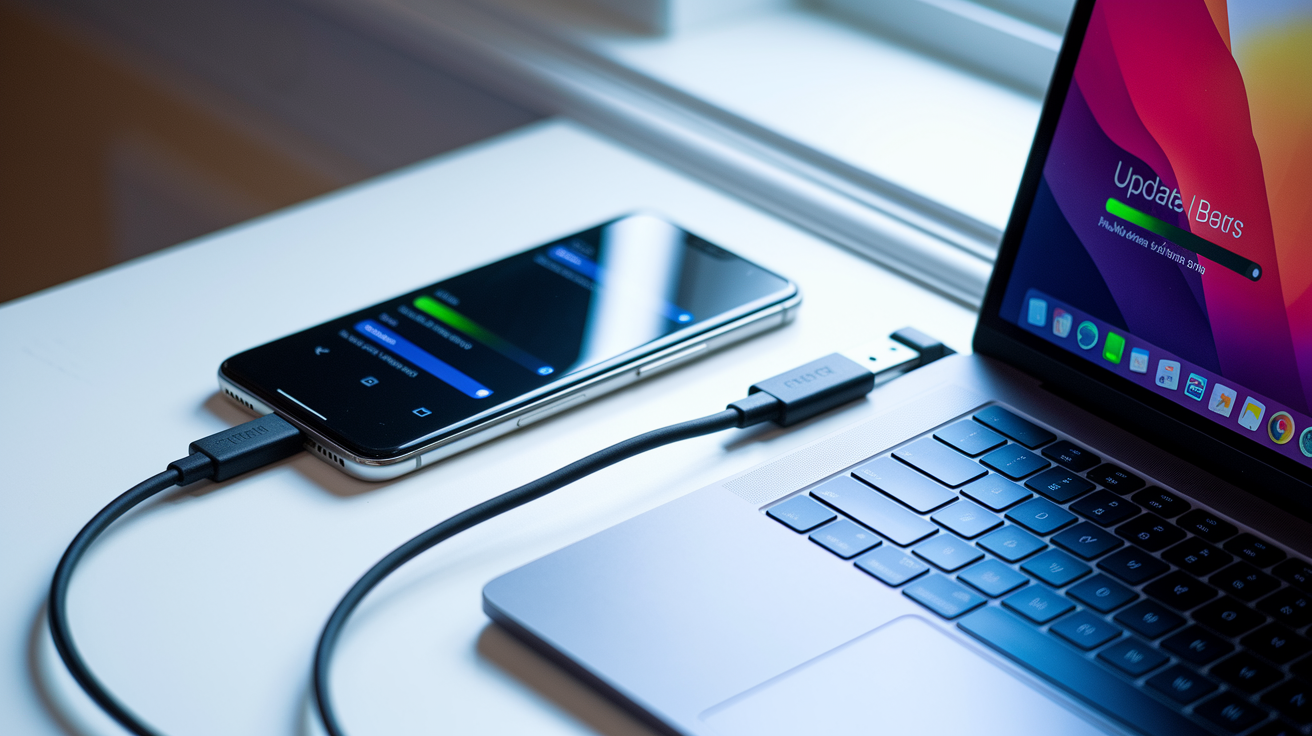
When WiFi’s not available, cellular won’t work on your device, or you’ve already hit your monthly data cap, connecting to a computer gives you a reliable alternative that uses wired internet instead of mobile bandwidth.
Updating iOS Devices via Mac or PC
Back up your device first using iCloud or a local computer backup to protect your data if the update fails. Connect your iPhone or iPad to your computer with a USB cable. Open Finder if you’re running macOS Catalina or later, or iTunes if you’re using an older macOS version or any Windows PC.
Select your device from the sidebar in Finder or the device icon in iTunes. Click “Check for Update” in the General tab. The update downloads using your computer’s internet connection rather than your device’s WiFi or cellular.
Download speed depends entirely on your computer’s wired or WiFi connection, not your phone’s cellular capability. A typical broadband connection downloads a 4GB iOS update in 10 to 20 minutes compared to 30 to 60 minutes over mobile 5G networks.
Updating Android Devices via Computer
Most Android manufacturers provide desktop apps for device management. Samsung Smart Switch, OnePlus Switch, and similar tools let you update system software through a USB connection.
For individual app updates without system software changes, you can manually download APK files from trusted sources like APKMirror and sideload them to your device. Enable Settings > Security > Install unknown apps and grant permission to your file manager. Transfer the APK file via USB cable, find it in your file manager app, and tap to install. This works for any app that doesn’t need Google Play Services verification.
Computer-based updates completely eliminate data charges since downloads happen over your home or office internet connection. Wired connections typically deliver faster and more stable download speeds than wireless methods, cutting update time from over an hour to under 20 minutes for large system updates. The USB connection bypasses all mobile network restrictions, carrier limitations, and device level WiFi requirements without needing settings changes or workarounds that might cause problems later.
Alternative Connection Methods: Hotspot, Tethering, and VPN Solutions
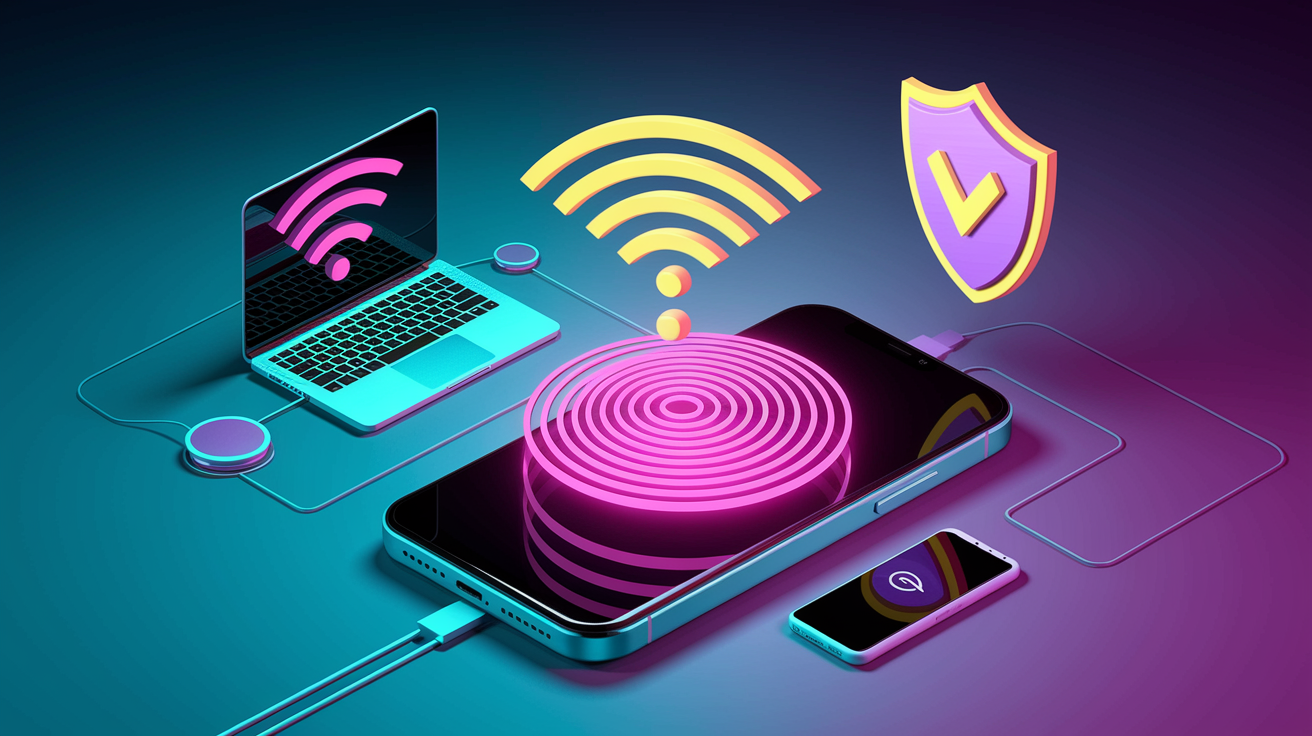
Creating a personal hotspot from another device tricks the system into seeing a WiFi connection while actually routing traffic through cellular data. On iOS, go to Settings > Personal Hotspot and toggle it on, then set a password for your network. On Android, head to Settings > Network & Internet > Hotspot & Tethering and enable WiFi hotspot. Connect your primary device to this hotspot network like any WiFi network. The device doing the update sees a WiFi connection in its network settings, even though the hotspot device is using cellular data to provide internet access. This method burns through the hotspot device’s data plan rather than the updating device’s cellular allowance.
Tethering a phone to a computer and then connecting your primary device to that computer’s shared connection adds an extra layer that some devices recognize differently than direct cellular connections. Connect your phone to a laptop using a USB cable and enable USB tethering in Settings > Network & Internet > Hotspot & Tethering. On the computer, share that internet connection through its WiFi adapter. Connect your updating device to the computer’s shared WiFi network. Some Android devices see computer-shared connections as standard WiFi rather than mobile hotspots, which bypasses the update restriction without toggling cellular data settings. This works inconsistently across different Android versions and manufacturers.
Connecting to a VPN can route traffic differently and bypass certain carrier restrictions, regional limitations, or firewall restrictions on corporate networks that block access to update servers. Install a VPN app, connect to a server, then try your update. The encrypted tunnel may get around carrier level blocks on large downloads during peak hours or workplace network policies that restrict app store access. Some corporate firewalls specifically block connections to Apple’s and Google’s update servers to control when employees install new software. But VPN connections can also mess with update server authentication in some cases, causing “Cannot verify server identity” errors on iOS or “Connection failed” messages on Android. If that happens, disconnect the VPN and try a different bypass method. Proxy settings configured through Settings > WiFi > Network details > Proxy can do similar routing changes without needing a separate VPN app.
Enable airplane mode, then turn on WiFi and cellular data separately, which sometimes confuses the system’s connection detection into allowing cellular downloads. The airplane mode toggle resets all radio connections, and manually turning them back on individually can trigger different behavior than the normal connection state. Public WiFi alternatives like libraries, cafes, or retail stores provide free internet access for updates, but don’t enter passwords or access sensitive information on public networks since traffic isn’t encrypted and can be intercepted by others on the same network.
Troubleshooting Failed Updates and Connectivity Issues

Bypass methods sometimes fail because of underlying connectivity or system issues that need fixing before any workaround will work. Different error messages point to different underlying problems that need targeted solutions.
-
Restart device. Power off completely and turn back on to clear accumulated processes, memory leaks, and temporary glitches that interfere with update downloads.
-
Power cycle router. Unplug your WiFi modem and router for 30 seconds before reconnecting power to clear the router’s memory cache and refresh the connection to your internet service provider.
-
Clear corrupted cache. On iOS, force close the App Store by swiping up from the bottom, holding briefly, then swiping the App Store card up and off screen. On Android, go to Settings > Apps > Google Play Store > Storage > Clear Cache to delete temporary files that may be corrupted.
-
Disable VPN and security apps. Turn off VPN applications, firewalls, or security software that may block update servers or cause connection disruptions by messing with server authentication.
-
Check account glitches. Sign out and back into your Apple ID through Settings > [Your Name] > Media & Purchases > Sign Out on iOS, or remove and re-add your Google account through Settings > Accounts > Google > Remove account on Android.
-
Resume interrupted downloads. Switch between WiFi and mobile data, or check cellular data settings if the download paused at a specific percentage and won’t continue.
-
Reset network settings. On iOS go to Settings > General > Transfer or Reset iPhone > Reset > Reset Network Settings. On Android navigate to Settings > System > Reset Options > Reset Wi-Fi, mobile & bluetooth. This erases saved WiFi passwords, VPN configurations, and cellular settings but doesn’t delete personal data or installed apps.
-
Check router configuration. Verify DNS configuration, confirm update servers aren’t blocked by firewall rules, and check if your internet service provider is experiencing outages by visiting their status page.
Over 90% of recurring update failures resolve by completing these troubleshooting steps in sequence.
| Error Message | Cause | Solution |
|---|---|---|
| Unable to Download Update | Server issues or timeout errors | Retry later, check server status |
| Update Failed | Corrupted cache or unstable internet | Clear cache, reset network settings |
| Installation Error | Account glitches or beta software conflicts | Sign out and in to account, avoid beta OS |
| Cannot Connect to Server | Network issues or DNS configuration | Check data settings, switch networks |
| Download Paused | Interrupted connection or slow download speeds | Resume download, improve connection |
| Stuck Pending | Insufficient storage or outdated OS | Free space, update system first |
Contact your mobile network operator’s technical support if problems stick around after completing all troubleshooting steps, as they can check for account level restrictions or regional network issues affecting your service. Reinstalling problematic apps or doing a factory reset exists as a last resort option, but back up all data first since these operations erase locally stored information.
Storage Requirements and Optimization for Updates
Apps need temporary space beyond their actual size for decompression, delta file processing, and installation verification. A user with 120MB of free space on a 64GB iPhone tried to update an 80MB banking app but hit repeated failures at 70% completion. Clearing 2.3GB of storage by deleting old photos and unused apps immediately fixed the issue and let the update finish. The installation process needed room to download the full package, decompress it, verify file integrity, and then replace the existing app files, all of which required more working space than the app’s final installed size.
Check available space on iOS by going to Settings > General > iPhone Storage, which shows a color-coded bar graph of how storage is split across different categories. On Android, open Settings > Storage to view total capacity, used space, and a breakdown by file type. Both systems give recommendations for freeing space, like deleting large attachments or offloading unused apps.
| App Size | Recommended Free Space | Why Extra Space Needed |
|---|---|---|
| Small apps under 50MB | 500MB | Decompression buffer |
| Medium apps 50-200MB | 1-2GB | Temporary files during installation |
| Large apps 200MB-1GB | 3-5GB | Full package download before replacement |
| System updates | 5-10GB | Delta updates and automatic backup |
Storage optimization techniques include offloading unused apps through Settings > General > iPhone Storage > Offload Unused Apps on iOS, which removes the app but keeps its data for later reinstallation. Clear browser cache and message attachments, move photos and videos to cloud storage services, and delete downloaded files from streaming apps. On Android, use Files by Google to spot duplicate files, large files, and rarely used apps that eat storage. Do these cleanup steps before attempting large updates to prevent installation failures halfway through the download.
Advanced Workarounds for Device-Specific Limitations
Temporarily changing your system date forward by several months can sometimes bypass time-limited restrictions that carriers or manufacturers impose during high-traffic periods. Go to Settings > General > Date & Time, disable “Set Automatically,” and manually change the date to three to six months in the future. Try your update, then immediately reset to automatic time. This method messes with time-sensitive apps like banking apps, two-factor authentication, and calendar notifications, so only use it as a temporary measure and switch back to automatic time as soon as the update finishes.
Developer options on Android provide access to force cellular download capabilities and advanced network settings that aren’t available in standard user menus. Enable developer options by going to Settings > About phone and tapping “Build number” seven times. Navigate to Settings > System > Developer options and look for settings like “Mobile data always active” which keeps cellular data active even when connected to WiFi, potentially allowing updates that normally need WiFi only. These settings require technical knowledge and careful configuration since incorrect changes can increase battery drain or cause connectivity problems.
Managed devices subject to MDM policies and enterprise deployment restrictions face additional barriers since organization administrators control update permissions through remote management consoles. Parental controls, restrictions passcodes, and screen time limits configured by parents or IT departments may block cellular data usage for specific apps including the App Store or Google Play Store. Contact your system administrator or the device owner to modify these policies, as standard bypass methods won’t override management restrictions enforced at the device policy level. Corporate WiFi networks often implement content filtering that blocks app store connections entirely during business hours.
Jailbreak methods on iOS and root access on Android can disable system level restrictions including WiFi requirements for updates, but these modifications void manufacturer warranties and create security vulnerabilities by removing built-in protections. Jailbroken devices can’t install official security patches, leaving them exposed to known exploits. Most users should avoid these methods because of the significant risks and the availability of safer alternatives.
Understanding Data Charges and Carrier Limitations
Carriers and device manufacturers put WiFi restrictions in place to protect users from accidentally eating several gigabytes of cellular data in a single update session, which would rack up expensive overage charges on metered plans, and to prevent network congestion during peak usage hours when millions of users might simultaneously download updates over mobile networks.
System update sizes vary a lot by type. Security patches addressing specific vulnerabilities typically range from 50MB to 200MB since they only replace affected system components. Bug fixes for stability issues eat 100MB to 500MB depending on how many subsystems need updates. Major version updates that add new features and redesign system interfaces need 3GB to 7GB of downloads. On a typical metered plan that charges $10 per gigabyte after you exceed your monthly allowance, a major system update could cost $30 to $70 in overage fees if downloaded entirely over cellular data.
Roaming restrictions multiply costs dramatically, with international data rates hitting $15 to $20 per megabyte on some carrier plans, making a 500MB update cost $7,500 to $10,000 if downloaded while traveling abroad without an international data package. 4G LTE connection versus 5G network speeds affect download time but not total data consumption, with 5G completing a 4GB update in 15 to 25 minutes compared to 45 to 90 minutes on 4G, though both eat the same 4GB of your monthly allowance. Bandwidth limitations during peak hours between 7pm and 11pm can slow downloads to 1 to 5 Mbps even on unlimited plans, stretching update time from 20 minutes to over two hours for large files. Throttled speeds after reaching your data cap typically limit you to 128 Kbps to 512 Kbps, making a 2GB update take six to twelve hours to download if you’ve already blown past your plan’s high-speed data limit. Carrier bundle updates and baseband firmware included in system updates improve cellular modem performance and compatibility with carrier networks but can’t be skipped or delayed separately from the main system update.
Check with your mobile network operator before downloading large updates over cellular, especially when traveling or nearing the end of your billing cycle. Most carrier apps and account websites show real-time data usage and send alerts when you approach 75%, 90%, and 100% of your monthly high-speed data allowance.
Security Patches and Emergency Updates Without WiFi
Critical updates that address security vulnerabilities with active exploits in the wild justify using cellular data immediately rather than waiting for WiFi access. Apple releases Rapid Security Updates to quickly patch zero-day vulnerabilities that attackers are actively using to compromise devices, and these small patches typically eat only 50MB to 150MB of data. Important updates fix stability problems, app crashes, and battery drain issues but don’t address immediate security risks, so they can wait until you have WiFi. Optional updates add new features, emoji, and interface changes without fixing bugs or security holes, making them the lowest priority for cellular downloads.
Over-the-air update delivery systems use delta updates that download only the changed components rather than replacing the entire operating system. A delta update from iOS 17.4.1 to 17.5 might only download 300MB of changed files instead of the full 4GB system image, making it more practical for cellular installation. Android system updates work similarly, with incremental updates consuming 200MB to 600MB compared to 2GB to 3GB for full system images. Delta updates aren’t available when jumping multiple versions, like updating from iOS 16 to iOS 18, which needs downloading the complete system package.
Configure notification preferences to control update prompts and installation timing. On iOS, go to Settings > General > Software Update > Automatic Updates and disable “Install iOS Updates” while keeping “Download iOS Updates” enabled. This downloads updates over WiFi automatically but waits for your approval before installation. On Android, open Settings > System > System update > Update schedule and select “Install at preferred time” rather than “Install immediately.” If your connection drops during a cellular update, both iOS and Android resume interrupted downloads automatically when connectivity returns rather than starting over from the beginning, preventing wasted data from repeated failed attempts.
Preventive Measures and Best Practices for Future Updates
Proactive device management cuts down the need for WiFi bypass workarounds and reduces the likelihood of update failures that need troubleshooting.
Enable automatic downloads during off-peak hours by configuring Settings > General > Software Update > Automatic Updates on iOS or Settings > Network preferences > Auto-update apps > Over Wi-Fi only > Auto-update apps at any time on Android, scheduled for 2am to 5am when you’re typically sleeping and the device is charging. Maintain at least 1GB of free storage at all times to provide adequate working space for delta updates and temporary decompression files. Do monthly storage monitoring on the first day of each month by reviewing the storage breakdown screen and deleting unnecessary files before they pile up to critical levels. Avoid beta software on primary devices since beta versions introduce instability that causes app crashes, battery drain, and failed updates that affect work productivity and daily reliability. Keep Apple ID and Google account verification current by responding to security prompts and updating recovery information so authentication doesn’t fail during update server connections. Schedule updates during unlimited data hours if your carrier offers specific time windows with unrestricted data, typically 12am to 6am on many US carriers. Use trusted networks for sensitive system updates rather than public WiFi at coffee shops or airports where traffic interception is possible. Configure update preferences to postpone installation until convenient rather than accepting immediate installation prompts that interrupt your work or drain battery before important meetings.
Factory reset’s available for severely corrupted systems that won’t accept updates through any method, but backing up all data to cloud storage or a computer first is essential since factory reset erases all locally stored files, photos, messages, and app data that isn’t synced to cloud services.
Final Words
Most app update requires wifi bypass methods work reliably once you understand your device’s specific settings and data configuration.
The cellular data toggle, computer-based updates, and hotspot workarounds all provide solid alternatives when WiFi isn’t available.
Storage management and troubleshooting steps handle most failures that bypass methods alone can’t fix.
Before downloading large updates over cellular, check your data plan limits and potential carrier charges to avoid unexpected costs.
With the right combination of settings adjustments and preventive maintenance, you can keep apps current without depending on WiFi access.
FAQ
How do you update apps without using Wi-Fi?
You can update apps without using Wi-Fi by enabling cellular data for app downloads in your device settings. On iOS, navigate to Settings > App Store and toggle on App Updates under Cellular Data. On Android, open Google Play Store > Settings > Network preferences > Auto-update apps and select “Over any network.”
How do you make iOS update without Wi-Fi?
iOS updates without Wi-Fi by configuring your device to allow cellular downloads through Settings > Cellular > Cellular Data Options > Data Mode, then selecting Allow More Data on 5G. This setting works on iPhones with 5G capability and bypasses the default Wi-Fi requirement for large downloads.
How do you bypass Wi-Fi app restrictions?
You bypass Wi-Fi app restrictions by changing your download preferences to allow cellular data usage. On iOS devices, enable cellular downloads through App Store settings. On Android, adjust Google Play Store settings to permit downloads over any network, which removes automatic Wi-Fi requirements.
Can you update to iOS 18 without Wi-Fi?
You can update to iOS 18 without Wi-Fi using cellular data if you have a 5G-capable iPhone and enable Allow More Data on 5G in your cellular settings. Alternatively, connect your device to a Mac or PC via USB cable and update through Finder or iTunes using your computer’s internet connection.
What data charges apply when updating over cellular?
Data charges when updating over cellular vary by update size and your carrier plan. Security patches typically consume 50-200MB, bug fixes use 100-500MB, and major system updates require 3-7GB. Check with your mobile network operator before downloading large updates on metered connections to avoid unexpected charges.
Why do devices restrict updates to Wi-Fi by default?
Devices restrict updates to Wi-Fi by default to protect users from expensive cellular data charges and prevent network congestion. Large system updates and app downloads can consume several gigabytes of data, which exceeds most standard data plans and could result in overage fees or throttled speeds.
How much storage space do app updates need?
App updates need temporary space beyond their actual download size for decompression and installation. Small apps under 50MB require at least 500MB free, medium apps need 1-2GB, and large apps require 3-5GB. Maintain at least 1GB of free storage for smooth updates across all app sizes.
What causes app updates to fail even with good connectivity?
App updates fail even with good connectivity due to insufficient storage, corrupted cache, outdated operating systems, account glitches, server issues, security app interference, or beta software conflicts. Over 90% of recurring update failures resolve through basic troubleshooting including restarting your device, clearing cache, and resetting network settings.
Can you update devices using a personal hotspot?
You can update devices using a personal hotspot by creating one from another phone, which tricks the system into treating cellular data as Wi-Fi. On iOS, enable Personal Hotspot through Settings, and on Android, navigate to Settings > Network & Internet > Hotspot & Tethering to configure the connection.
Should you install security updates immediately over cellular?
You should install security updates immediately over cellular when they address active exploits or critical vulnerabilities, as these protect against immediate threats. Optional feature updates and non-critical bug fixes can wait for Wi-Fi to avoid unnecessary data consumption and potential carrier charges.

