

App updates often “improve” things by taking away features you actually use.
If a recent update wrecked your workflow or hid tools you depend on, you don’t have to live with it.
This guide shows fast, safe ways to undo or customize updates—uninstall updates, stop auto-updates, restore backups, switch to the web version, or clear cached UI states—so you can get a working app back in minutes on Android or know your realistic options on iOS.
Fast Ways to Undo App Update Changes Right Now
- Uninstall recent updates where your OS lets you (a bunch of Android system apps let you nuke new versions right in app settings).
- Turn off automatic updates now, before more unwanted versions sneak in overnight.
- Restore your device or app from a recent backup if you’ve got one saved before things went sideways.
- Switch to the web version of the app for now, until the mess gets sorted or you finish downgrading.
- Check in-app settings for layout or classic-mode toggles that revert interface stuff without reinstalling.
- Clear cached interface states by wiping app cache in system settings, sometimes resets experimental or phased UI tweaks.
Most of these take under five minutes and stabilize things without touching command-line tools or sketchy third-party downloads. Uninstalling updates works best on Android for system-bundled apps like messaging or browsers, bringing back the factory version that came with your phone. Backup restores offer the safest full rollback but only if you ran one recently. And lots of people find out too late that automatic cloud backups don’t archive app binaries, just data. Disabling auto-updates stops the bleeding but won’t reverse damage already done, so pair it with another step.
Switching to a web version dodges local app changes completely and often keeps the older interface longer, since companies tend to push redesigns to mobile apps first. Some apps offer explicit “classic view” toggles buried in settings menus, especially enterprise tools where power users push back hard. Clearing cache works inconsistently. It helps when the unwanted change is part of a server-controlled experiment or corrupted local state, but does nothing if the redesign shipped as permanent code.
Common limits: uninstalling updates rarely works for third-party apps from app stores, iOS almost never lets you downgrade without a saved backup, and clearing cache won’t restore removed features or revert major UI rewrites. Security patches bundled in updates mean rolling back can expose known vulnerabilities, so weigh the usability gain against running outdated code.
Why App Update Changes Feel Worse: Psychology and Design Decisions That Trigger User Frustration
People experience interface changes as losses, not neutral shifts. Research shows losses feel roughly twice as painful as equivalent gains feel good, so even a redesign that improves three things and worsens two will generate net-negative reactions. Your brain treats familiar workflows as the correct baseline. Any deviation triggers the effort of relearning, a cost the designer didn’t pay but you must.
This reaction gets worse when the change arrives without warning or choice. Studies report around 70% of employees feel anxious or fearful about sudden workplace changes, and consumer apps trigger the same instinct when muscle memory breaks overnight.
Psychological reactance: forcing a new interface removes your autonomy, provoking resistance even if the new design is objectively better by some metrics.
Status quo bias: the current version becomes the “right” version simply because it’s known. Change itself is the problem.
Loss aversion: you fixate on removed shortcuts, missing buttons, or buried features far more than new capabilities.
Fear of the unknown: unfamiliar layouts impose cognitive load during the learning curve, raising anxiety until the new system becomes automatic.
Negativity bias in feedback: people complain loudly about regressions and praise improvements quietly, skewing public perception and developer telemetry.
Major backlashes illustrate these forces at work. Instagram’s 2016 redesign provoked immediate outcry but ultimately succeeded after the company explained its goals and users adapted. Windows 8 eliminated the Start menu in 2012, sparking such widespread revolt that Microsoft restored a Start button in Windows 8.1 and a traditional menu in Windows 10. Sonos released a redesigned app in 2024 that broke accessibility features and removed core controls, forcing a public CEO apology and promises to restore missing functionality. Same pattern every time: users tolerate incremental refinements but reject abrupt rewrites that erase tacit knowledge and disrupt daily routines.
Common App Update Problems That Users Dislike and How to Identify Them
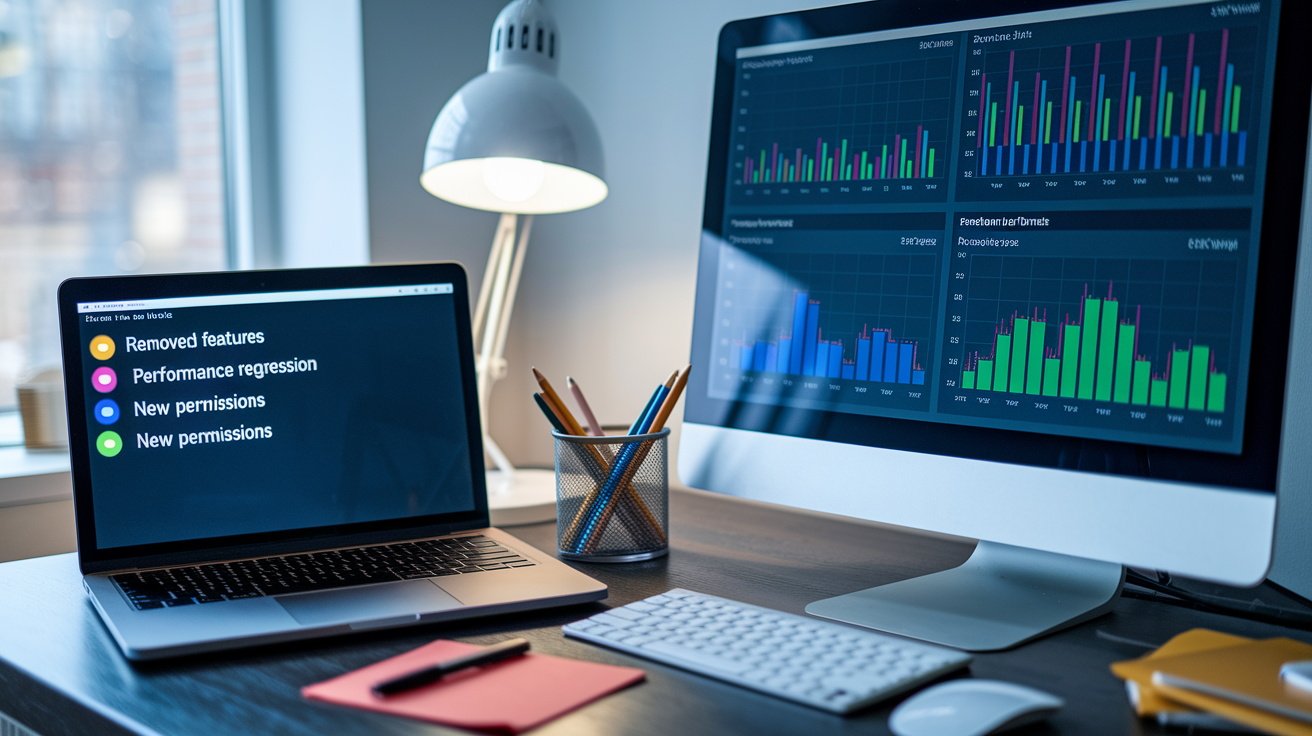
Updates break things in predictable ways. Features disappear without replacement, performance degrades as code bloat accumulates, or the interface buries essential actions under extra taps and menus. One spreadsheet app moved the “add error bars” command from a single click to three nested submenus, then started inserting default error bars of length 1, a choice that breaks sensible axis scaling and forces you to delete and reconfigure every time.
Within 24 to 72 hours of a major release, complaints concentrate around a handful of failure modes. Watch for these symptoms to confirm that an update caused the problem rather than unrelated device issues.
Removed features: buttons, settings, or entire functions vanish with no migration path.
Performance regression: longer load times, stuttering animations, or battery drain that wasn’t there before.
Increased memory or storage use: apps that previously ran in 200 MB suddenly consume 1 GB of RAM.
Broken workflows: multi-step tasks now require more taps, confirmations, or navigating unfamiliar menus.
New permission requests: the app suddenly demands access to contacts, location, or files it never needed before.
Frequent crashes or bugs: core actions fail or freeze, especially on older devices or OS versions the developer stopped testing.
Redesigned navigation: tabs move, icons change, and familiar entry points disappear, forcing you to search for basic commands.
Increased monetization pressure: more ads, paywalls on previously free features, or subscription prompts blocking standard use.
These patterns emerge because companies optimize for the wrong users. The “Schlitz effect” describes how A/B tests and usability labs focus on new or casual users performing simple tasks, ignoring experienced users who rely on tacit knowledge and advanced features. Over time, this testing bias ratchets the design downward. Each iteration makes the app slightly easier for beginners and slightly worse for everyone who already learned the old system. Adaptive interfaces compound the damage by hiding or rearranging menus based on usage patterns, destroying muscle memory and making screenshots or written instructions unreliable.
How to Roll Back Apps on Android When Updates Break Features You Need
Android offers more rollback paths than iOS, though each comes with compatibility and data-loss risks. Before attempting any downgrade, back up app data through the app’s own export function, ADB backup commands, or a third-party tool if you have root access. Most rollback methods require uninstalling the current version, which deletes local data unless you’ve saved it separately.
Leave Beta Channels
If you enrolled in a beta program to try early features, you’re receiving unstable builds that may introduce bugs or remove functionality before the public release. Open the Play Store, find the app’s listing page, scroll down, and tap “Leave” under the beta section if it appears. The next update will usually revert you to the stable branch, though this can take a few days and may still pull a newer stable version than the one you want.
Uninstall Updates on System Apps
System apps like messaging, browser, or contact managers often let you remove updates through Android’s Settings, Apps menu. Find the app, tap the three-dot menu in the upper corner, and select “Uninstall updates.” This restores the factory version that shipped with your device, often months or years old, but won’t help with third-party apps or give you fine control over which intermediate version to restore.
Install an Older APK Safely
Trusted archives and open-source repositories host older APK files (for example, version 4.1.2 of an app when version 6.0 broke your workflow). Enable “Install unknown apps” for your browser or file manager in Settings, Apps, Special access. Download the older APK, then tap it to install. If the signing key matches the installed version, Android will replace it. If not, you must uninstall the current app first, losing all local data unless you backed it up. Only use APKs from the app’s official site, reputable mirrors, or open-source repositories. Malicious repackaged APKs are common.
Use ADB Downgrade Commands
Connect your device to a computer with ADB installed, enable USB debugging in Developer Options, and run adb install -r -d /path/to/older-app.apk. The -d flag allows downgrading, and -r reinstalls without removing data if the signing key matches. Alternatively, push the APK to the device and use pm install -r -d --user 0 /sdcard/app.apk from an ADB shell. This method works for any app but still requires matching signatures and may fail if the app’s server refuses to sync with outdated client versions.
Expect complications. Newer Android versions sometimes block older app builds for security or API compatibility, and apps with server-side version checks will refuse to connect until you update again. Signing-key mismatches mean you lose all data during the uninstall-reinstall cycle, and downgrading exposes you to known security vulnerabilities that were patched in the version you’re removing.
How to Roll Back Apps on iOS When You Dislike Recent Update Changes
Apple stops signing older app versions quickly, making downgrades nearly impossible on standard, non-jailbroken devices unless you archived the exact IPA file before updating. The App Store only offers the latest version for download, and restoring from a cloud backup doesn’t restore app binaries, just user data. Your realistic options depend on whether you prepared in advance or are willing to use workarounds that carry technical and security risks.
If you have an encrypted iTunes or Finder backup created before the unwanted update, you can restore your entire device to that snapshot, which may include the older app version if the backup format preserved it (older iTunes-era backups sometimes did, modern iCloud backups do not). This wipes your device to the backup date, losing any data created since then unless you export it first. The restored app version will immediately prompt you to update again unless you disable automatic updates and ignore the prompt.
Restore from an archived backup containing the IPA if you have one saved locally before the update.
Use AltStore or similar sideloading tools to install an older IPA if you obtained one from a trusted source. Requires a computer, a free or paid Apple Developer certificate, and re-signing every 7 days for free accounts.
Check App Store purchase history in case Apple still offers the previous version for re-download (rare, usually only happens immediately after a botched release and quick pullback).
Jailbreak the device and use tools like AppSync or Cydia sources to install unsigned IPAs (high risk, voids warranty, exposes security flaws, and breaks many services).
Contact the developer directly to request an older IPA for testing or accessibility reasons (almost never works, but some enterprise or niche apps have provided archived builds).
Server-side version enforcement defeats most downgrades even if you successfully install an older IPA. Many apps refuse to sync, authenticate, or display content unless you run the minimum supported client version, rendering the older build non-functional. Unsigned IPAs from third-party sources carry malware risk, and jailbreaking disables critical iOS security protections. In practice, iOS rollback success rates are low, and most users either tolerate the unwanted update, switch to an alternative app, or file feedback hoping the developer will revert the change in a future release.
How to Disable Automatic Updates to Stop Future Unwanted App Changes
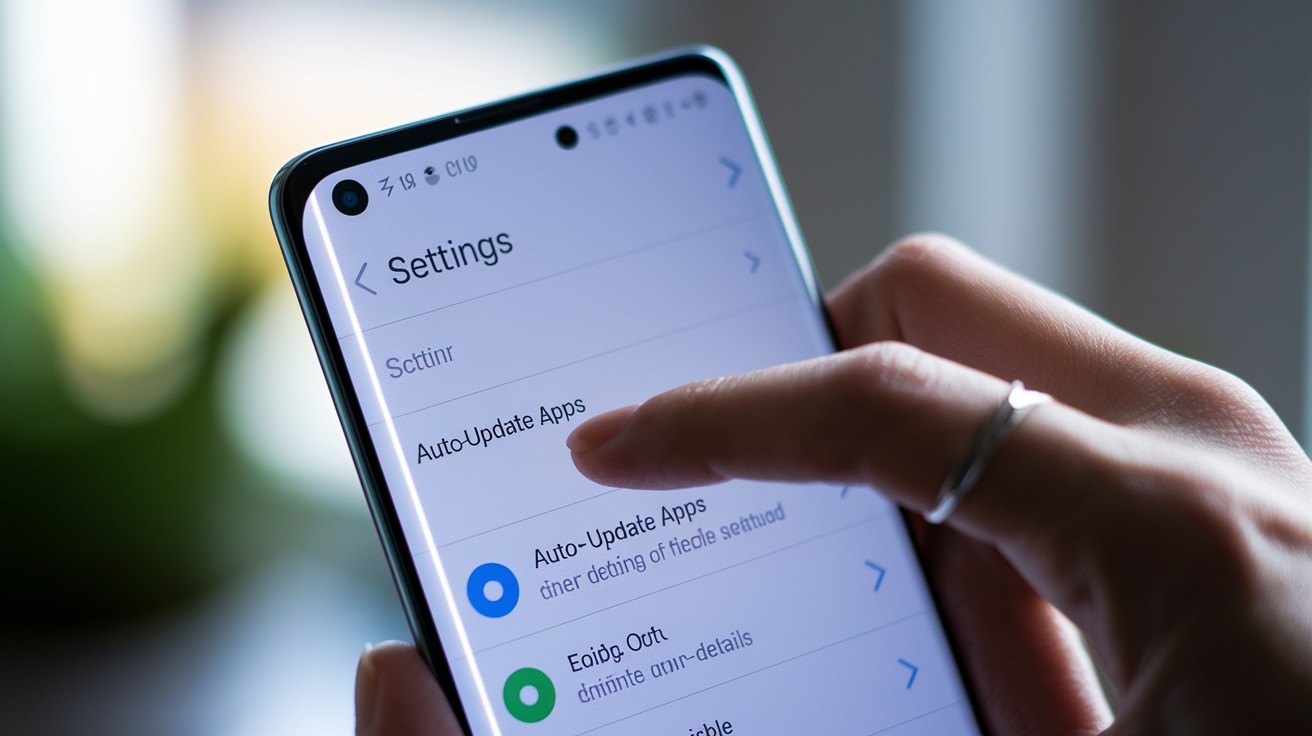
Turning off auto-updates gives you control over when new versions install, letting you read changelogs, check early reviews, and decide whether to risk the upgrade. The trade-off is manual vigilance. You must remember to update apps that patch security flaws or add genuinely useful features, and some apps nag relentlessly when they detect an outdated version.
On Android, open the Play Store, tap your profile icon, go to Settings, Network preferences, Auto-update apps, and select “Don’t auto-update apps.” This stops all automatic installs. For finer control, visit an individual app’s Play Store page, tap the three-dot menu, and uncheck “Enable auto update” to block updates for that app while allowing others to update automatically. On iOS, open Settings, App Store and toggle off “App Updates.” iOS lacks a per-app auto-update toggle in the standard interface. Disabling the global switch is your only option without enterprise Mobile Device Management (MDM) profiles.
Desktop platforms follow similar patterns. Windows users open the Microsoft Store app, go to Settings, and turn off “App updates.” macOS users open System Settings, App Store and disable “Automatically keep my Mac up to date” or turn off automatic app updates specifically. For standalone desktop apps that manage their own updates (browsers, creative tools, communication apps), check the app’s preferences for an update section. Some offer “Notify me” instead of “Install automatically,” while others require you to block the updater process via firewall rules or disable the updater service entirely, which can break other functionality.
Android global: Play Store, Settings, Network preferences, Auto-update apps, Don’t auto-update apps.
Android per-app: Play Store, [app page], three-dot menu, uncheck Enable auto update.
iOS global: Settings, App Store, App Updates, Off.
Windows: Microsoft Store, Settings, App updates, Off.
macOS: System Settings, App Store, disable automatic updates.
Desktop apps: check app preferences for update settings. May require firewall or service-disable workarounds.
After disabling auto-updates, immediately re-check the settings every few months. OS updates sometimes reset these toggles to defaults, and app stores occasionally re-enable automatic updates after major platform upgrades. For organizations or power users managing multiple devices, MDM systems allow version pinning and delayed rollouts, holding updates for 7 to 30 days while monitoring public feedback and compatibility reports before deploying across all devices.
Reporting Update Problems Effectively So Developers Prioritize Fixing Them
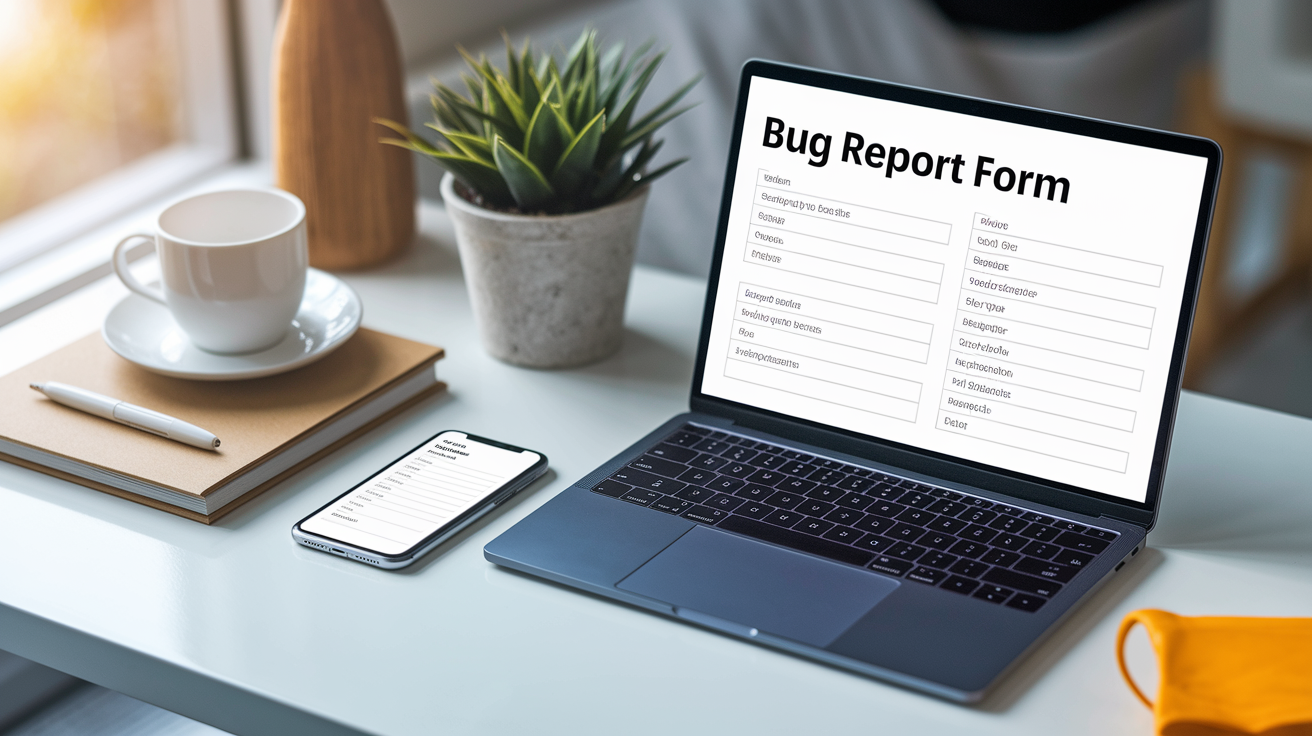
Bug reports only matter if they’re reproducible and detailed enough for developers to diagnose the issue without round-trip clarification emails. Vague complaints like “the new version is terrible” or “it doesn’t work anymore” land in a pile of noise that teams ignore. Structured reports with precise version numbers, device details, and step-by-step reproduction instructions rise to the top of triage queues and often get fixed faster.
Include six critical pieces of information in every report: the exact app version (for example, v6.0.3, visible in Settings, Apps, [app name] on Android or in the app’s About screen on iOS), your operating system and version (Android 13, iOS 17.2), device model (Pixel 6, iPhone 13), the exact steps that trigger the problem (numbered list, starting from app launch), what you expected to happen versus what actually happened, and any screenshots, screen recordings, or log excerpts that illustrate the failure. Add timestamps if the problem is intermittent or time-sensitive.
App version: v6.0.3 (check Settings, Apps or the app’s About screen).
Operating system: Android 13 / iOS 17.2 / Windows 11 / macOS Sonoma 14.2.
Device model: Pixel 6 / iPhone 13 Pro / Surface Laptop 5.
Reproduction steps: numbered sequence from app launch to failure, with each tap or input described.
Expected vs actual behavior: “Should display saved filters. Instead shows ‘No filters found’ error.”
Supporting evidence: screenshots, screen recording, crash log, or error code.
Send reports through multiple channels for visibility. Use the in-app feedback or help option if one exists, email the developer contact listed on the app’s store page, post in the official support forum or community site, file an issue in the public bug tracker if the app is open source, and leave a detailed review on the Play Store or App Store (copy the same structured details into the review text). Developers monitor app-store reviews closely because they affect rankings and conversion, so a well-documented public review often triggers faster response than a private support ticket, especially when multiple users post similar reports within hours of a release.
Finding Alternatives When App Update Changes Break Your Workflow

When an update removes a feature you depend on and the developer shows no sign of restoring it, switching to a replacement app may be faster than waiting for a fix that never arrives. Start by listing the specific functions you need, concrete actions like “batch-rename files,” “export to CSV,” or “offline access to saved articles,” rather than vague qualities like “feels intuitive.” Search app stores and community recommendation threads using those feature keywords, then filter results by recent reviews and active maintenance to avoid abandoned projects.
Open-source alternatives often preserve features that commercial apps drop during redesigns focused on monetization or mainstream appeal. F-Droid for Android and similar repositories host apps built by communities that prioritize stability and user control over growth metrics. Many popular commercial apps have open-source forks maintained by developers who disagreed with the direction of the original project, offering familiar interfaces with continued support for deprecated functionality. Check GitHub, GitLab, and product-specific subreddits for “spiritual successors” or continuations of abandoned versions.
Feature parity: does the alternative support the exact actions you need, not just similar concepts?
Active development: when was the last update, and does the developer respond to bug reports or feature requests?
Trial period or refund policy: can you test the app for 7–14 days or get a refund if it doesn’t meet your needs?
Data export and import: can you migrate your existing data (settings, saved items, configurations) without manual re-entry?
Pricing transparency: is it a one-time purchase, monthly subscription (common range $4.99/month), annual plan ($29.99/year), or ad-supported free tier?
Community discussions surface alternatives quickly after major update failures. Search Reddit, Hacker News, and product-specific forums for threads about the problematic update. Users often share replacement apps in the comments, along with migration tips and feature comparisons. Cross-check recommendations against recent app-store reviews sorted by date to confirm the suggested alternative hasn’t introduced its own unwanted changes recently.
How to Preserve Your Preferred App Behavior Before and After Updates
Backing up configurations and data before updates gives you a fallback if the new version breaks your workflow or removes settings you rely on. Many apps offer built-in export functions for preferences, filters, custom layouts, or saved content. Use them proactively rather than scrambling after an unwanted update erases everything. On Android, ADB commands can back up app data for many (not all) apps. On iOS, encrypted iTunes or Finder backups preserve app data and settings, though restoring requires wiping the device to the backup snapshot.
For apps that support themes, skins, or custom CSS, export and save your customizations as files before updating. Browser extensions, user-style managers, and third-party theming tools sometimes let you override interface changes after an update by injecting your own CSS or scripts, though this requires technical comfort and breaks when the app’s underlying structure changes too much. Power users who depend on specific versions sometimes maintain a library of archived APK or IPA files, storing the last two or three major releases locally so they can reinstall an older build if a new one regresses critical functionality.
Export app settings and data using built-in export/backup functions before updating, saving files to cloud storage or external media.
Use ADB or encrypted device backups to capture app data that lacks export features (ADB for Android, encrypted backups for iOS).
Save custom themes, skins, or CSS as separate files and document how to reapply them after updates reset defaults.
Archive installer files (APKs, IPAs, desktop installers) for the last 2–3 stable versions in a dedicated folder or cloud drive, labeled with version numbers and dates.
Sandboxing or virtualization isolates a stable environment from automatic updates. Run a critical app inside a virtual machine snapshot or on a secondary device that you never update, preserving the exact version and configuration indefinitely. This works best for desktop workflows where you can dedicate an old laptop or a VM image to a frozen setup, avoiding the risk that an OS-level update will break compatibility with the older app version you’re protecting.
Final Words
In the action: this guide lists six fast fixes to undo unwanted updates, explains why changes feel worse, shows common problems, and covers Android and iOS rollback steps plus ways to preserve settings.
If an update broke your workflow, try the quick actions first: uninstall updates where allowed, restore backups, or disable auto-updates. If that fails, follow platform rollback steps or find an alternative and send a concise bug report.
If you spot app update changes i don’t like, start with the quick fixes and keep backups to recover quickly. You’ll get control back and stay productive.
FAQ
Q: How to change apps back to normal after iOS update?
A: To change apps back to normal after an iOS update, restore a pre‑update backup if available, adjust in‑app layout toggles, use the app’s web version temporarily, or contact the developer for fixes.
Q: What popular app should be deleted immediately?
A: The popular app that should be deleted immediately is one proven malicious, requesting excessive permissions, or flagged in a security advisory; check vendor notices and uninstall right away if confirmed.
Q: How do I downgrade an app update?
A: You downgrade an app update by restoring a pre‑update backup, uninstalling updates on Android, installing a trusted older APK, or sideloading on iOS—but downgrades can risk data loss and security issues.
Q: Which is the No. 1 app?
A: The No. 1 app depends on the metric—downloads, active users, or revenue; check current App Store or Google Play charts for real‑time rankings to see which app tops your chosen list.

