

Is your Sonos app acting like it forgot all your speakers right after an update?
You’re not alone — recent updates often cause crashes, blank screens, or devices that vanish from the list.
This intro gives a fast diagnostic checklist and immediate fixes that clear about 70% of post-update issues in five minutes.
Follow quick power cycles, network checks, clean reinstalls, and safe resync steps to get music playing again without a factory reset.
If those don’t work, we’ll show what diagnostics to gather before contacting Sonos support.
Rapid Diagnostic Checklist and Immediate Fixes

Most Sonos app problems after an update show up as crashes, blank screens, or systems that won’t appear in the device list. Before you dive into anything complex, run through this quick sequence. These six steps clear about 70 percent of post-update issues within five minutes.
- Force-quit the Sonos app completely, then reopen it. On iOS, swipe up from the bottom and flick the Sonos card off the screen. On Android, open Recent Apps and swipe Sonos away.
- Power-cycle your router by unplugging it for 30 seconds, then plugging it back in. Wait two minutes for your network to stabilize.
- Reboot all Sonos speakers by unplugging each unit for 10 seconds, then reconnecting power. Wait 90 seconds for each speaker to finish its boot cycle.
- Confirm the Sonos system shows as online in your router’s connected-device list or admin panel.
- Test the app on a secondary device, like a second phone, tablet, or computer, to see if the problem is device-specific.
- Check that the update finished by opening Settings inside the Sonos app and looking for a pending update notification or incomplete download indicator.
These steps work because many update-related failures are just temporary sync mismatches between the new app version and your router or speakers. When the app updates, it can briefly lose its internal map of device IP addresses or fail to re-establish service authentication tokens. A full power cycle gives the app, router, and speakers a clean handshake to rebuild that map. If your system reappears after this sequence, the problem was transient, not a persistent bug.
Network and Connectivity Recovery Steps

Updated Sonos apps sometimes lose track of your local network topology, especially if your router reassigns IP addresses or if the update changes how the app scans for devices. Speakers that were working fine before the update can suddenly show as offline or missing, even though they’re powered on and connected to Wi‑Fi.
Start by confirming that both your mobile device and your Sonos speakers are on the same Wi‑Fi network name (SSID). If you run separate 2.4 GHz and 5 GHz networks with different names, make sure your controller and speakers are all on the same band. Check your router’s security settings too. Some routers enable client isolation or AP isolation after firmware updates, which blocks devices from seeing each other on the local network. Temporarily disable that setting to test if it fixes discovery issues.
If problems stick around, try these targeted network fixes:
- Restart your router and any mesh extenders or access points, then wait three minutes before reopening the Sonos app.
- Switch your controller device to 2.4 GHz Wi‑Fi if your Sonos speakers are older models that only support that band.
- Verify your router firewall or parental controls aren’t blocking UPnP or local discovery protocols. Sonos relies on multicast DNS and SSDP for device discovery.
- Connect one Sonos speaker to your router via Ethernet cable as a temporary bridge. This often forces the app to recognize the wired speaker first, then discover wireless units through SonosNet.
Fixing App Installation and Software Compatibility Issues

If the Sonos app opens but immediately freezes, loops on the splash screen, or shows error messages about being unable to connect to services, the update may have left behind corrupted installation files. This happens when an over-the-air update doesn’t fully overwrite old code or when device storage filled up mid-install.
Follow these steps to do a clean reinstall:
- Uninstall the Sonos app completely from your device. On iOS, press and hold the app icon, then tap Remove App and choose Delete App. On Android, go to Settings, Apps, find Sonos, and tap Uninstall.
- Restart your phone or tablet to clear any lingering cached files in temporary directories.
- Check your device OS version in Settings. The latest Sonos app requires iOS 15.1 or later, Android 8.0 or later, Windows 10 build 19041 or later, or macOS 11 or later.
- Download and reinstall the Sonos app from the official app store (App Store, Google Play, Microsoft Store, or Sonos.com for desktop versions).
- Open the app and sign in with your Sonos account credentials. Allow all requested permissions for local network access. Denying these blocks device discovery.
If your device OS is below the minimum version, the new app may install but fail to function. Older tablets and phones that can’t update their OS any further won’t support the latest Sonos app releases and may need to use legacy controller options or a newer device.
Known Bugs in the Latest Update and Temporary Workarounds

Recent Sonos app updates have introduced recurring issues that affect specific features even after the app successfully installs. Users frequently report missing room configurations, slow startup times that exceed 30 seconds, and an inability to group or ungroup speakers from the app interface. These bugs are typically acknowledged by Sonos and fixed in follow-up patches within one to four weeks, but you’ll need workarounds in the meantime.
While waiting for an official patch, these alternatives keep your system functional:
- Use the Sonos desktop app for Windows or macOS if mobile versions are broken. The desktop app often runs a separate code path and may still work when mobile controllers fail. Download it directly from the Sonos support site.
- Control playback and grouping through voice assistants like Alexa or Google Assistant if your speakers are linked. Commands like “Alexa, play jazz in the kitchen” or “Hey Google, group living room with bedroom” bypass the app entirely.
- Access physical controls on the speakers for basic play, pause, skip, and volume. Many models have touch-sensitive top panels that let you control playback when the app is unresponsive.
Hardware Refresh and System Resynchronization
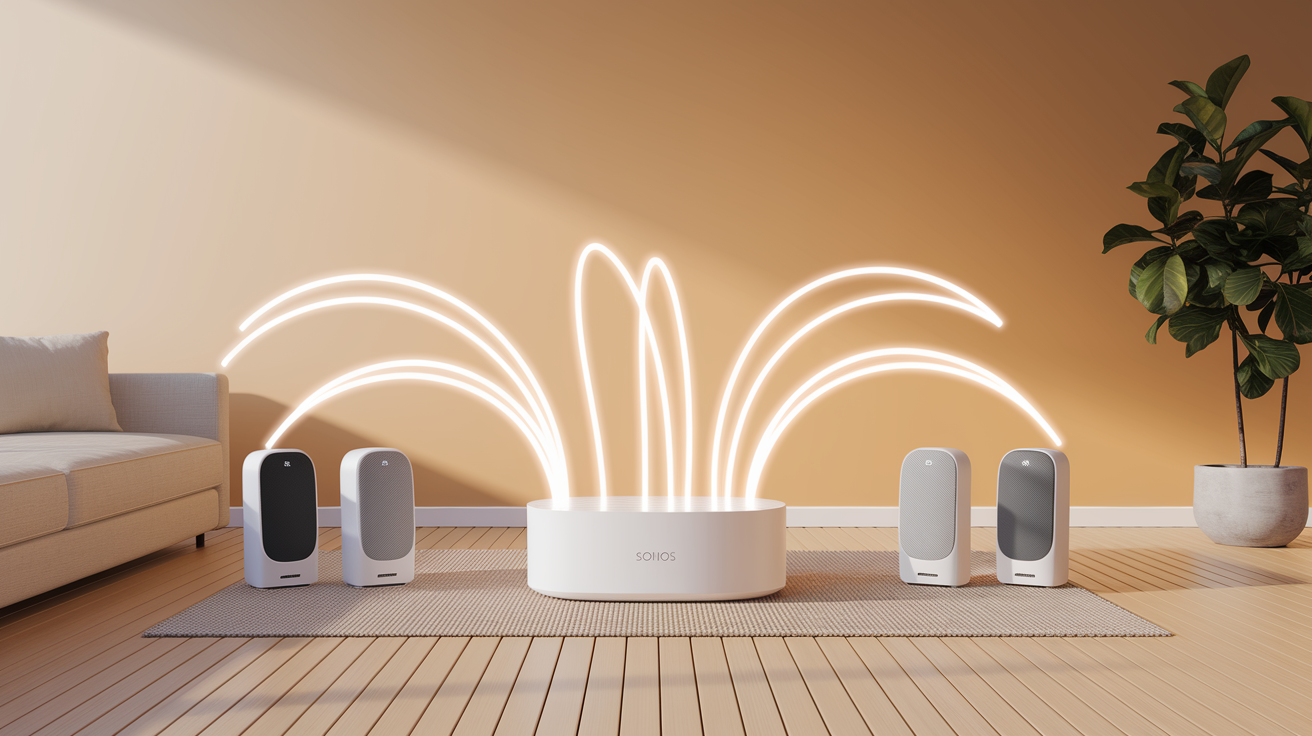
After an app update, your Sonos speakers and the app controller may fall out of sync because the new app version expects different firmware or service handshakes than the speakers are currently providing. This mismatch shows up as devices that appear in the app with grayed-out controls, delayed response times of five seconds or more, or phantom duplicate entries for the same speaker.
To force a clean resync without losing your system configuration, follow this sequence:
- Unplug every Sonos speaker from power, starting with any wired units first, then wireless speakers. Wait 15 seconds.
- Plug in your router or primary network switch first and let it fully boot (usually two minutes, indicated by stable status lights).
- Plug in one Sonos speaker at a time, waiting 60 seconds between each unit to allow the system to register each device individually.
- Open the Sonos app and watch the Rooms list. Each speaker should appear with a solid connection indicator, not a spinning icon or error badge.
Don’t use the factory reset button on your speakers unless Sonos Support specifically tells you to. A factory reset erases the speaker’s configuration and forces you to re-add it to your system from scratch, which often creates more work than necessary and won’t fix app-level bugs. Stick to simple power cycles for most update-related sync issues.
When to Escalate the Issue and Official Support Resources

If you’ve completed the rapid diagnostic checklist, reinstalled the app, refreshed your network settings, and power-cycled all hardware but the Sonos app still crashes on launch, refuses to discover any speakers, or displays persistent error codes, you’re dealing with a deeper issue that needs direct support intervention. Escalate immediately if speakers show hardware fault LEDs (solid red or flashing amber), if the app repeatedly fails to complete setup on multiple controller devices, or if you’ve lost access to your entire system for more than 24 hours.
Before contacting support, gather the following information to speed up diagnosis:
- Generate a diagnostic report from within the Sonos app by going to Settings, Support, and tapping Submit Diagnostics. Note the confirmation number that appears. It gives support engineers a snapshot of your system state at that moment.
- Write down the exact model names and serial numbers of affected speakers, your router make and model, your controller device type and OS version, and the Sonos app version number found in Settings, About My System.
- Prepare a clear description of symptoms, including exact error messages, when the problem started (date and time if possible), and whether the issue appeared immediately after an app update or days later.
Reach Sonos Support through the in-app Help and Support section, the official support page at support.sonos.com, or by phone during extended hours (now including weekends). Include your diagnostic number and device details in your first message to avoid multiple back-and-forth requests for basic information.
Final Words
You now have a fast checklist: quick diagnostics, network recovery, reinstall and compatibility steps, bug workarounds, hardware refreshes, and when to contact support.
Start with the rapid fixes, then move to network checks and app reinstall before trying resets or factory options.
If you still see sonos app update problems after this, gather diagnostics and contact support. Most issues are solvable, and you’ll likely be back to streaming within an hour.
FAQ
Q: Why does Sonos update keep failing / why is my app update not working?
A: The Sonos update keeps failing or your app update isn’t working because of network interruptions, corrupted downloads, or OS incompatibility; quick fixes: restart devices, power-cycle router, reinstall app, and check your OS version.
Q: Is the Sonos app still messed up?
A: The Sonos app is still having issues for some users; problems vary by region and update. Try restarting the app and router, check Sonos status, update app/firmware, or contact support if it persists.
Q: Is there a class action lawsuit against Sonos?
A: There have been class-action lawsuits involving Sonos in the past; current status can change. Check recent legal news or court filings, and consult consumer alerts or an attorney if you think you’re eligible to join.

