
Frustrated because an app won’t download or update?
Most download or update failures are simple system hiccups you can fix in under two minutes.
This post lists four immediate resets: restart, toggle airplane mode, check date and time, and turn off VPN.
They fix most problems without touching your data.
If those don’t work, we’ll walk through connectivity checks, storage cleanups, App Store and Play Store fixes, and how to re-authenticate accounts.
Follow these steps and you should have the app installing or updating fast.
Immediate Fixes to Resolve Apps Not Downloading or Updating

When an app won’t download or update, you’re usually looking at simple system hiccups that take under two minutes to clear. Before you mess with app settings or account stuff, run through these four quick resets. They handle the most common conflicts without touching your data.
Works on iPhone and Android. No tech skills needed.
Restart your device. Hold the power button and tap Restart (or slide to power off, wait a few seconds, then turn it back on). This clears stuck processes and reloads the download services.
Toggle airplane mode. Swipe down, hit the airplane icon, count to five, then tap it again. Forces your phone to reconnect and often unsticks download queues.
Check your date and time. Open Settings > System > Date & time (Android) or Settings > General > Date & Time (iPhone). Make sure “Set automatically” is turned on. App stores use your device clock to verify security certificates. Wrong time? No downloads.
Turn off VPN. Disable any active VPN from your notification shade or network settings. VPNs can route store traffic through servers that block or slow down downloads.
Core Connectivity Fixes for App Download or Update Problems

App stores need stable internet to authenticate your account, check purchase history, and stream installation files. When your connection drops packets, switches towers mid-download, or routes through congested servers, downloads stall. Connectivity issues cause more installation failures than anything else.
Quick test: open a browser and load a text-heavy news site. Pages load fast and images appear right away? Your connection works. Pages timeout or load halfway? That’s your problem.
Next, figure out if it’s Wi-Fi, cellular, or both. Try downloading over Wi-Fi. Doesn’t work? Switch to mobile data and retry. If one works and the other doesn’t, you’ve isolated it.
Router and DNS issues block app store traffic even when browsing works fine. ISPs sometimes throttle connections to big content servers, and home routers cache outdated routing info. Power off your router (unplug it), wait 30 seconds, plug it back in, wait for the lights to stabilize, then retry.
Try these in order:
- Switch between Wi-Fi and mobile data to see which one’s broken
- Restart your router (unplug for 30 seconds, reconnect)
- Turn off VPN or proxy and retry on your regular connection
- Check if your mobile plan hit its data cap or throttling limit
Storage Problems Preventing App Installation or Updates

Android and iOS won’t install or update apps when you’re almost out of space. Android alerts you under 1 GB free. iPhones usually stop when you’re a few hundred megabytes from full. App stores need temporary room to download the file, verify it, and unpack—sometimes two or three times the final app size.
Check available space: Settings > Storage (Android) or Settings > General > iPhone Storage (iOS). You’ll see what’s eating your storage and how much is left. On iPhone, the storage screen shows suggestions like “Offload Unused Apps” and “Review Large Attachments.”
Survey data from 2024 shows what fills devices most: photos and screenshots (68% of users), music and podcasts (28%), recorded videos (26%), messaging app media (21%), downloaded apps and games (17%), documents (15%), email attachments (10%), and movies or TV downloads (7%).
Once you know what’s filling your device, use the built-in cleanup tools. On Android, tap “Free up space” or open Files by Google to find duplicate photos, old downloads, and cached videos. On iPhone, turn on “Offload Unused Apps” under iPhone Storage to automatically remove apps you haven’t opened in months while keeping their data.
Six ways to reclaim storage fast:
- Delete old photos and videos (back up to cloud first if you want)
- Remove apps you haven’t touched in three months
- Clear messaging app media (big video files, duplicate memes, forwarded clips)
- Delete music, podcast episodes, and offline playlists
- Empty the “Recently Deleted” album in Photos (makes the delete permanent)
- Review and delete big email attachments or old threads
App Store App Not Downloading or Updating (iPhone Solutions)

iPhone download failures usually come from App Store cache issues, Apple ID authentication problems, outdated payment info, or network routing conflicts. iOS handles installs differently than Android—it relies on signed certificates, iCloud keychain sync, and Apple’s content delivery network. When these systems hit a snag, downloads freeze at “waiting,” hang during verification, or fail without an error.
Force-Close the App Store and Retry
Swipe up from the bottom (or double-click home on older iPhones) to open the App Switcher. Find the App Store and swipe it up to close it. Wait five seconds, reopen the App Store, try the download again. Force-closing clears temporary memory and resets stuck download queues or expired tokens. “After force-closing the App Store, my update that had been stuck on ‘waiting’ for two days started downloading immediately.”
Sign Out and Back In to Your Apple ID
Open the App Store, tap your profile picture (top right), scroll down, tap “Sign Out.” Wait ten seconds. Tap “Sign In” and enter your Apple ID and password. Signing out clears cached credentials and forces the store to re-authenticate, which fixes expired session tokens and purchases that won’t complete because the store can’t verify your identity.
Update Your Payment Method
Even free apps sometimes need a valid payment method on file. Open Settings, tap your name, then “Payment & Shipping.” Look for expired or flagged cards (red icon). Remove them or update the expiration date, then retry. Apple validates payment info before allowing any install. Outdated details? Silent failure.
Adjust DNS Settings or Disable VPN
Go to Settings > Wi-Fi, tap the “i” next to your connected network, tap “Configure DNS,” select “Manual.” Delete existing DNS servers, tap “Add Server,” enter 1.1.1.1 (Cloudflare’s public DNS). Tap “Save” and retry. Custom or ISP DNS servers sometimes block or throttle Apple’s content network. Switching to a neutral resolver bypasses that. “Changing my DNS to 1.1.1.1 fixed app downloads that had been failing for a week.”
| Issue | iOS Menu Path | Expected Result |
|---|---|---|
| App stuck on “waiting” | App Switcher → swipe App Store up | Download resumes within 10 seconds of reopening App Store |
| Can’t verify Apple ID | App Store → profile icon → Sign Out → Sign In | Downloads proceed immediately after sign-in completes |
| Free app blocked by payment error | Settings → [Your Name] → Payment & Shipping → update or add card | App installs without further prompts once valid payment method is saved |
Google Play Store Not Downloading or Updating (Android Solutions)
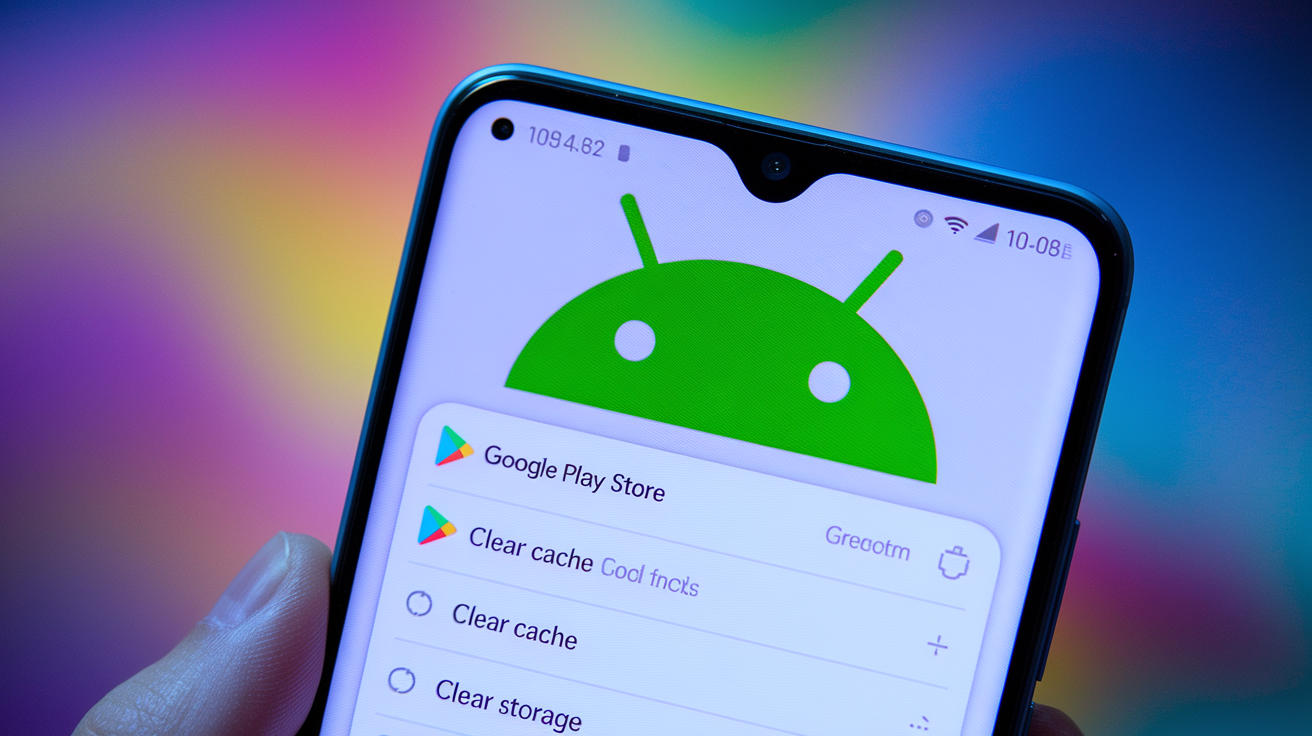
Android download problems usually come from Play Store cache issues, Google Play Services conflicts, or disabled system components that handle downloads. Unlike iOS, Android splits the storefront (Play Store), account services (Google Play Services), and download execution (Download Manager) into separate system apps. When one breaks, installs fail even though your account, payment, and network are fine.
Start by clearing temporary files. Open Settings, tap “Apps” or “Apps & notifications,” then “See all apps.” Scroll to “Google Play Store” and tap it. Tap “Storage & cache,” then “Clear cache.” This removes corrupted metadata and resets the app’s state without deleting your account or settings. Still broken? Tap “Clear storage” (sometimes called “Clear data”). This erases all Play Store settings and forces the app to rebuild from scratch.
Google Play Services manages account sync, app licensing, and background updates for all Google apps. When Play Services errors out, every app that depends on it stops working. To reset it, go back to Settings > Apps > See all apps, scroll to “Google Play Services,” tap it. Tap “Storage & cache,” then “Clear cache.” Still failing? Tap “Clear storage” or “Manage space” > “Clear all data.” Your device re-downloads the required components next time you open the Play Store. Takes up to two minutes and might briefly kill notifications or background sync.
Download Manager is a hidden system app that runs every install and update. If it’s disabled or corrupted, nothing downloads even though the Play Store looks normal. Open Settings > Apps, tap the three-dot menu (top right), select “Show system” or “Show system apps.” Scroll to “Download Manager” and tap it. Make sure it’s enabled (if you see “Disable,” it’s already on). Tap “Force stop,” then “Storage & cache” > “Clear cache” and “Clear storage.” Restart your device, retry the download.
Clear Play Store Cache and Data
Settings > Apps > See all apps > Google Play Store. Tap “Storage & cache,” then “Clear cache.” Wait five seconds, tap “Clear storage,” confirm. Clearing storage logs you out and resets preferences, but your installed apps and account stay intact.
Reset Download Manager
Settings > Apps, tap three-dot menu, select “Show system.” Scroll to “Download Manager,” tap it. Tap “Force stop,” then “Storage & cache” > “Clear cache” > “Clear storage.” Restart to reload Download Manager with fresh settings.
Uninstall Play Store Updates
Long-press the Play Store icon, tap “App info,” tap the three-dot menu (top right), select “Uninstall updates.” This rolls the Play Store back to the factory version. After uninstalling, open the Play Store and let it update itself automatically.
Account, Verification, and Payment Issues Blocking App Updates

App stores need active, authenticated accounts to verify purchases, apply regional pricing, and enforce content restrictions. When your session expires, your payment method gets declined, or Google or Apple’s servers can’t confirm your identity, downloads fail without clear errors. These issues pop up after changing your password, switching devices, or traveling.
Fastest fix: sign out and back in while on a strong, stable network. On iPhone, open the App Store, tap your profile picture, scroll down, tap “Sign Out,” then sign in again. On Android, go to Settings > Passwords & accounts (or Accounts), tap your Google account, tap “Remove account,” then “Add account” > “Google” and sign in. This forces your device to fetch fresh tokens and resync your app library, purchase history, and payment methods.
Payment issues happen even for free apps. Apple and Google need a valid payment method on file before allowing any downloads. Expired cards or outdated billing addresses trigger silent failures. On iPhone, check Settings > [Your Name] > Payment & Shipping and update or remove flagged cards. On Android, open the Play Store, tap your profile picture, tap “Payments & subscriptions” > “Payment methods,” verify each card is current. If your account shows a balance due or failed transaction, fix it before retrying.
Three common account blockers:
- Expired or declined payment method (even for free apps)
- Session timeout (sign out and back in)
- Regional restrictions when traveling or using a VPN (turn off VPN or change account region)
Resetting System Services to Fix Stuck App Downloads or Updates
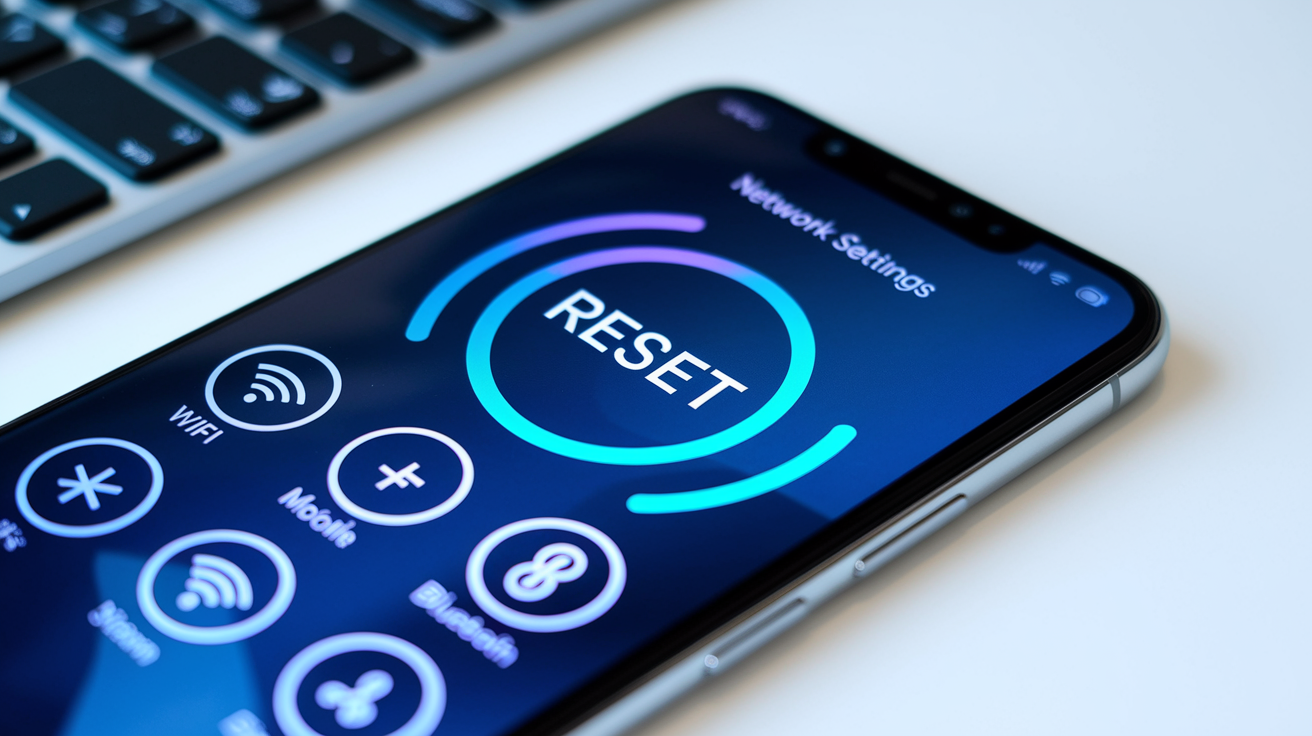
Sometimes installation problems come from corrupted network settings, broken permission tables, or disabled background services instead of the app store itself. Android and iOS both cache network configs, DNS entries, and cellular routing data. When this cache gets outdated or conflicts with system updates, downloads hang forever even though browsing and streaming work fine.
Resetting network settings clears all saved Wi-Fi passwords, Bluetooth pairings, VPN configs, and mobile data preferences, then rebuilds them. On Android, open Settings > System > Reset options, tap “Reset Wi-Fi, mobile & Bluetooth,” confirm. On iPhone, Settings > General > Transfer or Reset iPhone > Reset > Reset Network Settings. After reset, reconnect to Wi-Fi by entering the password again, retry the download. This fixes DNS cache corruption, stale routing tables, and firewall rules that accidentally block app store traffic.
Force-stopping the app store clears active processes and flushes temporary memory. Fixes freezes from background tasks that never finished. On Android, Settings > Apps > Google Play Store, tap “Force stop,” reopen the Play Store. On iPhone, swipe up to App Switcher, swipe the App Store away, wait five seconds, reopen. Faster than a full restart and often enough to clear a stuck queue.
Resetting app preferences is Android-only. It restores default permissions, notification settings, and background data rules for all apps without deleting app data. Settings > Apps, tap three-dot menu, select “Reset app preferences.” This re-enables system services you might’ve accidentally disabled and clears permission conflicts that stop the Play Store from writing to storage or accessing the network. After resetting, check that the Play Store has permissions for storage, network, and notifications.
Advanced Fixes for Persistent App Download or Update Failures

When everything else fails, you’re probably dealing with deep system corruption, firmware conflicts, or hardware defects. These methods should only be used after exhausting simpler fixes. Several carry risks of data loss or security exposure.
Factory reset erases every app, setting, file, and account from your device. Restores it to unboxing state. On Android, Settings > System > Reset options > Erase all data (factory reset). On iPhone, Settings > General > Transfer or Reset iPhone > Erase All Content and Settings. Before you do this, back up all photos, contacts, messages, and app data to cloud storage or a computer. Factory reset is permanent and deletes everything. After reset, set up as new (don’t restore from backup yet), try downloading an app to confirm it’s fixed. If downloads work, restore your backup. Still failing? The problem’s server-side or hardware.
Sideloading apps from third-party APK sites is last resort for Android when the Play Store stays broken after factory reset. Only download APKs from known sources that scan for malware. Verify package name and developer signature before installing. Sideloading bypasses Google’s security and exposes you to malicious software. Never use this for banking apps, password managers, or anything handling sensitive data. “I downloaded an APK from a trusted mirror after the Play Store refused to update for three weeks, but I only did it for a game, not anything with my financial info.”
On iPhone, apps can update through a wired connection to Mac or PC using Finder (macOS Catalina and later) or iTunes (older macOS and Windows). Connect iPhone via USB, open Finder or iTunes, select your device, click “Check for Update” under Apps. This bypasses the App Store’s wireless download and can work when network or account issues block over-the-air updates.
- Back up all data – Use iCloud, Google Drive, or computer backup before any reset.
- Factory reset – Settings > System > Reset > Erase all data (Android); Settings > General > Transfer or Reset iPhone > Erase All Content and Settings (iPhone).
- Sideload APKs only from trusted sources (Android only) – Verify developer signatures, scan for malware, never use for sensitive apps.
- Update via wired connection (iPhone only) – Connect to Mac/PC, open Finder or iTunes, manually check for app updates.
Common App Download Error Codes and What They Mean
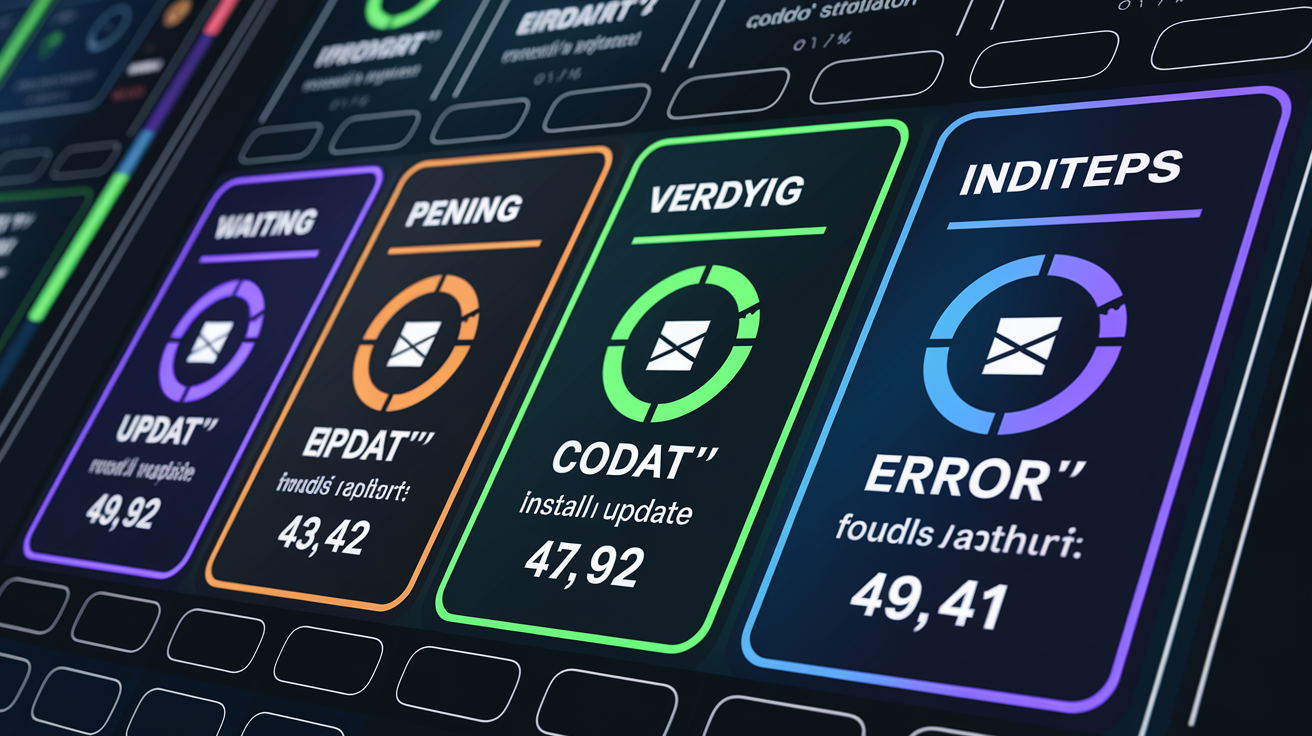
App stores show cryptic error messages when downloads fail. Many people give up because the codes offer no real guidance. Understanding what’s behind each message helps you pick the right fix immediately instead of trying everything randomly.
“Waiting” or “Pending” means the app’s queued but the store hasn’t started the download. Usually a network authentication problem or conflict with another download already running. Fix it by canceling other downloads, toggling airplane mode, or force-closing the app store and reopening. “Verifying update” or “Installing” that never finishes points to corrupted cache or low storage. Clear app store cache and make sure you have at least 2 GB free.
“Couldn’t install update” or “Installation failed” usually means the store couldn’t verify the package signature or hit a permissions error. On Android, clear Play Store data and reset app preferences. On iPhone, sign out of Apple ID, restart, sign back in. Play Store errors like “Error 4xx” or “Error 9xx” are server-side authentication or account issues. Removing and re-adding your Google account fixes most of them.
| Error Message | Likely Cause | Most Effective Fix |
|---|---|---|
| “Waiting” or “Pending” | Network or queue conflict | Toggle airplane mode on/off, then force-close and reopen app store |
| “Couldn’t install update” | Corrupted cache or signature verification failure | Clear app store cache and data; sign out and back in to account |
| Play Store Error 403, 492, 941 | Account authentication or sync issue | Remove Google account from Settings > Accounts, then add it back |
Final Words
In the action, we focused on fast triage — restart, toggle airplane mode, set date/time to automatic, and disable VPN — then moved into network, storage, iOS and Android store fixes, account and payment checks, system resets, advanced options, and common error codes.
Follow the steps in order: try quick fixes first, then check connectivity and storage, refresh accounts, and reserve factory resets or sideloading as a last resort. This should help you understand how to fix app won’t download or update and get your apps back up quickly.
FAQ
Q: Why won’t my apps download or update?
A: Apps won’t download or update when basic checks fail: restart the device, verify storage and internet, ensure date/time is automatic, disable VPN, and sign into the correct app store account.
Q: How do I fix an app that won’t install?
A: You fix an app that won’t install by restarting the device, clearing the app store cache, freeing at least 1 GB of storage, toggling airplane mode, then trying the install again.
Q: How do I force an app to update?
A: You force an app to update by opening the app store, locating the app and tapping Update; if it stalls, force‑stop the store, clear cache/data, or sign out and back in, then retry.
Q: Why isn’t my iPhone letting me update my apps?
A: Your iPhone won’t let you update apps if Low Power Mode is on, Apple ID or payment needs verification, storage is low, or network/DNS/VPN issues exist; check those and restart the phone.

