
Ever tap Update and the App Store just says “Purchased” — then nothing happens?
It’s annoying, but usually not a big problem: most cases are account sync hiccups, stale cache, or the app being tied to a different Apple ID.
If you use a hand-me-down phone, share apps with family, or recently switched accounts, this is common.
This guide gives six quick fixes to try first—so you can get the update moving again without deleting data or calling support.
Quick Fixes to Resolve the App Store Showing “Purchased” but Not Updating
When the App Store says an app is “Purchased” but won’t actually update it, you’re looking at one of two scenarios: tapping Update does absolutely nothing, or you get a prompt asking for the password of whoever originally downloaded the app. Nine times out of ten, it’s just an account sync hiccup, a temporary App Store bug, or stale device cache. Nothing’s actually broken.
Good news? Most of these blocks clear up in minutes with low-effort fixes. Before you mess with account settings or nuke the app entirely, try these six steps first:
-
Force-close the App Store – swipe up from the bottom, pause mid-screen, find the App Store card, and flick it away. Open it again and retry the update.
-
Restart your device – hold the side button until you see “slide to power off,” shut it down, wait 30 seconds, power back on.
-
Sign out and back into your Apple ID – Settings, tap your name, scroll to Media & Purchases, tap your email, hit Sign Out. Then sign back in with your password.
-
Refresh the Updates tab – open the App Store, tap your profile icon, pull down to refresh the list.
-
Check date and time – Settings > General > Date & Time. Make sure “Set Automatically” is on. A wonky system clock can kill App Store communication.
-
Retry the update – back to the Updates list, tap Update again.
Still stuck after all six? The problem’s probably Apple ID ownership or something messier under the hood. Keep reading.
Common Causes Behind the Update Failure
Apple ID mismatch is the number one culprit. Apps stick to the Apple ID that first grabbed them, even free ones. If you’re signed into a different ID now, or someone else installed the app with their account, iOS shuts down the update. You’ll either see a password prompt for the old ID or just… nothing. This happens all the time on family devices, hand-me-down iPhones, or when you switch from a work ID to personal.
Outdated iOS or geo-restrictions cause silent failures too. Some updates need a minimum iOS version your device can’t run anymore, especially older iPhones and iPads. Regional locks come into play if the app was downloaded in another country’s store and isn’t available where you are now. Either way, the App Store knows you own it but quietly refuses to update without telling you why.
Billing problems and corrupted cache round out the usual suspects. Unpaid balance, expired card, billing hold? The App Store locks all updates until you fix it in Settings > your name > Payment & Shipping. Cache corruption is when the App Store’s local database gets out of sync, which is why force-closing and rebooting often just… fixes it.
How to Check Your Apple ID and App Ownership
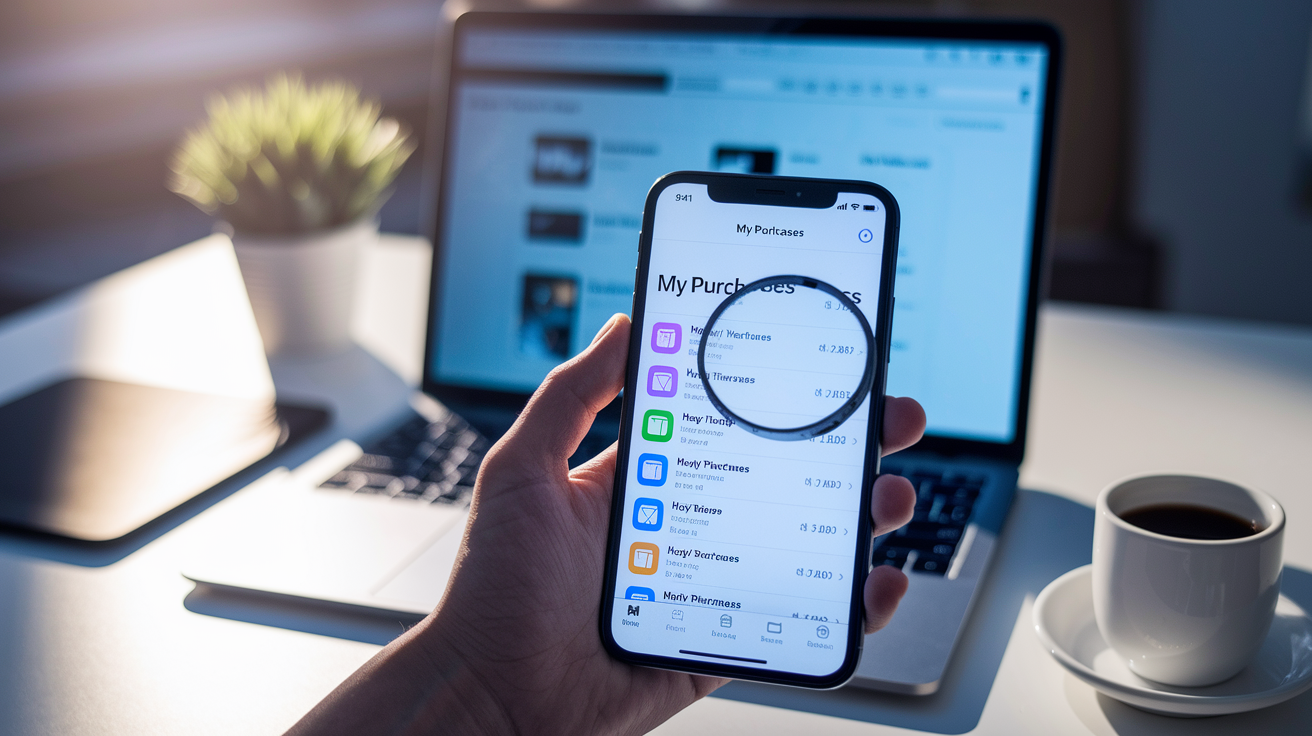
Every app belongs to one Apple ID. Only that ID can update it. Try updating an app installed under someone else’s account and iOS either demands their password or does nothing. This ownership lock applies to free apps and survives backups and restores.
Here’s how to confirm who owns an app:
-
Open the App Store, tap your profile icon.
-
Scroll to Purchased, tap it.
-
Tap My Purchases for apps tied to your ID, or Family Purchases if you share.
-
Search for the app. If it’s in My Purchases, you own it. If it’s missing or only shows under another family member, it belongs to a different ID.
If the app doesn’t appear in your Purchased list and isn’t in Family Sharing, it was grabbed with an Apple ID you can’t access anymore. Your options? Delete the app and reinstall it under your current ID (so you can update it going forward), or sign in temporarily with the original ID to push the update through. Reinstalling is faster and cleaner, but deleting might erase local data unless the app backs up to iCloud.
Network and Device Settings That Affect App Updates

Weak or flaky Wi‑Fi is an underrated reason updates hang forever. Connection drops mid-download and the App Store marks it started but never finishes, leaving the app in “Purchased” limbo. Router congestion, VPNs, firewalls, corporate or school networks can all mess with App Store communication. If you’re on Wi‑Fi but nothing moves, try a different network (mobile hotspot works great for testing), kill any active VPN, and check your router firmware. If the update goes through on another network, the issue’s network-side.
Cellular data permissions and messed-up system settings also block updates in sneaky ways. iOS restricts automatic downloads over cellular by default, so if you’re away from Wi‑Fi, check Settings > App Store and toggle on “App Updates” under Cellular Data. Date and time errors, especially if “Set Automatically” is off, can cause SSL certificate failures that kill update requests without a peep. Settings > General > Date & Time, flip on “Set Automatically,” force-close the App Store, and try again.
Storage, iOS Version, and System Conflicts
App updates need enough free space to download the new version and unpack it. If your device is nearly full, the App Store recognizes the app as purchased but won’t download the update. Sometimes there’s no storage warning at all. For instance, 400 MB update and only 300 MB free? Silent fail. Check Settings > General > iPhone Storage. If the bar’s mostly red or yellow, clear out at least 1–2 GB. Delete unused apps, offload apps you want to keep (tap the app > Offload App to ditch the binary but save data), or clean up Photos and Messages.
Some updates also demand a minimum iOS version older devices can’t install. An iPad on iOS 12 might own an app whose latest update requires iOS 15 or later. The App Store still shows it as purchased, but tapping Update does zilch because your device tops out below the required version. Settings > General > Software Update to check for iOS updates. If you’re already maxed out and the app still won’t budge, the app’s moved beyond your device’s reach. It’ll stay stuck at the current version until you upgrade hardware.
Advanced Fixes and When to Contact Apple Support
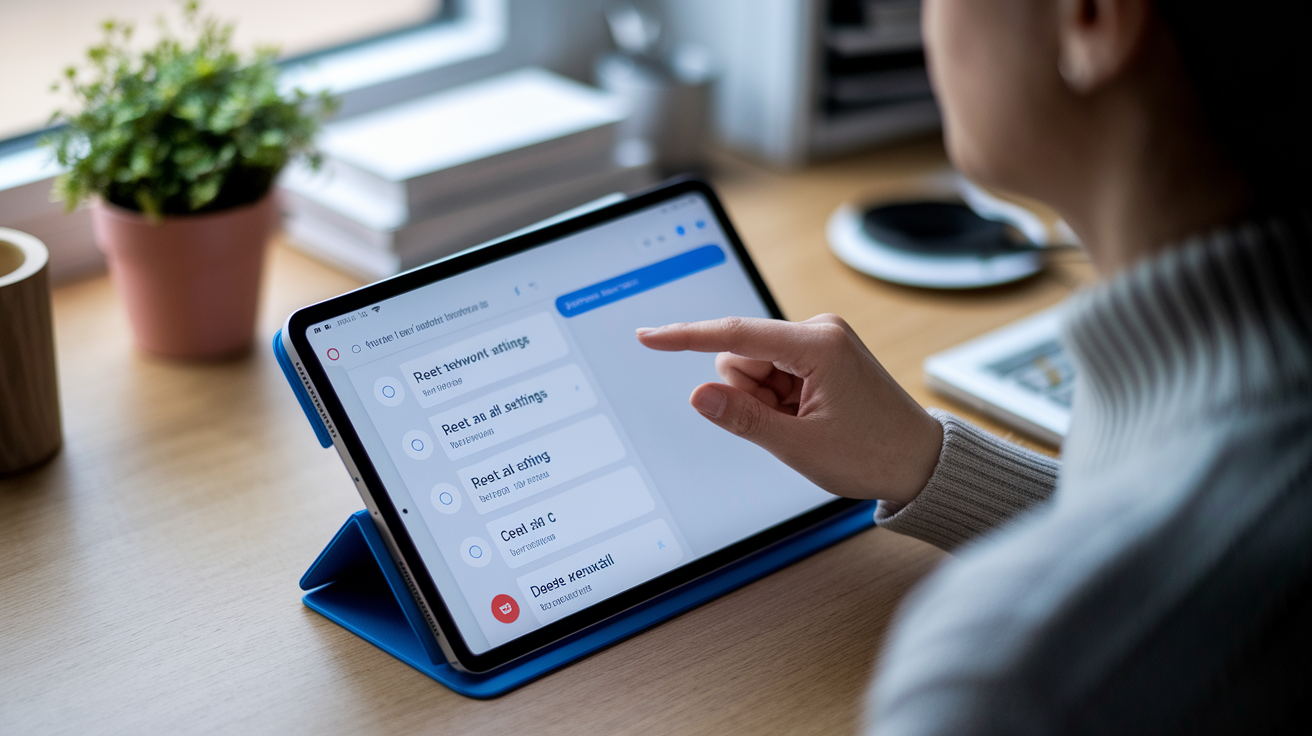
When simple fixes don’t work and the app’s still frozen, resetting network settings or all settings can flush out hidden config conflicts that survive reboots and sign-out cycles. Network resets are especially good if the problem started after switching Wi‑Fi, updating iOS, or installing a VPN profile. Those actions can leave orphaned rules that gum up App Store communication. Resetting all settings goes deeper, clearing system preferences without touching apps or personal data. This can fix buried account sync issues or corrupted preference files.
Try these three in order:
-
Reset Network Settings – Settings > General > Transfer or Reset iPhone > Reset > Reset Network Settings. This wipes saved Wi‑Fi passwords and VPN configs, so have your password ready. Reconnect to Wi‑Fi and retry.
-
Reset All Settings – Settings > General > Transfer or Reset iPhone > Reset > Reset All Settings. Clears display brightness, privacy settings, keyboard dictionary, but keeps apps, photos, and files. Sign back into your Apple ID after and test.
-
Delete and reinstall the app – press and hold the icon, tap Remove App, then Delete App. Open the App Store, search for it, tap the cloud icon or Get to reinstall under your current ID. Kills any ownership conflict but might delete local data unless the app uses iCloud.
Still broken? Contact Apple Support with your device model and iOS version (Settings > General > About), exact app name, and a screenshot of the error or prompt. They can check for account holds, billing issues, or server-side problems you can’t see. Reach them through the Apple Support app, support.apple.com, or phone.
Final Words
In the action, this post ran through quick fixes — force close the App Store, restart your device, sign out and back into your Apple ID, refresh Purchased, check date and time, and try the update again to fix apps that appear purchased but won’t update.
We also explained common causes: Apple ID mismatches, network or storage problems, iOS version requirements, billing hiccups, and when to reset settings or contact Apple Support.
If your app store says purchased but won’t update, follow these steps and contact support if it still won’t work.
FAQ
Q: Why isn’t my app updating in the App Store?
A: The app isn’t updating in the App Store because of issues like insufficient storage, poor network, Apple ID mismatch, outdated iOS, or App Store cache errors; try restarting, checking storage, and signing out/in of your Apple ID.
Q: Why can’t I update iOS 26?
A: You can’t update to iOS 26 because your device may be unsupported, lacks free storage, or needs a stable Wi‑Fi and power source; check compatibility, free space, and update via Settings > General > Software Update.
Q: Why does it say purchased on the App Store?
A: It says “Purchased” on the App Store because the app is tied to the Apple ID used to download it; that label shows ownership, not install status, and can prevent updates if you’re using a different Apple ID.
Q: How do I force an update on the App Store?
A: You force an update on the App Store by opening the App Store, tapping your profile, pulling down to refresh, then tapping Update by the app; if it stalls, force‑close the App Store and try again.

