
You’re staring at an app that won’t update, and the “Pending” status just sits there, mocking you. This isn’t a minor annoyance, it’s a productivity blocker that stops you from accessing new features, security patches, and bug fixes you actually need. The good news: pending updates usually stem from a few fixable issues like download queue congestion, connection problems, or corrupted cache files. Clear the backlog, check your storage, and reset a few settings, and you’ll have that update running in under five minutes.
Immediate Fixes for Pending App Updates
The fastest way to fix a pending app update is to cancel other downloads fighting for bandwidth. On Android, tap your profile picture in Google Play Store, then select Manage apps & device. Switch to the Manage tab and press the X next to each app that shows a pending or downloading status. On iOS, open the App Store, tap your profile icon at the top, then swipe left on any pending update and tap Pause or Cancel. This clears the queue and lets your stuck update try again.
Multiple apps trying to download at once is the main reason updates get stuck. Google Play Store and App Store both create download queues where apps wait their turn, but when too many updates pile up, the system gets congested and everything stalls. Canceling the backlog gives your priority app room to move.
Beyond queue management, these five steps resolve most pending updates:
- Restart your device completely by pressing the side button and volume up button together, then select Restart
- Pause the stuck update for 10 seconds, then resume it manually
- Switch from Wi-Fi to mobile data, or vice versa, to test if your connection’s the problem
- Force stop the app store through Settings > Apps > Google Play Store (or App Store) > Force Stop
- Check your full update queue by tapping Profile picture > Manage apps & device > Manage > Updates Available
Android and iOS handle pending downloads differently. Android lets multiple apps download simultaneously depending on your settings, while iOS typically processes updates one at a time unless you manually start several. Android users can change this under Network preferences > App download preference to control how many downloads run at once.
Checking all pending apps prevents future bottlenecks. On Android, navigate to your profile icon, select Manage apps & devices, then check the Manage tab for a full list. Apps showing “Open” are current, while “Update” means a newer version exists. Review this list weekly and cancel updates for apps you rarely use so critical updates don’t wait behind them.
Connection and Device Settings That Block Updates
Unstable internet connections are a leading cause of pending updates that never complete. If your Wi-Fi drops packets or your router needs a refresh, downloads stall mid-process. Restart your router by unplugging it for one full minute before reconnecting power. While waiting, open Google Play Store and navigate to Profile picture > Settings > Network preferences > App download preference, then change it from “Over Wi-Fi only” to “Over any network” if you’re willing to use mobile data for updates.
Mobile data plans with throttling or deprioritization can trigger pending errors when carriers slow your connection after hitting usage caps. Switch to Wi-Fi for large downloads when possible. VPN services occasionally block store connections, especially if they include ad blocking or script blocking features. Disable your VPN temporarily and test the download again. Firewall settings and antivirus software can also interfere by flagging app store traffic as suspicious, so pause these tools briefly to see if downloads resume.
Beyond network issues, several device settings silently restrict background downloads:
- Enable automatic date and time synchronization through Settings > Date & time > Set time automatically, then toggle it off and back on to force a sync with Google’s servers
- Disable power saving or battery optimization modes that prevent background activity
- Turn off data saver temporarily under Settings > Network & internet > Data Saver
- Remove background restriction for store apps via Settings > Apps > Google Play Store > Mobile data & Wi-Fi > Background data
- Check app permission settings to confirm the store has storage and network access
- Disable VPN temporarily to test if it’s blocking connections
- Disable antivirus software temporarily to rule out false positive blocking
- Change network preference to “Over any network” in Play Store settings
Third party battery optimizers and task killing apps often interfere with app store processes. If you use apps like Greenify or similar system cleaners, add your app store to the whitelist. Time and date mismatches between your device and Google’s servers can prevent downloads entirely. Toggling automatic date and time off briefly, then back on, forces a fresh sync that resolves authentication issues.
Storage Space Issues Blocking App Updates
Even when your device shows a pending status instead of a storage error, insufficient space is often the hidden culprit. Large apps like Genshin Impact need several gigabytes, and the update file itself requires extra room to download before installation. Check your available storage through Settings > Storage on Android or Settings > General > iPhone Storage on iOS. Updates need at least the app’s full size plus an extra 500MB to 1GB for temporary files during installation.
Free up storage quickly with these methods:
- Check Settings > Storage for real time available space readings
- Delete unused apps by long pressing icons and selecting Uninstall
- Clear cached data from individual apps through Settings > Apps > [App name] > Storage > Clear cache
- Clear temporary files and old downloads from your Downloads folder
- Move photos and videos to cloud storage like Google Photos or iCloud
- Review and uninstall apps you haven’t opened in 30+ days
Maintain at least 2GB of free storage space at all times. When storage runs tight, clear app cache daily to remove temporary files without losing your data or login credentials. Apps accumulate cache from normal use, and clearing it regularly prevents storage creep that eventually blocks updates.
Clearing Cache and Data to Resolve Pending Status

Cache files get corrupted when the store checks hundreds of apps for updates over weeks of use, creating broken data traces that prevent new downloads from processing correctly.
Android: Clear Google Play Store Cache
- Open Settings and navigate to Apps
- Select See all apps, then scroll to Google Play Store
- Tap Storage & cache
- Press Clear cache, then test your download again
- If the problem persists, return to this screen and tap Clear storage > Clear all data
iOS: Reset App Store Cache
- Open the App Store and tap your profile icon
- Scroll down and pull the screen down to refresh
- Force close the App Store by swiping up from the bottom and swiping the app away
- Restart your device and open the App Store again
Clearing cache removes temporary files without affecting your settings or login credentials. It’s a safe first step that fixes most corruption issues. Clearing data goes further by deleting your app store settings, download history, and saved preferences, but it also removes login credentials and personalized configurations. Only clear data after cache clearing fails. You’ll need to sign back into your Google or Apple account afterward, but corrupted files that were blocking updates will be gone. Cache becomes overloaded from checking many apps for updates, so clearing it monthly prevents future problems.
Account and Authentication Problems With Pending Updates

Sometimes your account loses sync with store servers or payment verification fails in the background, leaving updates stuck without an error message.
Removing and re-adding your Google account often resets authentication without deleting your actual account. Navigate to Google Play Store, tap your profile picture, then select Manage accounts on this device. Tap your account, select Remove account, then restart your device. This only removes the account from your phone, not from Google’s servers. If you’re removing your primary Google account, the next account on your device automatically becomes primary, so remove all accounts first if you have multiple. After restart, go to Settings > Passwords, passkeys & accounts > Add Account > Google and sign back in.
On iOS, payment verification holds frequently cause pending updates when Apple needs to confirm your payment method or billing address. Open Settings > [Your Name] > Payment & Shipping to verify your information is current. Sign out of your Apple ID through Settings > [Your Name] > Sign Out, restart your device, then sign back in. Two factor authentication delays can also stall downloads if you recently changed security settings, so check for pending verification messages in your email or messages.
| Platform | Account Action | Steps Required |
|---|---|---|
| Android | Remove account | Play Store profile > Manage accounts > Select account > Remove > Restart device |
| Android | Re-add account | Settings > Passwords & accounts > Add Account > Google > Sign in |
| iOS | Sign out | Settings > [Your Name] > Sign Out > Confirm > Restart device |
| iOS | Sign in | Settings > Sign in to iPhone > Enter Apple ID > Complete verification |
Google Play Services and App Store System Updates
App updates depend on current system components. If Google Play Services or your iOS version is outdated, new app versions won’t install because they’re built for newer platforms. Compatibility between your operating system version and app requirements creates a chain where one outdated link blocks everything.
Update Google Play Store by tapping your profile picture, then Settings, then scrolling to the About section. Tap Update Play Store and wait for confirmation. If the store itself is stuck, uninstall Play Store updates through Settings > Apps > Google Play Store > three dot menu > Uninstall updates. This rolls back to the original version that came with your device, which sounds counterintuitive but removes a buggy update that might be causing the block. Reinstall the latest version by opening the store again and letting it auto update.
On iOS, system updates are more tightly integrated with app delivery. Check for iOS updates through Settings > General > Software Update. If an update’s available, install it before attempting app updates again. Older iOS versions lose compatibility with new app releases after about two years, which means pending updates might indicate your device can’t run the newer version.
When standard fixes fail, download apps from the Google Play Store website using a browser on your computer. Log into the same Google Account, search for the app, and click Install. Choose your device from the dropdown menu and the app will sync to your phone when it’s online. This bypasses the app entirely and often works when the mobile store is malfunctioning. Turn on app sync by accessing your profile icon in the Play Store, then Manage apps and device, then Sync apps to devices.
SD Card and Bloatware Storage Conflicts
Malfunctioning SD cards cause pending downloads even when they show available space. The card’s read/write errors prevent the store from writing temporary files during installation, but the error doesn’t surface clearly.
Test your SD card by removing it completely and attempting the download again with the app set to install on internal storage. Navigate to Settings > Storage > Preferred install location and change it from SD card to Internal storage. If the download completes without the card, your SD card is failing. Replace it or reformat it through Settings > Storage > SD card > Format, but back up the contents first because formatting erases everything.
Bloatware apps that manufacturers include with new phones consume storage in ways that aren’t immediately visible. These pre-installed apps can’t always be uninstalled, but many can be disabled through Settings > Apps > [App name] > Disable. Disabling stops them from running and frees the storage space they were using for updates and cached data. Carrier added apps and manufacturer customization tools are common bloatware sources that negatively affect phone storage and performance.
Advanced Troubleshooting for Stubborn Pending Updates
When basic fixes don’t resolve the pending status after multiple attempts, these solutions reset deeper system components.
Uninstall and Reinstall the Problematic App
- Long press the app icon and select Uninstall
- Confirm deletion and restart your device
- Open the app store and search for the app
- Install a fresh copy from the store
Single app update failures with sufficient storage usually indicate data corruption in the installed version. A complete removal and fresh installation clears corrupted files that were preventing the update from applying. This works when other apps update normally but one specific app stays stuck.
Boot Device in Safe Mode
- On Android, press and hold the power button until the power menu appears
- Long press the Power off option until “Reboot to safe mode” appears
- Tap OK and wait for the device to restart
- Try the update again while in safe mode, which disables third party apps
Safe mode helps identify whether a third party app is interfering with store operations. If updates complete in safe mode but fail in normal mode, recently installed apps are causing conflicts.
Factory Reset as Last Resort
- Back up all photos, videos, contacts, and important files to cloud storage or a computer
- Navigate to Settings > System > Reset options on Android or Settings > General > Transfer or Reset iPhone on iOS
- Select Erase all data and confirm
- Wait for the device to wipe and restart
Factory reset deletes all photos, videos, files, apps, and settings, returning your device to out of box condition. Only use this after exhausting all other options and backing up everything important. It resolves system level corruption that no other fix can reach, but the data loss makes it genuinely a last resort.
If the problem persists even after a factory reset, hardware issues like a failing storage chip or corrupted system partition are likely. At that point, contact your device manufacturer for warranty service or visit a local repair shop. Software troubleshooting can’t fix physical component failures.
Platform-Specific Error Messages and Solutions
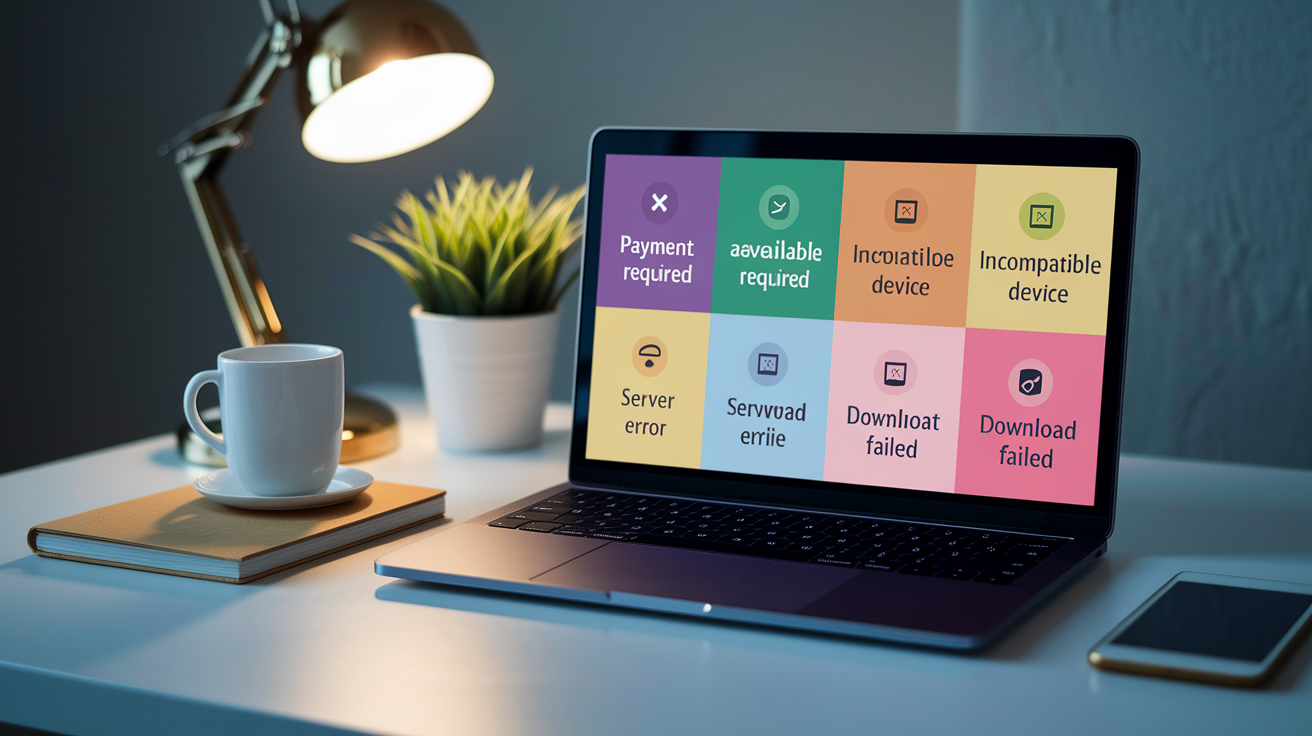
Pending status sometimes appears alongside specific error codes that point to different underlying problems. Each error indicates a distinct issue rather than a generic download failure.
| Error Type | Cause | Solution |
|---|---|---|
| Payment verification required | Expired payment method or incomplete billing info | Update payment details in account settings |
| App not available in your region | Geographic restrictions by developer or platform | Use VPN to access different region or wait for regional release |
| Incompatible device | App requires newer OS or hardware features your device lacks | Update OS if possible, or device cannot run this app |
| Server error / Try again later | App store servers under maintenance or overloaded | Wait 30 minutes and retry, check status.cloud.google.com |
| Download failed / Error retrieving information | Corrupted store cache or connection interruption | Clear Play Store cache and data, then retry |
Regional restrictions block downloads when developers limit app availability to specific countries, usually due to licensing or legal requirements. This appears as pending without explanation because the store won’t say why. VPN services can sometimes work around this by making your device appear to be in a different region, but violating terms of service carries account suspension risk.
Server side issues during platform maintenance or traffic spikes leave updates pending until infrastructure recovers. Google and Apple rarely announce maintenance windows publicly, so these errors resolve themselves after 30 minutes to a few hours. Check Google Play status or Apple’s system status page to confirm whether widespread outages are happening. If thousands of users report problems simultaneously on community forums, wait rather than troubleshoot your device.
When pending updates persist after trying every solution and no error message appears, hardware problems like failing storage chips or corrupted system partitions may be responsible. Contact the app developer through the Developer contact option on the app’s Play Store page using the same email address as your Play Store account. Developers can sometimes identify app specific installation bugs. If the problem affects all apps, hardware issues requiring local repair service are more likely the cause.
Alternative Download Methods for Pending Updates
When the app store refuses to complete an update despite exhausting standard troubleshooting, workaround methods can get the app installed through different channels.
Browser based installation through the Google Play Store website bypasses the mobile app entirely. Open any web browser on your computer or phone, navigate to play.google.com, and log in with the same Google Account linked to your device. Search for the stuck app, click Install, then select your device from the dropdown menu. The app syncs to your phone automatically when connected to the internet. This works because the web interface uses different backend services than the mobile app, so glitches in one don’t affect the other.
APK files offer another route when official channels fail, but significant security risks apply. Only download APKs from trusted sources like APKMirror, which verifies file integrity before hosting. Random websites hosting APK files frequently bundle malware or modified versions that steal data. After downloading an APK, install it by opening your file manager, tapping the APK file, and confirming installation. You’ll need to enable “Install unknown apps” for your file manager through Settings > Apps > Special access > Install unknown apps first.
Enable app sync across multiple devices through your Google Play Store profile icon, then tap Manage apps and device, then select Sync apps to devices. If you have another Android device already running the app successfully, it can push the installation to your stuck device through Google’s cloud sync. This works for apps you’ve already installed before, not for first time installations. For iOS, Family Sharing allows app installations to trigger across devices signed into the same Apple ID, though this requires that another family member already have the app.
Beta program participation sometimes causes pending issues when beta updates conflict with stable release channels. Opt out by visiting the app’s Play Store page, scrolling to the bottom, and tapping “Leave” under the beta program section. After leaving, uninstall the beta version and install the stable release fresh.
Preventing Future Pending Update Problems
Regular maintenance prevents pending updates better than reactive troubleshooting after problems develop. Proactive storage and queue management keeps downloads flowing smoothly.
- Schedule cache clearing weekly through Settings > Storage > Cached data > Clear to prevent corruption buildup
- Maintain at least 2GB free storage space by monitoring Settings > Storage and removing unused files
- Update apps during off peak hours (late evening or early morning) when fewer users congest store servers
- Review installed apps monthly and uninstall anything unused for 30+ days to prevent queue congestion
- Keep your operating system and store apps updated to current versions for compatibility
- Monitor storage before installing large apps to confirm sufficient space for the installation plus working room
Daily cache clearing becomes necessary when storage runs consistently tight. Navigate to Settings > Apps, select individual apps consuming significant cache, and tap Storage > Clear cache without affecting your data or login credentials. This declutters temporary files that accumulate from normal use and prevents the buildup that eventually blocks updates.
Check all apps needing updates by tapping your profile icon in Google Play Store, selecting Manage apps & devices, then reviewing the Manage tab for pending items. The Play Store automatically downloads newest versions by default, creating a queue where apps wait their turn. Manually prioritizing important updates by starting them first prevents less critical apps from consuming bandwidth when you need something specific.
Configure automatic updates strategically rather than enabling everything. Under Play Store Settings > Network preferences > Auto update apps, choose “Over Wi-Fi only” to prevent mobile data consumption and reduce failed downloads from cellular network throttling. Schedule updates during connected hours when you’re on stable Wi-Fi rather than letting them attempt during commutes or travel when connections drop frequently.
When to Contact Support for Pending Updates
DIY troubleshooting has limits, and certain signs indicate professional help is necessary. If you’ve cleared cache and data, restarted multiple times, checked storage space, removed and re-added your account, and tested both Wi-Fi and mobile data without progress, escalate the issue.
Contact app developers when a single app consistently fails to update while others work normally. Navigate to the app’s Play Store page, scroll to the bottom, and tap Developer contact. Use the same email address linked to your Play Store account for faster verification. Developers can identify app specific installation bugs or server side issues affecting downloads. They may release a patched version or provide beta access to a fixed build.
Google Play support and Apple Support handle platform-wide problems or account issues beyond individual app failures. Google’s support handles payment verification, account suspension, or store malfunctions through support.google.com/googleplay. Apple’s support addresses Apple ID problems, payment holds, or iOS compatibility issues through getsupport.apple.com. Provide your device model, OS version, error messages, and troubleshooting steps already attempted to speed diagnosis.
Hardware defects requiring local repair service become likely when pending updates persist after factory reset. Failing storage chips cause write errors that prevent app installation, but appear as pending status rather than hardware failure messages. Corrupted system partitions from interrupted OS updates create similar symptoms. Manufacturer warranty service or authorized repair centers can run diagnostic tools that detect hardware failures invisible to users. If your device’s under warranty, contact the manufacturer before paying for repairs.
Community forums like Reddit’s r/AndroidQuestions or Apple’s Support Communities help with uncommon issues that don’t match standard troubleshooting guides. Other users may have found workarounds for device specific bugs or carrier related restrictions that official support doesn’t document. Search existing threads before posting to avoid redundant questions.
Final Words
Most app update stuck on pending issues trace back to download queue congestion or network hiccups you can fix in under five minutes.
Cancel competing downloads first, then work through connection settings and storage checks before escalating to cache clearing or account resets.
Keep at least 2GB free on your device and check the update queue regularly to avoid future pending status problems.
If standard fixes don’t work after a full device restart, contact the developer directly through the store listing or consider alternative download methods from trusted sources.
FAQ
Why does the app I’m downloading say pending?
An app shows a pending status when multiple apps are downloading or updating simultaneously, creating a queue where apps wait their turn. To fix this, go to your profile picture, select “Manage apps & device,” tap “Manage,” and press the X next to other pending app names to cancel them.
What to do when an app gets stuck updating?
When an app gets stuck updating, first cancel other pending downloads in the queue, then restart your device completely. If that doesn’t work, pause and resume the stuck update, switch between Wi-Fi and mobile data, or force stop the app store application to clear the process.
Why is my update stuck on waiting?
An update stuck on waiting typically happens because the app store is processing multiple downloads at once, congesting the queue. Navigate to “Manage apps & device” through your profile icon to check all apps in the update queue and cancel unnecessary pending downloads to let your priority update proceed.
Why won’t my iPhone apps download stuck on waiting?
iPhone apps stuck on waiting often result from network connection issues, insufficient storage space, or payment verification problems with your Apple ID. Check your Wi-Fi connection stability, verify at least 2GB of free storage exists, and confirm your Apple ID payment information is current and verified.
How do I check available storage space on my device?
You can check available storage space by navigating to Settings, then Storage on both Android and iOS devices. For app updates to process smoothly, maintain at least 2GB of free storage space and regularly clear cached data from unused apps.
What is the difference between clearing cache and clearing data?
Clearing cache removes temporary files without affecting user data or settings, making it safe for daily maintenance. Clearing data deletes login credentials, personalized settings, and all stored information within the app, which fixes corrupted files but requires signing in again afterward.
How do I clear Google Play Store cache on Android?
To clear Google Play Store cache on Android, open Settings, select Apps, tap “See all apps,” choose Google Play Store, select “Storage & cache,” and tap “Clear cache.” This removes temporary files that may prevent updates from processing without deleting your account settings or app preferences.
Can SD card problems cause pending app updates?
A malfunctioning SD card can cause download problems and pending app updates on Android devices. Test this by removing the SD card temporarily and downloading the app to internal storage instead to determine if the SD card is causing the issue.
When should I factory reset my device for pending updates?
Factory reset should be your last resort after trying all other solutions, as it deletes all photos, videos, and files from your device. Before resetting, back up all important data, then navigate to Settings, System, Reset options, and “Erase all data” to complete the process.
How do I update apps using a web browser instead of the app store?
You can download apps from the Google Play Store website by logging into the same Google Account on any browser and selecting “Install” on your desired device. This workaround syncs the download to your phone when standard app store updates remain stuck despite troubleshooting efforts.
How do I contact a developer about a pending app update?
Contact the app developer through the “Developer contact” option on the app’s Play Store page using the same email address associated with your Play Store account. Developers can provide specific guidance for individual app issues that persist after trying standard troubleshooting steps.
What preventive steps stop future pending update problems?
Prevent future pending updates by scheduling regular cache clearing weekly, maintaining at least 2GB free storage space, and updating apps during off-peak hours. Review and uninstall unused apps monthly while keeping your operating system and store apps updated to avoid compatibility issues.

