

Annoyed that an app update sits on “Waiting for Download” forever?
You’re not alone. Most stalls clear in minutes with simple fixes like pause-and-resume, toggling Airplane Mode, freeing storage, or clearing the app store cache.
This post gives quick, ordered troubleshooting for both iOS and Android, plus network checks and when to force-restart, offload, or reinstall.
Follow these steps in order and you’ll usually get the update moving within minutes; if not, we’ll show when to try advanced fixes or a computer-based install.
Immediate Fixes for an App Update Stuck on “Waiting for Download”
When an app update gets stuck on “Waiting for Download,” try the fastest fixes first. Most stalled updates clear within a minute or two once you hit the right button.
- Pause and resume the update by tapping the app icon on your home screen (iOS) or opening the app store and tapping the paused download (Android).
- Toggle Airplane Mode on for 10 seconds, then turn it off. Forces a fresh network handshake.
- Disable any active VPN or proxy in your device settings. These often block app store connections.
- Check the app store queue to see if multiple updates are fighting for bandwidth. Pause the others, let one finish first.
- Close background apps by swiping up in the app switcher (iOS) or using Recent Apps (Android). Frees up device resources.
- Force quit and relaunch the app store to clear a stalled download session.
- Restart your device by powering off, waiting 10 to 30 seconds, and powering back on.
“Waiting for Download” means the app store registered your update request but hasn’t started transferring the update file yet. Usually because the device is waiting for a stable network, free storage, or the end of some conflicting background task. The fixes above clear those blockers fast.
Network and Connectivity Issues Causing Update Downloads to Stall
Unstable Wi‑Fi, metered cellular networks, carrier restrictions, and VPNs are the top reasons app updates never leave the “Waiting” state. If your connection drops packets, enforces download limits, or routes traffic through encrypted tunnels that app stores can’t verify, the store server will queue your update but never start the transfer. Even brief signal interruptions can reset the download handshake and send the update back to “Waiting.”
- Verify connection quality by opening a web browser and loading a full article or streaming 30 seconds of video. If either stutters or times out, your network isn’t stable enough for a clean download.
- Switch from Wi‑Fi to mobile data (or vice versa) to rule out a single network as the culprit. Many app stores default to Wi‑Fi only updates, so check store settings if you need to enable cellular downloads.
- Toggle Airplane Mode on for 10 seconds, then off. Forces the device to drop and re-acquire all network connections.
- Disable VPN and proxy settings under your device network preferences. Most app stores refuse to start downloads over encrypted or anonymized connections.
- Test on a different Wi‑Fi network like a coffee shop, office, or mobile hotspot. Confirms whether your home router is blocking app store traffic. Some routers apply parental controls or QoS rules that throttle large downloads.
If clearing these steps still leaves the update waiting, and other devices on the same network can download normally, consider resetting your device’s network settings. This will erase saved Wi‑Fi passwords. Persistent “Waiting” across multiple networks usually points to an account, storage, or server issue rather than connectivity.
Storage Problems That Trigger “Waiting for Download” on App Updates
App stores refuse to start a download when your device has less free space than the update size plus a safety buffer. Typically an extra 200 to 500 MB. The “Waiting” state is the store’s way of pausing until you clear room, but it never tells you explicitly that storage is the blocker.
- Check available space under Settings → General → iPhone Storage (iOS) or Settings → Storage (Android). Aim for at least 1 to 2 GB free before attempting any update larger than 100 MB.
- Delete large files or unused apps. Videos, podcast episodes, and photo libraries are the fastest wins.
- Offload unused apps on iOS (Settings → General → iPhone Storage → tap app → Offload App) to remove the app binary while keeping your documents and data intact.
- Clear app caches on Android by navigating to Settings → Apps → select app → Storage → Clear Cache. Some apps (like browsers and social feeds) accumulate gigabytes of temporary files.
For updates that hover around 500 MB to 1 GB, freeing 1 to 2 GB of storage is the safest target. This covers the download file, temporary extraction space, and the final installed size. If your device shows plenty of free space but the update still won’t start, the app store may be holding a corrupted partial download. Proceed to the platform specific fixes below.
iOS Fixes for an App Update Waiting for Download
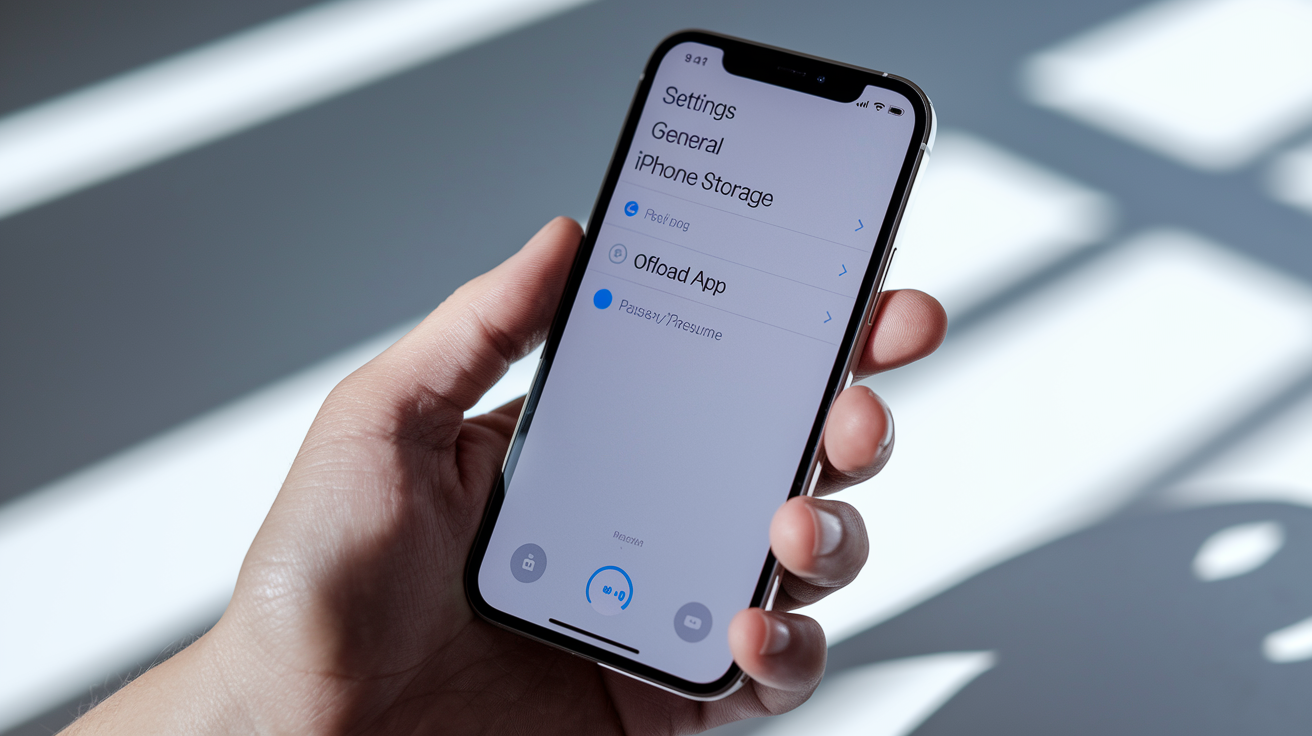
iOS app updates can stall because of App Store cache issues, incomplete downloads, account sync problems, or network configuration conflicts. Work through these fixes in order. They move from quickest (seconds) to most disruptive (minutes).
Pause/Resume, Offload, or Reinstall the App
Tap the stuck app icon once on your home screen to pause the download, then tap again to resume. This often clears a stalled queue. If that doesn’t work, navigate to Settings → General → iPhone Storage, tap the app showing “Waiting,” and choose Offload App. This removes the app binary but keeps your data, then reinstall from the App Store to trigger a fresh download. When offloading fails or the app remains stuck, press and hold the app icon until the quick actions menu appears, select Remove App → Delete App, wait 30 seconds, then reinstall from the App Store. Deleting clears any corrupted partial downloads stuck in the cache.
Account, App Store, and Network Resets
Sign out of your Apple ID by opening Settings → [your name] → Media & Purchases → Sign Out, restart your device, then sign back in. This refreshes your App Store authorization tokens and often unsticks queued downloads. If multiple apps are waiting, open the App Store → tap your profile icon → scroll to see pending updates, then pull down to refresh the list. For persistent network related stalls, go to Settings → General → Transfer or Reset iPhone → Reset → Reset Network Settings (this erases saved Wi‑Fi passwords, so have them ready). After the reset, reconnect to Wi‑Fi and retry the update.
Force Restart and iTunes/Finder Update Methods
When software fixes fail, force restart your iPhone using the model specific sequence: on iPhone 8, X, Xs, or newer, quickly press and release Volume Up, quickly press and release Volume Down, then press and hold the Side button until the Apple logo appears. On iPhone 7 or 7 Plus, press and hold Volume Down + Side until the logo shows. On iPhone 6s or earlier, press and hold Side + Home until the logo appears. As a final fallback, connect your iPhone to a Mac (macOS Catalina or later) or Windows PC with iTunes, open Finder (Mac) or iTunes (Windows), select your device, click the app under the Apps section if available, and choose Update or Install to push the update from your computer.
| Action | Menu Path | Use Case |
|---|---|---|
| Offload App | Settings → General → iPhone Storage → App → Offload | Clears app binary, keeps data; forces fresh download |
| Sign Out of Apple ID | Settings → [Name] → Media & Purchases → Sign Out | Refreshes App Store tokens; fixes account sync stalls |
| Reset Network Settings | Settings → General → Transfer or Reset → Reset → Network | Clears Wi‑Fi, VPN, DNS cache; use after connectivity fixes fail |
Android Fixes for App Updates Stuck on Waiting

Google Play uses a download queue and cache system that can jam when the Play Store app itself loses sync with Google servers, accumulates stale session data, or gets blocked by background system services. These fixes address queue conflicts, cache corruption, and account authentication failures.
Core Google Play Fix Steps
- Clear Google Play Store cache and data by opening Settings → Apps → Google Play Store → Storage → Clear Cache, then Clear Storage (or Clear Data). This resets the store to factory state without losing your app library.
- Check the download queue by opening Google Play → Profile icon → Manage apps & device → Updates available. If multiple apps are queued, pause all except the one you need and let it download alone.
- Clear Download Manager cache under Settings → Apps → Show system apps → Download Manager → Storage → Clear Cache and Clear Data, then ensure Download Manager is enabled. Some OEMs let users disable it by mistake.
- Remove and re-add your Google account via Settings → Accounts → Google → Remove account, restart the device, then add the account back. This forces a fresh sync of app licenses and payment tokens.
- Force stop Google Play Store in Settings → Apps → Google Play Store → Force Stop, wait 10 seconds, then relaunch the store and retry the update.
- Update Google Play Services by searching for “Google Play Services” in the Play Store and tapping Update if available. Outdated Play Services often block downloads even when the store app itself is current.
If none of these steps clear the waiting state and you’ve confirmed the app is compatible with your device, download the APK from a trusted source (APKMirror or the developer’s official site) only as a last resort. Sideloaded APKs won’t auto-update through the Play Store. Alternatively, visit play.google.com/store in a desktop browser, sign in, search for the app, and click Install to push the update remotely to your device. This sometimes bypasses queue and cache issues on the device itself.
Advanced Solutions When an App Update Remains Stuck on Waiting

When basic fixes fail, the stall often points to queue prioritization conflicts, disabled background processes, or lingering network configuration errors. If you have five or more app updates pending simultaneously, the store may delay smaller updates while it attempts to download a large one first. Open your app store’s update queue, pause every download except the app you need, and give it exclusive bandwidth for 60 to 90 seconds. On iOS, check that Background App Refresh is enabled under Settings → General → Background App Refresh, because disabling it can prevent the App Store from finalizing downloads when the store app is closed. On Android, confirm that the Play Store has Background data allowed under Settings → Apps → Google Play Store → Mobile data & Wi‑Fi.
Account and network resets are the deepest non‑destructive fixes left before a factory reset. Signing out of your Apple ID or Google account (covered in earlier sections) clears cached licenses and payment authorizations, but if that didn’t work, reset network settings on both platforms. iOS: Settings → General → Transfer or Reset iPhone → Reset → Reset Network Settings; Android: Settings → System → Reset options → Reset Wi‑Fi, mobile & Bluetooth. Both actions erase saved Wi‑Fi passwords and VPN profiles, forcing your device to rebuild all network connections from scratch and eliminating hidden DNS, proxy, or firewall rules that might be silently blocking app store traffic.
When to Escalate “Waiting for Download” Issues to Support

If you’ve cleared storage, reset network settings, signed out and back in, and tried both Wi‑Fi and mobile data without success, the problem likely sits on the app store server side, involves a payment hold, or stems from regional restrictions or device compatibility blocks. Widespread “Waiting” reports on social media or down detector sites usually mean the App Store or Google Play is experiencing an outage. In those cases, the only fix is to wait 30 minutes to a few hours for the service to recover.
Before contacting Apple Support or Google Play Help, gather this information to speed diagnosis:
- Device model and exact OS version (Settings → General → About on iOS; Settings → About phone on Android).
- Screenshots of the stuck update on your home screen, the app store update page, and any error messages.
- Timestamps of when the update first showed “Waiting” and when you attempted each fix.
- List of troubleshooting steps you’ve already completed (network reset, account sign out, cache clear, storage freed).
App developers can sometimes push a manual license refresh or flag compatibility issues on their end, so if the stuck app is a paid or subscription service, reach out to the developer’s support team with the same details. For free apps published by large companies, start with platform support (Apple or Google) since they control the download infrastructure.
Final Words
Start with the quick fixes: pause and resume the download, toggle Airplane Mode, disable VPN, check the app store queue, close background apps, restart the App Store or Play Store, or reboot your device.
If that doesn’t clear it, move on to network checks, free up storage, and use the iOS or Android-specific steps. Advanced resets help persistent stalls.
If an app update waiting for download still blocks you, gather screenshots and device details, then contact support. Most stalls clear after a restart or freeing a little space, so you’ll likely be back up soon.
FAQ
Q: Why does my app say “waiting for download” and how do I fix it?
A: The app shows “waiting for download” when an update is queued, paused, or blocked. Fix it by pausing/resuming, toggling Airplane Mode, disabling VPN, checking the store queue, restarting, or reinstalling the app.
Q: Why is iOS 26 taking forever to download or stuck on preparing an update?
A: iOS 26 takes long or gets stuck preparing when storage, network, or App Store state blocks the update. Try pausing/resuming, freeing storage, restarting the device, resetting network settings, signing out of Apple ID, or updating via Finder.

