
Could someone be reading your messages and tapping your camera right now?
If your phone feels warmer than usual, the battery dies fast, or strange apps and messages appear, those are not just annoyances.
This guide shows the clearest warning signs, simple checks to confirm a compromise, and practical steps to stop an active hack and recover safely so you can act fast and protect your accounts and data.
Immediate Warning Signs Your Phone May Be Hacked
The fastest way to spot trouble is when your phone does things you can’t explain. Device running hot while it’s just sitting there? Battery tanking way faster than usual? Data disappearing overnight when you’re asleep? Those aren’t quirks. Something’s running without your permission.
Watch for battery drops over 10 percent per hour when you’re not using the phone, or an extra 20 to 30 percent gone by the end of the day compared to what’s normal for you. Check for unexpected data spikes above 500 megabytes daily, especially from apps that don’t usually talk to the internet, or weird traffic between midnight and 6 a.m. when everything should be quiet. Two or more apps you didn’t install showing up within a month? Contacts saying they’re getting spam messages from you? Treat those as red flags.
The worst scenario is when multiple symptoms pile up at once. Battery and data both acting strange, plus unknown apps, plus random account prompts. One isolated thing might be harmless. A cluster isn’t.
- Unusual battery drain or overheating — device gets hot or loses charge fast even when locked.
- Large data usage spikes — sudden jumps in mobile or Wi‑Fi data, particularly when you’re not even touching the phone.
- Unknown apps or icons — apps you didn’t install, or generic ones with names like “System Service” or random characters.
- Outgoing spam from your accounts — friends or coworkers receive strange links or messages you never sent.
- Persistent pop-ups and redirects — intrusive ads or fake security warnings, even outside your browser.
- Unexpected Apple ID or account prompts — repeated sign-in requests, password-reset emails you didn’t trigger, account lockouts.
- Installed configuration profiles — enterprise or VPN profiles you didn’t authorize, which can reroute traffic and install root certificates.
- Strange sounds during calls — clicking, static, faint voices, echoes, delays that happen across multiple calls.
- Camera or microphone activating randomly — indicator lights or notification dots appear when no app should be recording.
- Trouble shutting down — device takes forever to power off, or restarts on its own.
Diagnostic Steps to Confirm If Your Phone Is Hacked

Diagnostics turn vague suspicions into actual proof. You’re checking specific logs, settings, and resource metrics to see whether background activity is legit or malicious.
Start with battery and data. On iPhone, open Settings → Battery and review “Battery Usage by App” for the last 24 hours and 10 days. Flag any app consuming serious energy without recorded screen time, or unfamiliar processes using over 10 to 20 percent. On Android, go to Settings → Battery → Battery usage to see per-app consumption. For data, go to Settings → Mobile Service (iPhone) or Settings → Network & internet → Mobile network → App data usage (Android), tap “Show All,” and look for apps that suddenly jumped the rankings or show heavy uploads at odd hours. Apps that normally use almost nothing suddenly reporting 500 megabytes or more in a day? That’s a problem.
Next, audit installed apps and permissions. Open the App Library (iPhone) or app drawer (Android) and look for apps installed in the last 30 days that you don’t recognize. Delete them. Turn on App Privacy Report at Settings → Privacy & Security → App Privacy Report → Turn On (iPhone 15 and later) or open Privacy Dashboard on Android to see which apps accessed camera, microphone, or location recently. Use the green (camera) and orange (microphone) indicator dots on iPhone, or the Android equivalents, to catch apps recording when they shouldn’t. Check for call forwarding by dialing *#62#. If forwarding is active, inspect Settings → Phone → Call Forwarding (iPhone) or Phone app → menu → Settings → Call Forwarding (Android) and turn it off.
Finally, scan for administrative access and rogue profiles. On iPhone, go to Settings → General → VPN & Device Management to see if any configuration profiles or enterprise certificates are installed. Delete unknown profiles. On Android, check Settings → Security → Device admin apps or Settings → Apps → Special app access → Device admin apps, and revoke access for anything you don’t recognize. Run a reputable mobile security scanner and capture screenshots of its report, along with your battery usage, data graphs, installed app list, and any suspicious SMS messages. You’ll want evidence if you need to escalate.
- Check battery usage — review the last 24 to 48 hours. Flag apps using over 10 to 20 percent without visible activity or screen time.
- Check data usage — review daily and per-app consumption for the last 7 days. Flag apps using more than 500 megabytes per day unexpectedly.
- Review installed apps — sort by install date for the last 30 days. Uninstall anything you didn’t download. Note if the app count increased by more than three.
- Inspect app permissions and device profiles — revoke camera, microphone, SMS, and accessibility permissions for suspicious apps. Delete unknown VPN or device-management profiles.
- Check call forwarding — dial *#62# and inspect Settings to confirm no forwarding is active. Disable if found.
- Review privacy indicators — watch for green/orange dots (iPhone) or Privacy Dashboard entries (Android) showing camera or microphone access when no app should be recording.
- Run a mobile security scan — use a trusted scanner. Capture its report and any detected threats. Save diagnostic screenshots for reference.
Understanding the Types of Hacks That Can Affect Your Phone

Malware and spyware are the most common threats. Malware includes trojans and adware designed to make money by serving intrusive ads, redirecting browsers, or subscribing victims to premium SMS services without their knowledge. Spyware runs quieter, operating in the background to harvest contacts, messages, keystrokes, and credentials. Stalkerware is a subcategory often installed by someone with physical access to the device. It captures microphone audio, camera images, location history, and call logs for surveillance.
Remote access tools and malicious configuration profiles give attackers direct control. Remote access trojans (RATs) let an attacker view the screen, execute commands, and transfer files as if they were holding your phone. Malicious configuration profiles, especially on iOS, can install root certificates that intercept encrypted traffic, force trust of unsigned apps, redirect DNS queries, and survive reboots. These profiles often arrive disguised as Wi‑Fi login prompts on public networks or as part of phishing pages. Session and token theft is another vector. Attackers steal browser cookies or authentication tokens to bypass multi-factor authentication and hijack accounts, then use those accounts to install additional malware or steal data.
A real example is SparkCat, a malware strain that infiltrated apps on major app stores and was downloaded hundreds of thousands of times. SparkCat collected device information, contact lists, and credentials that could be used to access cryptocurrency accounts. Even apps from official stores can carry spyware if security reviews miss them.
- Malware and adware — intrusive pop-ups, changed browser settings, premium SMS charges, rapid battery and data consumption.
- Spyware and keyloggers — silent background data uploads, microphone and camera misuse, access to messages and contacts, credential theft.
- Remote access tools (RATs) — unexpected screen changes, calls or messages sent without your input, unauthorized file transfers.
- Malicious profiles and certificates — traffic interception, forced trust of unsigned apps, DNS redirection, persistent control even after app removal.
How to Stop a Phone Hack in Progress

Immediate containment prevents more data loss and stops attackers from running additional commands. The moment you confirm suspicious activity, your priority is to cut network access and lock down the device before malware can transmit more information or an attacker can send remote instructions.
These four actions stop live data theft and buy you time to investigate safely. Airplane Mode disables cellular, Wi‑Fi, and Bluetooth radios instantly. Powering off stops any running processes. Changing passwords from a separate, trusted device ensures the attacker can’t reuse stolen credentials to regain access. Capturing screenshots and logs before you clean the device preserves evidence for reporting or forensic analysis if needed.
- Put the device into Airplane Mode and power it off — immediately cuts network access to stop remote commands and data uploads.
- Change passwords for critical accounts from a known-clean device — start with email, banking, and any account that uses the same password. Enable two-factor authentication using an authenticator app where possible.
- Remove suspicious apps and revoke device admin or enterprise profiles — take screenshots of the app list and profiles before deletion so you have evidence.
- Contact your mobile carrier if you see unexplained charges or SIM activity — request a SIM freeze to prevent SIM swaps or unauthorized porting. Review your billing for premium SMS subscriptions.
Full Recovery Steps If Your Phone Has Been Hacked
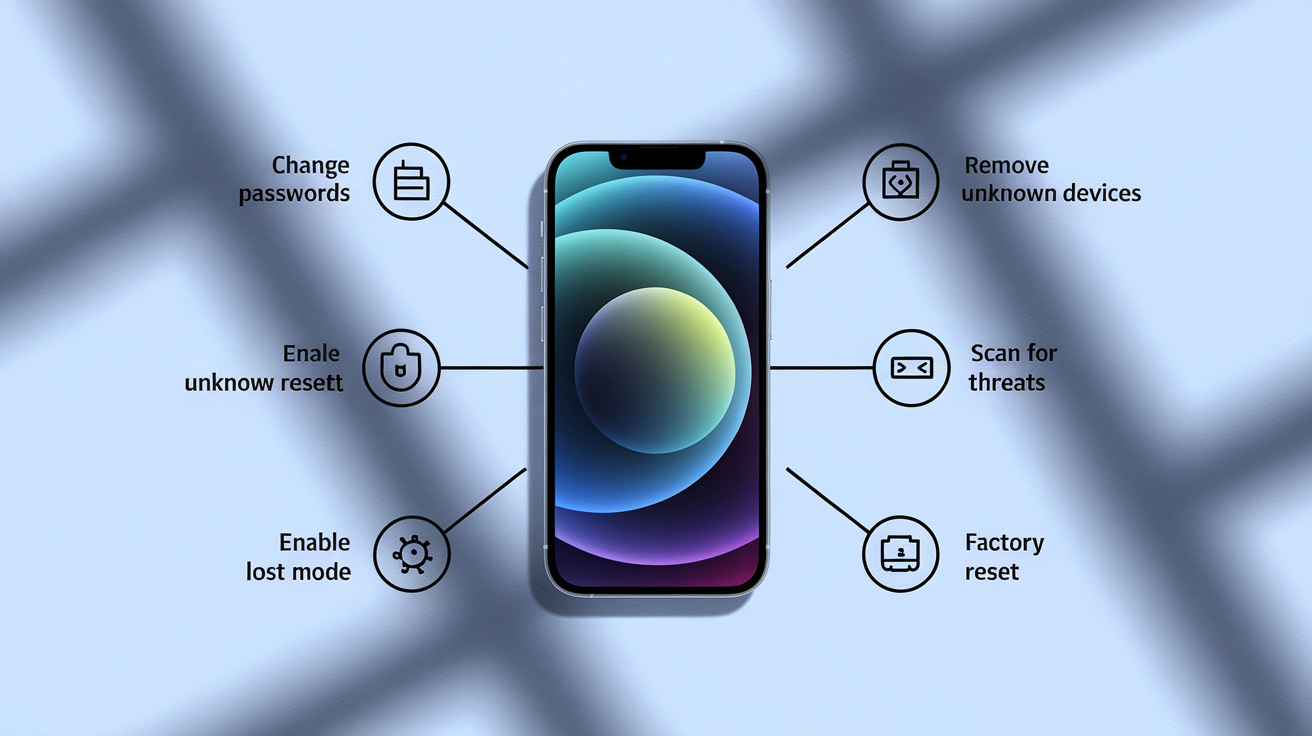
Full recovery requires a methodical sequence to ensure you remove the threat completely and restore only clean data, so the compromise doesn’t return.
Step 1: Change all passwords from a clean device
Log in to email, banking, social media, and any app accounts from a laptop or another phone you trust. Start with your primary email because attackers use it to reset other passwords. Rotate passwords for accounts that receive SMS codes, since compromised devices can intercept text messages. Use strong, unique passwords and store them in a password manager.
Step 2: Remove unknown devices from account settings
On iPhone, open Settings → [Your Name] → Devices and review the list. Tap any device you don’t recognize and select “Remove from Account.” Sign out of other sessions and re-authenticate only from the device you’re using now. On Android, go to your Google Account (myaccount.google.com) → Security → Your devices, and remove unfamiliar entries. Check trusted phone numbers and recovery contacts at Settings → [Your Name] → Password & Security (iPhone) or in your Google Account security settings. Delete any numbers you didn’t add.
Step 3: Scan device and remove malicious apps/profiles
Uninstall sketchy apps. Delete rogue configuration profiles at Settings → General → VPN & Device Management (iPhone) or revoke device admin access at Settings → Security → Device admin apps (Android). Clear Safari history and website data at Settings → (Apps) → Safari → Clear History and Website Data (iPhone) or in Chrome settings (Android). Manually revoke unfamiliar root certificates at Settings → General → About → Certificate Trust Settings (iPhone).
Step 4: Use Lost Mode or equivalent protections
If you suspect physical tampering or the device was stolen and returned, enable Lost Mode via Find My (iPhone) or use Google’s “Secure device” option in Find My Device (Android). Lost Mode locks the device, displays a contact message on the lock screen, and suspends Apple Pay or Google Pay cards until you unlock it with your passcode.
Step 5: Perform a factory reset and restore safely
If indicators persist after cleanup, continued battery or data anomalies, profiles that reappear, ongoing spam, perform a full factory erase. On iPhone: Settings → General → Transfer or Reset iPhone → Erase All Content and Settings. On Android: Settings → System → Reset options → Erase all data (factory reset). Backup time ranges from 15 to 60 minutes depending on data size. The reset itself takes 10 to 40 minutes. Restore selectively from a backup you trust, created after the cleanup, and don’t restore app settings that might reintroduce the compromise. iCloud backups encrypt automatically. Local Finder or iTunes backups must have “Encrypt local backup” enabled to preserve passwords and health data.
| Step | Purpose | Time Required |
|---|---|---|
| Change passwords from a clean device | Prevent attacker from reusing stolen credentials | 10–20 minutes |
| Remove unknown devices from account | Revoke attacker’s active sessions and prevent re-entry | 5–10 minutes |
| Scan and remove malicious apps/profiles | Eliminate spyware, profiles, and rogue certificates | 15–30 minutes |
| Enable Lost Mode | Lock device and suspend payment cards if theft suspected | 2–5 minutes |
| Factory reset and restore from clean backup | Remove deep or system-level persistence | 25–100 minutes (backup + reset + restore) |
When Your Hacked Phone Requires Professional Support

Some compromises are beyond self-help. You need forensic analysis, identity recovery services, or law enforcement involvement. If you see financial theft, unauthorized bank transfers, fraudulent card charges, or identity theft indicators like new credit accounts opened in your name, contact your bank and credit bureaus immediately, then consider filing a police report.
Persistent remote access after a factory reset, unknown profiles that reinstall themselves, or continued inability to receive SMS or two-factor authentication codes signal deep compromise or SIM-swap attacks. In the United States, report confirmed illegal tapping or surveillance to the Cybersecurity and Infrastructure Security Agency (CISA) and your local or state police. Preserve evidence by taking screenshots of call forwarding settings, unusual SMS, data and battery graphs, installed app lists, and billing anomalies before you reset. Professional mobile cleanup or identity recovery services typically cost $50 to $300 or more, depending on severity, and can include forensic imaging, malware removal, and credit monitoring.
- Financial loss — unauthorized transfers, fraudulent charges, or subscriptions you didn’t authorize.
- Identity theft — new accounts or credit inquiries in your name, tax-return fraud, or medical-identity theft.
- Persistent remote access — device behavior continues even after factory reset. Profiles reappear. Settings change without input.
- SIM swap or porting fraud — sudden inability to receive calls or texts. Carrier shows your number was ported to another SIM.
- Sensitive corporate or personal data exposure — if the device held work credentials, client information, or regulated data, notify your IT or security team and consider legal or regulatory reporting.
Prevention Tips to Avoid Future Phone Hacks

Proactive security habits shrink your attack surface and make it harder for malware to get in or for attackers to exploit weak configurations. Regular updates patch vulnerabilities. Permission audits limit what apps can access. Network hygiene protects credentials on untrusted Wi‑Fi.
Keep your operating system and apps updated within 30 days of release by enabling automatic updates at Settings → General → Software Update (iPhone) or Settings → System → System update (Android). Turn on two-factor authentication for all critical accounts at Settings → [Your Name] → Password & Security → Turn On Two‑Factor Authentication (iPhone) or in each service’s account settings. Prefer authenticator apps or hardware keys over SMS codes. Review app permissions monthly. Revoke camera, microphone, location, and SMS access for apps that don’t need them, and uninstall apps you no longer use. On Android, keep “Install unknown apps” disabled for all sources at Settings → Apps → Special app access → Install unknown apps.
Use a VPN on public Wi‑Fi to encrypt traffic and mask your IP address. Disable auto-join for public networks at Settings → Wi‑Fi → Auto-Join Hotspot → Never (iPhone) or by forgetting networks after use on Android. Don’t accept unsolicited prompts to install certificates or configuration profiles on captive portals. Clear Safari history and website data regularly, and consider using a privacy-focused browser or private browsing mode to reduce tracking. Check for rogue profiles at Settings → General → VPN & Device Management and delete any you didn’t install. Enable encrypted backups. iCloud backups encrypt automatically, but local Finder or iTunes backups require you to check “Encrypt local backup.” Review your mobile bill every month for premium SMS charges or unexpected data overages.
- Install OS and app updates within 30 days — prioritize security patches to close known vulnerabilities.
- Enable two-factor authentication on all accounts — use authenticator apps or hardware keys instead of SMS where possible.
- Audit app permissions monthly — revoke camera, microphone, location, and SMS access for apps that don’t require them.
- Keep “Install unknown apps” or “Unknown sources” disabled — prevents sideloading of unverified APKs on Android.
- Use a VPN on untrusted Wi‑Fi — encrypts traffic and hides your IP. Disable auto-join for public networks.
- Clear browser history and website data regularly — reduces tracking cookies and limits exposure to compromised sites.
- Check for and delete rogue configuration profiles — review Settings → General → VPN & Device Management monthly.
- Review billing and carrier alerts — watch for premium SMS charges, unexpected data usage, or SIM-change notifications.
Final Words
Spotting sudden battery drain or unknown apps? This guide laid out the immediate warning signs, step-by-step diagnostics, common attack types, containment moves, full recovery actions, and prevention habits.
You now have exact checks (battery and data use, privacy indicators), ordered diagnostics, and a recovery timeline so you can act fast without guessing.
If you’re asking how to tell if your phone is hacked, run the diagnostic steps, contain the device, change passwords from a clean machine, and get help if needed. You’ve got this.
FAQ
Q: Can you tell if someone is accessing your phone?
A: You can tell if someone is accessing your phone by spotting unusual battery or data spikes, unknown apps or outgoing messages, activity while idle, and privacy indicators; run diagnostics and change passwords if noticed.
Q: What are the codes to see if your phone is hacked?
A: The codes to see if your phone is hacked include MMI codes like *#62# and *#21# to check call/data forwarding and diversion; they don’t detect all threats, so also check Settings and run a malware scan.
Q: Does *#21 tell you if your phone has been hacked?
A: *#21 shows call and data forwarding status, so *#21 tells you if forwarding is active but doesn’t prove your phone is hacked; abnormal results warrant further checks, password changes, and a full device scan.
Q: Can you remove a hacker from your phone?
A: You can remove a hacker from your phone by cutting access immediately (Airplane mode, power off), revoking app permissions, uninstalling unknown apps, changing passwords from a clean device, and factory resetting if needed.

