
Ever started a Windows update and wondered if “hours” is normal or if your PC is truly stuck?
Most updates are pretty predictable: security patches usually finish in 10–30 minutes, feature updates in 20–60 minutes (large builds can reach 180 minutes), and SSDs often finish 2–5× faster than HDDs.
In this post we’ll explain the update phases that cause weird pauses, who notices the delays, and what to do next, so plan on 30 minutes for routine patches and 1–3 hours for major upgrades on older or HDD systems.
Expected Windows Update Timeframes and What Most Users Can Expect

Most Windows updates fall into pretty predictable time windows. Security patches and cumulative updates usually wrap up in 10–30 minutes on decent hardware. Some stretch to 45 minutes when your system’s busy or Microsoft pushed out a bigger patch set than normal. Feature updates—the big OS upgrades that drop once or twice a year—generally take 20–60 minutes, but full OS-style installs can hit 180 minutes. Older machines or massive 3–5 GB builds take longer.
Windows 11 upgrades on an SSD often finish in around 15 minutes. Same upgrade on an HDD? About 45 minutes. Progress bars get stuck at weird points like 20%, 30%, or 99% while the system quietly processes registry changes, driver installs, or file replacements. Those pauses are normal. They don’t mean something broke.
Common update scenarios look like this:
- Monthly cumulative/security updates: 10–30 minutes, sometimes 45 minutes
- Feature updates (major OS builds): 20–60 minutes, large builds can reach 180 minutes
- Full OS upgrades (multi-GB installers): 60–180 minutes or longer
- SSD systems: typically 2–5 times faster than HDD systems
- HDD systems or low-RAM machines: expect times at the upper end
Many updates stay within these ranges because Microsoft optimized patch delivery. But during heavy builds—like when Windows installs a new feature version or processes a backlog of skipped updates—the process can take hours. Plan for 30 minutes of downtime for routine patches. Set aside 1–3 hours for major feature upgrades, especially if you’re running an HDD or low on free disk space.
Key Factors That Affect Windows Update Duration

Hardware choices matter most. SSDs cut installation time by 2–5 times compared to traditional HDDs because they handle thousands of small file writes way faster. Systems with only 4 GB of RAM process updates noticeably slower than machines with 8–16 GB, since Windows has to juggle memory more carefully during decompression and installation. CPU age also plays a role. Older processors take longer to unpack update archives and rebuild system indexes after files get replaced.
Internet speed only affects the download portion. Connections slower than 5 Mbps turn a 3 GB feature update download into a multi-hour wait. 100+ Mbps fiber networks finish the same download in under 15 minutes. Once the download’s done, installation time depends entirely on disk speed, CPU performance, and available system resources. Windows needs at least 20% of your drive to stay free or it starts pausing, cleaning temporary files, and restarting unpacking steps.
| Factor | Effect on Duration |
|---|---|
| SSD vs HDD | SSDs complete installs 2–5× faster than HDDs |
| RAM (4 GB vs 8–16 GB) | 4 GB systems take significantly longer during processing |
| Free disk space (<20%) | Low space causes repeated pauses and cleanup cycles |
| Internet speed (<5 Mbps) | Download phase extends dramatically, install time unaffected |
You can check Task Manager during an update to see what’s actually happening. High disk activity combined with low network activity means the system’s installing files, not downloading. Switching to an SSD would help most. High network activity with low disk use means your connection’s the bottleneck. If both are low and the update appears frozen, check your free disk space and see if background processes are eating CPU cycles.
Windows Update Phases Explained for Accurate Time Expectations

Windows updates move through distinct phases that each eat different amounts of time and system resources. Understanding these stages explains why progress bars act weird and why an update that looks stuck might still be working fine in the background.
First comes download, which depends entirely on your network bandwidth and the size of the update package. A 500 MB cumulative update on a 50 Mbps connection finishes in a few minutes. A 3 GB feature update on slow DSL can take hours. Once the download completes, Windows enters installation and unpacking, where it decompresses archives, verifies file signatures, and starts replacing system files. This stage is CPU and disk intensive and can last anywhere from a few minutes to over an hour on slower hardware.
After file replacement, the system shows “Working on updates” and configures user profiles, app compatibility settings, and the registry. This phase often displays a low percentage like 0% or 30% for long stretches because the visual indicator doesn’t reflect the volume of background tasks. Windows then performs one or more restarts to finalize driver installations and apply kernel-level changes. Each restart usually takes only a few minutes, but complex updates may need two or three restart cycles.
Typical sequence:
- Download: network-dependent, ranges from minutes to hours based on connection speed and update size.
- Installation/unpack: CPU and disk-heavy, involves file replacement, signature checks, and registry updates. Can appear paused at fixed percentages.
- “Working on updates”: configures user profiles and app settings. Progress bar may stay at 0% or jump unpredictably.
- Restarts: usually fast, a few minutes each, but some updates require multiple restart cycles.
Progress indicators often jump early, moving quickly from 0% to 30%, then slow dramatically during intensive file operations. This confuses people because the bar doesn’t linearly represent time remaining. Instead, it reflects completed steps in a process where later steps take much longer than early ones.
Why Windows Updates Sometimes Take So Long

Several common issues extend update duration well beyond typical ranges. Corrupted Windows Update components—damaged files in the SoftwareDistribution folder or broken registry entries—force the system to repeatedly retry failed steps, sometimes keeping the progress bar stuck at the same percentage for hours. Overloaded Microsoft servers, especially during Patch Tuesday rollouts or right after a major feature release, can slow download speeds to a crawl or make the system wait in queue before installation starts. Low disk space is another frequent problem. When free space drops below 20%, Windows pauses to delete temporary files, uninstall old updates, or move data around, adding significant delays to every phase.
Third-party antivirus software interferes by scanning every file Windows tries to replace, effectively multiplying installation time. Some antivirus engines lock system files during real-time scans, forcing the update process to wait until the lock releases. High CPU or disk usage from background applications—cloud sync tools, video encoders, or system backups—competes for resources the update installer needs, slowing decompression and file writes. Overheating laptops may throttle CPU speed to prevent damage, which extends the time required to unpack large update archives.
Common reasons for slow or stalled updates:
- Corrupted update components or damaged system files
- Overloaded or congested Microsoft update servers
- Less than 20% free disk space available
- Antivirus software scanning or locking files during installation
- Background processes consuming CPU, RAM, or disk I/O
- Hardware limitations (HDD, low RAM, older CPU) or thermal throttling
Hardware-related slowdowns are especially pronounced on HDDs because disk-heavy phases—like replacing thousands of small system files—bottleneck on spinning-disk seek times. An update that takes 10 minutes on an SSD might require 30–45 minutes on an HDD doing the same tasks. Even when the percentage indicator appears frozen at 0%, 90%, or 99%, the system may still be processing registry changes, rebuilding search indexes, or verifying file integrity. Tasks that produce little visible feedback but require substantial time. Waiting 2–3 hours before intervening is often reasonable, especially for major feature updates or systems with slower hardware.
Troubleshooting Slow or Stuck Windows Update Durations

When an update seems stuck, start with the simplest checks. Wait at least 2–3 hours before doing anything. Many updates that appear frozen are still working through CPU or disk-intensive tasks in the background. Open Task Manager (Ctrl+Shift+Esc) and check the Performance tab. If disk or network activity shows consistent spikes, the system’s likely still processing files. If both graphs are flat for more than 30 minutes and the hard drive activity light (if your PC has one) barely flashes, the update may genuinely be hung.
Check your free disk space next. Open Settings > System > Storage or run Disk Cleanup to make sure you have at least 20% of your drive free. Delete unnecessary files, empty the Recycle Bin, and remove old downloads or temporary folders. If disk space was the issue, the update often resumes on its own once sufficient space is available.
Troubleshooting steps in order:
- Wait 2–3 hours and monitor Task Manager disk/network activity before intervening.
- Make sure the PC is plugged in and connected to a stable, wired internet connection if possible.
- Free up disk space to maintain at least 20% free on the system drive.
- Close unnecessary background programs. Pause cloud sync, stop video encoding, and disable scheduled backups temporarily.
- Temporarily disable third-party antivirus (only if you’re on a trusted network) and try the update again.
- Run the built-in Windows Update Troubleshooter: Settings > Update & Security > Troubleshoot > Windows Update.
- Open Command Prompt as Administrator and run
sfc /scannowfollowed byDISM /Online /Cleanup-Image /RestoreHealthto repair system files. - If the update remains stuck after all checks, perform a controlled reboot: hold the power button until the PC shuts down, then restart. Windows usually rolls back or resumes the update safely.
For persistent problems, boot into Safe Mode (hold Shift while clicking Restart, then navigate Troubleshoot > Advanced options > Startup Settings > Restart > press F4) and try running the update or troubleshooter again. Advanced users can stop the Windows Update service, clear the contents of C:\Windows\SoftwareDistribution, restart the service, and retry the update. This forces Windows to re-download and reinstall cleanly. Forced rebooting is generally safe if the system shows no disk or network activity for over an hour, but always use it as a last resort after exhausting other checks. Most modern Windows installations can recover gracefully from interrupted updates by rolling back changes on the next boot.
Windows 10 vs Windows 11 Update Timing Differences
Both Windows 10 and Windows 11 follow similar monthly update cadences, with cumulative security patches released on Patch Tuesday (the second Tuesday of each month). These cumulative updates typically take 10–30 minutes to install on either operating system. Exact duration depends more on your hardware than the OS version. Feature updates—larger upgrades that introduce new capabilities and interface changes—generally require 20–60 minutes on both platforms, with the potential to extend during major build transitions or when applying updates to systems that skipped several months of patches.
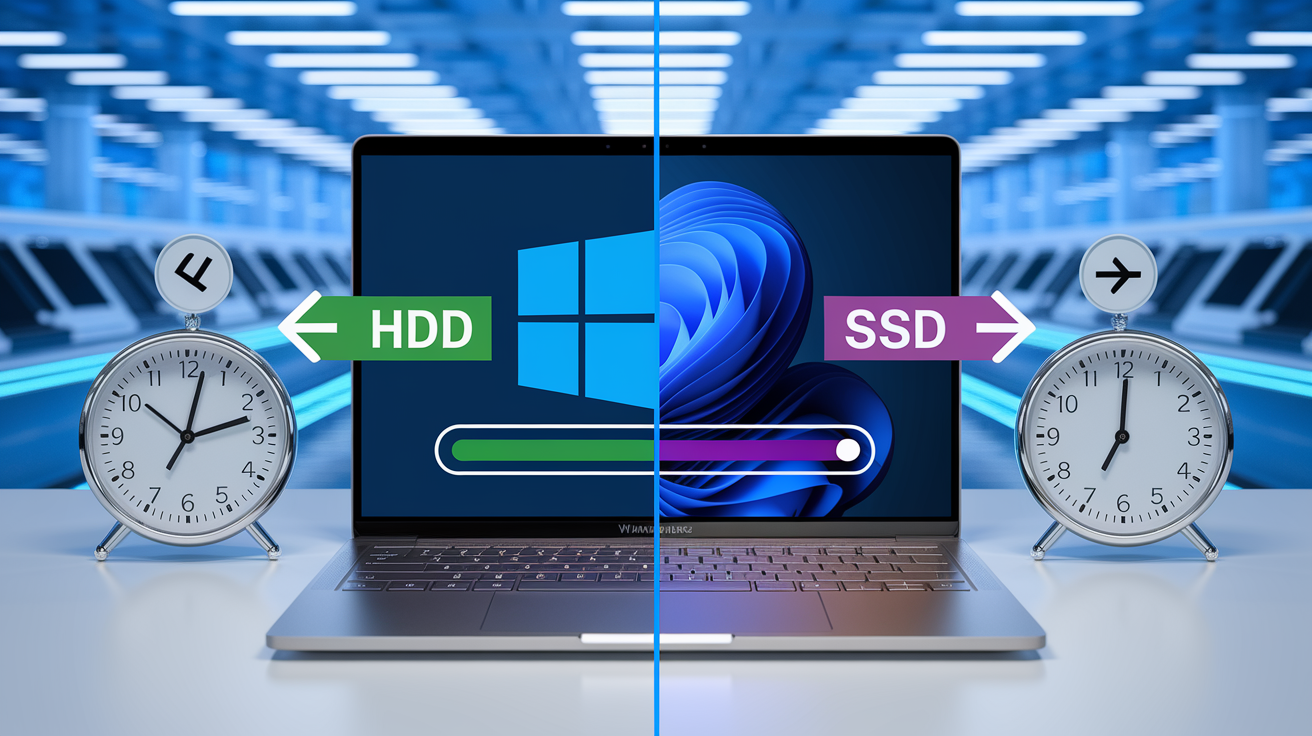
Windows 11 upgrades from Windows 10 show noticeable time differences based on storage type. On an SSD, the upgrade process often completes in around 15 minutes. Same upgrade on an HDD can take approximately 45 minutes due to slower read/write speeds during file replacement and system configuration. Once upgraded, Windows 11 systems continue receiving monthly patches at similar intervals and durations as Windows 10 machines with comparable hardware.
Key timing comparisons:
- Monthly cumulative updates: 10–30 minutes on both Windows 10 and Windows 11. Hardware quality (especially SSD vs HDD) has more impact than OS version
- Feature updates: 20–60 minutes typical range for both. Windows 11 feature updates may occasionally require longer on older hardware due to updated system requirements
- OS upgrade (10 to 11): ~15 minutes on SSD, ~45 minutes on HDD. Subsequent updates follow standard timing for the new OS
The primary difference in update timing comes from hardware, not the operating system. A Windows 11 machine with an SSD, 16 GB of RAM, and a modern CPU will complete updates faster than a Windows 10 machine with an HDD and 4 GB of RAM. Two identical systems running different OS versions will show nearly identical update durations for equivalent patch types.
Download vs Install: Understanding Windows Update Time Split

Windows updates consist of two distinct phases with different bottlenecks. The download phase depends entirely on your internet bandwidth and the size of the update package. Installation relies on CPU speed, disk performance, and available system resources. A 3 GB feature update on a 100 Mbps fiber connection might download in under 15 minutes but still require 30–60 minutes to install on an older HDD-based system. Download finishes quickly, but the real wait happens afterward.
Slower connections shift the balance dramatically. A 40–50 Mbps broadband link typically needs 20–30 minutes to pull down a large feature update. Rural DSL or satellite connections under 5 Mbps can stretch the same download into multiple hours or even a full day. Once the download completes, installation time remains constant regardless of network speed. Switching from 10 Mbps to 1 Gbps won’t make the file-replacement and registry-configuration phases any faster.
| Internet Speed | Typical Download Time (3 GB Update) |
|---|---|
| 100+ Mbps (fiber) | Under 15 minutes |
| 40–50 Mbps (typical broadband) | 20–30 minutes |
| <5 Mbps (slow DSL/rural) | Hours to a full day |
Installation time is mostly CPU and SSD-dependent. An update that downloads in 10 minutes on fast fiber may still take 45 minutes to install on a machine with a slow HDD and limited RAM. Windows can download updates in the background while you work, but the installation phase requires restarts and typically locks the system until complete. A fast internet connection eliminates download delays but won’t speed up the file-replacement and configuration work that follows.
Reducing Windows Update Time with Proven Optimization Tips
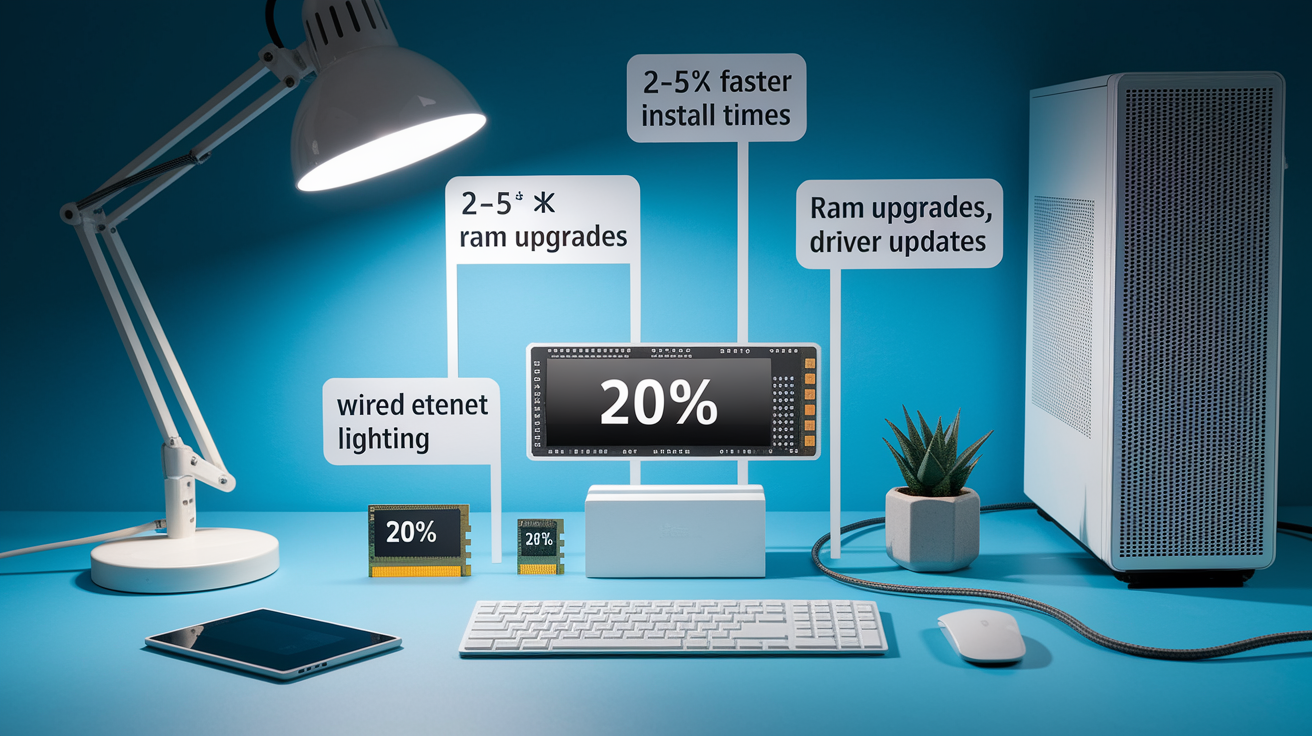
Hardware upgrades deliver the most dramatic improvements. Switching from an HDD to an SSD can reduce installation time by 2–5 times because SSDs handle the thousands of small file writes during updates far more efficiently than spinning disks. Adding RAM—moving from 4 GB to 8 or 16 GB—speeds decompression and reduces the need for Windows to swap data to disk during intensive phases. Keeping at least 20% of your system drive free prevents the update process from pausing to clean temporary files or shuffle data around.
Close unnecessary background applications before starting a major update. Cloud sync tools, video encoders, scheduled backups, and even some browser tabs can consume CPU and disk I/O that the update installer needs. Use a wired Ethernet connection instead of Wi-Fi for large downloads. Wired connections are more stable and often faster, reducing the chance of download interruptions that force restarts. Temporarily disabling aggressive antivirus real-time scanning (only on trusted networks) can prevent file-lock conflicts that slow installation, though you should re-enable protection immediately after the update completes.
Top optimization steps:
- Free up disk space to maintain at least 20% available on the system drive
- Close background apps, pause cloud sync, and stop scheduled backups during updates
- Switch to an SSD for 2–5× faster install times compared to HDD
- Use a wired Ethernet connection for stability and speed during downloads
- Update drivers (especially storage and chipset drivers) before major feature updates to avoid compatibility slowdowns
These changes directly influence duration because they remove the most common bottlenecks. An SSD cuts the time Windows spends writing and verifying files. Extra RAM reduces swap-file reliance during decompression. Free disk space eliminates cleanup pauses. Even small optimizations—like closing a dozen browser tabs or pausing OneDrive sync—can shave minutes off the process by freeing resources for the update installer.
Planning Windows Updates: Scheduling, Pausing, and Overnight Strategies

Windows lets you schedule updates during off-hours to avoid interrupting work. Open Settings > Update & Security > Windows Update > Change active hours to define the time window when you’re typically using the PC. Windows will avoid automatic restarts during those hours and wait until the window closes. For major feature updates or when you have several pending cumulative patches, start the update manually before going to sleep so the system can download, install, and restart overnight without needing your attention.
You can pause updates for up to one week (sometimes longer on Pro editions) by clicking “Pause updates for 7 days” in the same Windows Update settings panel. Pausing is useful right after Patch Tuesday if you want to wait for early adopters to report bugs or compatibility issues before installing the latest batch. For personal devices, install security updates as soon as they’re available to close known vulnerabilities, but consider delaying major feature updates by a few weeks to let Microsoft resolve any initial problems that surface in widespread deployment.
Practical scheduling strategies:
- Set Active Hours to match your work schedule, preventing surprise restarts during the day.
- Manually start large feature updates before bed, letting the system process overnight.
- Pause updates for one week after Patch Tuesday to avoid buggy initial releases (security patches can usually be installed immediately).
- For business or critical-use machines, schedule updates during planned maintenance windows and test updates on a non-production system first.
These strategies minimize downtime by making sure updates happen when the PC is idle and giving you control over when disruptive restarts occur. Overnight updates work especially well for feature upgrades that may take 60–180 minutes, since the system completes all phases and restarts without waiting for user input.
Final Words
In the action, this post laid out realistic time ranges for cumulative and feature updates, described each update phase, and highlighted hardware and network factors that change duration.
You also got troubleshooting steps and simple speed-ups: free disk space, use an SSD, close background apps, and schedule big updates overnight to avoid surprises.
If you’re still asking how long does windows update take, use the ranges and tips here to plan. Most updates finish within the expected windows, so you’re set to update with confidence.
FAQ
Q: Why is the Windows Update taking so long?
A: The Windows Update is taking so long because large downloads, heavy feature installs, slow drives, low free disk space, or background CPU/disk activity can dramatically extend install time; check disk/network activity and wait 2–3 hours.
Q: Can I turn off my PC while updating?
A: You should not turn off your PC while updating because powering off mid‑install can corrupt system files; if the update is frozen, wait several hours, then try a controlled restart or safe‑mode repairs.
Q: Does it normally take 3 hours for a Windows Update?
A: It can take three hours for large OS upgrades, but most Windows updates finish in 10–60 minutes; three‑hour installs usually mean big feature builds, slow HDDs, low RAM, or very slow internet.
Q: How long does it take for Windows 11 to update?
A: Windows 11 updates typically take 10–30 minutes for monthly cumulatives, 20–60 minutes for feature updates; on SSDs a feature upgrade may be ~15 minutes, on HDDs around 45 minutes, larger upgrades take longer.

