

Zoom keeps dropping your calls? It’s not always Zoom’s fault. Most disconnects come from brief network hiccups, crowded Wi‑Fi, or security apps that slow real‑time streams. Quick fixes—restart your router, switch to Ethernet, pause backups, or try mobile data—usually restore a stable call within minutes. This article shows how to spot whether the problem is your device, home network, ISP, or firewall, and gives step-by-step, low-tech actions you can try right now to stop the reconnect loop.
Immediate Fixes for Zoom Disconnecting Issues
Unstable or slow internet is the most common reason Zoom keeps disconnecting.
Restart your router and modem. Unplug them for 30 seconds, then plug them back in. Restart your computer, phone, or tablet to clear temporary network caches. Switch Wi‑Fi bands by moving from 2.4 GHz to 5 GHz (or vice versa) in your device’s Wi‑Fi settings. Run a speed test at fast.com or speedtest.net to confirm your upload and download speeds meet Zoom’s minimum requirements. Close background apps that consume bandwidth, stuff like cloud backup services, streaming video, and large file downloads. Update the Zoom client by opening Zoom, clicking your profile icon, and selecting “Check for Updates.”
Zoom needs continuous data flow to deliver audio and video in real time. When your network connection experiences even brief interruptions, packet delivery stalls and Zoom’s media streams break. Audio starts cutting in and out. Video freezes or lags several seconds behind, and audio/video synchronization drifts apart. In severe cases the meeting drops entirely and you see “Reconnecting” or “Your Internet connection is unstable” warnings.
Quick actions like restarting your router force your device to negotiate a fresh connection and clear temporary routing issues or IP conflicts. Switching between Wi‑Fi and mobile data on a phone can bypass a congested access point or move you to a clearer channel. These steps resolve most transient problems within minutes because they eliminate stale sessions and overloaded buffers that accumulate during long uptime periods.
Before diving into deeper troubleshooting, check Zoom’s service status page or ask other meeting participants if they’re experiencing similar issues. If everyone else is fine and only your connection is unstable, the problem is local to your device or network. If multiple participants report disconnects at the same time, the issue may be server-side or with the meeting host’s setup. Testing the same meeting on a second device (for example, joining from your phone while your laptop is connected) helps isolate whether the fault lies in your hardware, software, or network path.
Network Mechanics That Trigger Zoom Disconnects
Zoom transmits audio and video over Real-time Transport Protocol (RTP) streams, which are highly sensitive to latency, jitter, and packet loss. Latency is the round-trip delay between your device and Zoom’s servers. Jitter is the variation in packet arrival times. Packet loss occurs when data packets fail to reach their destination. Even a 1–2 percent packet loss rate can cause noticeable audio dropouts or robotic voice effects because lost packets can’t be retransmitted quickly enough for real-time media. High latency (above 150 milliseconds) makes conversation feel sluggish and can trigger disconnects when Zoom’s client decides the connection is too degraded to continue. Jitter above 30 milliseconds disrupts the steady rhythm required for smooth playback, leading to choppy audio and frozen video frames.
Home network congestion, ISP routing problems, and temporary outages compound these issues. When multiple devices on your local network compete for bandwidth, routers may drop packets or queue them excessively, introducing both latency and jitter. ISPs sometimes throttle video conferencing traffic during peak hours or reroute connections through congested backbone links, causing intermittent slowdowns. Temporary outages, even those lasting only a few seconds, force Zoom to reconnect. If the connection can’t be re-established within the client’s timeout window, the meeting ends. Real-time traffic doesn’t tolerate the same delays that web browsing or email can absorb, so small network hiccups that go unnoticed during casual use become critical failures during a Zoom call.
| Issue | Description | Effect on Zoom |
|---|---|---|
| Packet Loss | Data packets dropped in transit due to congestion or interference | Audio cuts out, video freezes, or call drops entirely |
| High Latency | Delay exceeding 150 ms between device and server | Delayed audio, echo, and “Your connection is unstable” warnings |
| Jitter | Inconsistent packet arrival timing, above 30 ms variance | Choppy audio, robotic voice, and A/V desynchronization |
Wi‑Fi Issues That Lead to Zoom Disconnecting
Moving farther from your router reduces signal strength and increases the chance of momentary dropouts. Physical obstacles like walls, metal appliances, and large furniture absorb or reflect Wi‑Fi signals, creating dead zones where the connection becomes too weak to sustain a Zoom call. The 5 GHz band offers faster speeds and less interference from neighboring networks, but it has shorter range and struggles to penetrate walls. The 2.4 GHz band reaches farther and handles obstacles better, but it competes with cordless phones, microwaves, Bluetooth devices, and dozens of nearby networks broadcasting on the same crowded channels. Switching from an overloaded 2.4 GHz channel to a clearer one, or moving to 5 GHz if you’re close to the router, can eliminate interference-related disconnects.
Mesh network systems hand off your device between access points as you move through your home, and these handoffs can cause brief interruptions. During a handoff, your device disconnects from one node and reconnects to another, pausing data flow for a second or two. If the handoff is poorly timed or the new node is overloaded, Zoom may interpret the pause as a lost connection and drop the call. Routers with too many connected devices can also become overwhelmed, struggling to manage traffic and dropping packets when the CPU or memory reaches capacity.
Switch to the 5 GHz band if you’re within 20–30 feet of the router and have a clear line of sight. Use the 2.4 GHz band if you’re farther away or separated by multiple walls, and manually select a less congested channel (1, 6, or 11) in your router’s settings. Move your device closer to the router or access point. Relocate the router to a more central position in your home. Reduce interference by turning off or moving devices that emit 2.4 GHz signals, such as baby monitors, wireless speakers, and microwaves. Test with an Ethernet cable to confirm whether Wi‑Fi is the root cause before investing time in band and channel optimization.
Ethernet Advantages Compared to Wi‑Fi for Preventing Drops

Wired Ethernet connections deliver stable, consistent throughput without the interference, signal degradation, or handoff issues that plague Wi‑Fi. A cable provides a dedicated physical path between your device and the router, eliminating packet loss caused by radio interference or distance. Ethernet also avoids the overhead of wireless encryption and collision detection, reducing latency and jitter. For Zoom, this translates to fewer “Reconnecting” interruptions and smoother audio and video.
Wi‑Fi variability becomes problematic during high-stakes meetings or when multiple household members are streaming, gaming, or uploading large files simultaneously. Access points can only serve a limited number of devices before throughput drops, and each additional device increases the chance of collisions and retransmissions. Ethernet bypasses these bottlenecks entirely, making it the first recommendation for anyone experiencing repeated Zoom disconnects on a desktop or laptop that can physically reach the router.
Use Ethernet for all scheduled work meetings or important calls where disconnects are unacceptable. Keep a USB-to-Ethernet adapter on hand for laptops that lack a built-in Ethernet port. Reserve Ethernet for primary meeting devices and allow secondary devices to remain on Wi‑Fi. Test Ethernet immediately if Wi‑Fi troubleshooting steps fail to resolve disconnects.
Zoom’s recommended minimum is 3 Mbps upload and 5 Mbps download for stable one-on-one calls. Higher speeds are required for group video or screen sharing. Ethernet makes it easier to achieve and maintain these speeds consistently.
Firewall, VPN, and Security App Issues Causing Zoom Drops

VPN tunneling routes all your traffic through an encrypted intermediary server, adding latency and potentially throttling bandwidth. Many consumer VPNs prioritize security over speed and struggle to handle the real-time demands of video conferencing. Because Zoom relies on UDP streams for low-latency media delivery, VPNs that block or deprioritize UDP force Zoom to fall back to slower TCP connections, increasing lag and making disconnects more likely. Some corporate VPNs split tunnel by default, allowing conferencing traffic to bypass the VPN, but others force all traffic through the tunnel and introduce enough delay to destabilize calls.
Firewalls with strict outbound rules or deep packet inspection can interrupt Zoom’s media tunnels by blocking or rate-limiting the ports Zoom uses. Zoom typically connects over TCP port 443 for signaling and control, and UDP ports 8801–8810 for audio and video. Firewalls configured to block UDP entirely, or to inspect TLS-encrypted traffic via SSL interception, may drop packets or introduce enough processing delay to trigger Zoom timeouts. Enterprise firewalls and next-generation security appliances sometimes categorize Zoom as non-business traffic and apply bandwidth limits or session timeouts that weren’t intended for real-time conferencing.
Antivirus software with network-level scanning or web filtering can interfere similarly. Real-time scanning of outbound packets adds latency, and overly aggressive heuristics may flag Zoom’s rapid data bursts as suspicious, pausing or blocking the connection. Corporate proxy servers that inspect or cache traffic can also throttle or drop RTP streams, especially if the proxy isn’t configured to recognize and prioritize conferencing protocols.
Temporarily disable your VPN and test the Zoom call to confirm whether the VPN is causing disconnects. Whitelist Zoom in your firewall by allowing TCP 443 and UDP 8801–8810 outbound, and consider adding Zoom’s IP ranges if your firewall supports application rules. Disable SSL inspection or deep packet inspection for Zoom traffic in enterprise firewalls. Pause antivirus real-time scanning or add Zoom’s executable to the exclusion list during troubleshooting. If behind a corporate proxy, coordinate with your IT team to ensure conferencing traffic is prioritized and not subject to caching or throttling rules.
Device Performance Issues Leading to Zoom Disconnecting

High CPU load from background applications, browser tabs, or system processes can prevent Zoom from encoding and transmitting video frames quickly enough, causing the client to stutter or disconnect. When your processor is maxed out, Zoom competes with other tasks for execution time. The operating system may deprioritize the Zoom process if it’s not marked as high priority. This results in delayed frame capture, skipped audio packets, and eventually a timeout when Zoom’s watchdog detects that media isn’t flowing.
Background network activity from cloud storage sync services (Dropbox, OneDrive, Google Drive), streaming apps, and large downloads consumes upload and download bandwidth that Zoom needs. Even a single 4K video stream running in a background browser tab can saturate a home internet connection’s upload capacity, leaving Zoom without enough bandwidth to send your video feed. Low available memory forces the operating system to swap data to disk, slowing all applications and increasing the chance that Zoom’s network buffers will overflow or underflow.
Operating system network settings can also restrict background activity. Windows “metered connection” mode limits background data usage. macOS “Low Power Mode” can throttle network throughput to conserve battery. On mobile devices, battery saver modes commonly disable background data entirely when the screen is off or the app isn’t in the foreground, cutting Zoom’s connection if you briefly switch to another app or let the screen dim. GPU acceleration conflicts are less common but can occur when Zoom attempts hardware-accelerated video encoding on older or incompatible graphics drivers, causing the app to freeze or crash.
Windows and macOS Fixes for Zoom Disconnection Issues

On Windows, outdated or buggy network adapter drivers are a frequent cause of intermittent disconnects. Windows Update doesn’t always deliver the latest driver versions, so visiting your laptop or motherboard manufacturer’s website to download the newest driver can resolve stability issues. Power management settings may also tell Windows to turn off the network adapter to save power, cutting your connection mid-meeting. Disabling this option ensures the adapter stays active.
On macOS, privacy and security permissions control which apps can access the microphone, camera, and network resources. If Zoom is missing necessary permissions, macOS may block background network activity or limit the app’s ability to capture audio and video, leading to disconnects. Energy Saver settings can throttle network interfaces when running on battery power, and App Nap may suspend Zoom if it’s not the active window. Removing these restrictions keeps Zoom running at full capacity.
Windows Troubleshooting Steps
Open Device Manager by typing “Device Manager” into the Start menu and pressing Enter. Expand “Network adapters,” right-click your Wi‑Fi or Ethernet adapter, and select “Properties.” Under the “Driver” tab, click “Update Driver” and choose “Search automatically for updated driver software.” If Windows finds nothing, visit your manufacturer’s support site and manually download the latest driver.
In the same Properties window, switch to the “Power Management” tab and uncheck “Allow the computer to turn off this device to save power.” Click OK to save. This prevents Windows from cutting power to the adapter during idle periods.
If disconnects persist, reset your network stack by opening Command Prompt as Administrator and running these commands in order: netsh winsock reset, netsh int ip reset, and ipconfig /flushdns. Restart your computer after running all three.
Clear Zoom’s cache by navigating to %appdata%\Zoom in File Explorer, deleting the contents of the folder, and restarting Zoom. If the app is corrupted, uninstall Zoom via Settings > Apps, download the latest installer from zoom.us, and reinstall. Test your connection using Zoom’s test meeting at zoom.us/test before joining a live call.
macOS Troubleshooting Steps
Check privacy permissions by opening System Preferences > Security & Privacy > Privacy. Select “Microphone” and “Camera” in the left sidebar and ensure Zoom is checked in the list on the right. If Zoom is missing, click the lock icon to unlock settings, then add Zoom manually by clicking the “+” button and navigating to Applications > zoom.us.app.
Open System Preferences > Battery (or Energy Saver on older macOS versions) and uncheck “Enable Power Nap” and “Put hard disks to sleep when possible.” Set “Turn display off after” to “Never” during important meetings to prevent macOS from throttling network activity.
Disable App Nap for Zoom by locating zoom.us.app in Applications, right-clicking, selecting “Get Info,” and checking “Prevent App Nap.” This ensures macOS doesn’t suspend Zoom when it’s in the background.
Reset your network interface by opening System Preferences > Network, selecting your active connection (Wi‑Fi or Ethernet), clicking the “−” button to remove it, then clicking “+” to add it back. Apply the changes and reconnect. If problems continue, uninstall Zoom by dragging it to the Trash, emptying the Trash, and downloading a fresh copy from zoom.us.
Advanced Network Fixes to Stop Zoom Disconnecting
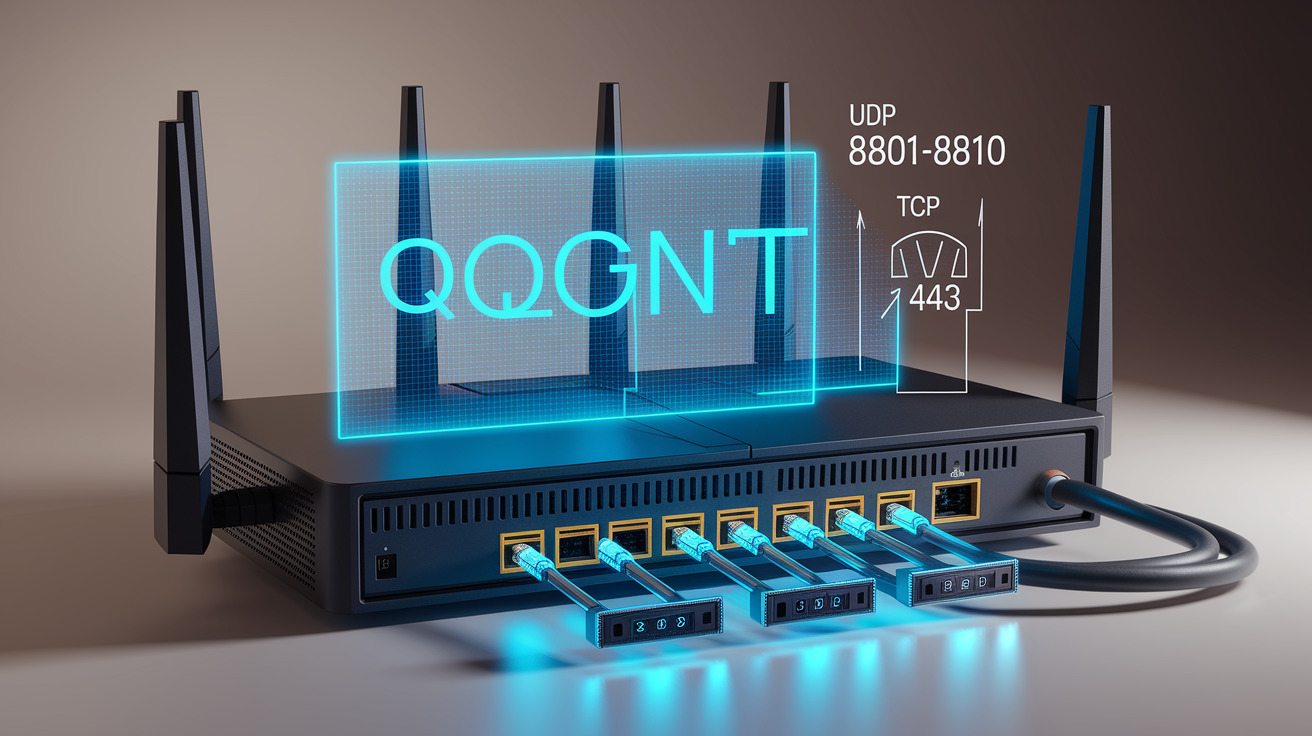
Quality of Service (QoS) settings in your router prioritize Zoom traffic during periods of network congestion, ensuring that video conferencing packets are sent before lower-priority traffic like file downloads or software updates. Enabling QoS and marking Zoom’s traffic as high priority prevents other devices from starving Zoom of bandwidth when your household network is busy. Most modern routers include a QoS page in the admin interface where you can assign priority by device, application, or port range.
Network Address Translation (NAT) handling and Universal Plug and Play (UPnP) affect how your router negotiates inbound connections. Strict NAT can block or delay Zoom’s ability to establish peer-to-peer media streams, forcing traffic through relay servers and increasing latency. Enabling UPnP allows Zoom to automatically open necessary ports, but poorly implemented UPnP can introduce security risks or fail to clean up old mappings, causing conflicts. Router firmware updates often include NAT and UPnP improvements, along with fixes for memory leaks, buffer overflows, and other bugs that destabilize connections under load.
Log into your router’s admin panel and enable QoS, then assign Zoom or conferencing applications the highest priority tier. Confirm that UDP ports 8801–8810 and TCP port 443 aren’t blocked by your router’s firewall rules. Toggle UPnP off and on, or manually forward UDP 8801–8810 if UPnP is unreliable on your router model. Change your DNS servers to Cloudflare (1.1.1.1) or Google (8.8.8.8) to rule out slow or unreliable ISP DNS resolution. Check your router manufacturer’s website for firmware updates and apply the latest stable version, then reboot the router.
Mobile & Hotspot Reasons Why Zoom Disconnects on Phones
Cellular networks fluctuate as your phone switches between towers, moves in and out of coverage areas, or shifts from 5G to 4G when signal strength drops. Each tower handoff can cause a brief interruption in data flow, and if the handoff takes longer than Zoom’s reconnection window, the call drops. Signal strength bars are an imperfect indicator because they reflect only downlink quality, not uplink capacity or latency, both of which are critical for video calls.
Battery saver and data saver modes on Android and iOS limit background data usage to extend battery life and reduce cellular charges. When enabled, these modes can pause Zoom’s connection the moment you switch to another app, lock your screen, or let the display dim. Zoom needs continuous background data access to maintain the call, and blocking that access triggers an immediate disconnect. Hotspot tethering introduces additional instability because the phone must manage both its own cellular connection and the Wi‑Fi link to tethered devices, doubling the workload and increasing the chance of thermal throttling or resource exhaustion.
Disable battery saver and data saver modes in your phone’s settings before joining a Zoom meeting. On Android, go to Settings > Apps > Zoom > Mobile data and enable “Allow background data usage” and “Unrestricted data usage.” On iOS, open Settings > Cellular > Zoom and confirm “WLAN & Cellular Data” is selected. Move to a location with stronger cellular signal, or switch to Wi‑Fi if available, to reduce tower handoff frequency and improve uplink stability.
How to Prevent Zoom Disconnects in Future Meetings

Use Ethernet whenever possible for scheduled meetings where disconnects can’t be tolerated. Wired connections eliminate the variability of wireless links and provide the most reliable foundation for video conferencing. If Ethernet isn’t an option, position your device within 15–20 feet of the router and ensure a clear line of sight to minimize signal loss.
Limit household bandwidth usage during important calls by pausing cloud backups, stopping video streaming on other devices, and avoiding large file downloads or uploads. Ask family members or coworkers sharing the same network to avoid bandwidth-heavy activities during your meeting window. Enabling QoS on your router automates this prioritization, but manual coordination provides an additional layer of assurance.
Keep your Zoom client, operating system, and network drivers up to date. Software updates often include performance improvements, bug fixes, and compatibility patches that directly impact connection stability. Lowering your video resolution in Zoom’s settings (Settings > Video > “Enable HD” unchecked) reduces bandwidth requirements and can prevent disconnects on slower or congested connections. Switching to audio-only mode by turning off your video feed cuts bandwidth needs by 70–80 percent, making it a reliable fallback when network conditions degrade unexpectedly. Test your connection five to ten minutes before critical meetings by joining Zoom’s test meeting at zoom.us/test to confirm audio, video, and network performance.
Final Words
We ran through quick fixes for unstable Internet: restart router and device, switch Wi‑Fi bands, run a speed test, close background apps, and update Zoom. The article also covered latency, jitter, packet loss, Wi‑Fi and Ethernet tradeoffs, VPN/firewall traps, device and OS fixes, advanced router tweaks, mobile issues, and a prevention checklist.
If you still ask why does zoom keep disconnecting, try Ethernet, test on another device, and check VPN or firewall settings.
Do these checks before meetings and your calls should be more reliable.
FAQ
Q: Why does Zoom keep losing connection, disconnecting/reconnecting, or kicking me off?
A: The Zoom app keeps losing connection, disconnecting/reconnecting, or kicking you off because unstable internet—Wi‑Fi drops, high latency, or cellular issues—interrupts media streams; VPNs, firewalls, or overloaded devices can also cause it. Try restarting router/device and switching networks.
Q: What is the 40 minute rule for Zoom?
A: The 40‑minute rule for Zoom means free group meetings end after 40 minutes; one‑to‑one calls remain unlimited. Upgrade to a paid plan to host longer group meetings.

