
Is Azure down right now? Don’t guess, confirm it in minutes.
This guide shows the fastest ways to check Azure status: the public Azure Status page for global outages, Service Health in the portal for subscription-specific incidents, Resource Health for per-resource problems, and command-line or API options for automated checks.
You’ll learn which tool to use, how to read status signals, and the quick next steps to take when services degrade or fail.
Core Methods to Check Azure Service Status Immediately

The Azure Status page at https://azure.microsoft.com/en-us/status/ is your fastest bet when you need to verify if Azure’s having an outage. This public dashboard refreshes every 2 minutes and shows color-coded indicators for every major service across all regions. Green means you’re good. Yellow signals degraded performance. Red means something’s down. You don’t even need to sign in, which makes it perfect when you’re trying to confirm an incident fast.
Each problem shows up as a tile displaying the affected service, which regions got hit, and timestamps for when Azure first spotted the issue and last posted an update. Click any tile and you’ll see the Service Impact description with technical details, what symptoms customers are seeing, and how long Azure thinks it’ll take to fix. The global view rolls up everything, while regional breakdowns let you check if an issue is stuck in one geography or hitting Azure worldwide.
This page only cares about what’s happening right now. When Azure engineers publish an update or close an incident, the tile changes within minutes. Checking here first helps you figure out whether you’re looking at a platform-wide mess or something isolated to your subscription.
Current incidents show active outages or degradations hitting services now.
Impacted regions tell you which geographic zones are seeing reduced availability.
Service categories break down which Azure products (Compute, Storage, Networking, AI) are affected.
Timestamps mark when the incident started and when engineers last posted.
Advisory details give you workarounds, expected resolution times, and what you should do next.
Using Azure Service Health in the Portal to Check Azure Status

Service Health inside the Azure Portal gives you a subscription-specific view of incidents, advisories, and maintenance events. Open the portal menu and select Help + support, or just search for Service Health in the top bar. The dashboard only shows events relevant to your subscriptions, so you see exactly which regions and services you actually use are affected. This filtered view cuts out the noise from global incidents that don’t touch your stuff.
You can refine things by selecting a subscription, picking specific Azure services (say, SQL Database), and choosing regions where you’ve deployed resources. Once you apply filters, click Save and name the set something like “SQLDatabase” so you can reload it instantly next time. Saved filters skip the repeated manual work and speed up triage when outages hit.
The Active events section has three tabs: Service issues, Planned maintenance, and Health advisories. Service issues show ongoing outages and performance problems. Planned maintenance lists upcoming region or service updates that might cause brief downtime or force you to redeploy resources. Health advisories surface non-urgent notifications like end-of-support warnings or configuration tips. Scanning all three tabs gives you the complete picture of what’s happening now and what’s coming.
After you’ve applied filters, click Pin filtered world map to dashboard at the top. Azure drops a live status map onto your portal home screen, color-coded by region health. Every time you sign in, the map reflects the latest status for your chosen subscriptions and services without making you navigate back to Service Health. This dashboard tile acts as an instant health monitor and speeds up confirmation when alerts start firing.
Subscription-specific outage confirmation shows only incidents affecting your tenants and regions.
Advisory summaries give you short explanations of configuration risks or deprecation warnings.
Maintenance windows display planned downtime schedules before they disrupt your workloads.
Region impact identifies which geographies are degraded or offline.
Service type impact confirms whether Compute, Storage, Networking, or Data services are affected.
Last-updated times track when Azure engineers posted the most recent incident update.
Checking Azure Resource Health for Individual Services

Resource Health shows the availability state of a single Azure resource like a virtual machine, storage account, or SQL database. Open any resource in the portal, scroll to Support + troubleshooting, and click Resource health. The blade displays one of four states: Available, Unavailable, Degraded, or Unknown. Available means it’s running normally. Unavailable means it’s offline or unreachable. Degraded signals reduced performance or partial functionality. Unknown pops up when Azure can’t determine health, often because the resource is stopped or deallocated.
Resource Health events are different from Service Health incidents because they reflect conditions unique to your resource instead of platform-wide outages. If a physical host dies and only your VMs on that host go down, Service Health might show no incident while Resource Health flags those VMs as Unavailable. On the flip side, a region-wide network outage shows up in both Service Health and Resource Health, but Resource Health adds per-resource event timelines showing exactly when your resource lost connectivity and when it came back.
Deallocated or stopped resources return limited health information. If you see two virtual machines listed with Deallocated status and Unknown health state, start one of the VMs and wait a few seconds. Refresh the Resource Health blade and Azure will populate richer event history, including recent reboots, host maintenance, or unexpected shutdowns. This workflow helps you confirm whether a resource got hit by a past incident or was simply powered off on purpose.
Viewing Azure Maintenance Windows and Historical Incidents
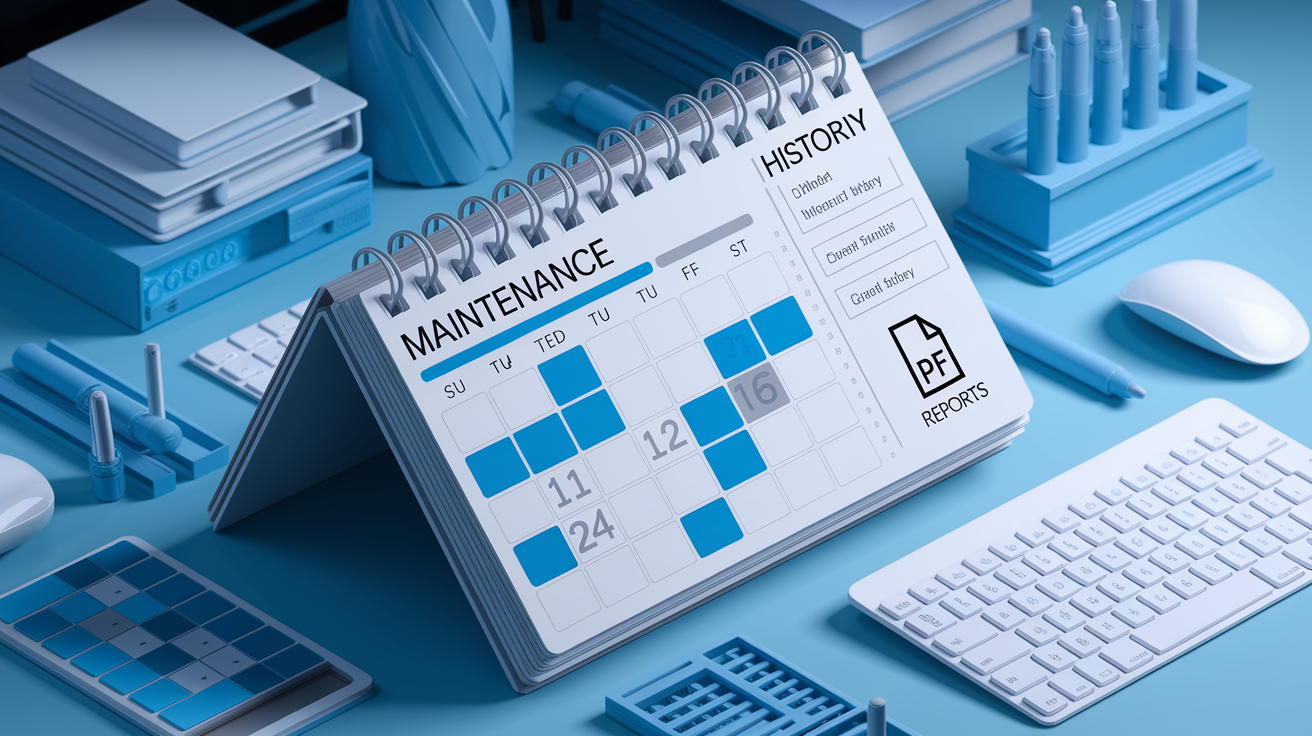
Planned maintenance notices show up in the Planned maintenance tab of Service Health. Each notice includes the date and time window, affected services and regions, expected impact (like VM reboot or brief connection loss), and what you should do about it. Reviewing this tab weekly helps you anticipate disruptions and schedule your own maintenance or failover tests around Azure’s updates. Maintenance events usually get announced at least seven days ahead, though emergency patches might have shorter notice.
All resolved incidents and past advisories live in Health history under Service Health. Azure keeps these records for up to 3 months, letting you search by service, region, and date range. Click any historical event to see the full incident timeline, root-cause summary, and customer-impact description. You can download each issue summary as a PDF for compliance records or postmortem docs. The Status History link on the public Azure Status page offers a similar archive of platform-wide events, filterable by product and date, and works well when you need to cross-reference a global outage with your subscription-level logs.
| Type | Location | Retention/Details |
|---|---|---|
| Platform incidents | https://azure.microsoft.com/en-us/status/ → Status History | Searchable archive of global outages and advisories; filter by product and region |
| Subscription-level Health History | Azure Portal → Service Health → Health history | Up to 3 months; download individual incident PDFs; filter by service/region/date |
| Planned Maintenance | Azure Portal → Service Health → Planned maintenance | Upcoming maintenance windows with date, time, impact, and recommended actions |
Programmatically Checking Azure Status via REST, CLI, and PowerShell

There’s no single PowerShell cmdlet that returns the global Azure Status feed. Microsoft says to call the Resource Health REST API endpoint named “Availability Statuses – List By Subscription Id” to grab health data for all resources in a subscription. The REST approach needs an Azure Active Directory access token, which you can get either interactively through the API documentation’s “Try it” flow or programmatically using service principal credentials. Once you’ve got the token, call the endpoint via PowerShell’s Invoke-RestMethod and parse the JSON response for availability states and event details.
Authenticating to the Resource Health API means setting the ARM management resource variable to https://management.azure.com/ and requesting a token scoped to that audience. If you’re using a service principal, store the client ID, secret, and tenant ID securely, then POST to the Azure AD token endpoint to get a bearer token. Include that token in the Authorization header of your REST call. The JSON response has an array of resources, each with an availabilityState field (Available, Unavailable, Degraded, Unknown) and an occuredTime timestamp showing when the state last changed.
Azure CLI offers simpler syntax for querying recent events. Run az monitor activity-log list --start-time 2026-03-01T00:00:00Z --end-time 2026-03-17T00:00:00Z --subscription <subscription-id> to pull all activity log entries within a date range. Filter the results by event category (ServiceHealth) to isolate incident records. The CLI returns JSON by default. Pipe the output to jq or parse it in a script to extract incident titles, descriptions, and affected services. Activity logs cover the past 90 days, so you can match subscription events with platform incidents after the fact.
For PowerShell users who like REST endpoints, the script structure looks like this: grab the token, build the request URI with your subscription ID, invoke the REST method with headers, and loop through the returned value array to check each resource’s health. A basic check might test whether any availabilityState equals “Unavailable” and, if true, halt automation or send an alert. More advanced scripts can log event details to a monitoring system or trigger failover logic based on degraded states in specific regions.
Polling XML/RSS Feeds
Some Azure status information comes through RSS or XML feeds. To detect active incidents, request the feed URL and parse the XML for <item> elements. If no <item> nodes show up, no incidents are active. When <item> entries exist, loop through them and extract the <title> and <description> tags to read incident summaries. This method works well for lightweight polling scripts that run every few minutes. Just know that certain feed endpoints may block browser-based requests because of CORS policies, so call them from server-side scripts or PowerShell where CORS doesn’t apply. Third-party status endpoints pop up in community forums sometimes, but verify their longevity and official support before you depend on them in production automation.
Setting Up Automated Azure Status Alerts

You can create alerts that notify you the moment Azure publishes a service health event. In the Azure Portal, go to Monitor, click Alerts, then New alert rule. Under Condition, choose a signal type like Activity Log – Service Health or Activity Log – Administrative for resource-level events. Specify which subscriptions, services, regions, and event types (incident, advisory, maintenance) should trigger the alert. Azure evaluates activity-log signals continuously. New events typically show up within 5 to 15 minutes of being published.
After defining the condition, attach an Action group to route notifications. Action groups support multiple channels: email, SMS, voice call, webhook, Azure Function, Logic App, ITSM connector (ServiceNow, PagerDuty), or Event Hub. You can add several actions to one group, so a single alert rule might email your ops team, send an SMS to the on-call engineer, and POST JSON to a Slack webhook all at once. Configure action group settings carefully, especially rate limits and retry policies, to avoid notification storms during widespread outages.
Set the alert Severity from 0 (Critical) to 4 (Verbose) based on the event type and your escalation procedures. Critical severity alerts (Sev 0) should route to 24/7 on-call contacts, while informational advisories (Sev 3 or 4) can go to email distribution lists. Evaluation frequency for metric-based alerts can be as fast as one minute, but service health signals depend on Azure’s event publication cadence and usually trigger within a few minutes of an incident being posted. Review alert history regularly to tune thresholds and cut down false positives from transient degradations that resolve before they hit workloads.
Service health incidents are outages or degraded performance affecting Azure services in your subscription.
Health advisories are non-urgent notifications about configuration risks, deprecations, or best-practice guidance.
Planned maintenance covers upcoming updates that may cause brief downtime or require resource redeployment.
Resource unavailable events are per-resource health state changes triggered by host failures or unexpected shutdowns.
Integrating Azure Status with Teams, Slack, and Dashboards

Forward Azure health alerts into Microsoft Teams or Slack by configuring a webhook action in your alert’s Action Group. In Teams, create an Incoming Webhook connector in the channel where you want notifications, copy the webhook URL, then paste it into the Action Group’s webhook field. Azure will POST JSON payloads with incident details, severity, and timestamps whenever an alert fires. Customize the JSON schema using Logic Apps if you need richer formatting or want to parse and route alerts based on keywords or affected services.
Pin filtered Service Health maps and Resource Health blades to your Azure Portal dashboard for centralized monitoring. After applying subscription, region, and service filters in Service Health, click Pin to dashboard to add a live status tile. Arrange multiple tiles on a single dashboard to create a unified operations view covering different subscriptions or geographical deployments. Team members who open the shared dashboard see color-coded health indicators right away without navigating through menus, which makes this approach perfect for network operations centers or shared monitoring screens.
Best Practices for Monitoring Azure Status Continuously

Combining global Azure Status checks, subscription-level Service Health monitoring, and per-resource Resource Health inspections gives you a layered view of availability. Start with the public status page to confirm whether there’s a platform-wide incident. If the global page shows green but your application’s down, drill into Service Health to see subscription-specific advisories. Then check Resource Health on the affected resources to spot host-level failures or configuration problems. This tiered approach prevents wasted troubleshooting time and helps you decide whether to wait for Azure to resolve a known incident or open a support ticket for a problem unique to your environment.
Azure keeps Activity Log data for 90 days by default. Use this window to match service health events with application errors, performance drops, or failed deployments. Query the activity log via CLI or REST to pull historical events, then filter by event category (ServiceHealth, Administrative, Alert) and timestamp. Matching activity log entries with your application telemetry reveals whether a brief regional outage caused a spike in errors or whether the issue started in your code. Exporting activity logs to Log Analytics or a SIEM extends retention beyond 90 days and turns on advanced querying and alerting.
If Resource Health shows a resource as Unavailable and no platform incident appears in Service Health or the global status page, verify dependencies like network security groups, virtual network peering, route tables, DNS configuration, and subscription quotas. Restart the resource, check scale settings, and review recent configuration changes in the activity log. If the resource stays unavailable after these checks and no Azure advisory explains the behavior, open a support request. Include the resource ID, timestamps of the failure, screenshots of Resource Health, and any error messages from the Azure Portal or CLI. Support engineers can access internal diagnostics and confirm whether the issue comes from a localized platform problem or a configuration gap in your deployment.
Cross-check all three health tools. Use the global status page, Service Health, and Resource Health to isolate the scope of an outage.
Set at least one alert. Configure a Service Health alert with an Action Group so you get notifications without manually checking the portal.
Confirm dependencies. Verify networking (NSGs, subnets, DNS), quotas, and scale settings before concluding a resource got hit by a platform issue.
Check region impact. Compare health across multiple regions to figure out whether failing over to a secondary geography will restore service.
Validate recovery steps. After an incident resolves, review Resource Health event history and activity logs to confirm all resources returned to Available state.
Final Words
Head straight to the official Azure Status page to confirm global platform health and see current incidents in real time.
Use Service Health in the Portal for subscription-level impacts and Resource Health for individual resources. Pin maps, set alerts, and forward events to your team channels.
If you need a quick how to check azure status refresher: start at status.azure.com, cross-check Service Health, and automate alerts—small setup work saves time when incidents happen.
FAQ
Q: How do I check Azure’s current status?
A: Azure’s current status is the live health of Azure services. Check the official Azure Status page (https://azure.microsoft.com/en-us/status/) for global and regional indicators, active incidents, and advisories.
Q: How to check Azure account status?
A: Checking your Azure account status shows subscription health and billing state. In the Azure Portal go to Service Health or Subscriptions to view subscription-specific incidents, maintenance, and billing details.
Q: How to check Azure status in CMD?
A: Checking Azure status in CMD uses the Azure CLI or curl. Use az monitor activity-log list for recent events, or call the Resource Health REST API with an Azure AD token via curl.

