

Ever been halfway through a scene when the video freezes and the loading wheel won’t quit?
Buffering isn’t magic, it’s what happens when your player runs out of preloaded video because data doesn’t arrive fast enough.
It can come from your home network, crowded Wi‑Fi, a slow device, or the streaming service’s servers.
This post breaks down those causes, explains why a speed test can be misleading, and gives simple, practical steps to reduce or stop buffering so your shows play smoothly.
Understanding the Core Reasons Streaming Services Buffer

Streaming services buffer when your video player runs out of preloaded data and has to pause to grab more. Before it became one of the internet’s biggest annoyances, buffering was actually a smart engineering trick. Players download several seconds of video ahead of what you’re watching to smooth over brief network hiccups. The problem kicks in when the playback buffer empties faster than new data shows up, causing what’s called buffer underflow. A survey cited in streaming research found that 63% of viewers consider buffering one of the most serious problems they run into when watching video online.
The gap between what you expect and what your network actually delivers creates most buffering events. Your connection might show 100 Mbps on a speed test, yet video still pauses every few minutes. That disconnect happens because streaming quality depends on more than raw download speed. Latency spikes, momentary packet loss, Wi‑Fi interference, and bandwidth competition from other devices all mess with the steady flow of data your player needs. Ethernet connections can reach up to 10 Gbps under the right conditions, while Wi‑Fi typically tops out around 6.9 Gbps and often delivers way less in real environments with obstacles and interference.
Buffering usually comes down to a handful of predictable issues:
Insufficient download speed from your ISP plan or momentary slowdowns during peak hours
Wi‑Fi signal interference from walls, appliances, and crowded wireless channels
Too many devices competing for the same bandwidth, draining capacity for video streams
Outdated routers or streaming devices that can’t handle modern high-bitrate video efficiently
Server or CDN delays when the streaming service itself struggles to get content to your region quickly
Running a free internet speed test is usually the first diagnostic step. If your measured download speed falls below what you need for your chosen video quality, you’ve found the problem and can lower resolution right away to stabilize playback.
Network Problems That Directly Cause Streaming Buffering
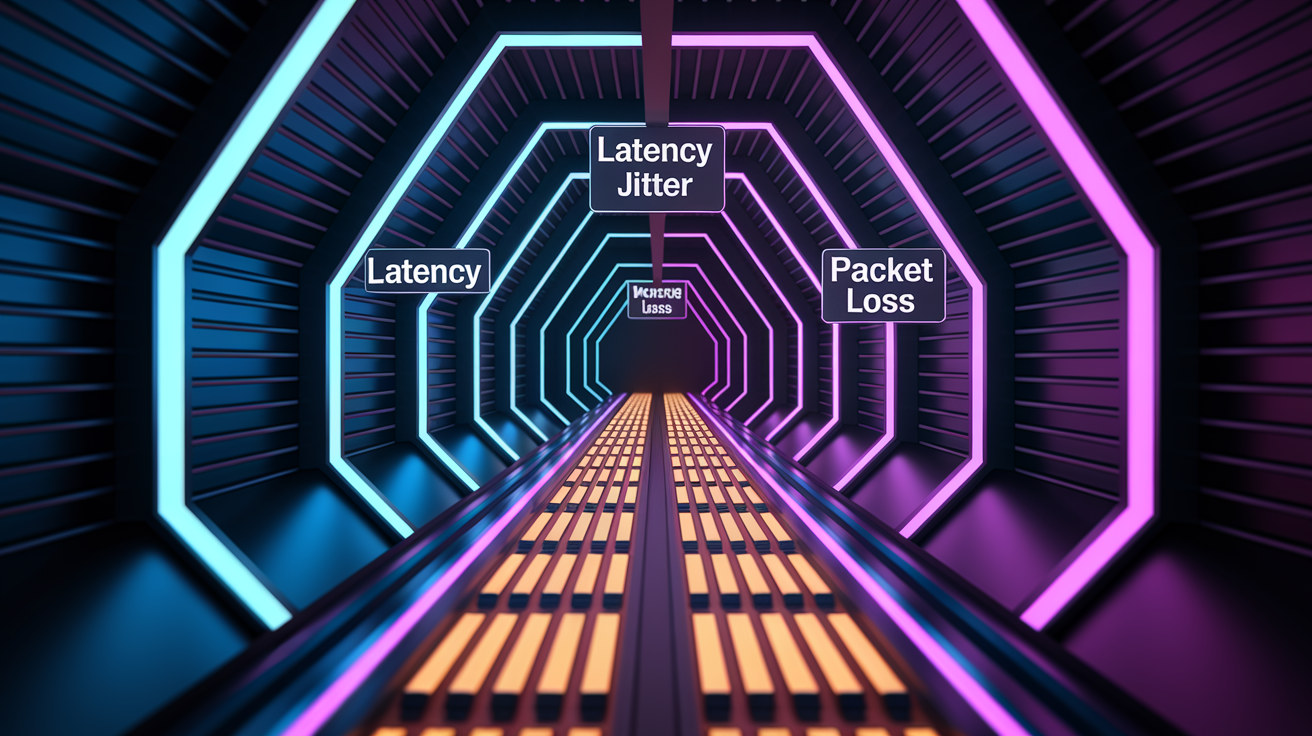
Even if your ISP advertises “high-speed internet,” your actual streaming experience depends on connection quality metrics that a simple speed test doesn’t always show. Latency above 50 ms, jitter exceeding roughly 30 ms, and packet loss over 1% all create conditions where video segments arrive late or out of order, forcing the player to pause and wait. Peak-hour network congestion (often hitting between 7 PM and 11 PM in residential areas) makes things worse as hundreds of nearby users stream at once, saturating shared neighborhood infrastructure and cutting the bandwidth available to each home.
ISP throttling and data caps add another layer of frustration. Some providers slow video traffic after you blow past monthly data limits, dropping speeds from advertised highs down to rates that can barely support standard definition. Mobile networks face similar constraints. Cellular signal strength, tower congestion, and handoff delays between cell sites create unpredictable throughput that spikes and drops as you move or as local traffic changes.
Network issues that trigger buffering include:
Low measured download speed falling short of the 5–8 Mbps needed for HD or 25 Mbps for 4K
High latency (over 50 ms) delaying the arrival of video segments and slowing startup
Packet loss (over 1%) causing retransmissions and gaps in the data stream
Jitter (over 30 ms) creating inconsistent delivery timing that empties the playback buffer unpredictably
ISP throttling after data caps get exceeded, dramatically cutting available throughput
Peak-hour congestion when local or backbone capacity gets overwhelmed by simultaneous users
Why Home Wi‑Fi and Router Issues Lead to Streaming Buffering
Wi‑Fi convenience comes at a cost to streaming stability. Wireless signals weaken as they pass through walls, and common household devices like microwaves and baby monitors create interference on the crowded 2.4 GHz band. The 5 GHz band offers higher throughput and less congestion, but its shorter effective range means devices farther than roughly 30 feet (9 meters) from the router often see weaker signals and more packet loss. Outdated routers (especially models more than five years old) struggle to juggle multiple high-definition streams and may lack the processing power or updated firmware to manage modern traffic loads efficiently.
Channel congestion on 2.4 GHz Wi‑Fi is particularly bad in apartment buildings and dense neighborhoods, where dozens of overlapping networks compete for the same spectrum. When your router and your neighbors’ routers all broadcast on channel 6, interference goes up and throughput drops. Distance from the router, physical obstructions, and the number of simultaneous devices all contribute to reduced Wi‑Fi performance that shows up as buffering during video playback.
Switching to a wired Ethernet connection eliminates most of these variables. Ethernet delivers stable throughput up to 10 Gbps (depending on cable category and equipment) with minimal packet loss and consistent latency, making it the gold standard for streaming devices that stay in one spot.
You can improve Wi‑Fi performance with these steps:
Reposition your router to a central, elevated location away from walls and metal objects
Switch to the 5 GHz band for devices within range to gain higher throughput and lower interference
Change your Wi‑Fi channel or enable automatic channel selection to avoid crowded frequencies
Consider a mesh Wi‑Fi system if your home layout creates dead zones or requires extended coverage
Device and App Limitations Behind Streaming Buffering

Your streaming device itself can become the bottleneck. Older smart TVs, set-top boxes, and computers with underpowered CPUs or limited RAM struggle to decode high-bitrate video in real time, leading to stuttering and buffering even when the network connection is solid. Outdated graphics drivers or streaming app versions pile up bugs and inefficiencies that slow playback, and a full app cache cluttered with old temporary files can mess with smooth data handling.
Background applications and browser tabs running on the same device eat up both bandwidth and processing power. A large file download, cloud backup, or system update competes with your video stream for network capacity, while multiple open tabs and extensions can slow browser-based playback to a crawl.
Quick device fixes to reduce buffering:
Close background apps and browser tabs to free bandwidth and CPU resources
Clear streaming app cache and data or reinstall the app to get rid of corrupted files
Update device firmware and streaming app to the latest stable versions
Test a different browser or native app if one platform shows persistent issues
Streaming Service, Server, and CDN Factors Causing Buffering

Not all buffering starts on your side of the connection. Streaming platforms rely on content delivery networks (CDNs) with edge servers distributed globally to bring video closer to viewers and cut latency. When a CDN cache miss occurs (meaning the requested video segment isn’t stored locally and has to be fetched from a distant origin server), startup delays and buffering go up. Extended geographic distance from the user to the nearest edge server or origin adds round-trip latency that slows segment retrieval, especially for users in regions with limited CDN presence.
Server overload during major live events or new episode releases can overwhelm platform infrastructure, causing widespread buffering as thousands of concurrent requests exceed capacity. DNS resolution delays, whether from slow DNS servers or misconfigurations, add extra milliseconds to each segment request, piling on delivery lag. Content provider outages (though less common) take entire services offline or degrade performance across regions.
Platforms with extensive edge networks, like those operating 140+ points of presence globally, reduce these issues by caching content near users and balancing load across multiple servers. When CDN infrastructure is insufficient or poorly tuned, even users with fast home internet see frequent buffering.
| Issue | Effect on Streaming |
|---|---|
| CDN cache miss | Increases segment retrieval time and startup delay |
| Server overload | Slows response times and can cause widespread buffering during peak demand |
| Geographic distance to edge server | Adds round-trip latency, delaying data arrival and increasing buffer underflow risk |
| DNS resolution delays | Slows initial connection and segment requests, compounding delivery lag |
| Platform outages | Completely interrupts service or degrades quality across entire regions |
How Adaptive Bitrate Streaming Helps Prevent Buffering

Adaptive bitrate streaming (ABR) is the primary defense against buffering on modern platforms. Instead of delivering a single fixed-quality stream, ABR encodes video at multiple resolutions and bitrates (often called a bitrate ladder), then serves the stream in short segments of a few seconds each. The player watches available bandwidth in real time and automatically switches between quality levels to match current network conditions, stepping down to 720p or 480p when throughput drops and scaling back up to 1080p or 4K when things improve.
This flexibility keeps the playback buffer full even when bandwidth bounces around. On a small phone screen, the visual difference between 1080p and 720p is often hard to spot, so dropping resolution to avoid a pause makes practical sense. CDNs with large point-of-presence networks (like those with 140+ PoPs distributed globally) reduce latency and improve ABR effectiveness by making sure segments load quickly from nearby edge servers, giving the algorithm more headroom to adapt before the buffer empties.
ABR delivers these benefits:
Automatic quality adjustment matches video bitrate to real-time network capacity
Reduced buffering events by stepping down resolution before the buffer empties completely
Faster startup by beginning playback at a lower bitrate and scaling up as the buffer fills
Improved user experience on variable connections, especially mobile and congested Wi‑Fi
Efficient bandwidth use by serving only the quality level the connection can sustain
How HLS and DASH Reduce Buffering
The two dominant ABR protocols are HTTP Live Streaming (HLS) and MPEG‑DASH. Both split video into short segments (typically 2 to 10 seconds each) and maintain a manifest file that lists all available quality levels and segment URLs. The player downloads the manifest, picks an initial bitrate, and starts fetching segments. After each segment, the player reassesses available bandwidth and chooses the next segment’s quality level from the bitrate ladder. This segmented delivery and continuous quality monitoring let players respond to network changes within seconds, preventing buffer underflow by switching to a sustainable bitrate before playback stalls.
Practical Ways to Stop Streaming Buffering Right Now
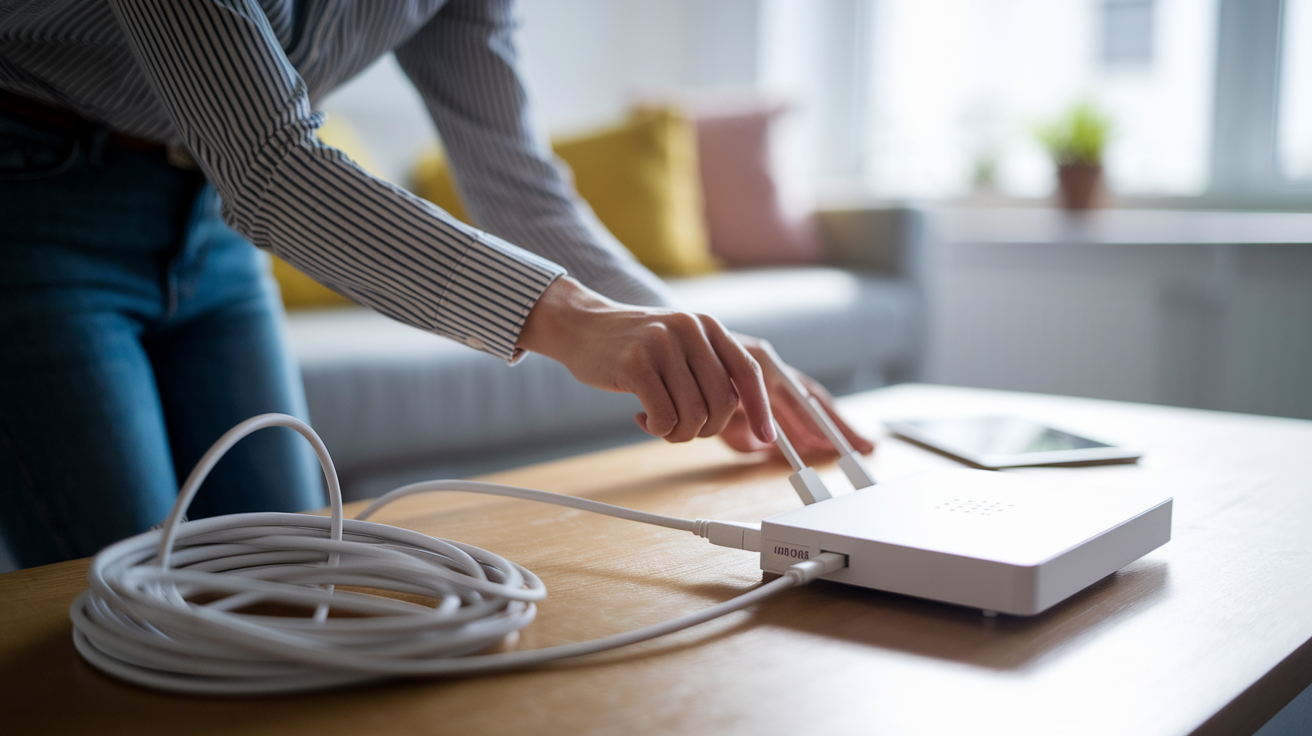
When buffering interrupts your stream, a handful of quick actions can get smooth playback back within minutes. The fastest fix is switching from Wi‑Fi to a wired Ethernet connection. Plug a cable directly from your router to the streaming device to eliminate wireless interference, packet loss, and bandwidth competition. Ethernet supports up to 10 Gbps and delivers stable, low-latency throughput that Wi‑Fi often can’t match under load.
If Ethernet isn’t an option, manually lower video quality from 1080p to 720p or even 480p in the player settings. This single change can cut bandwidth requirements by half or more, giving your connection enough headroom to keep the buffer full. Restart both your router and streaming device to clear temporary glitches and refresh the connection. Close background downloads, cloud backups, and unused browser tabs or apps on the streaming device to free bandwidth and processing power.
Run a speed test to measure current throughput. If your download speed falls below the target for your chosen resolution (roughly 5–8 Mbps for HD, 25 Mbps for 4K), reduce quality right away. Clear the streaming app’s cache or browser cookies to remove corrupted temporary files that can slow playback.
Immediate troubleshooting steps:
Switch to Ethernet to eliminate Wi‑Fi interference and stabilize throughput
Lower video resolution to 720p or 480p to reduce bandwidth demands
Restart your router and streaming device to clear temporary connection issues
Close background apps and downloads to free bandwidth for the video stream
Run a speed test to confirm available bandwidth matches your resolution needs
Clear app cache or browser cookies to remove old data that may be slowing playback
Disconnect unused devices from the network to reduce bandwidth competition
Choose the best resolution for your connection with these steps:
- Run a speed test and note your download speed in Mbps.
- Compare your speed to these targets: 3 Mbps for SD, 5–8 Mbps for HD, 25 Mbps for 4K.
- If your speed is below the target, drop to the next lower resolution tier.
- Test playback for a few minutes. If buffering stops, keep the lower setting.
Long‑Term Improvements to Prevent Future Buffering
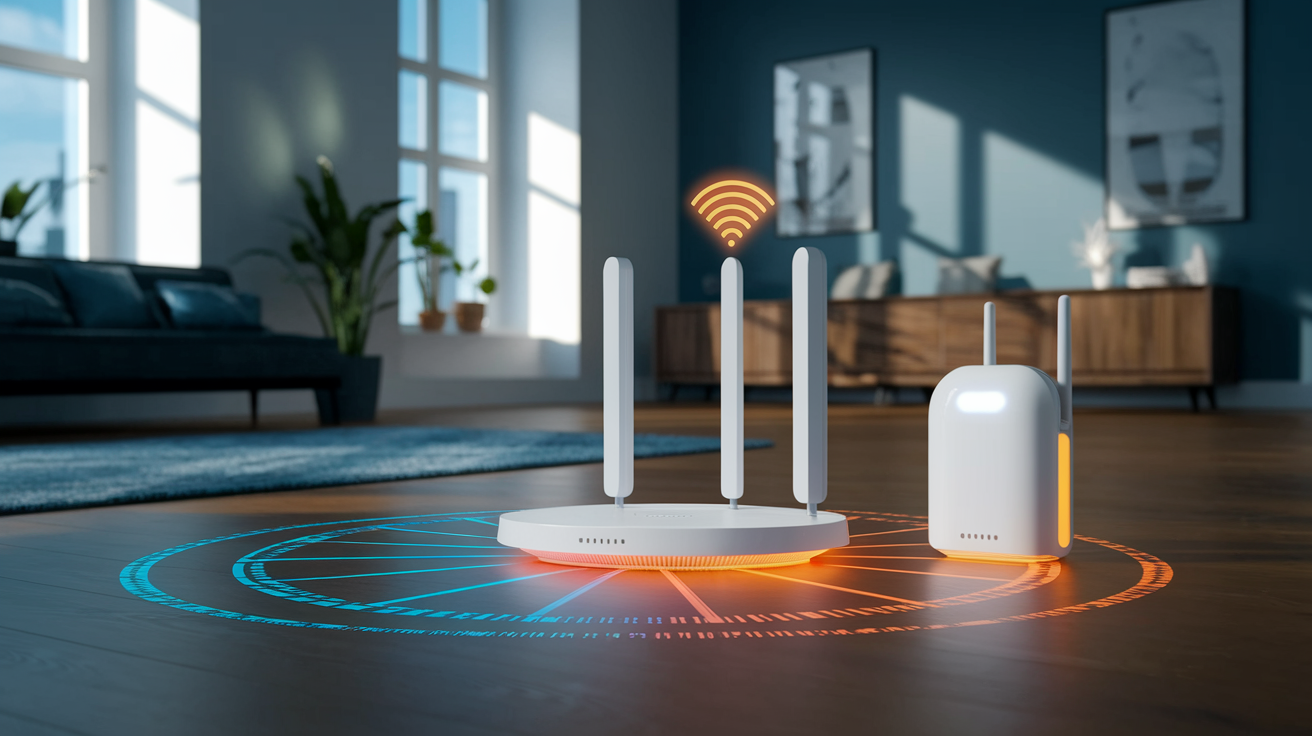
For persistent buffering issues, long-term upgrades to your home network and ISP plan can deliver lasting improvements. Replace routers older than five years with modern Wi‑Fi 6 models that juggle multiple devices more efficiently and support higher throughput on both 2.4 GHz and 5 GHz bands. Mesh Wi‑Fi systems extend coverage across larger homes and eliminate dead zones that force devices onto weak signals and slow connections.
Turn on Quality of Service (QoS) settings in your router to prioritize streaming traffic over background downloads and file transfers. This makes sure video packets get through first when the network is busy. If your current ISP plan consistently delivers speeds below your household’s needs (especially during peak hours), upgrading to a 100 Mbps, 200 Mbps, or 300+ Mbps tier can provide enough overhead for multiple simultaneous HD or 4K streams without competition.
Monitor your data usage if your plan includes a monthly cap. Going over the cap often triggers automatic speed reductions that turn smooth streaming into a buffering nightmare. Some ISPs offer unlimited plans or higher caps that eliminate this risk.
Long-term solutions to reduce buffering:
Upgrade to a Wi‑Fi 6 router or mesh system for better multi-device performance and coverage
Increase your ISP plan speed to 100–300+ Mbps if current speeds fall short during peak use
Enable QoS on your router to prioritize video traffic over other activities
Install a wired switch or powerline adapters to extend Ethernet to more rooms
Monitor data caps and usage to avoid throttling. Consider unlimited plans if available.
Glossary of Common Buffering Terms Users Should Know
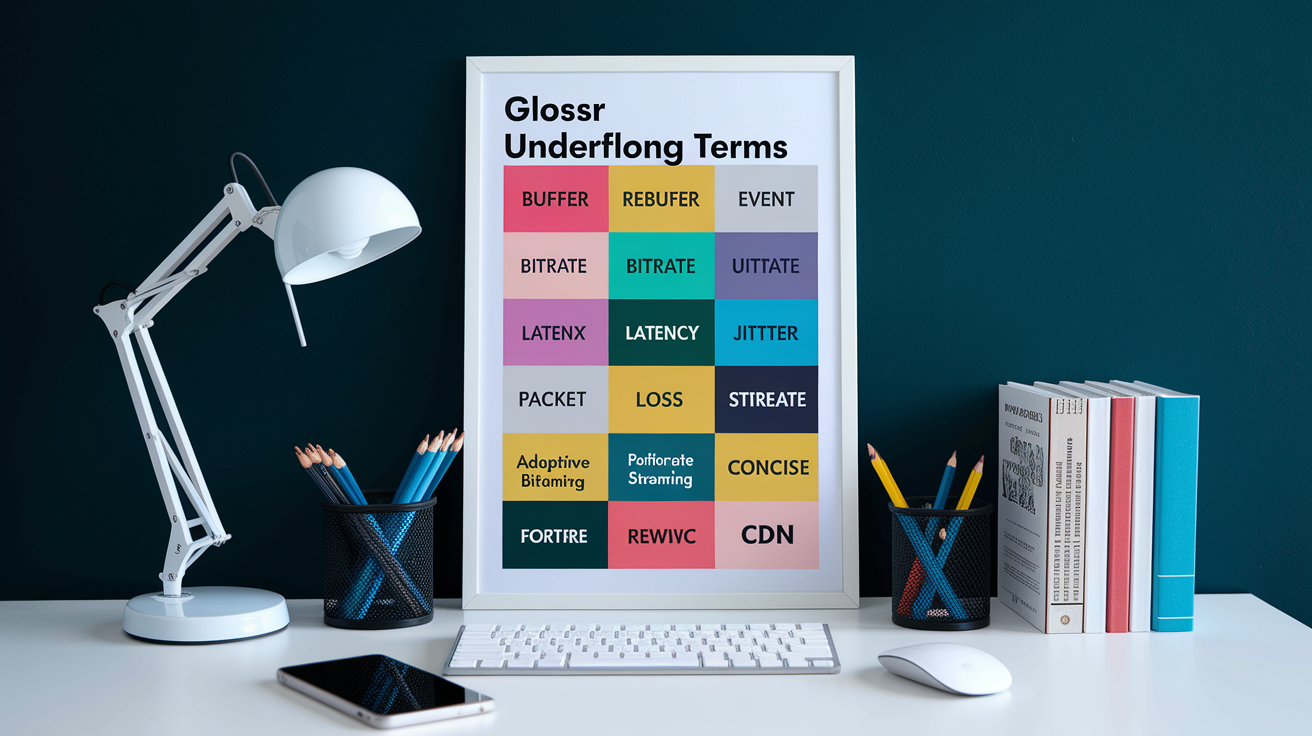
| Term | Definition |
|---|---|
| Buffer underflow | When the playback buffer empties because data arrives slower than the video consumes it, causing a pause |
| Rebuffer event | Each time playback pauses to reload data after the buffer runs dry |
| Bitrate | The amount of data per second required to play a video, measured in Mbps. Higher bitrates mean better quality and larger files. |
| Latency | The round-trip delay between your device and the server, measured in milliseconds. Values above 50 ms can slow streaming. |
| Jitter | Variation in packet arrival times. Jitter above roughly 30 ms creates inconsistent delivery that empties the buffer unpredictably. |
| Packet loss | When data packets fail to arrive, forcing retransmissions. Loss above 1% commonly causes buffering. |
| Adaptive Bitrate Streaming (ABR) | A delivery method that automatically switches video quality to match available bandwidth, preventing stalls |
| CDN (Content Delivery Network) | A network of distributed edge servers that cache video close to users to reduce latency and improve delivery speed |
Final Words
in the action, here’s a short recap: the post explains why streams stall—slow ISP speeds, Wi‑Fi interference and range limits, device or app bottlenecks, server/CDN delays, and buffer underflow that pauses playback.
Start troubleshooting with a speed test, then try Ethernet, lower video quality, reboot your router, or clear the app cache. Longer fixes include upgrading routers, using QoS or mesh Wi‑Fi, and choosing higher‑capacity internet plans.
If you’re asking why do streaming services buffer, these steps usually fix it fast. With a few simple changes, streaming should feel smoother and more reliable.
FAQ
Q: How do I stop streaming services from buffering?
A: To stop streaming services from buffering, run a speed test, switch to Ethernet, lower video quality, close background apps, restart your router or device, and update apps and router firmware if needed.
Q: What causes a stream to buffer?
A: A stream buffers when playback depletes its preloaded data (buffer underflow) due to slow ISP speeds, Wi‑Fi interference, too many devices sharing bandwidth, weak device hardware, or server/CDN delays.
Q: Why is Netflix only buffering?
A: Netflix buffers when your network or device can’t keep up, the Netflix app or router needs restarting, or Netflix’s CDN is congested; run a speed test, restart the app, try Ethernet, or lower quality.

