

Did your app stop working the moment you installed an update?
You’re not alone, because updates can change code, permissions, or server connections and leave your device mismatched.
This post explains the most common causes: corrupted cache, reset permissions, OS incompatibility, incomplete installs, and backend rollouts, and gives quick fixes you can try in minutes.
Try force close, clear cache, restore permissions, reinstall, or update your operating system.
Read on to fix the app without losing data and to know when to contact the developer.
Primary Reasons an App Stops Working After an Update
App updates rewrite code, change how the app communicates with your operating system, and bring in new dependencies that weren’t there before. Developers push new versions expecting your device to be running the latest OS, and they’ll rewrite functions or move data storage without much warning. If your device doesn’t match what the update assumes, you get freezes, crashes on launch, or blank screens. That mismatch is why apps break right after you hit “Update.”
Corrupted cache from the old version can clash with what the new update expects. The app tries loading old config files that don’t fit the new structure anymore. Crashes happen instantly. Same goes for outdated OS versions—an app built for iOS 18 or Android 14 might need features your older system doesn’t have. Low storage can interrupt installation and leave the app half-installed and broken. Sometimes the developer’s backend isn’t ready for the new version yet, which causes failures even when your local install is fine.
Permission resets. Updates can revert camera, microphone, location, or notification permissions back to defaults and block what the app needs.
Corrupted cache or saved data. Files left over from the old version conflict with the new app’s structure.
OS version incompatibility. The update requires features only available in newer system releases.
Server problems or incomplete rollouts. The backend isn’t synced with the new client version yet.
Installation errors during the update. Interrupted downloads or low storage corrupt the new app binary.
Outdated system libraries. Android System WebView, Google Play Services, or iOS frameworks might need updates before the app runs right.
Most failures trace back to permissions conflicts or corrupted local data. Big version jumps (like 3.x to 4.0) often restructure databases, change login flows, or add privacy controls that need fresh consent.
Quick Fixes to Try Immediately

Most crashes after updates clear up with basic actions that reset temporary states and wipe out conflicting files. These take less than five minutes and fix the majority of problems without needing developer support.
Start here because these address the most common failure points—corrupted runtime states, permission locks, stale cache—without risking your data or requiring a full device reset.
Force close the app. Swipe up from the bottom and hold (iPhone with Face ID), double tap Home (older iPhones), or open Recent Apps and swipe away (Android). Reopen from your home screen.
Restart your device. iPhones with Face ID: press Side + Volume Up, slide to power off, wait 10 seconds, power on. Android: hold Power for 10 seconds or tap Restart in the power menu.
Clear the app’s cache. Android: long press app icon, App info, Storage & cache, Clear cache. iOS: Settings, General, iPhone Storage, [app], Offload App (clears cache, keeps data).
Clear app data (careful). Android only: App info, Storage & cache, Clear data. This wipes login credentials and preferences. Only use when cache clearing doesn’t work.
Reinstall the app. Delete it (long press icon, Delete/Uninstall), reinstall from App Store or Google Play. Sign back in if needed.
Check and restore permissions. iOS: Settings, Privacy & Security, review Camera, Microphone, Location. Android: long press app, App info, Permissions, verify everything’s allowed.
Update your operating system. iOS: Settings, General, Software Update. Android: Settings, System, System Updates, Check for updates. Install what’s available.
Check storage. iOS: Settings, General, iPhone Storage. Android: Settings, Storage. Free up at least 1–2 GB by deleting photos, videos, unused apps.
These restore the app to a clean state and eliminate the conflicts updates introduce. Restarting clears system memory locks, reinstalling removes corrupted binaries from partial installs, restoring permissions fixes access blocks to your camera, location, or network. If the app still fails after all eight, the problem’s either a deeper system conflict or a bug only the developer can patch.
Android‑Specific Troubleshooting

Android’s open setup and granular permissions create more chances for update conflicts, especially when apps depend on Google Play Services, Android System WebView, or background data policies that change across manufacturers and OS versions.
Clear cache and data for the app. Long press app icon, App info, Storage & cache, Clear cache (safe) or Clear data (erases login and settings). Restart after clearing.
Reset app preferences. Settings, System, Reset options, Reset app preferences. Restores default permissions and background settings for all apps without deleting data.
Disable battery optimization. Settings, Apps, [app], Battery, Unrestricted (or Don’t optimize). Battery savers can kill updated apps that need persistent background access.
Check background data permissions. Settings, Apps, [app], Mobile data & Wi‑Fi, allow Background data and Unrestricted data usage. Important for apps that sync content.
Update or roll back Android System WebView. Play Store, profile, Manage apps & devices, Updates available, update Android System WebView. If the update caused the crash, go to Settings, Apps, See all apps, Android System WebView, three dot menu, Uninstall updates, restart.
Verify Google Play Services is current. Play Store, profile, Manage apps & devices, check for Google Play Services updates. Many apps need this for login and notifications.
Confirm OS compatibility. Check the app’s Play Store page under “About this app,” “Requires Android [version].” If your device is older, the update might not support it anymore.
If none of this works and the app was fine before the update, check Play Store reviews for the latest version. Widespread crashes show up in recent 1 star reviews within hours. Contact the developer through the Play Store listing (scroll down, “Contact developer”) and include your device model, Android version, exact error message if one appears.
iOS‑Specific Troubleshooting
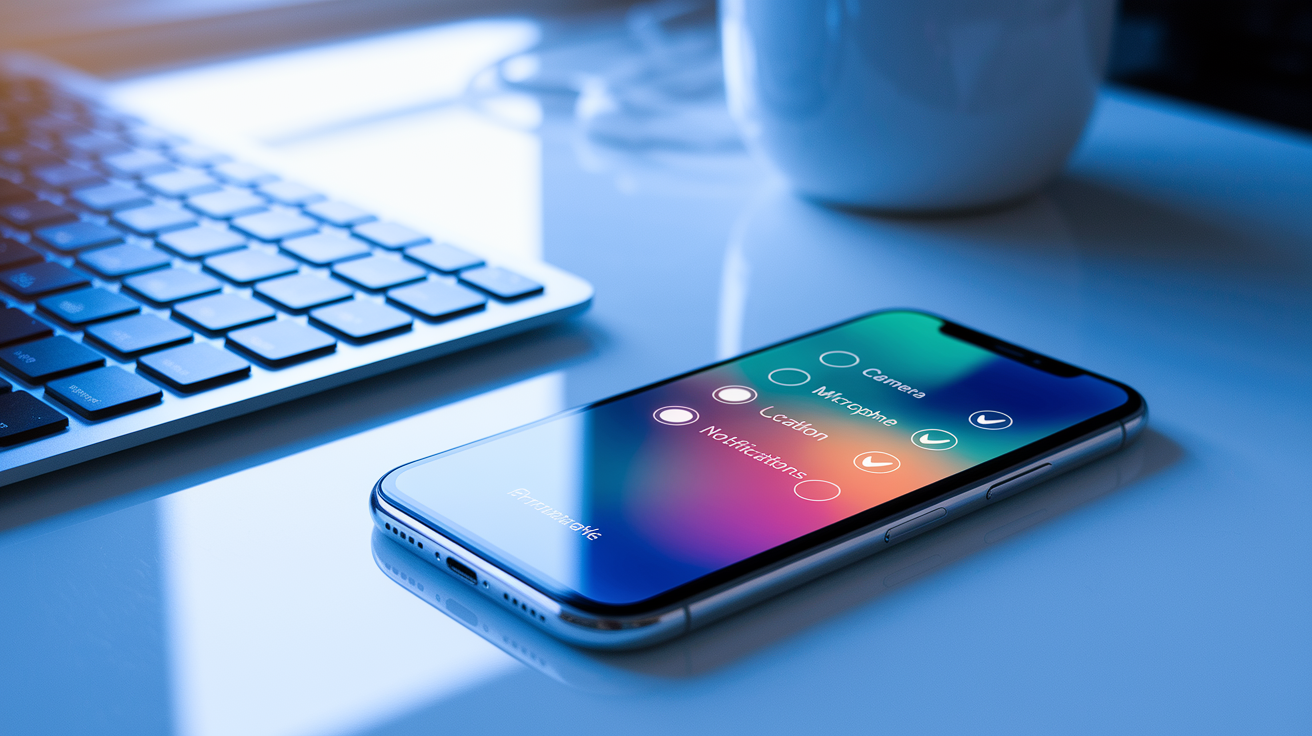
iOS updates can reset permissions, disable background processes, or introduce compatibility issues when apps expect features only in the newest iOS release. Apple’s stricter sandboxing means fewer manual workarounds compared to Android.
Offload and reinstall the app. Settings, General, iPhone Storage, [app], Offload App (keeps data), Reinstall App. Clears corrupted files while keeping login and settings.
Check iOS version compatibility. App Store, search for the app, scroll to “Information,” “Requires iOS [version].” If your device is older, the update might need a newer OS you can’t install.
Reset network settings. Settings, General, Transfer or Reset iPhone, Reset, Reset Network Settings. Clears Wi‑Fi passwords and VPN configs but often fixes apps that won’t connect after an update. You’ll need to rejoin Wi‑Fi networks.
Re‑enable permissions. Settings, Privacy & Security, check Camera, Microphone, Location Services, Notifications, Face ID & Passcode for the app. Updates sometimes revert these to “Ask Next Time” or “Never.”
Allow Background App Refresh. Settings, General, Background App Refresh, enable globally, scroll down and enable for the specific app. Some updates need this for syncing or notifications.
Restart your iPhone. Face ID models: hold Side + Volume Up, slide to power off, wait 10 seconds, power on. Home button models: hold Power, slide to power off.
Verify iCloud sync (if applicable). Settings, [your name], iCloud, toggle the app’s iCloud sync off, wait 10 seconds, toggle back on. Apps storing data in iCloud can fail if sync credentials expired.
If the app still crashes and you see “This app requires iOS [newer version],” you’ll need to either update iOS (Settings, General, Software Update) or contact the developer to request support for your current version. For apps that worked before and now show blank screens or instant crashes, check the App Store’s “What’s New” section for known issues. Reach out via the App Store page (scroll down, Developer Website or App Support) and include your iPhone model, iOS version, whether the crash happens on launch or during a specific action.
Advanced Fixes for Persistent Issues
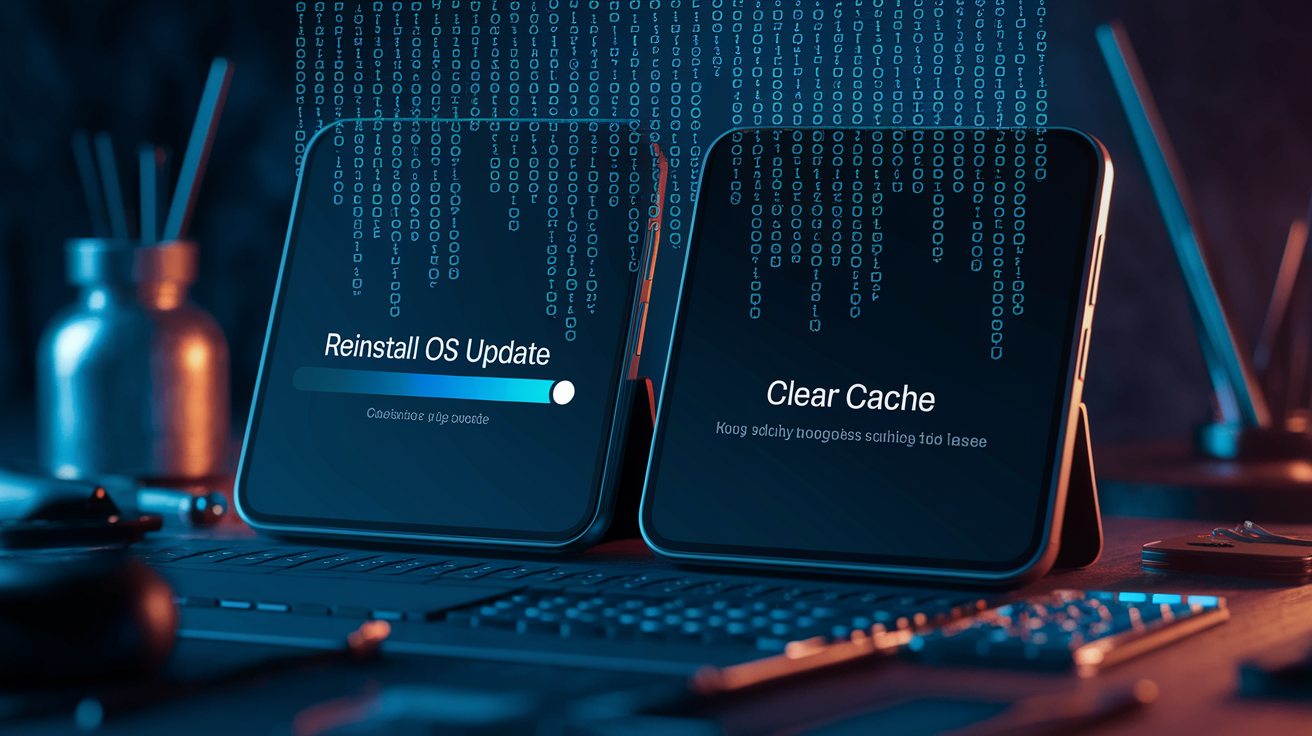
When basic troubleshooting doesn’t work, the problem usually involves system conflicts. Mismatched libraries, corrupted OS cache, dependencies the new app needs but your device doesn’t provide. These conflicts are invisible to standard settings menus and need deeper intervention.
Apps updated to use new APIs (the code hooks that let apps talk to your OS) can crash if your operating system hasn’t installed the matching framework updates. An app expecting the latest Bluetooth stack or authentication library will fail silently if those components are outdated. On Android, system cache partition corruption can break apps after updates, especially after a major OS upgrade. iOS users might hit similar issues when the app’s new version expects iCloud Keychain or FaceID APIs that aren’t fully initialized on the device.
Reinstall the latest OS update. Even if your OS is current, reinstalling can repair corrupted system files. iOS: Settings, General, Software Update, Download and Install (even if it shows the same version). Android: Settings, System, System Updates, Check for updates, reinstall if available.
Clear system cache partition (Android). Power off, boot into Recovery Mode (hold Power + Volume Up during startup on most devices; exact buttons vary), select “Wipe cache partition,” reboot. This doesn’t erase data.
View crash logs for error codes. iOS: Settings, Privacy & Security, Analytics & Improvements, Analytics Data, search for the app name and check recent crash logs for error identifiers. Android: developer options (Settings, About phone, tap Build number 7 times), Running services or Logcat (requires third party app).
Use TestFlight or beta rollback (iOS). If you’re in a beta program and the public update broke the app, reinstall the TestFlight version or leave the beta to revert to stable. Delete the app, remove from TestFlight, reinstall from App Store.
Full app and account reinstall. Sign out inside the app (if possible), delete the app, restart your device, reinstall from the store, sign back in. Forces the app to rebuild all local databases and refresh server tokens.
These resolve conflicts from partial OS upgrades, fragmented system libraries, or expired authentication tokens. If crash logs show repeated references to a specific framework (like “CoreData,” “SQLite,” or “WebKit”), the app’s likely incompatible with your current OS or needs a system component update the developer didn’t document. At that point, it’s beyond user fixes.
When to Contact Support

If you’ve done all basic and advanced troubleshooting and the app still crashes, freezes, or won’t open, it’s either a bug in the update or a rare device conflict only the developer can diagnose. Signs you should escalate: the app worked perfectly before the update, other users report identical crashes in recent store reviews, the app displays a specific error code, or you see a blank screen or immediate crash on every launch.
Developers need precise details to reproduce the problem and push a fix. Include your device model (iPhone 14 Pro, Samsung Galaxy S23), exact OS version (iOS 17.3.1, Android 14), app version number (in App Store/Play Store under “About this app” or in the app’s settings), clear steps to reproduce the crash (“Crash happens immediately after tapping the login button”). Attach screenshots of error messages. If possible, export crash logs (iOS: Settings, Privacy & Security, Analytics Data; Android: developer options, Bug report). Most developers provide support email or form in the store listing under “App Support” or “Contact Developer.” Expect a response within 24–72 hours for active apps. Check for app updates daily—many developers push emergency patches within hours of widespread crash reports.
Preventing Future App Failures After Updates
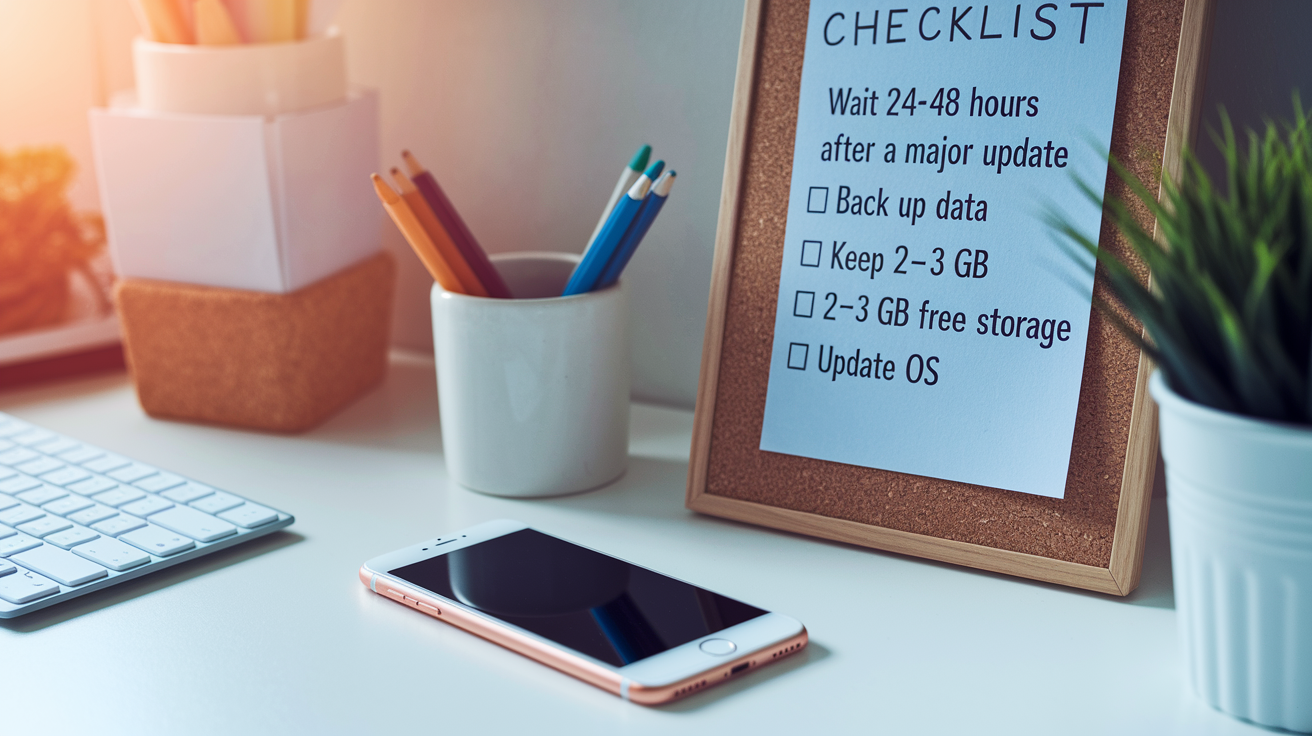
Proactive device maintenance and cautious update timing cut down the chance of post update crashes. Most failures happen when an app’s new requirements collide with an unprepared device or unstable backend rollout.
Wait 24–48 hours after a major app update. Let early adopters surface critical bugs. Check recent store reviews before updating apps you rely on daily.
Keep your operating system updated. Install OS patches as soon as they’re available. Developers assume most users run recent OS versions. Outdated systems trigger compatibility failures.
Avoid beta or developer preview operating systems. Beta OS releases break apps frequently because developers haven’t tested against unstable system APIs. Stick to public releases on your primary device.
Maintain at least 2–3 GB of free storage. Low storage causes incomplete installations and prevents the OS from writing temporary files apps need during updates.
Back up your device before major updates. iOS: iCloud Backup in Settings, [your name], iCloud, iCloud Backup. Android: Google One or device backup in Settings, System, Backup. If an update breaks something, you can restore.
Reboot your device after installing app updates. A quick restart clears memory locks and makes sure the new app version initializes cleanly with updated system permissions.
Final Words
In the action, updates often change permissions, cached data, or system libraries and that can cause apps to crash, freeze, or stop working. This article ran through the common causes, quick fixes, Android and iOS steps, deeper troubleshooting, when to contact support, and ways to prevent future failures.
If you’re wondering why did my app stop working after update, try the quick fixes first, gather device details, then reach out to the developer if needed. Most problems clear with a reboot or reinstall, so you should be back up soon.
FAQ
Q: Why are my apps suddenly not working after the new update?
A: Your apps are not working after the update because changes to permissions, system libraries, or app compatibility — plus corrupted cache, low storage, or server issues — often break apps; try restart, clear cache, reinstall.
Q: How do I get my apps back after the iOS 26 update?
A: You can get apps back after iOS 26 by restarting the iPhone, offloading and reinstalling the app, checking permissions and Background App Refresh, updating iOS, and reinstalling from the App Store if needed.
Q: How to fix an unresponsive app?
A: To fix an unresponsive app, force-close it, reboot your device, clear the app cache or data, free up storage, update the app/OS, and reinstall the app if it remains frozen.

