

Ever had an app hit 100 percent and then sit frozen on your screen?
It’s maddening, but not mysterious: the download often finished while the installer can’t finish writing or verifying files because of a cache lock, a stuck process, or a shaky network.
This quick guide gives simple, proven fixes that work fast.
Try force-closing the app or store, restarting your device, toggling your network, reattempting the download, or signing out and back into your store account.
Do the first three and most updates finish within a minute.
Immediate Fixes to Get the Update Unstuck

When an update gets stuck at 100 percent, you’re looking at a situation where the download finished but something’s blocking the final installation step. Could be a cache lock, a hung background process, or an interrupted network handshake. The files are there. They just can’t finish writing or verifying.
Restarting things clears temporary memory locks and lets installer threads start fresh. Network toggles force new connections and retry incomplete handshakes.
Work through these five steps:
- Force-close the app or app store: swipe it from recent apps (mobile) or quit via Task Manager/Activity Monitor (desktop), wait 10 seconds, reopen.
- Restart your device: power off, wait 30 seconds, power on. Clears RAM and suspended processes.
- Toggle your network connection: turn Wi‑Fi off for 10 seconds then back on, or switch between Wi‑Fi and mobile data.
- Re-attempt the download: if the update vanished, go back to the app store and tap Update again. If it’s still at 100 percent, pause for 5 seconds then resume.
- Log out and back in to your app store account: refreshes authentication tokens and can unblock server-side approval steps.
Most freezes clear within a minute or two once you’ve done the first three.
Core Troubleshooting Steps for Stalled App Updates
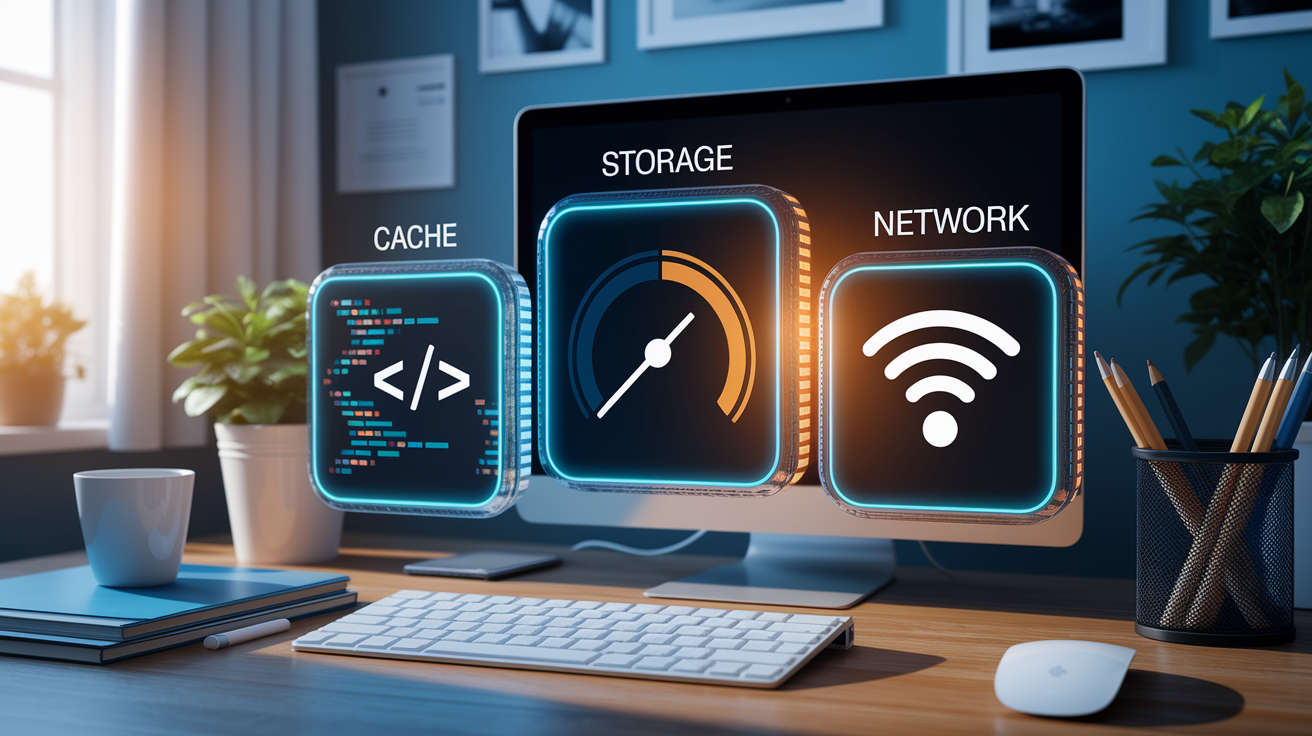
If those quick fixes don’t work, you’re probably dealing with cached installation data, not enough free space, or a network that finished downloading but can’t verify the package. App stores cache partial downloads and metadata. When that cache goes stale or gets corrupted, the installer thinks it’s done but can’t move to the final signature check.
Start by clearing the app store’s cache. On mobile, go to Settings → Apps → [App Store Name] → Storage → Clear cache (or Clear data if cache alone doesn’t help). Windows users can run wsreset.exe from the Run dialog (Win+R) to reset Microsoft Store cache. macOS users should quit the App Store, delete ~/Library/Caches/com.apple.appstore, then relaunch.
Check your available storage next. An update might show 100 percent but still need several gigs of temporary space to unpack and verify. Free at least 2 GB for small apps, 5–10 GB for games or heavy productivity tools. Delete unused apps, move photos and videos to cloud storage, shift files to external drives. Low storage causes silent failures that look like progress hangs.
Verify your network is stable and fast enough. Run a speed test. Aim for at least 5 Mbps download for app updates, 20+ Mbps for large games. If speeds bounce around or drop below 1 Mbps, the installer may time out during final verification. Switch to a different Wi‑Fi network, use wired Ethernet, or pause other downloads and streams.
Common mistakes that stall updates:
- Leaving less than 1 GB free and assuming download size is the only space requirement
- Running simultaneous large downloads or system backups that saturate disk I/O
- Using public or congested Wi‑Fi without checking actual throughput
- Ignoring OS update prompts (outdated system software can block app installer compatibility checks)
Platform‑Specific Fixes (Android, iOS, Windows, macOS)

Android Fixes
Open Google Play Store, tap your profile icon, then Manage apps & device → Manage tab. Look for other updates queued or in progress. Cancel them to free up the download manager. If your stuck app still shows “pending” or frozen at 100 percent, pause and resume from this screen.
Clear Play Store cache: Settings → Apps → Google Play Store → Storage → Clear cache. If that doesn’t help, tap Clear storage (logs you out and resets the store app, you’ll need to sign back in). Restart your phone, retry the update.
Check device storage under Settings → Storage (on Samsung devices, Battery and device care → Storage). Free at least 500 MB–2 GB. If you use an SD card, check both internal and card storage. Some apps install to internal even when the card is primary. Uninstall unused apps or move photos to Google Photos.
If the update’s still stuck, uninstall the app completely and reinstall from the Play Store. Forces a clean download of the latest version. Last resort: open a mobile browser, log into play.google.com, search for the app, tap Install. The web interface sometimes bypasses mobile store bugs.
iOS Fixes
Tap the app icon on your Home screen. If the update’s paused, tapping resumes it. If it’s frozen at 100 percent, tap to pause, wait 5 seconds, tap again to resume. Often nudges the installer past final verification.
Go to Settings → General → iPhone Storage (or iPad Storage). Scroll to the stuck app and tap it. Choose Offload App to remove the app but keep its data, then tap Reinstall App. If that doesn’t work, select Delete App, confirm, restart your device, reinstall from the App Store.
If App Store updates are stuck across multiple apps, sign out of your Apple ID: Settings → [Your Name] → Media & Purchases → Sign Out, wait 10 seconds, sign back in. Refreshes update entitlements.
For persistent freezes, reset network settings (Settings → General → Transfer or Reset iPhone → Reset → Reset Network Settings). Clears saved Wi‑Fi passwords, so have them ready. After reset, reconnect to Wi‑Fi and retry. Network profile corruption can block the final download handshake even when progress shows 100 percent.
Windows Fixes
Press Win+R, type wsreset.exe, press Enter. A blank Command Prompt window appears for 10–15 seconds, then Microsoft Store opens with cleared cache. Try the update again right away.
If the app’s still stuck, open Settings → Apps → Apps & features, find Microsoft Store, click Advanced options, then click Repair. Wait 30 seconds, reopen the store, retry. If Repair fails, click Reset (removes store data and requires signing in again).
For traditional desktop installers (outside Microsoft Store), open Task Manager (Ctrl+Shift+Esc), go to the Details tab, end any processes related to the installer or the app name. Delete the incomplete installer from Downloads and temporary folders (%TEMP% and C:\Windows\Temp), restart Windows, re-download and run the installer with administrator rights (right-click the installer → Run as administrator).
Check for pending Windows OS updates under Settings → Update & Security → Windows Update. Install any waiting updates and restart. OS updates can block app installations until applied, even if the app update appears done.
macOS Fixes
Quit the App Store (Command+Q), wait 10 seconds, relaunch. If the update still shows at 100 percent, restart your Mac, wait 30 seconds after shutdown before powering on, reopen the App Store.
Open Finder, go to Applications, find the stuck app, drag it to the Trash, empty the Trash. Restart your Mac, open the App Store, reinstall the app. Ensures a clean install of the latest version.
Sign out of the App Store (App Store menu → Sign Out), restart your Mac, sign back in, retry the update. Account token refresh can unblock stuck downloads tied to purchase verification.
Check System Preferences → Software Update for pending macOS updates. Installing system updates first often resolves app compatibility blocks. If the App Store itself is acting up, delete ~/Library/Caches/com.apple.appstore and ~/Library/Preferences/com.apple.appstore.plist, restart and relaunch the App Store.
Console and Streaming Device Update Solutions

Game consoles and smart TVs handle updates differently. They suspend downloads during active use and usually lack granular cache controls. On PlayStation (PS4 and PS5), go to Notifications → Downloads, highlight the stuck update, press Options, select Cancel. Power off the console completely (hold the power button for 10 seconds until it beeps twice), unplug the power cable, wait 30 seconds, plug back in, restart. Navigate to the game or app in the library and retry. If the freeze persists, boot into Safe Mode (hold power until the second beep, about 7 seconds), connect a controller via USB, select option 5 (Rebuild Database). Clears corrupted download metadata without deleting games.
On Xbox (One, Series X|S), press the Xbox button, go to My games & apps → Queue, highlight the stuck item, press Menu, select Cancel. Do a full power cycle: hold the console’s power button for 10 seconds, wait until the light goes off, unplug the power cable for 30 seconds, reconnect, power on. Re-download the update. Check Settings → Network → Network settings to confirm NAT type is Open and speeds are stable. Strict NAT or packet loss can freeze final verification steps.
Smart TVs (Roku, Fire TV, Samsung, LG) often need a cache clear or factory reset of the app. On Roku, go to Settings → System → System restart. After restart, go to the stuck app, press Star (*), select Remove channel, then reinstall from the Channel Store. Fire TV users should go to Settings → Applications → Manage Installed Applications → [App] → Clear cache and Clear data, then uninstall and reinstall. For Samsung and LG, power off the TV, unplug for 60 seconds, reconnect, check for system software updates under Settings → Support before retrying app updates.
Typical causes on consoles and TVs:
- Suspended background downloads that resume but can’t finalize during active gameplay or streaming
- Corrupted cache in the system’s download manager or app store
- Network instability (Wi‑Fi signal drops or slow speeds) during final installation steps
Common Causes of Updates Getting Stuck

Updates freeze at 100 percent when the download finishes but installation or verification fails. The system has all the data but can’t write it to disk, verify the signature, or move files into place.
Low storage is the most frequent culprit. Even if the download fits, installers need temporary space (sometimes double the app size) to decompress archives, verify checksums, swap old files for new ones. Server overload during peak hours can also stall updates: app stores may complete the file transfer but delay the final approval or license check, leaving the progress bar frozen while waiting for a server response.
Corrupted cached data or installer metadata causes silent failures. The system thinks the update’s complete based on cached records, but the actual files are incomplete or mismatched. Slow or unstable networks drop packets during the final handshake, preventing the installer from confirming delivery and moving to the next step.
| Cause | How It Leads to a Freeze |
|---|---|
| Low storage space | Installer can’t decompress files or create temporary swap files, stalling at 100% even though download is complete |
| Server overload or outage | App store delays license verification or final approval step, leaving progress indicator frozen while waiting for server response |
| Corrupted installer cache | System reads stale metadata claiming update is done, but actual files are incomplete or mismatched, blocking installation |
| Network packet loss or timeout | Final verification handshake with server fails due to dropped packets, installer retries silently but progress bar doesn’t move |
Preventing Future Update Issues
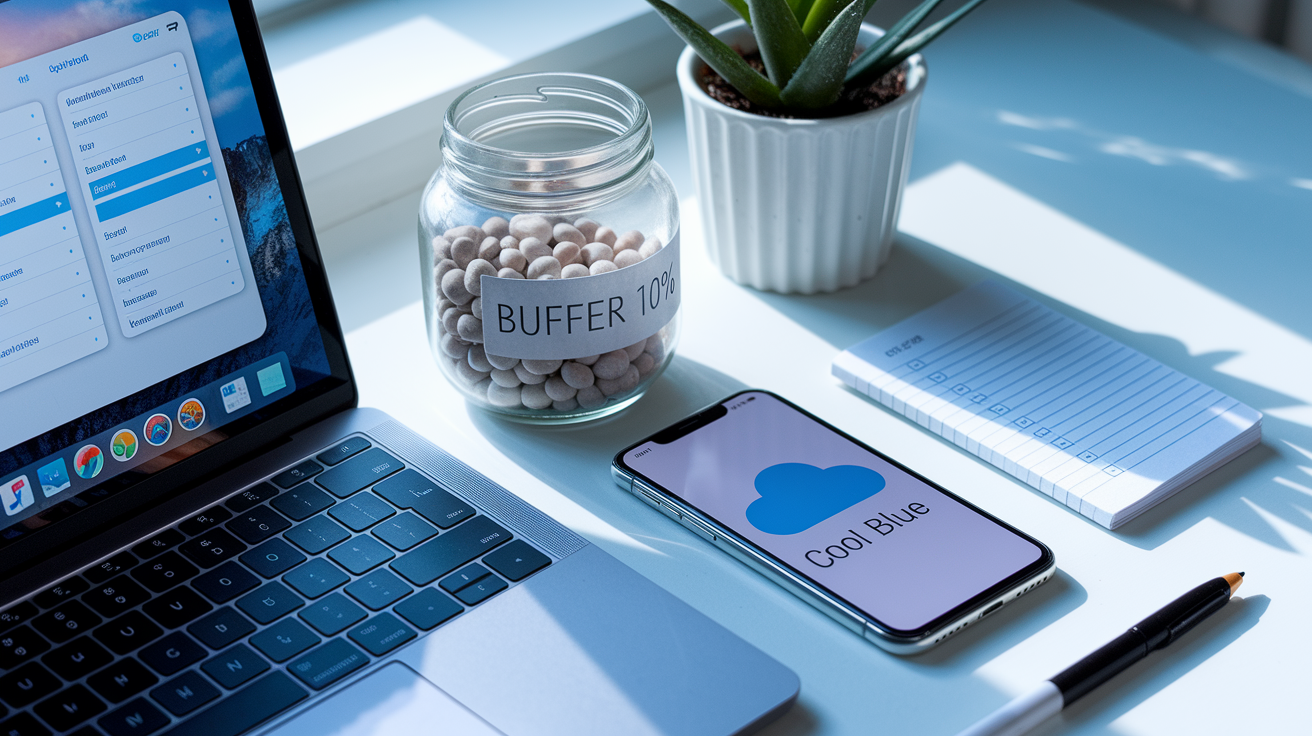
Keep your operating system and app store software up to date. OS updates often include fixes for installer bugs, improved cache handling, better network resilience during downloads. Enable automatic OS updates during overnight hours so system patches don’t mess with app updates.
Maintain at least 10 percent of your device storage free, or a minimum of 2 GB on phones and 10 GB on gaming consoles and PCs. This buffer gives installers room for temporary files, logs, decompression. Regularly clear cached data from browsers, messaging apps, streaming services to reclaim space. Move photos and videos to cloud storage or external drives before running large updates.
Preventive habits worth adopting:
- Use stable, fast Wi‑Fi for updates. Avoid public networks or mobile hotspots with fluctuating speeds
- Pause or cancel simultaneous downloads and system backups while updating critical apps
- Schedule automatic updates for late-night or idle hours when network traffic’s lower and the device isn’t in use
When to Contact Support

Reach out to the app developer or device support team if you’ve tried force-close, restart, cache clear, storage checks, reinstall, and network changes three times without success. Persistent freezes often point to server-side issues, corrupted account data, or compatibility bugs that need backend fixes.
Contact support right away if the stuck update involves a paid purchase or active subscription and you can’t access the app’s features. Provide your device model, OS version, app version (if you can see it), exact error codes or screenshots, and a list of what you’ve already tried. Screen recordings of the freeze in progress help support teams figure out whether the issue’s client-side or server-side.
Red-flag symptoms that need support:
- Update fails repeatedly with the same error code or freezes at exactly 100 percent after multiple reinstalls
- App data or purchased content disappears after a failed update attempt
- System-wide update failures across all apps, suggesting account authentication issues or device corruption
Final Words
Stuck at 100 percent? We started with quick fixes: force-close the app, restart the device, toggle the network, retry the download, and sign out/in. Then we moved into deeper steps like clearing cache, freeing storage, and checking server status.
We also covered platform-specific steps for Android, iOS, Windows, macOS, plus console and TV tips, common causes, prevention habits, and when to contact support.
If an app update stuck at 100 percent won’t budge after these steps, contact the app’s support. You’ll likely be back up and running soon.
FAQ
Q: Why is my app download stuck at 100%?
A: The app download being stuck at 100% usually means the installer hung — often due to corrupted cache, low storage, a flaky network, or a store/server problem; restart or clear cache first.
Q: What to do if an app is stuck updating?
A: If an app is stuck updating, force‑close the app, restart the device, toggle Wi‑Fi or mobile data, clear the store cache, free storage, then retry the download.
Q: How to force stop an app update?
A: To force stop an app update, open app settings and tap Force Stop (Android) or close the App/Store and restart the device (iOS, Windows, macOS), then reattempt the update.

