

Is Dropbox leaving your files frozen when you need them most?
If your desktop shows a stuck sync icon or colleagues can’t open shared files, this is likely a Dropbox sync outage affecting individuals, teams, or regions.
That matters because work stops, uploads fail, sharing breaks, and deadlines can slip.
This post gives a real-time checklist to confirm whether it’s a server outage or a local problem, explains which Dropbox components usually fail first, and lists quick workarounds you can try now to keep files moving.
Immediate Status Check for a Dropbox Sync Outage

When Dropbox sync stops working, you need to figure out if it’s a widespread outage or just your machine acting up. Head to the official Dropbox status page first. It’ll show real-time incidents and which parts of the system are having trouble. During active outages, that page can flip from “down” to “running normally” mid-incident as they bring things back piece by piece. For extra confirmation, check DownDetector. When you see a big spike in reports all hitting at the same time, you’re looking at a server problem, not something weird on your device.
Outages can last minutes or stretch for hours. Knowing the recovery timeline helps you plan around it. Back in January 2014, Dropbox had a major incident where they acknowledged the problem at 6:40 p.m. Pacific, posted partial recovery at 8:36 p.m., and reported 99 percent access restored by 4:10 a.m. the next morning. Even after the main service came back, 5 percent of users still couldn’t sync on desktop and about 20 percent had mobile app issues. Write down when your sync icons changed or which devices started throwing errors. That’ll help later if things don’t clear up after the official all-clear.
Quick verification steps:
- Hit the Dropbox status page and see if any components (desktop client, web interface, mobile sync, photos) show degraded performance or outages.
- Cross-check DownDetector for a surge matching your symptoms and timeframe.
- Read the latest status message to see when it started, what’s affected, and any estimated recovery time.
- Look for regional patterns by comparing reports from different locations. Is it global or just certain data centers?
- Write down what you’re seeing including exact time sync stopped, which devices are affected, whether the web interface still works, and any error messages in the Dropbox client.
Diagnosing Dropbox Sync Failures During an Outage

Even when Dropbox reports an active outage, some sync failures come from your device, not their servers. First visual clue is the sync icon in your system tray or menu bar. Green check mark means you’re good. Red X means something’s broken. Test whether your browser and email work normally. If both fail at the same time, it’s your internet connection, not Dropbox.
Check if your local disk has enough space. Sync problems show up when storage hits 95 percent, and Dropbox recommends staying under 90 percent for reliable operation. Also check file and folder names for invalid characters. Quotation marks, question marks, greater-than or less-than symbols, pipes, forward or backward slashes, and trailing blank spaces can all block individual files from syncing. Dropbox enforces a 255-character limit on file names, and deeply nested folder structures count toward that total. Shortening names or reducing folder depth might be necessary.
To separate local issues from server-side outages, compare symptoms:
| Symptom | Likely Cause | Action |
|---|---|---|
| Red X icon, browser and email also fail | Local internet connection | Restart router, check WiFi, contact ISP |
| Red X icon, browser works fine, status page reports outage | Dropbox server-side incident | Wait for official recovery, check status updates |
| Single file stuck, other files sync normally | Invalid filename or disk space | Rename file, remove special characters, free disk space |
| Sync works on one device, fails on another, no outage reported | Local client issue or account mismatch | Restart Dropbox app, verify same account on all devices |
Step-by-Step Fixes When Dropbox Is Not Syncing
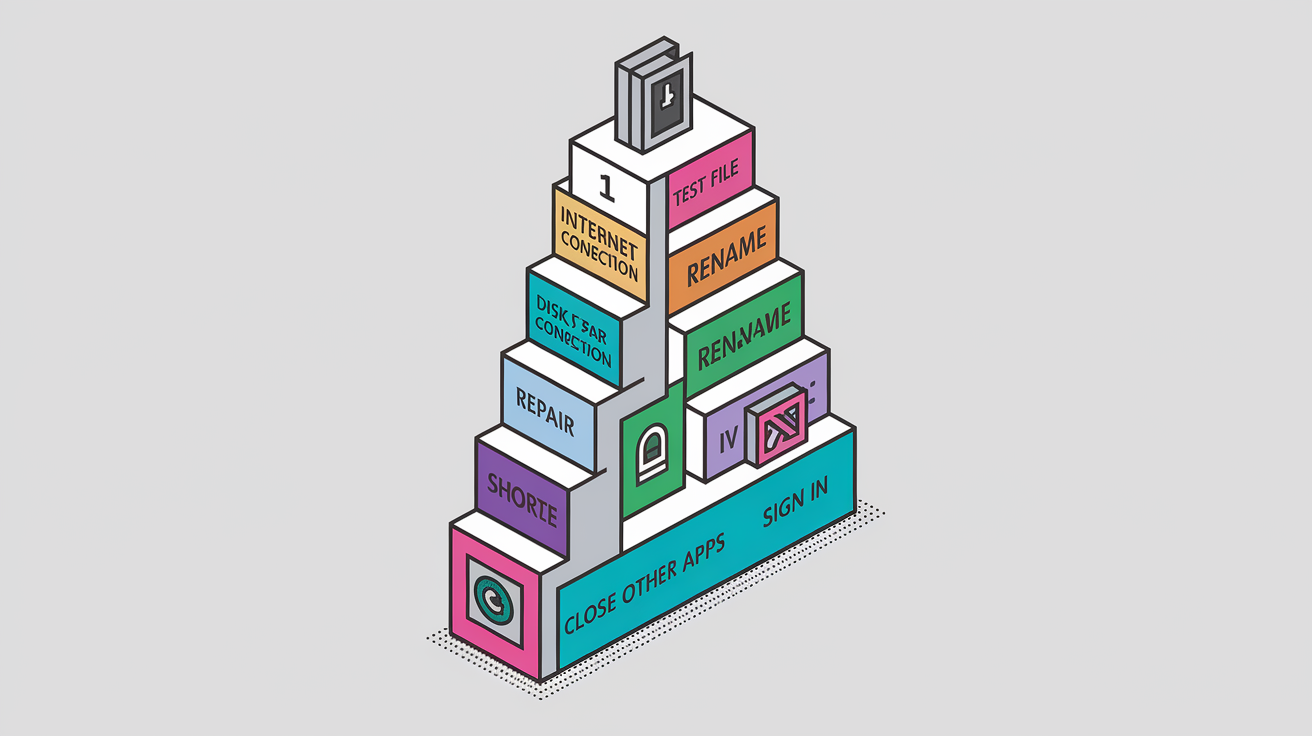
Once an outage is partially resolved or when you need to restore sync during limited service availability, working through a methodical sequence can get things working device by device. These fixes address both client-side configuration errors and issues that surface during service recovery, when backend systems are live but desktop and mobile clients struggle to reconnect or authenticate. Tackling the most common causes first saves time.
Many sync failures during or after an outage trace back to corrupted local files, authentication state mismatches, or conflicting background processes rather than ongoing server problems. If the Dropbox status page shows full recovery but your desktop client still displays a red X, the issue’s usually on your machine. Walking through these steps in order catches the majority of client-side problems and clears the path for successful reconnection once Dropbox’s infrastructure stabilizes.
- Verify the problem exists by editing a test file in your Dropbox folder and watching for the sync icon to update. If it stays stuck after a few minutes, proceed.
- Check your internet connection by loading a website in your browser and running a speed test. Restart your router if connectivity is unstable.
- Confirm your Dropbox cloud storage quota isn’t exceeded by signing in to the web interface and reviewing your storage usage. New uploads are blocked when you hit your limit.
- Restart the Dropbox app by quitting it from the system tray or menu bar, then relaunching. If that doesn’t help, restart your entire computer and sign out and back in to Dropbox.
- Repair a corrupted DropboxUpdate.exe file by uninstalling and reinstalling Dropbox from the official site. Your cloud files remain safe during reinstalls.
- Rename any files or folders containing invalid characters such as quotation marks, question marks, angle brackets, pipes, slashes, or trailing spaces.
- Shorten file or folder names and reduce nesting depth if any path exceeds the 255-character limit, which includes the full folder tree.
- Whitelist Dropbox in Windows Defender or your antivirus by navigating to Start, Update & Security, Windows Security, Firewall & Network Protection, Allow an App Through Firewall, then enabling Dropbox for both Private and Public networks.
- Close other sync applications like Google Drive or Microsoft OneDrive temporarily to test whether they interfere with Dropbox operations.
- Ensure you’re signed in to the same Dropbox account across all devices. Mixing personal and business accounts can cause perceived sync failures. If issues persist, clear the Dropbox cache by opening the Run window, navigating to the cache folder, deleting cache files, emptying the Recycle Bin, then disabling Selective Sync and checking whether sync is paused via the taskbar icon.
Workarounds to Keep Working During a Dropbox Sync Outage

When Dropbox sync is down but you need immediate access to files or must share updates with teammates, several fallback methods can bridge the gap until full service resumes. The Dropbox desktop client caches complete offline copies of your files on every machine where it’s installed. Even if cloud sync fails for an entire day, you can still open, edit, and save documents locally. If you have two or more computers on the same local area network, Dropbox’s LAN sync feature may continue syncing files between those machines even when the cloud service is unavailable, though results vary depending on network configuration and client versions.
For urgent file sharing or collaboration during an outage, the Dropbox web interface may remain accessible depending on which backend components are affected. Historical incidents show that certain features degrade unevenly. During the January 2014 outage, about 20 percent of users experienced mobile app failures and the photos tab remained unstable even after desktop sync began recovering. Uploading files manually through the web interface or using alternative sync and sharing tools can keep projects moving when the desktop client is offline.
Productivity workarounds during a Dropbox sync outage:
- Access offline copies already stored on your local machine by navigating directly to the Dropbox folder on your hard drive.
- Upload files manually via the Dropbox web interface if the website is responsive, then share links or download on other devices.
- Use LAN sync between local computers by ensuring all machines are on the same WiFi or wired network and Dropbox is running on each.
- Switch to a temporary alternative sync service such as SugarSync, Windows Live Mesh, or Syncplicity for a small set of critical files rather than re-syncing your entire Dropbox directory.
- Share single files quickly using a service like Drop.io or similar public file-sharing platforms that require no account setup.
- Check mobile app availability separately since mobile services may recover on a different timeline than desktop sync, and try uploading from your phone if the desktop client remains offline.
Understanding Dropbox’s Outage Patterns and Recovery Behavior

Dropbox outages typically unfold in phases, with different service components recovering at different rates rather than the entire platform returning online simultaneously. Analyzing past incidents reveals predictable patterns. Outages often begin with a specific backend failure, such as a server upgrade bug or database overload, then propagate to user-facing features like desktop sync, mobile apps, and web interfaces. Recovery follows a similar staged progression, with core infrastructure restored first, followed by desktop clients reconnecting, and mobile or specialty features like photo sync trailing behind.
The January 2014 incident illustrates this behavior clearly. The outage started at 6:40 p.m. Pacific when a routine server upgrade introduced a bug that cascaded across active servers. Dropbox posted an initial recovery update at 8:36 p.m., stating the service was back up, but problems persisted. By 4:10 a.m. the next morning, more than 99 percent of users could access their files. Yet 5 percent still faced desktop sync issues at 1:59 p.m. that day, and roughly 20 percent continued experiencing mobile app difficulties. The vendor confirmed no files were lost during the entire incident, and later clarified that the root cause was an internal upgrade error, not a distributed denial-of-service attack despite claims from a hacker group.
Understanding which parts of Dropbox’s architecture can fail independently helps set realistic expectations during future outages. Common failure domains:
- CDN and edge network nodes that cache files closer to users, causing regional slowdowns or access failures.
- API endpoints that authenticate desktop and mobile clients, leading to sign-in errors or sync stalls even when file storage remains intact.
- Mobile-specific services that handle photo uploads and camera roll backups, which may degrade separately from desktop sync.
- Metadata servers that track file versions and folder structures, occasionally causing selective sync or shared folder issues while direct file access continues working.
Preventing Future Disruptions and Preparing for the Next Dropbox Sync Outage

Proactive monitoring and redundancy planning reduce the impact when Dropbox experiences its next service disruption. Start by subscribing to real-time alerts from the official Dropbox status page and following Dropbox Support on Twitter, where incident updates often appear faster than email notifications. Setting up browser bookmarks or mobile shortcuts to the status page and DownDetector ensures you can confirm an outage within seconds rather than spending time troubleshooting a device that isn’t broken.
Beyond monitoring, maintaining backup systems for critical workflows ensures continuity when Dropbox sync fails. If you rely on Dropbox to host static websites or configuration files, keep a duplicate on an inexpensive personal web host so your site remains live during outages. Similarly, if you use Dropbox to manage remote BitTorrent downloads, configure uTorrent’s remote web interface as a fallback. For password syncing, adopt a dedicated tool like LastPass rather than storing password databases solely in Dropbox. Dropbox’s LAN sync feature provides some resilience by allowing local machines to sync directly when the cloud is down, but verify it works in advance. Selective sync settings can mask missing folders and create confusion during an actual incident.
Actions to minimize disruption from future Dropbox sync outages:
- Enable notifications from the Dropbox status page and DownDetector so you receive alerts the moment an incident is reported.
- Test offline access regularly by disconnecting from the internet and confirming you can open and edit files in your local Dropbox folder.
- Document your critical sync dependencies including which devices, team members, and workflows rely on real-time Dropbox sync versus those that can tolerate delays.
- Configure a secondary sync provider for your most important files, ensuring you can upload and share through an alternative service within minutes.
- Schedule periodic checks of Selective Sync settings and Pause states to avoid mistaking intentional exclusions for outage-related failures.
For teams and power users, maintaining redundancy tools across different vendors reduces single points of failure:
| Use Case | Primary Tool | Recommended Backup |
|---|---|---|
| File sync and sharing | Dropbox | SugarSync, Syncplicity, or local NAS with rsync |
| Static website hosting | Dropbox Public folder | Inexpensive web host or GitHub Pages |
| Password database sync | Dropbox-stored KeePass file | LastPass or dedicated password manager with native sync |
Final Words
In the action, this post showed how to confirm an outage (official status page, DownDetector), diagnose client vs server problems, run targeted fixes, use temporary workarounds, and prepare for future incidents.
Save timestamps and symptoms, follow the step-by-step fixes during partial recovery, and set alerts and redundancy for critical files.
If you hit a dropbox sync outage again, use the checks here, try the quick fallbacks, and you’ll be back working with minimal disruption.
FAQ
Q: Is there an issue with Dropbox right now?
A: An issue with Dropbox right now exists when the Dropbox status page shows degraded service or DownDetector reports a spike; check https://status.dropbox.com and Downdetector and save timestamps for troubleshooting.
Q: Why has Dropbox stopped syncing and why is it stuck waiting to sync?
A: Dropbox has stopped syncing or is stuck waiting to sync because of a service outage, local network problems, full disk, filename/path errors, paused sync, or client faults; check status, sync icons, free space, and restart the app.
Q: Are Dropbox passwords going away in October?
A: Dropbox passwords are not scheduled to go away in October unless the company announces a change; monitor official Dropbox communications, support pages, or https://twitter.com/DropboxSupport for any authentication updates.

