
Your phone is pausing app updates on purpose, and that’s why the progress bar sits frozen.
It’s not random: iOS and Android stop downloads when Wi‑Fi, battery, or storage don’t meet safety limits, or when a partial file gets corrupted.
If you’re tired of updates that start, stall, then never finish, this guide gives quick, step‑by‑step fixes (restart, switch to stable Wi‑Fi, free space, delete partial files) plus deeper troubleshooting for App Store and Play Store issues.
Follow these checks and you’ll stop most pauses in minutes.
Immediate Fixes When an App Update Keeps Pausing
App updates stall mid-download for a handful of technical reasons: weak network signals, not enough free space, battery restrictions that pause background tasks, or corrupted fragments left behind from earlier attempts. On iOS, Apple won’t let you download large updates over cellular and will stop everything if your battery dips too low. Android devices pause when Data Saver kicks in, when the phone sleeps, or when a metered connection blocks background transfers.
Both platforms enforce rules about power state, available storage, and network type so failed updates don’t brick your device. When one of those thresholds isn’t met, the system pauses and waits for conditions to improve. It looks like permanent failure, but it’s usually just a pause waiting for permission to continue.
Before diving into settings menus or clearing caches, run through these quick actions. Most paused updates fix themselves within a minute or two:
Restart the device. Press and hold the power button, slide to power off, then turn it back on.
Switch to stable Wi‑Fi. Move closer to the router or disconnect from public/guest networks and use a trusted home or office network.
Ensure battery is above 50 percent or connect to power. Plug in the charger and keep it connected until the update finishes.
Check storage and clear space. Open Settings > General > iPhone Storage on iOS or Settings > Storage on Android. Delete unused apps, old photos, or cached downloads.
Remove partial update files and retry. On iOS: Settings > General > iPhone Storage > tap the software update > Delete Update. On Android: clear the Play Store cache or cancel pending downloads in the Downloads section, then retry.
Toggle Airplane Mode. Swipe down to Control Center or Quick Settings, turn Airplane Mode on for five seconds, turn it off, and reconnect to Wi‑Fi.
If the update resumes after any of these steps, let it finish without locking the screen or switching apps. Most pause loops break as soon as the blocking condition clears.
Common Reasons an App Update Keeps Pausing
On iOS devices, the most frequent causes are unstable or congested Wi‑Fi connections, insufficient free storage (major updates can require 3 to 6 GB), low battery or Low Power Mode enabled, corrupted fragments from a previous attempt, or beta‑profile conflicts when running developer builds. Apple devices won’t download large updates over cellular unless the phone is on 5G and the carrier allows it. That leaves most users dependent on Wi‑Fi quality.
Android pauses happen for similar network and storage reasons, but also include metered‑connection blocks (mobile data set to “restricted”), disabled background‑data permissions for the Play Store, conflicts with SD‑card app storage, or Download Manager queue errors. When the screen locks or Battery Saver activates, Android can suspend all background transfers until the device wakes or plugs in.
| Cause | Description |
|---|---|
| Weak Wi‑Fi | Dropped packets or fluctuating signal strength force the system to pause and retry, eventually timing out if the connection doesn’t stabilize. |
| Low storage | Update files typically need 1 to 6 GB free space, sometimes double the download size. When headroom runs out mid-transfer, the system halts to avoid corruption. |
| Battery / Low Power Mode | iOS requires at least 50% charge or a power connection for large downloads. Low Power Mode and Battery Saver disable background tasks that include updates. |
| Corrupted update file | Partial downloads from a previous failed attempt can block new tries. The system won’t overwrite a broken file until it’s manually deleted. |
| Background data / sleep restrictions | Android Data Saver, disabled background permissions for the Play Store, or aggressive sleep settings stop transfers when the screen locks. |
Network Fixes for When an App Update Keeps Pausing
Unstable connectivity is the single most common reason an app update pauses. Even a brief network hiccup can cause the App Store or Play Store to suspend the download and wait for a stable signal before resuming. Public Wi‑Fi networks with captive portals, guest networks with bandwidth throttling, and routers placed far from the device all increase the chance of interruptions. If the “Resume Download” button appears grayed out or the progress bar stays frozen, the network layer has lost trust in the current connection.
Device fixes start with resetting the active network session. Toggle Airplane Mode on and off to force a clean reconnect, then immediately retry the update. If that doesn’t work, go to Settings > General > Transfer or Reset iPhone > Reset > Reset Network Settings on iOS, or Settings > System > Reset options > Reset Wi‑Fi, mobile & Bluetooth on Android (enter your passcode when prompted). This clears saved network preferences and forces the device to negotiate a fresh connection. If you’re using a VPN or proxy, disable it before updating. Some VPN endpoints block App Store or Play Store traffic or introduce routing delays that trigger timeouts.
Router‑level interference also causes pauses. Restart the router by unplugging it for 10 seconds, then plug it back in and wait for all lights to stabilize. If you live in a crowded area, log into the router’s admin panel and switch the Wi‑Fi channel from auto to a less‑congested option (channels 1, 6, or 11 on 2.4 GHz, any DFS channel on 5 GHz). Move the device within a few feet of the router during the update to rule out weak signal as the cause.
Step-by-step network troubleshooting:
-
Toggle Airplane Mode. Swipe down to Control Center or Quick Settings, turn Airplane Mode on, wait five seconds, turn it off, reconnect to Wi‑Fi.
-
Switch Wi‑Fi networks. Disconnect from guest or public networks and connect to a private home or office network with a known stable connection.
-
Disable VPN or proxy. Open the VPN app and disconnect, or go to Settings > VPN and toggle off any active profiles.
-
Restart the router. Unplug the power cable, count to 10, plug it back in, wait for all indicator lights to turn solid.
-
Reset network settings. iOS: Settings > General > Transfer or Reset iPhone > Reset > Reset Network Settings. Android: Settings > System > Reset options > Reset Wi‑Fi, mobile & Bluetooth.
Storage Limit Fixes to Stop App Updates from Pausing

When free space drops below the threshold required to unpack and install an update, the system pauses the download to prevent filesystem corruption. Most updates need roughly twice the download size in temporary headroom, so a 3 GB update file can require 6 GB free. Check current storage via Settings > General > iPhone Storage on iOS or Settings > Storage on Android.
Start by removing apps you haven’t opened in months. On iOS, tap an app in the storage list and choose Offload App to delete the binary but keep its data, or Delete App to remove everything. Clear the Recently Deleted album in Photos, then open Safari settings and tap Clear History and Website Data to reclaim cached files. On Android, open Files by Google or the built‑in file manager, navigate to Downloads and delete old APKs, PDFs, and ZIP files. Check for duplicate photos and videos in Google Photos, and delete local copies once they’re backed up to the cloud.
Quick storage cleanup checklist:
Clear cache-heavy apps. Social media, streaming apps, and web browsers. iOS users can offload and reinstall the app, Android users go to Settings > Apps > [app name] > Storage > Clear Cache.
Remove unused apps. Sort by Last Used in the storage menu and delete anything older than three months.
Delete temp files. On Android, use Files by Google to find and remove junk files. iOS handles temp files automatically but you can reinstall problematic apps.
Move media off device. Upload photos/videos to iCloud, Google Photos, or a computer, then delete the local copies.
Remove partial update files. iOS: Settings > General > iPhone Storage > Software Update > Delete Update. Android: Settings > Apps > Google Play Store > Storage > Clear Cache.
Move apps from SD card to internal storage (Android). If an app is installed on an SD card, go to Settings > Apps > [app name] > Storage > Change > Internal Storage. SD‑card conflicts often pause downloads.
Fixing App Store and Play Store Issues Causing Update Pausing
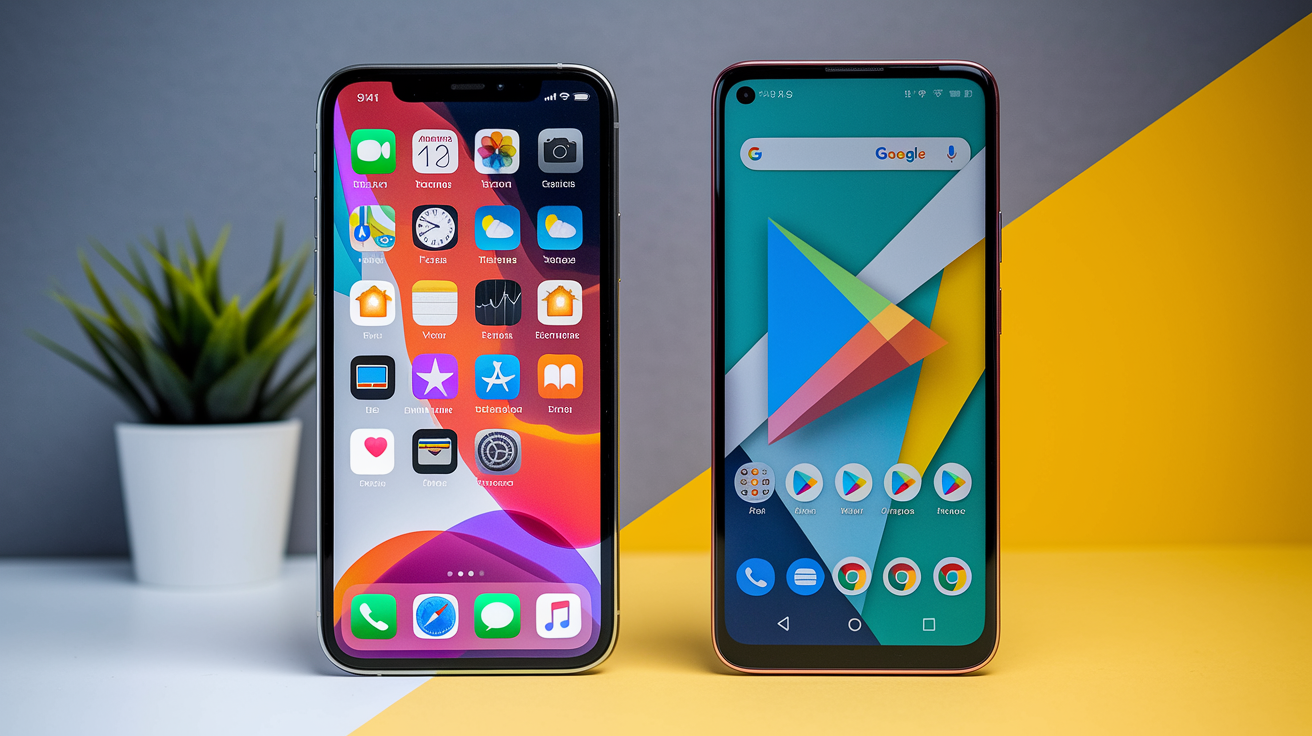
Sometimes the store app itself is holding onto corrupted data or authentication tokens that block new downloads. The symptoms show up as updates that start, pause immediately, then refuse to resume even when network and storage are fine.
App Store Fixes
On iOS, incomplete update files left behind from previous attempts can block new downloads. Go to Settings > General > iPhone Storage, scroll to find the app update or iOS software update entry, tap it, and choose Delete Update. Return to the App Store, search for the app, and tap Update again.
If the update still pauses, sign out of your Apple ID and sign back in. Open Settings, tap your name at the top, scroll down, and tap Sign Out. Wait five seconds, then sign back in with your Apple ID and password. This refreshes authentication tokens and can clear “waiting” or “paused” states that persist after network interruptions. To clear the App Store’s own cache, open the App Store app, tap your profile icon in the top right 10 times quickly until the screen flashes white, then retry the update.
Play Store Fixes
On Android, the Play Store shares background download duties with Download Manager, and errors in either service can pause updates. Open Settings > Apps > Google Play Store > Storage, then tap Clear Cache (not Clear Data, which will sign you out). Go back, find Download Manager in the app list, and clear its cache too. Force‑stop both apps, then reopen the Play Store and retry.
If that doesn’t help, reset app preferences to restore default permissions and background‑data settings. Go to Settings > Apps > See all apps, tap the three‑dot menu in the top right, choose Reset app preferences, and confirm. This won’t delete app data but will re‑enable any permissions or notifications you previously turned off, which can unblock paused downloads.
As a last step, uninstall Play Store updates to roll back to the factory version. Open Settings > Apps > Google Play Store, tap the three‑dot menu, choose Uninstall updates, and confirm. The Play Store will revert to the original version that shipped with the device, then auto‑update itself the next time you open it. Retry the app update once the Play Store finishes its own update.
System Settings That Make App Updates Keep Pausing
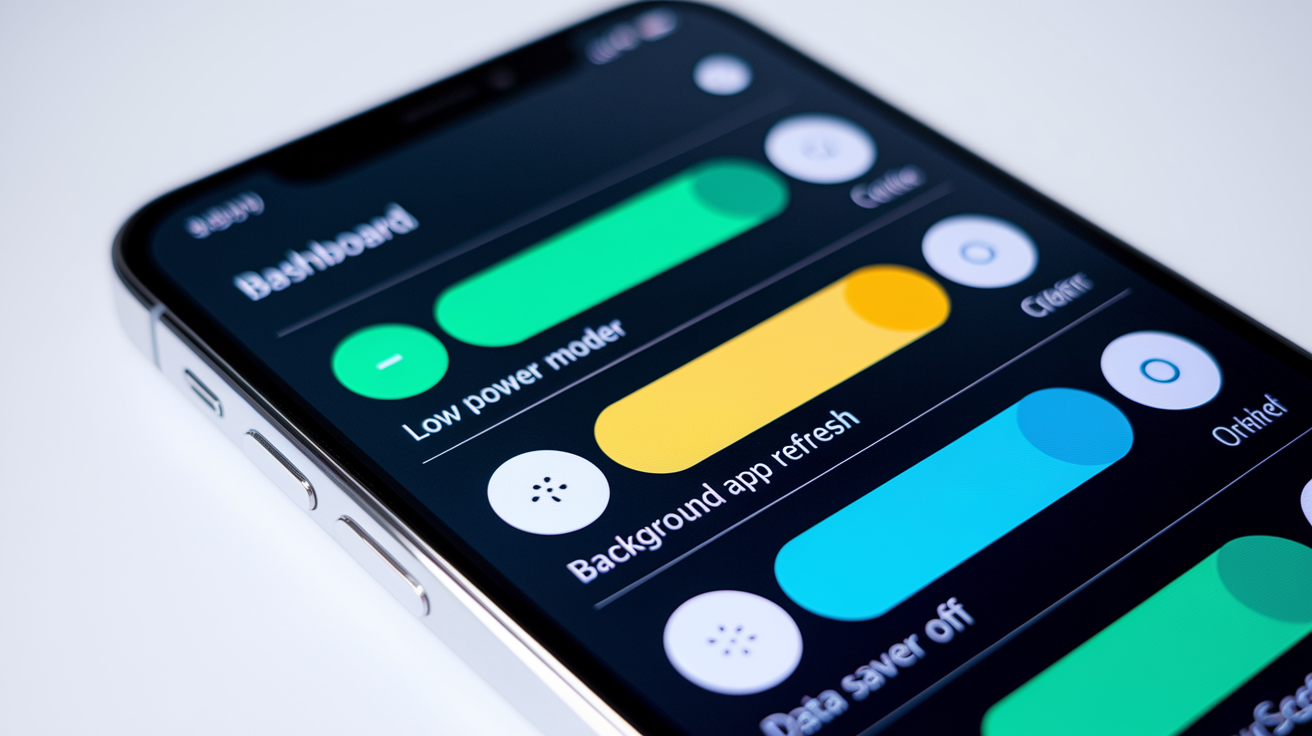
Battery‑saving modes and background‑data restrictions exist to extend battery life and reduce cellular charges, but they also suspend the exact background tasks that app updates depend on. When Low Power Mode is enabled on iOS or Battery Saver is active on Android, the system limits CPU speed, disables background app refresh, pauses iCloud sync, and stops automatic downloads. An update that starts normally will pause as soon as the screen locks or the device enters idle state.
On iOS, go to Settings > Battery and toggle off Low Power Mode before starting an update. On Android, swipe down to Quick Settings, tap Battery Saver to turn it off, or go to Settings > Battery > Battery Saver and disable it. If you’ve set Battery Saver to activate automatically at a certain percentage, temporarily raise that threshold or disable the rule until the update finishes.
Background app refresh and background data must also be enabled for the App Store and Play Store. On iOS, go to Settings > General > Background App Refresh, make sure the main toggle is on, then scroll down and confirm the App Store is allowed. On Android, open Settings > Apps > Google Play Store > Mobile data & Wi‑Fi, and make sure Background data and Unrestricted data usage are both enabled. Data Saver (found under Settings > Network & internet > Data Saver on many Android builds) will override these settings if active, so turn it off during updates.
Quick settings checklist to prevent pauses:
Disable Battery Saver or Low Power Mode. Settings > Battery, toggle off until the update completes.
Enable Background App Refresh. iOS: Settings > General > Background App Refresh > on and App Store enabled. Android: Settings > Apps > Google Play Store > Mobile data & Wi‑Fi > Background data on.
Disable Data Saver mode. Android: Settings > Network & internet > Data Saver > off (only affects cellular, but can interfere if Wi‑Fi drops briefly).
Check automatic update rules. iOS: Settings > App Store > App Updates on or off as preferred, but updates won’t pause if started manually. Android: Settings > Network preferences > Auto-update apps > Over any network or Over Wi‑Fi only, and confirm the Play Store has unrestricted background access.
Advanced Fixes When App Updates Keep Pausing Repeatedly

When basic restarts and storage cleanups don’t resolve the pause loop, the issue usually lives in corrupted system caches, authentication mismatches, or version‑compatibility conflicts. On iOS, delete the partial download via Settings > General > iPhone Storage, then reset network settings (Settings > General > Transfer or Reset iPhone > Reset > Reset Network Settings) to clear DNS caches and VPN profiles that might interfere. Once network settings reset, reconnect to Wi‑Fi, open the App Store, and start the update again.
On Android, clearing the system cache partition (available on many Samsung, Motorola, and OnePlus devices) wipes temporary files without touching app data or personal files. Power off the device, then press and hold Volume Up + Power until the boot menu appears. Use the volume keys to navigate to “Wipe cache partition,” press Power to confirm, then reboot. This step often resolves Download Manager errors and looped pauses that survive app‑level cache clears.
If an app repeatedly pauses at the same percentage (often 0% or 99%), the update file itself may be corrupted or the app has a compatibility issue with the current OS version. Check the app’s page in the App Store or Play Store for minimum OS requirements. If your device is running an older version of iOS or Android than the app now requires, the update will fail silently or pause indefinitely. You can try uninstalling the app completely, restarting the device, then reinstalling from scratch, which forces a clean download of the latest compatible version.
Error Codes and System-Level Resets
Error code 504 in the Play Store signals a gateway timeout, usually caused by overloaded Google servers or a DNS lookup failure on your network. Switch DNS servers in your router settings to 8.8.8.8 and 8.8.4.4 (Google Public DNS) or 1.1.1.1 (Cloudflare), restart the router, then retry. Error 403 indicates an authentication problem. Sign out of your Google account in Settings > Passwords & accounts, restart the device, and sign back in.
When network resets don’t help, reset all settings on iOS (Settings > General > Transfer or Reset iPhone > Reset > Reset All Settings) or reset app preferences on Android (Settings > Apps > three‑dot menu > Reset app preferences). Both actions restore default system configurations without erasing personal data, but you’ll need to re‑enter Wi‑Fi passwords and reconfigure accessibility or notification preferences afterward.
For devices running custom ROMs or heavily modified Android builds, clearing the Dalvik cache from recovery mode can resolve app‑installation failures that manifest as paused updates. Boot into recovery (usually Volume Down + Power), select “Wipe cache partition” or “Wipe Dalvik/ART cache,” then reboot. This step is rarely necessary on stock Android or iOS but can fix stubborn issues on rooted or developer devices.
Preventing Future Cases Where an App Update Keeps Pausing
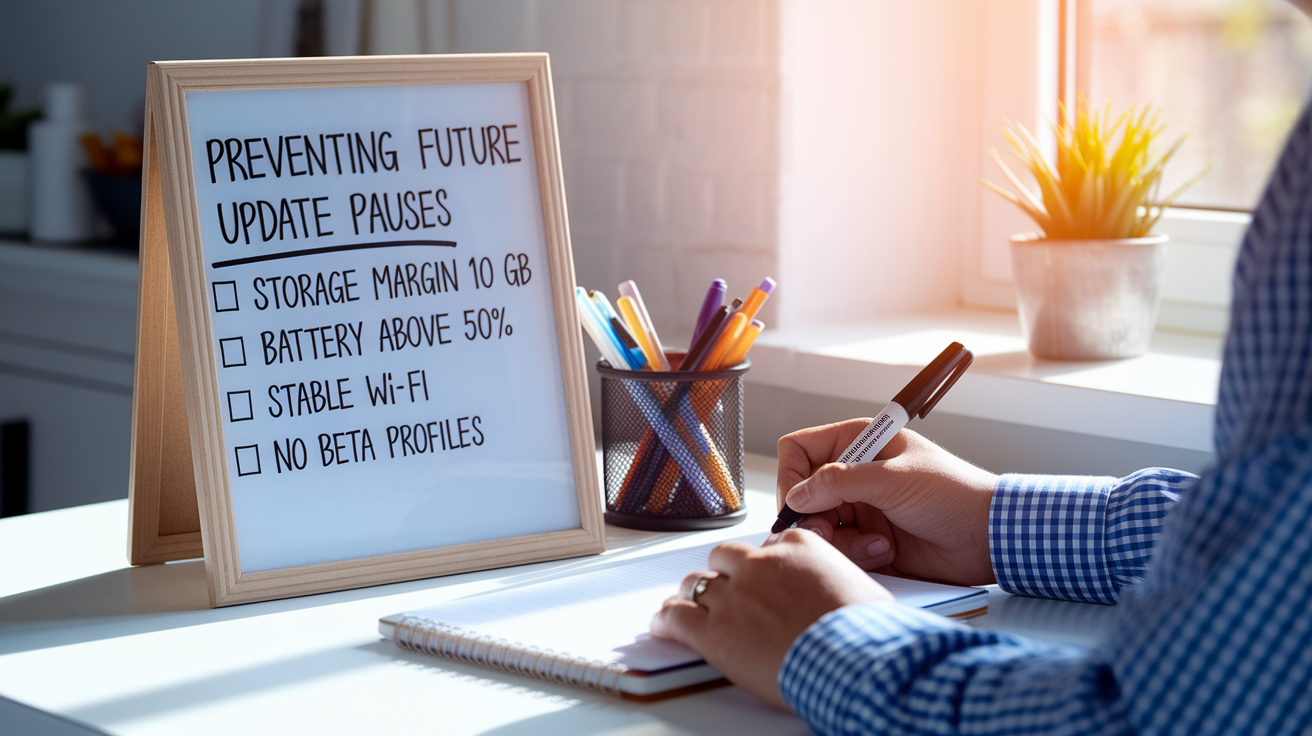
Long-term solutions focus on maintaining the conditions that allow updates to finish without interruption. Keep at least 10 GB of free storage as a permanent buffer, especially if you run beta software or install large apps regularly. Check storage weekly via Settings > General > iPhone Storage or Settings > Storage, and delete media or offload unused apps before the margin disappears.
Always start updates when the battery is above 50 percent or when the device is plugged into power. Set a recurring reminder to update apps during overnight charging sessions, when the device stays awake, connected to stable home Wi‑Fi, and isn’t competing with foreground tasks. Disable Low Power Mode and Battery Saver before bed if you plan to queue multiple app updates, and re‑enable them in the morning.
Preventive update checklist:
-
Maintain a storage margin of at least 10 GB. Audit storage monthly, delete old downloads, back up photos to cloud storage, and offload apps you rarely open.
-
Keep battery above 50 percent or stay plugged in. Start large updates only when connected to power. Avoid starting updates when battery is low or when you’ll need to unplug soon.
-
Update on reliable Wi‑Fi, never on public or guest networks. Use a private home or office network with a strong signal and no bandwidth caps.
-
Avoid beta profiles unless you’re actively testing. Beta updates are larger, less stable, and more likely to pause or fail. Remove beta profiles via Settings > General > VPN & Device Management > [profile] > Remove Profile on iOS, or unenroll from beta programs in the Play Store app settings on Android.
-
Keep the device awake during large updates. Disable auto‑lock temporarily (Settings > Display & Brightness > Auto-Lock > Never on iOS, Settings > Display > Screen timeout > 30 minutes on Android), and place the device on a charger where it won’t be moved or interrupted until the update completes.
Final Words
In the action, this guide gave fast, practical fixes: restart the device, switch to stable Wi‑Fi, free up storage, remove partial downloads, and toggle Airplane Mode.
Start with the quick checks, then try network, store, or system resets if the update still pauses. Advanced steps cover error codes, cache clears, and reinstalling apps.
If an app update keeps pausing, follow the ordered checklist—most pauses clear up after a restart and a stable connection. You’ll likely have the update finished soon.
FAQ
Q: Why does the iOS 26 update keep pausing?
A: The iOS 26 update keeps pausing because weak Wi‑Fi, low battery or Low Power Mode, insufficient storage, corrupted partial downloads, or an active beta profile interrupt the download; connect to stable Wi‑Fi, plug in power, free space, restart, or remove the partial file.
Q: Why is my app update stuck on pause?
A: An app update stuck on pause usually stems from network drops, metered/disabled background data, low storage, battery‑saver rules, or store/Download Manager errors; try stable Wi‑Fi, charge the device, clear space, toggle Airplane Mode, and restart.
Q: Can I pause the iOS 26 update?
A: You can pause some iOS app downloads manually, but full iOS 26 system updates typically auto‑pause and don’t offer a simple Pause button; stop by deleting the partial download or disconnecting network, then retry when charged on stable Wi‑Fi.

