
App update changes not showing?
You’re not alone. Most of the time the problem sits between the app store and your device: cached files, partial installs, or staged rollouts.
This short guide walks through seven quick fixes, in order, that force the device to toss stale data and reload the updated app.
Most people see changes by step four.
If that doesn’t work, the issue is probably server-side and you’ll need to contact support or wait for the rollout to finish.
Immediate Fixes When App Update Changes Are Not Showing

When an app looks updated but new features don’t show up, the problem usually lives somewhere between the store and your device. Stores, operating systems, and apps all cache stuff to save bandwidth and battery. Sometimes that efficiency creates a gap that hides the changes you’re expecting.
Before you get into complicated troubleshooting, run through these seven steps in order. Most people see their changes appear by step four. If the update actually finished installing, these actions force your device to ditch stale cached data and reload everything fresh.
The fix is almost never complicated. You’re resetting the communication chain between store servers, your device’s operating system, and the app itself. It’s like changing the locks after losing a key—you’re forcing a fresh handshake that clears out the old state.
-
Force-close the app completely. On iOS, swipe up from the bottom and pause (or double-click Home on older devices), then swipe the app off screen. On Android, go to Settings > Apps > [App Name] > Force Stop. On Windows or Mac, quit the app using the system menu or Task Manager / Activity Monitor.
-
Restart your device. Power off completely, wait 10 seconds, then power back on. This clears RAM and resets background services that might be holding cached data.
-
Verify the update completed in the store. Open the App Store, Play Store, or Microsoft Store and check the app’s page. Look for “Updated on [date]” and a version number that matches the release you expect (for example, v3.4.2). If it still shows “Update” instead of “Open,” the download never finished.
-
Clear the app cache or offload the app. On Android: Settings > Apps > [App Name] > Storage > Clear Cache (not Clear Data yet). On iOS: Settings > General > iPhone Storage > [App Name] > Offload App (this keeps your documents). On Windows, run
wsreset.exeto reset the Microsoft Store cache. On Mac, quit the app and delete~/Library/Caches/[bundle-id]. -
If still no change, clear app data or reinstall. On Android, use Clear Data (warning: this deletes your login and local files). On iOS, delete the app and reinstall from the App Store. Back up important data first, cloud sync or export settings if you can.
-
Check free storage space. Free at least 100–500 MB for small apps or 1–2 GB for large games. Low storage can cause partial installations that look complete but are missing updated assets.
-
Wait 24–72 hours for staged rollouts. If the store shows the update installed but changes still don’t appear, the developer might be releasing features gradually. Some rollouts take up to 7–14 days to reach all users.
If you complete all seven steps and the changes stay invisible, the issue is probably server side feature gating or an A/B test that hasn’t activated for your account. At that point, move to deeper troubleshooting or contact the app’s support team with your exact app version and the “Updated on” date from the store.
Common Reasons App Update Changes Are Not Showing
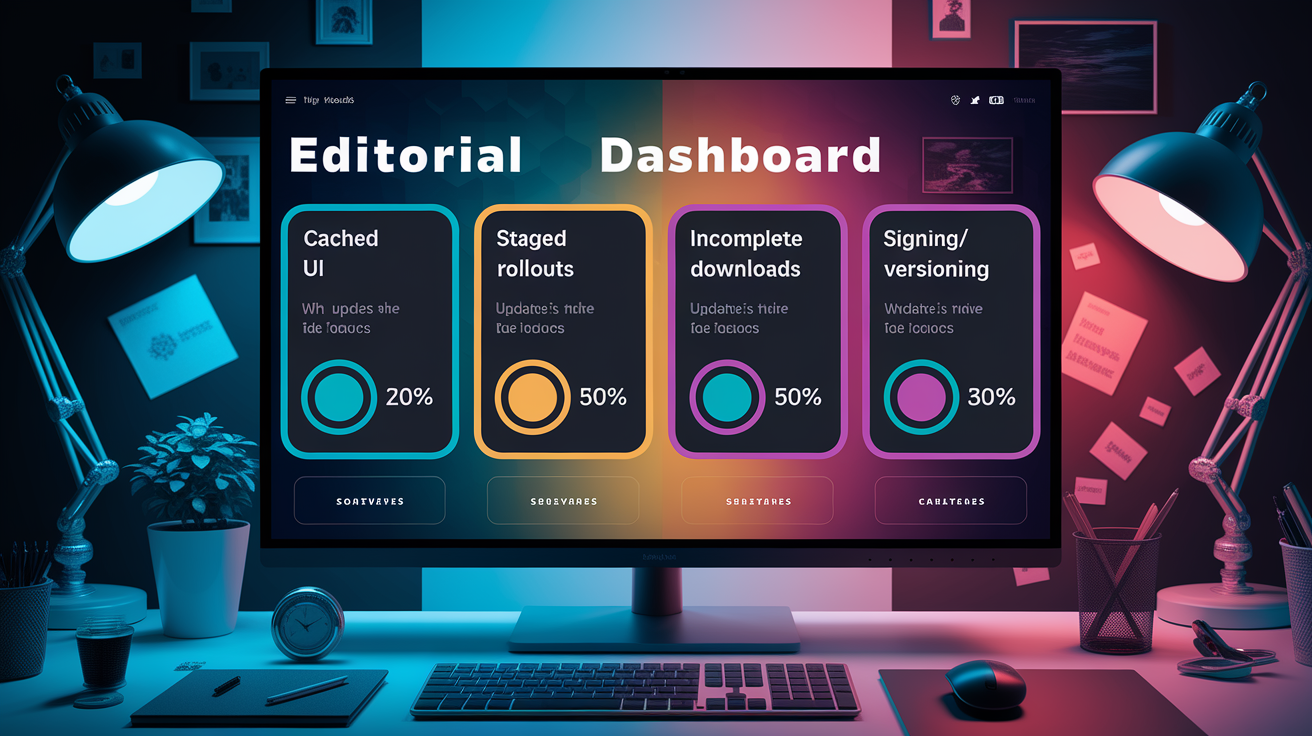
App updates can install completely but still hide changes from you. The disconnect happens when the binary on your device updates successfully, but the new features or bug fixes depend on additional conditions that haven’t triggered yet. These conditions range from simple cached data to deliberate developer controls that delay feature visibility.
Understanding the common causes helps you skip ineffective fixes and jump straight to the solution. Here’s what usually blocks update changes from appearing, ranked by frequency based on user reports and troubleshooting threads.
Cached UI or local data. The app stored old screens, images, or settings in memory or on disk. Even after updating the binary, the app loads these cached assets first to save time. Clearing cache forces the app to fetch everything fresh. On Android, this is Settings > Apps > Storage > Clear Cache. On iOS, you have to offload or reinstall the app because iOS doesn’t give you a user-facing cache-clear button.
Staged or gradual rollouts (24–72 hours, sometimes 7–14 days). Developers release updates to a percentage of users first, often 20% or 50%, then gradually increase to 100%. If you updated the app but the rollout is only at 50%, you might have the new binary but not the activated features. Server side flags control this, so clearing your cache won’t help. You have to wait for the developer to expand the rollout or contact support to request inclusion.
Incomplete or failed downloads. The store shows “Updated” but the download corrupted or stopped partway. On iOS, users report the App Store “Updates” tab appearing empty even when updates exist, probably an App Store caching bug. On Android, the Play Store can show “Open” instead of “Update” when a download didn’t finish or the installed version’s versionCode doesn’t increment properly. Restart the device and re-check the store listing.
VersionCode or versionName mismatch (Android). The Play Store uses the integer versionCode to determine update eligibility, not the user facing versionName. If the installed app has versionCode 132 and the Play listing also shows versionCode 132, no update appears even if versionName changed from “1.0.5” to “1.0.7.” Developers have to increment versionCode for every release.
Signing or certificate mismatch (Android and desktop). If you installed an app via Android Studio or sideloaded a debug build, the certificate won’t match the Play Store release certificate. The Play Store then shows “Open” instead of “Update.” The typical debug keystore lives at C:\Users\XXXXX\.android\debug.keystore on Windows. Uninstall the debug build and install once from the Play Store to fix this.
Server side feature flags or A/B testing. The developer deployed the update but controls new features through remote configuration or experimentation platforms. Your device got the new binary, but the server decides whether to show you the new UI or features. No amount of cache clearing changes this, only the developer can adjust the experiment assignment or feature flag. If you suspect this, contact support and share your account ID and app version.
CDN or asset caching issues. Web based or hybrid apps (React Native, Flutter, Ionic) often serve JavaScript bundles, images, and stylesheets from a content delivery network. If the CDN cache wasn’t purged or the app doesn’t use cache-busting filenames, your device downloads the old assets even after updating the binary. Developers fix this by appending version hashes to filenames or setting proper Cache-Control headers. Users can try clearing the app’s cache or data to force a fresh asset download.
Enterprise or MDM policies blocking delivery. Managed devices (corporate phones, school tablets) might have mobile device management policies that delay or block app updates, override store settings, or disable automatic update downloads. Check with your IT department if you’re on a managed device and updates never appear.
Platform-Specific Steps to Fix App Update Changes Not Showing
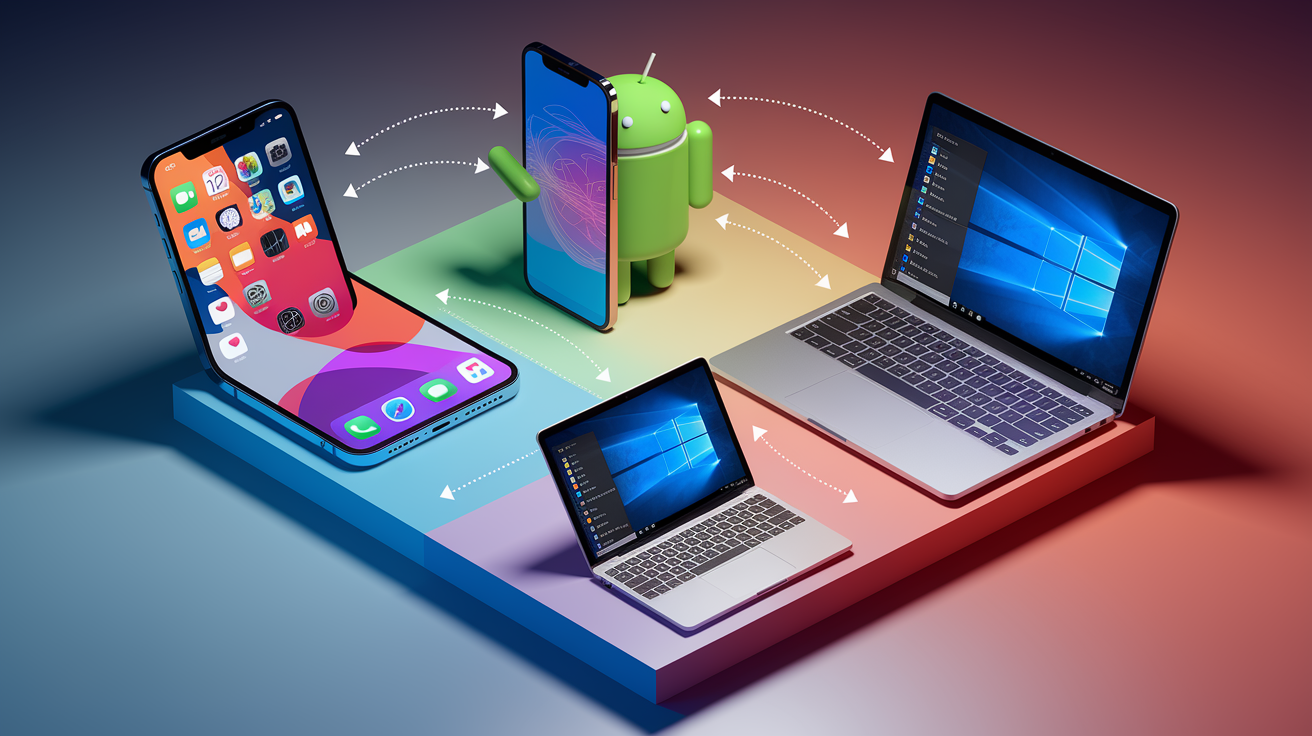
Each platform handles updates, caching, and versioning differently. The steps that work on Android often don’t apply to iOS, and desktop stores add their own quirks. Run through the platform-specific sequence below for your device to clear the exact caches and processes that block update changes.
iOS (iPhone and iPad)
iOS hides many troubleshooting controls from users, so clearing caches or forcing store refreshes takes workarounds. The App Store itself can cache update listings and fail to show pending downloads.
-
Force-quit the App Store and the updated app. Swipe up from the bottom of the screen and pause (or double-click Home on older devices), then swipe both apps off screen. Reopen the App Store and go to your profile icon > Updates to check if the list refreshes.
-
Reset the App Store cache with 10 taps. Open the App Store app, tap any bottom tab icon (Today, Games, Apps, Arcade, Search) 10 times quickly. This forces the store to reload cached icons and update lists. User reports confirm this sometimes reveals hidden updates or corrects empty update tabs.
-
Use the Date & Time toggle trick. Go to Settings > General > Date & Time, turn off “Set Automatically,” and move the date several months into the future. Return to Settings > General, wait a moment, then open App Store > Updates. It might still appear empty at first. Turn “Set Automatically” back on to restore the correct date and time, exit Settings, then reopen App Store > Updates. This method works intermittently and needs an active internet connection (Wi‑Fi or cellular).
-
Offload the app or reinstall. Go to Settings > General > iPhone Storage > [App Name] > Offload App to remove the app binary while keeping documents and data, then reinstall from the App Store. If that doesn’t work, delete the app entirely and reinstall. Note that large apps can take up to 2 hours to re-download over slow connections.
Android (Phones and Tablets)
Android gives you more direct controls for clearing caches and forcing updates, but version mismatches and signing issues are common obstacles.
-
Force-stop the app and clear cache. Go to Settings > Apps > [App Name] > Force Stop, then tap Storage > Clear Cache. Don’t tap Clear Data yet, that deletes your login credentials and local files. Reopen the app to see if changes appear.
-
Verify the update in Play Store. Open the Play Store, tap your profile icon > Manage apps & device > Installed, find the app, and check the version number and “Updated on [date].” If it shows “Update” instead of “Open,” the update never completed. If it shows “Open” but the installed version number doesn’t match the Play listing, you probably have a versionCode mismatch or signing issue.
-
Clear Play Store cache and data. Go to Settings > Apps > Google Play Store > Storage > Clear Cache, then Clear Data. Sign back into the Play Store and re-check for updates. This forces the store to refresh its local database of available updates.
-
Uninstall and reinstall from Play Store. If the app was installed via Android Studio or sideloaded (from an APK file), the Play Store won’t offer updates because the certificate doesn’t match. Uninstall the current version and install fresh from the Play Store to get the correct signed build.
Windows (Microsoft Store and Win32 Apps)
Windows apps can come from the Microsoft Store or be installed directly as .exe files. The update process differs for each.
-
Force-close the app. Open Task Manager (Ctrl+Shift+Esc), find the app process, right-click, and select End Task. Relaunch the app to see if it reloads updated assets.
-
Clear Microsoft Store cache. Press Win+R, type
wsreset.exe, and press Enter. A blank command window will appear briefly, then close automatically. The Microsoft Store will reopen with a cleared cache. Go to Library > Get updates to check for pending updates. -
Manually check for updates. Open the Microsoft Store, click Library in the bottom-left, then click “Get updates” at the top right. The store will refresh the list and download any available updates. Check the app’s details page to confirm the version number and “Last updated: [date]” match the release you expect.
-
For Win32 apps, check version in file properties. Right-click the app’s .exe file, select Properties > Details, and read the File version or Product version. Compare this to the version number listed on the developer’s website or release notes. If they don’t match, redownload the installer and reinstall.
Mac (App Store and Notarized Apps)
macOS apps from the App Store auto-update in the background, but cached assets or preference files can hide changes in non-App Store apps.
-
Quit and reopen the app. Press Cmd+Q to quit fully (closing the window isn’t enough for many Mac apps). Relaunch to force a fresh load of assets and preferences.
-
Check for updates in the App Store. Open the App Store, click Updates in the sidebar, and press Cmd+R to refresh the list. The store shows “Updated [Today/Date]” and a version number for recently updated apps.
-
Delete cached files for non-App Store apps. Quit the app, open Finder, press Cmd+Shift+G, and navigate to
~/Library/Caches/. Find the folder matching the app’s bundle ID (usuallycom.developer.appname) and delete it. Repeat for~/Library/Preferences/and delete the.plistfile matching the app. Relaunch the app to regenerate clean caches and preferences. -
Check the app’s About menu for version. Open the app, click the app name in the menu bar, and select About [App Name]. The version number (for example, Version 2.1.0 (210)) should match the release notes or App Store listing. If it doesn’t, the update didn’t install. Try reinstalling from the App Store or the developer’s website.
How to Verify the Update Installed When Changes Are Not Showing
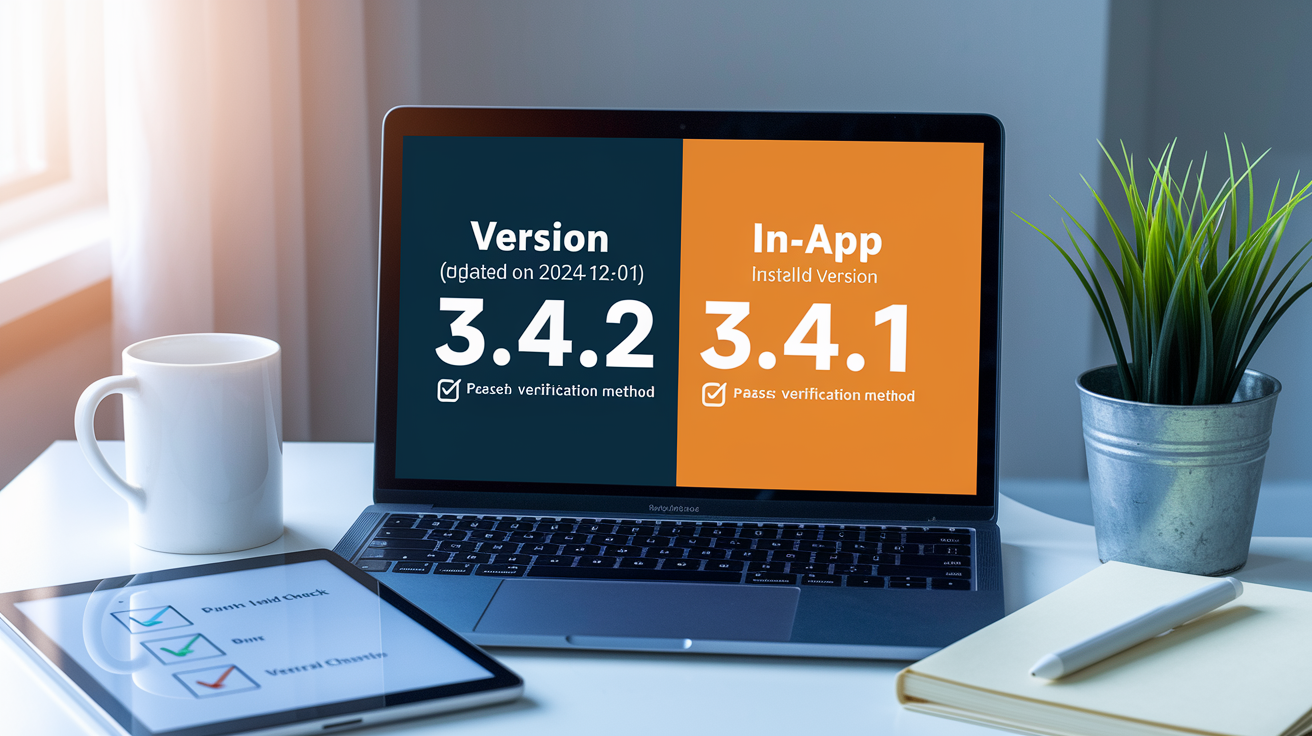
Sometimes the store claims an update finished, but the app still behaves like the old version. Before troubleshooting further, confirm whether the update truly installed or if your device is still running an earlier build. Mismatched version numbers reveal incomplete downloads, signing issues, or cached binaries that never replaced the old files.
Use these verification methods to compare what the store says you have versus what the app is actually running. If the numbers don’t match, the update failed somewhere in the installation chain.
| Method | Platform | What to Check |
|---|---|---|
| Store listing | iOS, Android, Windows, Mac | Open the app’s store page and note the version number and “Updated on [date].” If the button shows “Update” instead of “Open,” the download never completed. If it shows “Open” and version 3.4.2, but your installed app is 3.4.1, the update failed or rolled back. |
| In-app About or Settings screen | All platforms | Open the app, go to Settings or Help > About, and read the version number. Compare to the store listing. If they match, the update installed, missing features are probably server side. If they don’t match, the old binary is still running. |
| Device app info screen | iOS, Android | iOS: Settings > General > iPhone Storage > [App Name] shows app version. Android: Settings > Apps > [App Name] displays version at the top. Compare to the store listing and in-app version to spot discrepancies. |
| File timestamp or properties | Windows, Mac | Windows: Right-click the app’s .exe > Properties > Details shows File version and Date modified. Mac: Right-click the .app in Applications > Get Info shows Modified date and version. If the date is older than the store’s “Updated on” date, the app didn’t reinstall. |
Advanced Developer-Level Causes of App Update Changes Not Showing

Developers sometimes deploy updates only to discover users report no visible changes. The binary version increments, crash logs confirm the new build, but features or bug fixes stay invisible. These issues often trace back to versioning mismatches, caching layers, or server side controls that override the client binary.
Signing & Versioning Issues
Signature mismatches prevent updates from installing on Android and can confuse desktop app stores. If you build and install an app using Android Studio with the debug keystore, the certificate won’t match the release keystore used for Play Store uploads. The debug keystore typically lives at C:\Users\XXXXX\.android\debug.keystore on Windows or ~/.android/debug.keystore on Mac and Linux. When the Play Store compares certificates, it sees a mismatch and shows “Open” instead of “Update.”
VersionCode issues are equally common. Android uses an integer versionCode for update eligibility checks, not the user facing versionName. If you release version 1.0.7 with versionCode 9, then release 1.0.8 but forget to increment versionCode (leaving it at 9), the Play Store won’t offer the update to existing users. Always increment versionCode by at least 1 for every release. Most teams use build numbers (for example, versionCode 132, 133, 134) to avoid collisions.
When using app bundles, Google Play re-signs APKs and adds metadata. This can cause locally built APKs to show different signatures even when signed with the same key. Download the Play distributed APK (via an APK extractor or the Play Console) and compare certificates using keytool -list -printcert -jarfile yourapk.apk to verify signatures match expectations.
Caching & CDN Problems
Hybrid and web based apps (React Native, Flutter, Ionic, or embedded WebViews) often serve JavaScript bundles, images, and stylesheets from a CDN. If the CDN cache isn’t purged after deploying new assets, users download stale files even after updating the app binary. The app shell updates, but the content and features don’t.
To diagnose this, check network requests in browser developer tools or Charles Proxy. If asset URLs don’t include version hashes or query parameters (for example, app.js?v=20250315 or app.abc123.js), the browser or app cache serves old files indefinitely. Build in cache-busting strategies by appending content hashes to filenames during the build process or setting Cache-Control: no-cache headers for dynamic resources.
Static asset caching on the device also causes problems. Even if the CDN serves fresh files, the app’s internal cache (iOS NSURLCache, Android OkHttp cache, or WebView cache) might return stale responses. Clear these caches programmatically on app launch after detecting a version change, or add a developer menu that forces cache invalidation.
Feature Flags & A/B Testing
Many apps deploy updates with new features hidden behind server side feature flags or A/B testing platforms. The binary updates successfully, analytics confirm users are on the new version, but the server decides which users see the new UI or functionality. This is intentional, it lets teams test changes with a subset of users before rolling out to everyone.
If users report missing features despite being on the latest version, check your remote configuration dashboard (Firebase Remote Config, LaunchDarkly, Optimizely, or similar). Verify the rollout percentage and user targeting rules. A common mistake is setting a feature to 20% rollout and forgetting to increase it to 100% after testing completes.
A/B test assignment can also be sticky. Once a user is assigned to the control group (no new feature), they might stay in that group even after you increase the rollout. Force reassignment by updating the experiment version or clearing local experiment state. Some platforms let you override assignment for specific user IDs or test accounts, which helps during QA.
Identifying these issues takes checking server logs, experiment dashboards, and client side feature flag states. Add a debug screen or developer menu that displays active feature flags and experiment assignments. Compare that output to what the server claims the user should see. Mismatches often reveal stale client caches, incorrect targeting rules, or delayed configuration propagation (which can take 12–24 hours in some systems).
When to Reinstall the App If Update Changes Are Still Not Showing
Reinstalling forces a clean slate. The device deletes all local caches, preferences, and partially updated files, then downloads and installs the latest version directly from the store. If cache clearing and restarts fail, reinstalling is the most reliable fix. But it comes with risks.
On iOS, reinstalling can take significant time. Users report re-downloading large apps (multi-gigabyte games) taking up to 2 hours on slower connections. The App Store doesn’t always resume interrupted downloads cleanly, so make sure you have stable Wi‑Fi and enough battery before starting. Deleting and reinstalling also removes all local data unless the app uses iCloud sync or you back up your device first.
On Android, reinstalling gets you the Play Store build with the correct certificate and versionCode. If you previously installed the app via Android Studio or sideloaded an APK, the Play Store won’t update it due to signature mismatch. Uninstalling the debug or sideloaded build and installing fresh from the Play Store resolves this. Most Android apps store data in the cloud or offer export options. Check the app’s settings before uninstalling.
Desktop platforms (Windows, Mac) usually keep user data in separate folders even after uninstalling. On Windows, user data often lives in %APPDATA%\[AppName]\ or %LOCALAPPDATA%\[AppName]\. On Mac, it’s in ~/Library/Application Support/[AppName]/ or ~/Library/Preferences/. Uninstalling the app binary doesn’t delete these folders unless you manually remove them, so reinstalling typically restores your settings and files automatically.
Reinstall when you’ve confirmed the store shows the correct version, cache clearing and restarts didn’t work, and you suspect corrupted local files or incomplete update installation. Before you uninstall, back up the following:
Login credentials and account tokens. Export or write down usernames and passwords if the app doesn’t use cloud authentication. Some apps lose session tokens on reinstall and need re-login with two-factor codes.
Local files and documents. If the app stores files on-device (notes, photos, recordings, project files), export or sync them to cloud storage. On Android, check Settings > Apps > [App Name] > Storage to see how much data will be deleted.
Custom settings and preferences. Some apps don’t sync settings to the cloud. Take screenshots of configuration screens or export settings if the app offers an export feature.
Offline content or downloads. Reinstalling deletes downloaded maps, playlists, courses, or cached articles. Re-download after reinstalling if the app doesn’t restore them automatically.
In-app purchases and subscriptions. Most apps restore purchases automatically after you sign back in, but save your receipts or subscription confirmation emails just in case you need to contact support.
Preventing App Update Changes Not Showing in the Future
Prevention comes down to forcing fresh data and making updates visible. For users, the simplest step is enabling automatic updates in your device settings so you’re never running old builds. On iOS, go to Settings > App Store and turn on “App Updates.” On Android, open Play Store > Settings > Network preferences > Auto-update apps and choose “Over any network” or “Over Wi‑Fi only.” On Windows, open Microsoft Store > Settings and enable “Update apps automatically.” On Mac, go to System Settings > App Store and check “Automatic Updates.”
Adding an in-app version display helps both users and developers confirm updates. A small version number in the app’s settings or about screen (for example, “Version 3.4.2 (build 210)”) lets users compare to the store listing and quickly spot mismatches. When users contact support claiming features are missing, the first question is often “What version are you on?” Displaying it up front saves time and reduces back and forth.
For developers, cache-busting strategies prevent stale assets from hiding changes. Append content hashes or version numbers to asset filenames during the build process. Modern bundlers (Webpack, Vite, Metro) do this automatically. Instead of serving app.js, serve app.abc123.js where the hash changes whenever the file content changes. This forces browsers and apps to fetch the new file instead of serving cached copies.
When rolling out features, communicate clearly with users about staged releases. If you’re deploying to 20% of users first, mention it in release notes or in-app messaging. Users assume updates are immediate and universal. Explaining phased rollouts reduces confusion and support tickets. Increase rollout percentages quickly if no issues surface. Waiting weeks at 20% frustrates users who see update announcements but don’t get the features.
Final Words
Try the immediate fixes first: force-stop the app, restart your device, clear cache or offload the app, reinstall if needed, verify build/version, and refresh the store page.
If that doesn’t work, run platform-specific steps—reset the App Store cache, clear Play Store data, wsreset on Windows, or remove macOS caches—and check for staged rollouts or server-side feature flags.
If you still see app update changes not showing, dig into signing, CDN caching, and logs. Often a cache clear or reinstall fixes it, so you should see changes soon.
FAQ
Q: Why are my apps not updating iOS 26 or iOS 18, and why do my apps not show updates?
A: Apps not updating on iOS 26 or iOS 18 and hidden updates usually mean App Store cache, network, or rollout/version mismatches. Restart device, toggle Date & Time, tap App Store tab 10 times, or reinstall the app.
Q: Which is the No. 1 app?
A: The No. 1 app varies by region, chart, and metric; check the App Store or Google Play “Top Charts” for current rankings. Specify downloads, revenue, or active users if you want a metric-based answer.

