
Annoyed when apps update themselves, eat your data, or break things without asking?
You can pause automatic app updates on any device — often with a single setting or a simple workaround.
This guide shows the fastest universal method plus step-by-step fixes for Android, iPhone, Windows, macOS, and Chromebooks, network-based pauses like Wi‑Fi-only or metered connections, scheduling tricks, and the safety checks to run so you control updates without exposing yourself to risks.
Immediate Universal Method to Pause Automatic App Updates
Open your device’s app store settings and turn off the automatic update toggle. That’s it.
Most app stores hide this control under something like “auto-update apps” or “automatic downloads.” On Android, you’ll go through the Google Play Store: open it, tap your profile icon or the three-line menu, hit Settings, find “Auto-update apps,” and pick “Don’t auto-update apps.” On iPhone or iPad, you’re heading to the iOS Settings app (not the App Store itself), scrolling to App Store, and toggling off “App Updates.” The change happens right away across everything installed.
Here’s the fastest route for most Android users:
- Open the Google Play Store app.
- Tap the three horizontal bars in the search bar or swipe from the left edge.
- Tap Settings.
- Tap “App download preference” and choose “Over Wi-Fi only,” then tap Done.
- Tap “Auto-update apps” and choose “Don’t auto-update apps,” then tap Done.
- Check that automatic downloads have stopped on mobile data.
Full instructions for iOS, Windows, macOS, ChromeOS, and enterprise setups are below. So are per-app controls, network tricks, scheduling ideas, and how to handle manual updates once you’ve paused everything.
Android Methods to Pause App Updates Automatically
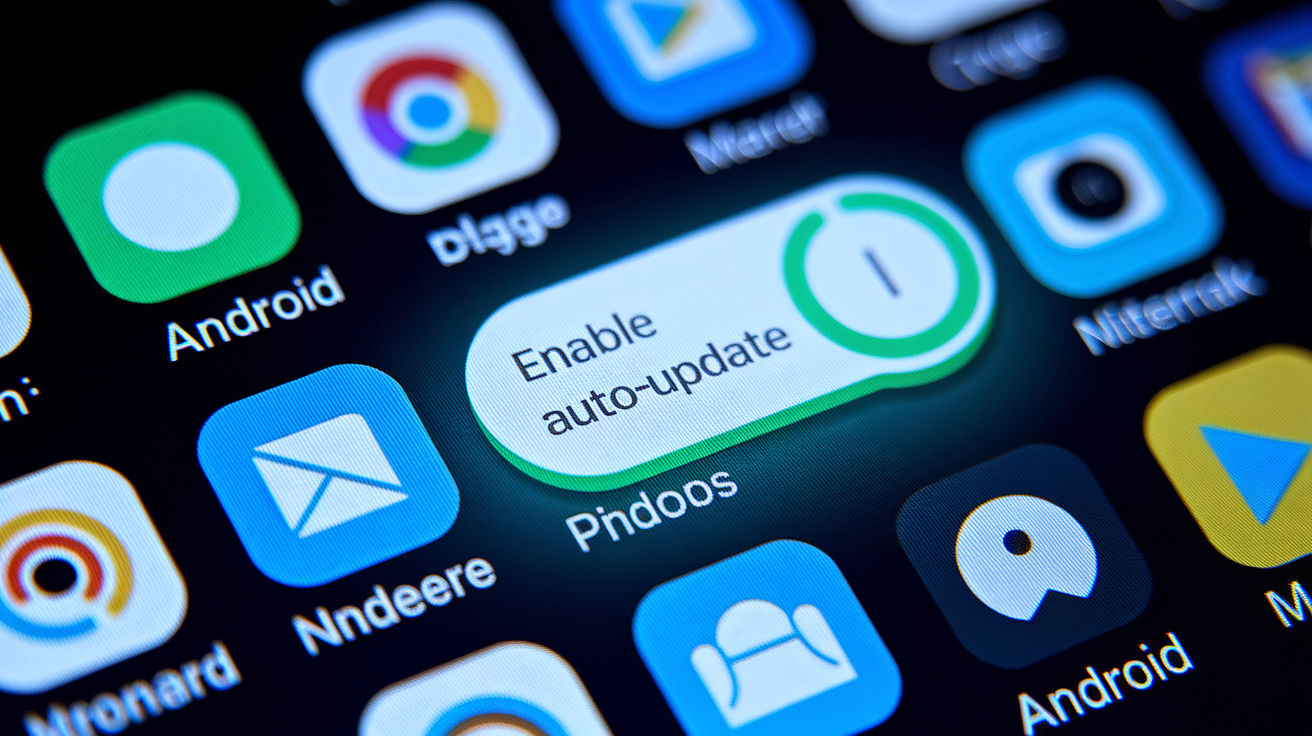
Android gives you the most flexibility through the Google Play Store, which runs all app installs and updates on non-rooted devices. The global setting above stops everything system-wide. But per-app controls let you pause updates for specific apps while others keep updating normally.
Menu locations and labels shift depending on your Play Store version and device manufacturer. If you don’t see the three-bar menu in the search bar, tap the circular profile icon at the top right of the Play Store home screen, then pick Settings from the dropdown. Some Samsung, Xiaomi, and other OEM devices bury network preferences under a separate “Network preferences” submenu instead of showing them directly in Settings.
People usually disable Android auto-updates for five reasons:
- A recent app version broke something they use every day.
- Mobile data caps make automatic downloads expensive or trigger overage charges.
- Storage space is tight and automatic updates eat it up without warning.
- A firmware mismatch causes the updated app to crash or freeze the device.
- They want to read changelogs and reviews before installing new versions.
To pause updates for just one app without touching global settings:
- Open the Google Play Store and search for the app.
- Tap the app to open its store page.
- Tap the three-dot menu icon at the top right.
- Uncheck “Enable auto update” to stop future automatic updates for that app only.
This method is useful when one app constantly ships broken updates but you want security patches for everything else.
iPhone and iPad Options to Pause App Updates Automatically
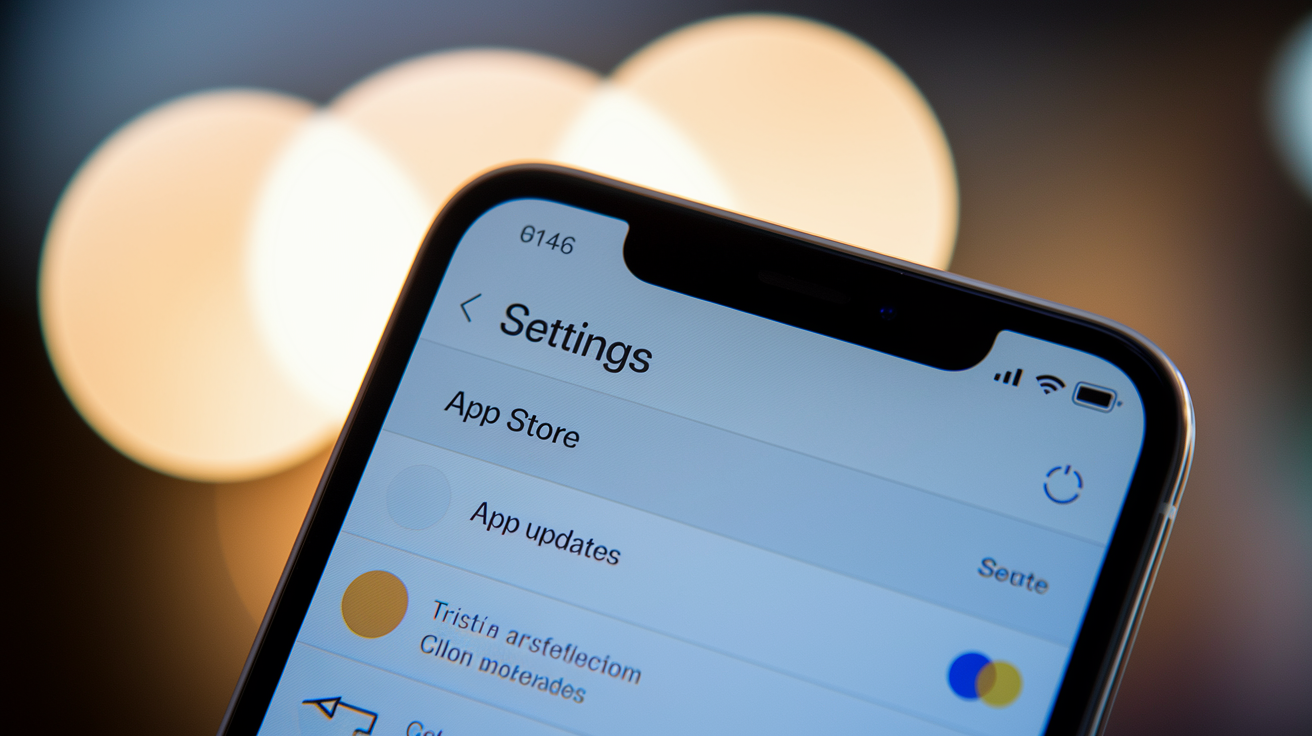
iOS and iPadOS put automatic update controls in the device Settings app under the App Store section. To pause all automatic app updates on an iPhone or iPad, open Settings, scroll down and tap App Store, then toggle off “App Updates.” The change sticks until you manually flip it back on.
Apple doesn’t give you per-app automatic update control in the standard App Store. If you want to block updates for one app while letting others update automatically, you’re stuck with workarounds. The easiest is turning off global automatic updates, then manually updating each app you care about by opening the App Store, tapping your profile icon, scrolling to “Available Updates,” and tapping Update next to each one. This takes discipline because iOS won’t remind you to re-enable automatic updates, and you have to remember to check regularly.
There’s an older, technical workaround involving installing a previous version from a saved .ipa file using a Mac running iTunes, then removing the app’s App Store receipt so iOS no longer sees it for updates. You’d delete the current app, locate the old .ipa in a backup, extract the Payload folder, drag the .app file into iTunes, and sync. The installed older app won’t show up in the App Store’s update list because it lacks a valid receipt. But this workflow is fragile and risky.
Disabling automatic updates on iOS creates four key problems:
- You miss critical security patches that protect against malware, data breaches, and known vulnerabilities.
- Server-side changes by developers can break older app versions anytime, leaving you unable to use the app until you update manually.
- New iOS features and system integrations often need the latest app versions, so outdated apps may lose functionality after an iOS update.
- You have to manually check for updates and install them, which most people forget to do consistently.
Pausing App Updates on Windows, Mac, Chromebook, and Enterprise Systems
Windows 10 and 11 manage Microsoft Store apps through the Store app’s settings. Open the Microsoft Store, click the three-dot menu icon at the top right, select Settings, and toggle off “Update apps automatically.” The setting applies to all apps from the Microsoft Store but doesn’t touch desktop programs installed from .exe or .msi files. Windows Update handles those separately under Settings, Update & Security, Windows Update, where you can pause everything for up to 35 days through the “Pause updates” dropdown.
macOS doesn’t offer a global pause for App Store app updates through System Preferences or System Settings. The Mac App Store automatically updates apps unless you disable automatic downloads entirely in System Preferences, App Store, and uncheck “Install app updates.” Third-party Mac apps installed outside the App Store use their own update systems, which you must disable individually in each app’s preferences. Popular apps like Chrome, Firefox, and Adobe Creative Cloud run background update daemons that need manual disabling through Terminal commands or third-party tools like LaunchControl.
| Platform | How to Pause Updates | Notes |
|---|---|---|
| Windows (Microsoft Store) | Store app → Settings → Toggle off “Update apps automatically” | Doesn’t affect desktop .exe programs or Windows system updates |
| ChromeOS | Managed devices: Admin console → Device settings → Kiosk settings → Disable auto-updates. Consumer devices: no native pause option for Play Store or web apps | Consumer Chromebooks inherit Android Play Store update settings; web apps auto-update through Chrome browser updates |
| Enterprise (MDM/Group Policy) | Group Policy: Computer Configuration → Administrative Templates → Windows Components → Store → Turn off Automatic Download/Install. MDM: Intune, Jamf, or Workspace ONE policies to restrict update schedules or block updates during business hours | Lets IT admins set update windows, blacklist app versions, or require approval before updates deploy |
How to Pause App Updates Automatically Based on Network Conditions
Network-aware pausing stops expensive or unwanted downloads by limiting updates to specific connection types. The Android Play Store offers this through the “App download preference” setting, where you pick “Over Wi-Fi only” to block all app installs and updates when connected to cellular data. This prevents surprise data charges and works great when traveling internationally or using a metered mobile plan.
Data Saver mode on Android goes further by restricting background data for all apps, not just Play Store downloads. Turn it on in Settings, Network & internet, Data Saver, and toggle it on. When Data Saver is active, apps can’t download updates or sync data in the background unless you add them to the “Unrestricted data” exception list. Roaming-specific restrictions show up under Settings, Network & internet, Mobile network, where you can disable “Data roaming” entirely to prevent any app activity when your device connects to foreign carrier networks.
Five common network-based pausing strategies:
- Wi-Fi only updates — Choose “Over Wi-Fi only” in Play Store settings to allow updates on home, office, or public Wi-Fi but block them on cellular.
- Cellular data restrictions — Turn off “Mobile data” for the Google Play Store app in Settings, Apps, Google Play Store, Mobile data & Wi-Fi to stop all Play Store activity over cellular.
- Roaming pause — Disable data roaming system-wide to stop apps from updating or syncing when traveling abroad.
- Metered connection blocking — On Windows, mark a Wi-Fi network as metered under Settings, Network & Internet, Wi-Fi, Manage known networks, then set the connection as metered to block automatic downloads.
- Data Saver mode — Turn on Data Saver globally and manually add critical apps to the unrestricted list, pausing updates for everything else.
Scheduling and Automating App Update Pausing
The Google Play Store and Apple App Store don’t include native scheduling to pause updates during specific hours or days. Users who want time-based control have to combine network restrictions with third-party automation tools or system features. On Android, automation apps like Tasker, MacroDroid, or Automate can create rules that disable mobile data or toggle airplane mode during peak hours, then re-enable connectivity overnight when updates are fine.
iOS users lean on Shortcuts and Screen Time to fake scheduling. A Shortcut can turn on Low Power Mode at a scheduled time, which pauses background activity including automatic updates, then turn it off later. Screen Time’s “Downtime” feature blocks app usage during set hours but doesn’t directly control updates. The most reliable iOS scheduling method is disabling automatic updates globally, then manually updating apps during a chosen weekly maintenance window.
| Tool | Platform | What It Can Automate |
|---|---|---|
| Tasker | Android | Toggle mobile data, Wi-Fi, or airplane mode on a schedule; turn on Data Saver during work hours; trigger update checks at specific times |
| Shortcuts (iOS) | iPhone, iPad | Turn on Low Power Mode at scheduled times to pause background activity; create a manual trigger to open App Store updates list |
| Group Policy / Intune | Windows, enterprise | Set maintenance windows for Store app updates; block updates during business hours; require manual approval for specific app versions |
Manual Update Controls After Pausing Automatic Updates
Once you pause automatic updates, you’re responsible for checking and installing updates manually. Skipping manual updates for weeks or months leaves apps open to security exploits and compatibility issues, so set a recurring calendar reminder to review available updates every 7 to 14 days.
To manually check and install app updates on Android:
- Open the Google Play Store app and tap your profile icon at the top right.
- Tap “Manage apps & device.”
- Look for the “Updates available” section at the top. If it shows a number, tap it to see the full list of apps with pending updates.
- Tap “Update all” to install everything at once, or tap “Update” next to individual apps to install them selectively.
- Watch the download progress in the notification shade and wait for everything to finish before closing the Play Store.
On iPhone and iPad, open the App Store, tap your profile icon at the top right, and scroll down to see available updates under “Available Updates.” Tap “Update All” to install everything, or tap “Update” next to each app individually. iOS doesn’t show changelogs for each update in this list, so you have to tap the app name to open its store page if you want to check what changed before updating.
Trade-Offs, Risks, and When You Shouldn’t Pause App Updates Automatically

Pausing automatic updates swaps convenience and security for control and data savings. Every day you delay an update is another day a known security vulnerability sits unpatched on your device. Banking apps, password managers, messaging apps, and browsers get frequent security patches that protect against credential theft, man-in-the-middle attacks, and malware injection. Turning off automatic updates for these apps increases your risk of account compromise, especially if you don’t manually update them within a few days of each release.
App compatibility breaks happen all the time when you run old app versions on new operating systems. A major iOS or Android update can change system APIs, kill old frameworks, or add new privacy controls that older apps don’t support. Users who pause updates and then install a major OS update often find their paused apps crash on launch, fail to sync data, or lose access to critical features until they manually update. Server-side changes create similar problems because many modern apps rely on backend services that evolve separately from the app version on your device. An e-commerce app might stop showing product images, a banking app might refuse to authenticate, or a messaging app might fail to send messages if the developer drops support for your installed version.
The benefits of pausing updates are real but narrow. You keep a stable app version that works reliably for your workflow, you dodge unwanted UI redesigns that hurt productivity, you control exactly when large downloads eat your mobile data or Wi-Fi bandwidth, and you stop storage space from filling up without warning. These advantages matter most for users on strict data plans, those with limited device storage, and professionals who depend on specific app behaviors that recent updates have wrecked. If none of those apply to you, the security and compatibility risks of pausing updates usually outweigh the benefits.
Final Words
in the action, we gave a universal quick‑start to pause automatic app updates and then walked through Android, iOS, desktop/enterprise controls, network‑based limits, scheduling workarounds, manual resuming, and the trade‑offs.
You’ve got Play Store global and per‑app steps, iOS toggles, and enterprise/MDM notes to control updates across devices.
For a practical next step, follow the store toggle first, add Wi‑Fi‑only or automation if you need timing, and use the tips here for how to pause app updates automatically. You’ll save data and keep control.
FAQ
Q: How do I stop an app from updating automatically?
A: To stop an app from updating automatically (or pause an auto update), disable automatic updates in your device’s app store settings or turn off the app’s per‑app auto‑update toggle.
Q: How to pause app updates on iPhone?
A: To pause app updates on iPhone, turn off App Updates in Settings > App Store or disable Automatic Downloads; per‑app pausing isn’t supported without limited side‑loading workarounds.
Q: How to pause an app update on Android?
A: To pause an app update on Android, open Play Store → Profile → Settings → Network preferences → Auto-update apps → choose “Don’t auto‑update apps,” or uncheck Enable auto‑update on the app page.

