
Is Instagram refusing to load because of your phone, your Wi‑Fi, or Instagram itself?
If your feed keeps spinning or images won’t appear, the fix is usually fast and straightforward.
This post explains the top causes — weak or unstable networks, corrupted app cache, outdated app files, and server outages — and gives step‑by‑step quick fixes that actually work.
It covers both Android and iPhone checks, network troubleshooting, and what to try before you reset anything.
Read on to diagnose the problem and get Instagram loading again in minutes.
Immediate Reasons Instagram Won’t Load and Fastest Fixes
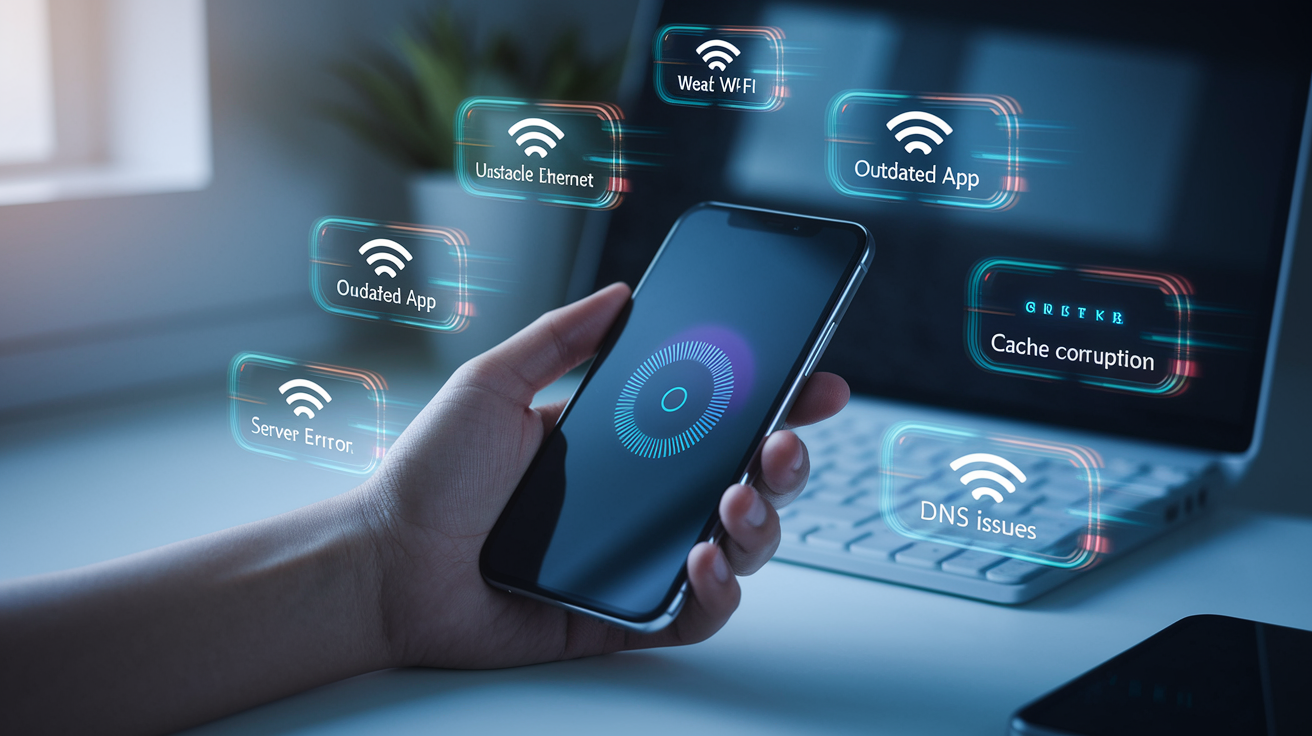
Instagram stops loading when your device can’t grab data from Instagram’s servers fast enough. Sometimes it can’t pull anything at all. The usual suspects? Unstable internet, whether that’s weak Wi‑Fi or spotty cellular coverage. An outdated app that’s missing recent bug fixes. Temporary server errors on Instagram’s end that hit millions of people at once.
You’ve also got app cache corruption from incomplete downloads, not enough device storage to cache content, and compatibility fights between your operating system and whatever Instagram version you’re running.
Packet loss, low bandwidth, DNS resolution failures. Those are the technical culprits behind most feed failures. Packet loss means data packets traveling between your phone and Instagram’s servers get dropped mid‑route. Images half‑load. Stories spin endlessly. Bandwidth bottlenecks happen when your connection’s too slow to handle Instagram’s media‑heavy feed. DNS issues stop your device from even finding Instagram’s servers by name. Cache corruption? The app saves incomplete or conflicting data, then tries to reload it next launch. Endless loading loop.
Quick fixes resolve most loading issues because they clear transient errors, refresh network state, and update the app to match server expectations. Restarting the app forces it to drop old session data and reconnect cleanly. Clearing cache removes corrupted files without killing your login credentials. Network toggles re‑establish routes and signal, often fixing dropped connections in seconds.
-
Restart the Instagram app. Fully close Instagram using your app switcher or task manager (swipe up or double‑tap Home, then swipe Instagram away), then reopen it.
-
Clear app cache. Android: Settings > Apps > Instagram > Storage > Clear Cache. iOS: Settings > General > iPhone Storage > Instagram > Offload App (keeps your data) or Delete App (removes all local data).
-
Update the Instagram app. Open the App Store (iOS) or Google Play (Android), search for Instagram, and tap Update if it’s available.
-
Reboot your device. Power off completely for 10 seconds, then power back on to reset memory and network modules.
-
Toggle Airplane Mode. Enable Airplane Mode for 10 seconds, then disable it to force a fresh cellular and Wi‑Fi connection.
-
Switch between Wi‑Fi and mobile data. If you’re on Wi‑Fi, turn Wi‑Fi off and use cellular. If you’re on cellular, connect to Wi‑Fi and wait 10 seconds.
-
Try Instagram’s web version. Open instagram.com in a browser to see if the problem’s specific to the mobile app or hits your account everywhere.
Diagnosing Instagram Feed, Stories, Reels, and Media Not Loading
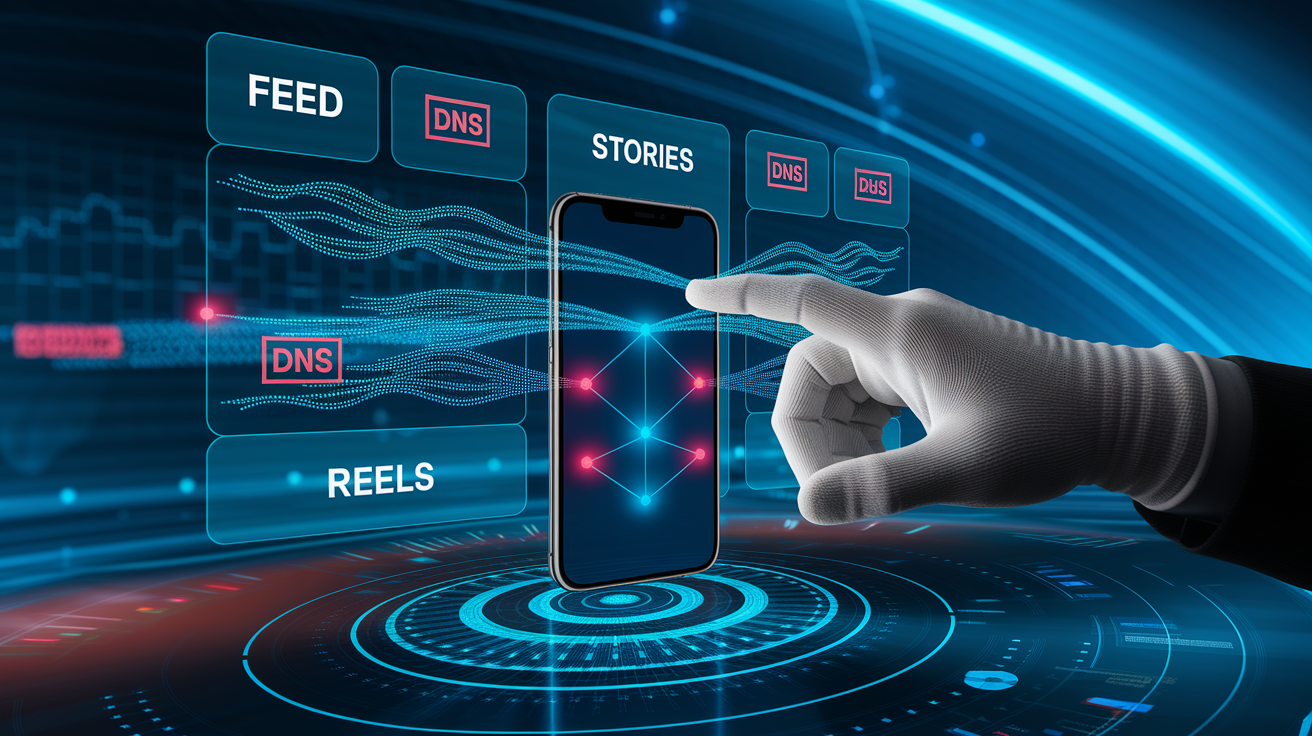
Instagram’s feed, Stories, and Reels rely on continuous streams of image and video data. Any interruption in download speed, cache state, or server response shows up as spinning icons, blank thumbnails, or “Error loading media” messages. Feed posts may load text and profile pictures but fail to display images if the media server returns incomplete data. Stories can freeze mid‑playback when bandwidth drops below the minimum threshold for video buffering. Reels often fail to load entirely because they demand higher resolution and longer buffer windows than static images.
Partial downloads happen when your connection drops packets midway through a media request. The app’s left with only half the file and no clear signal to retry. Weak Wi‑Fi (one or two bars) causes timeouts. The app waits several seconds, then gives up. Corrupted cached files can force the app to repeatedly serve a broken copy instead of fetching a fresh one from the server. DNS problems mean your device can’t translate instagram.com or Instagram’s content delivery network addresses into IP routes, so no data flows at all.
Common culprits:
Weak or intermittent signal causes packet loss and timeouts. Media stalls or fails to load.
Outdated or corrupted app cache. The app tries to render incomplete or invalid data.
DNS resolution failures. Device can’t reach Instagram’s servers by hostname.
Server‑side throttling or errors. Instagram’s content delivery network temporarily refuses requests or returns errors.
Device storage full. App can’t cache new media, so every load attempt times out or fails.
Browser extensions or ad blockers. On web, these can strip media URLs or block CDN domains.
| Issue | Likely Cause | Recommended Fix |
|---|---|---|
| Feed loads text but no images | Partial downloads or cache corruption | Clear app cache, switch networks, restart app |
| Stories stuck on loading spinner | Low bandwidth or packet loss | Toggle Airplane Mode, restart device, run speed test |
| Reels won’t play or buffer endlessly | Insufficient bandwidth or app outdated | Update Instagram app, switch to Wi‑Fi, reboot router |
Checking Instagram Server Status and Outage Causes

Instagram experiences server‑side outages several times per year. Login, feed refresh, and media uploads fail for millions of users simultaneously. During an outage, all quick fixes on your side will fail because Instagram’s servers are either overloaded or offline. Outages typically resolve within 5 to 30 minutes for minor incidents. Major infrastructure failures? Up to a few hours. Server errors appear as 500‑series HTTP codes, messages like “Couldn’t refresh feed,” or behavior where all devices (phone, tablet, computer, even other users you know) report the same feed failure at the same time.
When you see these patterns, you’re likely experiencing an outage rather than a local problem. Switching devices, networks, or even accounts won’t help if Instagram’s backend is down. Confirming an outage before spending time on device troubleshooting saves frustration. It tells you to wait instead of reset.
Try Instagram on a second device or web browser. If it fails everywhere, the issue is server‑side.
Check outage trackers. Visit downdetector.com or search “Instagram down” on Twitter to see real‑time user reports.
Look for 500, 502, or 503 error codes. These are server‑side status codes that scream Instagram infrastructure problems.
Wait 5 to 30 minutes and retry. Most outages clear quickly once Instagram’s team deploys a fix or traffic subsides.
Fixing Internet Problems That Cause Instagram Not to Load
Instagram demands stable, moderate‑speed internet to load its media‑heavy feed. Any drop in signal strength, bandwidth, or routing introduces failures. Weak Wi‑Fi (one or two bars) causes high packet loss. Data requests are sent but never acknowledged. The app waits indefinitely. Cellular dead zones or congested towers produce the same effect. Insufficient bandwidth (below 1–2 Mbps for feed browsing, higher for video) means Instagram can’t download images and videos fast enough. They time out. DNS problems prevent your device from translating instagram.com into a server address, blocking all traffic before it starts.
Router or modem issues often go unnoticed because other light‑traffic apps still work. But Instagram’s heavier load exposes the problem. A router that hasn’t been rebooted in weeks can accumulate connection‑table errors or memory leaks that slow or block traffic. ISP‑provided DNS servers sometimes fail silently, returning no results or slow responses that cause app timeouts. Public or shared Wi‑Fi networks can block Instagram entirely through firewall rules or content filters.
Network resets clear routing tables, renew DHCP leases, and flush stale DNS entries. They often fix mysterious connection failures in seconds. Changing to a public DNS like Google (8.8.8.8) or Cloudflare (1.1.1.1) bypasses ISP‑level DNS problems and can improve resolution speed.
-
Toggle Airplane Mode for 10 seconds. Enable Airplane Mode, wait, then disable to force a fresh cellular and Wi‑Fi connection.
-
Switch between Wi‑Fi and mobile data. Turn Wi‑Fi off and use cellular, or vice versa, to isolate which network’s failing.
-
Reboot your router and modem. Unplug both for 10 seconds, plug the modem back in first, wait 30 seconds, then plug in the router.
-
Run a speed test. Use speedtest.net or fast.com to confirm you’ve got at least 1–2 Mbps download speed. Lower speeds will cause timeouts.
-
Reset network settings. iOS: Settings > General > Transfer or Reset iPhone > Reset > Reset Network Settings. Android: Settings > System > Reset options > Reset Wi‑Fi, mobile & Bluetooth. This clears saved networks and requires re‑entering Wi‑Fi passwords.
-
Change DNS to 8.8.8.8 or 1.1.1.1. On your device or router, replace ISP DNS servers with Google (8.8.8.8 and 8.8.4.4) or Cloudflare (1.1.1.1 and 1.0.0.1).
-
Disable VPN or proxy. VPNs and proxies can interfere with Instagram’s traffic or be blocked by Instagram. Temporarily disable and test.
-
Try wired Ethernet on a computer. If Instagram loads on a wired connection but not Wi‑Fi, your wireless network’s the problem.
Fixing Instagram App Issues on Android and iOS

App‑level problems stem from corrupted cache files, incomplete updates, permission conflicts, or compatibility bugs between Instagram and your operating system version. Clearing cache removes temporary data that may contain broken downloads or outdated API responses. It forces the app to fetch fresh data on the next launch. Reinstalling deletes all local app files and replaces them with a clean copy from the store. This often fixes crashes or loading loops that cache clearing alone can’t resolve. Updating ensures you’ve got the latest bug fixes and server compatibility, since Instagram frequently pushes changes that older app versions can’t handle.
Permission issues can silently block the app from accessing network or storage resources, especially on Android where granular controls let you revoke cellular data or background refresh. Battery optimization features sometimes put Instagram to sleep mid‑session, cutting off network activity and leaving the app stuck on a loading screen when you reopen it.
Android Fixes
Clear cache by opening Settings > Apps > Instagram > Storage, then tap Clear Cache (this doesn’t log you out). If cache clearing doesn’t help, tap Clear Data (this will log you out and reset all app preferences). Uninstall Instagram from the app drawer or Settings > Apps > Instagram > Uninstall, then reinstall from Google Play to get a fresh binary and the latest version.
Check permissions in Settings > Apps > Instagram > Permissions and make sure Cellular Data and Storage are enabled. Disable battery optimization for Instagram by going to Settings > Battery > Battery optimization, finding Instagram, and selecting “Don’t optimize” to prevent the system from suspending network activity. To reset network settings, navigate to Settings > System > Reset options > Reset Wi‑Fi, mobile & Bluetooth, then reconnect to your network.
iOS Fixes
Offload the app by opening Settings > General > iPhone Storage > Instagram > Offload App. This removes the app binary but keeps your documents and data, then tap Reinstall App. To fully remove everything, tap Delete App instead, then reinstall from the App Store.
Enable Cellular Data for Instagram in Settings > Instagram and toggle on Cellular Data so the app can load content when you’re not on Wi‑Fi. Reset network settings by going to Settings > General > Transfer or Reset iPhone > Reset > Reset Network Settings (this erases saved Wi‑Fi passwords and VPN configurations, so have those handy). Check Background App Refresh in Settings > General > Background App Refresh and make sure it’s enabled globally and for Instagram specifically.
Fixing Instagram Web Version Not Loading
Instagram’s web interface (instagram.com) relies on your browser’s cache, cookies, JavaScript engine, and extension environment. Problems often trace to outdated cache files, conflicting extensions, or aggressive privacy settings that block Instagram’s scripts. Hard refreshing bypasses the browser’s cache and forces a clean download of page resources, fixing stale or corrupted HTML and CSS. Clearing browsing data removes cookies and stored files that may contain session errors or broken API tokens. Browser extensions (especially ad blockers, privacy tools, and script managers) can strip media URLs, block Instagram’s CDN domains, or prevent login flows from completing.
Incognito or private browsing mode disables most extensions and prevents the browser from using cached data. If Instagram works in Incognito, an extension or cache problem is confirmed. Switching browsers tests whether the issue’s tied to a specific rendering engine or browser configuration.
Hard refresh the page. Press Ctrl+F5 (Windows) or Cmd+Shift+R (Mac) to reload Instagram while bypassing the cache.
Clear browser cache and cookies. Open browser settings (Ctrl+Shift+Del in Chrome/Edge), select “Cached images and files” and “Cookies,” choose “All time,” and click Clear data.
Disable browser extensions. Turn off ad blockers, privacy tools, and script blockers one at a time, refreshing Instagram after each to identify the culprit.
Try Incognito or Private mode. Open a new Incognito/Private window (Ctrl+Shift+N in Chrome, Cmd+Shift+N in Safari) and visit Instagram to rule out extensions and cache.
Switch to another browser. If Instagram fails in Chrome, try Firefox, Edge, or Safari to see if the problem’s browser‑specific.
Account Issues That Can Stop Instagram from Loading

Account‑level restrictions or verification problems can prevent Instagram from loading any content, even when your internet and app are working fine. Disabled or suspended accounts receive an on‑screen message at login but sometimes appear as endless loading screens if the app can’t retrieve account status. Action blocks triggered by rapid follows, likes, or messages prevent the feed from refreshing and display warnings like “Action Blocked” or rate‑limit messages. These blocks typically last 24 to 48 hours and can’t be bypassed by technical fixes.
Password errors, expired sessions, or two‑factor authentication failures can lock you into a login loop where the app never finishes authenticating. You’re stuck on a loading screen. Reviewing Login Activity in Settings > Security helps identify suspicious sessions or unrecognized devices that Instagram may have blocked. Temporary restrictions from policy violations (spam, impersonation, copyright) can disable specific features like posting or messaging while still allowing limited browsing. But in severe cases the entire account becomes inaccessible.
If you suspect account issues, try logging in on a second device or the web version. If the same loading screen appears everywhere, the problem’s tied to your account rather than your device. Check your email for messages from Instagram about security alerts, policy warnings, or account status changes. For action blocks, the only remedy is to wait out the timer, avoid triggering the same behavior again, and remove any third‑party apps that automate actions on your behalf.
Advanced Fixes for Persistent Instagram Loading Problems
When standard troubleshooting fails, advanced network and device‑level techniques can resolve deeper configuration issues, ISP routing problems, or firmware bugs. Changing DNS bypasses your internet provider’s default name servers, which may be slow, unreliable, or silently filtering Instagram traffic. Google’s DNS (8.8.8.8 and 8.8.4.4) and Cloudflare’s (1.1.1.1 and 1.0.0.1) are fast, stable, and unfiltered. They often fix resolution delays that cause app timeouts. Flushing DNS clears your device’s local cache of domain‑to‑IP mappings, forcing fresh lookups that bypass stale or incorrect entries.
Updating router firmware patches security holes and fixes known bugs in routing, NAT, or wireless stacks that can interfere with app traffic. Resetting network settings on your device removes all saved Wi‑Fi networks, VPN configurations, and custom DNS or proxy settings. It returns the device to factory network defaults. A full device factory reset is the last resort, erasing all data and apps to eliminate deep software corruption. Only use it after backing up data and confirming the problem isn’t external.
Change DNS on your device or router. On iOS: Settings > Wi‑Fi > tap the (i) next to your network > Configure DNS > Manual, remove existing servers, add 8.8.8.8 and 1.1.1.1. On Android: Settings > Network & internet > Wi‑Fi > tap your network > Advanced > IP settings > Static, then enter DNS 1: 8.8.8.8, DNS 2: 1.1.1.1. On router: access admin panel (usually 192.168.1.1), find DNS settings, replace with Google or Cloudflare DNS.
Flush DNS cache. Windows: open Command Prompt and type ipconfig /flushdns. Mac: open Terminal and type sudo dscacheutil -flushcache; sudo killall -HUP mDNSResponder.
Update router firmware. Log into your router’s admin page, check for firmware updates under System or Administration, and install the latest version. Reboot the router afterward.
Disable IPv6 temporarily. Some ISPs or routers misconfigure IPv6, causing connection failures. Try disabling it in router settings or device network preferences.
Test with a different ISP or hotspot. Use your phone’s mobile hotspot or a friend’s network to confirm the problem isn’t tied to your home internet service.
Factory reset the device. Only after backing up data. iOS: Settings > General > Transfer or Reset iPhone > Erase All Content and Settings. Android: Settings > System > Reset options > Erase all data (factory reset). Reinstall Instagram afterward.
When to Use Last‑Resort Options
Network resets take 1 to 5 minutes and solve persistent routing or DNS issues without data loss, so they’re safe to try early. Router reboots and firmware updates are low‑risk and often fix intermittent failures across all devices. Factory resets are justified only when you’ve ruled out server outages, tried every other fix, and confirmed the problem follows your device to multiple networks. A factory reset erases everything and takes 30 to 60 minutes to restore from backup. Exhaust all other options first and make sure you’ve backed up photos, messages, and app data.
Troubleshooting Instagram Direct Messages, Explore Page, and Other Features Not Loading

Direct Messages and the Explore page depend on separate API endpoints and caching systems, so they can fail independently of the main feed. DMs may refuse to load new messages, display old conversations but not refresh them, or show a spinning icon when you try to open a chat. Explore page failures appear as blank grids, infinite loading, or error messages when tapping tiles. These problems often trace to corrupted cached data specific to messaging or discovery features, permission issues that block background sync, or temporary server‑side errors affecting only certain endpoints.
Switching accounts tests whether the problem’s tied to one profile’s data or a device‑wide issue. Logging in on a second device or the web version isolates whether the feature’s broken across platforms (server problem) or only on your phone (app or cache problem). Clearing app cache or reinstalling flushes stored DM threads and Explore tiles, forcing Instagram to rebuild them from scratch.
Clear app cache or reinstall. Use the platform‑specific steps from earlier sections to remove cached DM and Explore data.
Check app permissions. Make sure Instagram has access to Notifications and Background App Refresh so DMs sync when the app isn’t open.
Switch Instagram accounts. Log into a different account within the app to see if the problem follows the account or stays with the device.
Test on another device or web. Open instagram.com/direct to check DMs or browse Explore on a computer. If it works there, the issue’s app‑specific.
Common Instagram Error Messages and What They Mean
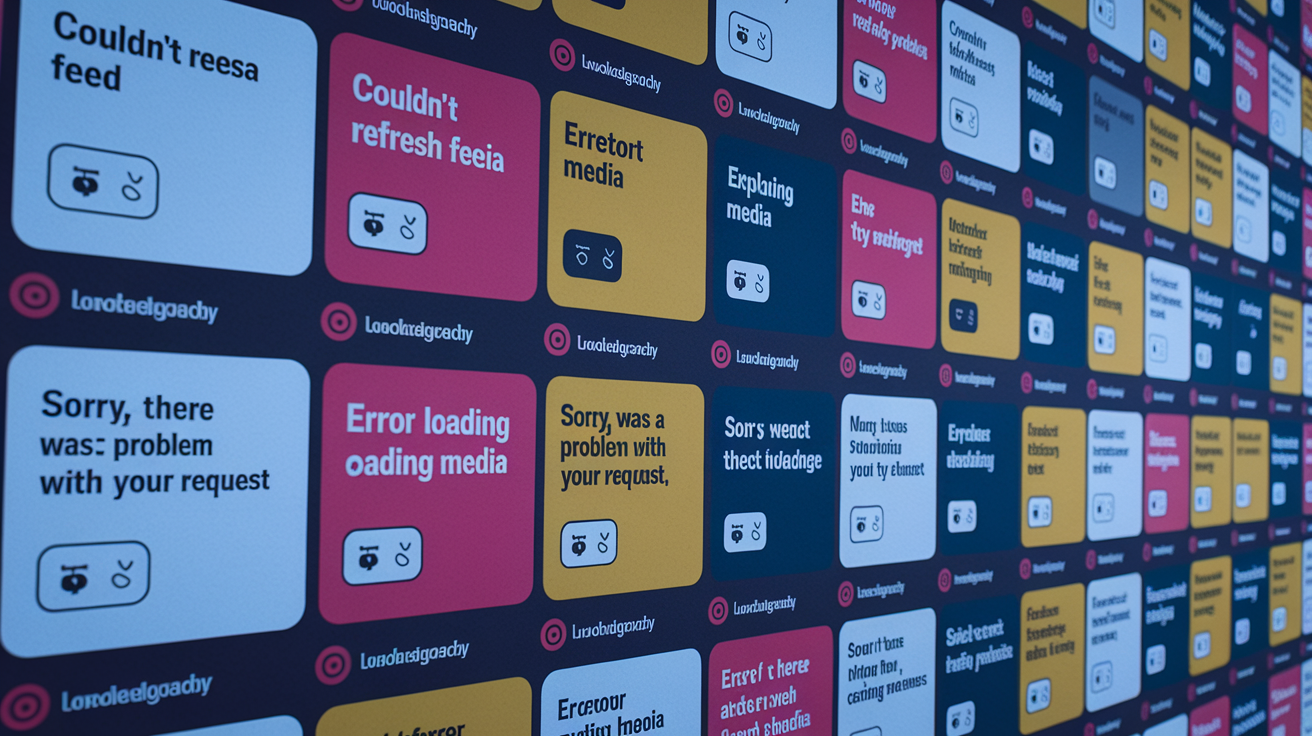
Instagram displays specific error messages that reveal whether the failure is local (your device or network) or server‑side (Instagram’s infrastructure). “Couldn’t refresh feed” usually appears during network interruptions, DNS failures, or Instagram outages. Retrying after toggling your connection or waiting a few minutes often resolves it. “Error loading media” signals incomplete downloads, cache corruption, or CDN timeouts. Fixed by clearing cache or switching networks. “Sorry, there was a problem with your request” is a generic catch‑all that can mean corrupted session data, temporary server overload, or a conflict between your app version and Instagram’s API. Reinstalling often clears it.
500, 502, or 503 error codes are server‑side HTTP status messages that scream Instagram’s web servers are down, overloaded, or undergoing maintenance. You can’t fix these on your end. You can only wait for Instagram to restore service. App crash loops (where Instagram closes immediately on launch or freezes on the splash screen) point to deep cache corruption, insufficient storage, or an OS compatibility bug. Resolved by clearing data, freeing storage, or updating your device.
“Couldn’t refresh feed.” Network failure, DNS issue, or Instagram outage. Toggle Airplane Mode, clear cache, check server status, wait 5–30 minutes.
“Error loading media.” Partial download or cache corruption. Clear app cache, switch networks, restart device.
“Sorry, there was a problem with your request.” Corrupted session or temporary API error. Clear data, reinstall app, or wait a few minutes and retry.
500, 502, 503 errors. Instagram server problems. Wait 5–30 minutes, check outage trackers. No local fix will help.
“No internet connection.” Device not connected or DNS failure. Verify Wi‑Fi or cellular is on, test with another app, reset network settings.
“Action Blocked.” Rate limit or policy violation. Wait 24–48 hours, remove third‑party automation apps, change behavior.
App crashes on launch. Cache corruption, low storage, or OS incompatibility. Free up 500 MB storage, clear data, update app and OS, or reinstall.
Preventive Practices to Avoid Instagram Loading Issues in the Future
Keeping at least 500 MB of free storage makes sure Instagram has room to cache images, videos, and session data without hitting storage‑full errors. Enabling automatic app updates on iOS (App Store > Account > Automatic Downloads) or Android (Play Store > Settings > Auto‑update apps) keeps Instagram current with server‑side API changes and bug fixes. Avoiding third‑party Instagram management apps, growth tools, or auto‑follow scripts reduces the risk of action blocks and account restrictions that can disrupt normal loading.
Keep 500 MB or more free storage. Instagram caches media locally. Full storage causes load failures and crashes.
Enable automatic app and OS updates. This keeps you compatible with Instagram’s latest server changes and security patches.
Use trusted public DNS. Set device or router DNS to 8.8.8.8 or 1.1.1.1 to prevent ISP DNS failures.
Avoid conflicting third‑party apps. Uninstall automation tools, growth services, and unofficial Instagram clients that trigger rate limits.
Regularly clear app cache. On Android, clear cache every few weeks if the app accumulates large cache files. On iOS, offload and reinstall occasionally.
Monitor Background App Refresh and battery settings. Make sure Instagram isn’t restricted by battery‑saver modes that kill network activity when the app’s idle.
Final Words
If Instagram won’t load, start with quick fixes: restart the app, toggle Airplane Mode, switch Wi‑Fi or mobile data, clear cache, update, or reinstall. Those fix most cases fast.
If that doesn’t work, diagnose specific symptoms—feed, Stories, Reels, DMs—or check the web client and outage trackers. For persistent problems, try DNS changes, network resets, or account troubleshooting.
Follow the steps above to narrow the cause and restore access quickly. If you’re still wondering why is instagram not loading, most issues are fixable and you should be back online soon.
FAQ
Q: Why is my Instagram not working today?
A: Your Instagram not working today usually means a network issue, app bug, or a temporary Instagram outage. Restart the app, toggle Airplane Mode, switch Wi‑Fi/mobile data, update or clear cache, and check outage reports.
Q: Why is my Instagram suddenly not loading?
A: Your Instagram suddenly not loading typically points to weak bandwidth, corrupted cache, or a recent app update causing bugs. Restart the app, clear cache, reboot the device, switch networks, or update/reinstall the app.
Q: Why aren’t Instagram loading?
A: Instagram not loading often results from poor internet, packet loss, or cached files blocking content. Toggle networks, run a speed test, clear the app cache, and try the web version to isolate the problem.
Q: Why is my Instagram not opening and showing black screen?
A: Instagram not opening and showing a black screen often stems from corrupted cache, rendering/GPU glitches, or low storage. Force-close and reopen, clear cache or reinstall, reboot the device, update app/OS, or use the web version.

