
Your inbox just stopped loading in the middle of an urgent email thread. Is Gmail actually down, or is something broken on your end? The difference matters because one wastes your time troubleshooting and the other needs you to wait it out. Right now, Gmail’s running normally with fewer than 2 issues reported in the last hour. But when problems do hit, knowing how to check real-time status and apply the right fixes gets you back to work faster than panicking or guessing.
Gmail Service Status: Is It Down Right Now?
As of today, Gmail is working fine with less than 2 issues reported in the last hour. That’s normal operating range. The platform’s doing what it should, no widespread problems.
You can check this yourself. Google Workspace Status Dashboard gives you official real-time updates straight from Google. DownDetector shows you what actual users are reporting, with spikes that tell you when something’s really wrong. Between those two, you get both the official word and what people are actually experiencing.
Things to check when you think Gmail’s broken:
- Google Workspace Status Dashboard: Official service health with color codes and incident details for Gmail and everything else Google runs
- DownDetector Community Reports: Real user reports coming in live, with graphs that spike when lots of people hit problems at once
- Social Media Verification: Twitter/X trends related to Gmail. Big outages blow up on social immediately
- Local vs. Global Outage Distinction: Figure out if it’s just your area or everywhere by looking at reports from different places
When there’s a confirmed outage, Google usually acknowledges it within 15 to 30 minutes on the Workspace Status Dashboard. Full details and time estimates show up in 1 to 2 hours. Sometimes minor stuff gets fixed before they even post about it.
Common Causes Behind Gmail Downtime
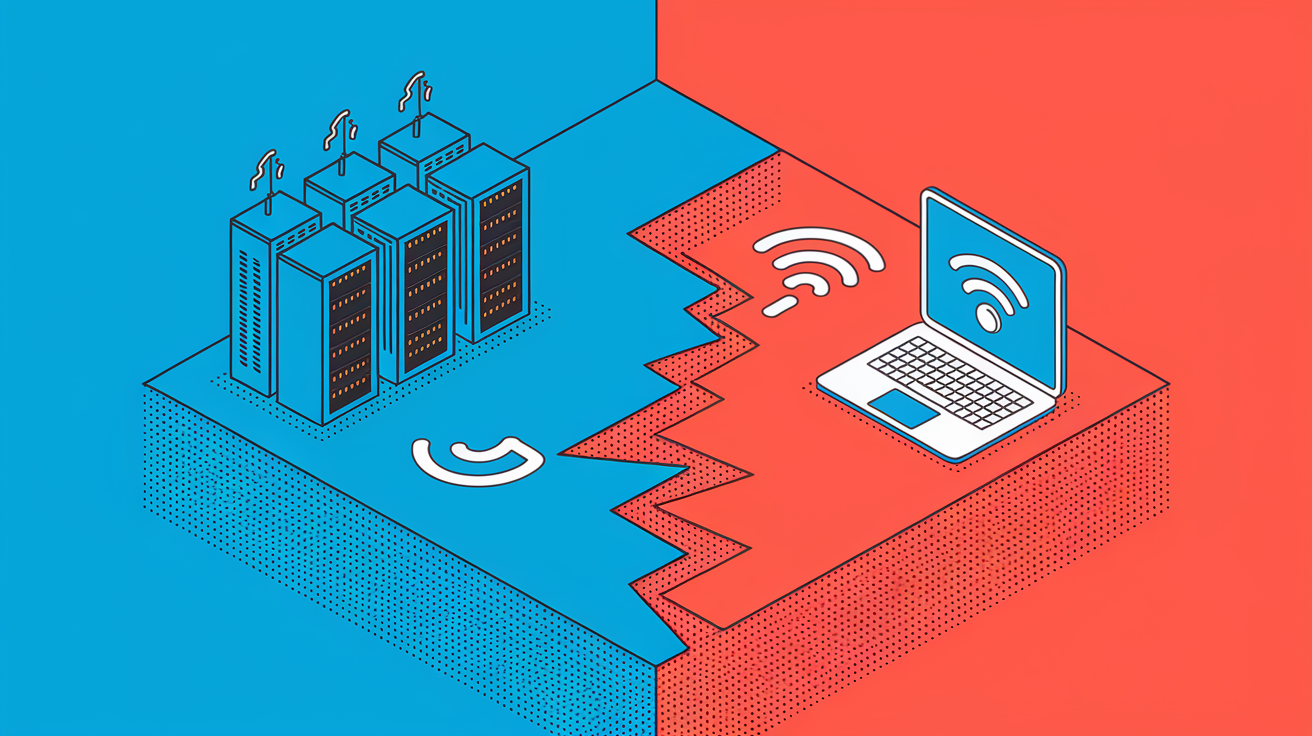
Gmail outages come from two places: Google’s infrastructure going sideways (affects everyone or certain regions), or something broken on your end (just you). Knowing which one you’re dealing with tells you whether to troubleshoot or just wait it out.
| Cause Type | Description | Typical Duration |
|---|---|---|
| Server Maintenance | Scheduled updates and infrastructure upgrades, usually announced in advance | 1-4 hours |
| Infrastructure Failure | Hardware failures, power issues, or data center equipment malfunctions | 2-8 hours |
| DNS Problems | Domain name resolution failures preventing users from reaching Gmail servers | 30 minutes – 2 hours |
| Data Center Disruptions | Network connectivity issues between Gmail data centers or routing problems | 1-6 hours |
| Storage Quota Issues | Internal capacity limits reached, triggering system-wide authentication and access failures | 4-12 hours |
| Network Connectivity Problems | Fiber line damage, ISP routing issues, or backbone network disruptions | 2-24 hours |
Planned maintenance can go wrong. There was this incident where fiber lines carrying Gmail traffic got accidentally disabled during routine work between US and European data centers. What starts as a controlled update cascades into bigger problems when dependencies aren’t mapped right or backup systems don’t kick in.
Gmail Outage History and Reliability Patterns

Gmail stays up more than most email services, but perfect uptime doesn’t exist. Looking at history helps you know what to expect when things break.
Here’s how Gmail’s performed year by year:
- 2023: 9 outages, 5 days 14 hours total downtime, 98.3% uptime for the year
- 2022: 8 outages, 4 days 4 hours 53 minutes downtime, 98.848% uptime
- 2021: 3 outages, 11 hours 24 minutes downtime, 99.9987% uptime
- 2020: 11 outages, 22 hours 14 minutes downtime, 99.9975% uptime
December 14, 2020 was Gmail’s biggest recent disaster. Started at 6:30 AM EST, some people couldn’t access email for up to 12 hours. An internal storage quota problem triggered it, creating errors that spread to Drive, Meet, Calendar, and Docs. Because Google’s infrastructure connects everything, one system hitting capacity locked people out of their entire Google Workspace. The December 10, 2022 outage lasted 4 hours 23 minutes and hit millions worldwide, especially hard in India.
Outage lengths vary wildly based on what broke. Shortest on record was 13 minutes on February 27, 2023. Longest stretched to 4 days 4 hours in July 2023. You can usually predict timeframes: minor glitches like isolated server hiccups resolve in 5 to 20 minutes, standard technical problems take 1 to 4 hours, infrastructure issues affecting multiple data centers need 4 to 12 hours, and severe cascade failures like that 2020 storage thing can run 12 hours to multiple days.
Gmail’s longest stretch without problems in 2023 ran 67 days between February 27 and May 5. Shows that extended reliability is possible even when you’re handling billions of messages daily.
Comprehensive Gmail Troubleshooting Guide
Before you decide Gmail’s having a widespread outage, rule out problems on your side. Lots of “Gmail is down” moments are actually local tech issues you can fix in minutes.
Quick checks to figure out if it’s you or them:
- Test your internet by loading other sites. If they don’t work either, your network’s the problem
- Verify login credentials are right, especially if you recently changed your password or juggle multiple accounts
- Check if your account got locked or disabled by trying to log in from another device
- Access Gmail from a different device (desktop to mobile or the other way) to see if it’s device specific
- Try a different browser. Browser corruption breaks Gmail loading all the time
- Check DownDetector to see if others are having the same problem right now
If other websites load fine, you can get into Gmail from another device, and DownDetector looks normal, start troubleshooting. If DownDetector shows a massive spike and Google Workspace Status Dashboard confirms an incident, troubleshooting won’t help. The problem’s on Google’s side and you’re waiting for their engineers.
Browser-Based Troubleshooting
Start by clearing your browser cache and cookies. Fixes loading problems and authentication loops most of the time. In Chrome, go to Settings > Privacy and security > Clear browsing data, select “Cookies and other site data” and “Cached images and files,” clear data from the past 24 hours. Firefox users hit Options > Privacy & Security > Cookies and Site Data > Clear Data.
Disable browser extensions temporarily. Third party add-ons mess with Gmail constantly. Official reports noted slow loading from browser extensions lasting 22 hours 46 minutes once. Try incognito mode (Chrome) or private browsing (Firefox) to test Gmail without extensions running.
If Gmail works in incognito but fails in normal browsing, an extension’s causing it. Disable extensions one by one to find the culprit. If Gmail still fails in incognito mode, test with a completely different browser to see if it’s browser specific or affecting everything.
Mobile App Troubleshooting
Force close the Gmail app by swiping it away from recent apps, then reopen. Resolves temporary app state issues.
Clear app data and cache on Android: Settings > Apps > Gmail > Storage > Clear Cache, then Clear Data if clearing cache doesn’t work. On iOS, you’ll need to delete and reinstall the app to do the same thing since iOS doesn’t let you clear cache separately.
Check for Gmail app updates in your device’s app store. Outdated versions sometimes lose server compatibility. If you’re running the latest version and still have problems, uninstall completely and reinstall fresh.
Verify your device settings allow Gmail background data access and aren’t restricting network permissions in battery optimization settings.
Network and Connection Fixes
Restart your router and modem by unplugging them for 30 seconds, then reconnecting. Clears temporary routing problems and refreshes your ISP connection.
Test Gmail with mobile data instead of WiFi (or the reverse) to see if the problem’s network specific. If Gmail works on mobile data but fails on WiFi, your router configuration or ISP may be blocking Gmail traffic.
VPN connections sometimes conflict with Gmail’s security checks. Temporarily disable your VPN to test if it’s causing access problems. Check firewall settings on your router or security software to make sure they’re not blocking Gmail domains.
For persistent connection problems, try changing your DNS servers to Google Public DNS (8.8.8.8 and 8.8.4.4) or Cloudflare DNS (1.1.1.1) to bypass potential DNS resolution failures.
When all troubleshooting steps fail but other Google services work normally, or when problems persist across all devices and networks, the issue’s almost certainly Google-side rather than something you can fix.
Gmail Error Messages and What They Mean
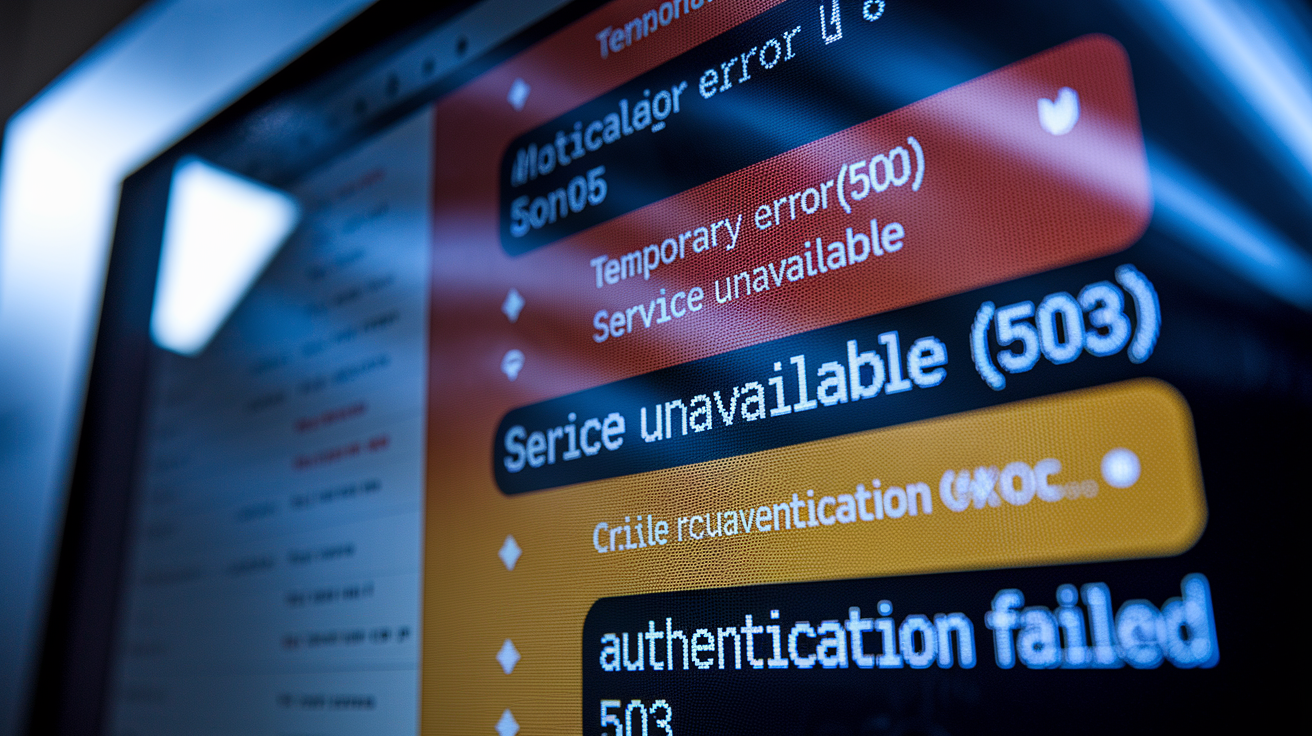
Error messages give you specific clues about what’s failing in Gmail’s complex chain of authentication, connection, and data retrieval. Reading these messages right helps you decide whether to troubleshoot or wait.
| Error Type | Common Message | Meaning | Action |
|---|---|---|---|
| Authentication Errors | “Couldn’t sign in” or “Username and password not recognized” | Login credentials rejected or account access blocked | Reset password, check account status, verify 2FA settings |
| Server Errors | “Temporary Error (500)” or “Bad Gateway (502)” or “Service Unavailable (503)” | Gmail servers unable to process request | Wait 5-10 minutes and retry; check status pages if persists |
| Timeout Errors | “Request Timeout” or “Connection timed out” | Server took too long to respond, indicating overload or connectivity issues | Refresh page; check network connection; try different network |
| Attachment Failures | “Couldn’t attach file” or “Attachment upload failed” | File upload interrupted or file type/size restrictions triggered | Reduce file size; check file type restrictions; try again |
| Temporary Account Blocks | “Suspicious activity detected” or “Unusual activity blocked” | Security system flagged login attempt from new location or unusual behavior | Verify your identity through recovery options; enable 2FA |
Server errors (500, 502, 503) lasting 20 minutes or more? That’s Google-side infrastructure problems, not something you can fix. These HTTP status codes mean Gmail’s servers are overloaded, misconfigured, or experiencing failures between system components. When they appear briefly and sporadically, it’s temporary capacity constraints. When they persist across multiple retry attempts over extended time, it’s a genuine outage affecting lots of users at once.
Error messages suggesting immediate action include authentication failures (fix your credentials), attachment problems (adjust your file), and security blocks (verify your identity). Error messages suggesting you should wait include persistent server errors, widespread timeout failures, and error codes appearing at the same time DownDetector spikes.
Immediate Workarounds While Gmail Is Down

When Gmail goes down, you need alternative communication methods to stay productive and make sure critical messages reach people without delay.
Things to do immediately during a Gmail outage:
- Use the Gmail mobile app if the web version’s down, or switch to the web version if the mobile app’s failing. Outages sometimes hit only one platform while leaving others working
- Forward important emails to a backup email account you set up previously, letting you receive messages even when direct Gmail access is unavailable
- Use Google Takeout to download your recent emails for offline access, giving you the ability to review past conversations and find information without connecting to Gmail servers
- Communicate via alternative platforms like Slack, Microsoft Teams, SMS, or phone calls to reach colleagues and clients during extended outages
- Set up an email client like Outlook or Thunderbird with IMAP configuration for your Gmail account, which keeps local copies of messages and lets you read emails offline
Tell your frequent contacts and colleagues about temporary communication channels they can use to reach you. Send a quick message via text, Slack, or alternative email explaining that your Gmail’s having issues and providing backup contact methods. This stops missed opportunities and reduces frustration for people trying to get in touch.
Once Gmail service comes back, check both your sent and received folders to verify no messages got lost during the outage. Gmail generally queues outgoing messages and delivers them once service resumes, but confirming delivery prevents gaps in communication. Review timestamps to spot any messages that may have been delayed or failed to send completely.
Checking Google Workspace Status for Official Updates

Official status information from Google gives you authoritative confirmation of outages and estimated resolution times that third party monitoring services can’t match.
Access the Google Workspace Status Dashboard at https://www.google.com/appsstatus/dashboard/ to see real-time status for Gmail and all related Google services. The dashboard uses color-coded indicators to show service health: green means operational with no known issues, yellow indicates service disruption affecting some users or specific features, and red signals a service outage with widespread impact and degraded functionality.
What the status dashboard tells you:
- Current service status across all Google Workspace products, letting you see if problems extend beyond Gmail to Drive, Calendar, Meet, or other services
- Detailed incident descriptions with timestamps showing when the problem started, what symptoms users are experiencing, and which geographic regions are affected
- Estimated time to resolution when available, though Google often updates this estimate as their engineering team learns more about root causes
Subscribe to Google Workspace status notifications for proactive alerts delivered via email or RSS feed. This subscription gets you incident notifications as soon as Google posts them, rather than having to manually check the dashboard. For business critical Gmail dependencies, status notifications reduce uncertainty during outages and help you make informed decisions about alternative communication channels.
When to Contact Google Support About Gmail Issues

Figuring out when you need support intervention versus when problems resolve automatically saves time and gets you help when you genuinely need it.
Contact Google Support for these account specific scenarios:
- Account locked or suspended without clear reason and the automated recovery process fails to restore access
- Persistent login failures after completing all standard troubleshooting steps and verifying credentials are correct
- Missing emails or apparent data loss affecting messages you previously received or folders you created
- Suspected security compromise including unauthorized access, suspicious login notifications, or unexplained account changes
- Billing or storage quota issues with Google Workspace paid accounts that prevent normal functionality
Available support channels depend on your account type. Free Gmail users access support through Google Help Center articles covering common problems and self-service solutions. Community forums provide peer assistance where experienced users and occasional Google employees respond to questions. Google Workspace paid account holders get direct support options including email, chat, and phone support depending on their subscription tier.
Before contacting support, gather relevant information to speed resolution. Screenshot any error messages you’re seeing, note the exact text of error codes, document troubleshooting steps you’ve already attempted, and have your account details ready including your email address and recovery information. Organized information helps support staff diagnose problems faster and reduces back and forth.
Preventing Gmail Access Issues and Future Disruptions
You can’t prevent Google-side outages, but you can implement strategies that minimize how much disruption impacts your productivity and communication when service degradation happens.
Things you can do to reduce vulnerability to Gmail outages:
- Maintain a backup email account with critical contacts, preferably on a different email platform (Outlook, ProtonMail, or Yahoo) so a Gmail outage doesn’t completely cut off your email access
- Keep an email client with offline access configured using IMAP, letting you read and compose messages even when Gmail servers are unreachable
- Regularly archive important emails locally to your computer, creating a permanent backup that survives both outages and potential account access issues
- Monitor your storage quota and stay well below the limit, since account level storage issues can compound service wide problems
- Enable two-factor authentication to prevent account lockouts from security alerts while keeping strong account protection
- Keep your browser and mobile apps updated to avoid compatibility issues that can block access during service instability
Don’t rely solely on Gmail for critical business communications. Spread important discussions across multiple platforms (Slack for internal team communication, calendar invites for meeting coordination, SMS for urgent notifications) so a Gmail outage doesn’t halt all operations. Business continuity planning should always include backup communication channels that operate independently of any single service.
Storage quota management deserves attention after the December 2020 outage caused by an internal storage quota issue. Keep your account at least 20% below your storage limit by regularly deleting unnecessary emails, removing large attachments, and archiving old messages to local storage. This buffer prevents your account from triggering quota related access restrictions that could lock you out during broader service disruptions affecting Google’s storage infrastructure.
Final Words
Gmail outages happen, but they’re relatively rare given the service’s overall reliability.
Most problems stem from local issues like browser cache, outdated apps, or connection glitches rather than Google-side failures.
When you’re wondering why is gmail down, check the official Google Workspace Status Dashboard first, then run through basic troubleshooting before assuming a widespread outage.
Keep a backup email account ready and consider setting up an email client with offline access so you’re not completely stuck during downtime.
With the right preparation and quick diagnostic steps, you can minimize disruption and stay productive even when Gmail hits a rough patch.
FAQ
Q: Is Gmail having problems today?
A: Gmail is currently operational with fewer than 2 issues reported in the last hour, which falls within normal service levels. You can verify real-time status through the Google Workspace Status Dashboard or DownDetector community reports to confirm current service health and any emerging disruptions.
Q: Why is Gmail suddenly not working?
A: Gmail suddenly stops working due to several reasons including weak internet connection, outdated browser software, incorrect login credentials, locked or disabled account status, or Google server issues. Check your internet connection first, then verify credentials and try accessing Gmail from a different browser or device to isolate the problem.
Q: Is Google’s network down today?
A: Google’s network is currently operational across most services. Check the Google Workspace Status Dashboard for official confirmation of service status across Gmail, Drive, Meet, Calendar, and other Google services, as this provides authoritative real-time information directly from Google about any network disruptions.
Q: How do I get my Gmail back to working?
A: Getting Gmail back to working requires systematic troubleshooting starting with simple fixes: check your internet connection, clear browser cache and cookies, try incognito mode or a different browser, restart your device, and update the Gmail app if using mobile. If these steps fail and DownDetector shows widespread reports, the issue is likely Google-side and requires waiting for resolution.
Q: How long do Gmail outages typically last?
A: Gmail outages typically last between 5 minutes and 12 hours depending on severity. Minor glitches resolve in 5-20 minutes, standard technical issues take 1-4 hours, infrastructure problems need 4-12 hours, while severe cascade failures can extend beyond 12 hours to multiple days as seen in the July 2023 outage.
Q: What does a Gmail server error mean?
A: Gmail server errors (500, 502, 503) mean Google’s servers are experiencing technical problems preventing normal service operation. These errors lasting 20 minutes or more typically indicate Google-side outages rather than user problems, requiring you to wait for Google engineers to resolve the infrastructure issue.
Q: Should I contact Google Support during a Gmail outage?
A: Contact Google Support only for persistent personal account issues like locked accounts, missing emails, or suspected security compromises, not during widespread outages. During confirmed service disruptions affecting multiple users, wait for Google to restore service rather than contacting support, as the problem requires infrastructure-level fixes.
Q: Can I access Gmail emails offline during an outage?
A: You can access Gmail emails offline if you previously configured an email client like Outlook or Thunderbird with IMAP settings, or enabled Gmail’s offline mode in Chrome. Without prior setup, use the Gmail mobile app as an alternative if the web version is down, since different access methods sometimes work during partial outages.

